User manual
Aeromec · precision machining
From the request for quotation to the certificate of conformity: programmes, engineering and changes, work orders, shop floor, quality and the ISO 9001 / EN 9100 management system, warehouse and traceability, MRP, purchasing and invoicing, explained section by section with screenshots of the app.
Getting started
Welcome
What Aeromec is, how all the work of a precision machining shop fits into the application and how to get the most out of this manual.
Aeromec is the management application for a precision machining shop serving aerospace and defence. It brings together in one place the full cycle of each part: the customer's request for quotation and the quote with quantity price breaks, the customer-approved manufacturing routing with its control plan and its cost breakdown, the work orders (WO) and their planning on each machine, the shop-floor terminal the operators work from, the maintenance of the machines, quality (inspections, first article, nonconformances and corrective actions), traceability by heat and serial number, MRP and purchasing, shipments with their certificate of conformity and, at the end, the invoice and the payment, with what comes after: bank reconciliation, accounting and tax (sending invoices to the Spanish Tax Agency, AEAT, VAT and Intrastat).
And around all of it, the aerospace quality system (ISO 9001 and EN 9100): the programmes (the aircraft, engine or system the parts are made for, with its production rate), each customer's requirements and the contract review before committing, the electronic signature of whatever is inspected, released or approved, controlled documentation, the management system (objectives, risks, audits and management review), each person's competence, drawing or process changes with their impact, and the standard, clause by clause, with where Aeromec covers it.
Everything is connected: the approved routing decides what can be made and from which material; its cost breakdown gives the cost per part from which prices are quoted; when a WO is released the heat is reserved, and the operator sees on the tablet their queue, the drawing, the CNC program and the control plan; whatever is measured stays linked to the gauge it was measured with; and for every part delivered you know which heat it came from, which machines it was made on, who made it, what it was measured with and who released it with their signature. And every invoice, receipt and payment is posted to the accounts automatically and recorded for the Tax Agency.
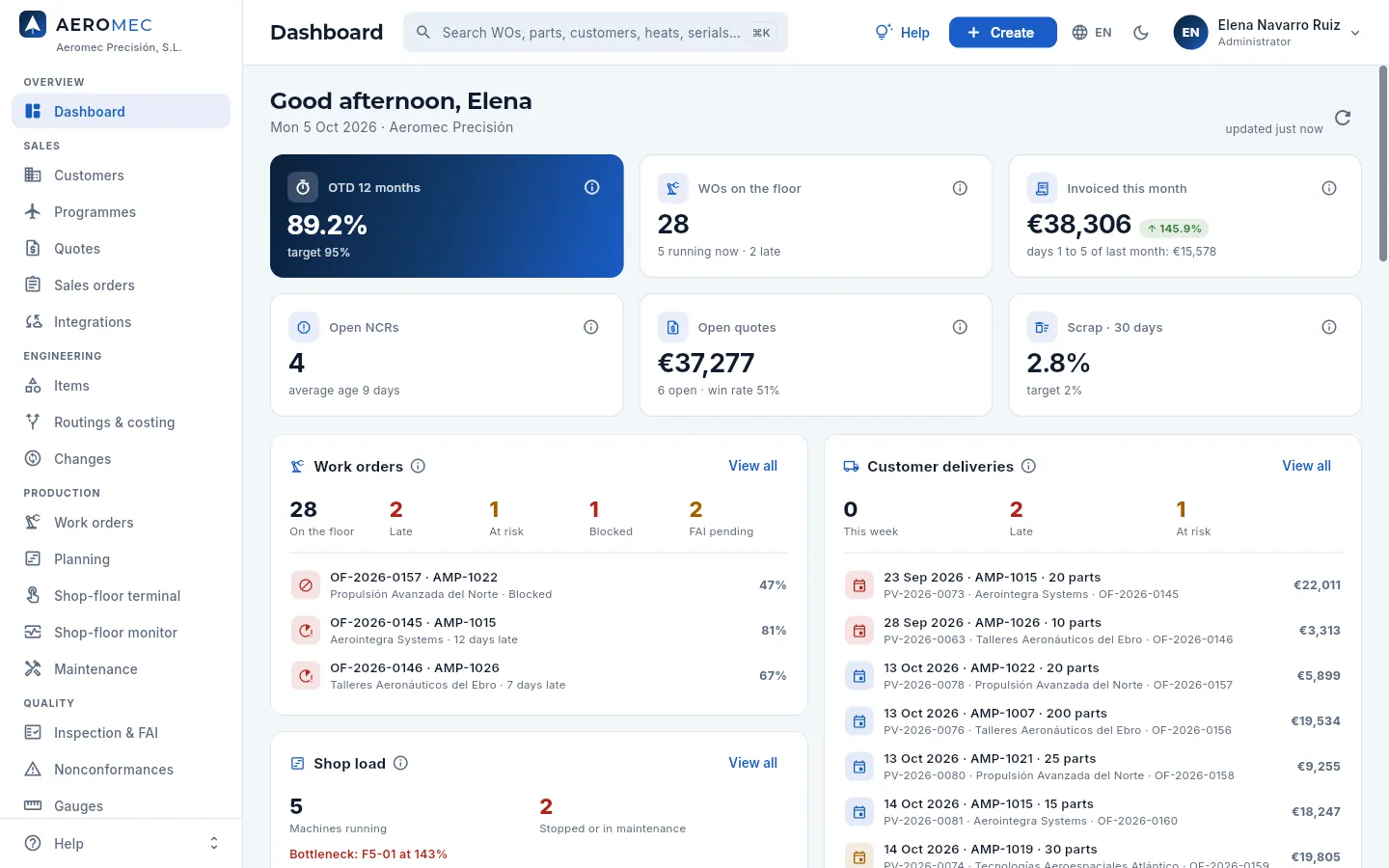 12345
12345
- 1The sidebar takes you to each section, grouped by area: Overview, Sales, Engineering, Production, Quality, Quality system, Logistics, Supply, Resources and Finance.
- 2The search box finds any WO, part, customer, quote, heat, serial number or invoice from any screen.
- 3Create adds a quote, a WO, a customer, an NCR… without leaving where you are.
- 4Your user: your profile, your language and theme, the connection with Claude, «About» and signing out. If you are an administrator, also Users and Settings.
- 5The Help menu opens this manual —at the chapter for the screen you are on— and the interactive guides.
#The journey of a part
This is how an order travels through Aeromec, from the request for quotation to the last payment. Each step is a section of the application and a chapter of this manual (click any of them to go to it):
- 1Routing and cost breakdownOperations, control plan and the materials the customer accepts; from there, the cost per part.
- 2QuoteQuantity price breaks taken from the cost breakdown, with their lead time and the signed contract review. Sent as a PDF.
- 3OrderWhen the quote is accepted, the sales order is created, with its scheduled deliveries.
- 4Work orderReleased to the shop floor: routing frozen, material chosen, heat reserved, first article decided.
- 5PlanningEach machine with its queue and the hour-by-hour forecast, at real capacity.
- 6Shop-floor terminalThe operator clocks on, books good and rejected parts, and takes their gauges.
- 7QualitySigned inspections with in-date gauges, EN 9102 first article and nonconformances.
- 8ShippingDelivery note with its certificate of conformity (CoC) and the material certificates.
- 9Invoice and paymentWhat has been shipped is invoiced and recorded for the Tax Agency; the payment closes the loop.
- 10Bank and accountsThe receipt is matched with the bank statement and everything is posted to the accounts.
#Where to start, depending on your job
In Aeromec each person sees what their access profile allows (see Profiles and permissions). These are the chapters you will use most, depending on your job:
| Your job | Start with | And then |
|---|---|---|
| Management | Dashboard, Reports | Work orders, Programmes, Management system, Invoices, Accounting, Users |
| Engineering office | Routings & costing, Items | Changes, Quotes, Nonconformances |
| Sales | Quotes, Customers | Programmes, Sales orders, Integrations |
| Planning | Work orders, Planning | MRP, Work centres |
| Shop supervisor | Shop-floor monitor, Planning | Shop-floor terminal, People, Competence & training |
| Operator | Shop-floor terminal | — |
| Maintenance | Maintenance | Shop-floor monitor, Planning, Purchasing |
| Quality | Inspection & FAI, Nonconformances | Gauges, Traceability, Management system, Documentation, Standard |
| Warehouse | Warehouse, Shipments | Purchasing (receipts), Traceability |
| Purchasing | MRP, Purchasing | Suppliers, Warehouse |
| Finance | Invoices, Payables, Banking | Accounting, Tax, Customers, Suppliers |
| External auditor (read only) | Standard, Management system | Documentation, Inspection & FAI, Nonconformances, Traceability, Audit log |
The external auditor row is for whoever comes to audit the shop (for certification or for a customer): they sign in with a read-only profile that expires on a set date (see Users and profiles).
If this is your first time in, read Signing in to Aeromec and The screen and common features first: they explain what works the same way in every section (searching, filtering, opening a record, filling in a form, signing).
#How to read this manual
- Annotated screenshots. Every screenshot is of the real application. The numbers 1 point to the parts explained below, in the legend. Hover over a mark or over its line in the legend and the area is highlighted on the screenshot; click the screenshot to see it full screen.
- On-screen labels. What you see written on a button, a tab or a field appears like this: Create, Save. Keys, like this: ⌘K.
- Steps. Tasks are explained step by step in numbered boxes, with what happens at the end.
- Coloured boxes. Tips are in green, important points in amber, standards (ISO 9001, EN 9100, EN 9102, EN 10204…) with a blue stripe on the left, how a figure is calculated in light blue, and what changes depending on your access profile with a padlock.
- Search. The search box on the left (or the / key) finds any word in the whole manual.
- Print. Print or save as PDF, at the bottom left, gives you the manual on paper or as a PDF, each chapter on its own page.
#How this manual is organised
After these first steps, each chapter matches a section of the application's sidebar, in the same order and with the same icon. At the end come the appendices: profiles and permissions, glossary and frequently asked questions.
Sales
CustomersRequirements, backlog and serviceProgrammesThe customer's rate, on the shop floorQuotesPrices straight from the should-costSales ordersOn-time deliveriesIntegrationsOrders and invoices via cXMLEngineering
ItemsParts, materials and toolsRoutings & costingHow it is made and what it costsChangesEvery change, assessed and signedProduction
Work ordersEvery batch along its routingPlanningThe order on every machineShop-floor terminalThe work, at the machineShop-floor monitorThe shop at a glanceMaintenanceMachines ready, no surprisesQuality
Inspection & FAIMeasure, release and watch the processNonconformancesContain, decide and correctGaugesCalibrated, located and tracedQuality system
Management systemObjectives, risks, audits and improvementDocumentationOnly what is current, signed and readStandardWhat the standard requires, and where it isLogistics
WarehouseEvery kilo, with its lot and its placeTraceabilityThe full history of every partShipmentsEvery shipment with its CoCSupply
MRPWhat to buy, how much, whenPurchasingOrder, receive and inspectSuppliersWho you may buy fromResources
Work centresMachines, capacity and calendarPeopleQualifications, PIN and hoursCompetence & trainingEveryone qualified for what they doFinance
InvoicesInvoice and collectPayablesSupplier invoices and paymentsBankingStatements and bank reconciliationAccountingAutomatic, exportable entriesTaxSII, VAT and IntrastatReportsHow the shop is doingGetting started
Signing in to Aeromec
How to sign in with your account, the demo accounts, the video and documents on the sign-in screen, your profile (language and theme), access with an end date and how to sign out.
Each person in the shop signs in to Aeromec with their own user: an email and a password. What they see afterwards depends on their access profile (management, engineering office, sales, planning, shop supervisor, operator, quality, maintenance, warehouse, purchasing, finance or external auditor): the sections in the sidebar, the figures they can look at and what they can create or change. Accounts are created by an administrator in Users; there is no open sign-up.
- 1The administrator creates your userWith your email, your name, your job title and a password.
- 2They assign you an access profileSales, quality, operator… it decides what you see and what you can do.
- 3You sign in with your emailOn the sign-in screen, with your password.
- 4You start on the DashboardWith your profile's sections and figures (operators, on the shop-floor terminal).
#The sign-in screen
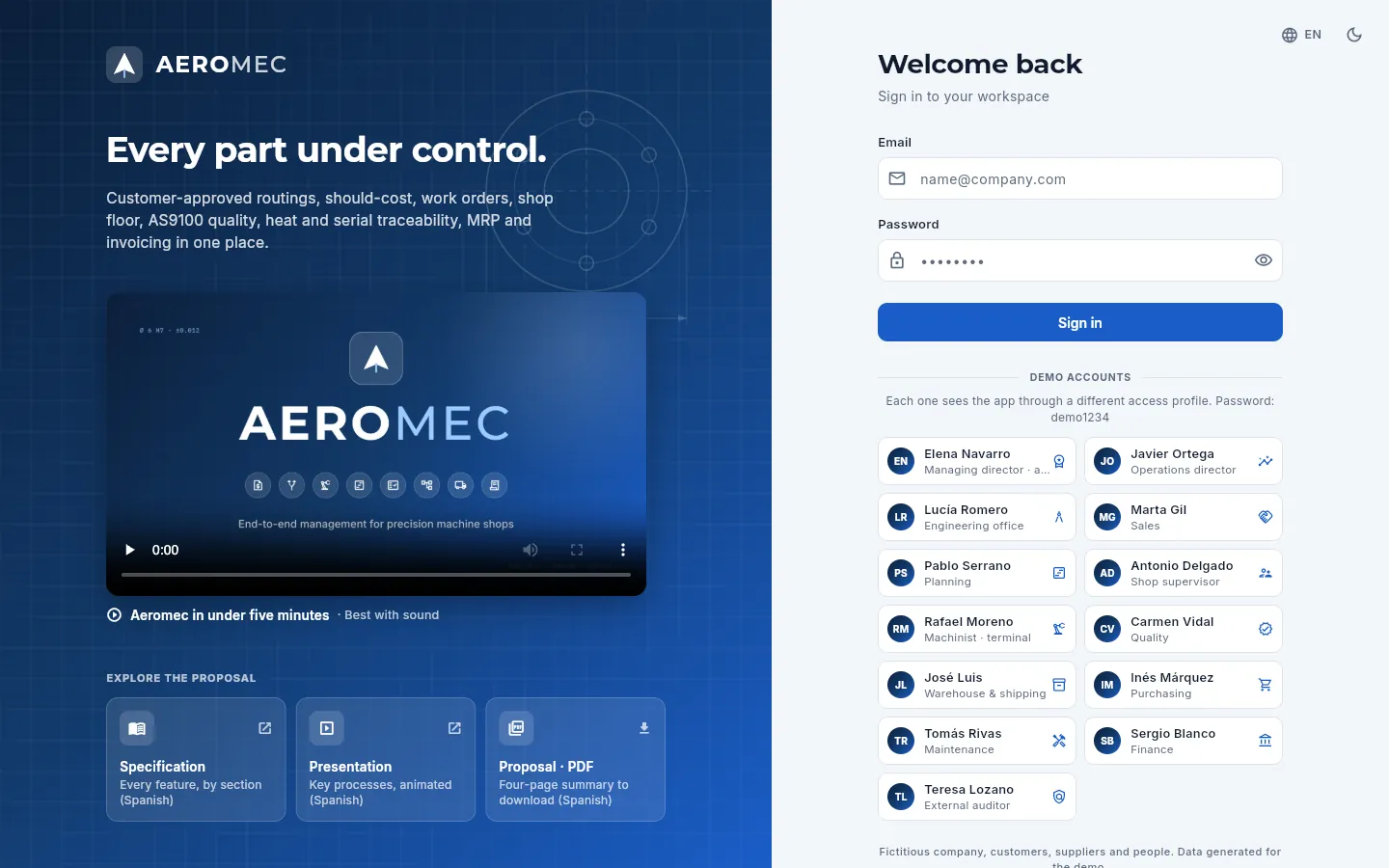 12345678
- 1Email: the address the administrator registered you with.
- 2Password. The eye on the right shows or hides it while you type.
- 3Sign in (or the Enter key in the password field) opens your workspace.
- 4Demo accounts: in the demo, one click on a person signs you straight in with their account.
- 5The presentation video: what Aeromec does, in under five minutes. Press ▶ to watch it (best with sound).
- 6Explore the proposal: Aeromec's specification, presentation and PDF summary.
- 7The application's language (Spanish or English), right from the sign-in screen.
- 8Switches between light and dark mode.
On narrow screens (a phone or a small window) the presentation on the left disappears and only the form remains, with the logo at the top and, below the demo accounts, the video and the proposal documents. In both, clicking the Aeromec logo opens its presentation website.
Type your email in the Email field.
Type your password in Password. If you want to check what you have typed, press the eye on the right.
Press Sign in or the Enter key.
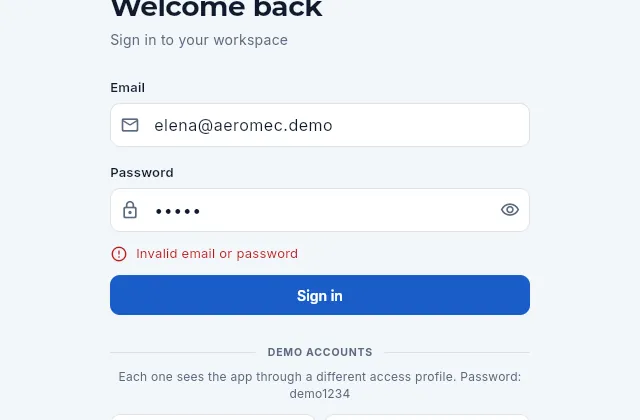 1
1
- 1Invalid email or password: check both fields (capital letters matter in the password). If the message is «Could not reach the server», the problem is the connection, not your details.
#The demo accounts
In the demo version, thirteen fictitious people from the sample shop («Aeromec Precisión») appear below the form. Each one has a
different access profile, so you see the same application as each job would see it. They all use the password demo1234.
| Person | Job (profile) | What they see, in short |
|---|---|---|
| Elena Navarro | Managing director · administrator | Everything; she also manages users, profiles, the company settings and the audit log |
| Javier Ortega | Operations director (Management) | Every section, with costs, prices and margins, and reports; approves concessions |
| Lucía Romero | Engineering office | Items, routings, control plans and cost breakdowns, with costs but without selling prices |
| Marta Gil | Sales | Customers, quotes and orders with selling prices, without costs or margins |
| Pablo Serrano | Planning | WOs, queue planning, MRP and proposals, without selling prices |
| Antonio Delgado | Shop supervisor | WOs and their progress, planning, terminal, monitor and time records, without financial data |
| Rafael Moreno | Shop-floor operator | Only the shop-floor terminal: his queue, his time records, his gauges and the instructions |
| Carmen Vidal | Quality | Inspections, FAI, nonconformances, CAPA, calibrations and traceability |
| José Luis Prieto | Warehouse and shipping | Stock, lots, receipts, cycle counts, shipments and traceability, without costs |
| Inés Márquez | Purchasing | Purchase orders, suppliers, MRP and receipts, with purchase costs |
| Tomás Rivas | Maintenance | The machines and their plans, work orders and breakdowns, corrective actions and the replenishment of tools and spare parts, with their cost |
| Sergio Blanco | Finance | Customer and supplier invoices, collections and payments, bank reconciliation, accounting and tax (sending to the Tax Agency), with every amount and without defence |
| Teresa Lozano | External auditor | Read only access to what an audit reviews: parts, routings, WOs, quality, nonconformances, gauges, traceability, shipments, suppliers, purchasing, people, machines, the management system, documentation, the standard and the change audit log; without amounts, contacts or defence. Her access ends 30 days after the last demo reload |
The chapter The screen and common features explains how the screen shows what a profile cannot see (a padlock instead of the figure), and Profiles and permissions what exactly each profile allows.
#The proposal video and documents
In the presentation panel on the left there is a video of under five minutes about what Aeromec does. Press ▶ to watch it, ideally with sound; the full-screen button enlarges it and, in the player's ⋮ menu, you can turn on subtitles.
Below it, the Explore the proposal block brings together three documents about Aeromec, meant for whoever is evaluating it:
- Specification — everything it does, section by section. Opens in a new tab.
- Presentation — the key processes, animated. Opens in a new tab.
- Proposal · PDF — a four-page summary that is downloaded to your computer.
If the browser blocks the new tab, Aeromec warns «Could not open the document»: allow pop-ups for the page and press again.
#If you forget your password
Aeromec does not send password-recovery emails: accounts are managed by an administrator. Ask them to go into Users (in their user menu), open your record and use Reset password: they will set a new one (at least 8 characters long), which they should pass on to you securely. The old one stops working immediately. The change is recorded in the access change history.
#Your user menu and «My profile»
At the top right is your user button: your initials, your name and your access (the name of your profile or «Administrator»). Clicking it opens your menu.
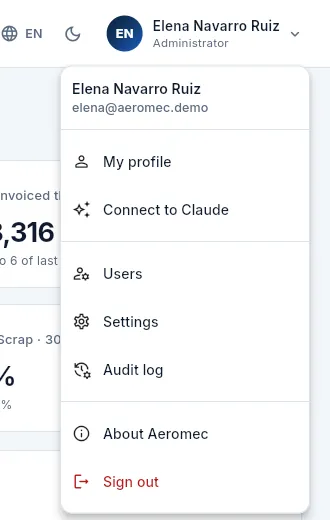 12345
12345
- 1My profile: your details, the language and the theme.
- 2Connect to Claude: work with Aeromec from a chat with Claude (see Connect to Claude).
- 3Only administrators see Users and Settings here; the Audit log, whoever has its permission.
- 4About Aeromec: the version that is running and the tests it passed (see The screen).
- 5Sign out takes you back to the sign-in screen.
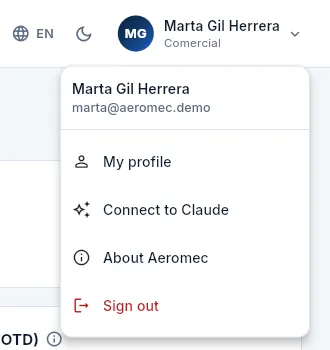 1
1
- 1Everyone else has My profile, Connect to Claude, About Aeromec and Sign out.
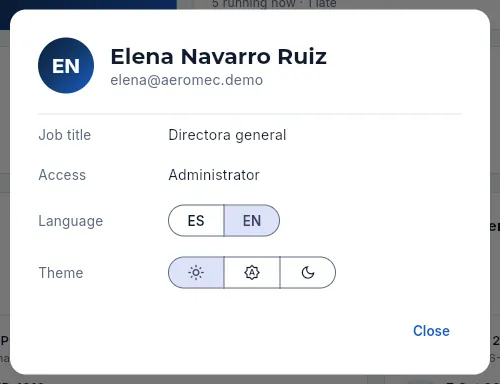 12345
12345
- 1Job title: your position in the company, as the administrator entered it.
- 2Access: «Administrator» or your access profiles. If you have several, they are joined with «+».
- 3Language: ES (Spanish) or EN (English). It switches the whole application instantly.
- 4Theme: light, «System» (whatever your computer or phone uses) or dark.
- 5Close the dialog: the changes are already applied.
Click your user button, at the top right, and choose My profile.
Under Language, click ES or EN.
Under Theme, click the sun (light), the automatic icon («System») or the moon (dark).
Click Close.
#The shop-floor terminal
The shop tablets usually have a session open for a user with the Shop-floor operator profile (in the demo, Rafael Moreno). That profile only has the terminal, so Aeromec opens it full screen, with no sidebar: at the top, the brand, help, language and user; below, the machines and their queues. Each operator then identifies themselves on the terminal itself with their four-digit PIN, without closing the tablet's session. It is all explained in Shop-floor terminal.
If your profile has the terminal and other sections (the shop supervisor, for example), the terminal opens from the sidebar and, at the top right, Leave terminal takes you back to the rest of the application.
#Signing out
Click your user button, at the top right.
Choose Sign out (in red, at the end of the menu).
#If your user has no access profile
A user who is not an administrator needs at least one access profile to see anything. If an administrator creates your account without a profile (or removes all of them), when you sign in you will see the No access profile screen: «Your user has no access profile assigned yet, so nothing can be shown. Ask an administrator to assign one.», with your email and the Sign out button. When the administrator assigns you a profile, sign in again. The same screen appears when your access has reached its end date (see below).
#If your access has an end date
An administrator can give a user an access end date: it is the usual thing for an external auditor, a consultant or someone working in the shop for a few weeks. Until then, your user menu reminds you of it below your email.
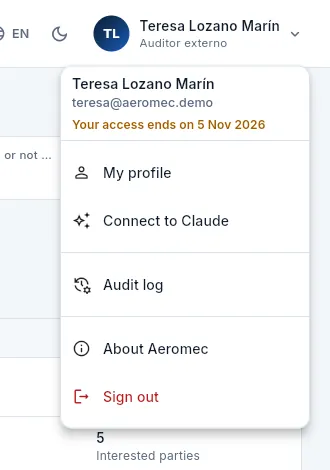 12
12
- 1Your access ends on …: the date set by the administrator, in amber.
- 2Her profile, External auditor, is read only; it includes the change Audit log.
From the day after that date you can no longer see or do anything: when you sign in you get the No access profile screen with the notice «Your access to Aeromec ended on … If you need to continue, ask an administrator to extend it.» and the Sign out button. Your data and what you did are kept; only the door is closed. To extend the date or remove it, see Users and profiles.
#Signing in from a phone or tablet
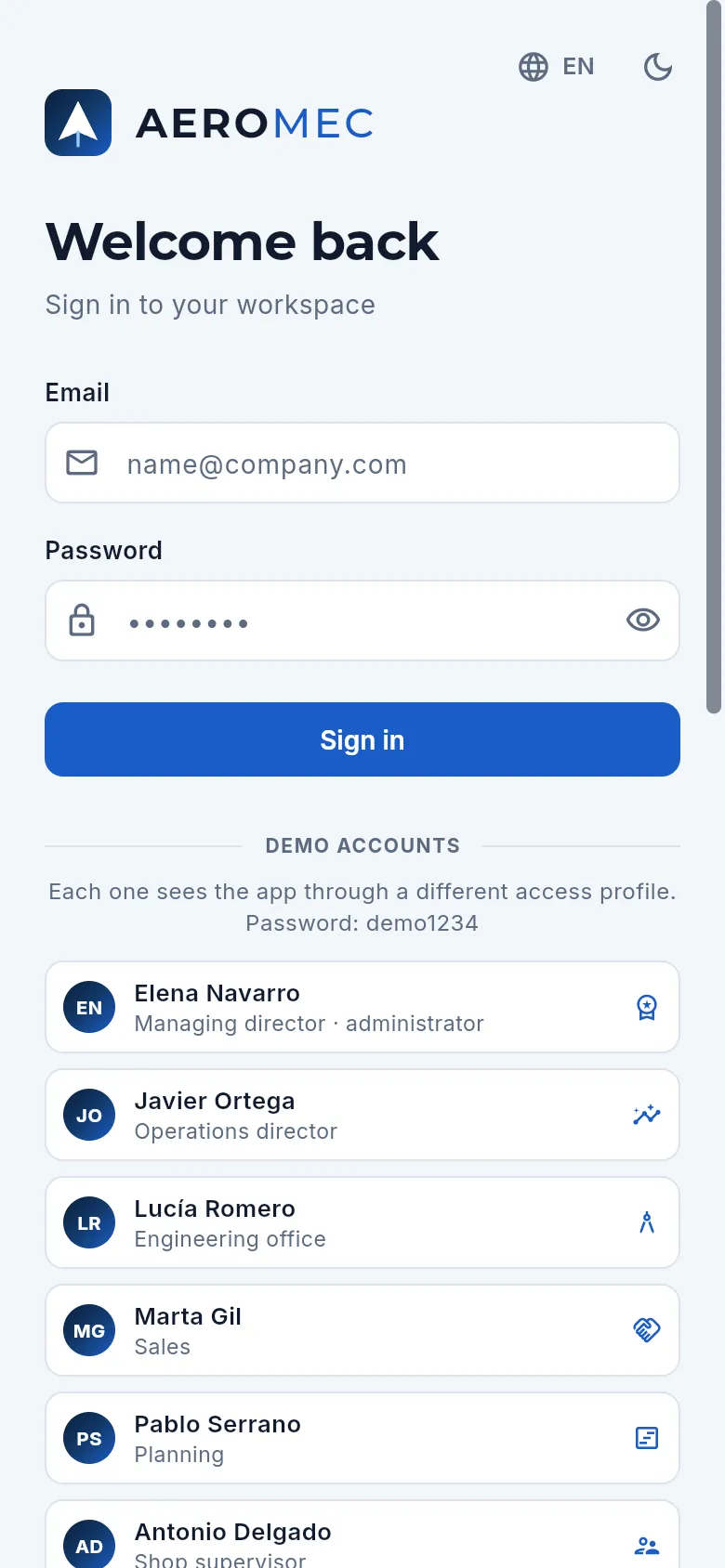 12
12
- 1The same form: email, password and Sign in.
- 2The demo accounts, one below the other. Scroll down to see the rest, the video and the proposal documents.
Aeromec works the same way in the browser of a phone or a tablet. If you are going to use it often, add it to the home screen from the browser menu («Add to Home Screen»): it will open like any other app.
Getting started
The screen and what is common
The parts of the screen and everything that works the same way in every section: the sidebar, the search, the Create button, help, the notification bell, lists, records with their documents and changes, forms, the electronic signature and the Signatures tab, the ⓘ icons, what your profile hides, «About» and the phone and tablet version.
Every section of Aeromec shares the same structure and the same building blocks: the side bar to move around, the top bar with search and the button to create things, lists that are searched and filtered the same way, records that open on the right with their documents and their changes, and forms with the same buttons. What you learn here works on any screen.
The only exception is the shop-floor terminal: it opens full screen, without the side bar, to be used on a tablet next to the machine (see Shop-floor terminal).
#The parts of the screen
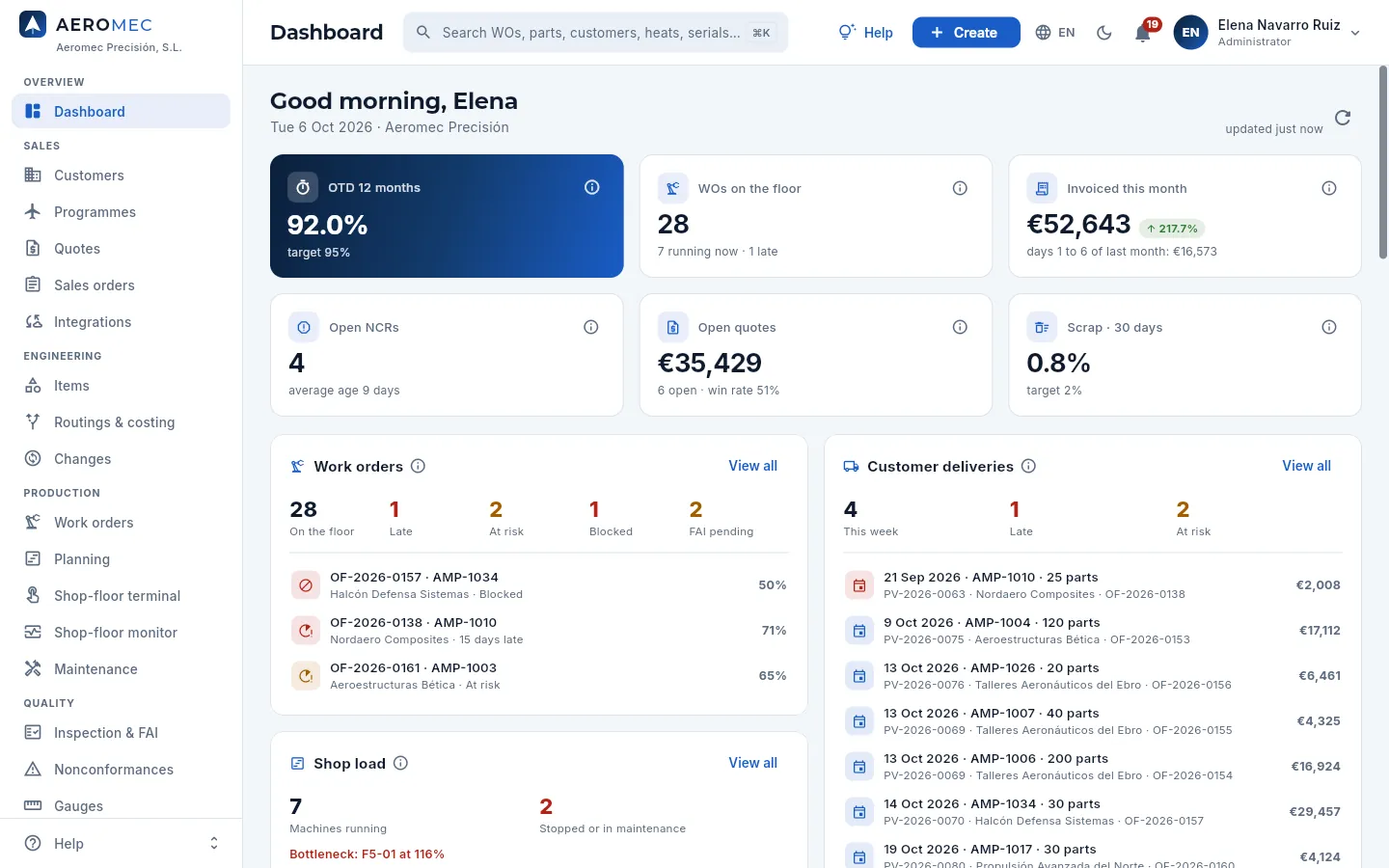 1234
1234
- 1Side bar: the sections, grouped by area. The section you are in is highlighted.
- 2Help menu, fixed at the foot: this manual and the interactive guides.
- 3Top bar: the title of the section and the tools that work on any screen (details below).
- 4The content of the section; it changes when you choose another one in the side bar.
 12
12
- 1The title of the section you are in.
- 2The global search: click it or press ⌘K (Mac) / Ctrl+K (Windows).
 123456
- 1Help for the screen you are on, with its animated guides (also with the F1 key).
- 2Create: add a work order, a quote, a customer, an NCR… from any screen.
- 3Language: Spanish or English.
- 4Theme: the moon switches to dark mode; in dark mode, the sun goes back to light.
- 5The notification bell, with the ones you have not read (see Your notifications).
- 6Your user menu, with your name and your access profile underneath.
#Your notifications: the bell
The bell in the top bar brings you what concerns you: not everything that happens in the shop (that is on the Dashboard), but what you have to resolve, approve, read or keep an eye on according to your profile. The red number is the notifications you have not read yet; it refreshes by itself every few minutes. The bell is also on the shop-floor terminal.
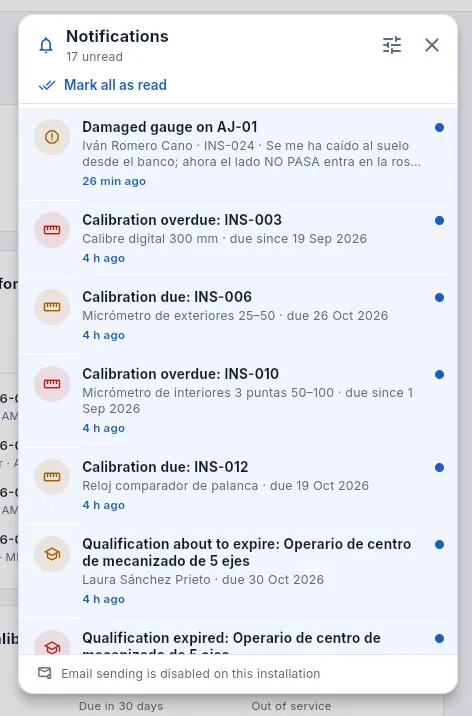 12345
12345
- 1How many you have unread.
- 2Marcar todos como leídos at once.
- 3Settings: which notifications you want and whether by email too.
- 4A notification: what happened, the details and when. Click it to open its record (the work order, the NCR, the maintenance work order, the gauge…) and it is marked as read.
- 5Whether email sending is active on this installation.
What the bell notifies and to whom (each person only gets the types that make sense for their profile):
| Notification | When it arrives | To whom |
|---|---|---|
| Shop-floor incidents | An operator logs an incident at the terminal | Whoever resolves it: machine down, maintenance (it opens its work order); material shortage, warehouse and planning; program error and fixture, engineering; broken tool, warehouse; instrument, quality. All of them, the shop supervisor |
| Non-conformances | An NCR is opened | Whoever dispositions NCRs; if it blocks a work order, also whoever releases work orders |
| Assigned to you | You are made owner of a maintenance work order, an action, a change or an NCR | You |
| Awaiting your approval | A change moves to evaluation, a document revision is sent for approval, a concession is requested from the customer | Whoever approves changes, documents or concessions |
| Documents to read | A revision of a document in your distribution is approved | Every person in its distribution |
| Customer complaints | A complaint is registered | Quality and sales |
| New orders | A customer order comes in (in the app or through an integration) | Sales and planning |
| Receipts to inspect | The warehouse receives material that needs inspection | Quality: the notification opens the pending inspection |
| SCAR answers | A supplier answers a SCAR | Quality, to verify and close it |
| Expiries | Once a day: calibrations, qualifications, supplier approvals and scopes (Nadcap…) and fixture verifications overdue or due soon | Whoever maintains them; your qualification, you; the gauge you have on loan, you |
| Overdue deadlines | Once a day: your actions, unanswered complaints, SCARs with no answer, maintenance work orders and periodic document reviews | The owner of each one |
| Deliveries at risk | Once a day: work orders that will not make their delivery date | Planning and, for customer orders, sales |
In Preferencias de avisos (in the bell or in your user menu) you choose, type by type, whether you want it in the bell and also by email. Emails go to your user's address, in your language, with a link that opens the record.
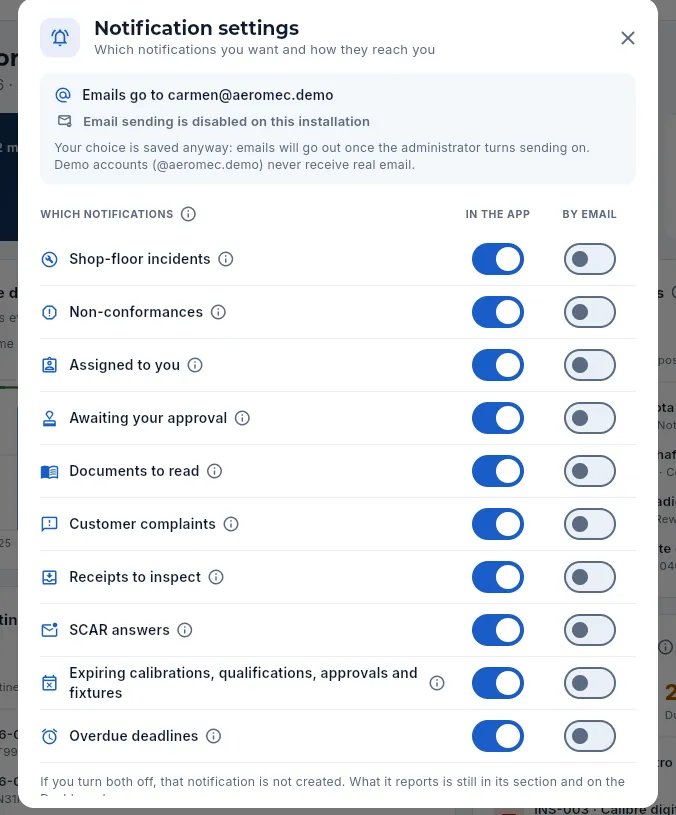 1234
1234
- 1Which address emails go to and whether sending is active on this installation.
- 2Each type of notification you can get; the ⓘ explains when it arrives and to whom.
- 3In the app: in the bell.
- 4By email: an email as well.
#Your user menu
Clicking your name, at the top right, opens your user menu. What is in it depends on your profile: the administration options are only shown to whoever has them.
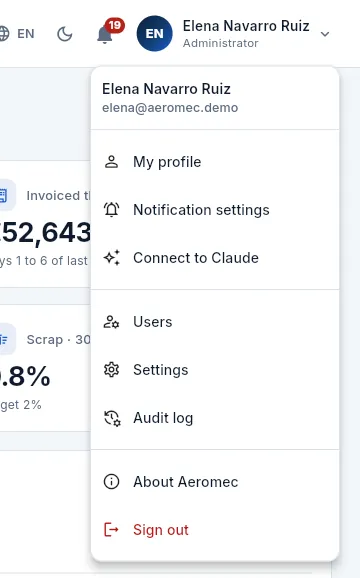 123456
- 1My profile: your job title and your access, and the language and theme you prefer.
- 2Preferencias de avisos: which bell notifications you want and whether by email too.
- 3Connect to Claude: work with Aeromec from a chat with Claude (see Connect to Claude).
- 4Users and Settings (administrators only) and Audit log (with the «See the change audit log» permission).
- 5About Aeromec: the version that is running and the tests it passed (see below).
- 6Sign out: you leave Aeromec and go back to the sign-in screen.
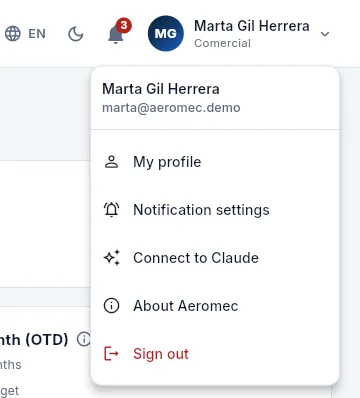 1
1
- 1No administration options: Marta goes straight from Connect to Claude to About Aeromec and Sign out.
If your user has an access end date (for example, an external auditor), the menu reminds you of it below your email: «Your access ends on …». After that date you can no longer see anything (see Signing in to Aeromec).
#About Aeromec
About Aeromec, in your user menu, tells you which version of Aeromec is running: when it was deployed, with which database changes and which automated tests it passed when it was installed. Anyone can open it.
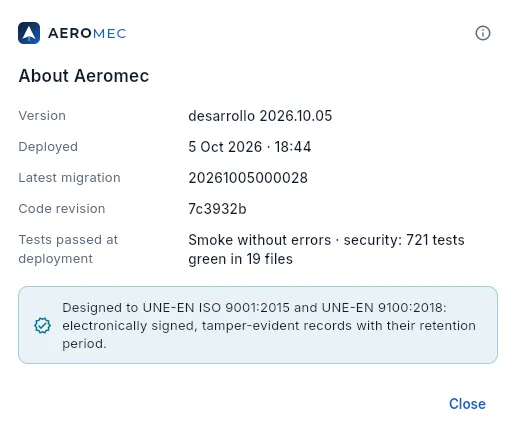 12345
12345
- 1The running version and when it was deployed.
- 2The latest migration (the latest change to the database) and the code revision that was installed.
- 3Tests passed at deployment: the smoke tests (the basics work) and the security tests, with how many passed and in how many files.
- 4The standards Aeromec is designed to.
- 5The ⓘ explains what this record is for in an audit.
Every time a new version is installed it is recorded with its result; earlier ones appear below, under Previous versions (in the demo, which is reloaded every day, there is only the development one). The full history and the verified backups are in Standard, in its validation view.
#The side bar
The sections are grouped by area, in the order the shop works: from the quote to the payment. You only see the ones your access profile allows: someone in Sales does not get, for example, Planning or Gauges, and the shop-floor operator only has the terminal.
| Area | Sections |
|---|---|
| Overview | Dashboard |
| Sales | Customers · Programmes · Quotes · Sales orders · Integrations |
| Engineering | Items · Routings & costing · Changes |
| Production | Work orders · Planning · Shop-floor terminal · Shop-floor monitor · Maintenance |
| Quality | Inspection & FAI · Nonconformances · Gauges |
| Quality system | Management system · Documentation · Standard |
| Logistics | Warehouse · Traceability · Shipments |
| Supply | MRP · Purchasing · Suppliers |
| Resources | Work centres · People · Competence & training |
| Finance | Invoices · Payables · Banking · Accounting · Tax · Reports |
| Administration | Users · Settings · Audit log (on a computer, in the user menu) |
The Quality system group brings together what does not belong to one part or one WO but to the whole shop: objectives, risks, audits and the management review; the system documentation; and the standard, with what each clause requires and where Aeromec covers it.
If the list does not fit, the bar scrolls; the Help menu always stays at the foot. When you change section, the screen you leave goes back to its initial state: if you had searched or filtered something, you will find it unfiltered when you come back.
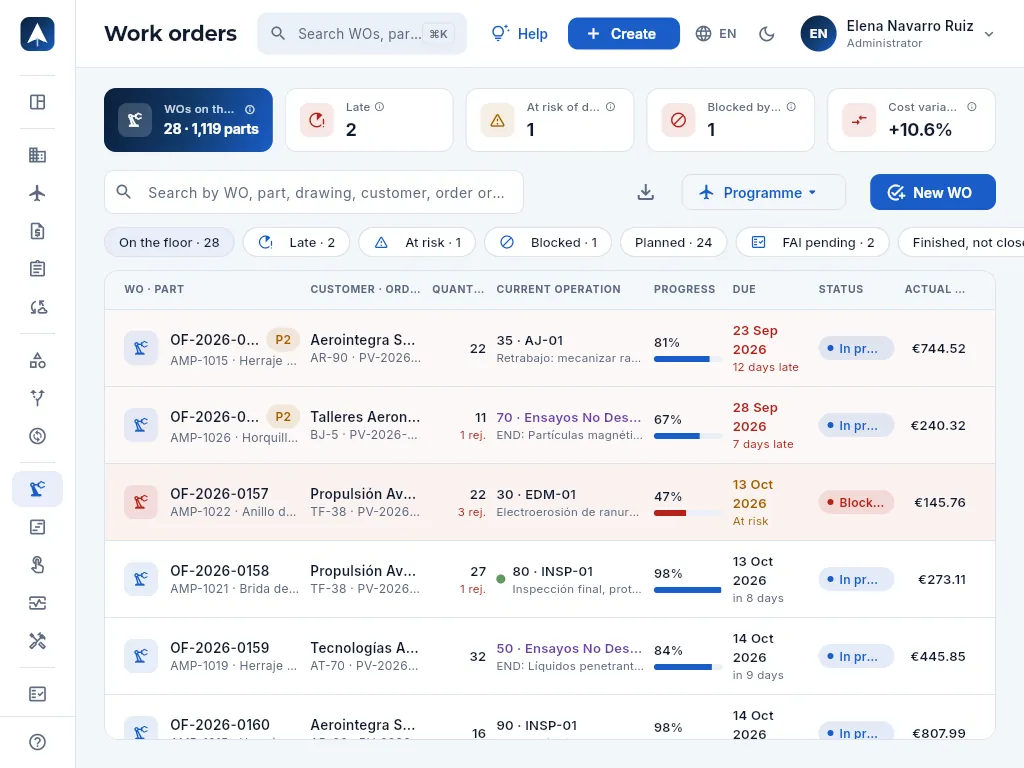 123
123
- 1Each icon is a section (hover over it to see its name); the areas are separated by a line.
- 2The Help menu stays at the foot.
- 3The search box narrows to make room for the title (and still opens with ⌘K / Ctrl+K).
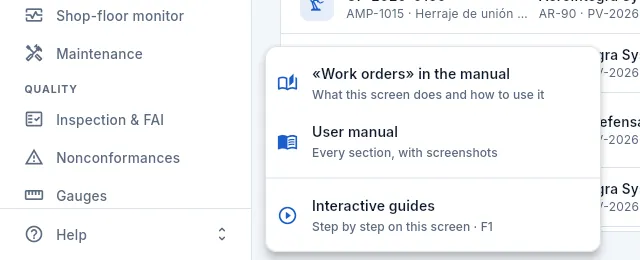 123
123
- 1Opens this manual at the chapter for the screen you are on (here, Work orders), in another tab.
- 2Opens the full manual, from the cover page.
- 3Opens the interactive guides for the screen (the same as the Help button at the top or F1).
#Help: interactive guides and this manual
There are two kinds of help inside Aeromec:
- This manual, which opens from the Help menu at the foot of the side bar, straight at the chapter for the screen you are on, in your language.
- The screen help with its interactive guides: the Help button in the top bar (or the F1 key) opens a panel on the right with what the section is and the tasks you can do in it. Each guide plays over real screenshots of the app: a pointer goes to the spot, highlights it and performs the action while each step is explained. On the shop-floor terminal, the button is in its header.
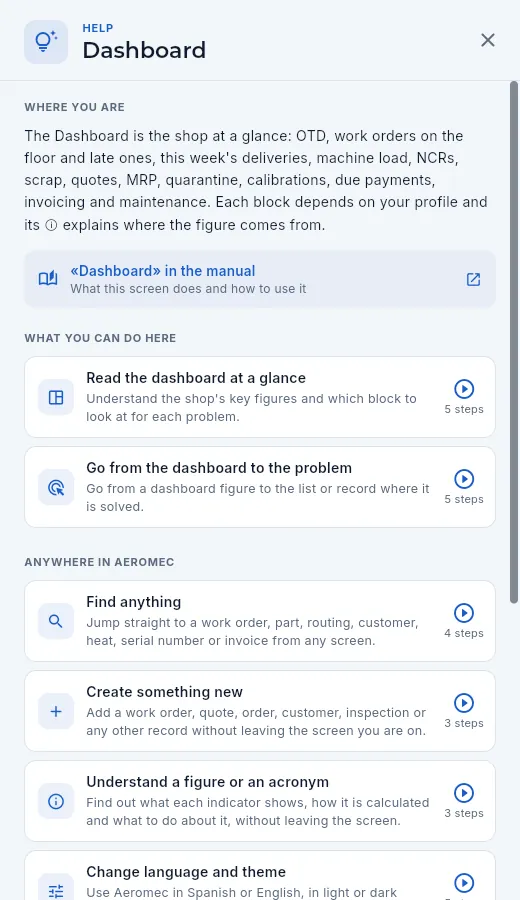 1234
1234
- 1Where you are: what this section is and what it is for.
- 2Link to this section's chapter in the manual.
- 3What you can do here: one guide per task, with its goal and the number of steps. Click it to watch it.
- 4Guides that work on any screen: searching, creating, understanding a figure, language and theme, documents, the manual and Claude.
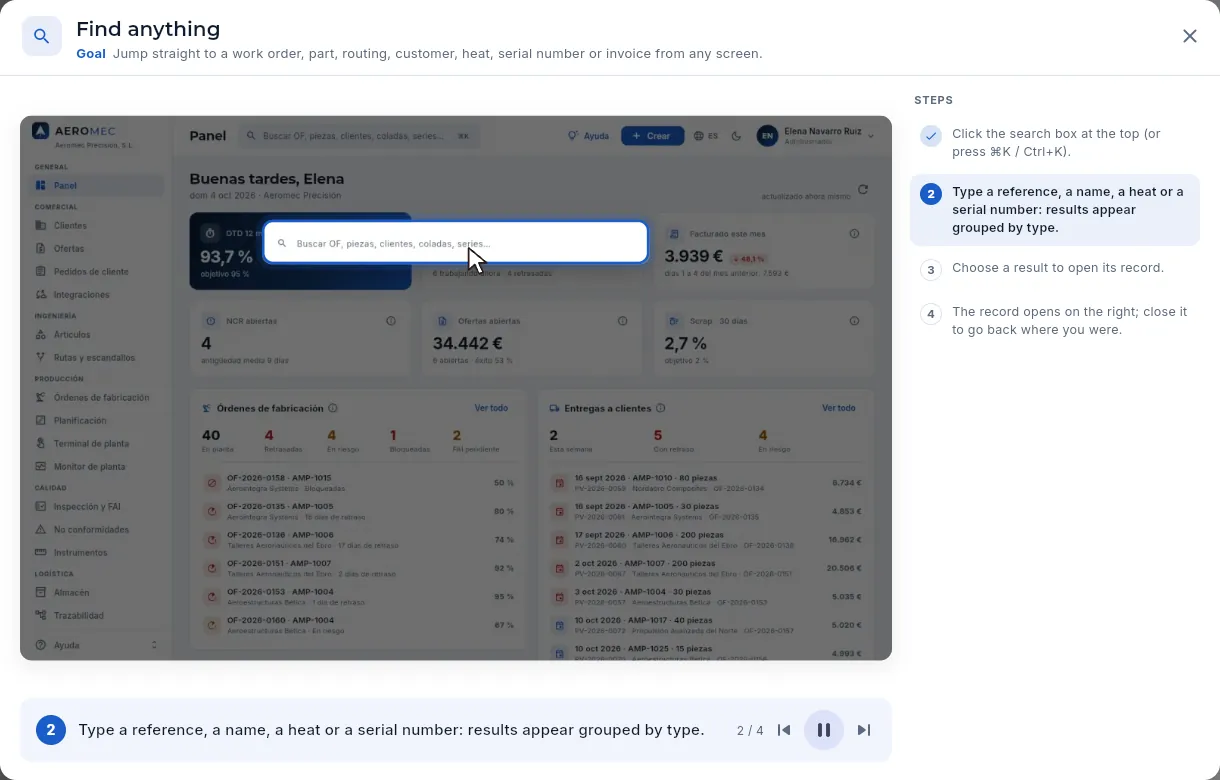 12345
12345
- 1The goal of the guide: what you are going to learn to do.
- 2The animated screenshot: the element of each step is highlighted and the pointer performs the action (click, type, scroll).
- 3The explanation of the current step.
- 4Controls: previous step, pause / play (at the end, «watch again») and next step. The guide moves on by itself.
- 5The list of steps: click any of them to jump straight to it.
#Finding anything
The global search in the top bar finds, from any screen, work orders, serial numbers, lots and heats, quotes, parts and items, suppliers, gauges, machines, people, routings, sales orders, integration messages, shipments, purchase orders, invoices, customers, maintenance equipment and work orders, programmes, changes, customer complaints, supplier SCARs, audits, risks, requirements, quality-system documents and the documents of each record (by their name or their note). It searches by name and also by number or code: «OF-2026-0158», «AMP-1015», a heat, a serial number, a CoC or the customer's order reference. It only shows what your profile can see.
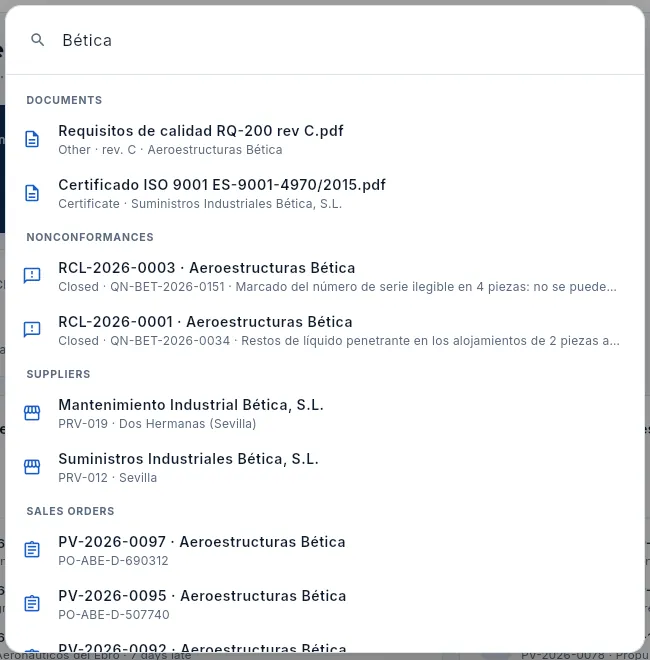 1234
1234
- 1Type at least two letters; results appear by themselves as you type.
- 2Results are grouped by type, each with its icon.
- 3Each result with the details that identify it (code, city, customer, status…). Click it to go to its section with the record open.
- 4The same name finds the customer and also their orders, delivery notes, complaints and documents.
Click the search box in the top bar, or press ⌘K (Mac) / Ctrl+K (Windows).
Type part of the name, the number or the code (for example «AMP-1015», «Bética» or a heat).
Click the result you are looking for.
#Creating something new
The Create button in the top bar adds, without leaving where you are, any record your profile is allowed to create: it opens the same form as the «New…» button in its section. Once saved, Aeromec takes you to that section.
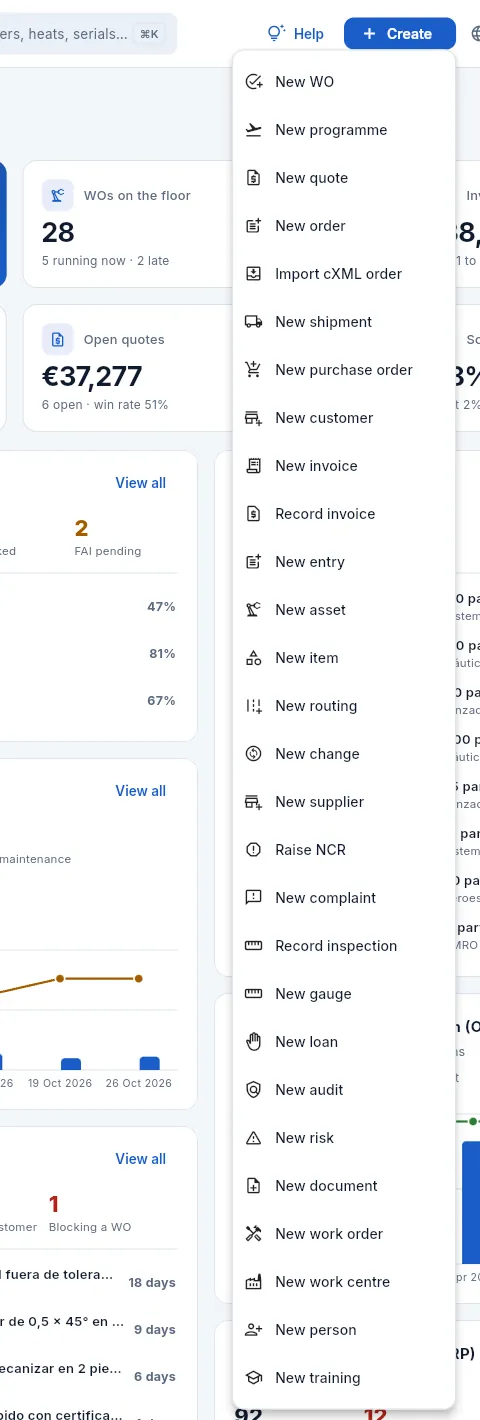 12345678
- 1Production: a work order.
- 2Sales: a programme, a quote, a sales order and importing a cXML order from the customer.
- 3Logistics and supply: a delivery note and a purchase order.
- 4A customer; below it, the invoice to a customer, recording a supplier's invoice and, in Accounting, a manual entry or a fixed asset.
- 5Engineering: item, routing and change request; and a supplier.
- 6Quality: NCR, customer complaint, inspection, gauge and gauge loan.
- 7Quality system: an audit, a risk and a document; and a maintenance work order.
- 8Resources: a machine or workstation, a person and a training session.
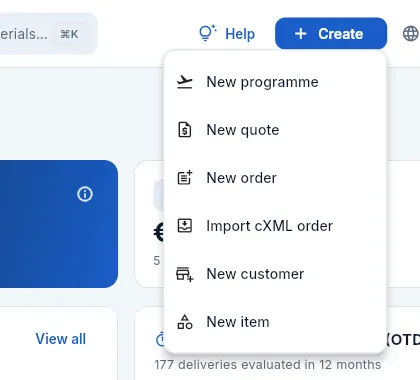 1
1
- 1Only the options the profile allows appear: here programme, quote, order, cXML order, customer and item.
| Option | Takes you to | Who sees it |
|---|---|---|
| New WO | Work orders | whoever can edit work orders |
| New programme | Programmes | whoever can edit programmes |
| New quote · New order · New customer | Quotes · Sales orders · Customers | whoever can edit them |
| Import cXML order | Integrations | whoever sees Integrations |
| New shipment | Shipments | whoever can ship |
| New purchase order · New supplier | Purchasing · Suppliers | whoever can edit them |
| New invoice | Invoices | whoever can invoice |
| Record invoice | Payables | whoever edits payables and sees costs |
| New entry · New asset | Accounting | whoever can post entries |
| New item · New routing | Items · Routings & costing | whoever can edit them |
| New change | Changes | whoever manages changes |
| Raise NCR · New complaint · Record inspection | Nonconformances · Inspection & FAI | whoever edits quality |
| New gauge · New loan | Gauges | whoever edits quality |
| New audit · New risk | Management system | whoever edits the management system |
| New document | Documentation | whoever edits documentation |
| New work order | Maintenance | whoever edits maintenance |
| New work centre · New person | Work centres · People | whoever edits resources |
| New training | Competence & training | whoever edits training |
If you cancel the form, nothing is created and you stay where you were. If your profile cannot create anything, the button does not appear.
#Language and theme
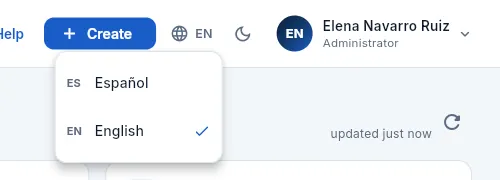 12
12
- 1The globe shows the current language (EN).
- 2Choose Spanish or English: the whole application changes at once.
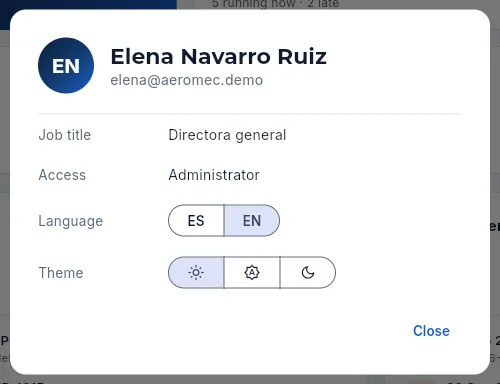 123
123
- 1Your job title and your access (your profile, or Administrator).
- 2The language.
- 3The theme: light, system (follows your computer or phone) or dark.
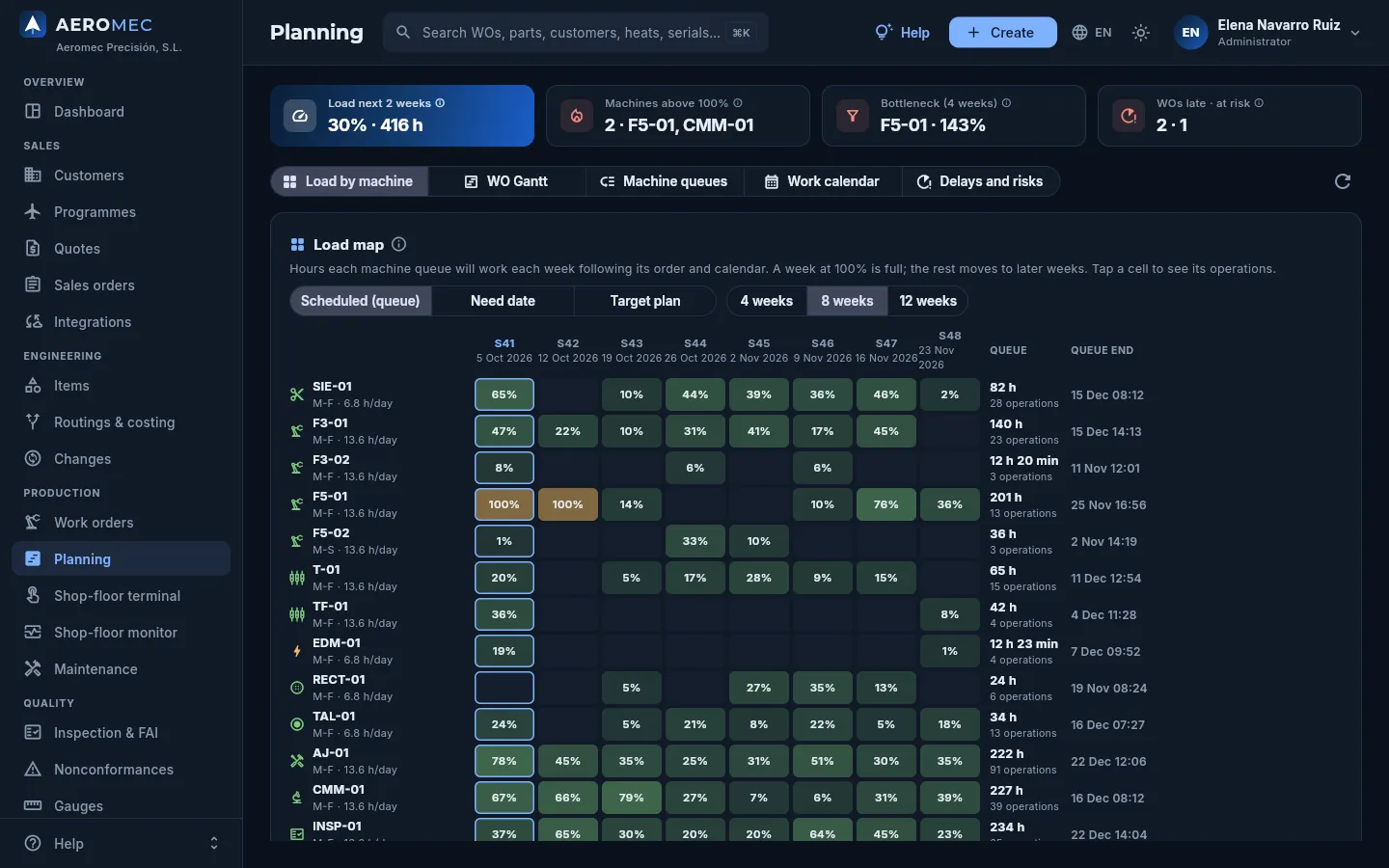 12
12
- 1In dark mode, the sun goes back to light mode.
- 2Everything adapts: dark backgrounds, light text and the same colours for statuses and alerts. Designed for the office in low light and for screens on the shop floor.
The language and the theme are remembered in the browser you use. The PDFs Aeromec produces (routing sheets, delivery notes, CoCs, FAIs…) and the demo data stay in Spanish even if you change the language.
#Lists
Almost every section starts with a list: work orders, quotes, customers, purchase orders, lots, NCRs, invoices… They all work the same way. This is the Purchasing one.
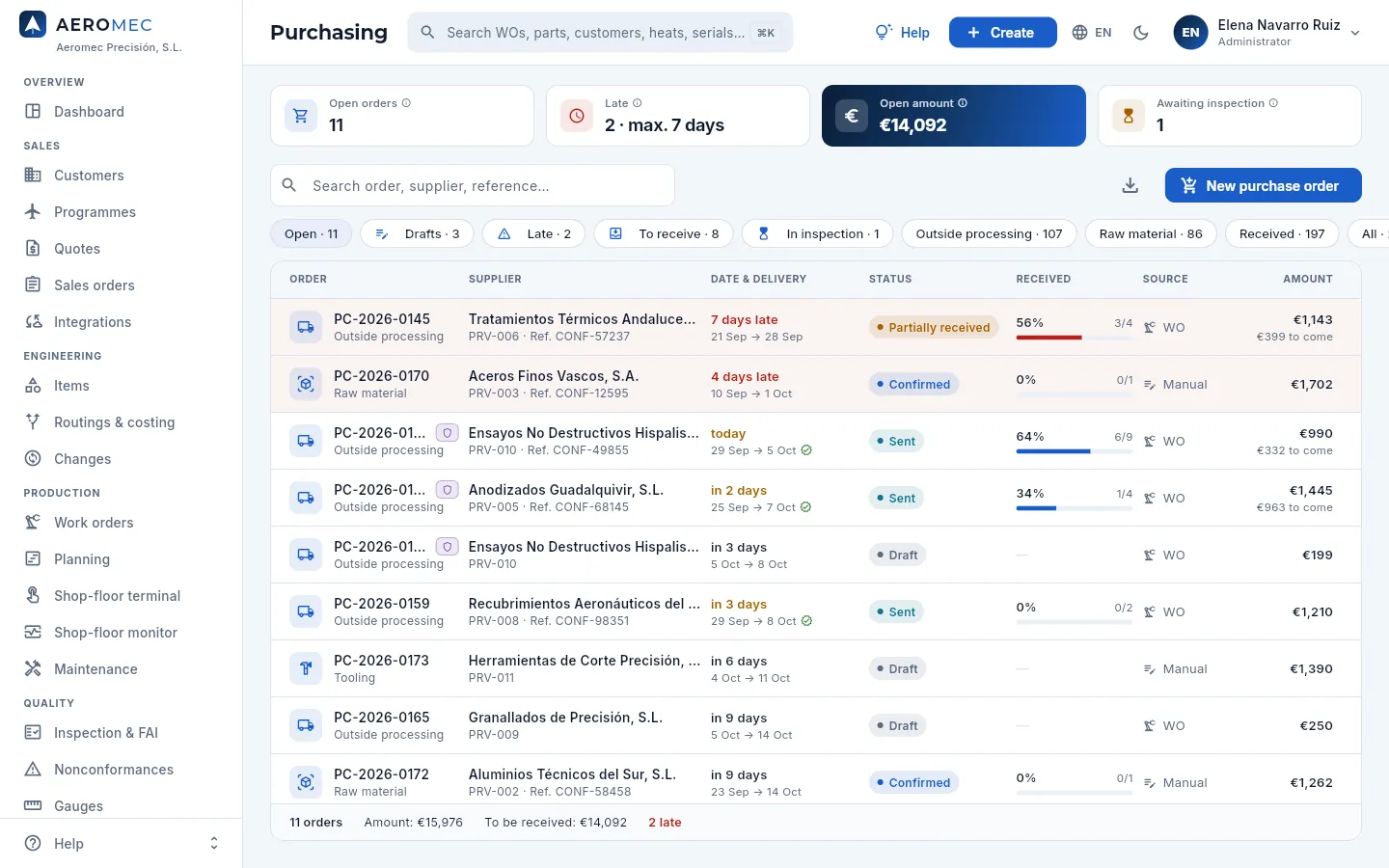 12345678
- 1Indicators for the section (here, open orders, late orders, open amount and awaiting inspection). Each with its ⓘ.
- 2List search: filters instantly on the main columns (number, supplier, reference…).
- 3Export CSV: downloads what you see into a file that opens in Excel (if your profile allows it).
- 4The button to add a record in this section.
- 5Quick filters, each with its count. Only one is active at a time; those that do not fit are seen by scrolling the row.
- 6Sort: click a column header to sort from lowest to highest, again for highest to lowest and a third time to remove the sorting.
- 7Each row is a record: click it to open its record. Those that need attention (here, late ones) have a coloured background.
- 8The footer adds up the visible rows: how many there are, amounts and warnings.
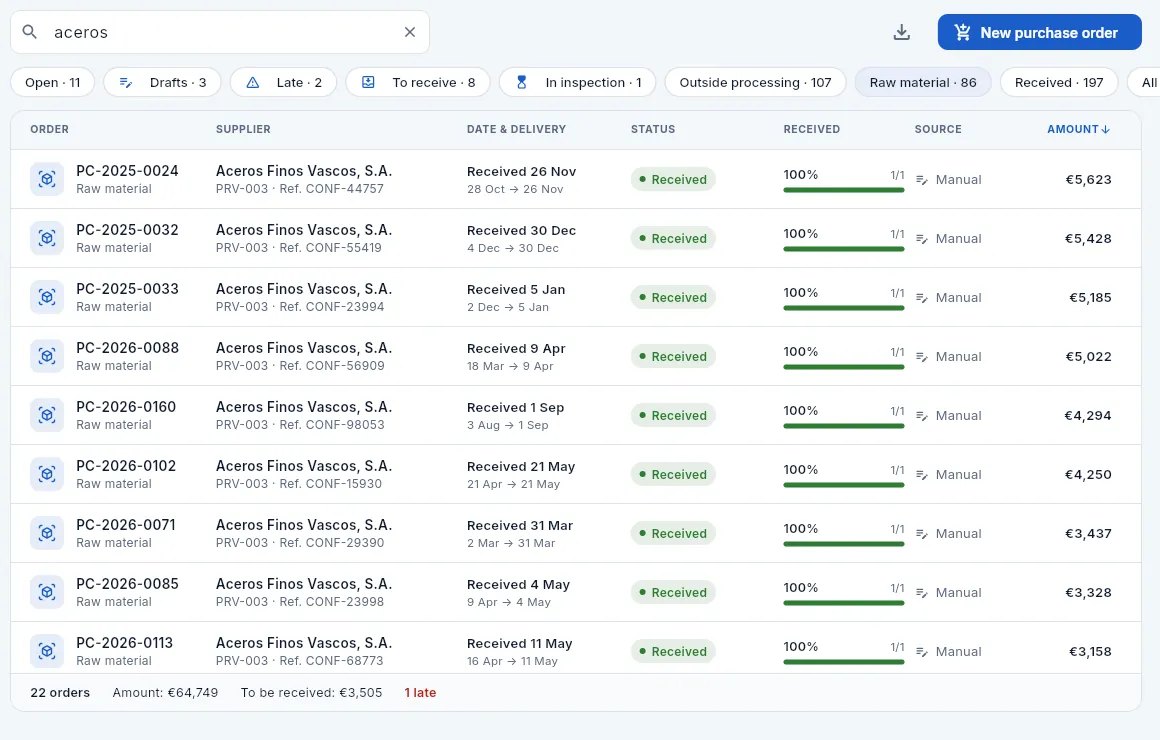 1234
1234
- 1What you type is searched in all the main columns; the ✕ on the right clears the search.
- 2The active filter, highlighted. The search applies within the filter; the count of each filter does not change when you search.
- 3Sorted by amount, highest first: the arrow shows the direction.
- 4The footer adds up again only what is left in view.
Choose a quick filter (for example Late). The number next to each filter says how many records it has.
Type one or more words in the list search: the rows that contain all of them are shown, regardless of accents or case.
Click a column header to sort by it; click again to reverse the order.
If your profile allows it, click Export CSV (the download icon) to take those rows into Excel.
Click a row to open its record.
The lists of work orders, sales orders, FAIs (Inspection & FAI), nonconformances, shipments and invoices also have, next to the search box, the Programme filter: choose the aircraft, engine or system (for example, the AR-90) and the list keeps only what belongs to it, on top of the quick filters and the search (see Programmes).
#Records
Clicking a record opens it in a panel that slides in from the right, without losing the list behind it. They all follow the same layout: a header with the name and the actions, and tabs with the information grouped.
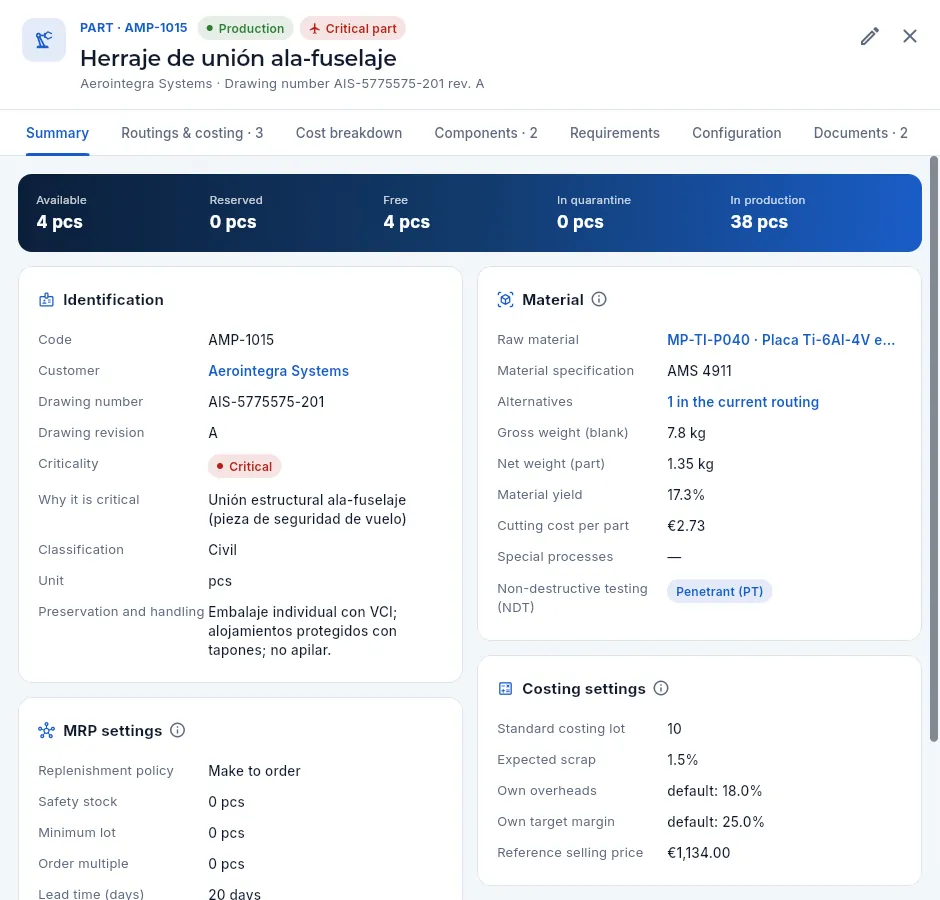 12345678
- 1The overline: the type and code of the record, with coloured tags showing its status (here, Production) and what you need to know about it (here, that it is a critical part).
- 2The name and, underneath, its main details.
- 3Record actions (here, edit). Hover over an icon to see what it does.
- 4Close the record (also with Esc or by clicking outside the panel).
- 5Tabs: each one groups part of the information and many show a count. Almost every record has Documents and Changes.
- 6The strip with the key figures of the record.
- 7Text in blue is a link: it opens the related record (here, the customer) on top of this one.
- 8Cards with the details grouped (here, the material); many have their ⓘ next to the title.
If you change something in a record, the list behind it refreshes by itself when you close it. Records you open from another one (a customer from its part, an NCR from its work order) open on top and, when you close them, you go back to the previous one. On a phone, records take up the whole screen.
#The documents of each record
Almost every record has the Documents tab: drawings, 3D models, CNC programs, instructions, certificates (the 3.1 of a heat, the calibration of a gauge, a supplier's approval), reports and photos, kept next to what they document. The number on the tab says how many there are.
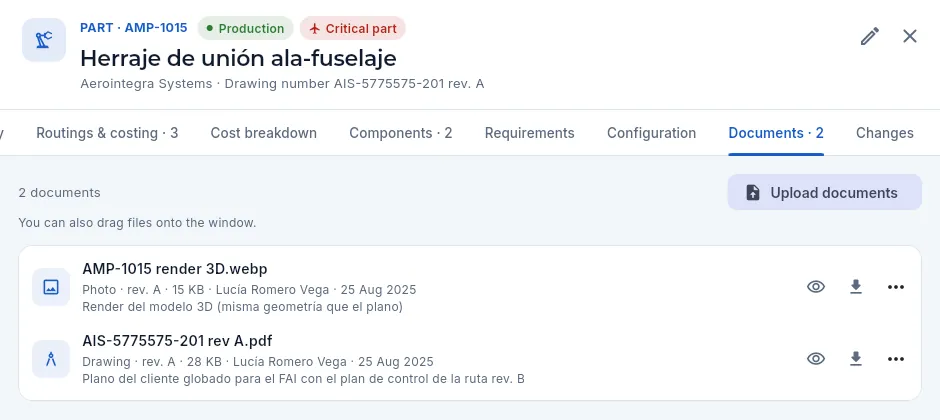 1234567
- 1The Documents tab, with its count.
- 2Upload documents picks one or more files from your computer.
- 3Or drag them from your desktop onto the window.
- 4Each document with its type, its revision, its size, who uploaded it, when, and its note.
- 5View: PDFs and images open inside Aeromec; CNC programs, as text.
- 6Download the file exactly as it was uploaded.
- 7More actions: change its details (name, type, revision, note), mark it obsolete or delete it; for a CNC program on trial, also validate it.
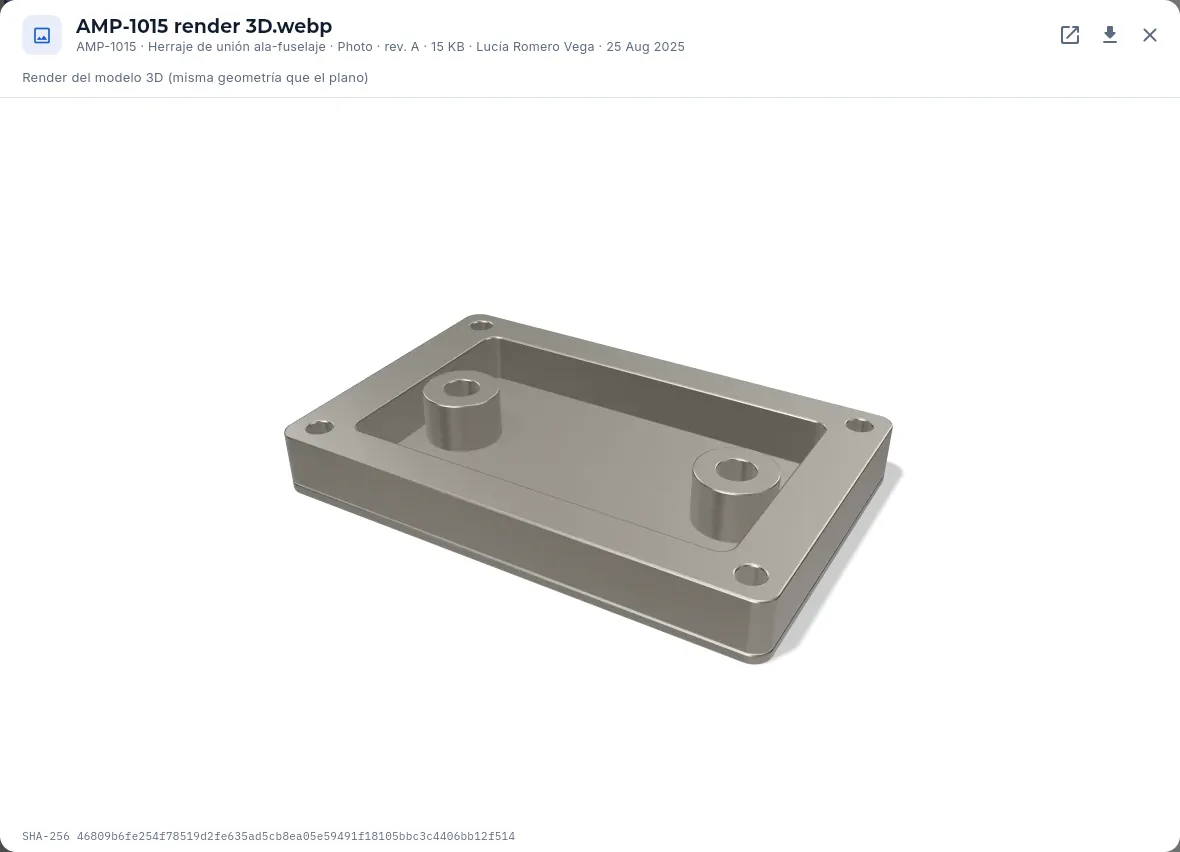 1234
1234
- 1The document, the record it belongs to, its type, its revision, its size, who uploaded it, when, and its note.
- 2Open it in another browser tab or download it.
- 3The image or the PDF (with the browser's viewer: pages, zoom, print), without leaving Aeromec.
- 4Its SHA-256 fingerprint: it proves it is the same file that was uploaded.
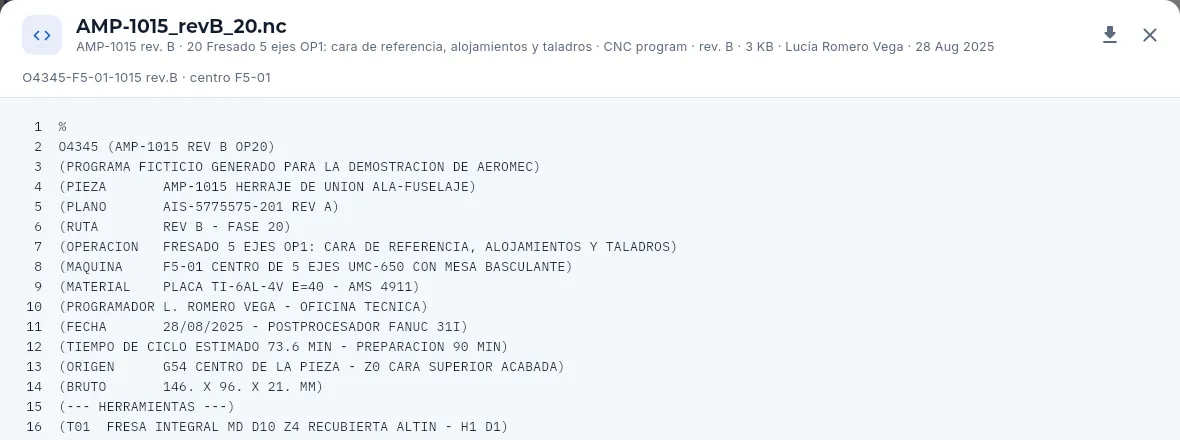 12
12
- 1Which routing and which operation it belongs to, its machine and its program number.
- 2CNC programs are read with their line numbers, without needing any other software.
Open the record (a part, a work order, a lot, a supplier…) and click the Documents tab.
Click Upload documents and choose the files, or drag them onto the window.
Check the name, the type (drawing, CNC program, certificate, photo…) and the revision of each one, and add a note if needed.
Click the upload button.
A drawing or a program that is no longer valid is not deleted: it is marked obsolete with its reason, it is kept and it no longer reaches the shop-floor terminal. A new CNC program starts on trial (the terminal shows it with a warning) until someone with the qualification validates it with their signature after making the first good part; once validated, it does not change. The documentation of the quality system itself (manual, procedures, instructions) has its own section: Documentation.
#The Changes tab
With the See the change audit log permission, records also have the Changes tab: who created or changed that record, when and which fields, newest first. Click a line to see each field before and after the change.
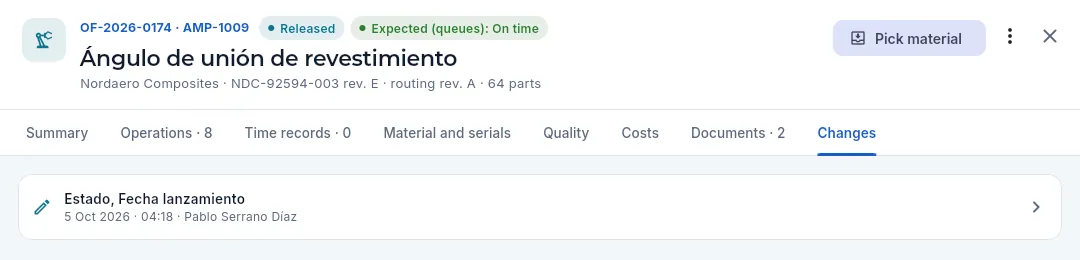 12
12
- 1The Changes tab.
- 2Each change: the fields that changed, when and who (and, if it was done at the shop-floor terminal or from Claude, it says so). Click it to see the detail.
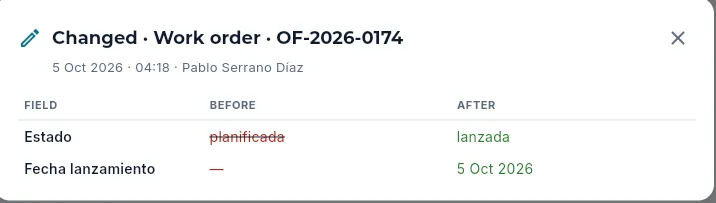 1234
1234
- 1What was done (created, changed or deleted), in which kind of record and which one.
- 2When and who.
- 3Each field before, struck through in red…
- 4…and after, in green.
All the changes of all the records, together with sign-ins and sign-outs, are in Audit log.
#Forms
To create or change a record you use a form in a window. They are all filled in and saved the same way.
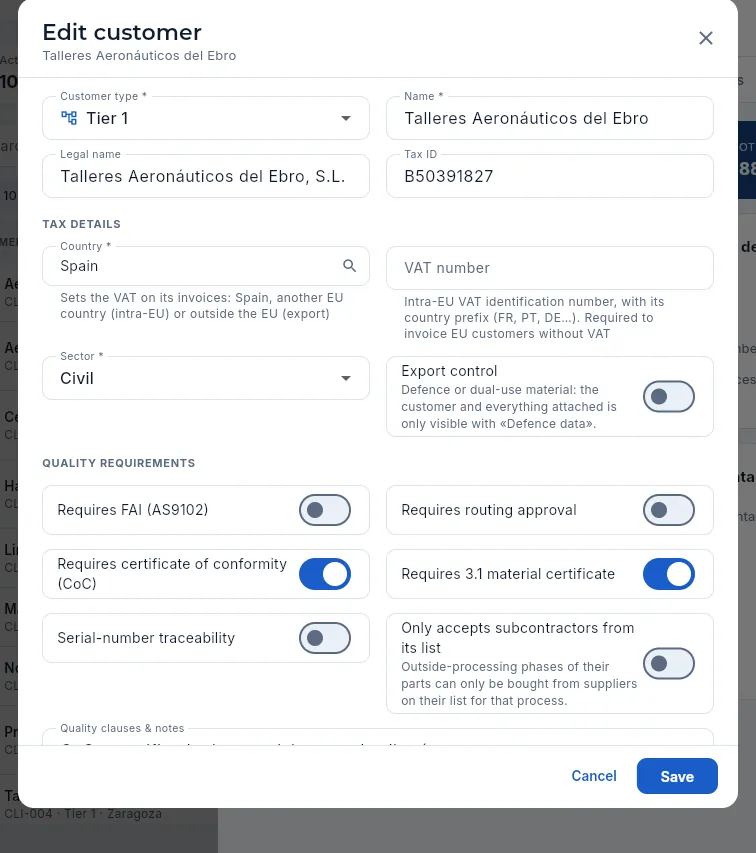 12345
12345
- 1The title says what you are doing («Edit customer», «New WO»…) and, when editing, on which record.
- 2Fields with an asterisk are required. Those with an arrow are chosen from a list.
- 3A switch for yes-or-no options, with its explanation.
- 4Long forms are split into blocks with a heading; scroll inside the window to see the rest.
- 5Save the changes, or Cancel (or the ✕ at the top) to leave without saving.
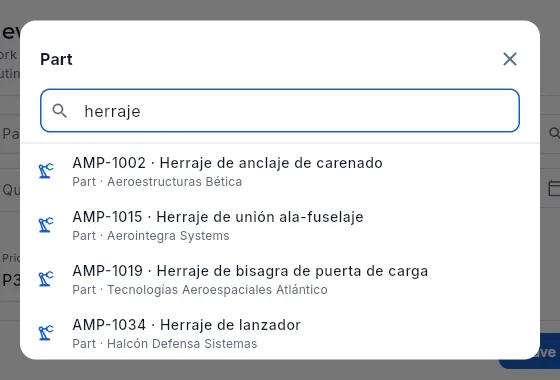 12
12
- 1Fields that point to another record (part, customer, supplier, machine…) open a selector with search: type a few letters to narrow the list.
- 2Click the option to choose it; under each one, a detail that tells it apart (here, the customer).
Fill in at least the fields with an asterisk (*). If any is missing, it is marked in red with «Required» when you save.
Dates are chosen on a calendar and times on a 24-hour clock; lists, by opening them; related records, with the selector and its search. Numbers accept a comma or a point as the decimal separator.
Click Save.
#The electronic signature
Whatever inspects, releases, dispositions or approves something is not done with a simple button: it is signed. When you press the button (Ship, Approve, Close…) the electronic signature dialog opens: you type your password again and Aeromec stores your signature bound to the record, with what it means, the date and time, your inspection stamp and a fingerprint of what you signed. These are signed:
| Where | What is signed |
|---|---|
| Inspection & FAI | Recording an inspection (in-process, final or for the FAI) and the receiving inspection of material; releasing or rejecting an FAI (first article) |
| Nonconformances | Dispositioning an NCR (the decision of the MRB, the material review board), approving a concession, closing or voiding it; the mutilation of scrap; closing a CAPA and a customer complaint |
| Gauges | Recording a calibration |
| Routings & costing | Sending a routing to the customer (reviewed) and approving it |
| Shipments | Shipping: the certificate of conformity (CoC) is signed by whoever releases the shipment |
| Quotes and sales orders | The contract review |
| Suppliers | A supplier evaluation (it decides their approval) and closing a SCAR |
| Items | The validation and verifications of a tool or fixture |
| Changes | Approving or rejecting a change request |
| Documentation | Reviewing and approving a document revision; validating a CNC program |
| Management system | Closing an audit and approving the minutes of the management review |
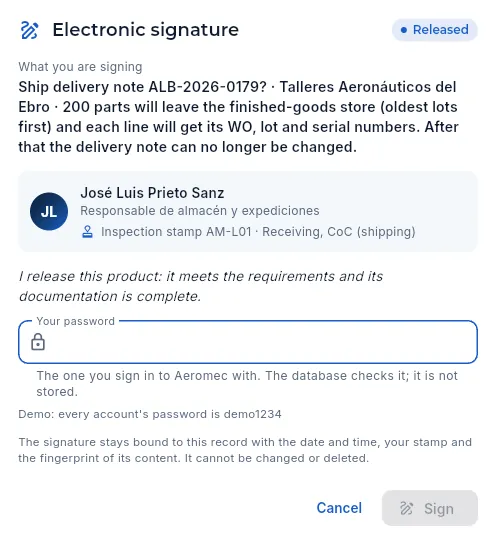 1234567
- 1The meaning of the signature: here, Released. Other times it is performed, reviewed, approved, rejected, dispositioned (MRB), verified, closed, voided or corrected.
- 2What you are signing: the record and what it involves (here, the delivery note, the customer and the parts leaving).
- 3Who signs: your name, your job title and your inspection stamp with its scope. Releasing product needs a current stamp with that scope (here, CoC).
- 4The statement you make by signing, depending on the meaning.
- 5Your password, the one you sign in with. The database checks it and it is not stored.
- 6What remains: the signature bound to the record with the date, the time, your stamp and the fingerprint of its content. It cannot be changed or deleted.
- 7Sign becomes active once you type the password. Cancel saves nothing.
Press the action button (for example Ship on a delivery note, Approve FAI on an FAI or Close NCR on a nonconformance).
Read in the dialog what you are signing and the meaning of your signature, and check that it is your name and your stamp.
Type your password and press Sign (or Enter).
What the database checks before accepting your signature:
- The password. After 5 failed attempts signing is locked for 15 minutes («Too many failed attempts»); the dialog tells you how many attempts you have left. A signature is valid for a single action and expires after 3 minutes.
- The inspection stamp, when what you sign releases or dispositions product: receiving, in-process, final, FAI, MRB, CoC or calibration. Without a current stamp with that scope the dialog says so («You do not hold a current inspection stamp with … scope») and Sign stays disabled. Stamps are issued and withdrawn by Quality (see Stamps & signatures).
- Your qualification. If the qualification that entitles you to that signature has expired (or you do not hold it), you cannot sign with that scope until it is renewed (see Competence & training).
#The Signatures tab
The records of whatever is signed —inspections, FAIs, NCRs, CAPAs, calibrations, routing revisions, shipments and, in the quality-system sections, document revisions, audits, management reviews, supplier evaluations, contract reviews, changes…— have the Signatures tab: who signed, when, with which stamp and what each signature means, and whether what is there today is still exactly what was signed.
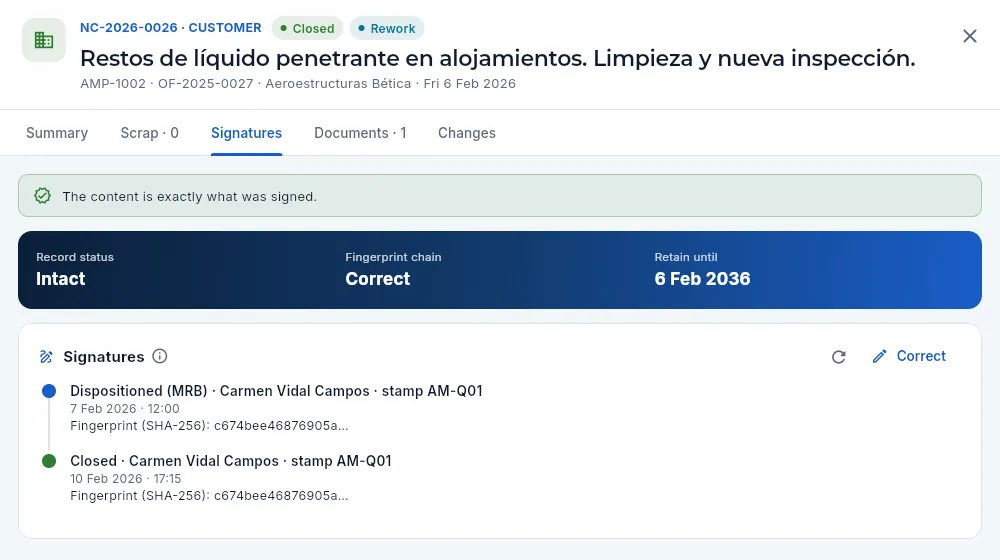 12345678
- 1The Signatures tab.
- 2The record's status, in one sentence: here, the content is exactly what was signed.
- 3Intact, altered or being edited (see the table below).
- 4Fingerprint chain: each signature keeps the fingerprint of what was signed, linked to that of the previous signature. «Correct» if none is missing or added.
- 5Retain until: the date until which the record must be kept.
- 6Each signature: its meaning, who, with which stamp, the date and time and the start of its SHA-256 fingerprint. The latest, at the bottom.
- 7Verify again: recomputes the fingerprint with today's content.
- 8Correct a value in a signed record, with a reason and a signature.
| Status | What it means |
|---|---|
| Intact (green) | What is there today is exactly what was signed. |
| Altered (red) | Something changed without using Correct —only possible by touching the database outside Aeromec— and the notice says what. |
| Being edited (blue) | The record has become a draft again (for example, a routing the customer rejected); its earlier signatures stay in the list. |
| Unsigned | It is still a draft: it is edited or deleted like any other. If someone cancelled the signature when saving it, Sign now appears. |
The SHA-256 fingerprint is like a fingerprint of the content: a code that changes completely if a single character changes. When signing, a copy of what was signed and its fingerprint are stored; Verify again recomputes it with today's content and compares them. To check every signed record at once, before an audit, Quality has Check integrity in Stamps & signatures.
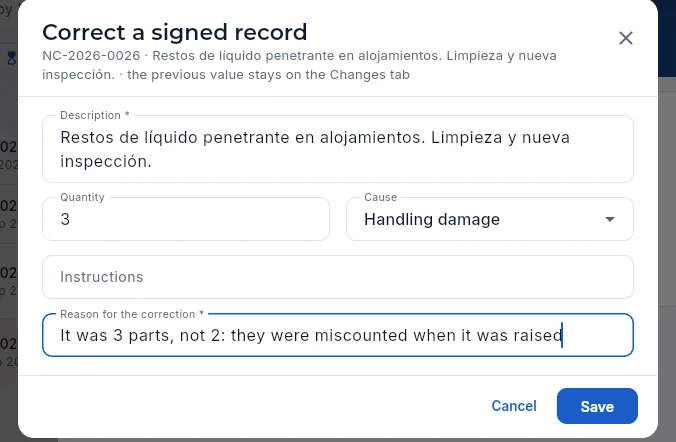 1234
1234
- 1Which record you are correcting; the previous value will be kept on the Changes tab.
- 2Only the fields that can be corrected for that type of record appear, with their current value. Here the quantity is corrected.
- 3The reason, mandatory: it is kept in the correction's signature.
- 4Save asks for your signature with the meaning Corrected (it was not pressed in the screenshot).
Open the record and click the Signatures tab.
Press Correct. Only the fields that can be corrected for that type of record appear.
Change what is wrong and type the reason for the correction.
Click Save and sign with your password.
#The ⓘ help on figures and acronyms
Next to many indicators, charts, cards, acronyms (FAI, OTD, cXML…) and permissions there is a small ⓘ. Clicking it opens an explanation in three parts: what it shows, how it is calculated (with an example) and how to read it. It is the quickest way to find out where a figure comes from.
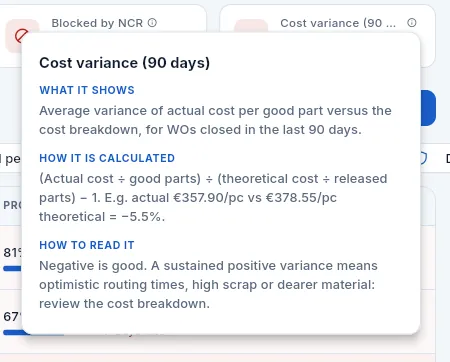 123
123
- 1What it shows.
- 2How it is calculated, with its formula and an example.
- 3How to read it: when it is a good or a bad sign and what to do. Click outside or press Esc to close it.
#What your profile does not let you see
Each access profile decides which sections you see, which data you can look at and what you can create or change. What is not for you shows up like this:
- Sections: those your profile does not allow are not in the side bar, nor are their results in the search.
- Figures: a cost, a price or a margin you cannot see does not appear (the column or the indicator disappears) or shows as a grey padlock (hovering over it: «Hidden by your access profile»).
- Contact details: emails and phone numbers of customers and suppliers, the same.
- Defence: defence or export-controlled parts, customers, quotes, orders, work orders and invoices are only seen with «Defence data»; for everyone else they do not exist. Whoever sees them recognises them by a purple shield.
- Buttons and tabs: the create, edit or delete buttons are not there if you do not have that permission, nor are the tabs of the sections you do not have.
- Export: the export to CSV button only appears if your profile allows it.
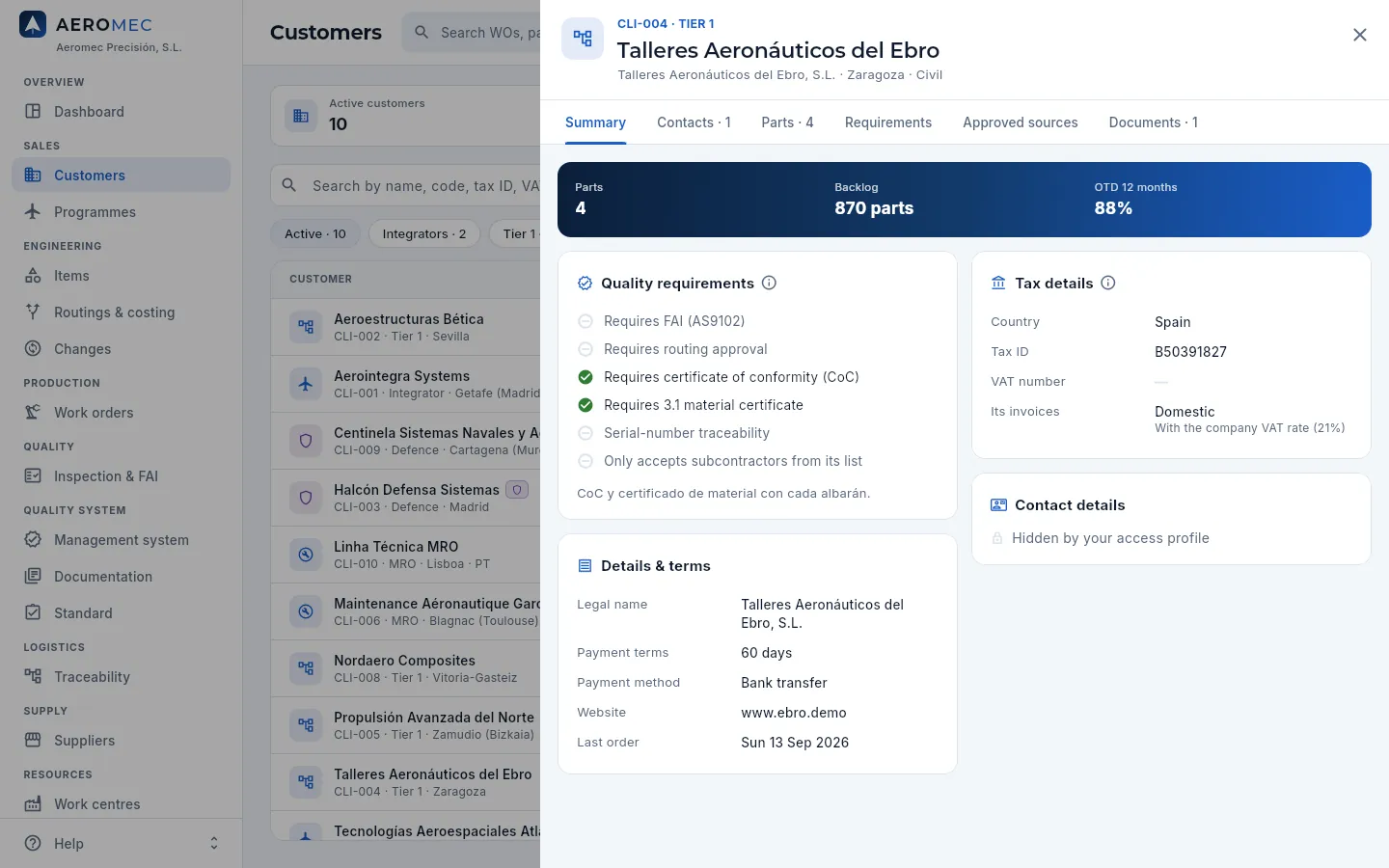 12345
12345
- 1Her side bar only has the sections for her work.
- 2No edit pencil: she can look at customers but not change them.
- 3No quotes, orders or invoices tabs (she does not have those sections), and no changes tab.
- 4The backlog, in parts rather than euros; no outstanding receivables.
- 5The contact details, with the padlock: her profile does not see them.
#Aeromec on a phone and a tablet
On a phone (or a narrow window) Aeromec rearranges the screen: the side bar hides in a drawer, indicators and filters scroll sideways, lists turn into cards (one per record, no columns) and records and forms take up the whole screen. On a tablet, the side bar shows icons only (see above).
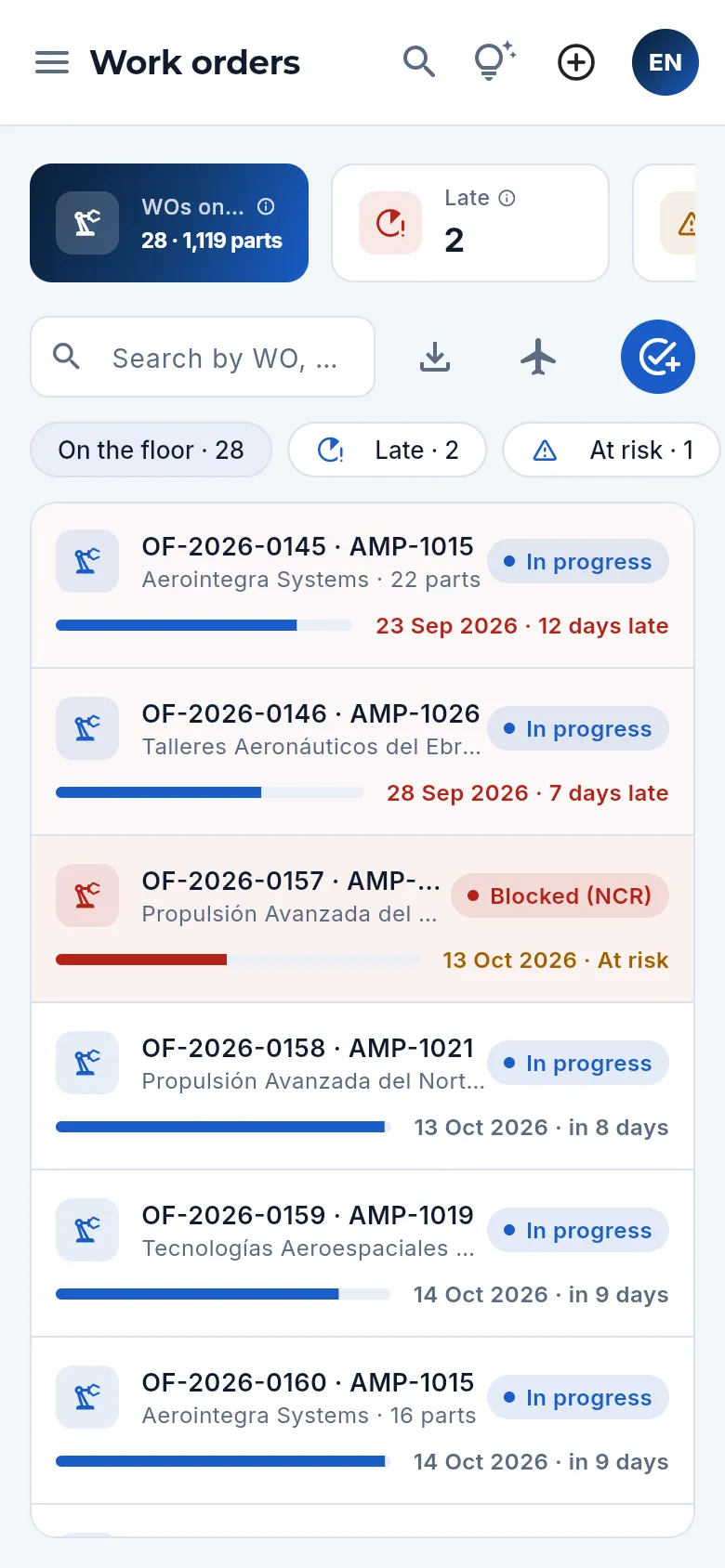 123456
- 1The menu (☰) opens the drawer with the sections.
- 2The magnifying glass opens the global search.
- 3Help for the screen.
- 4Create (⊕).
- 5Your user menu: language and theme are changed from «My profile».
- 6Each record, on a card: tap it to open its record.
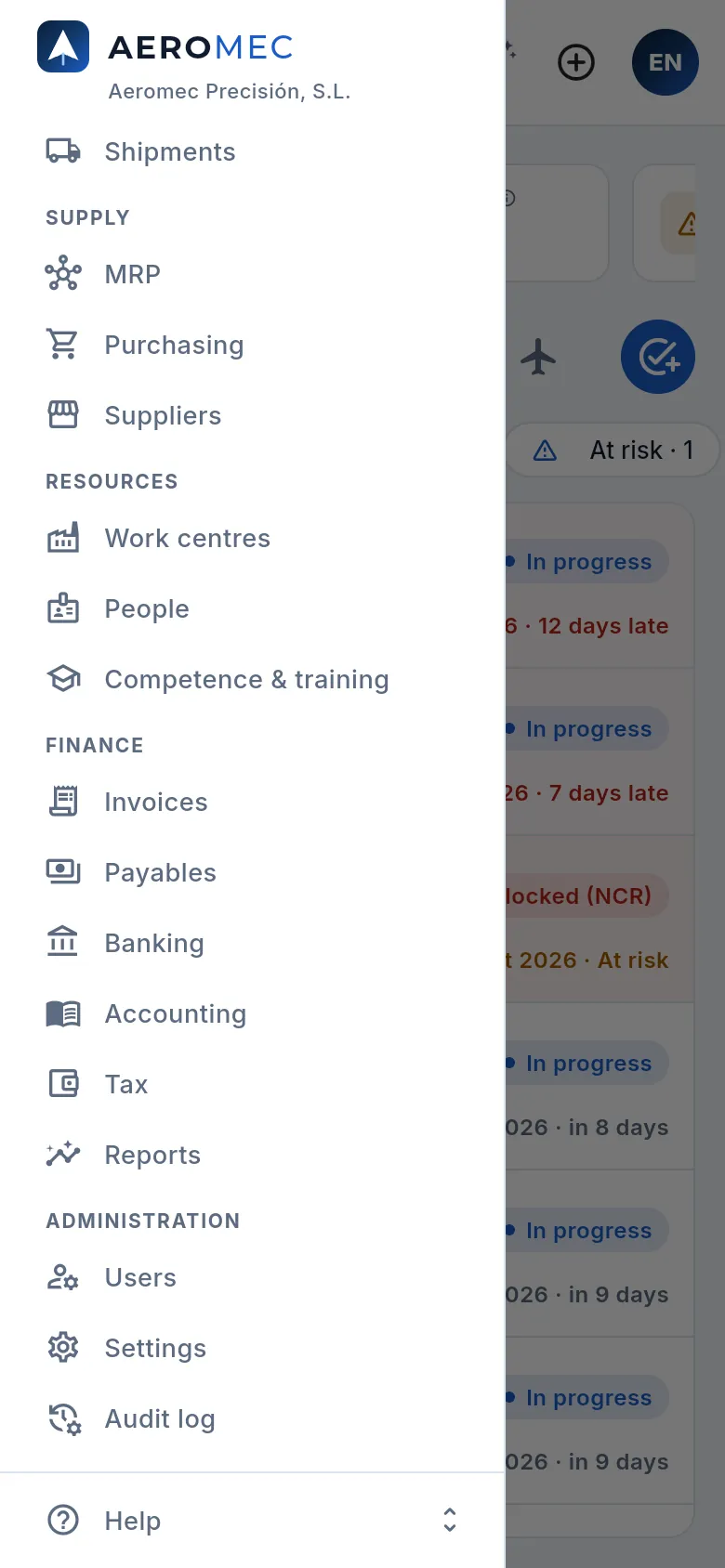 123
123
- 1The same areas and sections as on a computer; swipe to see them all.
- 2On a phone, administrators have Users, Settings and Audit log here.
- 3The Help menu, at the foot.
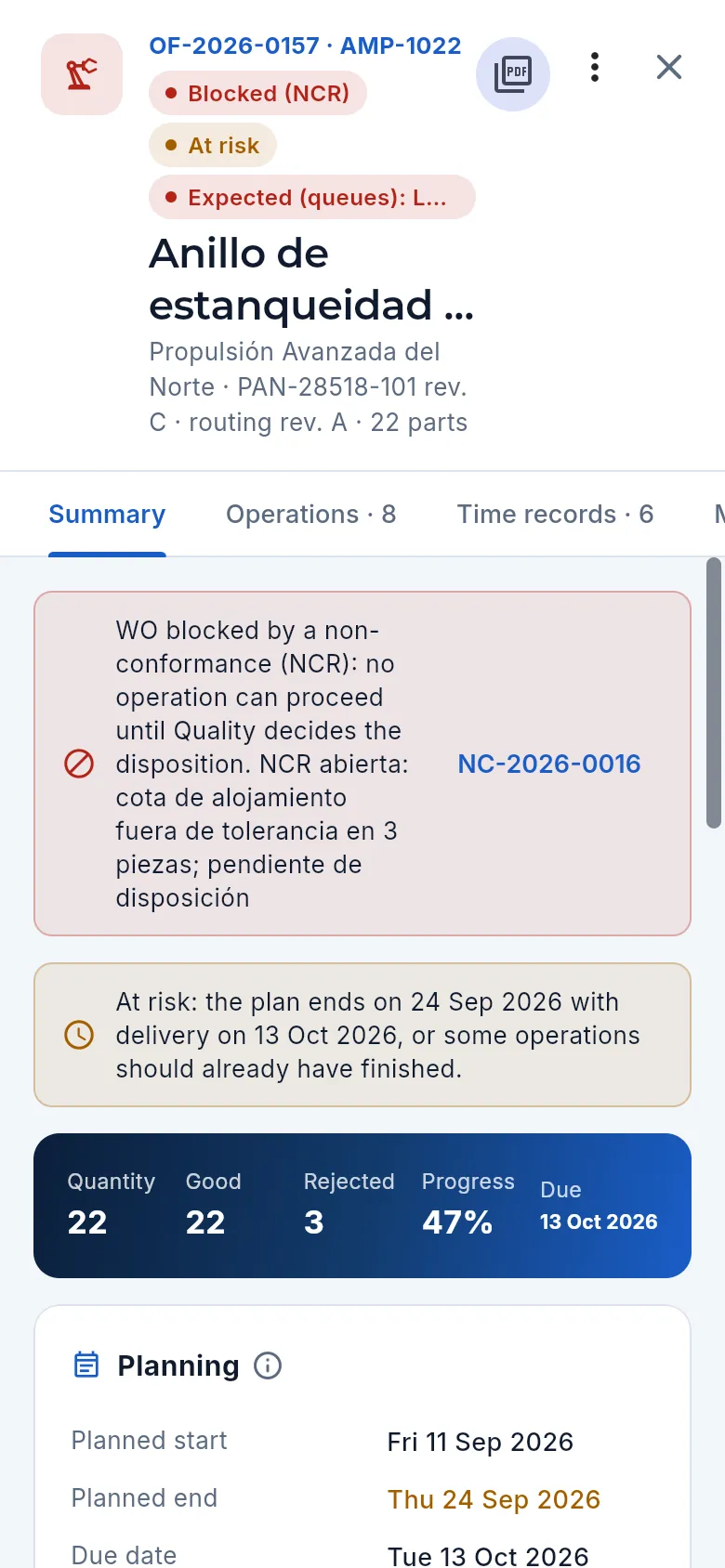 12
12
- 1The ✕ goes back to the list.
- 2The tabs scroll sideways.
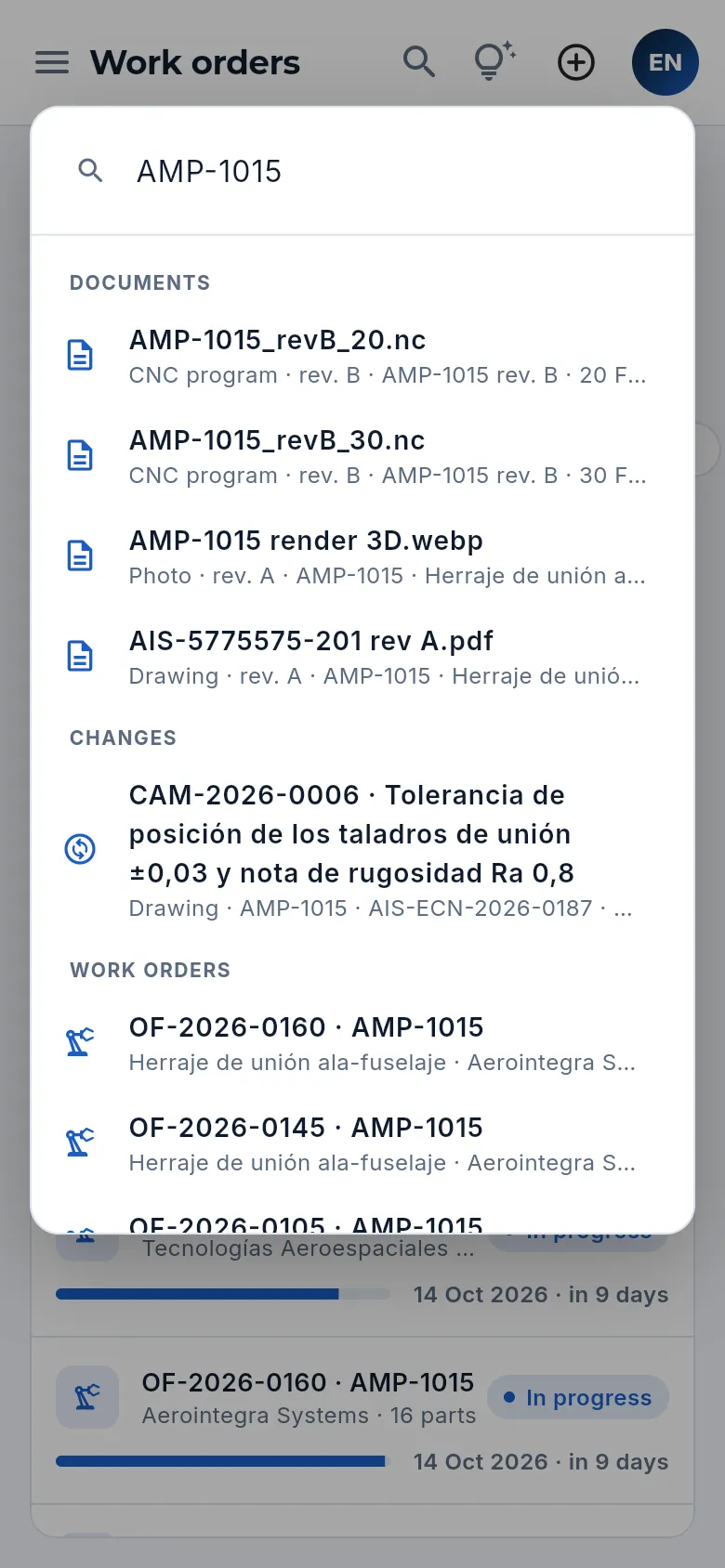 1
1
- 1The same search, with the results grouped by type.
#Keyboard shortcuts
| Key | What it does |
|---|---|
| ⌘K (Mac) / Ctrl+K (Windows) | Opens the global search |
| F1 | Opens the help and the guides for the screen you are on (also on the shop-floor terminal) |
| Esc | Closes the open record, menu, ⓘ help or help panel (not forms) |
| Enter | On the sign-in screen, with the password typed, signs you in |
The ⌘K/Ctrl+K and F1 shortcuts work from the page; if you have a record or a window open, close it first.
#Direct links
You can bookmark a particular section or share a link that opens Aeromec in it, by adding to the end of the address:
| Add | To |
|---|---|
?seccion=ordenes |
open that section directly (panel, ofertas, planificacion, calidad, almacen, facturas…) |
?lang=en |
open Aeromec in English (es, Spanish) |
?tema=dark |
open in dark mode (light, light) |
They can be combined with &: for example ?seccion=planificacion&lang=en. In the demo, ?demo=carmen signs straight in
with Carmen's account (also elena, javier, lucia, marta, pablo, antonio, rafael, jose, ines, tomas,
sergio or teresa).
Overview
Dashboard
The shop at a glance: on-time delivery, work orders on the floor and late, this week's deliveries, machine load, quality, material, calibrations, programmes, management system, competence and training, maintenance, quotes, invoicing and overdue items. Each profile sees its own blocks and every figure takes you to the list where it gets resolved.
The Dashboard is the first screen you see when you open Aeromec. It brings together on a single page whatever needs attention in the shop today: late or stopped work orders (WOs), customer deliveries falling due, machine load, nonconformances, held material, gauges whose calibration is about to expire, how the programmes are going, the objectives and risks of the management system, qualifications that are expiring, machines that are down, open quotes, what has been invoiced and what is owed.
It is not a report to be read from top to bottom, but a board of alerts: every figure is a shortcut that opens the section with the filter already applied, and every row opens its record. That way you go from «there are 4 late WOs» to the actual WO in two clicks.
The dashboard refreshes itself every 2 minutes (and when you press the reload button). What you see depends on your profile: each block has its own permission, and the database only calculates the blocks you can see, without amounts if your profile cannot see prices or costs.
- 1DashboardA figure in red or amber: something needs attention.
- 2Filtered listClicking it opens the section with that filter applied.
- 3RecordA row in the block opens the WO, the order, the NCR or the lot directly.
- 4ResolveFrom the record: reschedule, ship, decide the disposition, inspect…
#Key figures
At the top, below the greeting with today's date, are the shop's key figures in large cards. Only those matching your profile's blocks appear; the administrator and management see all six.
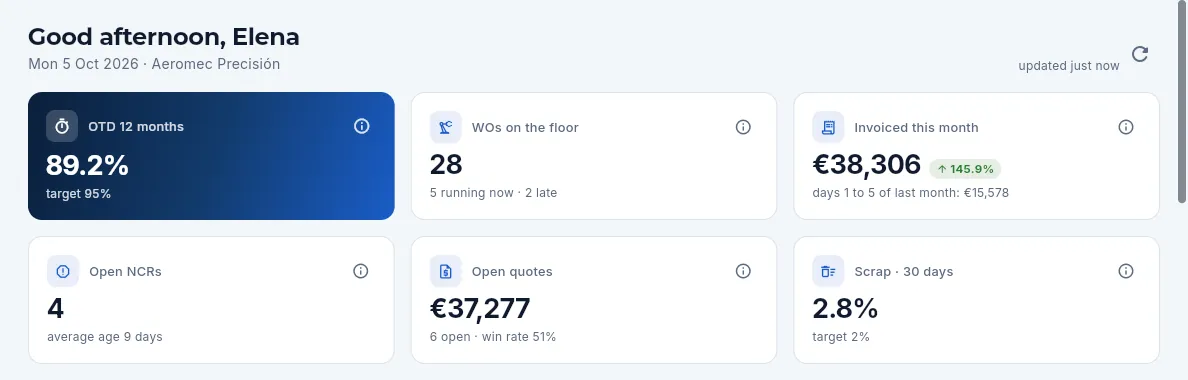 12345678
- 1The dashboard reloads itself every 2 minutes; to its left, when it was last updated. This button reloads it straight away.
- 2OTD 12 months: the percentage of customer deliveries shipped on time over the last year, against the company target.
- 3WOs on the floor: released, in-progress or blocked work orders; below, how many have a machine running right now and how many are late.
- 4Invoiced this month (excluding VAT) and, in the badge, the change against the same days of the previous month.
- 5Open NCRs: nonconformances not yet closed and their average age in days.
- 6Open quotes: their amount (or their number, if your profile cannot see prices), how many there are and the win rate.
- 7Scrap · 30 days: the percentage of parts scrapped over the last month against the target.
- 8Every card and every block has its ⓘ: what it shows, how it is calculated and how to read it.
The whole card is a shortcut:
| Card | What it counts | Clicking it opens |
|---|---|---|
| OTD 12 months | Deliveries shipped complete by their date ÷ deliveries evaluated in 12 months. OTD stands for On-Time Delivery | Sales orders |
| WOs on the floor | Work orders released, in progress or blocked by a nonconformance | Work orders |
| Invoiced this month | Taxable base of the invoices issued since the 1st; credit notes subtract | Invoices |
| Open NCRs | Internal, supplier or customer nonconformances (Non-Conformance Report) not yet closed | Nonconformances |
| Open quotes | Draft or sent quotes, with the amount of their first quantity break | Quotes |
| Scrap · 30 days | Scrapped parts ÷ (finished parts + scrapped) over the last 30 days | Indicators in Nonconformances |
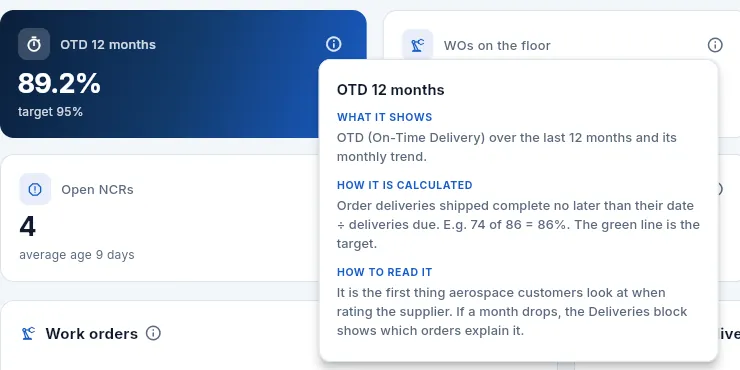 123
123
- 1What it shows.
- 2How it is calculated, with an example.
- 3How to read it and what to do. Close it with Esc or by clicking outside.
#Work orders and customer deliveries
Below, the blocks in two columns. The first two answer the question of the day: which WOs need a push and which deliveries are in danger? Each block has its ⓘ and a View all button that opens the full section.
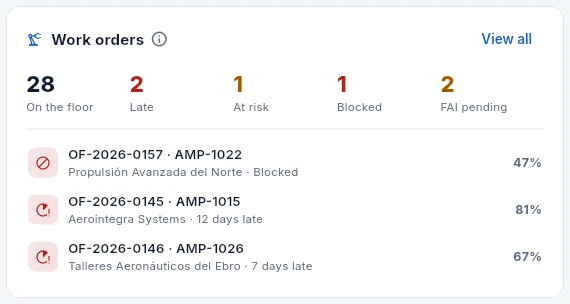 123456
- 1On the floor: WOs released, in progress or blocked.
- 2Late: their due date has passed.
- 3At risk: the plan ends after the due date or there are operations that should already have finished.
- 4Blocked: a nonconformance (NCR) has stopped them.
- 5FAI pending: WOs whose first article inspection has not been released.
- 6The most critical WOs (blocked, late and at risk), with their customer, the reason and their progress. Click one to open its record.
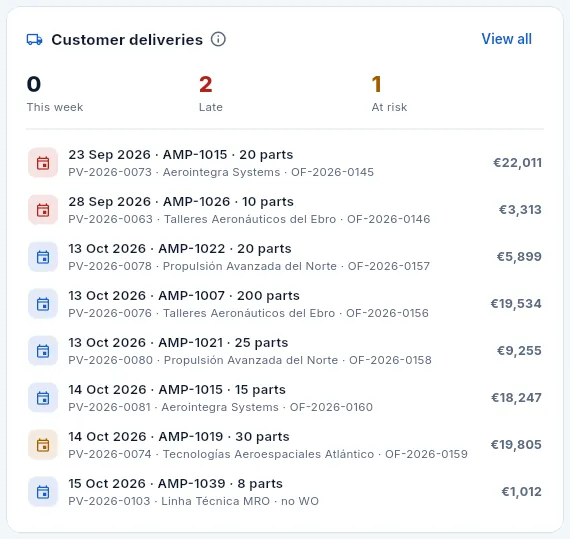 1234
1234
- 1This week: deliveries due in the next 7 days.
- 2Late: their date has passed and they still have parts to ship.
- 3At risk: the WO serving them finishes too late. Opens the delays and risks in Planning.
- 4Each delivery: date, part and open parts; below, the order, the customer and the WO serving it; on the right, its value. Late ones in red, at-risk ones in amber.
In Work orders, each figure opens the work order list with its filter (Late, At risk, Blocked, FAI pending); the list below shows the six most critical. In Customer deliveries, This week and Late open the sales orders with that filter, and At risk takes you to the delays and risks in Planning. The rows are the deliveries due in the next 14 days plus the overdue ones, most urgent first.
#Shop load and on-time delivery
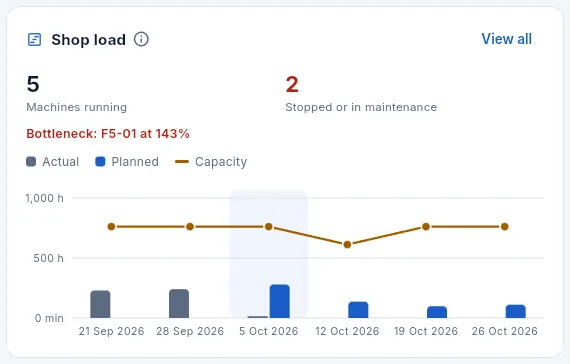 1234
1234
- 1Machines running right now, with a time record open in the terminal. Opens the Shop-floor monitor.
- 2Stopped or in maintenance: machines with an open breakdown or in maintenance.
- 3This week's bottleneck: the most loaded machine and its load percentage.
- 4Hours per week for the whole shop: actual in past weeks (grey), planned in the coming ones (blue) and capacity (amber line). The current week is highlighted.
 12
12
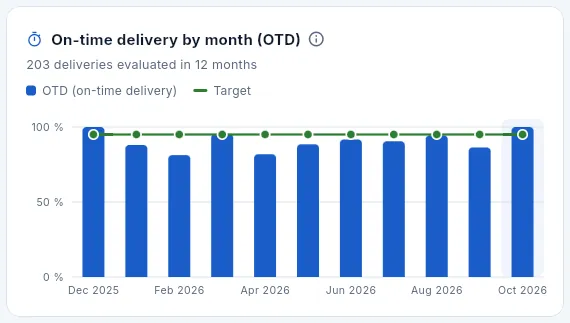
- 1How many deliveries have been evaluated in the last 12 months: those shipped complete and those already overdue and unshipped.
- 2One bar per month with its OTD; the green line is the company target. The current month, highlighted, is not over yet.
Shop load adds up the hours of every machine per week: what was actually worked in past weeks and what is planned in the coming ones, against capacity (which drops in weeks with public holidays). If the blue bars go above the amber line, that week cannot fit what is planned; if three or four weeks ahead they are well below it, the order book is running short. The per-machine detail is in Planning.
On-time delivery by month is OTD month by month. It is the first thing aerospace customers look at when rating a supplier: if a month drops, the deliveries block and the sales orders show which deliveries explain it.
#Quality, material and calibrations
 1234
1234
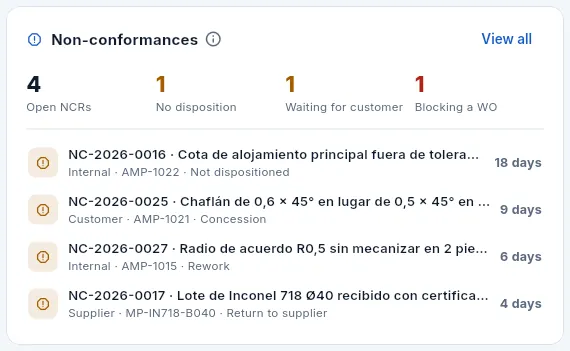
- 1No disposition: NCRs where it has not yet been decided what to do with the parts (rework, concession, scrap or return).
- 2Waiting for customer: concessions requested from the customer with no answer yet.
- 3Blocking a WO: they stop a work order until the disposition is decided.
- 4Each NCR with its description, origin, part and disposition; on the right, the days it has been open (in red, more than 30).
 1234
1234
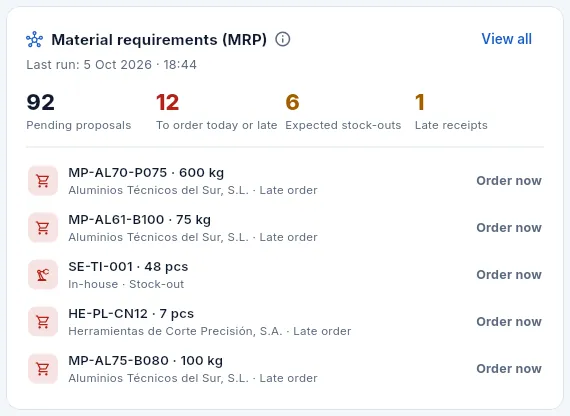
- 1Pending proposals from the last run (date and time, below the title): purchases and production not yet generated.
- 2To order today or late: their order date has arrived.
- 3Expected stock-outs and late receipts of purchases.
- 4The most urgent proposals: item, quantity, supplier (or in-house production) and the alert. Order now if the order date has passed.
 123
123
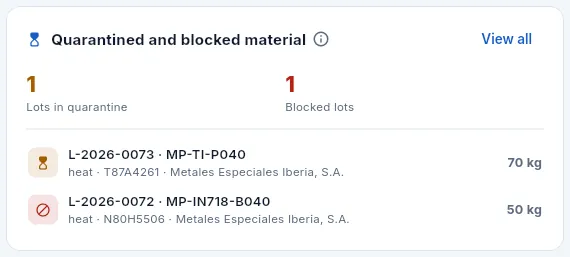
- 1Lots in quarantine: raw material received and awaiting receiving inspection. It cannot be used until released.
- 2Blocked lots: rejected at inspection, awaiting return.
- 3Each lot with its material, its heat (the melt the material comes from, shown on its 3.1 certificate), the supplier and the quantity held. Click to open the lot.
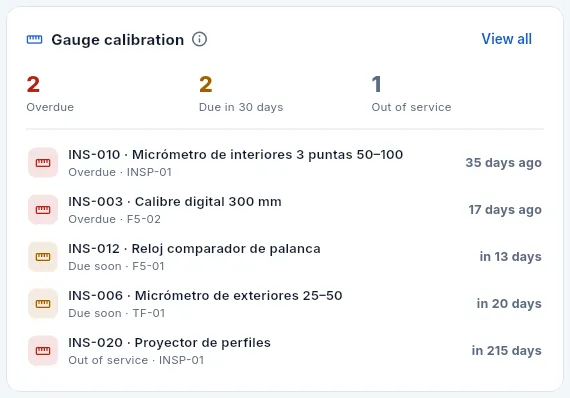 1234
1234
- 1Overdue: they cannot be used to measure or be lent out in the terminal.
- 2Due in 30 days: they need to go to the laboratory.
- 3Out of service: withdrawn from use.
- 4Each gauge with its status, the station where it is and when it fell due or will fall due.
- Nonconformances: the figures open Nonconformances. An NCR that blocks a WO is the first one to resolve: until it has a disposition, the work order is stopped.
- Material requirements (MRP): the result of the latest requirements run of the MRP (Material Requirements Planning): what has to be bought or made, how much and when.
- Quarantined and blocked material: what Quality has to inspect or return. If a WO needs a lot in quarantine, inspect it before it stops the shop.
- Gauge calibration: the measuring equipment to be checked (Gauges). The database rejects any measurement taken with an overdue gauge, so send them to the laboratory before they hold up an inspection.
#Scrap, quotes, invoicing and overdue payments
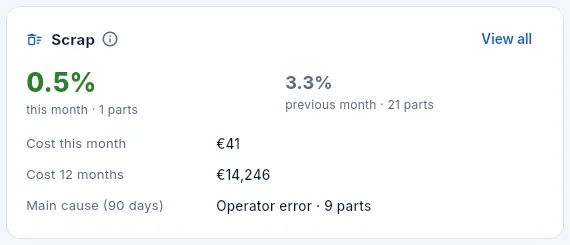 12
12
- 1Scrap for the current month (in red if above target) and for the previous month, with their parts.
- 2What scrap has cost this month and over 12 months (only with permission to see costs) and the main cause over the last 90 days.
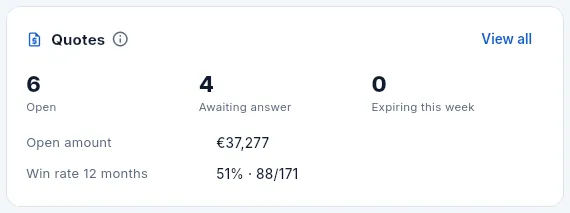 1234
1234
- 1Open: draft or sent.
- 2Awaiting answer: sent to the customer.
- 3Expiring this week: sent quotes whose validity ends within 7 days.
- 4The open amount (with permission to see prices) and the win rate: won over decided in 12 months.
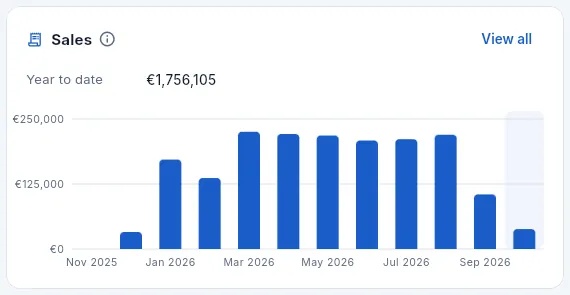 12
12
- 1What has been invoiced in the year to date (excluding VAT) and, if there is data, the comparison with the same period last year.
- 2Monthly invoicing for the last 12 months; the current month, highlighted.
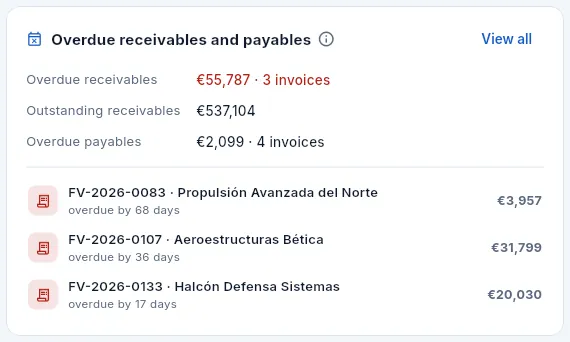 12
12
- 1Overdue receivables (customer invoices past due and unpaid), total outstanding receivables and overdue payables to suppliers.
- 2Overdue customer invoices, the oldest first, with the days overdue and what is still to be collected. Click one to open it and record the payment.
The Quotes block takes you to Quotes; Sales and Overdue receivables and payables, to Invoices (with the overdue filter). Scrap opens the indicators in Nonconformances, where the cause Pareto shows where to act.
#Programmes and management system
Two blocks look beyond the day-to-day: how the programmes are going (the aircraft, engine or system the parts are made for) and the quality management system (objectives, risks, audits and actions).
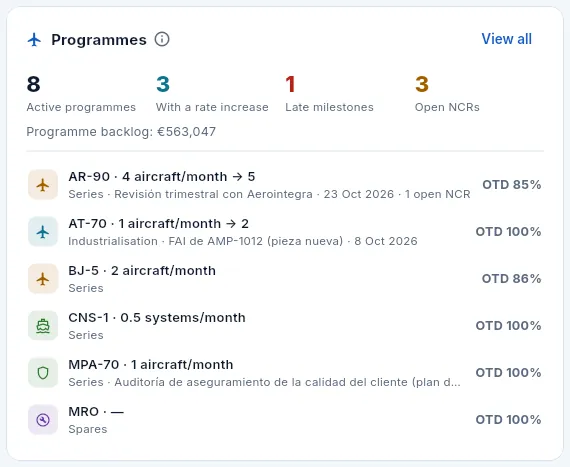 1234
1234
- 1Active programmes and, of those, the ones with a planned rate increase.
- 2Late milestones across all programmes (in red) and their open NCRs.
- 3The programmes' backlog still to be delivered (only with «See prices»).
- 4Each programme with its rate (aircraft per month and, after the arrow, the next one), its phase, the next milestone or the late ones, its NCRs and its 12-month OTD. Click to open its record.
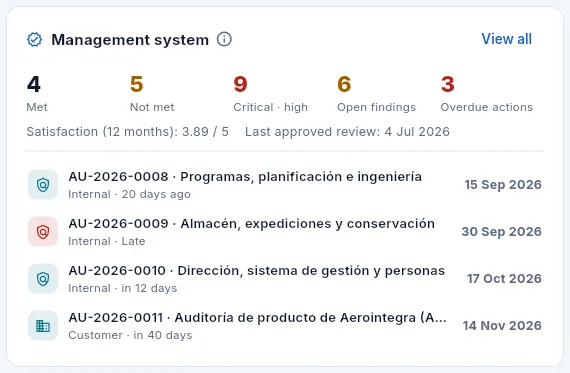 12345
12345
- 1The quality objectives that are met and those not met or at risk.
- 2Open risks at critical or high level.
- 3Audit findings still open and overdue actions.
- 4Customer satisfaction over 12 months (out of 5) and the date of the last approved management review.
- 5The upcoming audits (internal, certification, customer or supplier audits), in red if they are late. Click one to open it.
- Programmes opens Programmes. A programme shows in red if it has late milestones and in amber if its OTD is below the company target. It is what you look at before each review with the customer.
- Management system opens Management system: each figure in its view (objectives, risks, audits or actions), with the filter applied. It is what management follows between one management review and the next.
#Competence and training, and maintenance
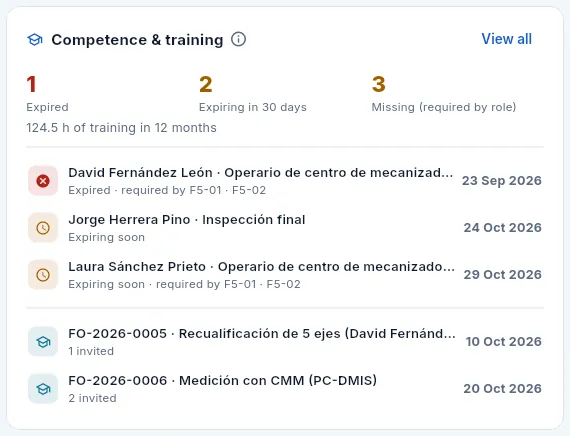 12345
12345
- 1Expired: qualifications past their date. They block what they enable (a machine, a signature).
- 2Expiring in 30 days: they need renewing now.
- 3Missing: competences someone's job requires and they do not hold.
- 4The hours of training over the last 12 months.
- 5Each person with the qualification that is expiring or missing (and the machine that requires it); below, the upcoming training sessions.
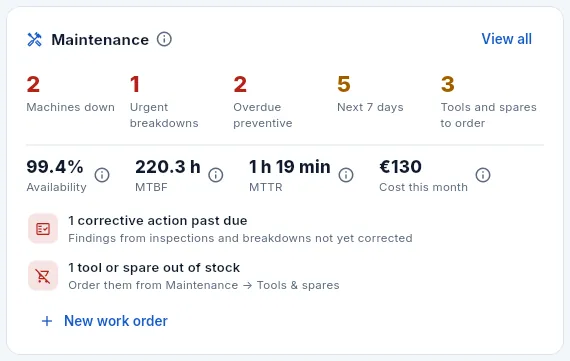 12345
12345
- 1Over the last 90 days: availability, MTBF, MTTR and the cost this month (with «See costs»).
- 2Machines down (because of a breakdown or in maintenance) and unresolved urgent breakdowns.
- 3Overdue plans and tools and spare parts to order.
- 4The alerts: corrective actions past due, tools out of stock…
- 5A new work order without leaving the dashboard.
Competence & training opens Competence & training on its expiry list or its matrix. An expired qualification is not just another alert: Aeromec will not let you sign with that stamp scope, validate programs, close internal audits or start a time record on the machine that requires it, so it is worth renewing it before it expires.
The Maintenance block sums up the state of the machines: how many are down, the urgent breakdowns, the overdue maintenance plans and the tools and spare parts that need ordering, with the availability, the MTBF (running hours between breakdowns) and the MTTR (mean time to repair) over the last 90 days. Each figure opens Maintenance with its filter.
#Getting to the problem from the dashboard
Look for the figures in red (something is already wrong: delays, blocks, overdue items) and in amber (something will go wrong unless you act).
Click the figure: for example, Late in Work orders opens the work order list with the Late filter already applied.
Or click a row in the block directly: the blocked WO opens its record, which says why it is stopped and links to the NCR blocking it.
Resolve it from the record and go back to the Dashboard from the sidebar: within two minutes at most (or when you press reload) the figure is updated.
#What each profile sees
Each block has its own permission. With the demo's sample profiles, the dashboard looks like this:
| Profile | Blocks |
|---|---|
| System administrator and Management | All of them, with costs, prices and amounts |
| Engineering office | Work orders, Shop load and Nonconformances |
| Sales | Customer deliveries, OTD, Programmes and Quotes (with prices, without costs) |
| Planning | Work orders, Deliveries, OTD, Shop load, MRP, Quarantined material, Programmes and Maintenance |
| Shop supervisor | Work orders, Shop load, Nonconformances, Scrap (without its cost), Calibrations, Competence & training and Maintenance |
| Maintenance | Shop load and Maintenance (with its cost) |
| Quality | OTD, Nonconformances, Scrap, Quarantined material, Calibrations, Management system and Competence & training |
| Warehouse | Deliveries and Quarantined material |
| Purchasing | MRP and Quarantined material |
| Administration (finance) | OTD, Sales, Overdue receivables and payables and Competence & training |
The shop-floor operator has no dashboard: they only see the shop-floor terminal. Nor does the external auditor: they go straight into the first of their sections, read only.
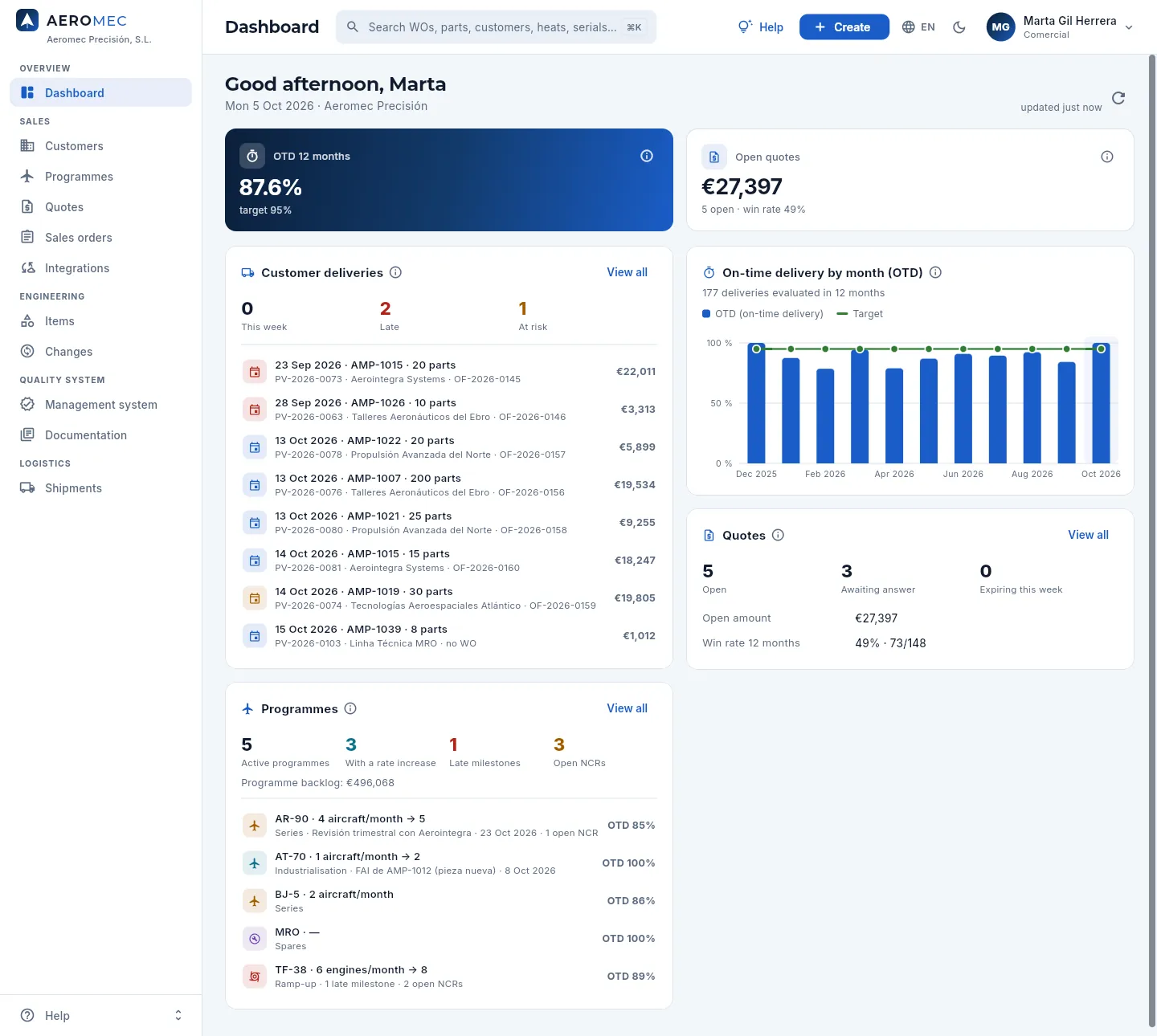 123456
- 1Only the key figures for her blocks: OTD and Open quotes, now in wider cards.
- 2The amount of open quotes without the defence ones: her profile cannot see them, so they do not count in her figures.
- 3Customer deliveries, also without the defence ones: that is why there may be fewer than on the management dashboard.
- 4OTD by month, calculated only with the deliveries she can see.
- 5The programmes, without the defence ones.
- 6The Quotes block, with the open amount because her profile can see prices. She has no production, quality, material or finance blocks.
#Tips
Overview
Connect to Claude
Work with Aeromec from a chat with Claude, Anthropic's artificial intelligence assistant: ask it about work orders, machine queues, quotes, quality, stock or traceability and, if your profile allows it, ask it to make changes. Always with your own permissions and with keys you can revoke.
Claude is Anthropic's artificial intelligence assistant. Aeromec comes with a connector for Claude: a secure connection through which Claude can work with your Aeromec data from a chat, on claude.ai (in the browser), in the desktop and mobile apps and in Claude Code. Instead of going screen by screen, you ask in your own words:
- «Which work orders are late or at risk, and why?»
- «How is the F5-01 queue going, and what comes next?»
- «Which parts and which customers have material from heat A10G6677?»
- «Quote Talleres Aeronáuticos del Ebro for AMP-1015 in 10, 25 and 50 pieces, with the suggested prices.»
- «Receive purchase order PC-2026-0176: everything has arrived, heat H45812 with its 3.1 certificate.»
Claude enters Aeromec as you: it sees what you see in the app and can only change what you can change.
#What you can ask it
- Look things up: search for anything (like the app's ⌘K search); open the full record of a work order, a part, a routing, a customer, a supplier, a quote, an order, a purchase order, a delivery note, an invoice, an NCR, a CAPA, a FAI, a lot, a machine, a piece of equipment, a maintenance work order, a person or a gauge, with everything hanging from it and its documents; pull any list with filters, sorting and totals; the Dashboard, the monthly indicators (OTD, PPM, scrap, OEE…) and the reports; the machine queues with their hour-by-hour forecast; the cost breakdown of a part (if you see costs), the traceability of a serial number, a work order, a heat or a lot and maintenance: breakdowns, work orders, plans that are due, tools and spare parts to order, KPIs (MTBF, MTTR) and the impact of a failed verification.
- Look up the quality system: a programme (the parts demand its rate calls for against what has been ordered, and «what if the rate goes to N?» with the load on each machine); the management system summary (objectives, risks, findings, actions, satisfaction) and the management review inputs for a period; the requirements that apply to a quote, an order, a part or a purchase order; a supplier's scope, evaluations and SCARs and why a purchase order cannot be sent; the EN 9131 data of an NCR and the affected shipped product; the impact of a change request and a part's configuration; competences and training; the signatures on a record and the inspection stamps; and how Aeromec covers each clause of ISO 9001 and EN 9100, with the backups and their verified restore.
- Make changes, if your profile allows it: add, change or delete customers and contacts, suppliers, items, quotes, orders and purchase orders with their lines, NCRs, CAPAs, supplier invoices, payments, collections and demand forecasts for the MRP; set the quantity price breaks of a quote (also the suggested ones), send it, make a new version or accept it (the order is created with its deliveries) if its contract review is signed; create, release, reschedule, close or cancel a work order; move an operation in a machine's queue; move a routing to internal review or record the customer's rejection; send, confirm and receive a purchase order (with its heat and its 3.1 certificate); prepare a delivery note; invoice; run the MRP and generate its proposals; resolve a shop-floor incident; in maintenance, generate the plan orders, schedule a stop in the best slot, start, record spare parts and close a work order, follow up a corrective action and order the tools and spare parts that are missing; and in the quality system, programmes with their milestones, reviews and MRP forecasts, requirements, risks, audit findings (and opening their CAPA), actions, customer ratings, training courses and competences, draft change requests, customer complaints, FOD inspections, customer property and suppliers' approved scope and customers' approved sources.
Claude fills in the same things as the app: document numbers, the validity of the quote, the customer's or supplier's terms, the purchase price or the due dates. A quote, an order or a purchase order is created with all its lines at once, and if anything fails nothing is created. You can name things the way you know them («the blocked AMP-1015 work order», «the Aceros Finos Vascos purchase order») or by their number (OF-…, OFE-…, PV-…, PC-…, NCR-…, OT-…, MC-…).
Aeromec also offers five ready-made prompts that Claude shows next to the connector: Resumen del día (summary of the day), Estado de una OF (status of a work order), Entregas en riesgo (deliveries at risk), Mantenimiento de la semana (this week's maintenance) and Preparar una oferta (prepare a quote).
#Why it is safe
- Claude enters as you, never with more permissions. The connector has no permissions of its own: every request from Claude carries your identity, and the Aeromec database applies your access profiles to it exactly as in the app: sections, sensitive data (costs, prices, margins, contacts), defence and export-controlled data, and actions. What your profile cannot see, Claude cannot see either.
- Never the terminal or administration. Time records and gauge loans of the shop-floor terminal are not recorded from Claude (they go with the person and their PIN, next to the machine), nor are users, profiles, permissions, keys or Settings managed: that is only done in the app.
- With a personal key you can revoke. Claude identifies itself with an access key of yours. Aeromec does not store the key, only a fingerprint to recognise it, so it is shown only once. It is revoked with a button and access is cut on the next request; it is also cut if it expires, if an administrator disables your user or if your profile loses the permission.
- Everything is recorded. Every time Claude looks something up or changes something it goes into the activity log: what it did, on what, and whether it was allowed. What it changes also goes into the Audit log and the Changes tab of each record, flagged «from Claude».
- Without the «Export CSV» permission, Claude gets at most 50 rows per query (500 with it).
- Your password is not stored in Claude. When you connect, you type your user and password on an Aeromec page, not in Claude; Claude only receives a key you can revoke.
The connector follows MCP (Model Context Protocol), the open standard for connecting AI assistants with applications.
#What Claude asks you first
Claude always asks you to confirm before:
- deleting anything (it cannot be undone; and what is in use, like a customer with orders, cannot be deleted: it suggests deactivating it);
- releasing a work order to the shop floor (it first tells you which materials there are, how much free stock, and which one Aeromec proposes);
- receiving a purchase order, preparing a delivery note or invoicing (the invoice is issued);
- accepting a quote (it creates the order with its deliveries);
- and creating or changing anything you have not explicitly asked for.
Afterwards it sums up what it did with the numbers (OF-…, OFE-…, PV-…, PC-…, NCR-…), so you can find it in the app.
#Claude never signs
Whatever inspects, releases, dispositions or approves is signed in the app with a person's electronic signature: their password and, if it releases product, their inspection stamp. A signature belongs to a person and states what it means; that is why Aeromec does not let Claude sign, not even with the key of someone who can. From a chat you cannot:
- record a product inspection (in-process, final or the receiving inspection of a lot), nor release or reject an FAI;
- disposition, grant a concession on, mutilate, close or void an NCR, notify an escape, close a CAPA, a SCAR or a complaint;
- record a calibration, send a routing to the customer or record its approval, nor verify a fixture;
- ship a delivery note with its CoC (Claude prepares it; whoever holds the CoC stamp ships it in the app);
- sign the contract review of a quote or an order, evaluate or approve a supplier, approve a change request or a document, close an audit or approve the management review.
What it does do is explain why something is stuck and what is missing: that a quote cannot be sent because its contract review is missing, that a purchase order cannot be sent because the supplier's Nadcap has expired, that a work order cannot be released because its fixture's verification has expired. And it can read the signatures of any record you can see, with their stamp and status.
#Where it is in Aeromec
Everything about the connector is in your user menu, at the top right: Connect to Claude. Everyone who works in the app has it, whatever their profile.
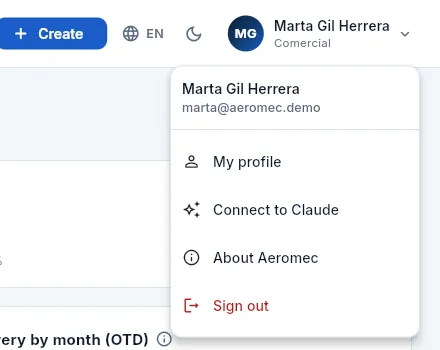 12
12
- 1Click your name to open the menu.
- 2Connect to Claude opens the connector panel.
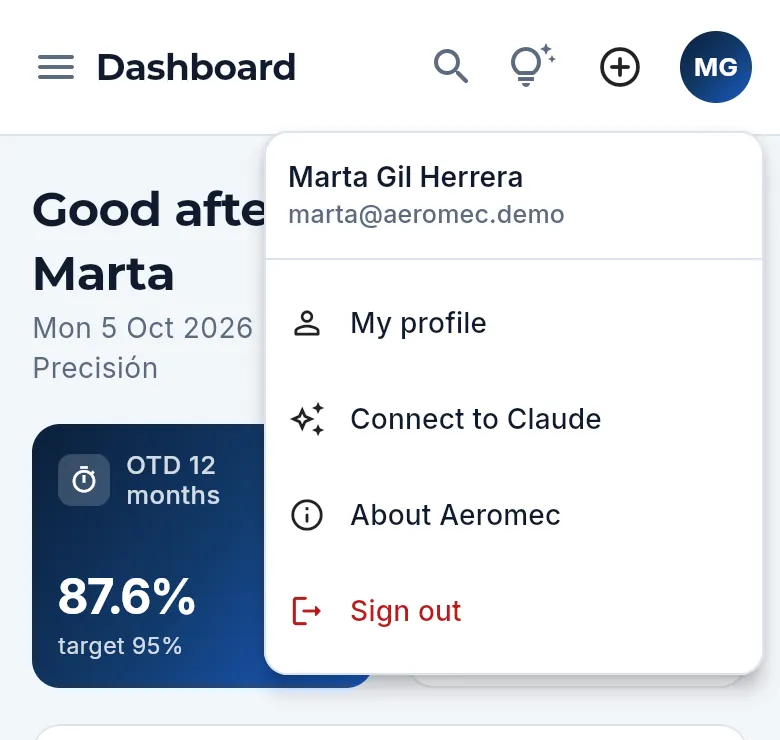 1
1
- 1On a phone too, from your initials, at the top right.
A panel opens with four parts: what Claude can do for you, how to connect it, your access keys and the recent activity.
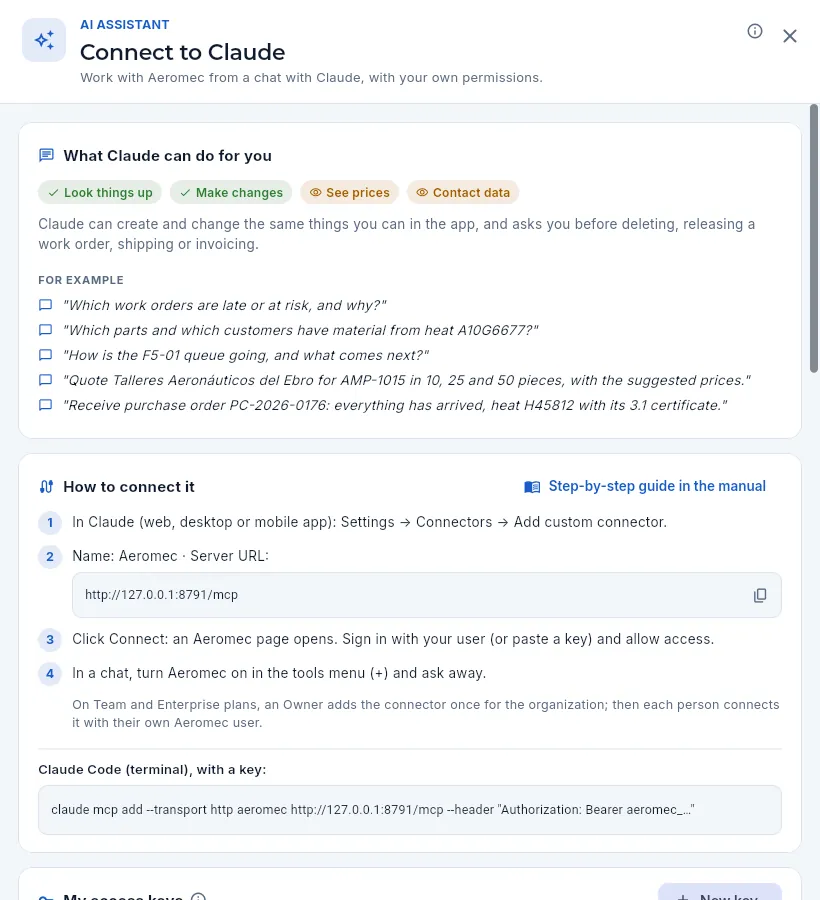 1234567
- 1The ⓘ explains how the connector works and why it is safe.
- 2What your profile lets you do from Claude: Look things up and, if it has it, Make changes (if not, it is greyed out, with the no-entry sign).
- 3The sensitive data you see, and Claude with you. Marta sees prices and contacts, but not costs, margins or defence data.
- 4Examples of what you can ask. Those that make changes only appear if your profile can make them.
- 5Opens this chapter of the manual.
- 6The steps to connect it and the connector address, with the copy button: this is what you paste into Claude.
- 7For Claude Code, the command to add it with a key.
#What Claude can do depending on your profile
It is decided by two switches in your access profile, in the Assistant (Claude) group: Use from Claude (without it, none of your keys work) and Make changes from Claude (without it, Claude only looks things up, even if you can edit in the app). On top of that, Claude can only do what the other actions of your profile allow. This is how the demo profiles come set up:
| Profile (person) | Look up | Make changes | What you can ask Claude |
|---|---|---|---|
| Administrator (Elena) | Yes | Yes | Everything she does in the app, except managing users, profiles, keys and Settings. |
| Management (Javier) | Yes | Yes | The whole business with costs, prices and margins (dashboard, reports, cost breakdowns, queues, programmes, management system). Routings, concessions and changes are approved in the app, with a signature. |
| Engineering office (Lucía) | Yes | Yes | Items, routings (up to internal review), cost breakdowns with costs, requirements, change requests, work orders and quality. No prices. |
| Sales (Marta) | Yes | Yes | Customers, quotes (suggested quantity price breaks, send and accept → order, with the contract review signed in the app), orders, programmes, requirements and items. Sees prices, not costs or margins, and nothing about defence. |
| Planning (Pablo) | Yes | Yes | Create, release and reschedule work orders, move operations in the machine queues, programmes and their forecasts, MRP and purchasing. |
| Shop supervisor (Antonio) | Yes | Yes | Work orders (release, reschedule, close), machine queues and shop-floor incidents. No costs. |
| Quality (Carmen) | Yes | Yes | NCRs and CAPAs (whatever is signed, in the app), complaints, FOD, management system, suppliers' scope, gauges and traceability. |
| Warehouse (José Luis) | Yes | Yes | Stock and lots, receiving purchase orders, preparing delivery notes (shipped in the app, with a signature), traceability. No costs. |
| Purchasing (Inés) | Yes | Yes | Purchase orders (send —if the supplier is approved and the purchase is within its scope—, confirm, receive), suppliers and MRP. |
| Administration (Sergio) | Yes | No | Look up invoices, collections, payments and reports. Invoices, collections and payments are issued in the app, with the whole document in view. |
| Shop-floor operator (Rafael) | No | No | Nothing: he works at the shop-floor terminal, with his PIN. |
| External auditor (Teresa) | No | No | Nothing: she looks things up in the app, read-only, until her access end date. |
If a profile should only look things up from Claude, an administrator turns off Make changes from Claude with a switch (see Profiles and permissions): Claude will still answer, but it will not be able to create or change anything, and your panel will say so.
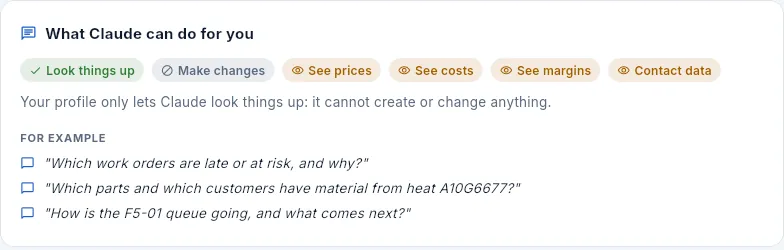 12
12
- 1Make changes, greyed out: his profile does not have «Make changes from Claude».
- 2And the panel says so: Claude cannot create or change anything. The examples are only queries.
#Connecting Claude: on the web, on the desktop and on a phone
Claude's custom connectors are available on all its plans: Free (with a single connector), Pro, Max, Team and Enterprise. Connect it once on claude.ai or in the desktop app: what you connect also appears in the other Claude apps with the same account, including the mobile one.
In Aeromec, open your user menu → Connect to Claude and copy the connector address with the copy button. In the public demo it is https://aeromec.app/mcp.
In Claude, go to Settings → Connectors and click Add custom connector.
Type the name Aeromec and paste the address into the URL field. Leave the advanced settings blank: Aeromec introduces itself. Click Add.
Click Connect next to Aeromec. The Connect Claude to Aeromec page opens (below).
On the With my user tab, type the email and password you use to sign in to Aeromec (a «Claude» key valid for 90 days is created). Or, on With a key, paste a key you have created in Aeromec.
Click Allow access. You go back to Claude with Aeromec connected.
In a conversation, open the + tools menu (Search and tools) and turn on Aeromec. Ask whatever you need: the first time Claude uses each Aeromec tool it will ask for your permission, and you can always allow it.
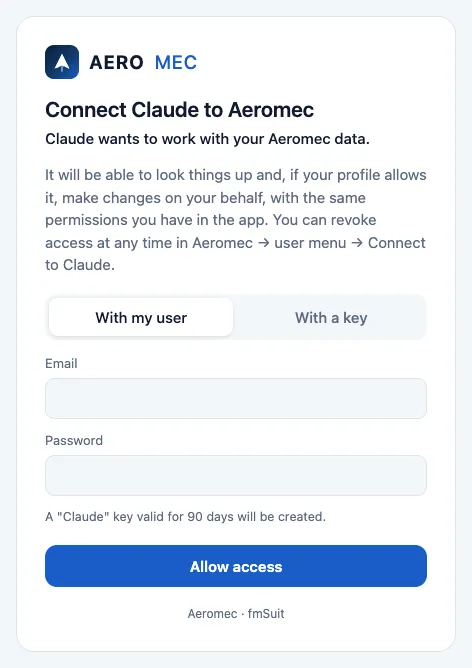 1234
1234
- 1What Claude will be able to do and where to revoke access.
- 2With my user: your Aeromec email and password, the same as in the app.
- 3Aeromec creates a «Claude» key valid for 90 days.
- 4Allow access takes you back to Claude with the connector connected.
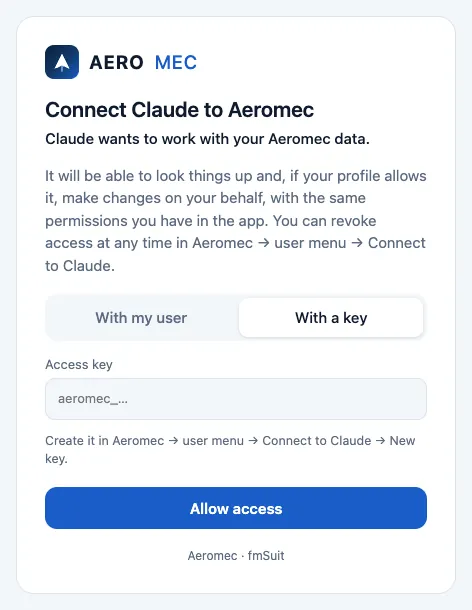 12
12
- 1With a key: if you prefer not to type your password here.
- 2Paste the access key you created in Aeromec (it starts with «aeromec_»).
#Claude Code
Claude Code (Claude in the terminal, for people who program or automate) connects with a key created in Aeromec. When you create the key, Aeromec gives you the command ready to use; it is this one, with your key at the end:
claude mcp add --transport http aeromec https://aeromec.app/mcp --header "Authorization: Bearer aeromec_…"
You can also add it without the key (without --header) and, inside Claude Code, type /mcp → aeromec → Authenticate: the
same Aeromec page opens in the browser. Any other program compatible with that open standard connects the same way, with the
connector address and a key.
#Your access keys
An access key is what Claude uses to enter Aeromec as you. There are two ways to get one:
- When you connect Claude with your user and password (With my user tab), Aeromec creates a 90-day «Claude» key. You do not have to do anything else.
- By creating it yourself in Aeromec, to paste it on the With a key tab or for Claude Code.
Each person can have up to 20 active keys at a time.
Open your user menu → Connect to Claude and scroll down to My access keys.
Click New key.
Type a name that tells you where you are going to use it («Claude on my laptop», «Claude Code»…) and choose when it expires: In 30 days, In 90 days, In a year or Never.
Click Create key.
Aeromec shows you the key only once, with the button to copy it and the Claude Code command ready to use. Copy it and click Done.
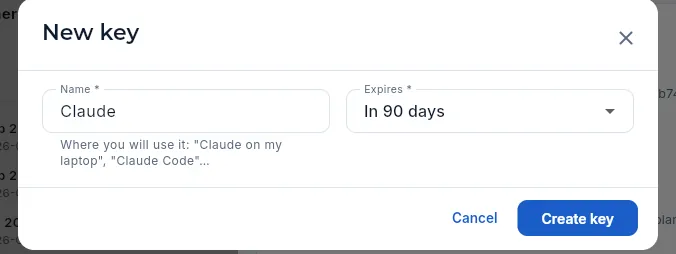 123
123
- 1Name: where you are going to use it, so you can recognise it later in the list.
- 2Expires: in 30 days, in 90 days (the one Aeromec suggests), in a year or never.
- 3Create key creates it and shows it to you only once (it has not been clicked in the screenshot).
Further down the panel are your keys and what Claude has done with them:
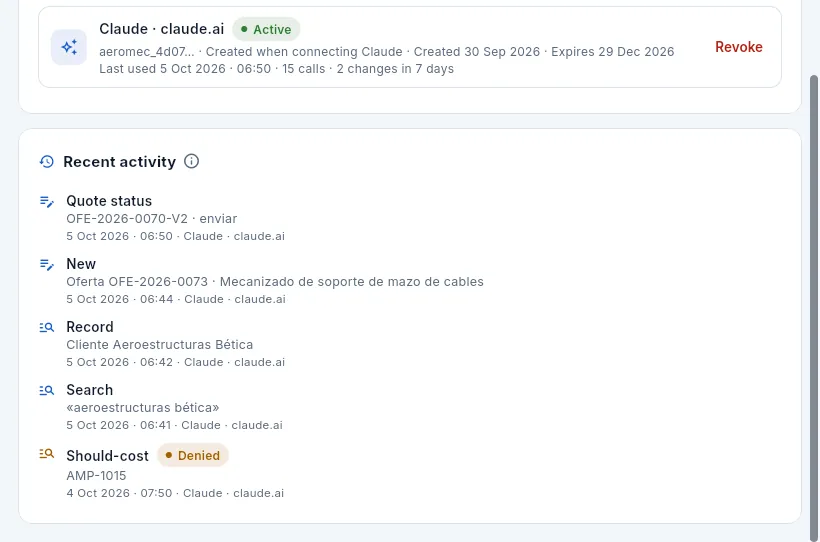 12345
12345
- 1Each key, with its name and its status: Active, Expired or Revoked.
- 2The start of the key (aeromec_…), how it was created, when it expires, when it was last used, how many calls it has made and how many changes in the last 7 days.
- 3Revoke cuts that key's access on Claude's next request.
- 4The activity: each call from Claude, newest first. Here, a change: Marta sent a quote from the chat.
- 5Denied: Claude asked for something the profile does not allow (here, a part's cost breakdown, with its costs) and Aeromec did not give it.
Each line of the activity is one call from Claude: a lookup (magnifying glass) or a change (pencil), with what it looked up or changed and when. If it could not be done, it carries the Denied label (your profile does not allow it) or Error. Revoked and expired keys are hidden; Show revoked and expired shows them, with who revoked each one and when.
Open your user menu → Connect to Claude and scroll down to My access keys.
Click Revoke on the key you want to cut off.
Confirm it. It cannot be undone: to connect again, you will need a new key.
#What Claude changes is recorded
What Claude creates or changes goes into the Audit log as if you had done it, under your name, and also flagged from Claude. Whoever has the «See the change audit log» permission finds it with the From Claude filter in Audit log and in the Changes tab of each record.
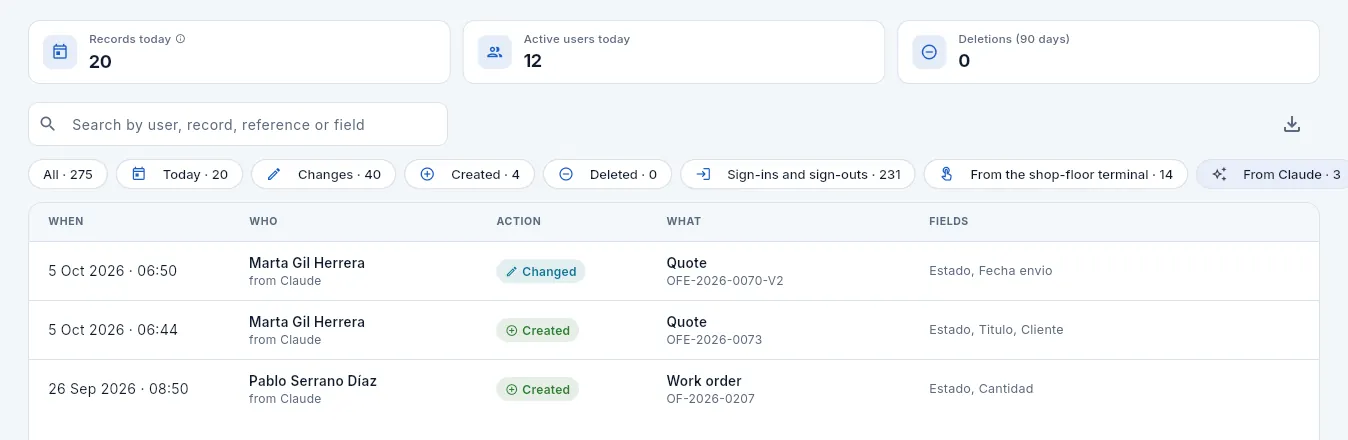 1234
1234
- 1The From Claude filter: only what was done through the connector.
- 2Who: the person who owns the key, with the from Claude flag.
- 3What: the record that changed. Click the row to see each field before and after.
- 4What was done with a key that was later revoked is also kept (here, the work order Pablo created).
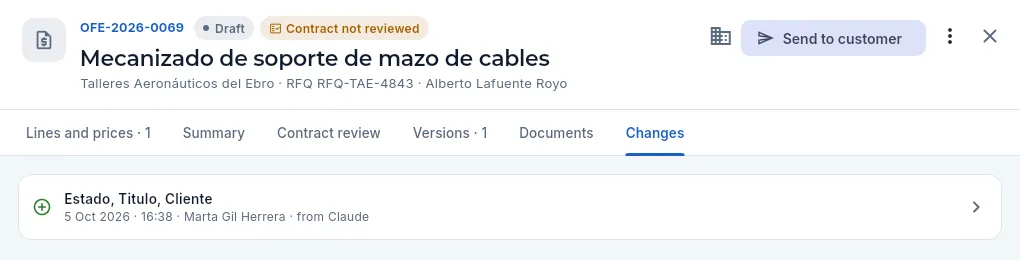 12
12
- 1The record's Changes tab.
- 2The creation of the quote, with when, who and from Claude.
#For the administrator: Users → Claude
An administrator sees the keys of every user and everyone's activity in Users → Claude tab, and can revoke any of them. Creating and revoking keys is also recorded in the Users change log.
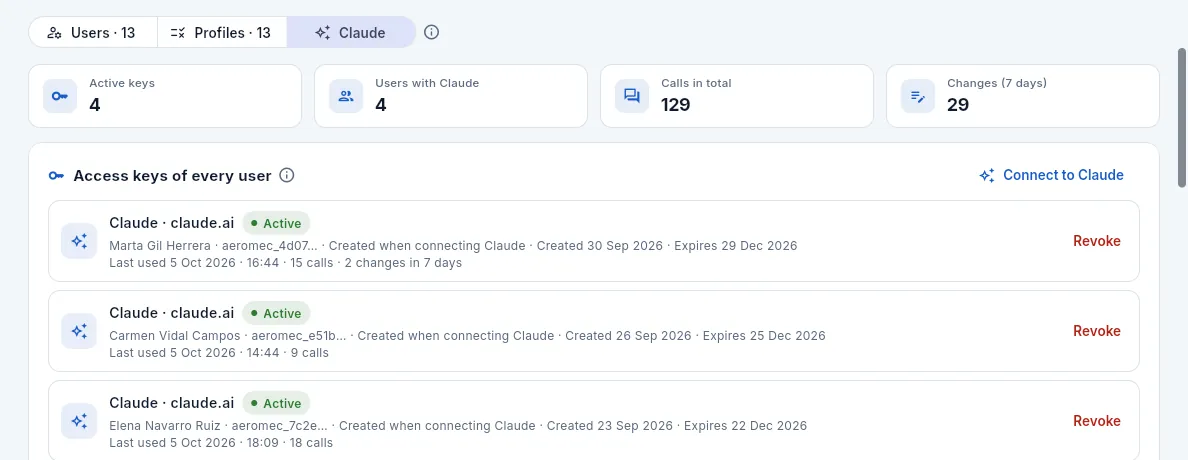 1234
1234
- 1The Claude tab in Users (administrators only).
- 2Active keys, how many people use Claude, calls and changes in the last 7 days.
- 3Each key, with whose it is.
- 4The administrator can revoke anyone's key.
#Disconnecting Claude
To stop using Aeromec from Claude, do it on both sides:
- In Claude: Settings → Connectors → Aeromec → Disconnect, or remove the connector.
- In Aeromec: revoke the key it was using (in Connect to Claude → My access keys).
If you just want Claude not to use Aeromec in one conversation, turn Aeromec off in that conversation's + tools menu.
#If something does not work
- Claude says the key is not valid or that it cannot connect. The key has been revoked or has expired: check it in My access keys (it will show as Revoked or Expired). In Claude, disconnect Aeromec and connect it again with your user, or paste a new key.
- On the Aeromec page, the email or the password is not accepted. They are the same ones you use to sign in to the app. If your user is disabled, you will not be able to connect: talk to an administrator.
- The panel says «Your profile does not allow using Aeromec from Claude». Your profile does not have Use from Claude: ask an administrator to turn it on. In the meantime, none of your keys work.
- Claude looks things up but does not make changes. Your profile does not have Make changes from Claude, or it does not have the permission for that action in the app (for example, «Release work orders»).
- Claude says it cannot see some data (a cost, a price, a phone number, a defence part). Your profile does not see it, and neither does Claude: that is expected.
- Claude says something «is signed in the app». That is expected: inspecting, releasing, dispositioning, approving or shipping are signed by a person in Aeromec (see Claude never signs).
- Claude does not use Aeromec when you ask. Turn Aeromec on in the conversation's + tools menu and, when Claude asks for permission to use an Aeromec tool, allow it.
- I cannot add it on Claude's Free plan. That plan allows a single custom connector: remove the one you have or move to another plan.
- In the public demo, what Claude did has disappeared. The demo data goes back to its initial state every day at 08:00 (Spain time). Your active keys, on the other hand, are kept: there is no need to connect again.
Sales
Customers
Each customer with their quality requirements (FAI, routing approval, CoC, 3.1 certificate, serial number, approved sources), their tax details (country and VAT number), their contacts and terms, their open backlog, how well they are served (OTD) and what they owe; and in tabs, their parts, quotes, orders, invoices, the clauses of their quality manual, the subcontractors they accept, their complaints and their documents.
Customers holds every company Aeromec makes parts for. There are four types:
- Integrator: the manufacturer of the aircraft or of the complete system, which buys from many suppliers.
- Tier 1: a first-tier supplier to the integrator (structures, engines, landing gear…) that orders parts.
- Defence: a defence contractor.
- MRO (Maintenance, Repair and Overhaul): maintenance shops that order spares.
The most important part of each record is the quality requirements: what that customer demands on every delivery. Aeromec applies them by itself in the other sections (it does not let you release a WO without an approved routing if the customer requires it, it does not ship without an approved FAI, it puts the CoC and the 3.1 certificates with every delivery note, it does not let you buy a treatment from a subcontractor the customer does not accept…), so it pays to get them right when the customer is created. In addition, the clauses of their quality manual are kept one by one as requirements, and the contract review of every quote and every order brings them along by itself.
A customer from the defence sector or flagged for export control (dual-use material) is protected: they and everything belonging to them (parts, quotes, orders, WOs, invoices) are only visible to those with the Defence data permission.
The customer's country decides how their invoices are issued: with VAT if they are in Spain, without VAT as an intra-Community supply if they are in another EU country (with their VAT number) and as an export if they are outside the EU.
- 1CustomerQuality requirements, contacts and payment terms.
- 2QuoteThe answer to their request for quotation, with quantity prices.
- 3OrderTheir scheduled deliveries: OTD is measured against their dates.
- 4ManufacturingWO with the approved routing and the FAI if required.
- 5ShippingDelivery note with its CoC, heats, 3.1 certificates and serial numbers.
- 6Invoice and paymentFalls due according to their payment terms.
#The customer list
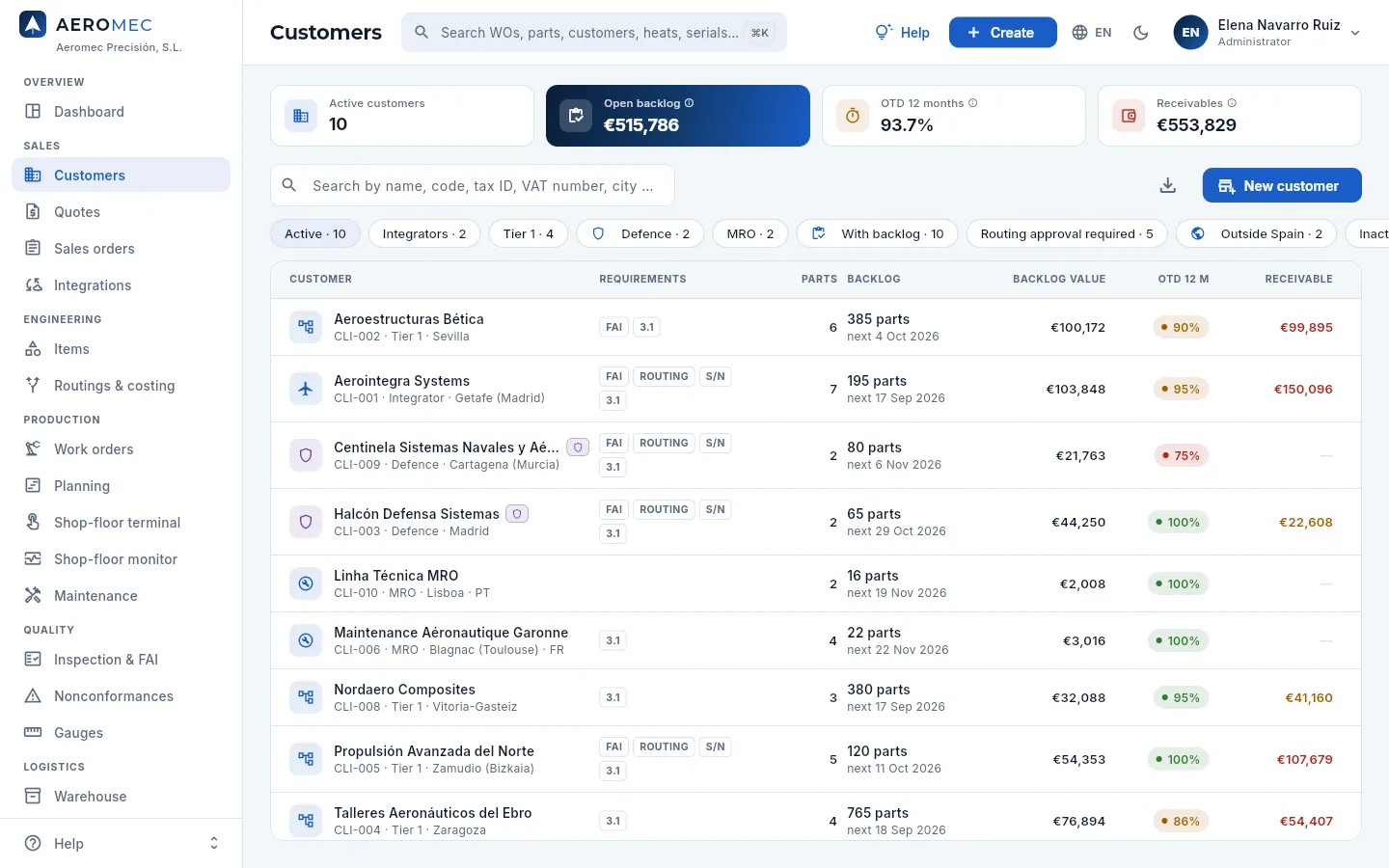 123456789
- 1Active customers (inactive ones do not count).
- 2Open backlog: what has been ordered and not yet shipped by all customers, in euros (or in parts if your profile cannot see prices).
- 3OTD 12 months for all customers together: green if it meets the company target, amber if it is close and red if not.
- 4Receivables: issued invoices not yet collected; in red if any is already overdue.
- 5The search box finds by name, code, legal name, tax ID, VAT number, city, country or contact person.
- 6The filters, with their counts (see the table below).
- 7Export CSV downloads the list you are looking at.
- 8New customer opens the form to add one.
- 9The customer's requirements as acronyms: FAI, RUTA (routing approval), S/N (serial number) and 3.1. Hover over each to read it. The CoC is not shown here: nearly every customer requires it.
| Filter | What it shows |
|---|---|
| Active | All active customers (the default) |
| Integrators · Tier 1 · MRO | Active customers of that type |
| Defence | Defence-sector or export-controlled customers (only with the «Defence data» permission) |
| With backlog | Those with ordered parts still to ship |
| Routing approval required | Those who must approve how each part is made before it is released |
| Outside Spain | Those in other countries: their invoices carry no VAT (intra-Community supply or export) |
| Inactive | Deactivated customers, who no longer appear when choosing a customer |
Each row shows the name with its code (CLI-…), type, city and, for customers outside Spain, their country code (FR, PT…); a purple shield if it is a defence customer; their requirements; how many of their parts Aeromec has on file; their backlog (open parts and the next delivery) and its value; their 12-month OTD and what they have receivable. Click a column header to sort by it and a row to open the record.
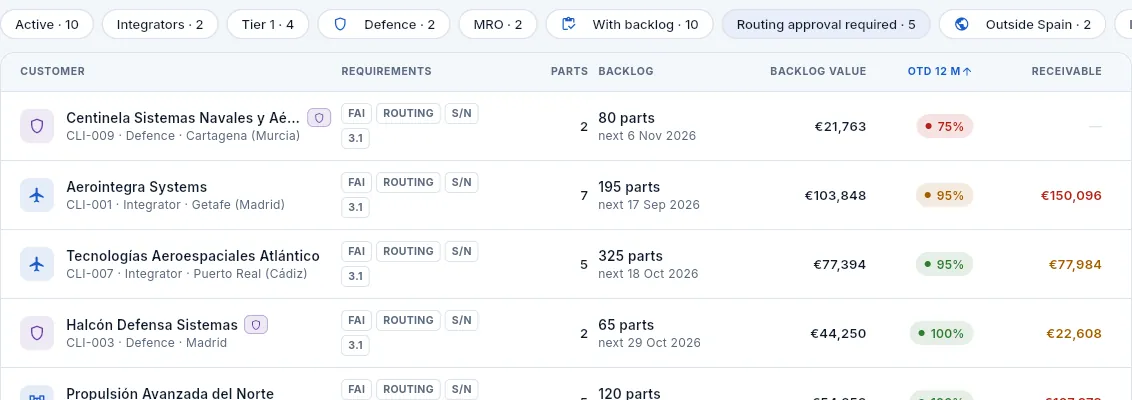 1234
1234
- 1The Routing approval required filter: the integrators, the defence customers and the engine Tier 1s.
- 2Clicking the OTD 12 m header sorts by it, worst-served first.
- 3Each customer's OTD, coloured against the target: here, one in red.
- 4Receivable: in red if part of what they owe is already overdue, in amber if it is still within terms and a dash if they owe nothing.
#Quality requirements
Every requirement you tick on the customer record is then applied in the rest of Aeromec, without anyone having to remember it:
| Requirement | What it is | What Aeromec does |
|---|---|---|
| Requires FAI (AS9102) | First article inspection per the EN 9102 / AS9102 standard: the first part of a new reference, or of a drawing revision change, is measured in full | The WO for a part without an approved FAI includes its FAI; parts from a WO whose FAI has not been released are not shipped |
| Requires routing approval | The customer approves how the part is made (operations, machines, material) before production | A WO cannot be released with a routing revision the customer has not approved |
| Requires certificate of conformity (CoC) | The signed statement that the parts meet the order and the drawing | On shipping, the CoC is issued with its number and travels with the delivery note |
| Requires 3.1 material certificate | The material maker's certificate per EN 10204 type 3.1, with the heat number | The delivery note and the CoC list the heats and their 3.1 certificates |
| Serial-number traceability | Each part carries its own number and is traced individually | The WO generates the serial numbers and the delivery note says which ones ship |
| Only accepts subcontractors from its list | The customer has a list of approved sources: the suppliers it accepts for each special process (treatments, tests…) | A purchase of an outside-processing operation for their parts from a supplier not on their list cannot be sent (see Requirements and approved sources) |
Below the six switches, Quality clauses & notes holds anything else the customer asks for (frozen process approval, source inspection, special packing…), which can be read on their record and their orders. For a clause to reach the contract review and, if needed, the suppliers, add it as a requirement (see Requirements and approved sources).
#Adding a customer
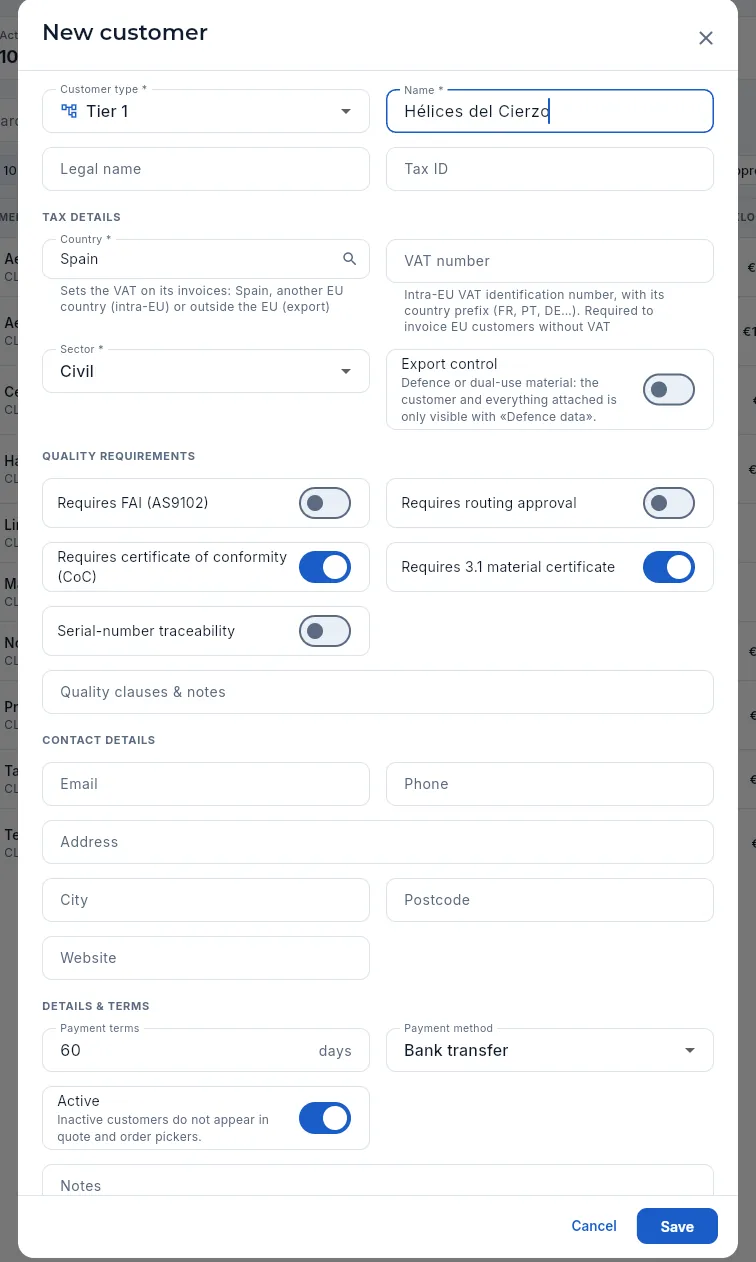 123456789
- 1Customer type (required): Integrator, Tier 1, Defence or MRO.
- 2Name (required), as the customer is called day to day. Next to it, legal name and tax ID, for quotes, delivery notes and invoices.
- 3Tax details: the country (required, from a list: it decides the VAT on their invoices) and the VAT number, with the country prefix, to invoice them without VAT if they are in another EU country.
- 4Sector (Civil, Defence or Civil and defence) and export control (defence or dual-use material): the customer and everything belonging to them will only be visible to those with «Defence data».
- 5The six quality requirements. The CoC and the 3.1 certificate come ticked by default.
- 6Quality clauses & notes: anything else the customer asks for.
- 7The company's contact details: email, phone, address, city, postcode and website.
- 8Payment terms in days (60 by default; 0 = cash) and payment method: they set when their invoices fall due.
- 9Active: inactive customers do not appear when choosing a customer in quotes and orders. At the end, internal notes.
Click New customer (or Create → New customer in the top bar, from any screen).
Choose the Customer type, type the Name and, if you have them, the legal name and tax ID.
Under Tax details, choose the Country and, if they are in another EU country, enter their VAT number (check it in VIES first). If you forget the prefix, Aeromec adds it when saving.
If it is a defence customer, choose the Sector or tick Export control (only if your profile has «Defence data»).
Tick their quality requirements according to their supplier manual or the contract, and copy into Quality clauses & notes anything else they ask for.
Fill in the contact details and the payment terms.
Click Save.
#The customer record
Click a customer to open their record on the right. It has the tabs Summary, Contacts, Parts, Quotes, Orders, Invoices, Requirements, Approved sources, Complaints, Documents and Changes (each one only if your profile can see that section). If they do not all fit, the tab row scrolls.
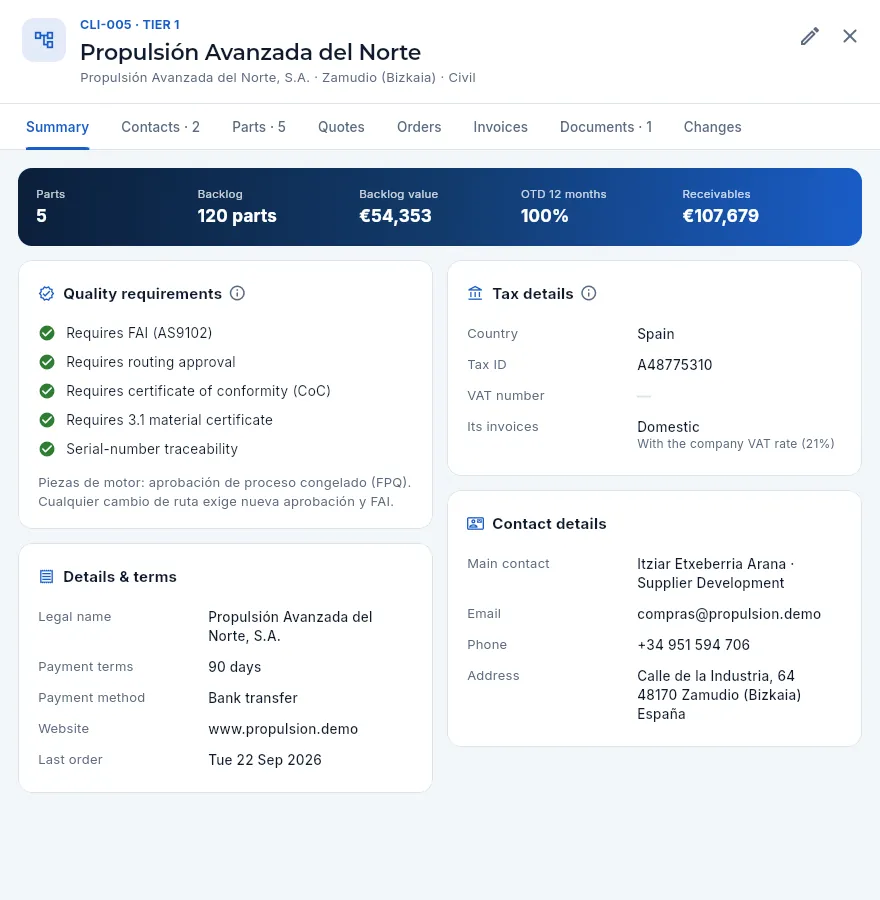 12345678
- 1The customer's code and type; below, the name, legal name, city and sector. A defence customer shows its shield here and an inactive one, the «Inactive» label.
- 2Edit opens the form with all their details.
- 3The tabs: contacts, parts, quotes, orders, invoices, requirements, approved sources, complaints, attached documents and the record's change log.
- 4Their figures: parts on file, backlog (ordered parts not yet shipped) and its value, 12-month OTD and receivables.
- 5Their quality requirements: the ones they require in green (also whether they only accept subcontractors from their list). Below, their clauses and notes.
- 6Details & terms: legal name, payment terms and method, website and the date of their last order.
- 7Tax details: country, tax ID, VAT number and how their invoices are issued (here, domestic, with the company VAT rate).
- 8Contact details: the main contact, email, phone and address.
#Tax details and VAT number
The Tax details card says how sales to the customer are invoiced, and their country decides it:
| Customer's country | Their invoices | What it requires |
|---|---|---|
| Spain | Domestic, with the company VAT rate (21 %) | Their tax ID (CIF) |
| Another EU country | Intra-Community supplies, exempt from VAT (art. 25 of the Spanish VAT Act): they go to the SII, form 349 and Intrastat | Their VAT number, with the country prefix, checked in VIES |
| Outside the EU | Exports, exempt from VAT (art. 21) | The export declaration for the goods |
The VAT number (NIF-IVA) is the intra-EU VAT identification number: the national number with its country prefix in front (FR, PT, DE…; Greece uses EL). It is checked in VIES (VAT Information Exchange System), the EU register of intra-EU traders. Without a valid VAT number, the supply cannot be exempt.
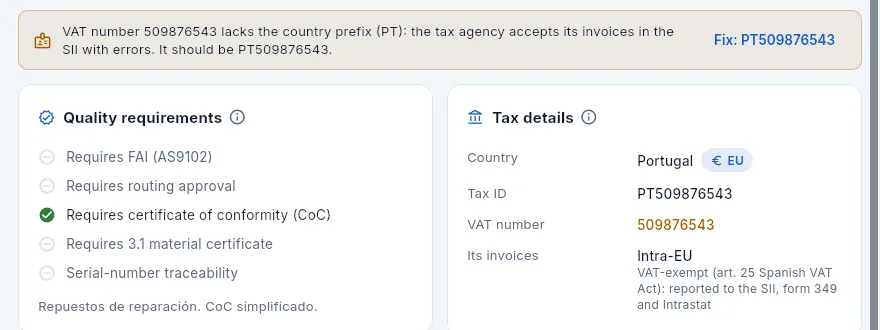 12345
12345
- 1The warning: the VAT number is missing the country prefix (PT) and the tax agency accepts their invoices in the SII with errors.
- 2Fix: PT509876543 fixes it in one click (with «Edit customers»): it saves the VAT number with its prefix.
- 3The country, with the EU badge if it is another country of the Union.
- 4The VAT number, in amber while it lacks the prefix.
- 5Its invoices: intra-Community, exempt from VAT, and which returns they go into.
Open the customer: if their VAT number lacks the prefix, the warning at the top says so (their delivery notes and invoices flag it too).
Click Fix: PT509876543 (the button suggests the number with their country prefix) or the Edit pencil if the number itself is different.
#Contacts
Contacts lists the customer's people you deal with: purchasing, quality, engineering… One of them is the main one (the star): it is the one shown in the record's summary. On one of the customer's quotes, when you edit its details, you choose which contact it is addressed to.
 12
12
- 1New contact opens the form.
- 2Each person with their job title, email and phone. The main one has the star and its label. Click one to change it.
 123
123
- 1Name (required) and job title.
- 2Email and phone (only with permission to see contact details).
- 3Main: the contact shown in the customer's summary.
#Parts, quotes, orders and invoices
The other tabs gather everything the customer has in Aeromec. Each row opens its record.
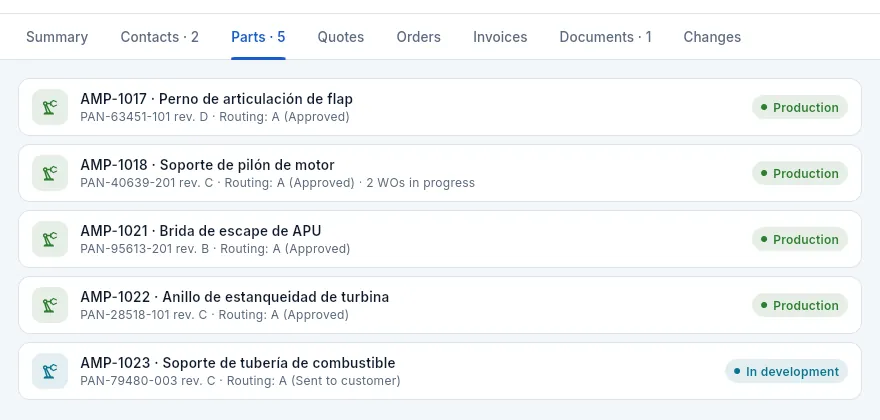 123
123
- 1Each part with its drawing and revision, the current routing with its status, and the WOs in progress.
- 2The part's status: production, in development, FAI pending or superseded.
- 3A new part: in development and with its routing sent to the customer for approval.
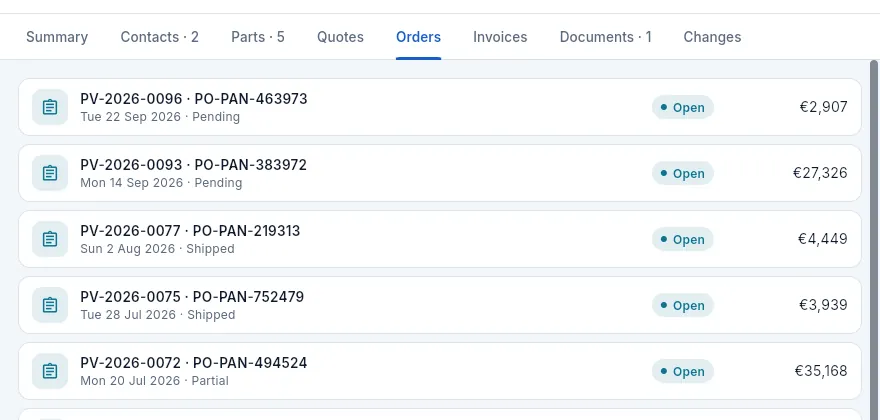 1
1
- 1Each order with the customer reference (their purchase order number, PO), the date and how much has shipped; on the right, its status and value. Most recent first.
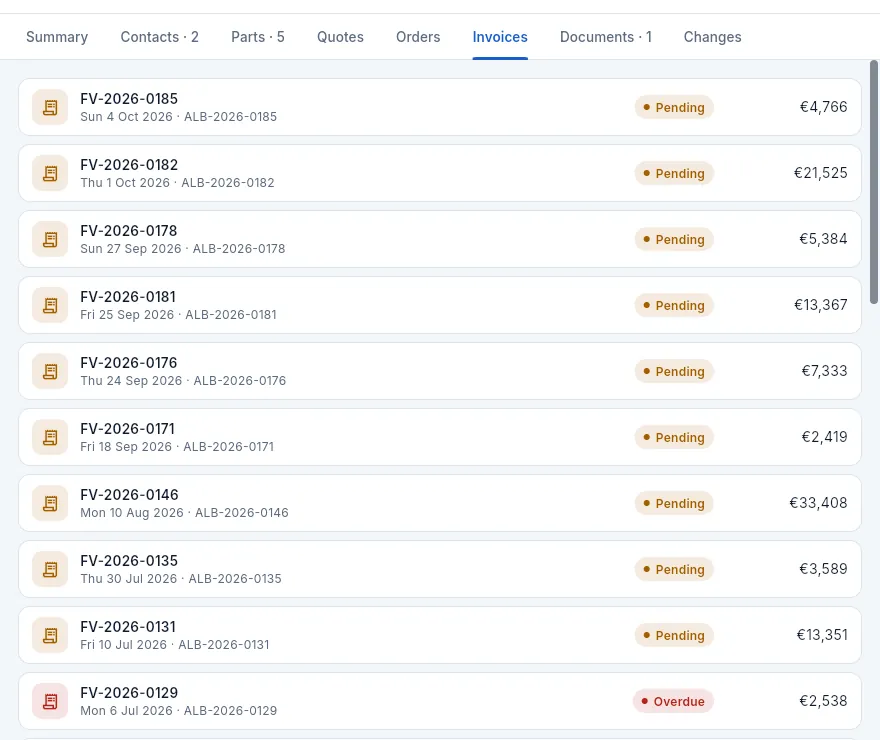 12
12
- 1Each invoice with its date, the delivery note it invoices, its payment status and the total including VAT.
- 2Overdue: its due date has passed without being paid in full. Open it to record the payment.
The Quotes tab works the same way: each quote with its number, subject, date and the customer's request reference (RFQ), its status and its amount. All three show up to the 60 most recent documents; to look further back, use the corresponding section with its search box.
Documents holds the customer's files (their supplier quality manual, clauses, contracts…): upload them with Upload documents or by dragging them onto the window; PDFs and images can be viewed without leaving Aeromec. Changes shows who changed the record and what (with the audit permission).
In the list, sort by Receivable (those with something overdue in red).
Open the customer: the band shows their receivables.
Go to the Invoices tab: overdue ones carry the Overdue label.
Click the invoice to open it and, when they pay, record the payment (see Invoices). The person to call is under Contact details.
#Requirements and approved sources
Every aerospace customer has its supplier quality manual (in the demo, Aerointegra Systems' QR-14, Aeroestructuras Bética's RQ-200, Halcón Defensa Sistemas' PQA-110 or Nordaero Composites' NC-Q-03). Its clauses are kept on the customer's Requirements tab, one per requirement (REQ-…), with what it requires, its reference (the clause: «QR-14 §3.2») and the document it comes from, which can be in Documentation as an external document.
From there they apply on their own:
- The contract review of every quote and order from the customer brings them in to be checked before committing (see The contract review).
- Those flowed down to suppliers go on every purchase order related to their parts (the material or the outside-processing operation), according to the purchase type, and appear on its PDF (see Purchasing).
A programme's requirements (for example, the rate agreed in the long-term agreement) are in its record, in Programmes, and a part's in its own; all of them together, with the company's, in Management system → Requirements.
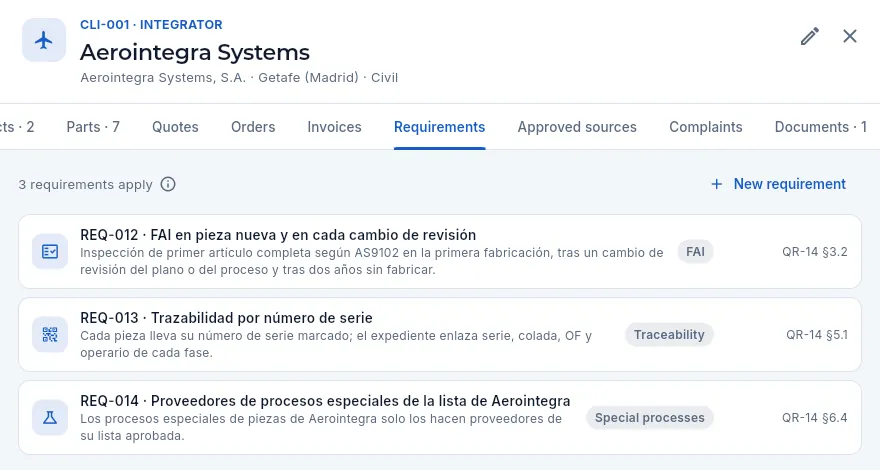 12345
12345
- 1The Requirements tab (with the Management system section).
- 2How many requirements the customer has; the ⓘ explains where they come from and where they go.
- 3New requirement adds another clause (with «Edit requirements»).
- 4Each requirement: its code and title and, below, what it requires. Click it to open its record.
- 5Its category (FAI, traceability, special processes…) and the customer clause it comes from.
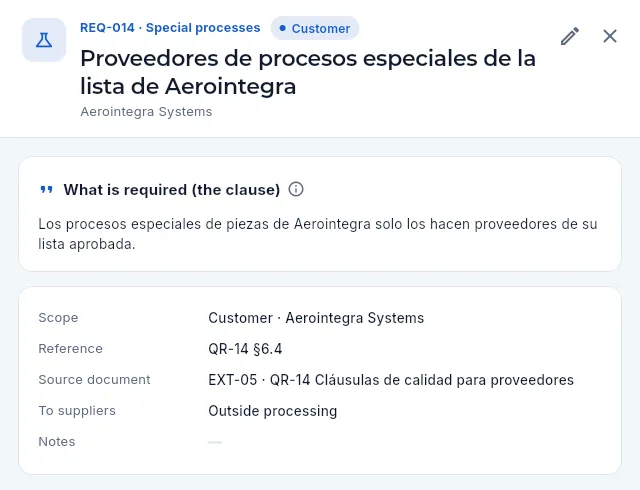 123456
- 1The code, the category and whose it is: Customer. Below, the title and the customer.
- 2Edit requirement (with «Edit requirements»).
- 3What is required: the text of the clause.
- 4The reference: the clause of their manual (QR-14 §6.4).
- 5The document it comes from (the customer's manual, in Documentation).
- 6To suppliers: which purchases it is flowed down to (here, outside processing). If it is not flowed down, it says so.
The Approved sources tab holds the subcontractors the customer accepts for each special process (anodising, passivation, heat treatment, non-destructive testing, shot peening…), with the reference of their list and its validity. If the customer only accepts those on its list (the switch in its quality requirements), a purchase of an outside-processing operation for their parts from a supplier not on it for that process cannot be sent.
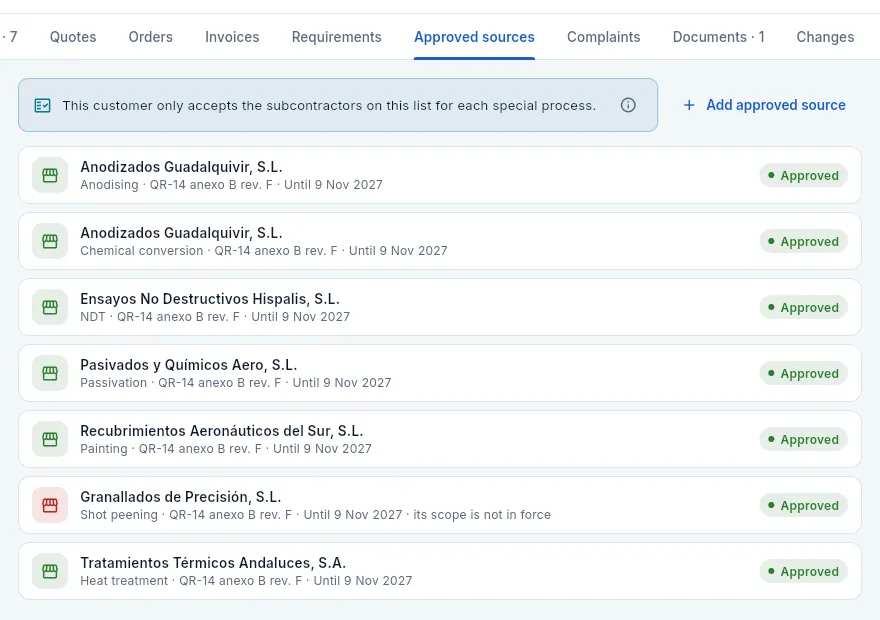 1234
1234
- 1Whether the customer only accepts those on its list (or any approved supplier with the process in its scope will do). The ⓘ explains it.
- 2Add approved source (with «Approve suppliers»). Click a row to change it.
- 3Each source: the supplier, the process it is accepted for, the customer's list, its validity and the supplier's approval status in Aeromec.
- 4In red, a source that cannot be used: the supplier's scope for that process is not in force (here, its shot-peening Nadcap has expired).
#Complaints and satisfaction
The Complaints tab gathers the customer's formal complaints (about quality, delivery or documentation), each with its number (RCL-…), the customer's reference, the date, what happened and its status. Click one to open it with its containment and response deadlines, its NCR and its CAPA; they are managed in Nonconformances.
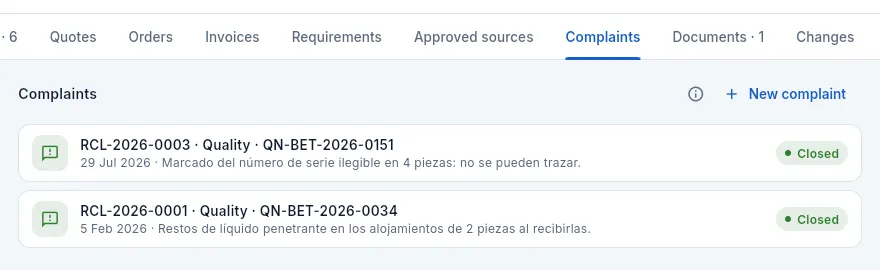 12
12
- 1New complaint for this customer (with «Edit quality»).
- 2Each complaint: number, type and the customer's reference; below, the date and what happened; on the right, its status.
What the customer thinks of Aeromec (their surveys, their scorecards —the rating the customer gives its suppliers, with their OTD and PPM— and meetings) is recorded in Management system → Satisfaction, against what our data says (OTD, PPM and customer NCRs over the last 12 months).
#Editing, deactivating or deleting a customer
With the Edit pencil on the record you can change any detail, the requirements included. To stop a customer appearing when creating quotes and orders without losing their history, switch off Active and save: you will find them under the Inactive filter.
Delete only appears on the form of a customer with no parts and no orders. As soon as there is history, deactivate them.
#What each profile sees
The database hides what your profile must not see: contact details, amounts and defence customers. This is how Lucía, from the engineering office, sees the same record as before:
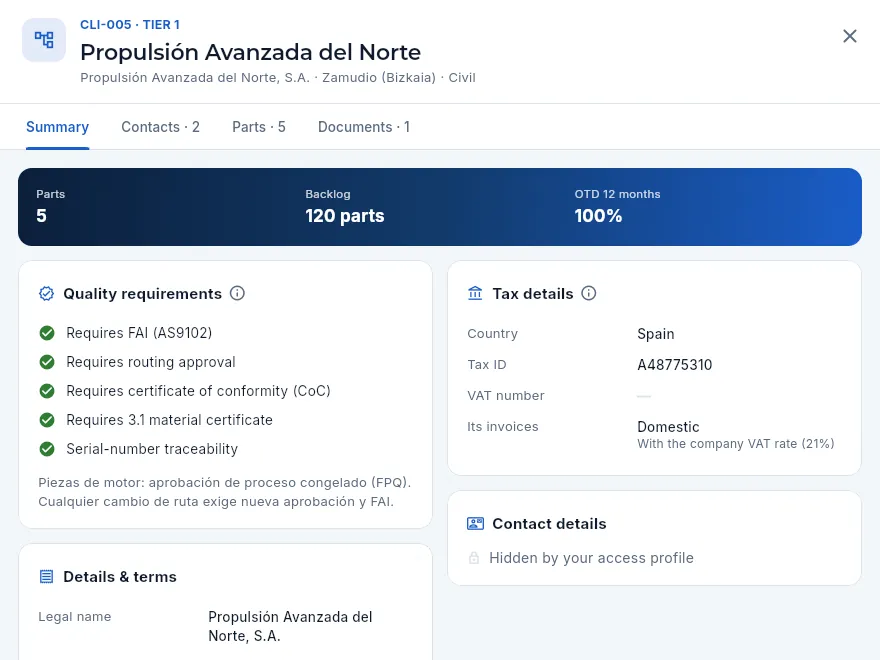 123
123
- 1Only the tabs for the sections in her profile: Contacts, Parts, Requirements, Approved sources and Documents. She has no edit pencil either.
- 2The band, without the backlog value or the receivables: her profile cannot see prices.
- 3Contact details with a padlock: «Hidden by your access profile».
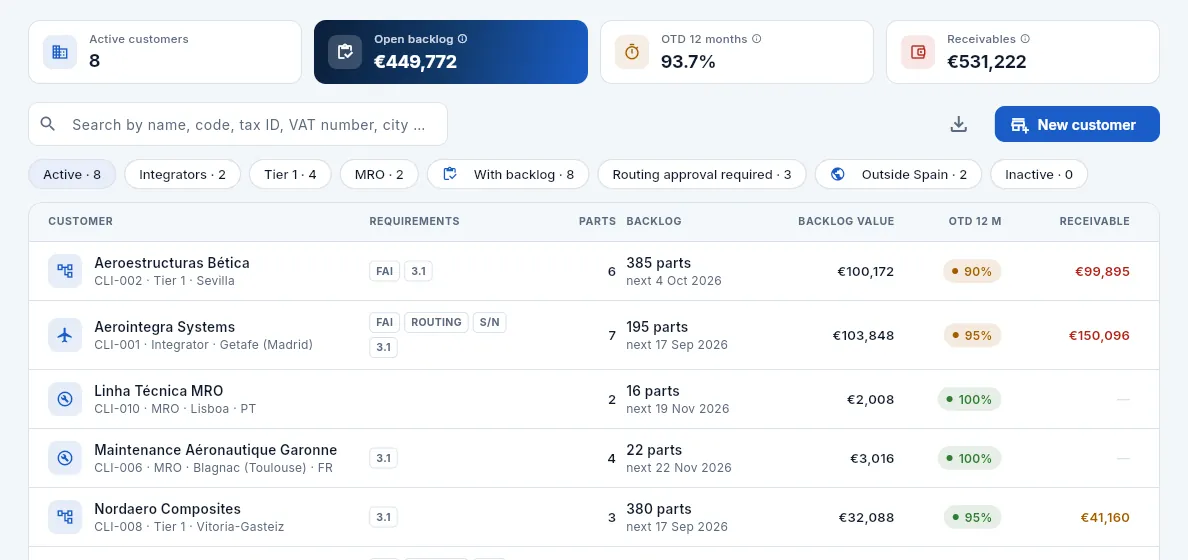 123
123
- 1Eight active customers: the two defence ones do not appear for her, neither in the list nor in the figures.
- 2She does not have the Defence filter either.
- 3She sees the backlog and receivables in euros because her profile can see prices.
#Tips
Sales
Programmes
The aircraft, engines and systems you manufacture for (AR-90, TF-38…): their customers, the parts each unit carries, the build rate and the demand it creates, the “what if the rate goes to…?” simulator, the milestones, the reviews with the customer and their actions, and the long-term price agreement.
In aerospace you don't manufacture part by part but by programme: a customer's aircraft, engine or system (the AR-90, a 90-seat regional aircraft integrated by Aerointegra Systems; the TF-38, a turbofan from Propulsión Avanzada del Norte…). The customer announces the rate at which it will build (aircraft or engines per month) and reviews with each supplier how its programme is going: on-time deliveries, quality, risks and the upcoming milestones.
In Programmes each one brings together:
- its customers and the role of each: the integrator (who assembles the aircraft, the OEM) and the Tier 1s (who build the assemblies and buy the parts from you);
- its parts and how many each aircraft carries: the shipset. With the rate, it gives how many parts the customer will order each month, even before they have been ordered;
- the rate plan, the 12-month demand and the simulator that tells you whether the plant can cope with a rate increase;
- its orders, work orders, NCRs and FAIs, and its 12-month indicators (OTD, PPM, scrap, invoiced, margin);
- the milestones, the programme reviews with their actions and the long-term agreement (LTA) on prices.
Each order line from a customer of the programme is assigned to the programme automatically if the part belongs to it, and its work order inherits it: in Work orders, Sales orders, Nonconformances, FAI, shipments and invoices, the Programme button shows just one programme's records.
- 1ProgrammeCustomers, parts and how many each aircraft carries (shipset).
- 2RateAircraft per month and its changes: the 12-month parts demand.
- 3What if…?Load on each machine at another rate, and the bottleneck.
- 4ForecastsWhat the rate requires and has not been ordered, to MRP so you buy in time.
- 5ReviewWith the customer: status, agreements and actions with an owner.
#The programme list
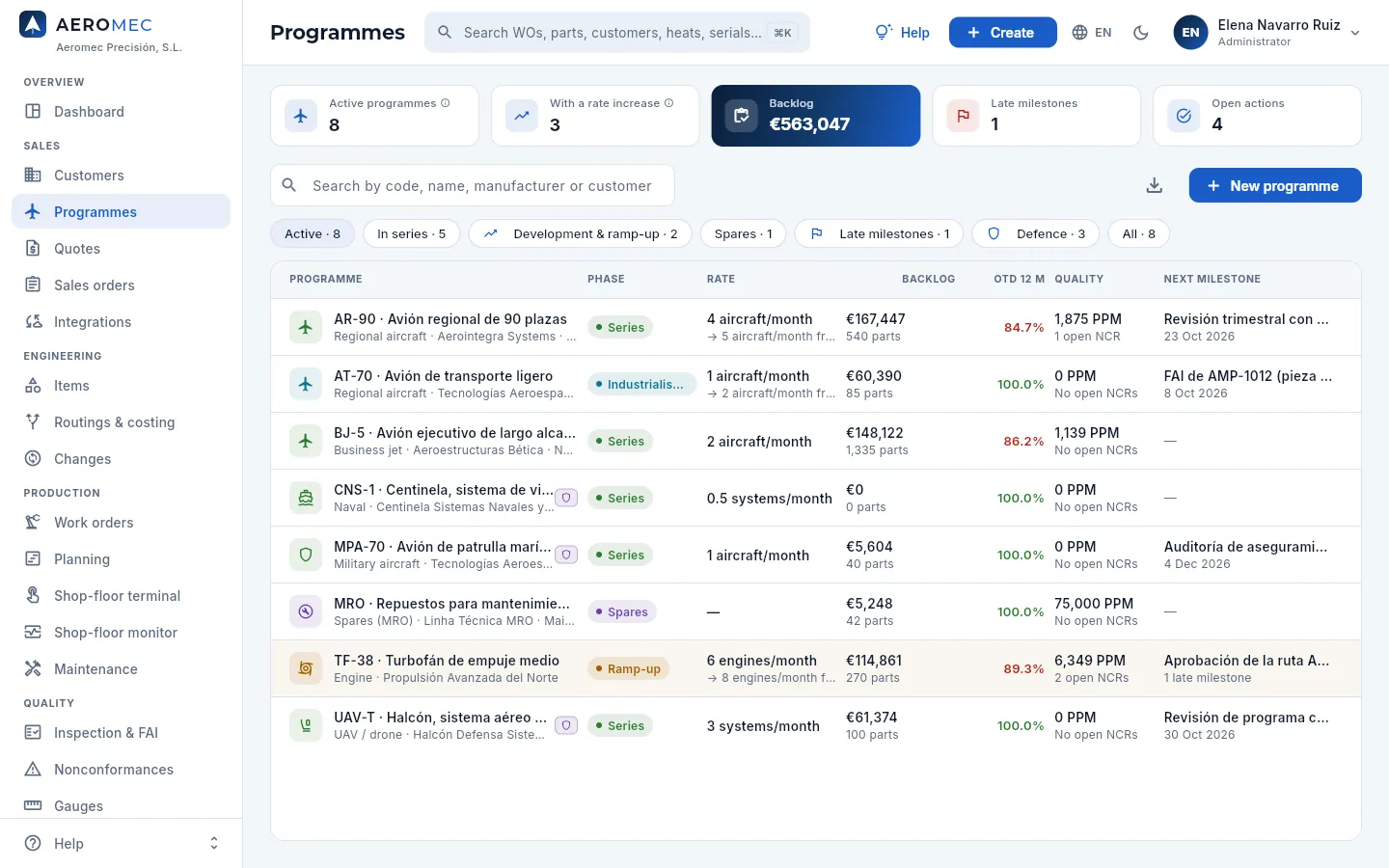 12345678
- 1Active programmes, those with a planned rate increase, the backlog (with «See prices»), the late milestones and the open actions.
- 2Search by code, name, manufacturer or customer.
- 3New programme (with «Edit programmes»).
- 4Filters: active, in series, development and ramp-up, spares, with late milestones, defence and all.
- 5Each programme with its type and customers. The shield marks the defence ones.
- 6Today's rate and, below it, the next change («→ 5 aircraft/month from…»).
- 712-month OTD (in red, below the company target) and quality: PPM and open NCRs.
- 8The next milestone and its date; the amber row has late milestones (TF-38).
The programme phase goes from development and industrialisation to ramp-up (rate increasing), series, spares (the aircraft is no longer built, but spare parts must still be supplied) and end of programme. The backlog is the order lines still to be delivered; the OTD (on-time delivery), the deliveries made on time; the PPM, the defective parts per million delivered.
#A programme record
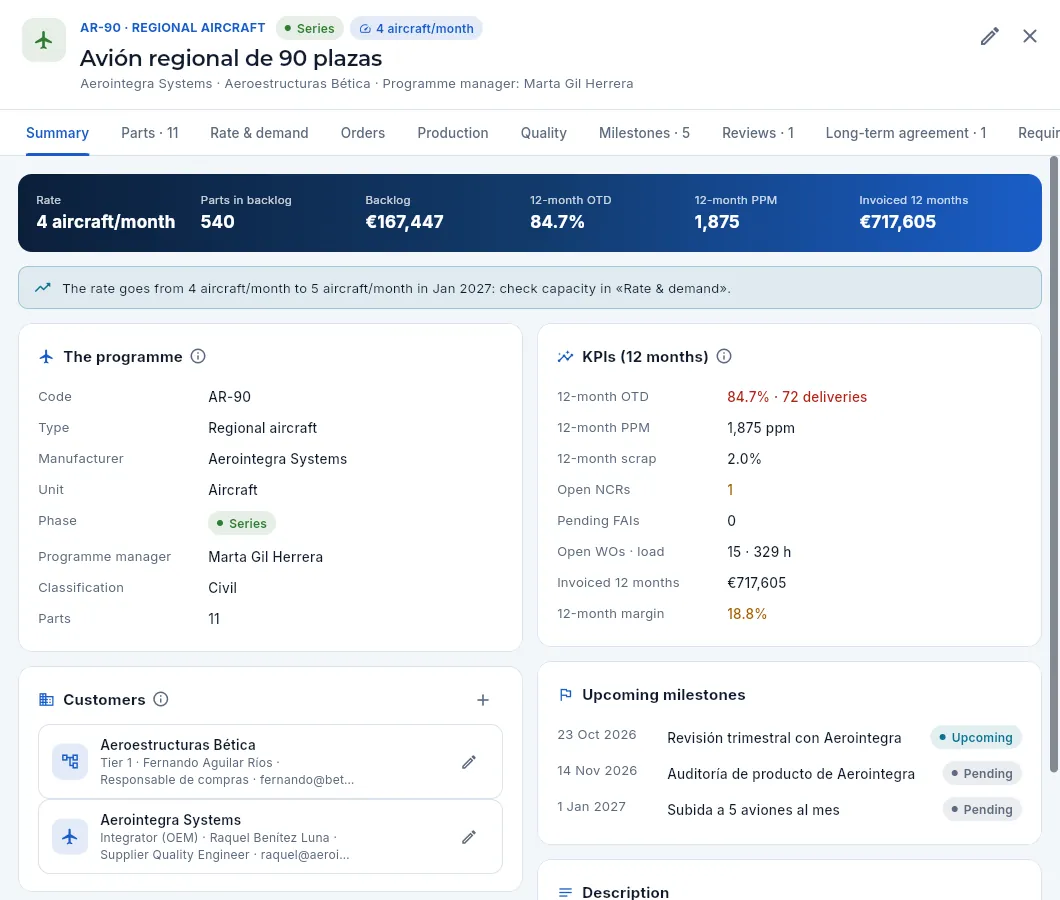 1234567
- 1Code, type, phase and rate; below, its customers and the programme manager.
- 2Edit the programme (with «Edit programmes»).
- 3Rate, parts and value in the backlog, OTD, PPM and the amount invoiced over 12 months.
- 4The warnings: an upcoming rate increase, late milestones, a long-term agreement about to expire or pending FAIs.
- 5The 12-month indicators: OTD with its deliveries, PPM, scrap, open NCRs, pending FAIs, open work orders with their hours, invoiced and margin.
- 6The programme's customers with their role (integrator, Tier 1) and their contact.
- 7The upcoming milestones.
The tabs: Parts (the shipset), Rate & demand, Orders (pending lines and the latest delivered), Production (open work orders and the latest finished), Quality (NCRs and FAIs of its parts), Milestones, Reviews, Long-term agreement, Requirements (the programme's own, which the contract review checks and which, if they are flowed down, go to suppliers with every purchase) and Documents.
#Parts and shipset
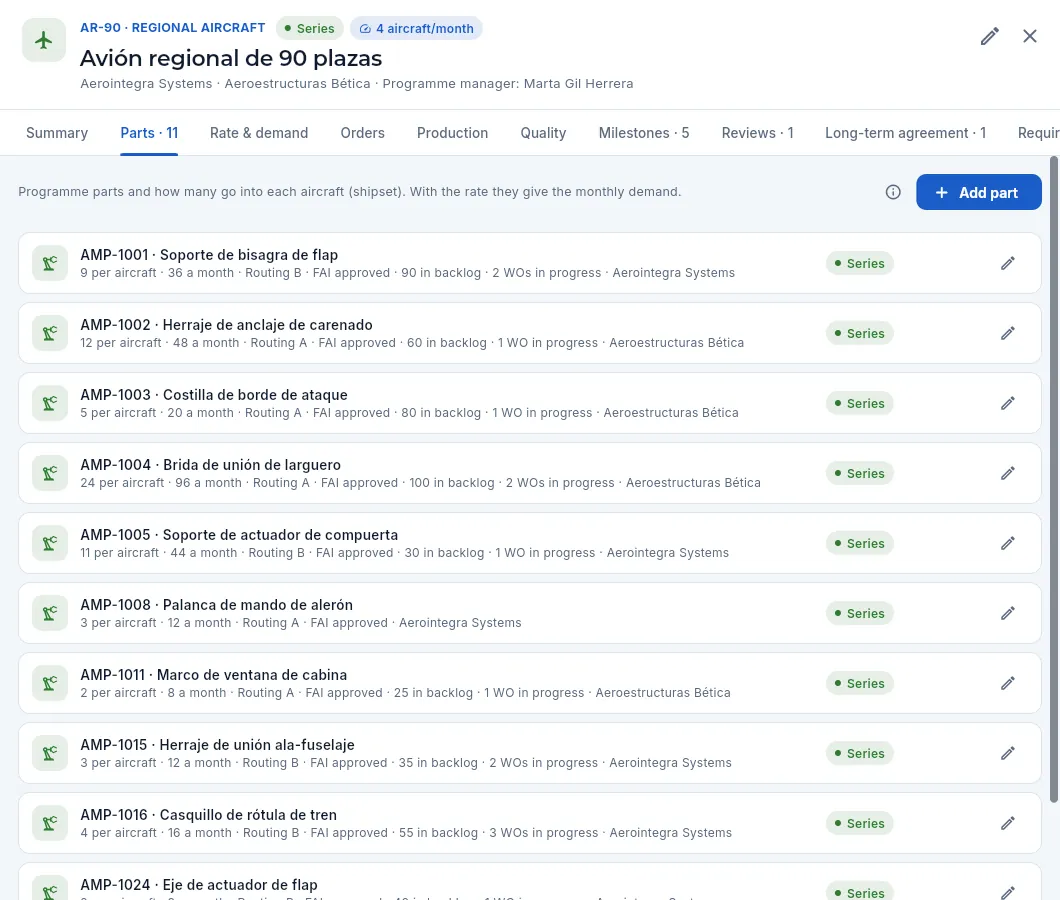 1234
1234
- 1Add part to the programme with its shipset.
- 2Each part: how many each aircraft carries (shipset) and how many the rate requires per month; its routing, its FAI, the backlog and the work orders in progress.
- 3AMP-1015, the wing-to-fuselage fitting: 3 per aircraft, 12 a month at 4 aircraft.
- 4Edit: the shipset, the customer and the status of the part in the programme (industrialisation, series, spares, obsolete).
#Rate and demand
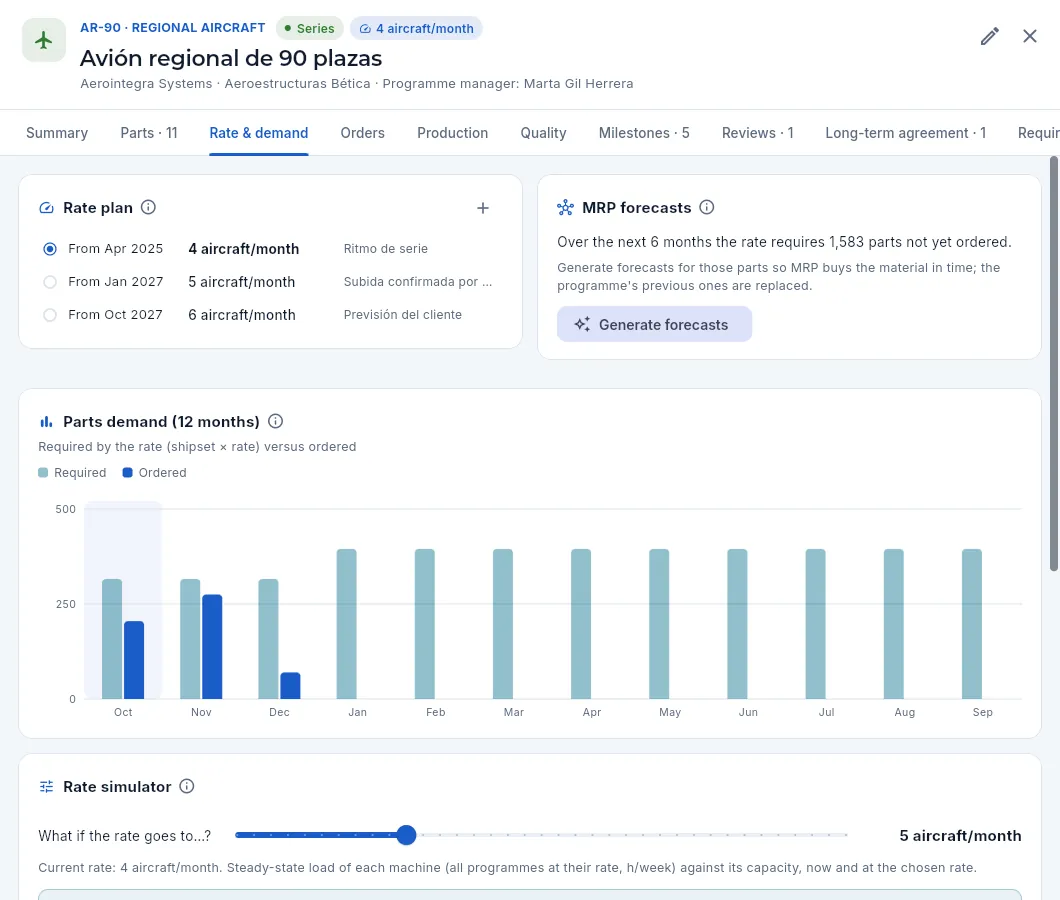 12345
12345
- 1The rate plan: each row applies from the 1st of its month until the next change (the selected one is today's).
- 2New rate: the month it applies from, the aircraft per month and why it changes.
- 3The parts the rate requires over the next 6 months that have not yet been ordered.
- 4Generate forecasts: passes them to MRP (they replace the programme's previous ones).
- 5The demand for each month: what the rate requires (forecast) against what has already been ordered. From January, at 5 aircraft, it rises and there are no orders yet.
In Rate & demand, check the rate plan against what the customer has announced (or add it with New rate).
Look in Forecasts for MRP at how many parts the rate requires over 6 months that have not yet been ordered, and press Generate forecasts.
In MRP, calculate with forecasts: it proposes the raw material (titanium and forgings have lead times of months) and the work orders.
#The rate simulator: can the plant cope?
Before committing to a rate increase, the simulator tells you whether the plant can cope: choose a rate and you will see the load on each machine against its capacity, now and at that rate, and the highest rate the programme can reach with the machines you have.
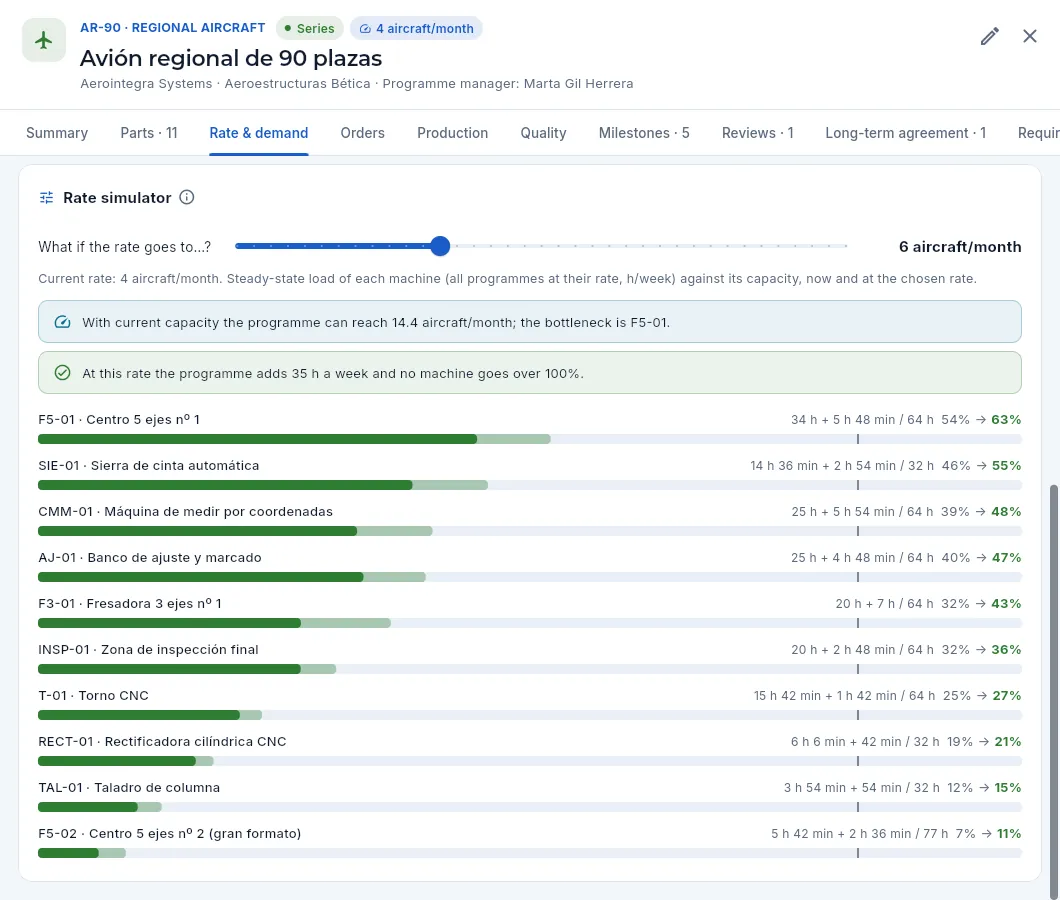 1234
1234
- 1The rate you want to try (slide it).
- 2The rate the programme can reach with current capacity and which machine is the bottleneck.
- 3The hours per week the chosen rate adds and whether any machine goes over 100 %.
- 4Each machine: today's steady-state hours + the hours added, over its weekly capacity, and the % now → at the chosen rate. The light bar is what is added.
#Milestones
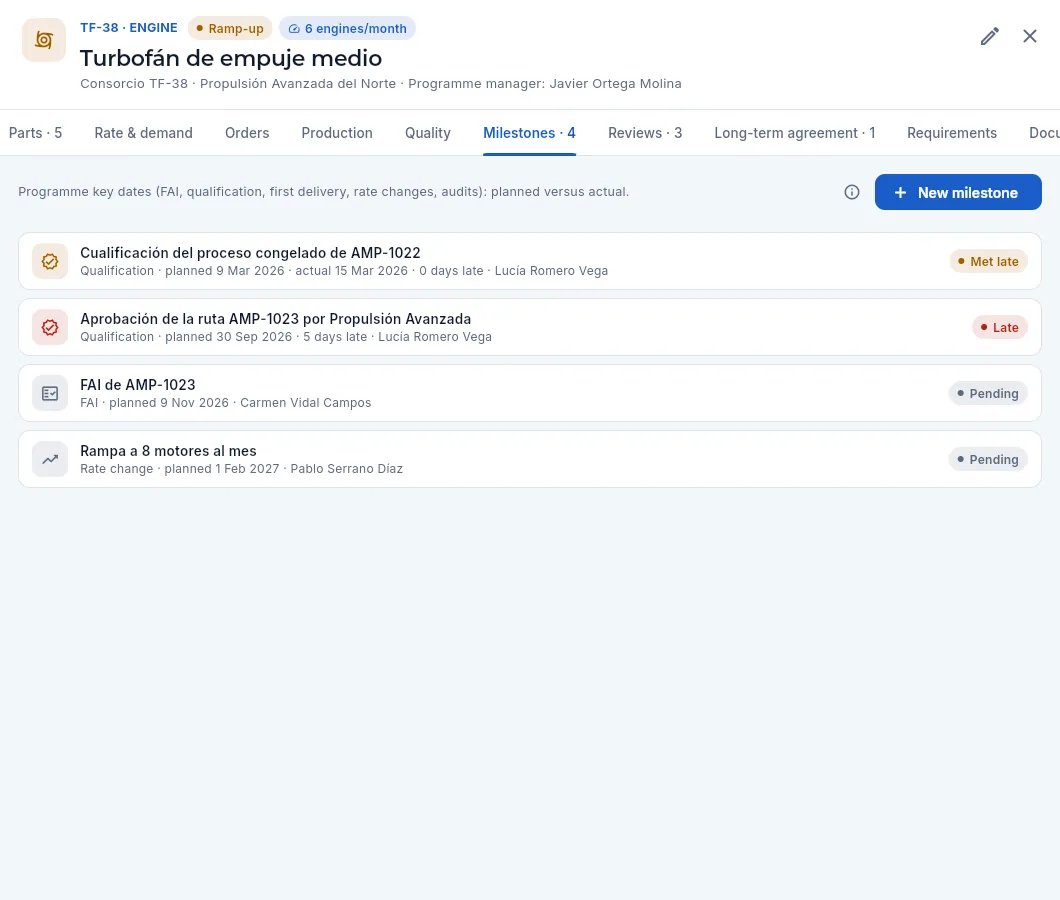 123
123
- 1New milestone: FAI, qualification, first delivery, rate change, programme review, audit or other, with its owner.
- 2Each milestone with its type, the planned date, the actual date and the owner; its status comes from the two dates.
- 3A late milestone: the planned date has passed without it being met.
| Status | When |
|---|---|
| Met | It has an actual date, no later than the planned one |
| Met late | The actual date is later than the planned one |
| Late | The planned date has passed and there is no actual date |
| Upcoming | Due within the next 30 days |
| Pending | Later |
To meet a milestone, open it and enter its actual date.
#Programme reviews and their actions
The customer reviews its programme with each supplier (every quarter, in the demo): how deliveries and quality are going, the backlog and the rate, and what needs to be done. Reviews keeps the minutes of each one and its actions.
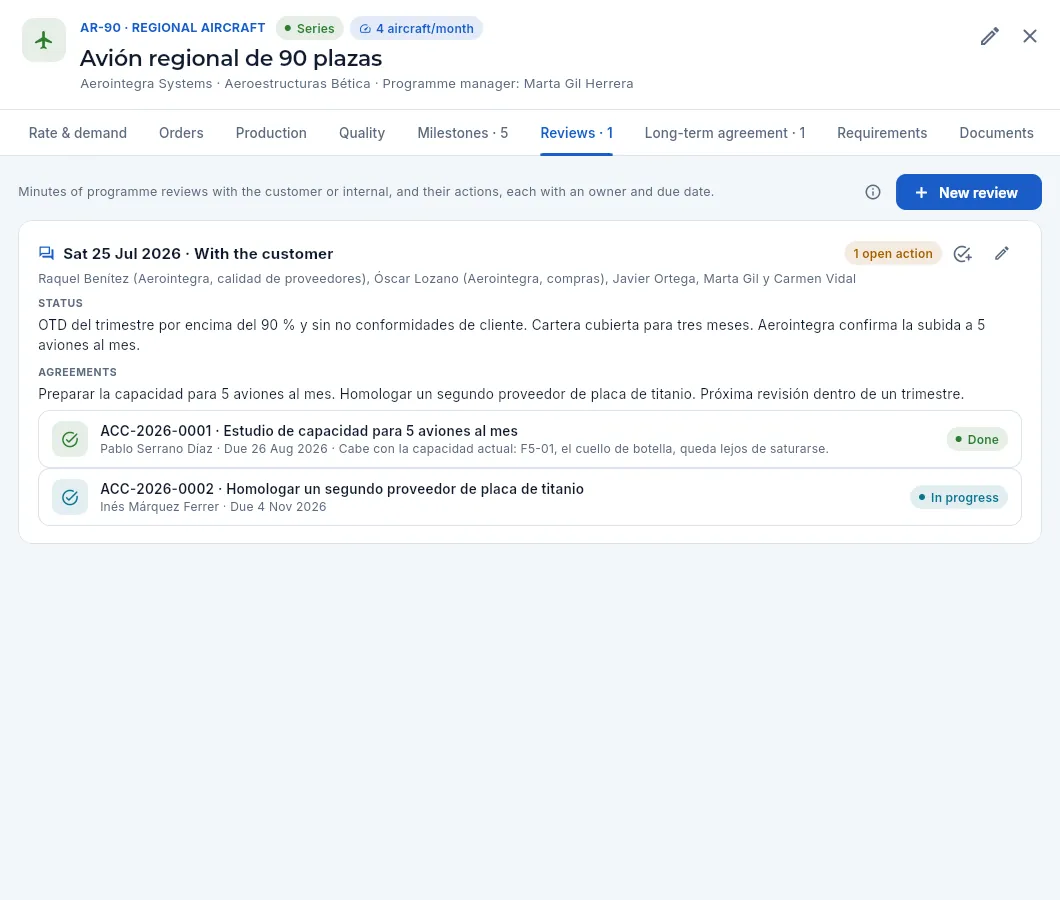 12345
12345
- 1New review: it comes with the programme status already written (OTD, quality, backlog, rate) for you to complete.
- 2Date, type (with the customer or internal) and attendees.
- 3The status and the agreements.
- 4New action: a task with an owner and a deadline arising from the review.
- 5Each action (ACC-…) with its owner, deadline, result and status: open, in progress, done or verified.
Programme actions are the same as those of the quality system: they also appear in Management system → Actions, together with those from risks, audits and the management review. An action still open after its deadline shows as overdue.
#The long-term agreement
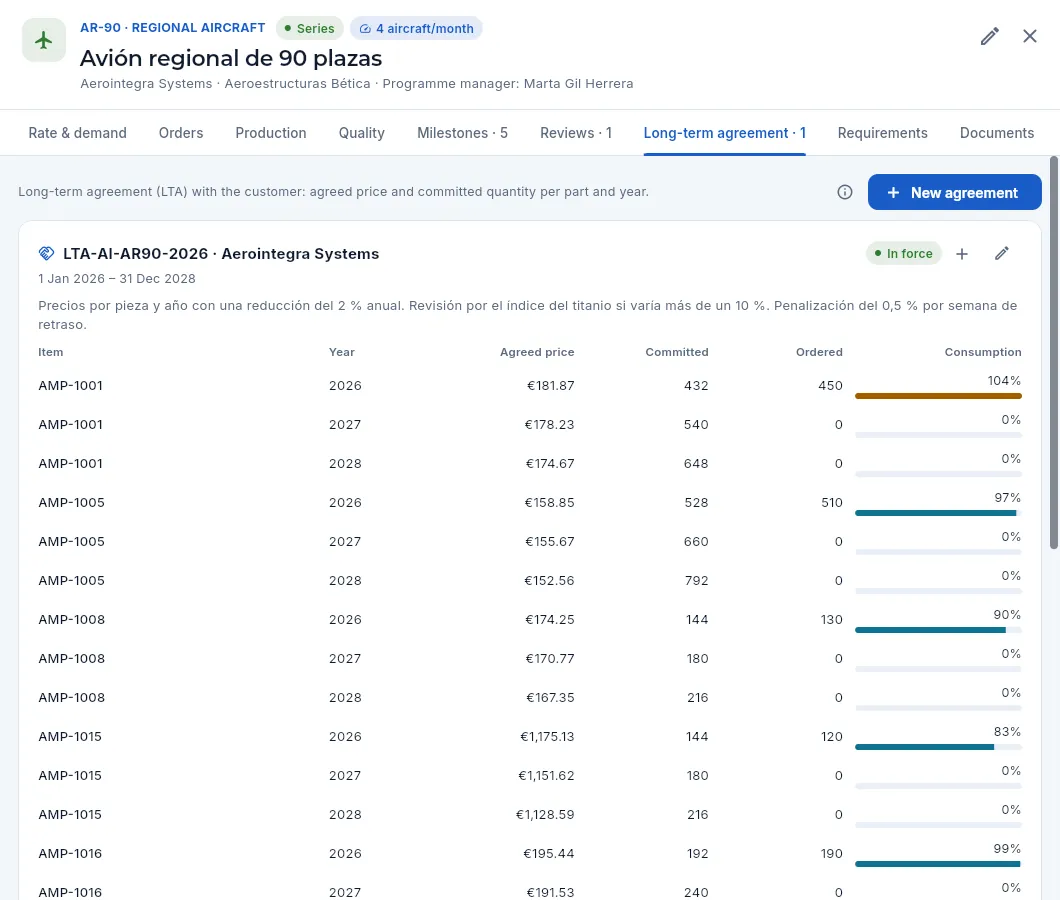 12345
12345
- 1New agreement: reference, customer, validity and terms.
- 2The reference, the customer and the validity; on the right, its status (current, expiring soon, expired).
- 3The terms: price review, raw material, penalties…
- 4Add price: part, year, agreed price and committed quantity.
- 5Each part and year: agreed price, committed quantity, ordered quantity and the consumption (in amber, above the committed quantity).
The long-term agreement (LTA) sets with the customer the price of each part per year and the quantity it commits to order. Aeromec compares the committed quantity with what has been ordered (the consumption) and warns if orders come in at a price different from the agreed one (more than 2 % off). An agreement that expires within 60 days shows as expiring soon (TF-38's) and warns on the programme record so that you prepare its renewal.
#Setting up a programme
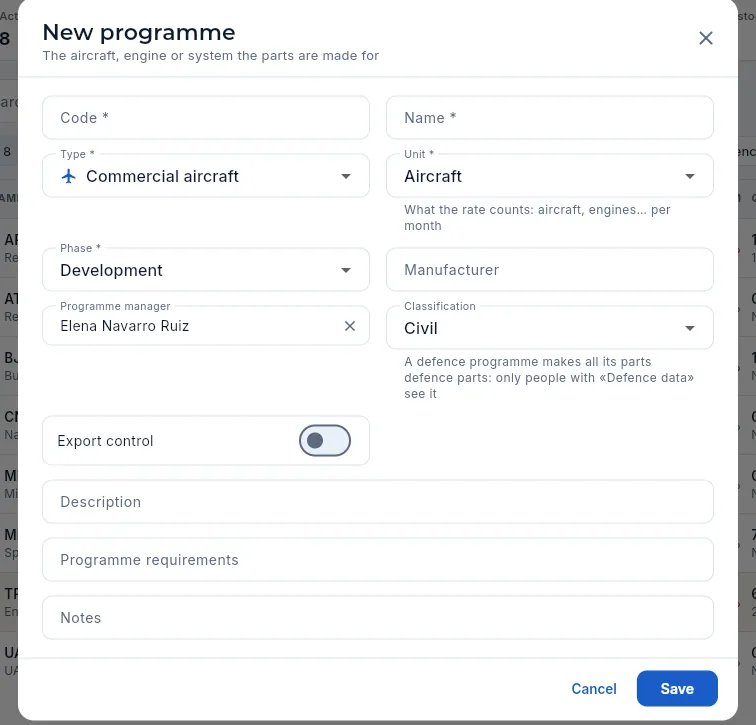 12345
12345
- 1Code (AR-90) and name of the programme.
- 2The type (aircraft, engine, helicopter, UAV…) and the unit the rate counts: aircraft, engines, systems… per month.
- 3The phase, the manufacturer and the programme manager.
- 4Classification: a defence one makes all its parts defence ones (only with «Defence data»); and whether it is export-controlled.
- 5The programme's own requirements (clauses, specifications), in addition to those in the Requirements tab.
Press New programme and enter its code, name, type, unit, phase and programme manager.
On the record, Add customer: the integrator and the Tier 1s, with their role and their contact.
In Parts, Add part with its shipset (how many each unit carries).
In Rate & demand, the rate plan: from which month, how many units per month.
The milestones you know (FAI, first delivery, rate changes) and, if there is one, the long-term agreement.
Sales
Quotes
The answer to each request for quotation (RFQ) from a customer, with prices by quantity break. The suggested price comes from the routing's cost breakdown even if your profile cannot see costs. The signed contract review before committing, versions, PDF and, when the customer accepts, the sales order with its scheduled deliveries.
When a customer wants to buy a part, they send a request for quotation or RFQ: which parts, in what quantities, by when and with what requirements. The answer is prepared in Quotes.
An Aeromec quote has one line per part and, on each line, several quantity breaks with their unit price: the more parts, the lower the price, because machine set-up and programming are spread over more units. The price for each break is suggested by the cost breakdown of the part's routing (its cost broken down into material, machine hours, outside processing and overheads) plus the company's target margin, so the salesperson can quote sensibly even if their profile cannot see costs or margins.
Before you commit to the customer, the quote goes through the contract review: with its requirements in front of you, you check that what the customer asks for can be delivered (drawing, key characteristics, special processes, capacity, lead time, material, documentation…) and you sign it. Without it, the quote cannot be sent or won.
When the customer accepts, the quote becomes a sales order with its scheduled deliveries, without retyping anything.
- 1DraftParts and quantity prices, with the price suggested by the cost breakdown.
- 2Contract reviewApplicable requirements, checks and outcome, signed.
- 3SentTo the customer, with the PDF. Its validity starts counting.
- 4WonThe sales order is created with its scheduled deliveries.
- 5OrderNow in Sales orders, ready to manufacture.
#The quote list
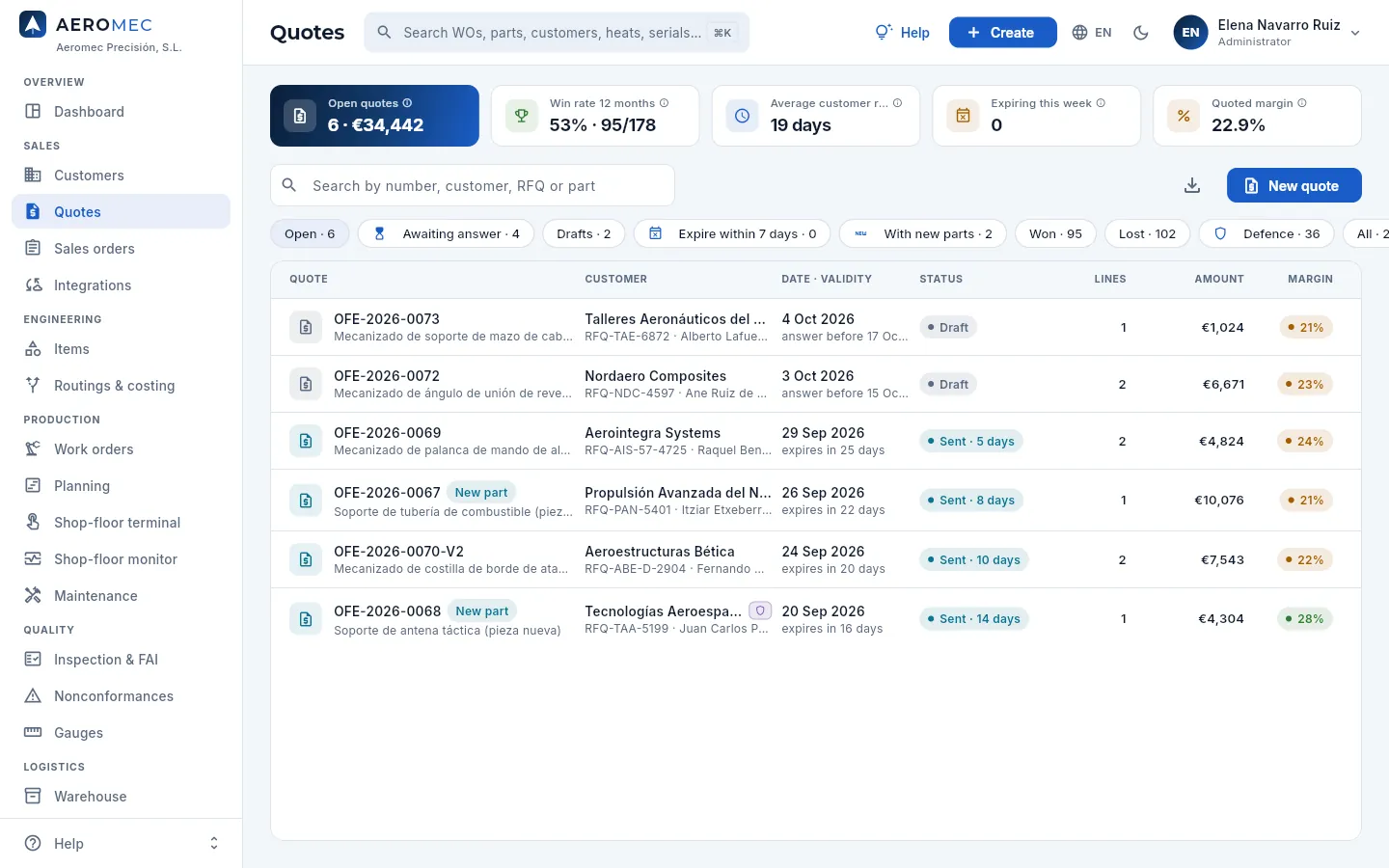 123456789
- 1Open quotes: how many are in draft or sent, and their reference amount.
- 2Win rate over the last 12 months: won over decided.
- 3Average customer response: how many days they take to decide.
- 4Expiring this week: sent quotes whose validity ends within 7 days or has already ended (in red if any has expired without being marked).
- 5Quoted margin: the average margin of the open quotes (only with permission to see margins).
- 6The filters, with their counts (see the table below). There are more to the right: Defence and All.
- 7New quote opens the form to create one.
- 8Each quote with its number, the subject and the New part label if it includes a part not yet in production; then the customer, the RFQ and the contact, the date and validity, the status, the lines, the amount and the margin.
- 9The status: a sent quote shows how many days it has been awaiting an answer.
| Filter | What it shows |
|---|---|
| Open | Drafts and sent quotes: what is still in play (the default) |
| Awaiting answer | Those sent to the customer |
| Drafts | Those not yet sent: unanswered RFQs |
| Expire within 7 days | Sent quotes whose validity ends soon or has already ended |
| With new parts | Open quotes that include a part in development or with its FAI pending |
| Won · Lost | Won quotes; those rejected by the customer and expired ones (those superseded by a new version do not count) |
| Defence · All | Defence quotes (only with «Defence data») and the full history |
In the Date · validity column, a sent quote says when it expires («expires in 22 days»), a draft when the answer is due («answer before…») and a decided one, when it was decided. A sent quote whose validity has passed without an answer shows its row in red and the status Validity expired: call the customer or mark it as expired.
#The life cycle of a quote
| Status | What it means | What you can do |
|---|---|---|
| Draft | Being prepared; parts and prices can only be changed in draft | Add parts and breaks, edit the details, review the contract and, with the review signed, send it or win it; mark it as lost, make a new version or delete it |
| Sent | Sent to the customer; its validity is counting | Win it (→ sales order), mark it as lost or expired, go back to draft or make a new version |
| Won | The customer has accepted it: it has its sales order | View the order, download the PDF |
| Lost | The customer does not accept it; the reason is kept | Make a new version |
| Expired | Its validity passed without an answer | Go back to draft or make a new version |
| Superseded | Closed because a new version was made; it does not count as lost | Consult it |
#Preparing a quote
A quote starts with New quote (here or under Create in the top bar). First you fill in the request details; on saving, its record opens in draft so you can add the parts.
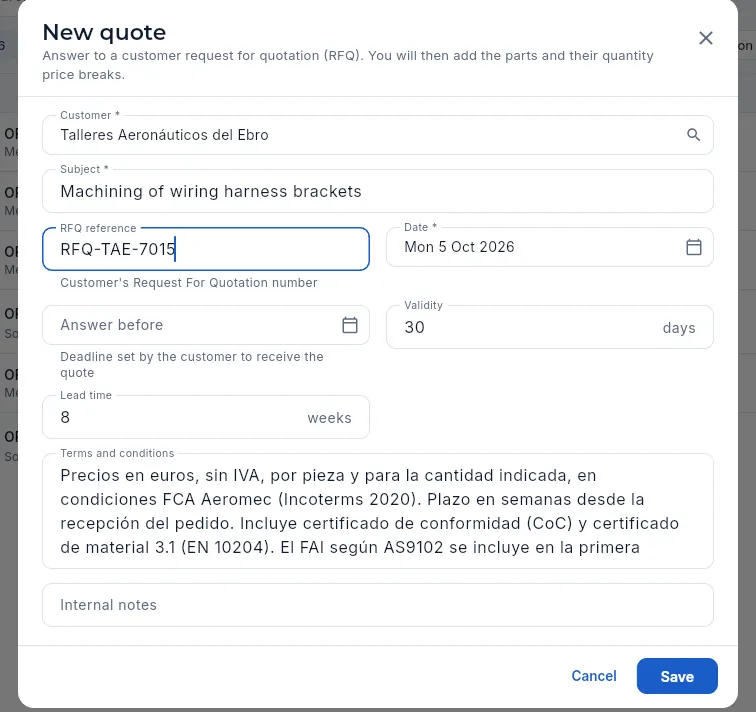 12345678
- 1Customer (required): only active ones are listed.
- 2Subject (required): what is being quoted, as the customer will read it.
- 3RFQ reference: the customer's request number, so they recognise it.
- 4Quote date: today, unless you change it.
- 5Answer before: the deadline set by the customer.
- 6Validity in days from sending (the company's by default).
- 7Lead time in weeks from the order; each part can have its own.
- 8Terms and conditions printed on the PDF (the company's by default) and, below, internal notes the customer does not see.
Then, on the record, Add part adds each of the customer's parts in the RFQ (the picker only shows their parts) with an optional description for the quote (scope, treatments, paperwork…), its lead time and notes. When you save it, the quantity prices dialog opens straight away.
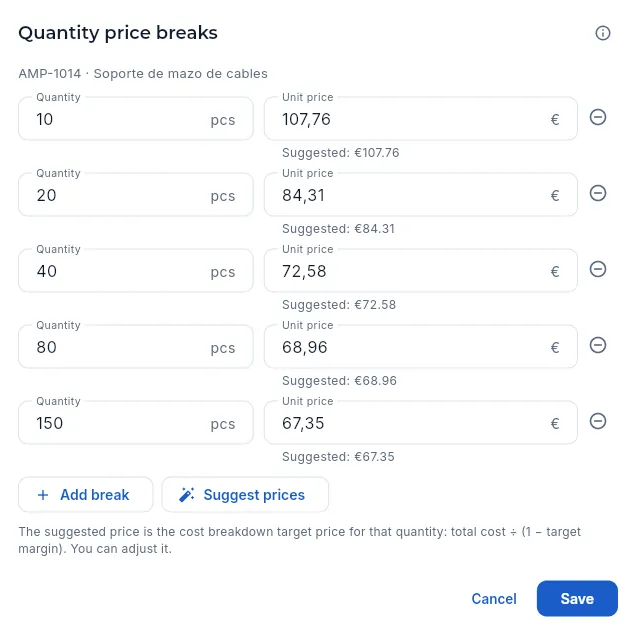 123456
- 1Each break: a quantity of parts…
- 2…and its unit price. Below, the suggested price for that quantity.
- 3Removes a break.
- 4A new break of 150 parts, added with Add break.
- 5Suggest prices fills each break with the cost breakdown target price for that quantity. You can then adjust it by hand.
- 6Save replaces the line's breaks.
The first time it opens on a line without prices, Aeromec proposes four breaks around the part's standard batch (half, one, two and four batches) and fills them with the suggested price. With permission to see margins, each break also shows, live, the margin of the price you type (amber or red if it falls below target).
Click New quote, choose the customer, type the subject and the RFQ reference, and check validity, lead time and terms. Click Save.
On the record, click Add part, choose the part and save.
In the prices dialog, adjust the breaks to the quantities the customer asks for (Add break or ⊖ to remove one) and click Suggest prices.
Adjust the prices if needed (for example, to round them or match a previous quote) and click Save.
Repeat for each part. To change the prices later, click the line's Quantity prices icon; to change the part or its lead time, Edit line.
#The quote record
Click a quote to open its record. It has the tabs Lines and prices, Summary, Contract review, Versions, Documents and Changes.
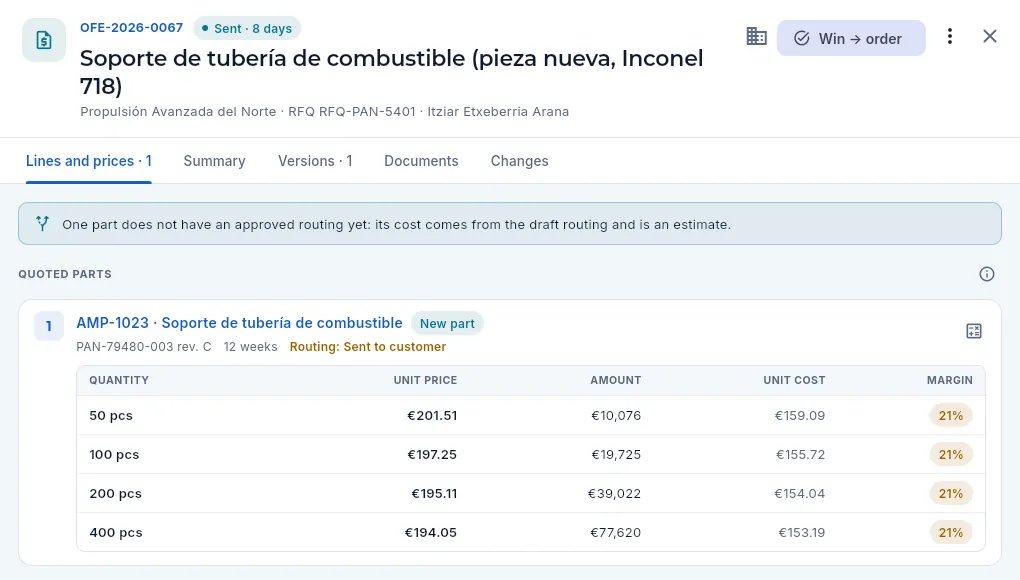 12345678
- 1The number, the status (sent N days ago) and the Contract reviewed label (or Contract not reviewed); below, the subject, the customer, the RFQ and the contact.
- 2Opens the customer record.
- 3The main action for the status: Send to customer in draft, Win → order once sent, View order if it was won.
- 4More options (⋮): PDF, mark as lost or expired, back to draft, new version…
- 5Warning: a part without an approved routing; its cost is an estimate.
- 6The part (opens its record) with the New part label; below, drawing and revision, lead time and the status of its routing (opens the routing).
- 7Cost breakdown: the breakdown of the part's cost (only with permission to see costs).
- 8The breaks: quantity, unit price, amount and, with the right permissions, the unit cost and the margin of each one.
In draft, each line also has the Quantity prices and Edit line icons, and at the top the Add part button. A line without breaks warns «No prices: add at least one quantity break», and the quote cannot be sent until every part has a price.
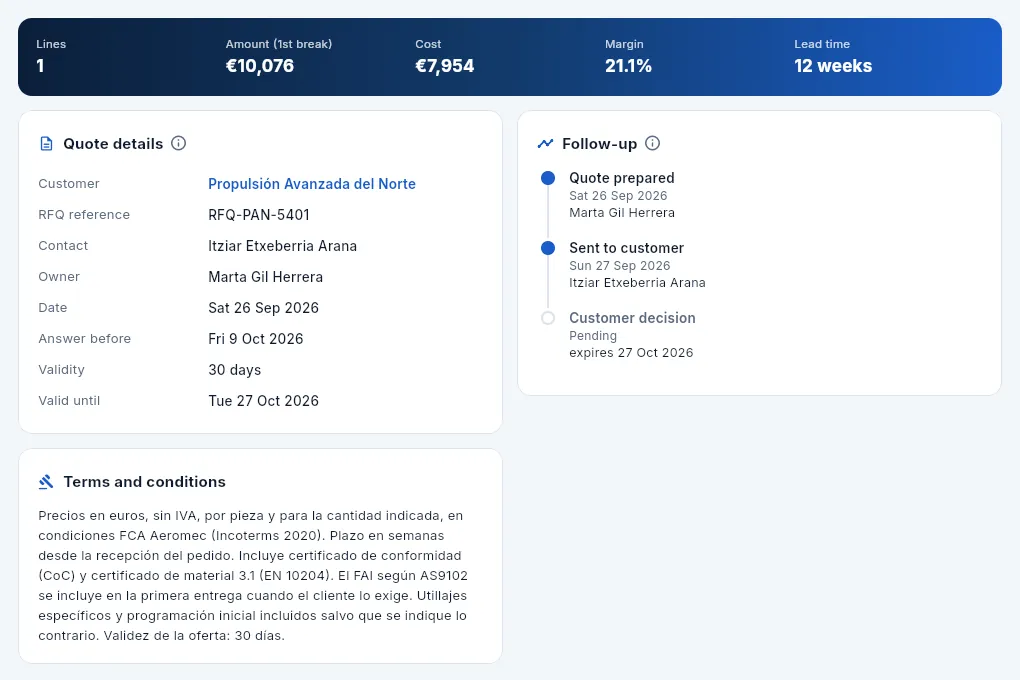 1234
1234
- 1The figures: lines, amount of the first break, cost and margin (depending on your permissions) and lead time.
- 2Quote details: customer, RFQ, contact, owner, date, deadline, validity and valid until.
- 3Follow-up: when it was prepared and by whom, when it was sent and to whom, and the customer's decision (or when it expires).
- 4The terms and conditions printed on the PDF.
 12345
12345
- 1Quote PDF: the document for the customer.
- 2Mark as lost, with the reason.
- 3Mark as expired: its validity passed without an answer.
- 4Back to draft to change it.
- 5New version: a copy as a draft.
The quote PDF carries the company and customer details, the subject, the RFQ and the lead time, a section per part with its drawing and revision and the table of breaks (quantity, unit price and amount), the terms and the validity footer. While the quote is a draft, the PDF carries the «DRAFT» watermark. It can only be generated with permission to see prices.
#The contract review
Before you commit to the customer (sending them the quote or accepting their order) you have to check that what they ask for can be delivered. This is the contract review, and it is done on the quote's Contract review tab: with the applicable requirements in front of you, you answer a checklist, decide the outcome and sign it with your password.
The requirements come on their own: the customer's (the clauses of their quality manual, such as Nordaero Composites' NC-Q-03 or Aerointegra Systems' QR-14; they are kept in the customer record, see Customers), those of the programmes of its parts (see Programmes), those of each part and the company's, which apply to all.
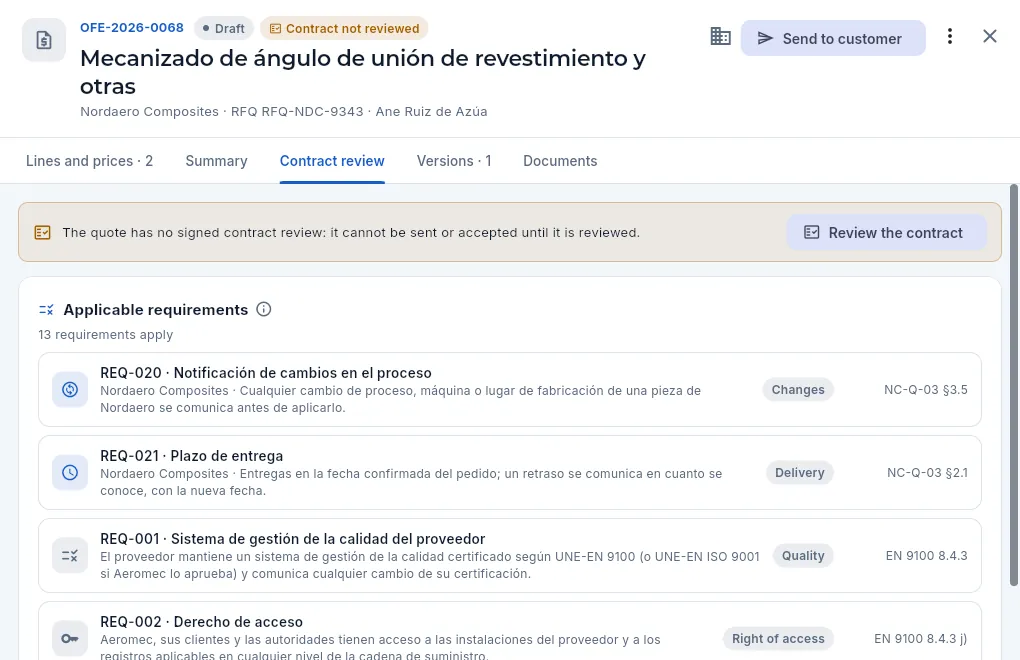 1234567
- 1In the header, Contract not reviewed (in amber). Once the review is signed it says Contract reviewed.
- 2The warning: without the signed and accepted review, the quote cannot be sent or won.
- 3Review the contract opens the review (with the «Review contracts» permission).
- 4Applicable requirements: how many there are today and, in order, the customer's, its programmes', its parts' and the company's.
- 5A customer requirement: its code and title, whose it is and what it requires. Click it to open its record.
- 6Its category (changes, delivery, quality…) and the clause it comes from: NC-Q-03 §3.5.
- 7The company ones: quality system, right of access, record retention, counterfeit parts… They apply to every quote.
If you click Send to customer or Win → order on a draft quote without a signed review, Aeromec does not send it: it warns you and offers to do the review there and then. If your profile does not have «Review contracts», it only tells you it is missing.
 12
12
- 1What is missing: reviewing the applicable requirements, capacity, lead time and risks.
- 2Review the contract opens the review; once it is signed with an accepted outcome, the quote can be sent.
The review opens in a dialog with three parts:
- The applicable requirements today, with their clause. When you sign, they are kept with the review as they stood: if they change later, it is reviewed again and the history is kept.
- The checks (table below): answer each one Yes, No or N/A. Mark the rest as «yes» answers all the remaining ones at once.
- The outcome, the identified risks (tight lead time, hard-to-source material, new process…) and the conditions or remarks.
Sign the review asks for your password (see Electronic signature).
| Check | What is checked |
|---|---|
| Customer requirements | Their quality clauses and those of the programme and the part are understood and can be met. |
| Drawing and revision | We have the drawing and specification at the current revision, without ambiguities. |
| Key characteristics | Key and critical characteristics are identified and can be controlled. |
| Special processes | Treatments and tests can be done by a customer-approved supplier. |
| Capacity and lead time | There is machine capacity and the requested lead time is achievable. |
| Material | The specified material can be bought with its certificate in time. |
| Delivery documentation | The CoC, FAI, certificates and reports the customer asks for. |
| Legal and export | Legal, defence and export control requirements. |
| Risks | Technical, schedule and supply risks are identified and acceptable. |
On a sales order there is one more check: Differences from the quote (see Sales orders).
| Outcome | When | What it allows |
|---|---|---|
| Accepted | Everything «yes» or «N/A» | Sending and winning the quote |
| Accepted with conditions | Some check answered «no», resolved with the customer; the conditions are mandatory | Sending and winning the quote |
| Not accepted | It cannot be met; the reason is mandatory | Nothing: the quote cannot be sent or won |
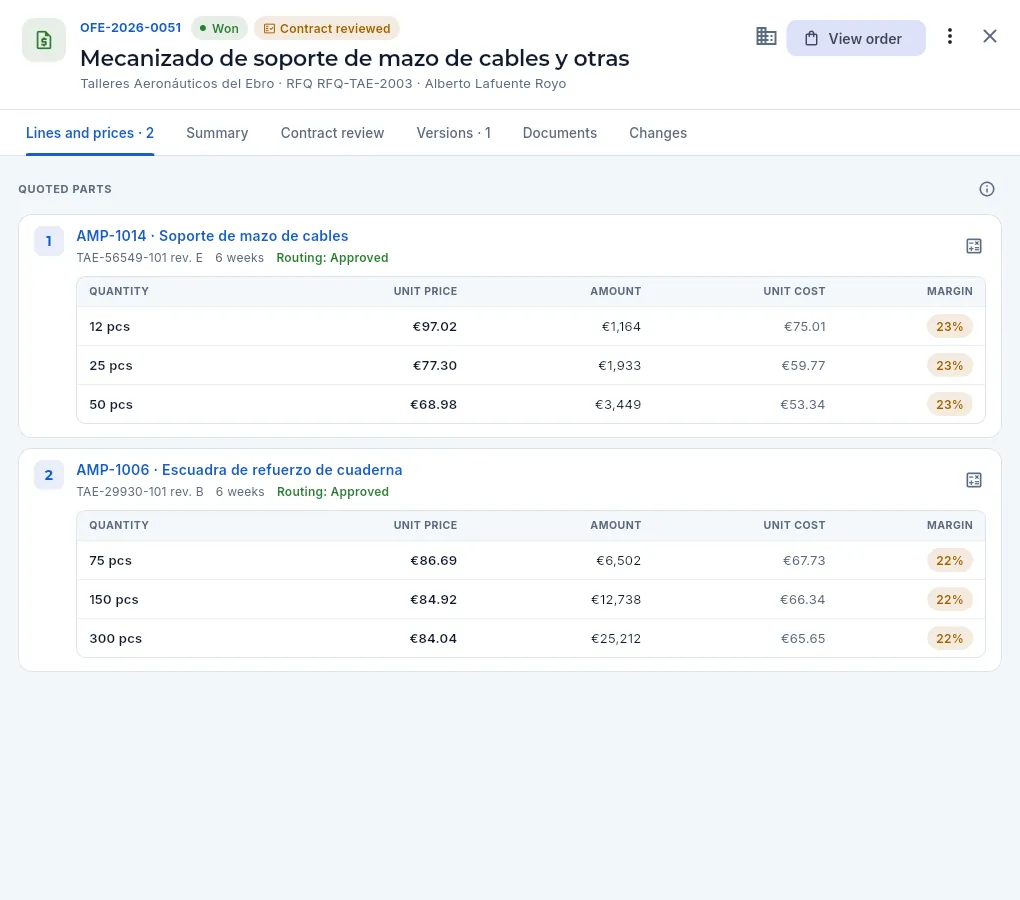 123456
- 1Contract reviewed: in green if it was accepted, in amber with conditions.
- 2The outcome, how many checks were answered «no» and who signed it and when.
- 3The conditions: what was agreed with the customer to accept it.
- 4The checks, each with its answer: ✓ yes, ✗ no, ⊖ not applicable.
- 5The one answered no: the requested lead time was not achievable and another one was agreed.
- 6The requirements that applied when it was signed, with their clause: they stay with the review even if they change later.
Open the draft quote and go to the Contract review tab (or click Send to customer and, in the warning, Review the contract).
Click Review the contract and read the applicable requirements: the customer's, its programmes' and parts', and the company's.
Answer each check: Yes, No or N/A. If needed, ask the engineering office (drawing, processes), planning (capacity and lead time) and purchasing (material).
Choose the outcome. With any check answered «no», it can only be Accepted with conditions (write which) or Not accepted (write the reason).
Note the identified risks, if any, and click Sign the review. Type your password and click Sign.
If the requirements or the quote change after it is signed (another quantity, another lead time), click Review again: a new review is signed and the previous ones stay below, under Previous reviews. A signed review cannot be changed or deleted.
#Sending the quote
With the contract review signed, Send to customer asks for confirmation: the quote becomes Sent with today's date and its validity starts counting. You send the email to the customer, with the PDF attached, yourself.
Open the draft quote and check that every part has a price.
Check that the header says Contract reviewed; if not, do the contract review first.
Under More options (⋮), click Quote PDF and download the document.
Click Send to customer and Confirm.
Email the PDF to the buyer, quoting their RFQ reference.
 1
1
- 1The reason (required): price, lead time, the customer makes it in-house… It helps to analyse why quotes are lost.
If the customer says no, mark it as lost with the reason: More options (⋮) → Mark as lost. If they do not answer and it expires, expired. If they ask for a change (another price, quantity or lead time), do not edit it: make a new version (and review its contract before sending it).
#Winning the quote and creating the order
When the customer's purchase order arrives, open the quote and click Win → order. The dialog proposes one delivery per part, with the first break quantity and today's date plus its lead time; adjust it to what the customer's order says.
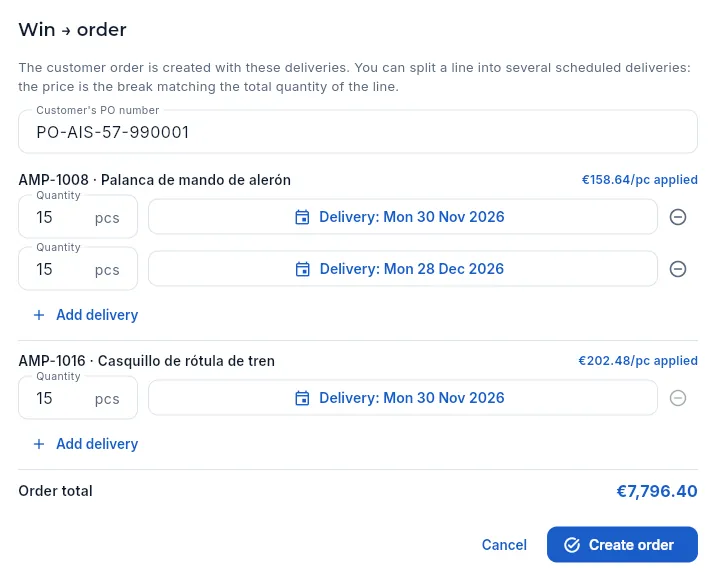 1234567
- 1The customer's PO number: it appears on the delivery note, the CoC and the invoice.
- 2Each part of the quote…
- 3…with the applied price: that of the break matching the part's total quantity (here 30, adding up both deliveries).
- 4Each scheduled delivery: quantity and date (click the date to change it).
- 5Add delivery splits the part into another delivery, four weeks after the previous one.
- 6The order total (excluding VAT).
- 7Create order creates it and opens it.
Filter Awaiting answer and open the quote the customer has accepted.
Click Win → order.
Type the customer's PO number.
For each part, enter the quantity and date of each delivery. If the customer asks for staggered deliveries, use Add delivery.
Check the applied price and the total, and click Create order.
#Versions of a quote
If the customer asks for changes after it has been sent, More options → New version copies the quote, with its parts and prices, into a new draft with the same number and a version suffix (…-V2). The previous one becomes Superseded: it is not lost and does not count as lost in the win rate. The new version needs its own contract review before it is sent.
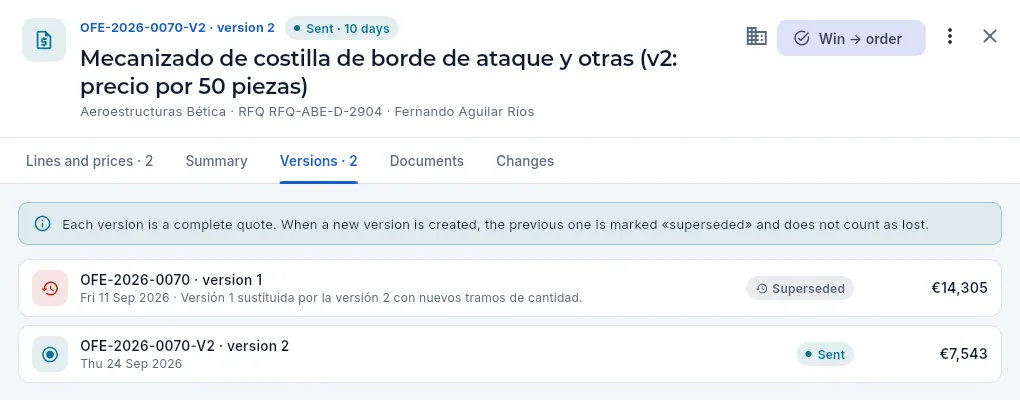 123
123
- 1The number carries the version.
- 2Version 1, superseded, with the reason for the change. Click to open it.
- 3The current version (the one you have open), with its status and amount.
#What each profile sees
The salesperson quotes with the suggested price without seeing costs or margins: the database works out the target price and returns only the price. This is how Marta sees the draft quote from before:
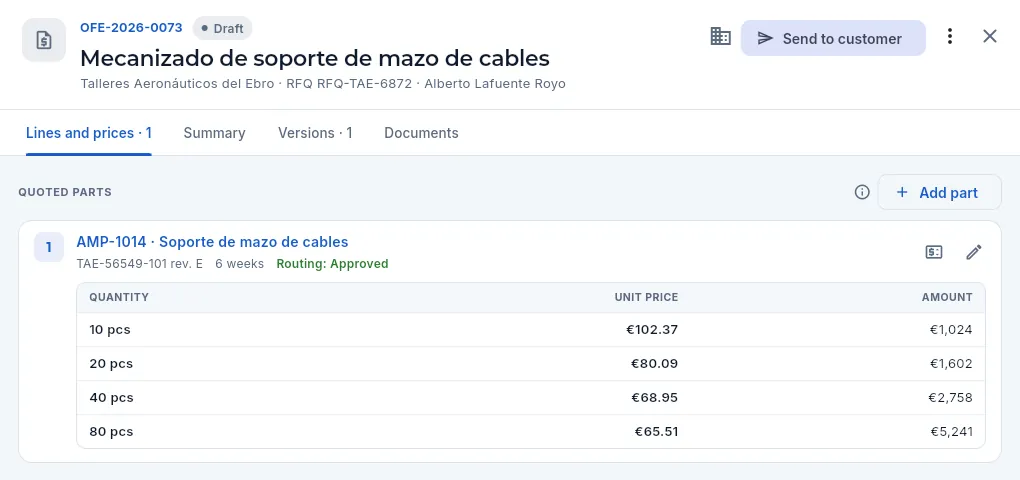 1234
1234
- 1In draft, the main action is Send to customer.
- 2Add part: only in draft.
- 3Quantity prices and Edit line. She has no cost breakdown button.
- 4The breaks with quantity, price and amount only: no unit cost or margin.
#Tips
Sales
Sales orders
Each customer order with its scheduled deliveries (part, quantity and required date), the WO serving each one, what has shipped and whether it arrived on time, with delays and risks in plain sight before they count against OTD, and its contract review (without it, its WOs cannot be released).
A sales order (PV-…) is the commitment to deliver some parts on some dates. In Aeromec each order line is a scheduled delivery: one part, one quantity and the required date set by the customer. The same part can have several deliveries (for example, 150 parts in two deliveries of 75, a month apart), as in the scheduled blanket orders common in aerospace.
The required date is what OTD (On-Time Delivery) is measured against, the first thing customers look at when rating a supplier. That is why the section puts what matters each day in plain sight: which deliveries are already late, which are at risk because their work order (WO) finishes too close to the date, and which do not have a WO yet.
Almost every order is born when a quote is won or when a cXML order is imported from a customer who buys through SAP Business Network; orders can also be created by hand. Before manufacturing, each order needs its signed contract review (its own or that of the quote it comes from): without it, its WOs cannot be released.
- 1Quote wonOr cXML order imported, or created by hand.
- 2OrderOne line per scheduled delivery, with its required date.
- 3Contract reviewThe order's or its quote's, signed.
- 4WOEach delivery is served by a WO (or from stock).
- 5ShippingDelivery note with its CoC: this is where on-time is decided.
- 6InvoiceFrom the delivery note.
- 7ClosedWhen everything has shipped.
#The order list
The list opens with the open orders that still have something to ship, sorted by their next delivery: the most urgent at the top.
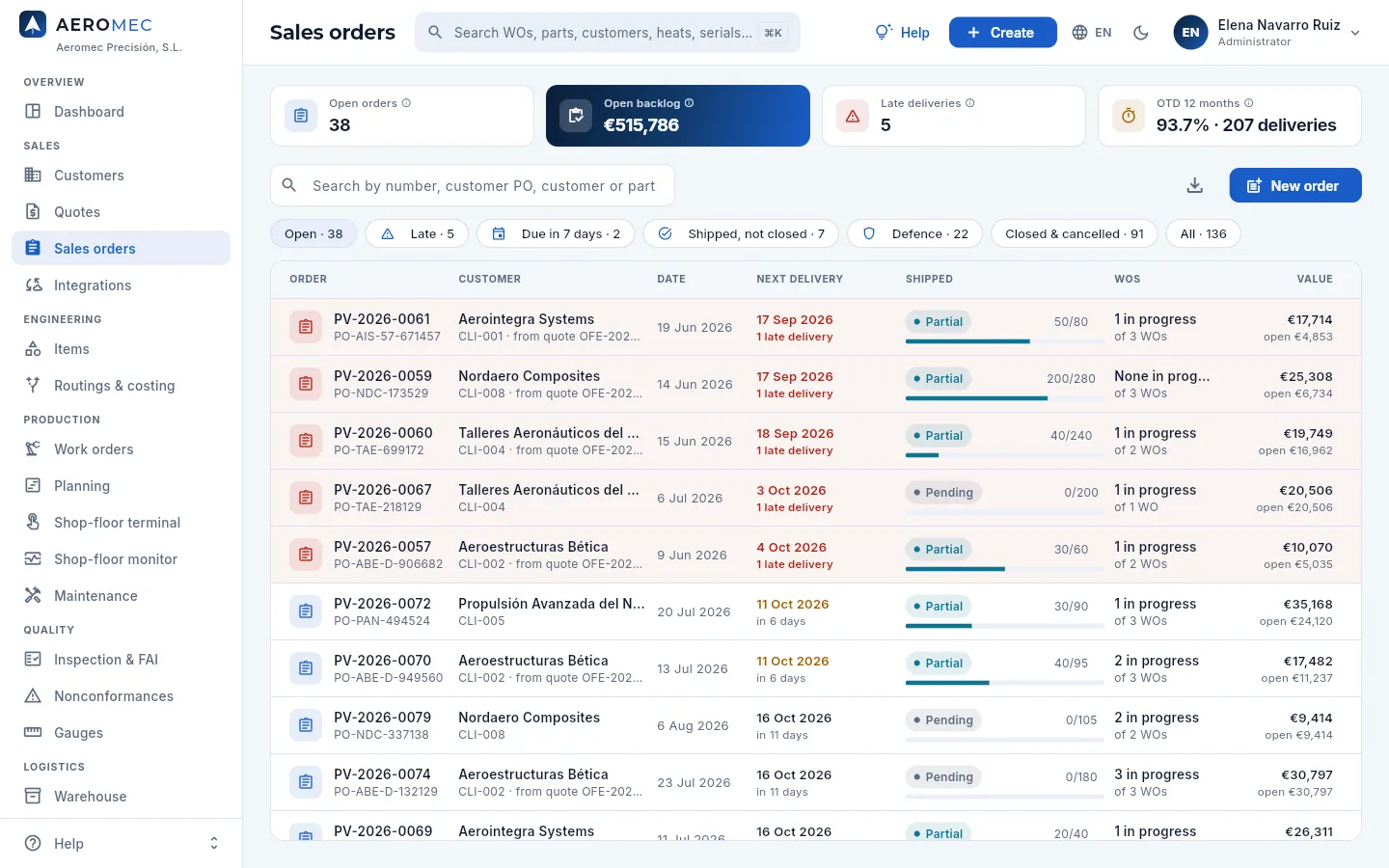 12345678910
- 1Open orders with parts to ship.
- 2Open backlog: what has been ordered and not yet shipped, in euros (in parts if your profile cannot see prices).
- 3Late deliveries: their date has passed and parts are still missing (green if there are none).
- 4OTD 12 months and how many deliveries have been evaluated.
- 5The search box finds by number, customer PO, customer or part code.
- 6The filters (see the table below).
- 7New order to create one by hand. To its left, Programme shows only the orders of one programme (AR-90, TF-38…).
- 8Next delivery still open: in red with the deliveries that are late, in amber if it is within the next 7 days.
- 9Shipped: pending, partial or shipped, the parts shipped out of those ordered and the progress bar.
- 10WOs: how many of the order's work orders are in progress.
| Filter | What it shows |
|---|---|
| Open | Open orders with parts still to ship (the default) |
| Late | Open orders with a delivery whose date has passed |
| Due in 7 days | Open orders whose next delivery falls between today and a week from now |
| Contract not reviewed | Open orders without a signed contract review (nor their quote's): their WOs cannot be released |
| Shipped, not closed | Fully shipped but still open: close them |
| Defence | Orders for defence customers or parts (only with «Defence data») |
| Closed & cancelled · All | The history |
Each row shows the order number with the customer PO (their purchase order number); the customer with its code, the programme of its parts (see Programmes) and the quote it comes from; the order date; the next delivery; what has shipped; the WOs; and the value with what is still open. Rows of orders with late deliveries are shaded in red.
The Programme button leaves in the list only the orders of one programme, and the figures at the top (backlog, late deliveries, OTD) become those of that programme. Go back to All programmes to clear it.
#Finding the delays
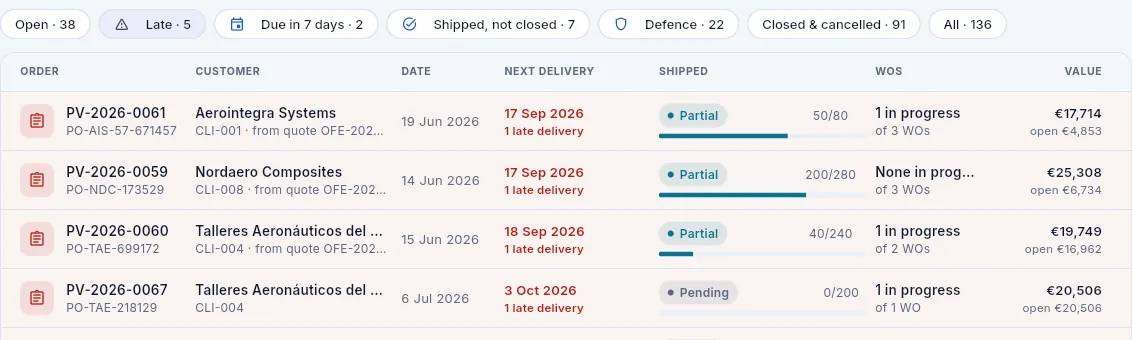 1234
1234
- 1The Late filter.
- 2The date of the late delivery and how many of the order's deliveries are late.
- 3How much of the order has already shipped.
- 4The WOs serving it: check whether any is still in progress or whether the part is already in the warehouse.
Click Late: these are the deliveries that already count as late in OTD.
Open each order and look in Lines & deliveries for the WO serving the late delivery.
If the WO is finished and there are finished goods in the warehouse, prepare the shipment with New shipment.
If the WO is still in progress, open it and ask planning to bring it forward in its machine's queue. Give the customer a realistic date.
Then click Due in 7 days and check that the WO for each of this week's deliveries finishes in time.
#The order record
Click an order to open its record. It has the tabs Summary, Lines & deliveries, Shipments, WOs, Contract review, Documents and Changes.
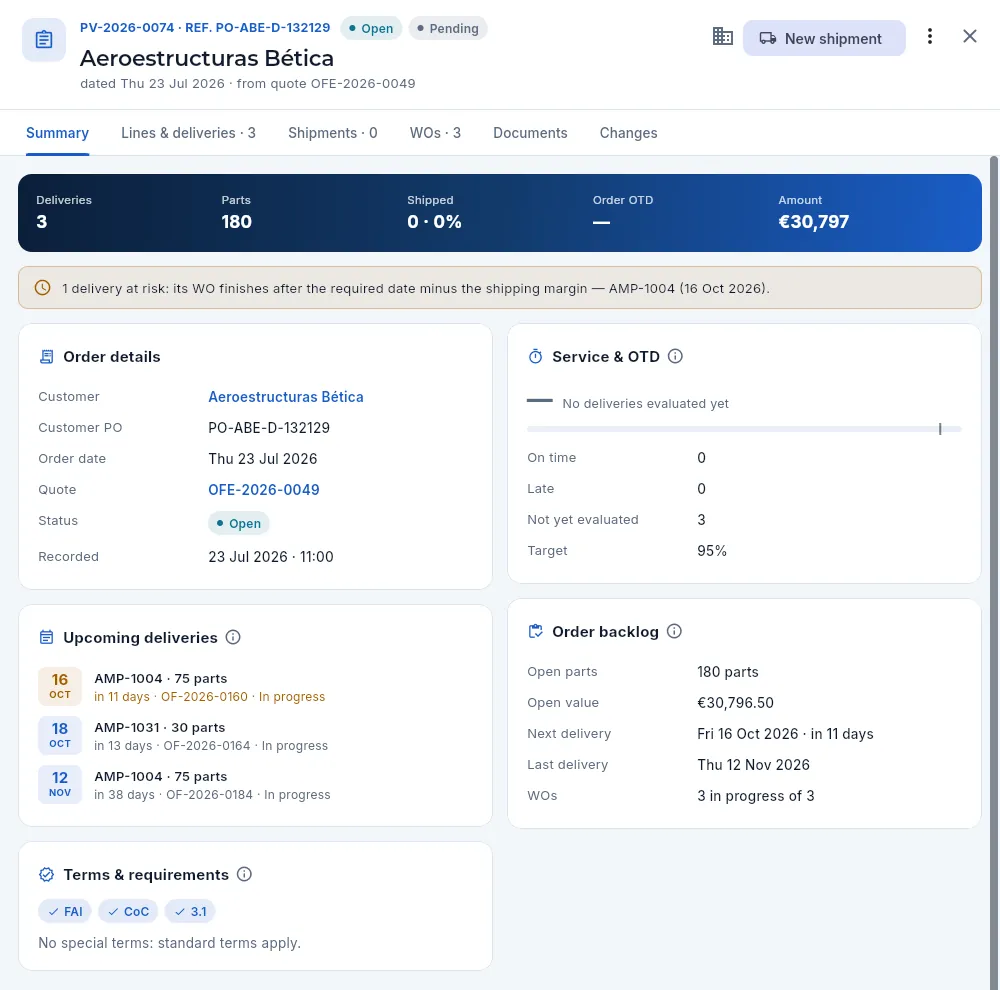 12345678910
- 1The number and the customer PO; next to them, the status (open, closed or cancelled) and how much has shipped (pending, partial or shipped). Below, the customer, the date and the quote it comes from.
- 2New shipment: prepares the delivery note for what is open (with permission to ship). If everything has shipped, the button is Close order.
- 3More options (⋮): add a delivery, edit, create a missing WO, close or cancel the order.
- 4The figures: deliveries, parts, shipped, order OTD and value.
- 5The warnings: late deliveries (red), deliveries at risk (amber) or without a WO; and, once everything has shipped, that it can be closed.
- 6Order details: customer, PO, date, quote (click to open it), status and when it was recorded.
- 7Service & OTD: how many deliveries arrived on time, late or have not been evaluated yet, against the target.
- 8Upcoming deliveries: what is left to ship, with its date, how long to go and the WO serving it with its status. Those at risk in amber.
- 9Order backlog: open parts and value, next and last delivery and WOs in progress.
- 10Terms & requirements: the customer's quality requirements (FAI, CoC, 3.1…) and the terms agreed for this order.
#Lines & deliveries
The Lines & deliveries tab groups the deliveries by part. This is where you see, delivery by delivery, what has shipped, what is missing, with which WO and whether it arrived on time.
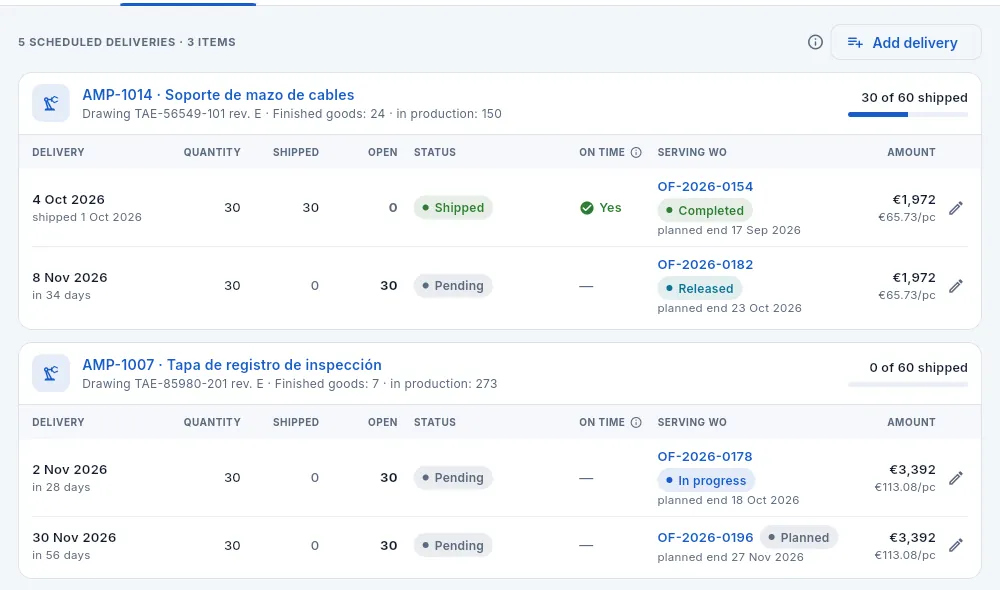 1234567
- 1Add delivery: a new line (part, quantity and required date).
- 2The part (opens its record), with its programme (AR-90…), its drawing and revision, the finished goods available in the warehouse and what is in production. If the customer requires FAI and the part does not have it approved, it carries the FAI pending label.
- 3Parts shipped out of those ordered across all its deliveries.
- 4Each delivery: required date (or when it shipped), quantity, shipped and open.
- 5The status (pending, partial or shipped, with the days late or At risk) and On time: Yes, No or a dash if not evaluated yet.
- 6The serving WO with its status and planned end (in amber if it finishes after the required date). Click to open it; if there is none, Create WO.
- 7The value and unit price; the pencil changes the delivery.
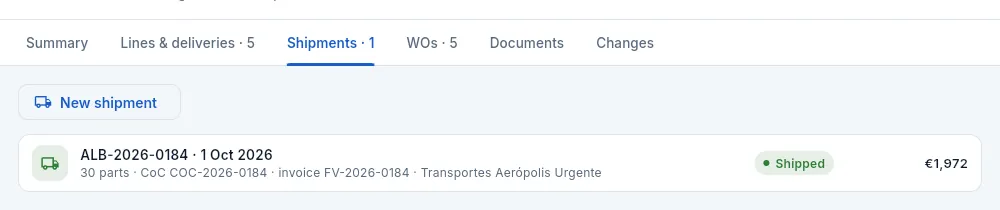 12
12
- 1New shipment for what is open.
- 2Each delivery note with its date, parts, certificate of conformity (CoC), invoice and carrier, its status and value.
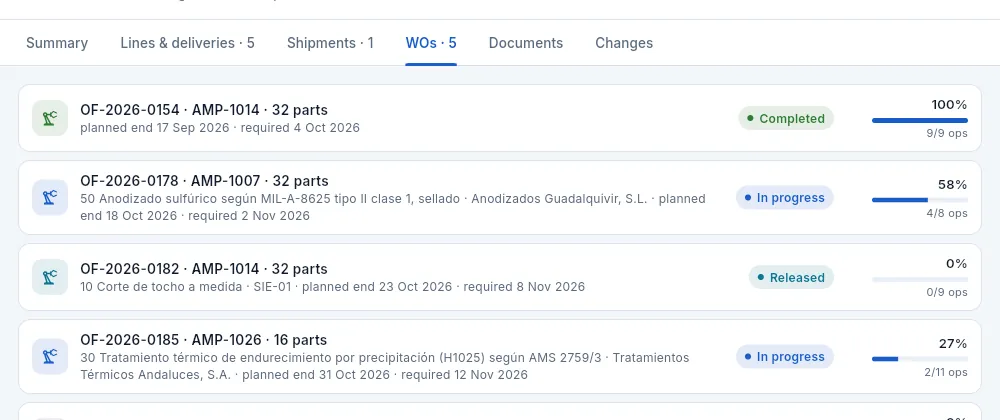 12
12
- 1Each WO of the order: part and quantity, the operation it is at and where, its planned end against the required date, days late or the risk, and open NCRs.
- 2Its status and progress: percentage and operations completed.
#The order's contract review
Before manufacturing you must have checked that what the customer asks for can be delivered: that is the contract review (EN 9100 8.2.3), with the applicable requirements, the checklist and the outcome, signed. An order is covered by either of two:
- Its quote's: if the order was born by winning a quote whose review was signed and accepted, it is already reviewed.
- Its own: that of an order created by hand or imported via cXML (they do not come from a quote), or of one that changes something from its quote (another quantity, another lead time, another drawing revision). It has one more check: Differences from the quote.
While it has neither, the order carries the Contract not reviewed label and its WOs cannot be released to the shop floor (see Work orders). How the review is done, what is checked and what outcome it has is explained in The contract review under Quotes: on an order it is the same.
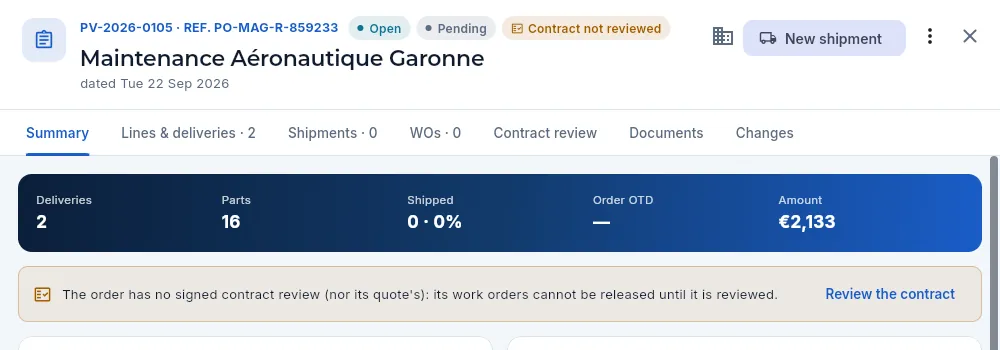 123
123
- 1In the header, Contract not reviewed (only while the order is open).
- 2The summary's warning: without the order's review (nor its quote's), its WOs cannot be released.
- 3Review the contract does it from here (with the «Review contracts» permission).
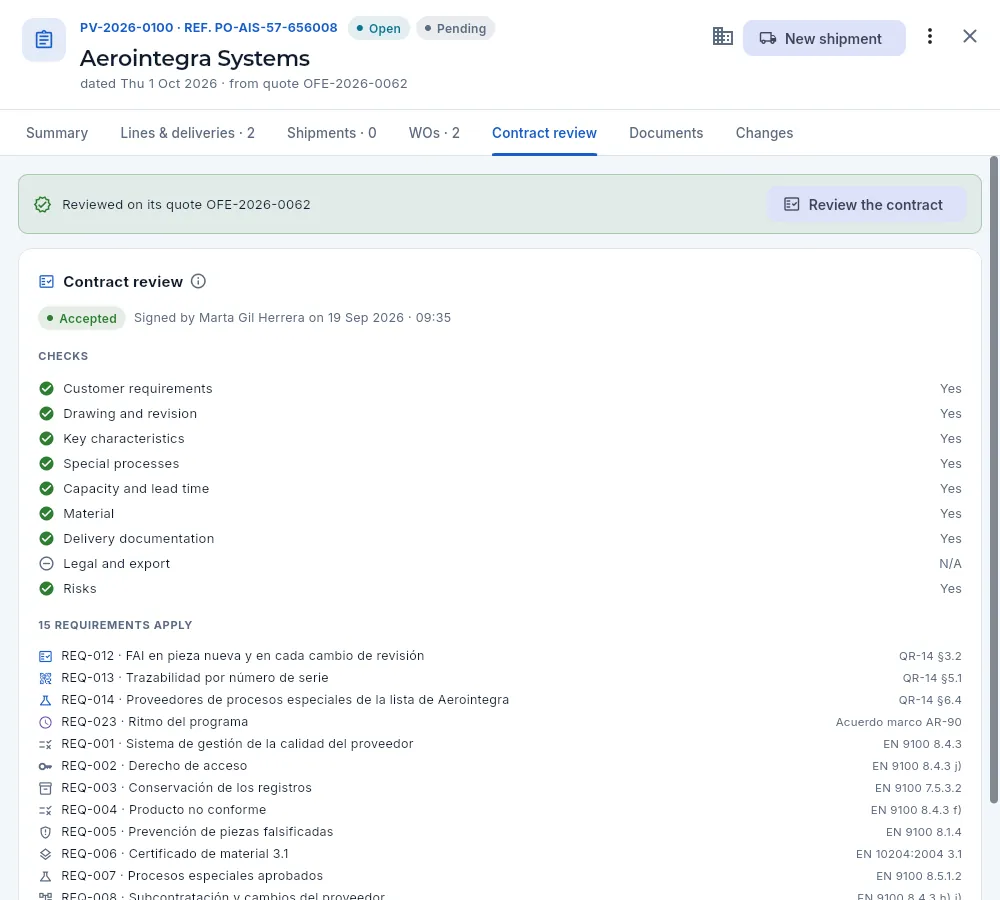 12345
12345
- 1Reviewed on its quote: the order is covered by the signed review of the quote it comes from.
- 2Review the contract: if the order changes something from the quote, the order itself is reviewed (and then its own review prevails).
- 3The outcome of the review and who signed it and when.
- 4The checks with their answer: ✓ yes, ✗ no, ⊖ not applicable.
- 5The requirements that applied, each with its clause: the customer's (its QR-14), the programme's (the rate in the AR-90 long-term agreement), its parts' if any and the company's.
Filter Contract not reviewed and open the order.
Click Review the contract in the summary's warning (or on the Contract review tab).
Read the applicable requirements and answer each check, including Differences from the quote («N/A» if there is no quote).
Choose the outcome (with any check answered «no», with conditions or not accepted, and write why), note the risks and click Sign the review.
Type your password and click Sign (see Electronic signature).
#Creating an order by hand
If the order does not come from a quote or through cXML, click New order. The header is created first; when you save it, the record opens on Lines & deliveries so you can add each delivery.
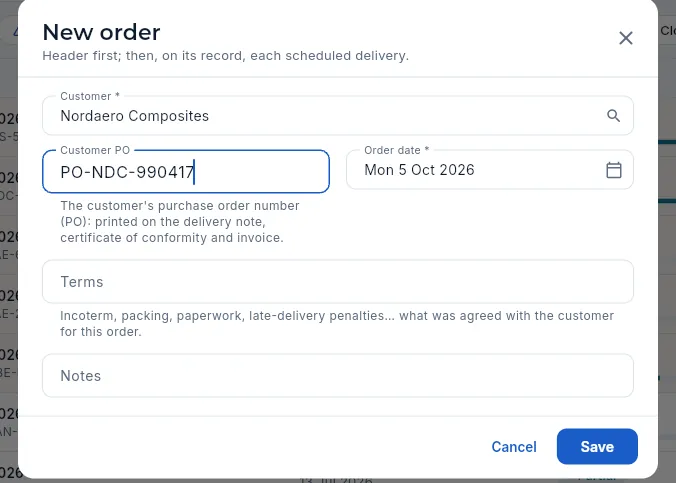 1234
1234
- 1Customer (required).
- 2Customer PO: their purchase order number. It appears on the delivery note, the CoC and the invoice.
- 3Order date.
- 4Terms agreed for this order: Incoterm, packing, paperwork, late-delivery penalties…
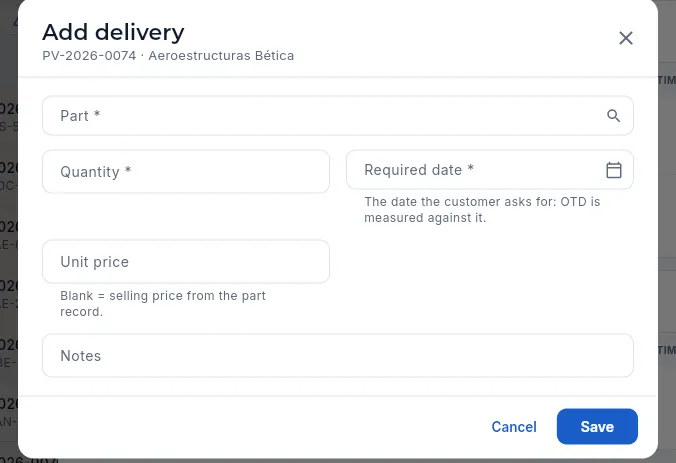 1234
1234
- 1Part: only the customer's.
- 2Quantity for this delivery.
- 3Required date set by the customer: OTD is measured against it.
- 4Unit price: if you leave it blank, the part's selling price.
Click New order, choose the customer and type their PO (their order number) and the date. Click Save.
On the record, click Add delivery: choose the part, the quantity and the required date. Save.
Repeat for each delivery; if a part is delivered in several instalments, one line per delivery.
If a delivery has to be manufactured, create its WO from the warning in the summary or from the line (Create WO).
A delivery that has partly shipped cannot go below what has shipped, and one with a WO or with something shipped cannot be deleted.
Create WO: when a delivery has no WO and the part is not served from stock, the summary warns about it («deliveries with no WO serving them and not enough stock») with the Create WO button, which creates a planned WO for that delivery. It is also on the line itself and under More options. It needs permission to edit work orders (see Work orders).
#Closing, cancelling or reopening an order
When every part has shipped, the summary says «All parts have shipped: you can close the order» and the main button becomes Close order. Shipped orders not yet closed are gathered under the Shipped, not closed filter.
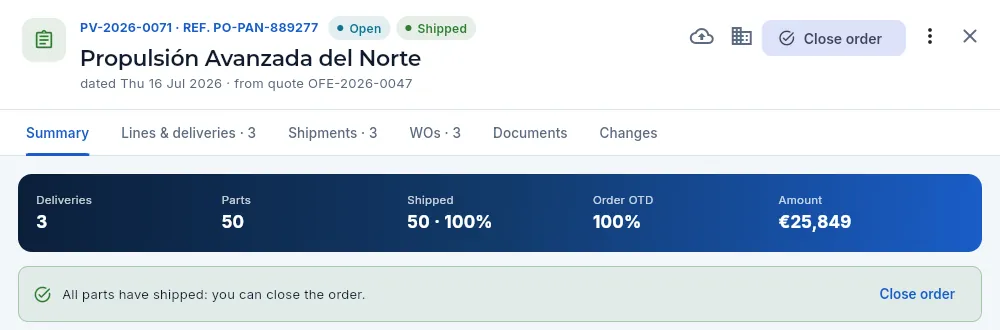 12
12
- 1The main button is Close order.
- 2The warning, with its button to close it.
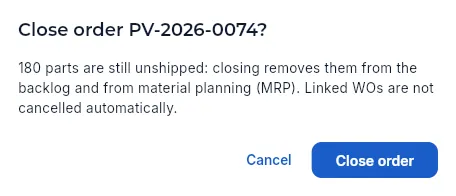 1
1
- 1What is open leaves the backlog and the MRP. Linked WOs are not cancelled automatically.
- Close order: the order is no longer open. If parts were left, they leave the backlog and material planning (MRP); linked WOs are not cancelled automatically: review them.
- Cancel order (only if nothing has shipped): the customer cancels it. It leaves the backlog, the MRP and OTD.
- Reopen order: a closed or cancelled order returns to the backlog with whatever is open.
A closed or cancelled order accepts no changes or shipments unless it is reopened.
#What each profile sees
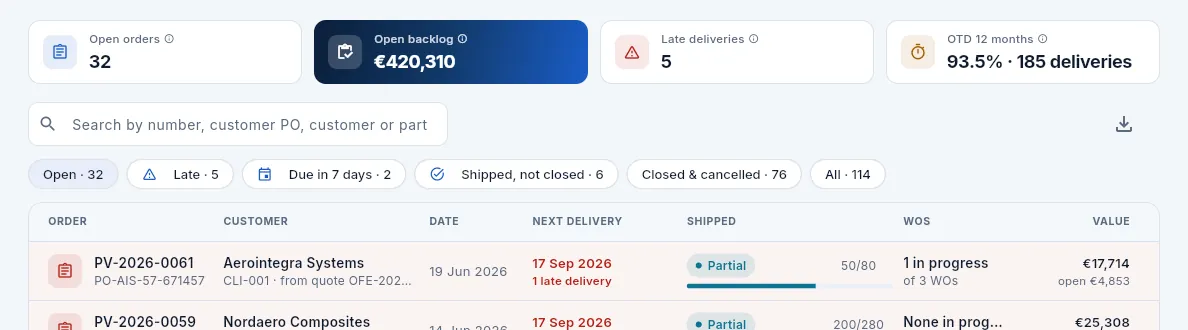 123
123
- 1He sees the values because his profile can see prices, but without the defence orders: the backlog is smaller than management's.
- 2He does not have the Defence filter.
- 3Nor the New order button: he does not have «Edit sales orders». He can export the list, though.
#Tips
Sales
Integrations
Electronic exchange with customers who buy through SAP Business Network (Ariba): import their cXML orders, answer with the confirmation, the ship notice (ASN) and the invoice, and simulate the network responses and the remittance. It is an offline demo: the XML is real, but nothing goes out to the network.
Some large customers do not send their orders by email but through a procurement network: in aerospace, above all SAP Business Network (formerly Ariba Network). The order arrives as a cXML document and the supplier answers the same way: it confirms the order, notifies each shipment and sends the invoice. That way the customer receives the data straight into their system, without retyping anything.
Integrations shows and manages that whole exchange: the customers with an integration (trading partners), the inbox of inbound and outbound messages, and the tools to import an order and generate each response.
In this version it is an offline demo: cXML documents are really read and generated (they are valid against the cXML 1.2.071 standard), but they do not go out to the network; the network responses are simulated with a button. In production, a service would send and receive the messages over HTTPS.
- 1cXML orderThe customer's OrderRequest arrives: it is read and its warnings reviewed.
- 2Aeromec sales orderOne line per delivery, with the customer's requirements. Before manufacturing, its contract review.
- 3ConfirmationThe planned dates, delivery by delivery.
- 4Ship notice (ASN)From the shipped delivery note: batch, serial numbers, heat, 3.1 and the CoC.
- 5cXML invoiceThe transmission of the invoice, referencing the order and the ASN.
- 6RemittanceThe customer pays: the payment is recorded.
#The network, the acronyms and the partner
At the top, a card explains what the integration consists of, gives access to the explanation of each acronym and shows the trading partner: the customer with whom documents are exchanged electronically and what was agreed with them.
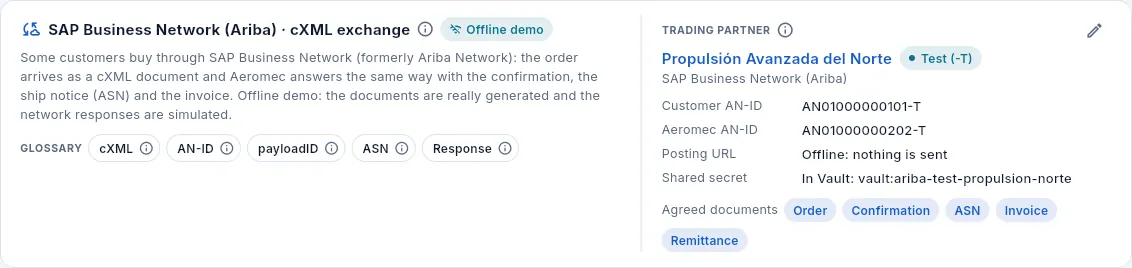 1234567
- 1The section's ⓘ: what the inbox is, a complete example of the exchange and what to do with issues.
- 2Offline demo: nothing goes out to the network.
- 3The acronyms, each with its ⓘ: cXML, AN-ID, payloadID, ASN and the network response codes.
- 4The partner: the customer (click to open their record), with the environment (test or production) and the platform.
- 5The AN-IDs of the customer and of Aeromec, the posting URL (offline in the demo) and the shared secret, which is never stored: only its name in the secrets vault.
- 6The agreed documents with this customer: only those can be exchanged.
- 7Edit the partner.
| Acronym | What it is |
|---|---|
| cXML | commerce XML, the document format of SAP Business Network: purchase order (OrderRequest), confirmation (ConfirmationRequest), ship notice (ShipNoticeRequest), invoice (InvoiceDetailRequest) and remittance (PaymentRemittanceRequest) |
| AN-ID | A company's account number on the network: AN followed by 11 digits; the test account ends in -T. Each document says who it is from and who it is for: if the sender is not the partner's, it is rejected |
| payloadID | The unique identifier of each document. If the network resends the same order, it arrives with the same payloadID and is not processed twice |
| ASN | Advance Ship Notice, the electronic shipping notice: what is shipped, for which order and delivery, with which batch, serial numbers and certificates, before the truck arrives |
| Response | The code with which the network answers each document: 200 accepted, 201 accepted for forwarding (the final status comes later), 401 sender not recognised, 406 document not acceptable (it has to be corrected), 500 temporary error (it is retried) |
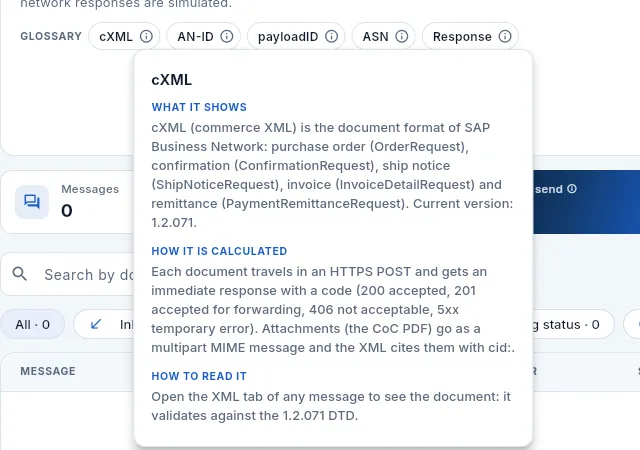 12
12
- 1Each acronym has its ⓘ.
- 2What it is, how it works with an example and what to do. Close it with Esc.
#The message inbox
Below the header is the inbox: every document that has come in and gone out, the most recent first. In the demo data it starts empty; it fills up when you import the sample order and generate documents.
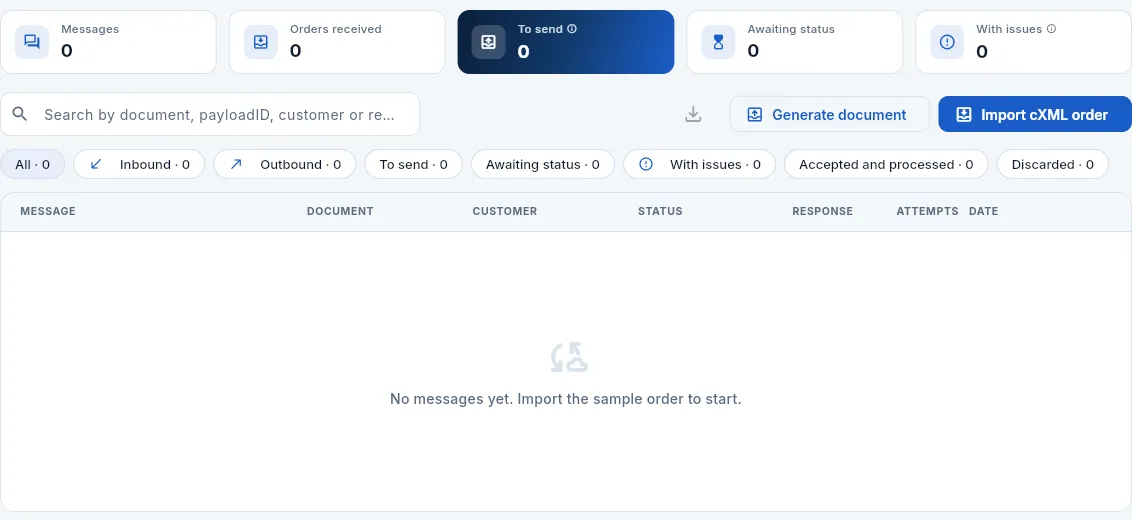 12345678
- 1Messages in the inbox and orders received from the network.
- 2To send: generated documents that have not gone out yet (or are back in the queue after a temporary error).
- 3Awaiting status: accepted for forwarding (201), waiting for the buyer's decision.
- 4With issues: rejected (406, 401) or with a temporary error (500) and not yet resolved. In red if there are any.
- 5Generate document: the confirmation of an order, the ASN of a delivery note, the invoice or the simulated remittance.
- 6Import cXML order: read an order sent by the customer.
- 7The filters: inbound, outbound, to send, awaiting status, with issues, accepted and processed, and discarded.
- 8The columns: message type with its cXML document and payloadID, the reference and the Aeromec document, the customer, the status, the response code, the attempts and the date.
Each message goes through these statuses:
| Status | What it means |
|---|---|
| Received | An order that has come in and been read, waiting to be turned into an Aeromec sales order |
| Processed | A received order that is already an Aeromec sales order |
| Generated, not sent | Outbound document prepared, not yet gone out |
| Sent | It has gone out and is waiting for the network's response |
| Pending with buyer | The network accepted it for forwarding (201) and the customer's decision is still to come |
| Accepted | The network or the buyer has accepted it (200) |
| Rejected | Not acceptable (406) or sender not recognised (401): it has to be corrected |
| Error, will retry | Temporary network error (500): it will be sent again as is |
| Discarded | Discarded by hand with a reason, or replaced by a corrected document |
Rows with issues are shaded in red. Click a message to open its record.
#Importing a cXML order
Import cXML order opens a panel where you paste the OrderRequest document the customer has sent. To try it out, Load the sample loads a test order from Propulsión Avanzada del Norte, with its dates shifted to today and a new payloadID.
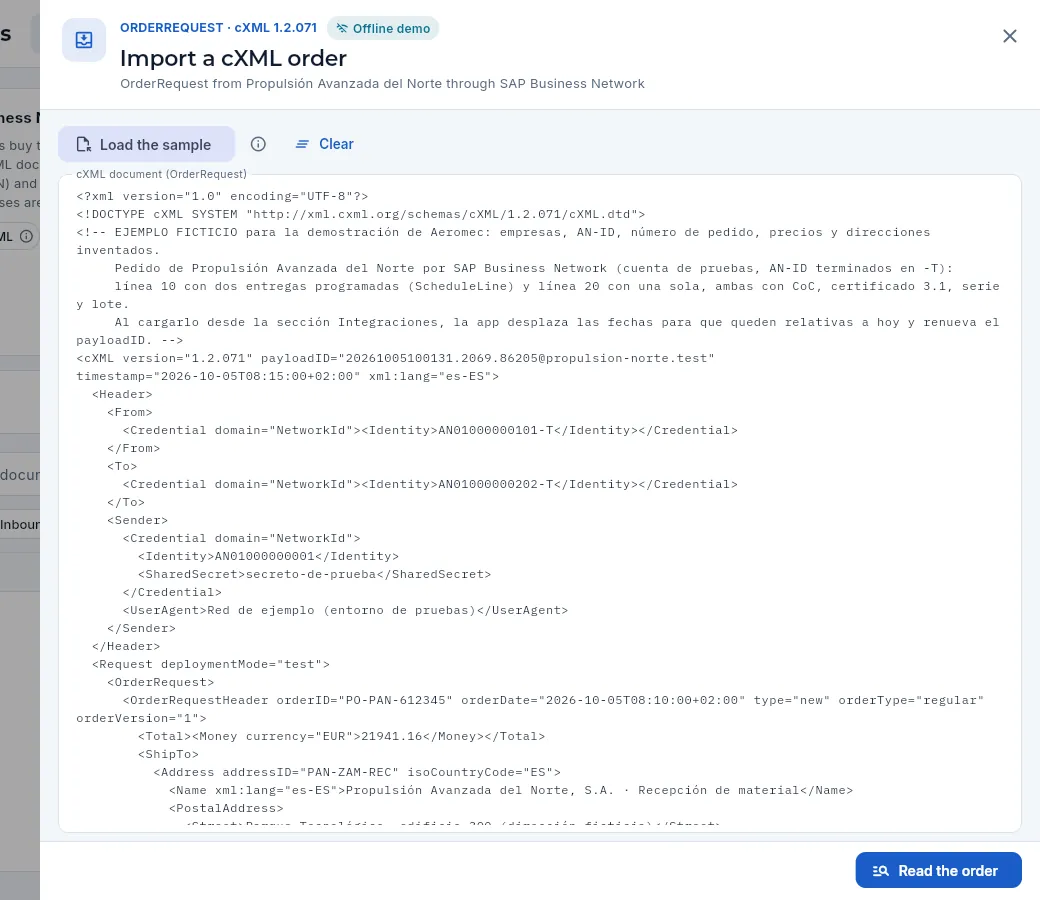 1234567
- 1The document type (OrderRequest) and the cXML version; below, the partner it is expected from.
- 2Load the sample: a fictitious order with two parts. Its ⓘ explains what it contains and which warnings will appear.
- 3Clear the text.
- 4The payloadID, which identifies this transmission, and the date and time.
- 5From and To: the AN-IDs of the customer and of Aeromec. They have to be the partner's.
- 6The order header: its number (orderID), date and type. Further down, the lines with their deliveries and requirements.
- 7Read the order: checks the sender and turns it into Aeromec lines and deliveries.
When you click Read the order, the panel shows the reading, which is for reviewing the order before accepting it:
- A band with the customer PO, its date, the lines, the deliveries and the amount.
- Reading warnings: what the order does not meet against what was agreed. In red, what blocks the order (unknown item, sender who is not the partner, an order change); in amber, what must be reviewed (a price different from the latest quote, a drawing revision that is not the current one); in blue, information.
- The order header (type and version, from whom and to whom, where to deliver, whom to bill, comments).
- The order quality requirements read from the document itself: CoC, 3.1 certificate of the heat, serial number per part and batch in the ship notice. They prevail over the customer record.
- One card per line: the matched part (by its code, by the customer's reference or by the drawing), the revision ordered against the current one, the ordered price against the reference price, the unit and each delivery with its quantity and date.
At the bottom, Create sales order creates it (with one line per delivery) and opens it; Discard rejects it with a reason; Back to the XML lets you correct the text.
Click Import cXML order.
Paste the OrderRequest document received from the customer (or click Load the sample to try it out).
Click Read the order and review the warnings: red ones block the order; amber ones must be resolved with the customer (price, drawing revision).
Check the quality requirements and the deliveries of each line.
If everything adds up, click Create sales order. If not, Discard it with the reason, or correct the XML with Back to the XML.
#Generating the confirmation, the ASN or the invoice
Generate document opens a menu with what can be sent to the customer. Each option shows the list of the partner's documents to choose from; when you choose one, its cXML is generated, it stays in the inbox as Generated, not sent and its record opens.
 1234
1234
- 1Confirmation of an open order from the partner.
- 2ASN for a delivery note already shipped.
- 3cXML invoice for an issued invoice.
- 4Simulated remittance: as if the customer paid an outstanding invoice.
 12
12
- 1Search for the delivery note.
- 2Each shipped delivery note with the customer PO, date, parts, its CoC and the material heats. If its ASN has already been generated, it says so.
| Document | Where it comes from | What it carries |
|---|---|---|
| Confirmation (ConfirmationRequest) | An open order from the partner (those that came through the network first) | For each delivery, the quantity and the committed date: the planned end of its WO plus the shipping margin; without a WO, the requested date. If it matches the requested one it is an accept; if it changes, a detail |
| Ship notice (ShipNoticeRequest, ASN) | A delivery note already shipped | One line per delivery with the produced batch, one serial number per part, the material heat and 3.1 certificate, and the CoC as a reference and as an attached PDF |
| cXML invoice (InvoiceDetailRequest) | An issued invoice (not advance invoices) | The reference to the customer's order and to the ASN, serial numbers and batch per line, the tax base, VAT and total. The legal invoice is still Aeromec's: the cXML is its transmission |
| Remittance (PaymentRemittanceRequest) | An invoice with an amount outstanding | Simulates the customer's payment arriving from the network and records the payment on the invoice (bank transfer, with the remittance number) |
The confirmation can also be generated from the integrated customer's order record: the cloud icon in its header, only visible if the customer has the confirmation among its agreed documents.
 12
12
- 1What is confirmed: the planned dates (WO end + shipping margin; without a WO, the requested date). What is confirmed is stored on each order line.
- 2Generates the ConfirmationRequest, which stays in the inbox unsent.
#The message record
When you click a message in the inbox (or generate one) its record opens. In the header, the direction (inbound or outbound) and the cXML document type, its status and the customer. The tabs:
- Summary: the document (direction, type, payloadID, reference, the Aeromec order, delivery note or invoice it belongs to, customer, network and environment, dates, who did it and size); the network response (HTTP code, cXML code, text and next retry); the attachments (the CoC PDF in an ASN, which can be viewed) and the history of everything that has happened to it: generated, responses, retries, replaced, discarded.
- Order reading (on a received order): the same reading as when it was imported, with its warnings.
- Content (on generated documents): the confirmed deliveries with the requested and the confirmed date, the ASN lines with WO, batch, heat, certificate and serial numbers, the invoice lines or the recorded payment.
- XML: the document as is, with colours, to copy or download as .xml. The shared secret shows as
********: it is added when sending and never stored.
On outbound documents, Simulate response acts as both the sending and the network response, and Retry resolves issues. Under More options (⋮) you open the Aeromec order, delivery note or invoice, the customer, or discard the message with a reason.
| Simulate response | What happens |
|---|---|
| 200 · OK | The message becomes Accepted |
| 201 · Accepted, forwarded | It becomes Pending with buyer; then their decision is simulated: StatusUpdate accepted or rejected |
| 406 · Not acceptable | It becomes Rejected. Retry generates the document again with today's data and a new payloadID; the rejected one is discarded as «replaced» |
| 500 · Temporary error | It becomes Error, will retry. Retry puts it back in the queue with the same payloadID: if the network already had it, it recognises it and does not duplicate it |
Import the sample order (Import cXML order → Load the sample → Read the order) and click Create sales order.
On the record of the order created, click the cloud icon to generate the confirmation; on its record, Simulate response → 200.
When there is a shipped delivery note for that customer, Generate document → Ship notice (ASN). Try Simulate response → 406 and then Retry: another document comes out with a new payloadID.
With the invoice issued (administration profile), generate the cXML invoice and simulate the remittance: the payment is recorded on the invoice.
#Configuring the partner
 12345
12345
- 1The AN-IDs of the customer and of Aeromec, given by the supplier account on the network.
- 2Environment: test (-T) or production.
- 3Active: unticked, nothing is imported or generated for this customer.
- 4Posting URL and name of the shared secret (in the secrets vault, never in the database).
- 5The agreed documents: order, confirmation, ASN, invoice, remittance and document status.
With a real customer, the scope (which documents), the AN-IDs and the tests are agreed with their purchasing team following their integration guide. If there is no partner, the header offers Create the demo partner.
#What each profile sees
Integrations needs the Integrations section, and each document also needs the permission for its action. With the demo profiles:
| Profile | Import and read | Create the order | Confirmation | ASN | Invoice and remittance |
|---|---|---|---|---|---|
| System administrator | Yes | Yes | Yes | Yes | Yes |
| Management | Yes | No | No | Yes | No |
| Sales | Yes | Yes | Yes | Yes | No |
| Administration (finance) | Yes | No | No | Yes | Yes |
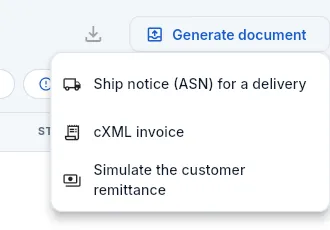 12
12
- 1The ASN can be generated by anyone who can see delivery notes.
- 2The cXML invoice and the remittance: he has permission to invoice and collect, and can see prices.
#Tips
Engineering
Items
The catalogue of everything that is made, bought or used in the shop: the customer's parts with their drawing, revision and revision history, raw materials, semi-finished items, tools, machine spare parts, consumables and fixtures, with their stock, how MRP replenishes them, their material, their cost breakdown and where each one is used. This is where critical parts are flagged, fixtures are validated and verified, each item's shelf life and preservation are set, and the requirements that apply to each part are shown.
Items holds the master data for everything that goes through the shop. Each item has a unique code (AMP-1015, MP-TI-P040, HE-FR-010…) and is one of these types:
| Type | What it is | Demo example |
|---|---|---|
| Part | What you make for the customer, according to their drawing and that drawing's revision. It is what carries a routing, a cost breakdown and work orders. | AMP-1015 · Herraje de unión ala-fuselaje |
| Raw material | The material you buy to machine: bar, plate or sheet of a given alloy and specification. | MP-TI-P040 · Placa Ti-6Al-4V e=40 |
| Semi-finished | Material already prepared (roughed, squared, solution-treated) that a part is made from. | SE-TI-001 · Tocho Ti-6Al-4V desbastado |
| Tool and consumable | Cutters, inserts, cutting fluid… that the part uses up and that the cost breakdown spreads per part. | HE-FR-010 · Fresa integral Ø10 |
| Fixture | The dedicated workholding for a part, with its life in parts and its signed validation and periodic verification. | UT-001 · Utillaje de amarre 5 ejes |
Some trade terms used in this chapter:
- Drawing and drawing revision: the customer's drawing that defines the part (AIS-5775575-201) and its revision letter (A, B, C…). When the customer changes the drawing the revision goes up, and the first part made to the new revision needs an FAI (First Article Inspection per EN 9102 / AS9102: the first part is fully measured against the drawing before series production). For a part already in production, the revision is changed through a change request (Changes) and each WO keeps the revision it was released with (see Configuration).
- Critical part: one whose failure would compromise the safety of the aircraft (a structural joint, the landing gear). It is released with extra checks. Its key characteristics (KC) are the drawing dimensions the customer flags as critical.
- Blank (gross weight) and part (net weight): the weight of the piece of material cut for each part and the weight of the finished part. The difference goes into chips.
- Material yield: how much of the purchased material ends up in the part (net weight ÷ gross weight).
- MRP (Material Requirements Planning): the requirements calculation that says what has to be bought or made, and when. It reads each item's MRP settings: whether it is made to order or made to stock, the safety stock (the minimum that must be free), the minimum lot, the order multiple and the lead time.
#The item list
When you open it you see the parts sorted by code. At the top, four indicators; below, the search box, the type filters and the table.
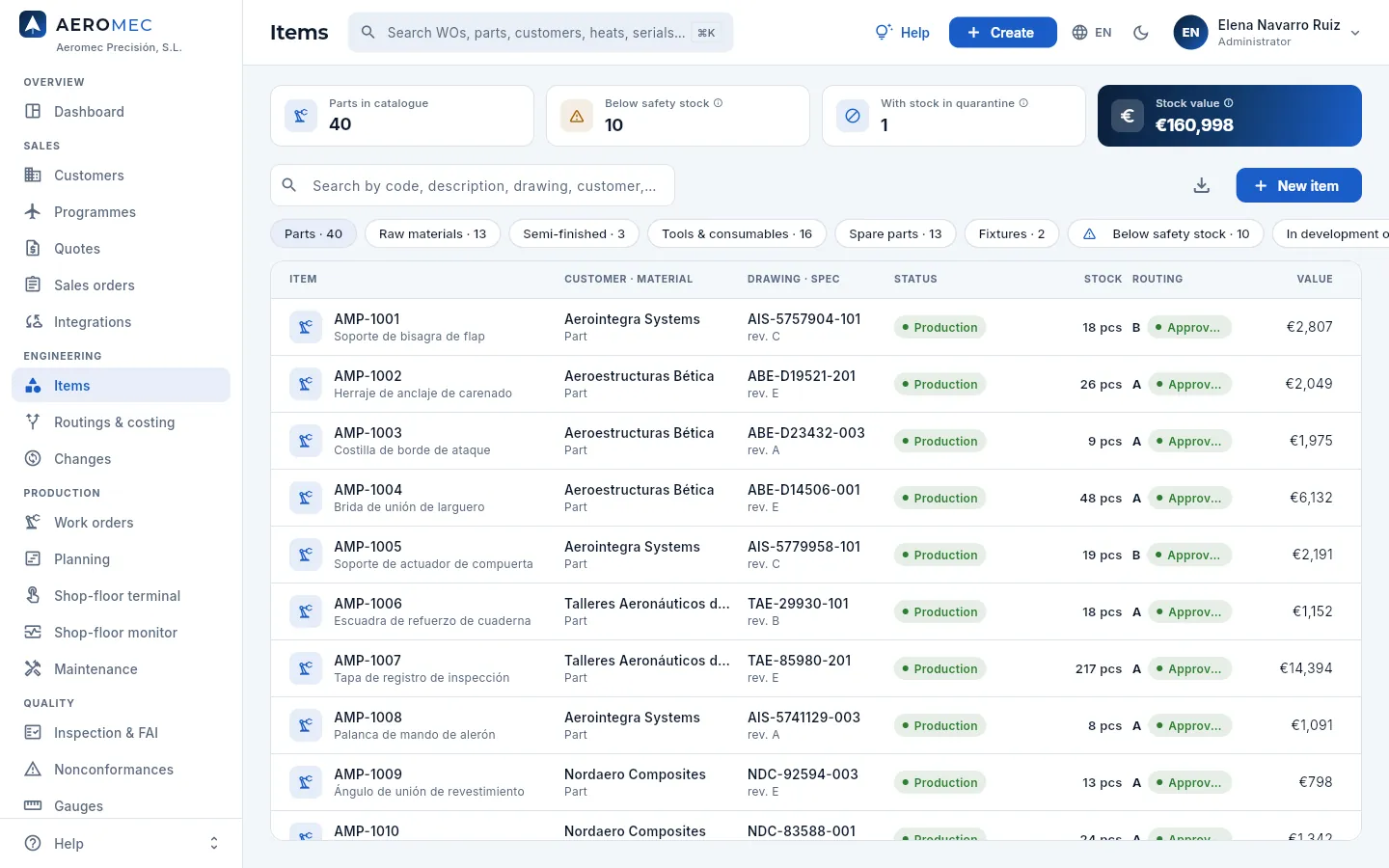 12345678
- 1The catalogue indicators: parts in the catalogue (excluding obsolete ones), items below their safety stock, items with stock in quarantine and the value of all the stock. Each ⓘ explains how it is calculated.
- 2The search box finds by code, description, drawing, customer, alloy, material code, material specification or CN code.
- 3The filters, with how many items each one holds: by type, those below safety stock, parts in development or with FAI pending, defence items and obsolete or inactive ones. Scroll the row to see the last ones.
- 4Export CSV downloads what you see (with the filter and search applied) to open it in a spreadsheet.
- 5New item opens the form for a new item: first it asks for the type.
- 6Each row is an item: code and description (the icon shows the type; purple with a shield if it is defence), customer, drawing with its revision and the part's status. Click the row to open its record.
- 7Stock available and, below it, what is reserved for WOs and what is in quarantine. In amber if free stock is below safety stock (the row is tinted too).
- 8Routing: the letter of the current routing revision and its status. «No routing», in amber, if the part has none yet.
Header indicators:
| Indicator | What it counts |
|---|---|
| Parts in catalogue | Parts that are not obsolete. |
| Below safety stock | Items whose free stock (available − reserved) is below their safety stock. These are the ones MRP will propose replenishing. |
| With stock in quarantine | Items with a received lot awaiting receiving inspection or held by Quality. |
| Stock value | What all the stock is worth at each item's average price. Only with the «See costs» permission. |
Filters: Parts, Raw materials, Semi-finished, Tools & consumables, Fixtures, Below safety stock, In development or FAI pending (parts not yet in series production), Defence (only if your profile sees defence data) and Obsolete & inactive. Filters combine with the search box.
The columns change meaning with the type: for a raw material, the customer is replaced by the alloy and form, the drawing by the material specification and the status by the replenishment policy.
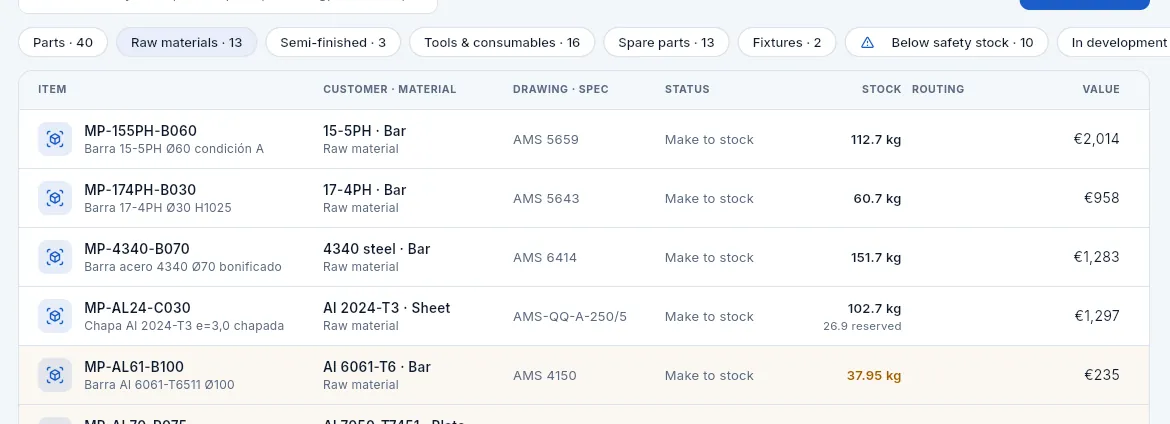 123456
- 1The Raw materials filter keeps only the materials bought for machining.
- 2In the Customer · material column, the alloy and the form (Al 7075-T6 · Bar, Ti-6Al-4V · Plate…).
- 3In Drawing · spec, the material specification (AMS 4911, AMS 4154…): the specification the drawing calls for, certified by the mill's 3.1 certificate.
- 4In Status, the replenishment policy: «Make to stock» (MRP keeps the safety stock) or «Make to order» (only bought against requirements).
- 5In amber, free stock is below safety stock (in the screenshot, the 15-5PH bar).
- 6Below the available stock, what is reserved for WOs already released: it is not free for others.
#A part's record
Clicking an item opens its record on the right. A part's record brings together its identification, its stock, the material it is made from, how MRP replenishes it, the settings used to work out its cost, the status of its FAI and what Intrastat needs; in the tabs, its routings, its cost breakdown, its components, its requirements, its configuration (the drawing revisions), its documents and the change history.
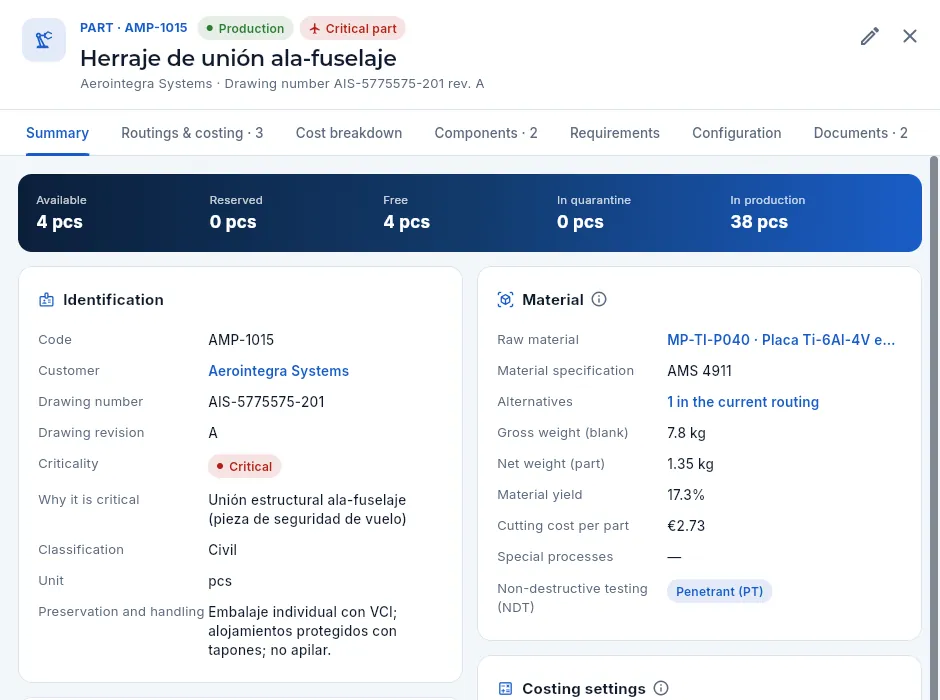 1234567
- 1Type and code, the part's status (In development, FAI pending, Production or Obsolete) and the Critical part tag if it is one (hover over it to see why); below, description, customer and drawing with its revision. A defence part also carries the purple badge.
- 2Edit opens the same form as for a new item, with all the part's data.
- 3The tabs: Summary, Routings & costing, Cost breakdown, Components, Requirements, Configuration, Documents and Changes (scroll the row to see the last ones). The number says how many rows each one has.
- 4The part's stock: available, reserved, free, in quarantine and in production (parts of released WOs not finished yet).
- 5Identification: customer (opens their record), drawing number, current drawing revision, criticality (standard, major or critical) and, if critical, why; the classification (civil or defence) and how it is preserved and handled.
- 6Material: the primary raw material (opens its record) and its specification, the blank and part weights, the material yield, the cutting cost per part and the special processes and non-destructive tests the drawing calls for.
- 7Alternatives: how many alternative raw materials the customer approved in the current routing. The link opens the routing on its Material tab.
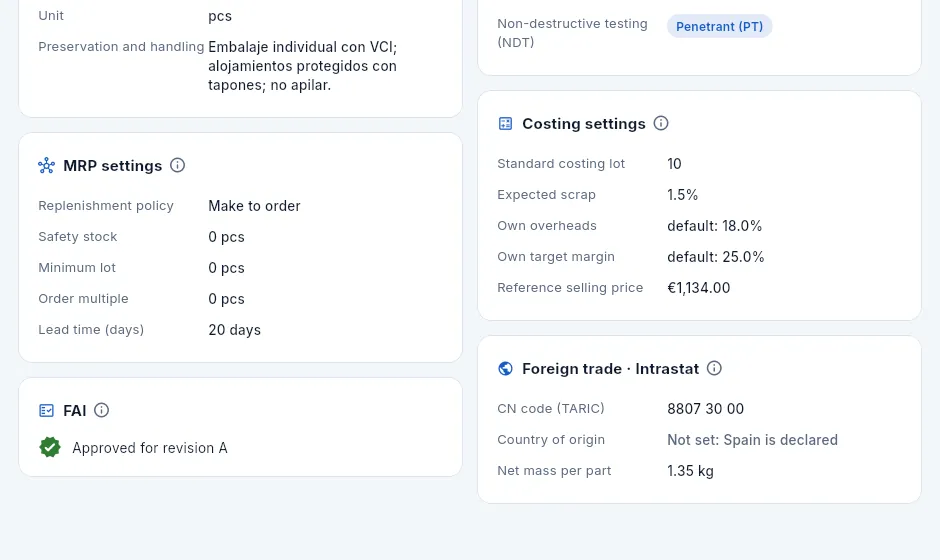 12345
12345
- 1MRP settings: replenishment policy, safety stock, minimum lot, order multiple and lead time. Its ⓘ (like each card's) explains with an example how MRP rounds the quantity (minimum lot and multiple) and when to order (need date − lead time).
- 2FAI: whether there is an approved FAI for the current drawing revision. If there is not, the first WO carries the FAI operation and its parts cannot ship until Quality releases it.
- 3Costing settings: standard lot, expected scrap and, if the part has its own, its own overheads and target margin (if not, «default» and the company's).
- 4The part's reference selling price (only with the «See prices» permission).
- 5Foreign trade · Intrastat: the CN code, the country of origin and the net mass per part, what Intrastat needs when the part is sold to another EU country.
#Critical parts
A part's criticality says how much control it needs: standard, major or critical. A critical part is one whose failure would compromise the safety of the aircraft (a wing-to-fuselage structural fitting, a landing gear pin) or one the customer declares as having critical characteristics. It is set in the part's form (Edit), with the reason:
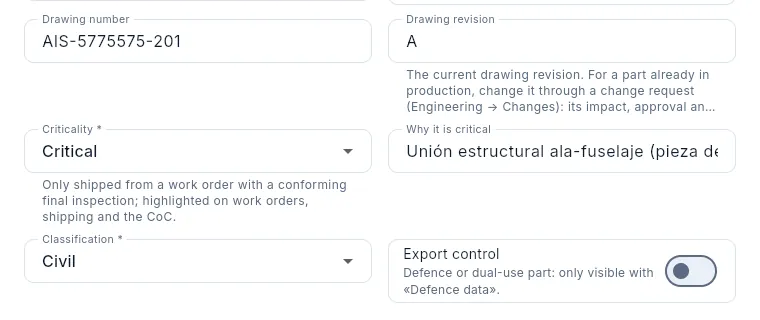 123
123
- 1The current drawing revision. For a part already in production it is not changed here: it is changed through a change request, which records its impact, its approval and the history (see Configuration).
- 2Criticality: standard, major or critical. Below it, what being critical means.
- 3Why it is critical: the reason (flight-safety part, functional surface…). It appears on the record and when you hover over the red tag.
What changes when a part is critical:
- Reinforced release: it only ships from a WO with a conforming final inspection. If that is missing, Aeromec will not let it ship (see Shipping), and the certificate of conformity (CoC) states which items are critical parts and that they were released this way.
- Its key characteristics (KC) are flagged in the routing's control plan (Routings & costing) and tracked with the control chart in Inspection & FAI › Capability, where the characteristic also carries the red «Critical part» tag: the chart warns that the process has shifted even while parts are still within tolerance.
- The customer requirement that calls for it (for example, controlling the KCs with SPC) appears on the part's Requirements tab.
#The part's routings and cost breakdown
The Routings & costing tab lists every revision of the part's routing, newest first. A routing is the sequence of operations used to make the part; every change is a new revision that the customer has to approve if they require it. Everything you can do with routings is explained in Routings & costing.
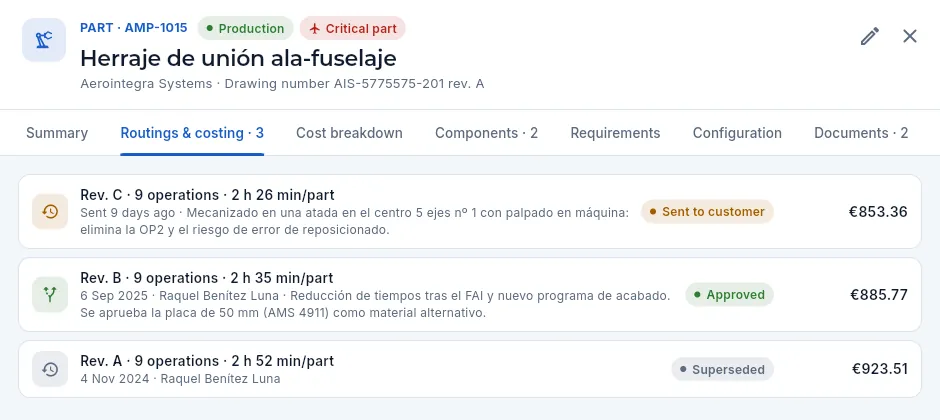 12345
12345
- 1The tab shows how many revisions the routing has.
- 2A revision sent to the customer: how many days it has been waiting and what changes in it.
- 3The approved revision, the one in force today: when and by whom it was approved. WOs are released with it.
- 4A superseded revision: it was replaced when the next one was approved. WOs released with it keep it.
- 5The unit cost of each revision, at the standard lot (with the «See costs» permission). Click a row to open the routing.
If the part has no routing, or if the latest revision is approved and no other is under way, the tab offers New routing or New revision at the top. It does not appear in the screenshot because revision C is awaiting the customer: only one revision can be in preparation at a time.
The Cost breakdown tab works out the planned cost per part with the current routing, with the quantity simulator and the saved versions. It is the same one explained in Routings & costing.
#Components
Components are the tools, consumables and semi-finished items each part uses up, besides its raw material: the cost breakdown spreads them per part.
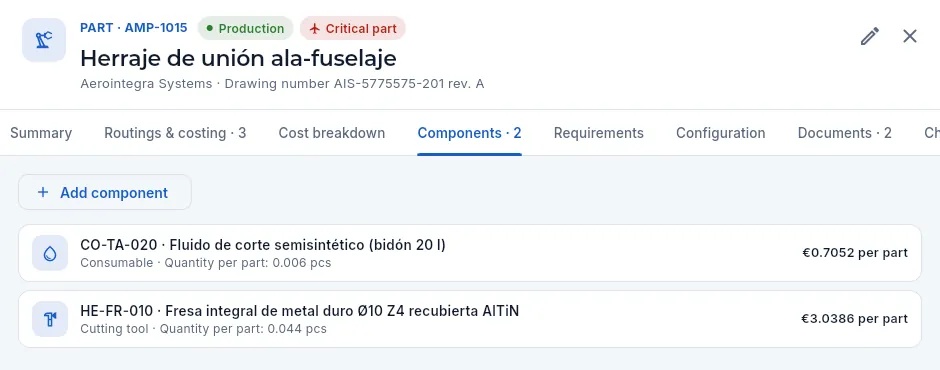 123
123
- 1Add component picks a semi-finished item, a tool or a consumable and its quantity per part.
- 2Each component with its type and its quantity per part (in the screenshot, 0.044 cutters per part: one cutter lasts about 23 parts). Click the row to change the quantity or remove it.
- 3What each component adds to the cost per part (with the «See costs» permission).
#The part's requirements
The Requirements tab brings together everything that has to be met when making this part: the company's requirements, its customer's (taken from their quality clauses), its programmes' and the part's own (key characteristics, tests, material). They are what the contract review checks before committing to a quote or an order (see Quotes), and the ones flowed down to suppliers go on each purchase order.
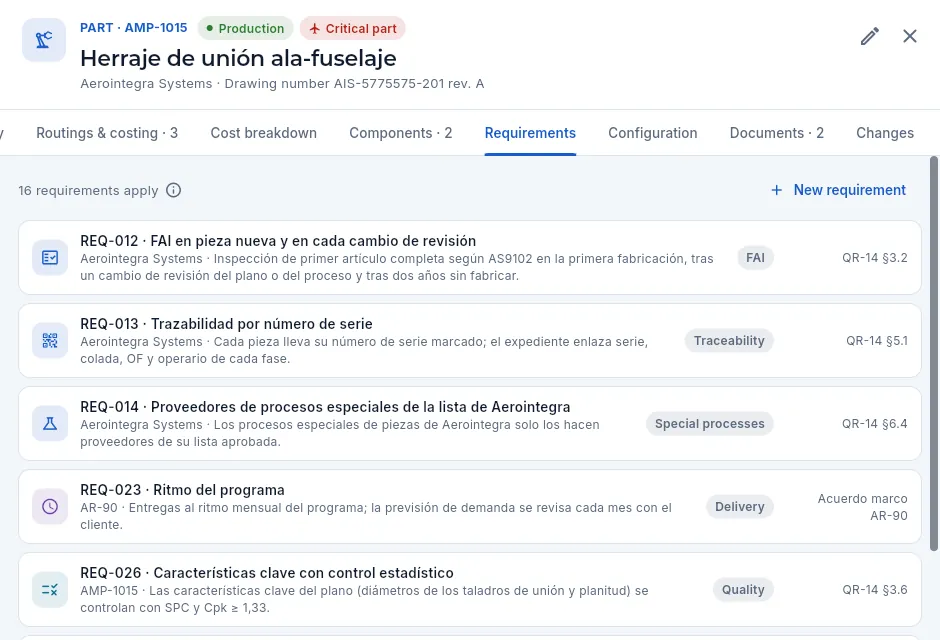 123456
- 1How many requirements apply to the part. Its ⓘ explains where each one comes from.
- 2New requirement adds one specific to the part (with «Edit requirements»). Customer requirements are added in the customer's record and programme requirements in the programme's.
- 3A customer requirement: code and title, whose it is and what it requires. On the right, its category and the clause of the customer document it comes from (QR-14 §3.2). Click the row to open it.
- 4A requirement of the programme (AR-90) the part belongs to.
- 5A requirement of the part: here, controlling its key characteristics with statistical process control (SPC).
- 6The company ones, which apply to every part (those flowed down to suppliers, with the standard that calls for them).
How customer requirements and their approved sources are set up is explained in Customers.
#Configuration: the drawing revisions
The Configuration tab is the part's history over time: each drawing revision with the date it took effect, the change request that brought it in, how many WOs have been made to it and how many parts of that revision have been shipped. Below, the part's change requests, approved or in progress.
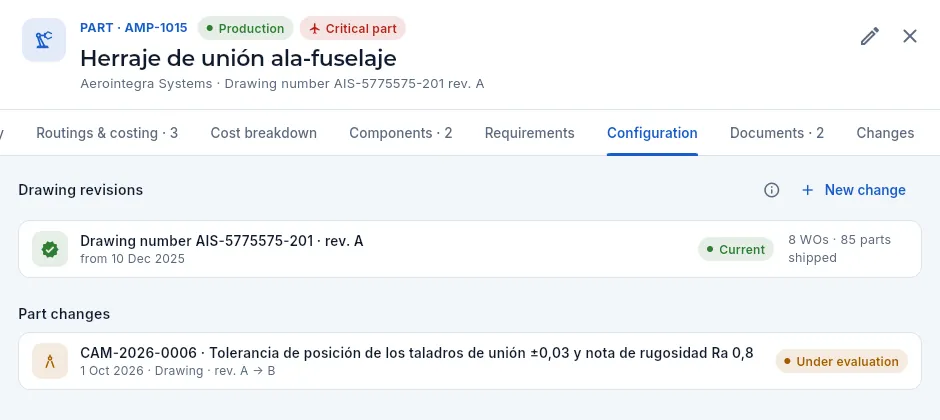 12345
12345
- 1Drawing revisions. Its ⓘ (on the right) explains what is frozen on each WO.
- 2New change opens a change request for this part (with «Manage changes»).
- 3Each revision: drawing and letter, when it took effect and the change request that brought it in; the current one in green.
- 4How many WOs have been released to that revision and how many of its parts have shipped: who is affected if a problem turns up in it.
- 5The part's change requests with their type, the revisions (A → B) and their status. Click one to open it in Changes.
How the revision moves:
- When a WO is released, the current drawing revision is frozen on it (Work orders) and passed on to its lots, the traceability of each serial number and the shipment's CoC: you always know which revision each part was made to.
- When a drawing change request is implemented, the part moves to the new revision (the FAI card asks for a new FAI) and WOs already released keep theirs. While any remain, the tab warns: «N released work orders are built to a revision older than the current one».
- Change requests (impact, customer approval, signature and implementation) are explained in Changes.
#The part's documents
The Documents tab holds the customer's drawing with its revision, the 3D model, photos and anything else you need. What you upload here is then shown by the WO (Documents tab, «Part drawings») and by the shop-floor terminal next to the operation.
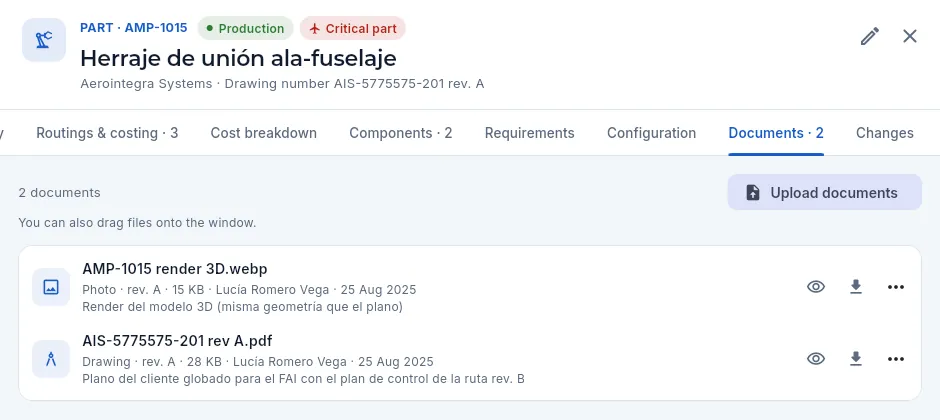 1234
1234
- 1Upload documents picks files from your computer (you can also drag them onto the window): PDF, images, CNC programs, Office, CAD or zip, up to 20 MB each.
- 2The photo of the part: it is the one shown on the cards in the Planning queues.
- 3The drawing with its type, revision, size, who uploaded it and when, and a note.
- 4View opens it inside the app, Download saves it and ⋮ lets you change its details or delete it.
The last tab, Changes, shows who changed the record and what (each field with its value before and after). Only those with the «See the change audit log» permission see it.
#A raw material's record
The record of a bought item has the same layout, with three differences: the stock shows what is on order (purchases in progress) instead of what is in production, the Valuation card says what the stock is valued at, and the tabs are Suppliers and Where used.
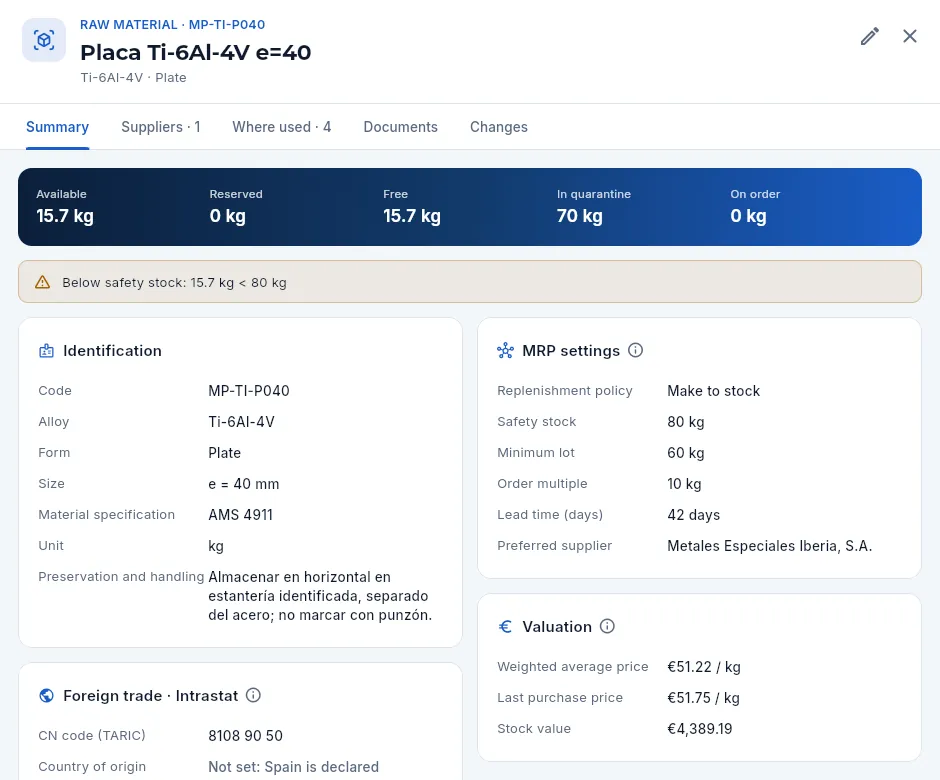 1234567
- 1Type and code, description, alloy and form.
- 2The tabs of a bought item: Suppliers (with their price lists) and Where used.
- 3The stock, with what is in quarantine (received and awaiting receiving inspection) and what is on order from purchases in progress.
- 4The warning that free stock is below safety stock. MRP will propose a purchase.
- 5Identification: alloy, form, size (thickness or diameter) and material specification.
- 6It is made to stock: MRP keeps the safety stock and buys with the minimum lot, order multiple and lead time of the preferred supplier.
- 7Valuation: weighted average price, last purchase price and stock value (only with «See costs»).
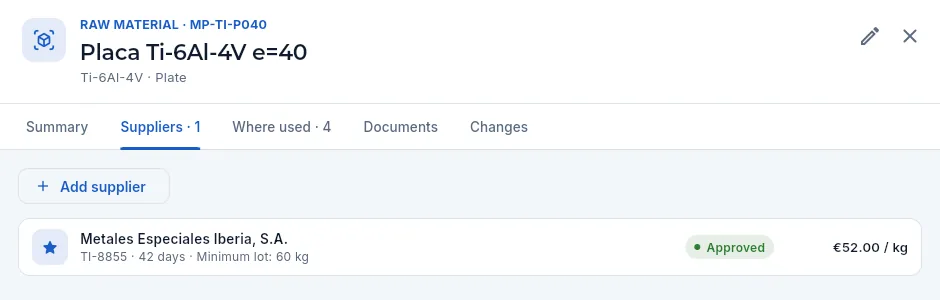 1234
1234
- 1Add supplier adds another price: supplier, price, lead time, minimum lot, their reference and whether it is the preferred one.
- 2Each supplier with their reference, lead time and minimum lot; the star marks the preferred one, which MRP uses when proposing purchases.
- 3Their approval status (approved, conditional, suspended…), from the supplier's record.
- 4The price in the price list. Click the row to change it (with «Edit items» or «Edit purchasing», and always with «See costs»).
Where used answers «what is affected if I change this material or stop buying it?»: the parts and semi-finished items that use it as raw material (with the kilos per part), those that use it up as a component and, if it is a customer-approved alternative material in some routing, those parts too, with the routing revisions that accept it.
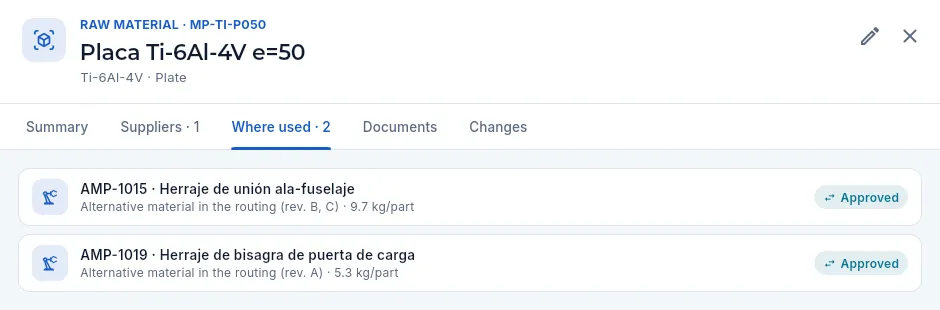 123
123
- 1The tab shows how many parts use it.
- 2A part that accepts it as an alternative material: in which revisions of its routing and with how many kilos per part. Click the row to open the routing on its Material tab.
- 3Approved if any of those revisions has been approved by the customer; Not approved if it cannot be used yet.
#Fixtures: validation and verification
A fixture is the workholding or check gauge made for a part (UT-001, UT-002…). It is created as one more item, of type Fixture, with its life in parts and how many months between verifications, and is assigned to the routing operations that use it (Routings & costing). Before series use it is validated, and afterwards it is verified periodically (with the master part on the coordinate measuring machine, the flatness of the supports, the position of the locators…). Every validation and every verification is signed.
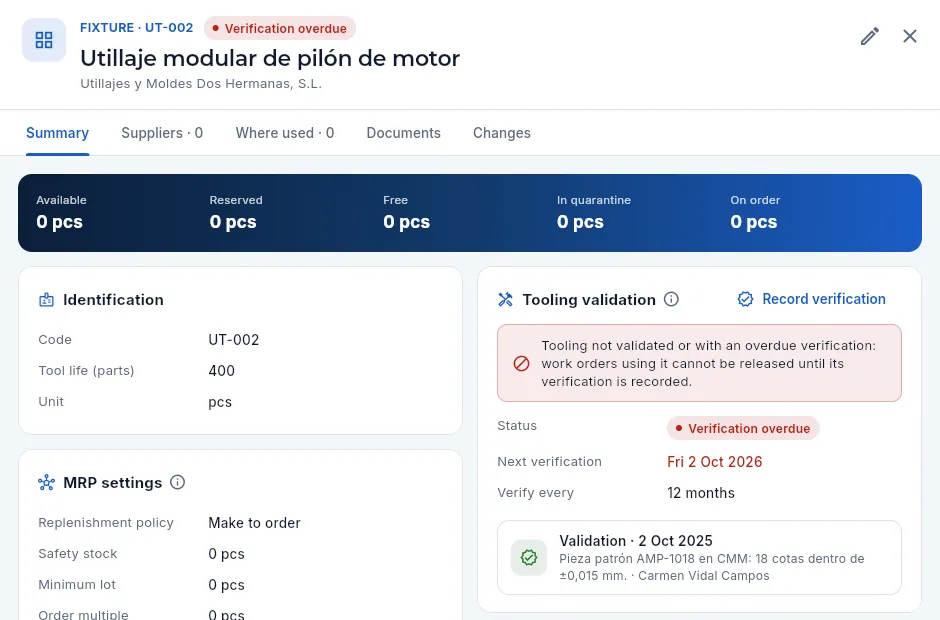 123456
- 1In the header, the red tag if the fixture is not fit for use: «Verification overdue», «On trial» (not validated) or «Blocked».
- 2Identification: code and life in parts (the cost breakdown spreads its cost over them).
- 3Record verification: the validation, the periodic verification or the one after a repair, with a signature.
- 4The warning: until it is verified, the WOs that use it cannot be released.
- 5Status (on trial, validated or blocked; if the verification is overdue, it says so), next verification (in red if already past) and how many months between them.
- 6The history: each validation or verification with its date, what was checked and who signed it; with a green mark if it was fit or a red one if not.
Only its verification changes a fixture's status: a fit one leaves it validated until the next one (date + the months in Verify every); an unfit one blocks it. Nobody can change it by hand from Edit.
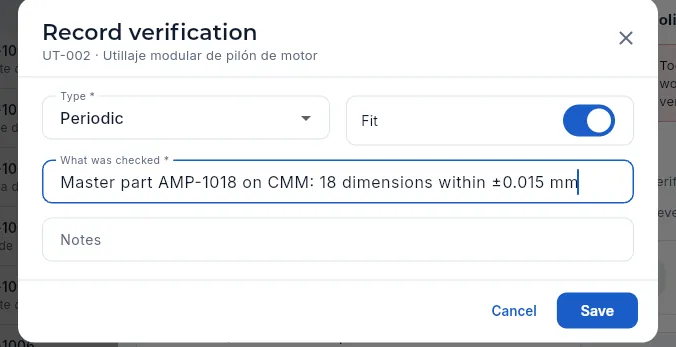 1234
1234
- 1Type: validation (the first one, before series use), periodic or after a repair.
- 2Fit: switch it off if the fixture fails; it will be blocked.
- 3What was checked (required): the method and the result.
- 4Save asks for your signature: the verification is signed and can no longer be changed.
Open the fixture (Fixtures filter in the list) and click Record verification.
Choose the Type, leave Fit on if it passes the verification and describe the method and the result in What was checked.
Click Save and sign with your password (see The electronic signature).
#Shelf life and preservation
Some items expire: cutting fluids, greases, adhesives, some materials. For consumables, raw materials and spare parts you can set their shelf life in days; and for any item, how it is preserved and handled (temperature, packaging, no stacking…), for whoever stores, picks or packs it.
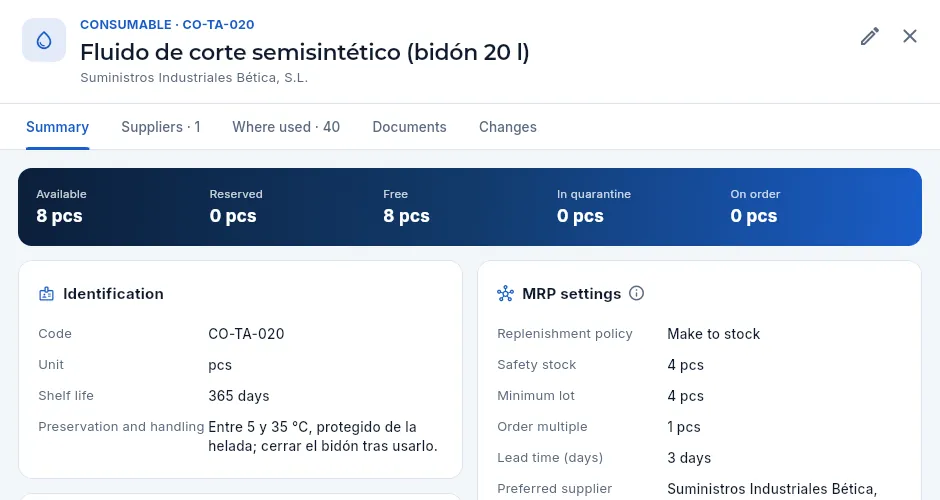 12
12
- 1Shelf life: the number of days it lasts from receipt.
- 2Preservation and handling: how it has to be stored and handled.
With a shelf life, each incoming lot gets its expiry date (receipt date + shelf life), shown on the lot in Warehouse. An expired lot cannot be consumed or shipped: Aeromec prevents it. If expired lots remain in stock, the item's record warns in red («N expired lots in stock») so they can be removed or checked.
#Adding a new item
New item (or Create in the top bar, from any screen) first asks for the type, and the form asks only for what that type needs: a part, its customer, its drawing, its criticality and its material; a raw material, its alloy, its form, its size and its specification; a fixture, its life in parts and how many months between verifications; a consumable, a raw material or a spare part, its shelf life in days. All of them accept their preservation and handling conditions.
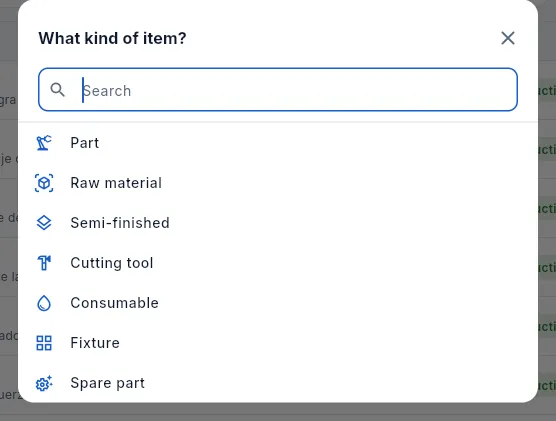 123
123
- 1Type to filter the list, or click the type directly.
- 2Part: what is made for the customer.
- 3Raw material, semi-finished, tool, consumable, spare part (for the machines) or fixture: what is bought or used.
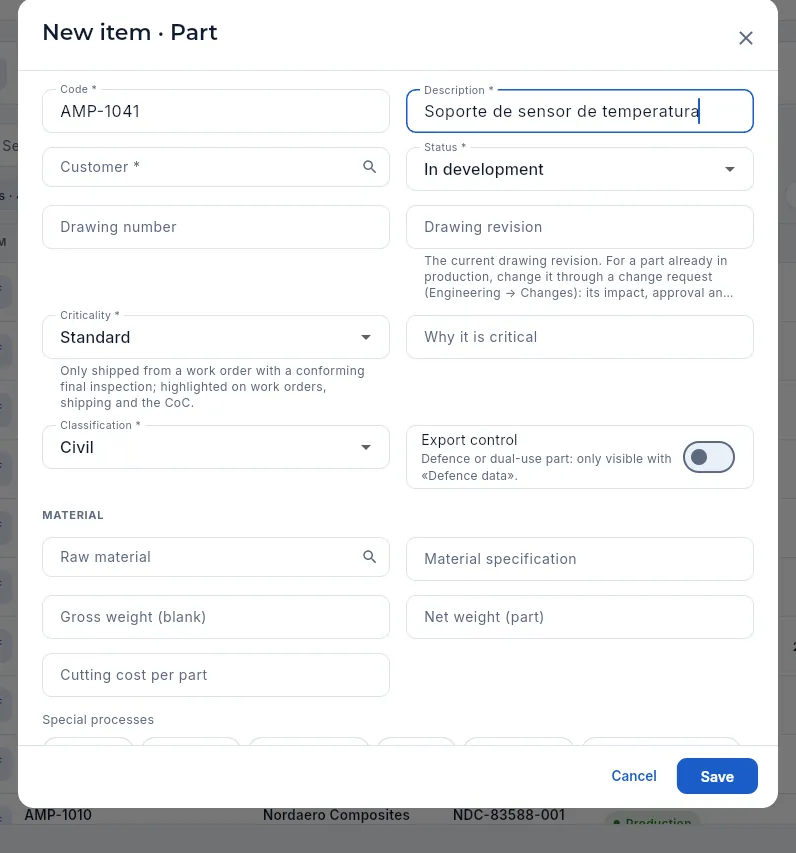 12345678
- 1Code and description (required).
- 2Customer, with a search box. A part always belongs to a customer.
- 3Status: a new part starts «In development». It moves on its own to «FAI pending» or «Production» when its routing and its FAI are approved.
- 4The customer's drawing number and drawing revision.
- 5Criticality (standard, major or critical) and, next to it, why it is critical (see Critical parts).
- 6Classification: civil or defence.
- 7Export control: a defence or dual-use part. Only those with «Defence data» will see it.
- 8Material: the primary raw material, its specification, the gross (blank) and net (part) weights and the cutting cost per part.
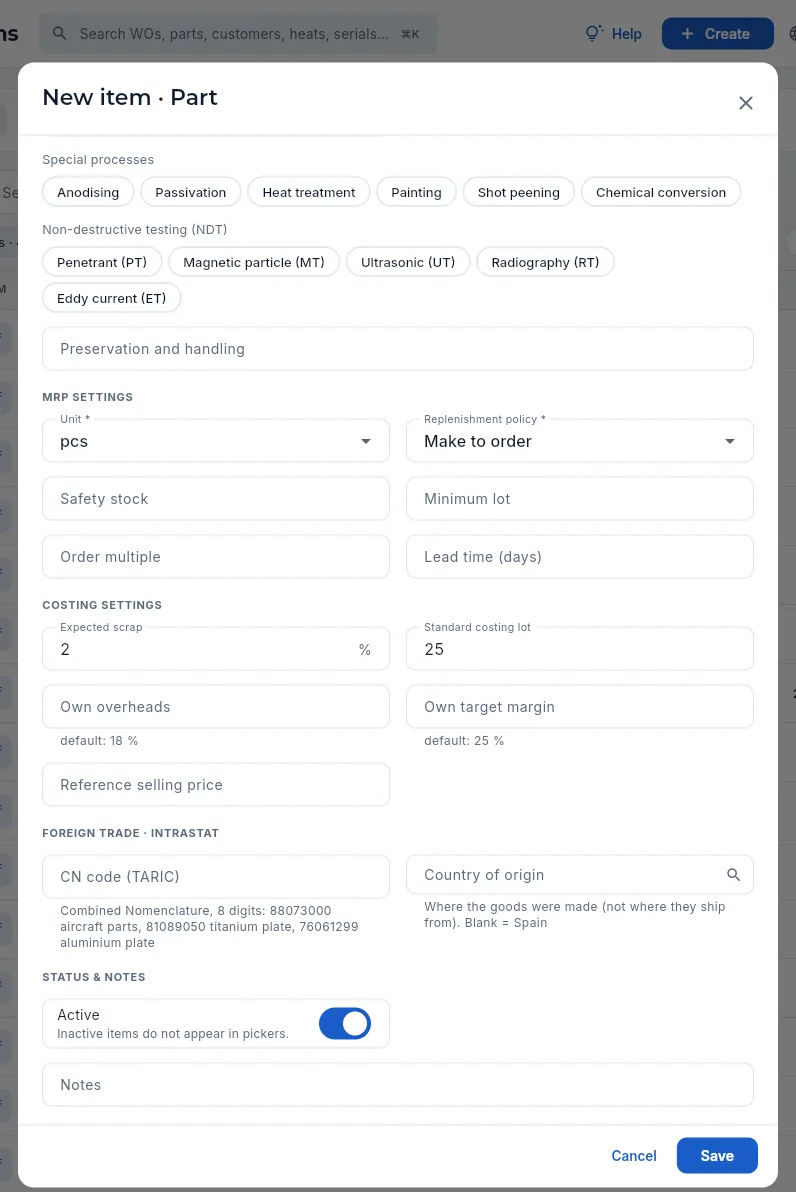 12345678
- 1Special processes and non-destructive testing (NDT) called for by the drawing: tick the ones it needs.
- 2Preservation and handling: how the part is stored, packed and handled (for a consumable, a raw material or a spare part, its shelf life also appears above it).
- 3MRP settings: unit, policy (for a part, usually «Make to order»), safety stock, minimum lot, multiple and lead time.
- 4Costing settings: expected scrap and standard lot.
- 5Own overheads and own target margin: leave them empty to use the company's (the default value is shown below).
- 6Reference selling price (only with «See prices»).
- 7Foreign trade · Intrastat: the 8-digit CN code (spaces are accepted, 8807 30 00) and the country of origin (blank, Spain).
- 8Active: an inactive item no longer appears in pickers.
Click New item and choose Part.
Type the Code and the Description and choose the Customer.
Type the Drawing number and the Drawing revision, and choose the Criticality; if it is critical, fill in Why it is critical. If it is a defence or dual-use part, turn on Export control.
Under Material, choose the Raw material and type its specification, the Gross weight (blank) and the Net weight (part). Tick the drawing's Special processes and Non-destructive testing (NDT).
Scroll down to MRP settings and Costing settings: check the policy, the Expected scrap and the Standard costing lot; leave your own overheads and margin empty if the company's apply.
If the part is going to be sold to a customer in another EU country, fill in its CN code (TARIC) under Foreign trade · Intrastat (for example, 88073000, aircraft parts).
Click Save.
An item can only be deleted (from Edit) if it is not used in another item, has no routings and has no stock. If it is no longer used but has history, deactivate it with Active or, if it is a part, set it to «Obsolete».
#A part's life cycle
Aeromec moves a part's status as its routing and its FAI progress:
- 1New partThe part is born In development, with its drawing and its material.
- 2Routing approvedWhen its routing is approved it moves to FAI pending if the customer requires FAI and there is no approved one for the drawing revision.
- 3First WOIt is released with the FAI operation active: its parts cannot ship until it is released.
- 4FAI releasedQuality measures the first part and releases the FAI: the part moves to Production.
#What changes with the profile
Each profile sees items according to its permissions. Costs it cannot see do not appear (or show a padlock), and the tabs of sections it has no access to are not shown. This is how Marta, from sales, sees the same part:
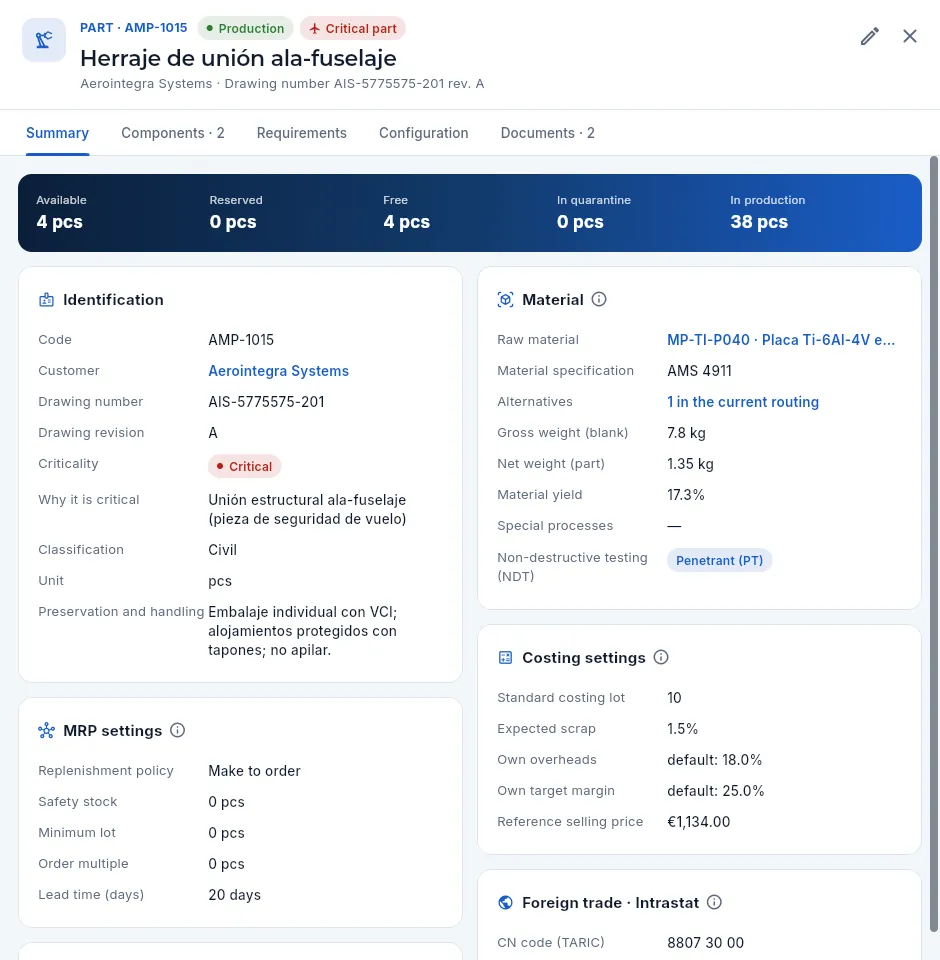 1234
1234
- 1No Routings & costing or Cost breakdown (she has no access to that section) and no Changes (she lacks the audit permission); she does get Components, Requirements, Configuration and Documents.
- 2She can edit the part (she has «Edit items»): sales adds the new parts that come with quotes.
- 3Under Material the cutting cost is not shown; in the list she does not see the stock value.
- 4She does see the reference selling price (she has «See prices»).
In the list, Marta sees fewer parts (in the demo, 34 out of 40): defence parts (and those of defence customers) do not exist for anyone without the «Defence data» permission, neither in the list, nor in pickers, nor in search.
#Tips
Engineering
Routings & costing
How each part is made: every routing revision with its operations (and the special process of subcontracted ones), its control plan, its material and the alternative materials the customer accepts, its approval cycle (internal or by the customer) with electronic signature and the comparison between revisions. The routing gives the cost breakdown: the planned cost per part for any quantity, with a simulator, saved versions and the comparison with the actual cost of closed work orders.
A part's routing (or process sheet) is the sequence of operations used to make it: cut the blank, mill the first face on the 5-axis centre, deburr, send it to a supplier for the penetrant test, measure on the coordinate measuring machine… Each operation says which machine (or supplier) does it, how long it takes to set up the machine and to make each part, with which CNC program and fixture, and what is measured in it: that is the control plan.
In aerospace the routing is not changed lightly: many customers require approving it before production, and any change (another machine, another program, another material) is a new revision (A, B, C…) that goes through their approval again. Aeromec keeps every revision of each part, knows which one is current (the one in force today) and does not let you release a WO on a routing the customer has not approved if they require it.
The routing gives the cost breakdown: the breakdown of the planned cost of making a part (material, tools, machine hours, labour, outside processing, fixture, scrap and overheads) and the target price that leaves the margin the company wants.
Other trade terms in this chapter:
- Set-up: the time to clamp, load the program and make the first good part; it is paid once per lot.
- Time per part (cycle): how long the machine takes to make each part.
- Characteristic and balloon: each dimension or requirement on the drawing that is measured, with the balloon number it carries on the drawing. KCs (key characteristics) are the ones the customer flags as critical (see Critical parts).
- Alternative material: another raw material the customer accepts for the part if the primary one is short (another plate size, another form, another alloy with its approved deviation).
- Special process: a process whose result cannot be fully verified by measuring the part afterwards (heat treatment, anodising, shot peening, non-destructive testing or NDT…). It is done by a supplier approved for that process, often with its Nadcap accreditation (the aerospace industry's accreditation programme for special processes).
#The routing list
The list has one row per routing revision. When you open it you see the current ones (one per part), with their status, their operations, who approved them and their cost.
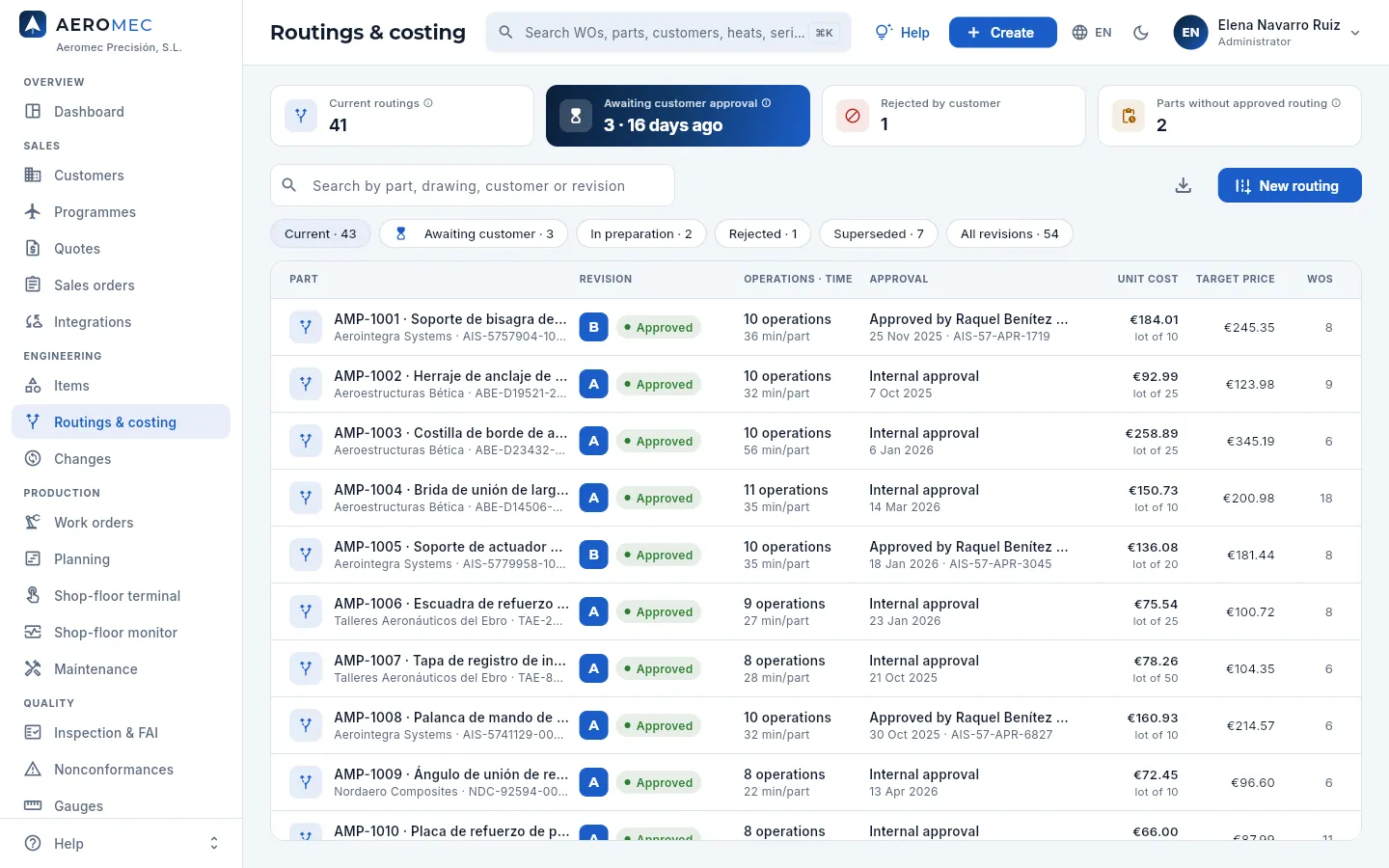 12345678
- 1The indicators: current approved routings, revisions awaiting customer approval (with the days the oldest one has been waiting), routings rejected by the customer and parts without an approved routing.
- 2The search box finds by part, drawing, customer or revision.
- 3The filters with their count: current, awaiting customer, in preparation (draft or internal review), rejected, superseded and all.
- 4Export CSV downloads the revisions you see.
- 5New routing creates a part's first revision (or the next one, if it already has one).
- 6The revision letter (in a filled square if it is the current one) and its status.
- 7Approval: who approved it at the customer, when and with which reference, or «Internal approval» if the customer does not require it.
- 8The cost breakdown's unit cost at the part's standard lot and the target price (depending on your profile); on the right, how many WOs have been released with the revision.
| Filter | What it shows |
|---|---|
| Current | The revision in force today for each part: the latest approved one or, if the part has none approved yet, the one under way. |
| Awaiting customer | Revisions sent to the customer waiting for their answer. |
| In preparation | Revisions in draft or internal review. |
| Rejected | Those the customer has not accepted, with the reason. |
| Superseded · All revisions | The history. |
That is why the Current filter may count a few more than the Current routings indicator: the indicator only counts approved ones; parts whose current revision is not approved yet show up in Parts without approved routing.
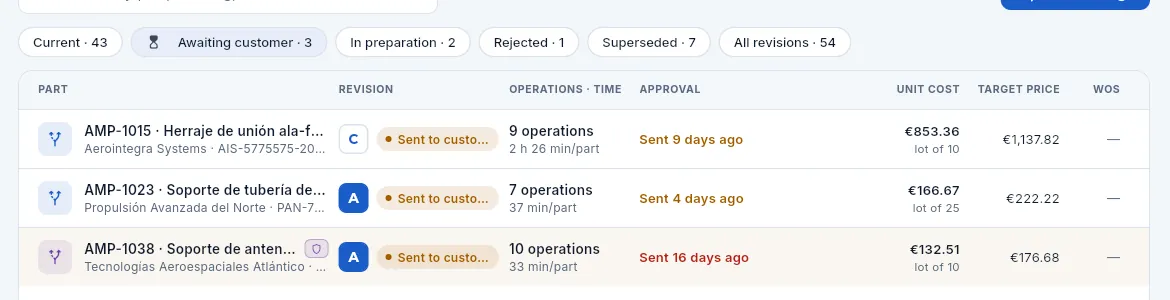 12345
12345
- 1Awaiting customer: the list of what to chase with each customer's supplier quality team.
- 2An unfilled letter is a revision that is not the current one: here, AMP-1015 rev. C, while rev. B is still used for production.
- 3Sent N days ago, in amber…
- 4…and in red, with the row highlighted, after 14 days.
- 5The shield marks defence parts: only those with the «Defence data» permission see them.
#The life cycle of a revision
Every revision goes through these statuses, shown as a coloured label in the list and in the record:
- 1DraftEngineering writes the operations, the control plan and the materials.
- 2Internal reviewSomeone else reviews it before it leaves the company.
- 3Sent to customerThe reviewer signs it («Reviewed») when sending it. It awaits the customer's answer and can no longer be touched.
- 4ApprovedWith the customer's approver and reference, and the signature («Approved») of whoever records it. It becomes current and the previous one is superseded.
| Status | What it means | Can it be edited? |
|---|---|---|
| Draft (grey) | Being prepared. | Yes |
| Internal review | Prepared, waiting for review by someone else in engineering. | Yes |
| Sent to customer (amber) | Waiting for the customer's approval. | No |
| Approved (green) | Approved by the customer (or internally). The latest approved one is the current one. | No |
| Rejected (red) | The customer does not accept it; the reason is recorded. | Yes, to fix it |
| Superseded | Replaced by a later approved revision. | No |
#The routing record: operations
Clicking a revision opens its record. The header shows the part and the revision, its status and whether it is the current one; the tabs bring together the operations, the control plan, the material, the cost breakdown, the approval, the comparison, the signatures, the documents and the changes. It opens on Operations.
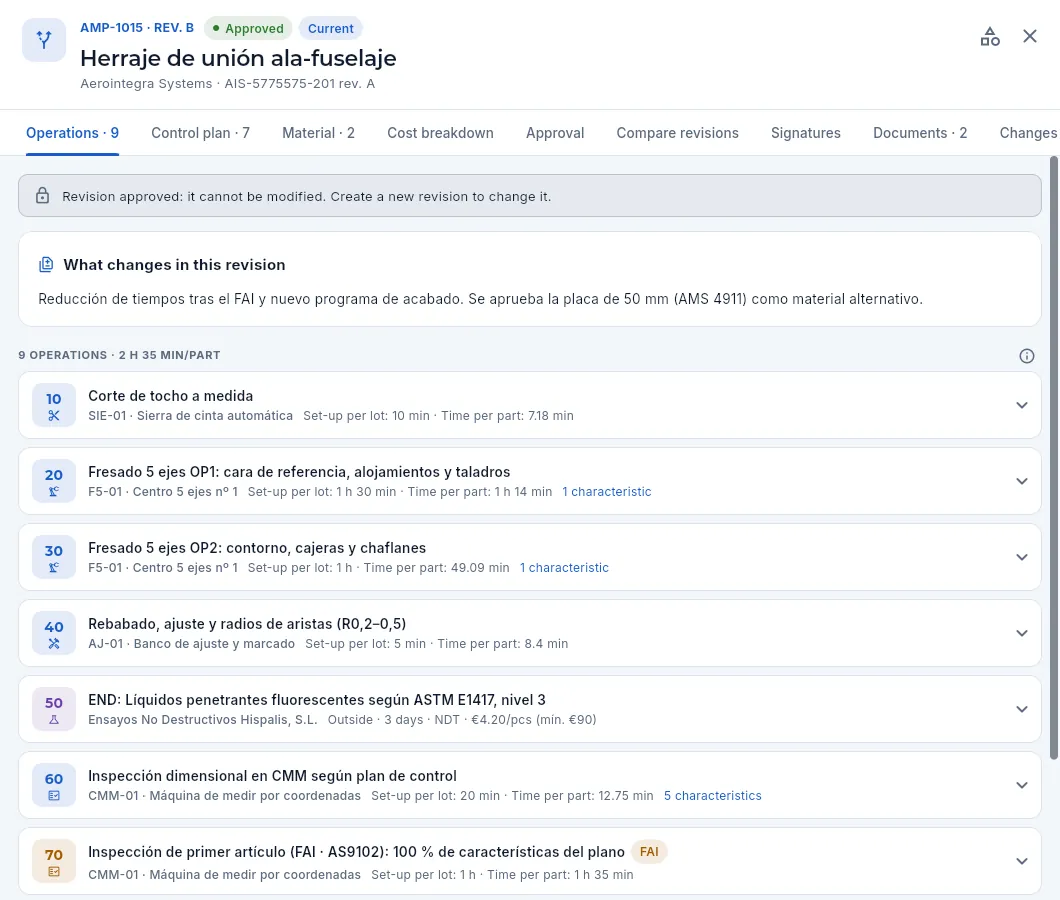 12345678
- 1Part and revision, its status and the Current tag if it is the one in force today. Below, the customer and the drawing.
- 2Opens the part's record. There are no other actions here because the revision is approved and another one (C) is awaiting the customer.
- 3The tabs, with their number of operations, characteristics, materials and documents. In Signatures, who signed the sending to the customer and the approval.
- 4If the revision is not editable, it says so here (with a padlock). In an editable one, this notice has the Add operation button.
- 5What changes in this revision: what was written when it was created. It is what has to be explained to the customer.
- 6Each operation: number (in steps of 10, so others can be inserted), type icon, description, work centre, set-up per lot and time per part, and how many characteristics are measured in it. Click it to expand it.
- 7An outside (subcontracted) operation, in purple: the supplier, their lead time in days, its special process (here, NDT) and their cost per part with the minimum lot charge.
- 8The FAI operation (in amber): it is only performed on the first WO of a new part, after a revision change or with an alternative material that calls for it; on other WOs it is skipped.
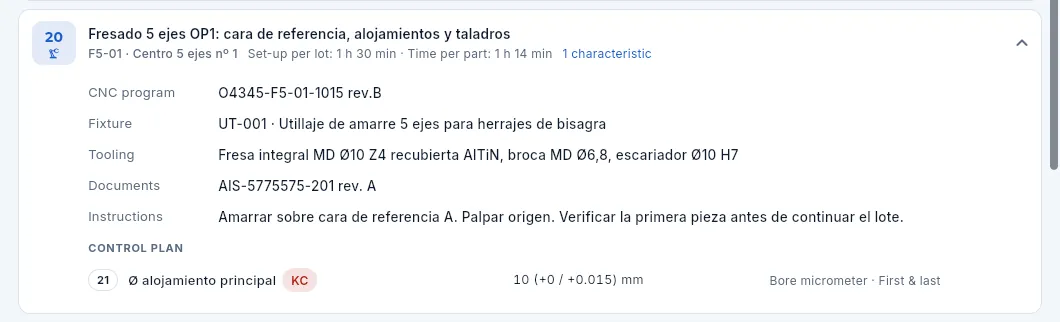 123456
- 1The operation: work centre, set-up and time per part. Click again to collapse it.
- 2The CNC program to load on the machine.
- 3Fixture (the dedicated workholding, with its code) and tooling.
- 4The operation's documents (the drawing and its revision).
- 5Instructions for the operator.
- 6The characteristics measured in this operation, with their balloon, KC if it is key, nominal and tolerance, gauge and frequency.
#Control plan
The Control plan tab gathers every characteristic that is measured, grouped by operation. It is the basis for WO inspections, for the FAI and for the shop-floor terminal, which shows the operator what to measure and with what.
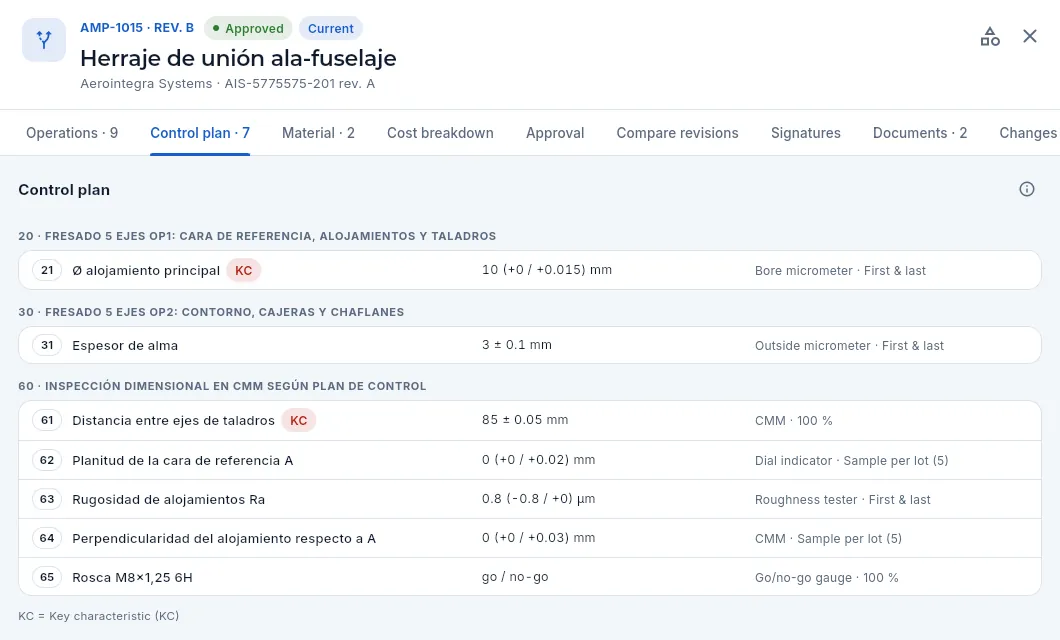 123456
- 1The operation in which it is measured.
- 2The drawing's balloon number, the characteristic and the KC tag if it is a key characteristic.
- 3Nominal and tolerance: 10 (+0 / +0.015) mm is accepted between 10.000 and 10.015 mm.
- 4The gauge used to measure it and the frequency: 100%, first and last of the lot, one in N or a sample per lot (with its size in brackets).
- 5Attribute characteristics (a thread, a finish) have no dimension: they are checked «go / no-go» with a gauge.
- 6The ⓘ explains how the limits are worked out and what happens with a measurement outside them.
#Material: primary and alternatives
The Material tab says what the part is made from: the primary material (the one on the item's record) and the alternative materials the customer has approved in this revision of the routing, in case the primary one is short. An alternative may be another size (the 50 mm plate instead of the 40 mm one), another form (plate instead of bar) or another alloy with its approved deviation.
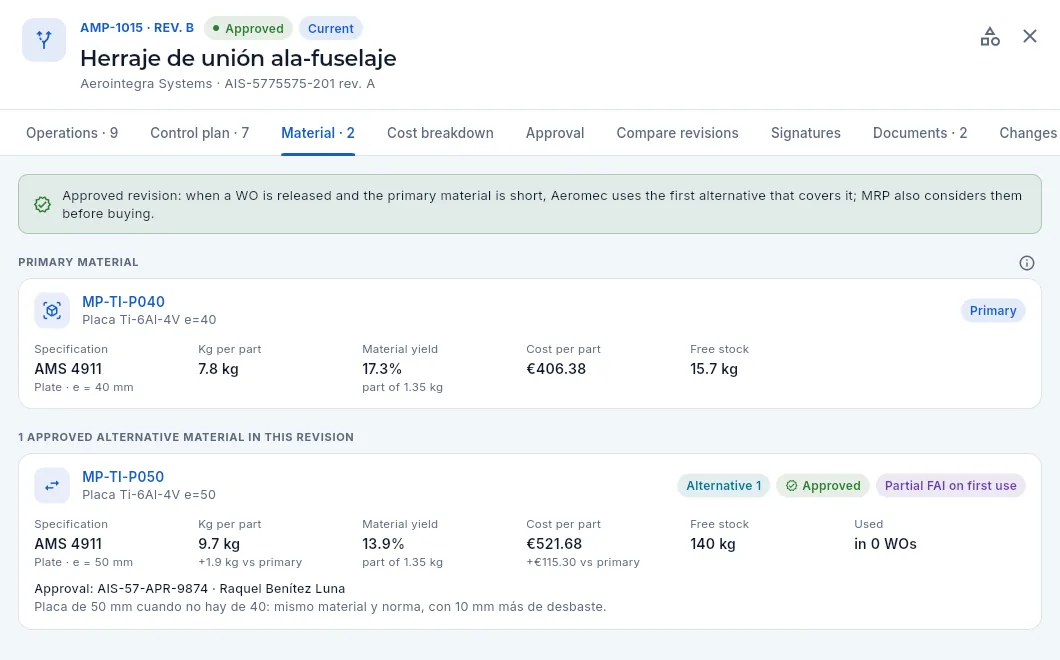 12345678
- 1What the alternatives are worth depending on the revision's status: in an approved one they are already used; in one sent to the customer, not yet; in an editable one, they are approved with it.
- 2The ⓘ explains the calculation with this very example.
- 3The primary material: code (opens its record), specification, form and size.
- 4Kg per part (the blank), material yield (part ÷ blank) and material cost per part.
- 5Each alternative with its priority (1 is tried first), Approved or Not approved and, if it has it, Partial FAI on first use.
- 6The same figures with the difference against the primary: here, 1.9 kg more per part, lower yield and higher cost.
- 7Free stock of each material and in how many WOs the alternative has already been used.
- 8The customer's approval (the revision's or its own deviation reference) and the reason.
How alternatives are used:
- When releasing a WO, Aeromec proposes the primary material if its free stock covers the whole WO; otherwise, the first approved alternative that covers it, by priority. Whoever releases it can choose another approved one (see Work orders).
- A WO is made from a single material, so as not to mix specifications in one lot.
- The first WO made with an alternative flagged «partial FAI» opens a partial FAI (AS9102 calls for a partial FAI on a material change) if the customer requires FAI.
- MRP takes them into account too: before proposing to buy the primary material, it uses an approved alternative that is already in stock (or already on order). It does not propose buying alternatives.
- The shipment's certificate of conformity (CoC) states which material the part was made from and with which approval.
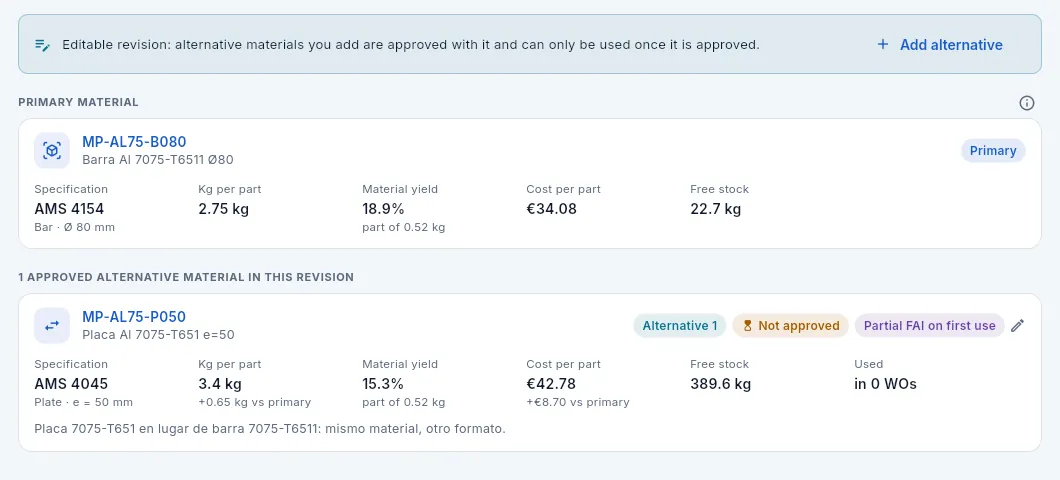 1234
1234
- 1In an editable revision, the notice reminds you that alternatives are approved with it…
- 2…and has Add alternative.
- 3Not approved: it will apply once the customer approves the revision.
- 4The pencil (or clicking the card) opens the alternative to change or remove it.
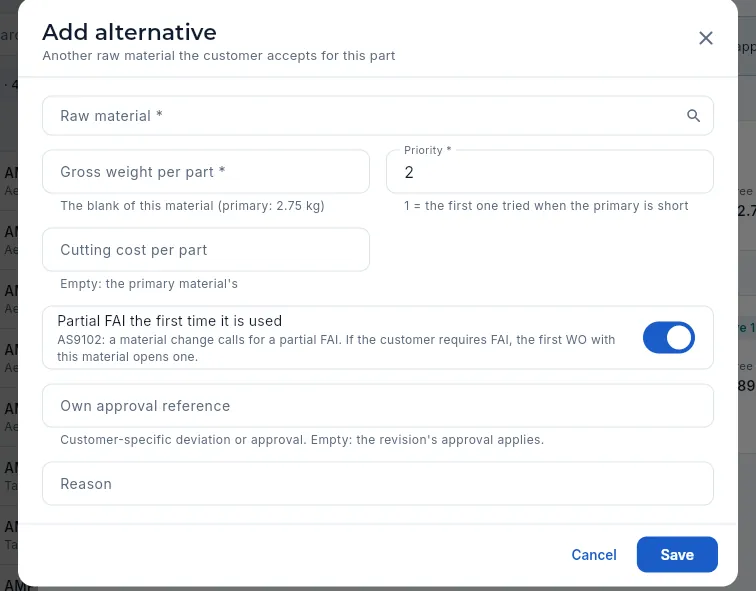 1234567
- 1Alternative raw material: any except the primary one (a part is not valid).
- 2Gross weight per part of this material's blank; below, the primary one's for reference.
- 3Priority: 1 is the first one tried if the primary is short.
- 4Cutting cost: empty, the primary one's (only with «See costs»).
- 5Partial FAI the first time it is used: if the customer requires FAI, the first WO made from this material opens one.
- 6Own approval reference: a specific deviation from the customer. If empty, the revision's approval applies.
- 7Reason: why it is accepted (another size, another form…).
Open an editable revision of the routing (draft, internal review or rejected). If the current one is approved, first create the next revision with New revision.
Go to the Material tab and click Add alternative.
Choose the Raw material and type the Gross weight per part of its blank and the Priority.
Leave Partial FAI the first time it is used on if the material change calls for it, type the Own approval reference if the customer has issued a specific deviation, and the Reason.
Click Save and send the revision to the customer as usual.
#The cost breakdown
The Cost breakdown tab works out the planned cost of making a part with this routing revision, for the quantity you choose, and the target price. It is recalculated live with each material's last purchase price and each machine's current rate. It also opens from the item's record and from the lines of a quote.
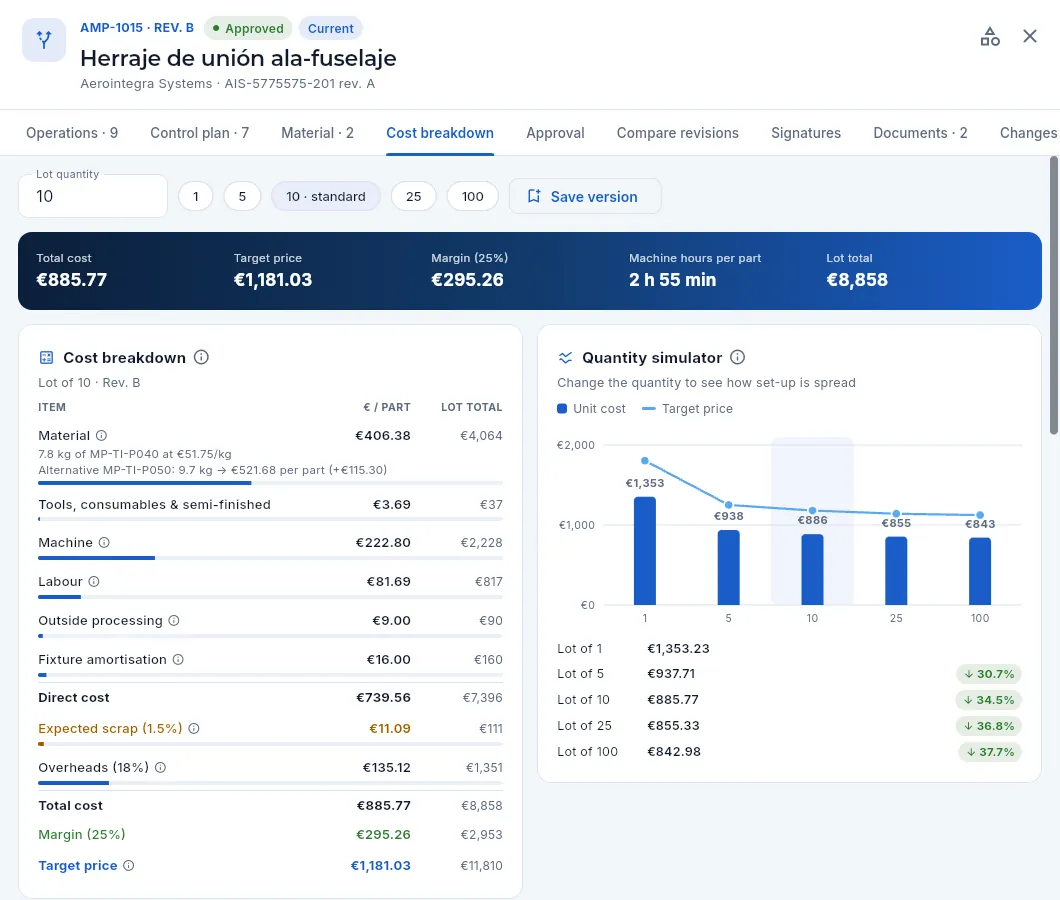 12345678
- 1Lot quantity: type one and press Enter…
- 2…or pick one of the shortcuts: 1, 5, 25, 100 and the part's standard lot.
- 3Save version freezes this cost breakdown with a note.
- 4The key figures: total cost per part, target price and margin (depending on your profile), machine hours per part and lot total.
- 5Material: kilos, code and €/kg; below, each alternative in the routing with its cost per part and the difference.
- 6Tools and consumables, machine, labour, outside processing and fixture amortisation: each item with its amount per part, the lot total, a share bar and its ⓘ with the calculation.
- 7Direct cost, expected scrap, overheads and total cost; at the end, the margin and the target price.
- 8The simulator: the unit cost for several quantities, with the target price line and how much each one drops against a single part.
The quantity simulator shows why cost falls with the lot size: each operation's set-up and the minimum charges for treatments are spread over more parts. Use it to quote with quantity price breaks: beyond a certain quantity the curve flattens and further price cuts no longer pay off.
Further down, the cost breakdown compares the planned figure with the actual one and keeps versions:
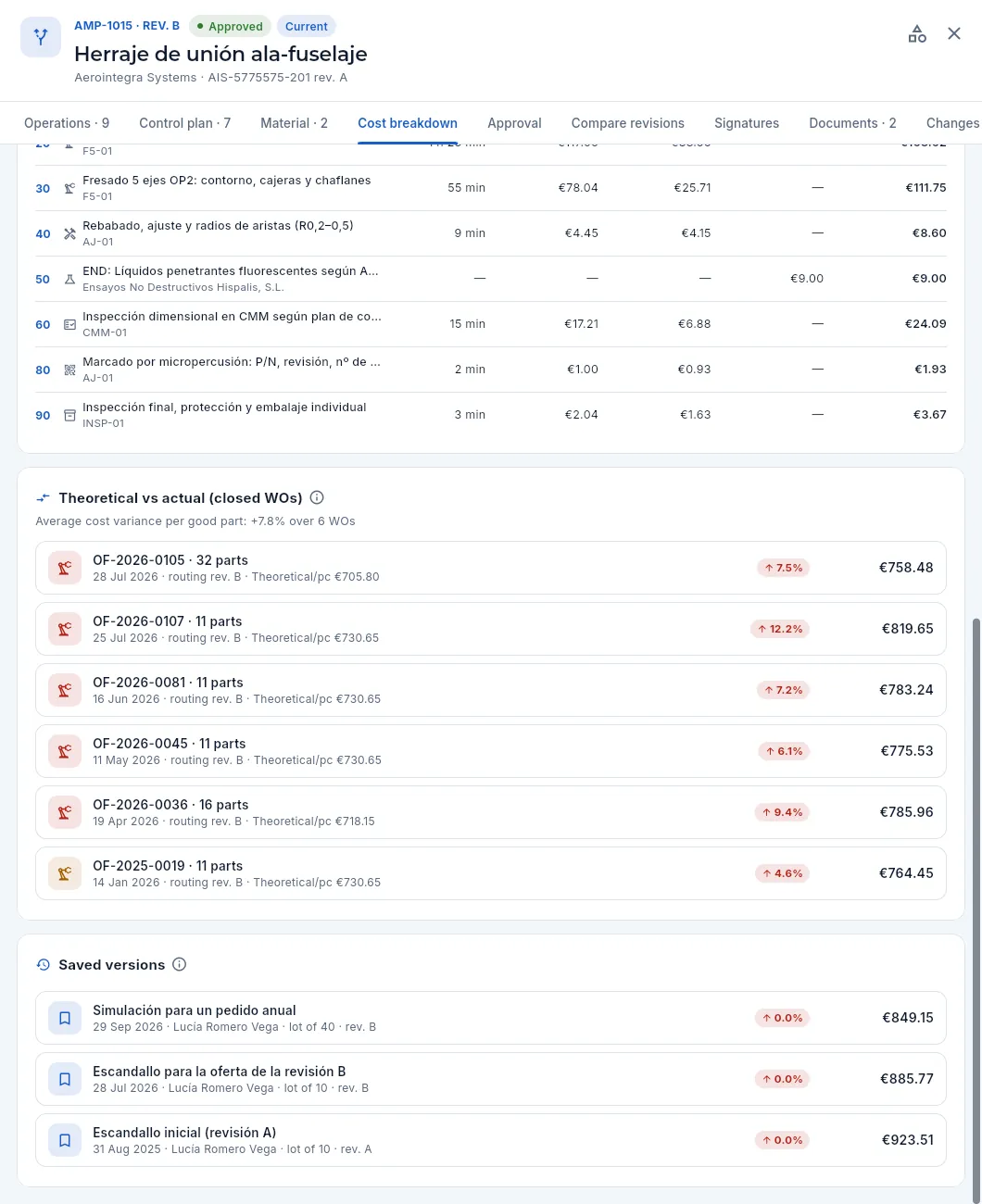 123
123
- 1Cost per operation: hours per part, machine, labour, outside cost and total for each operation. It shows which operation weighs most.
- 2Theoretical vs actual: the part's latest closed WOs with their actual cost per good part, the theoretical cost of each and the variance in colour; above, the average variance. Click one to open the WO.
- 3Saved versions: each snapshot of the cost breakdown with its note, date, author, lot and revision, and how much it has changed against today's calculation for the same quantity.
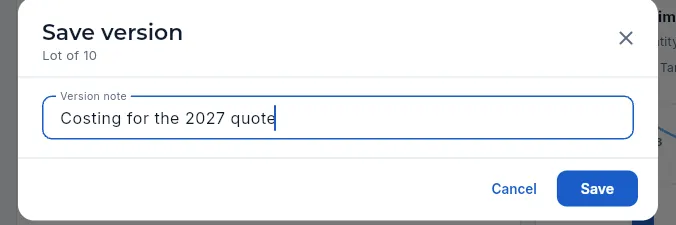 1
1
- 1A note saying what it was saved for. The version is saved with the lot you were looking at.
Open the part's current routing (or the revision you want to cost) and go to the Cost breakdown tab.
Click a quantity shortcut or type the Lot quantity and press Enter.
Read the Total cost and the Target price, and check in the breakdown which item weighs most.
Compare quantities in the Quantity simulator to scale a quote's prices.
If you are going to quote, click Save version, type a note and Save.
#Customer approval
The Approval tab follows the revision's cycle. The action that applies in each status appears as the main button in the header; the others, in the ⋮ menu.
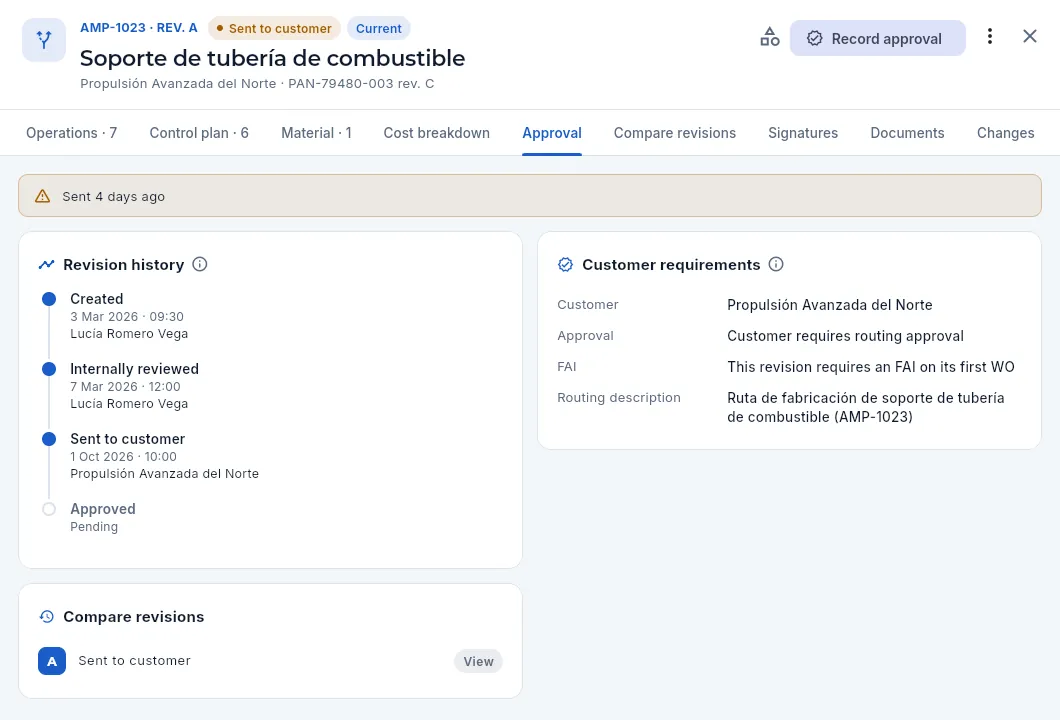 1234567
- 1Record approval: the action for this status (with the «Approve routings» permission).
- 2In the ⋮ menu, Record rejection.
- 3How many days it has been with the customer (in red after 14).
- 4The history: created, internally reviewed and sent to the customer, with date, time and author.
- 5The steps still to come, in grey («Pending»).
- 6Customer requirements: whether they require routing approval, whether the revision requires an FAI on its first WO, the previous revision and the description.
- 7The part's revisions («View» is the one you have open; here there is only one): click another to open it.
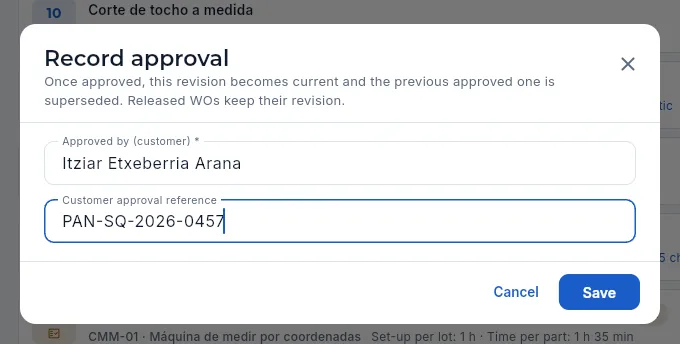 123
123
- 1What happens on approval: this revision becomes current and the previous one superseded; WOs already released keep theirs.
- 2Who approves it at the customer (required).
- 3Their approval reference: it will appear in the list and on the WO travellers. Save then asks for your signature.
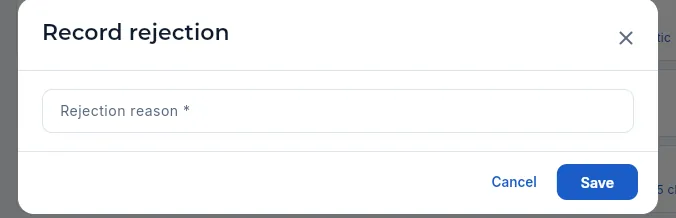 1
1
- 1The reason given by the customer (required). It will show in the list and in the record, and the revision will become editable again.
Sending the revision to the customer and recording their approval are signed. Clicking Send to customer (or Save in «Record approval», or Approve (internal)) opens the signature dialog:
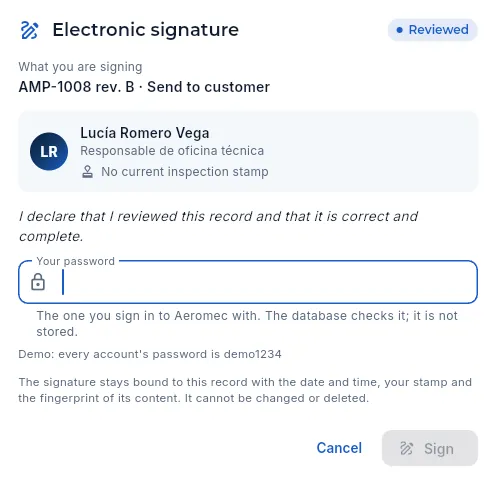 12345
12345
- 1The meaning of the signature: «Reviewed» when sending the revision to the customer; «Approved» when recording their approval.
- 2What you are signing: the part, the revision and the action (when approving, also who approves for the customer and their reference).
- 3Who signs, with their job title and their inspection stamp (no stamp is needed to sign a routing).
- 4Your password, the one you log in to Aeromec with: the database checks it and it is not stored.
- 5Sign carries out the action. Cancel leaves it as it was.
In a draft revision, complete the operations, the control plan and the material, and click Send to internal review.
The reviewer clicks Send to customer and signs with their password (or Back to draft in the ⋮ menu if something needs fixing). If the customer does not require routing approval, Approve (internal) appears instead, which is also signed.
Send the routing to the customer through the usual channel (portal, email) and wait for their answer: the revision shows under Awaiting customer.
When they answer, open the revision and click Record approval: type who approves it and their reference, click Save and sign. If they reject it, ⋮ menu › Record rejection with the reason.
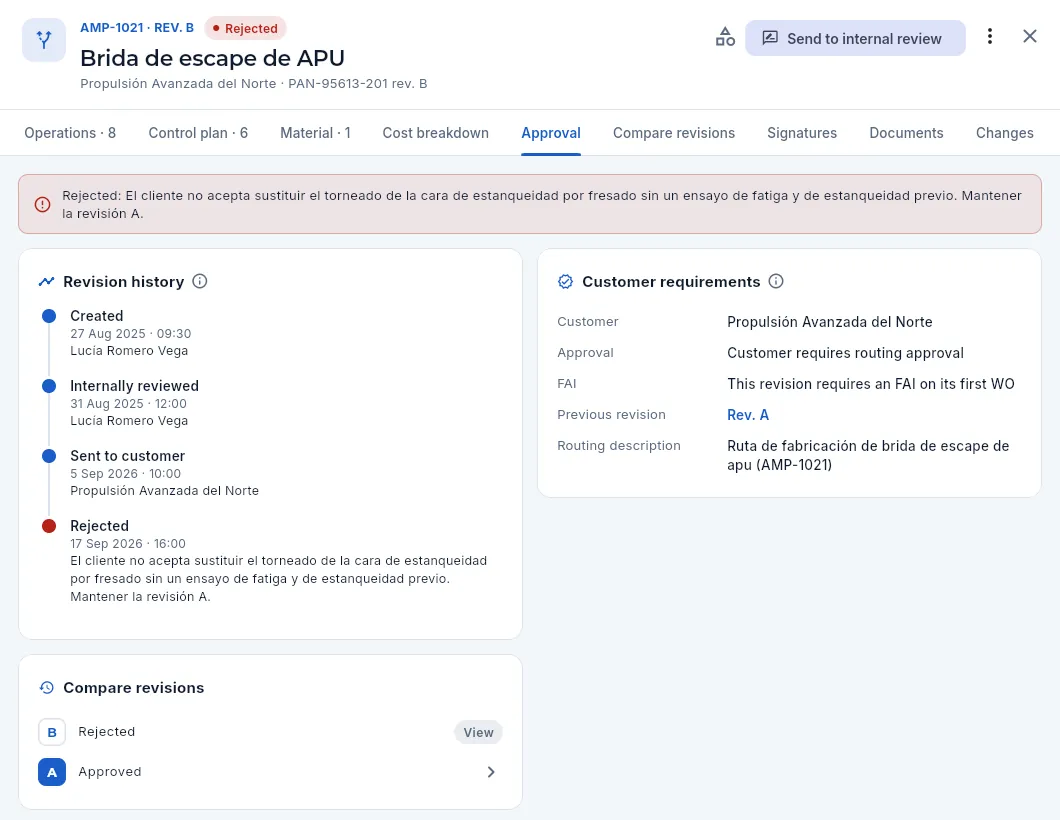 1234
1234
- 1The rejection reason, as given by the customer.
- 2In the history, the Rejected step in red, with the date and the reason.
- 3A rejected revision becomes editable again: fix the operations and click Send to internal review. In the ⋮ menu, Back to draft, Edit routing details and Delete this revision.
- 4The previous revision: production carries on with it in the meantime.
#Creating a new revision and editing operations
An approved routing is not touched: to change something, the next revision is created. New revision appears as a button in the header of the latest approved revision when no other one is under way (also on the Routings & costing tab of the item's record). New routing, in the list, first asks for the part.
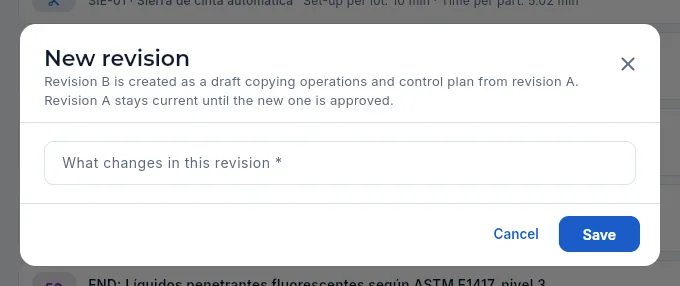 12
12
- 1Which letter it will have and which revision it copies the operations, control plan and alternative materials from. The previous one stays current until the new one is approved.
- 2What changes in this revision (required): what will have to be explained to the customer.
 12
12
- 1Edit routing details: the description and «What changes in this revision».
- 2Delete this revision: only an editable revision (draft, internal review or rejected) with which no WO has been released.
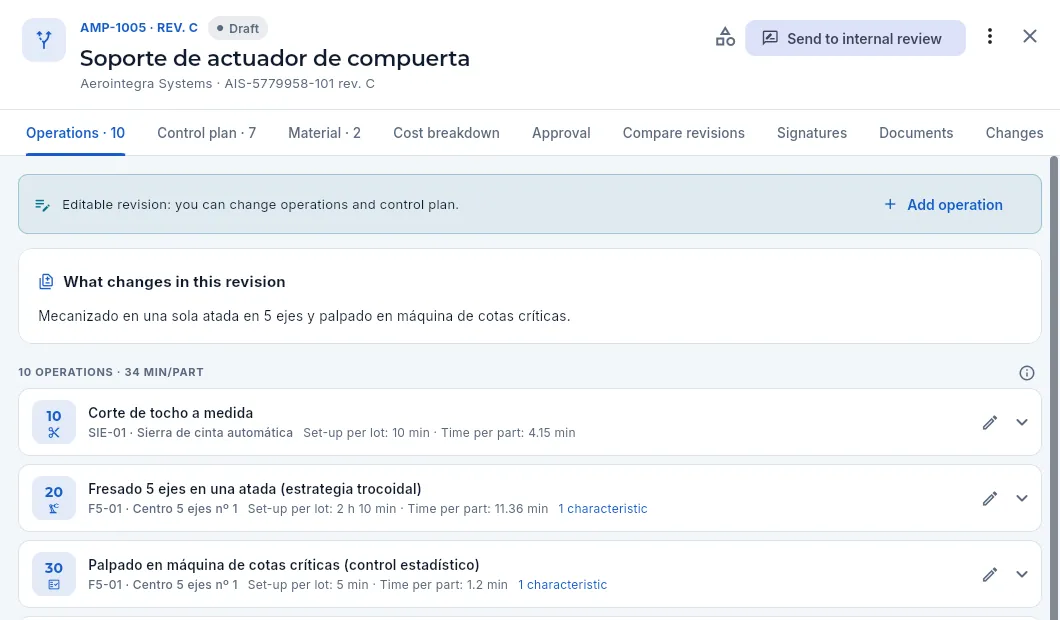 12345
12345
- 1A draft revision.
- 2Its main action: Send to internal review (it needs at least one operation).
- 3The editable revision notice…
- 4…with Add operation.
- 5Each operation's pencil edits it (or deletes it). Inside the expanded operation, Add characteristic adds one to the control plan.
 12345
12345
- 1Operation number (in steps of 10) and type (cutting, machining, treatment, subcontracting, inspection, fitting, marking, assembly, packing).
- 2Description of the operation, as the operator will see it.
- 3For an internal operation: work centre, set-up per lot and time per part in minutes…
- 4…and fixture, CNC program and tooling.
- 5For an external operation: the supplier, the special process it performs (see below), its lead time in days and, with «See costs», the cost per part and the minimum charge per lot.
In an outside operation, besides the supplier, its lead time and its cost, you state the special process it performs (anodising, heat treatment, shot peening, NDT…). It is not decoration: when the purchase order for that subcontracting is sent, Aeromec checks that the supplier has that process within its current approved scope (for example, an unexpired Nadcap) and, if the part's customer has its own approved supplier list, that the supplier is on it. If not, the purchase order is not sent (see Suppliers).
 123
123
- 1The supplier that performs the operation.
- 2The operation's special process: the supplier must have it within its current approved scope (and on the customer's list, if required) for the purchase order to be sent to them.
- 3The lead time in days and, with «See costs», the cost per part and the minimum lot charge.
#Compare revisions
Compare revisions shows what changes between this revision and another of the same part (by default, the previous one): it is what you have to tell the customer when sending them a new revision, and what decides whether a partial or full FAI is needed.
 123456
- 1Choose which revision to compare with.
- 2The summary: operations added, removed and changed, and the time per part, unit cost and control plan characteristics, before → after.
- 3How much time and cost change (in green if they go down).
- 4Material changes: alternatives added (green), removed (red) or changed (amber), with the kilos per part.
- 5Each changed operation, with what changes struck through and its new value next to it; added ones show in green and removed ones in red.
- 6The ⓘ reminds you what is compared and why it matters to the customer.
#Routing documents
The routing's Documents tab holds its own documents and those of each operation: the CNC programs, the instructions, photos of the set-up… The WO shows them on its Documents tab and the shop-floor terminal, next to the operation being worked on.
 123
123
- 1Upload documents asks what to attach them to: the routing or one of its operations.
- 2Documents are grouped by operation.
- 3A CNC program: type, revision, size, who uploaded it and its note (program and work centre). View shows it as text inside the app.
#What changes with the profile
The cost breakdown shows costs, so only profiles with «See costs» see it. This is how Antonio, the shop floor manager, sees the material of AMP-1015: without the Cost breakdown tab, without costs and without actions in the header (he has neither «Edit routings» nor «Approve routings»).
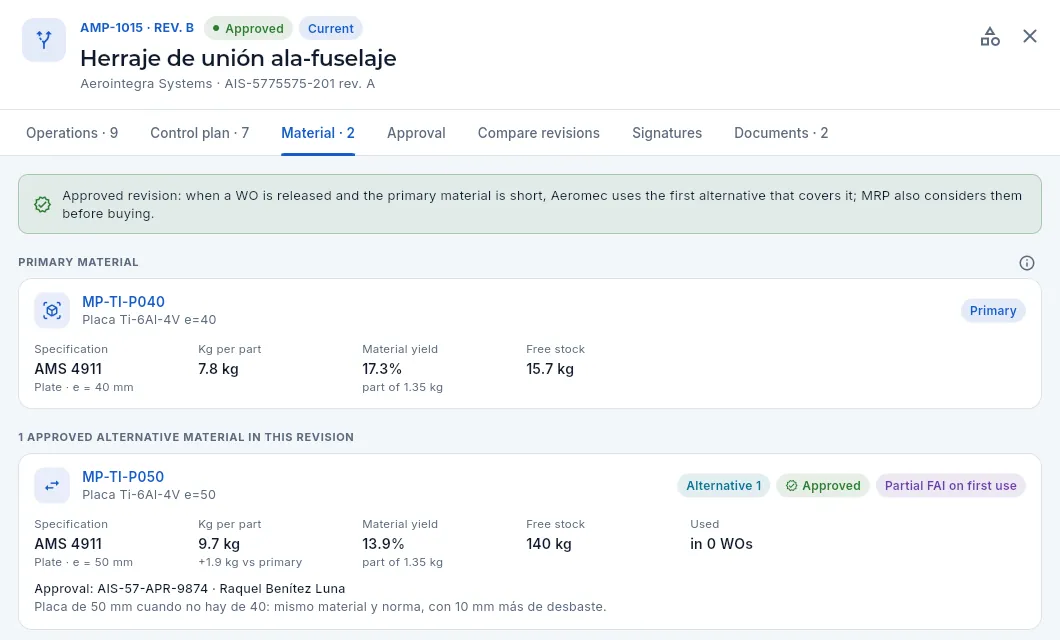 12
12
- 1No Cost breakdown tab (he does not have «See costs») and no Changes tab (he does not have the audit permission).
- 2He sees the kilos, the yield and the stock, but not the cost per part of each material.
And this is how Lucía, from engineering, sees the cost breakdown: with every cost, but without target price or margin (she has neither «See prices» nor «See margins»). She can save versions.
 12
12
- 1Total cost, hours and lot total, without target price or margin. They do not appear in the breakdown, the simulator or the routing list either.
- 2She can save versions (she has «Edit routings»).
#Tips
Engineering
Changes
Product change requests —a new customer drawing (ECN), a change of process, material, supplier, CNC program, tooling or specification— with their calculated impact, signed approval and implementation; and each part's configuration: which drawing revision was manufactured in each work order.
A change to a part that is already in production is never just changing a letter on the drawing: there are work orders running with the previous revision, parts in stock, committed deliveries, a routing and a CNC program to redo and, very often, an FAI to repeat. In Changes each change is recorded as a request (CAM-…), its impact is evaluated with today's data, someone with authority approves or rejects it with a signature, and it is implemented on the agreed date, keeping its history.
Change types: drawing (the customer's ECN, engineering change notice: a new drawing revision), process, material, supplier, CNC program, tooling, specification and documentation. The origin can be the customer, internal or a supplier.
In addition, each part has its configuration: the drawing revision is frozen in each work order when it is released and passes to its lots, to traceability and to the CoC, so you always know which revision each part was made to.
- 1DraftWhat changes, why, the part and the new revision.
- 2EvaluationImpact on quotes, deliveries, work orders, stock, routings, tooling, purchases and FAI.
- 3ApprovedSigned (and with the customer's approval if it requires one). Its impact is kept.
- 4ImplementedThe part moves to the new revision from the effectivity date.
- 5ClosedWith the FAI done and the documentation up to date.
#The change list
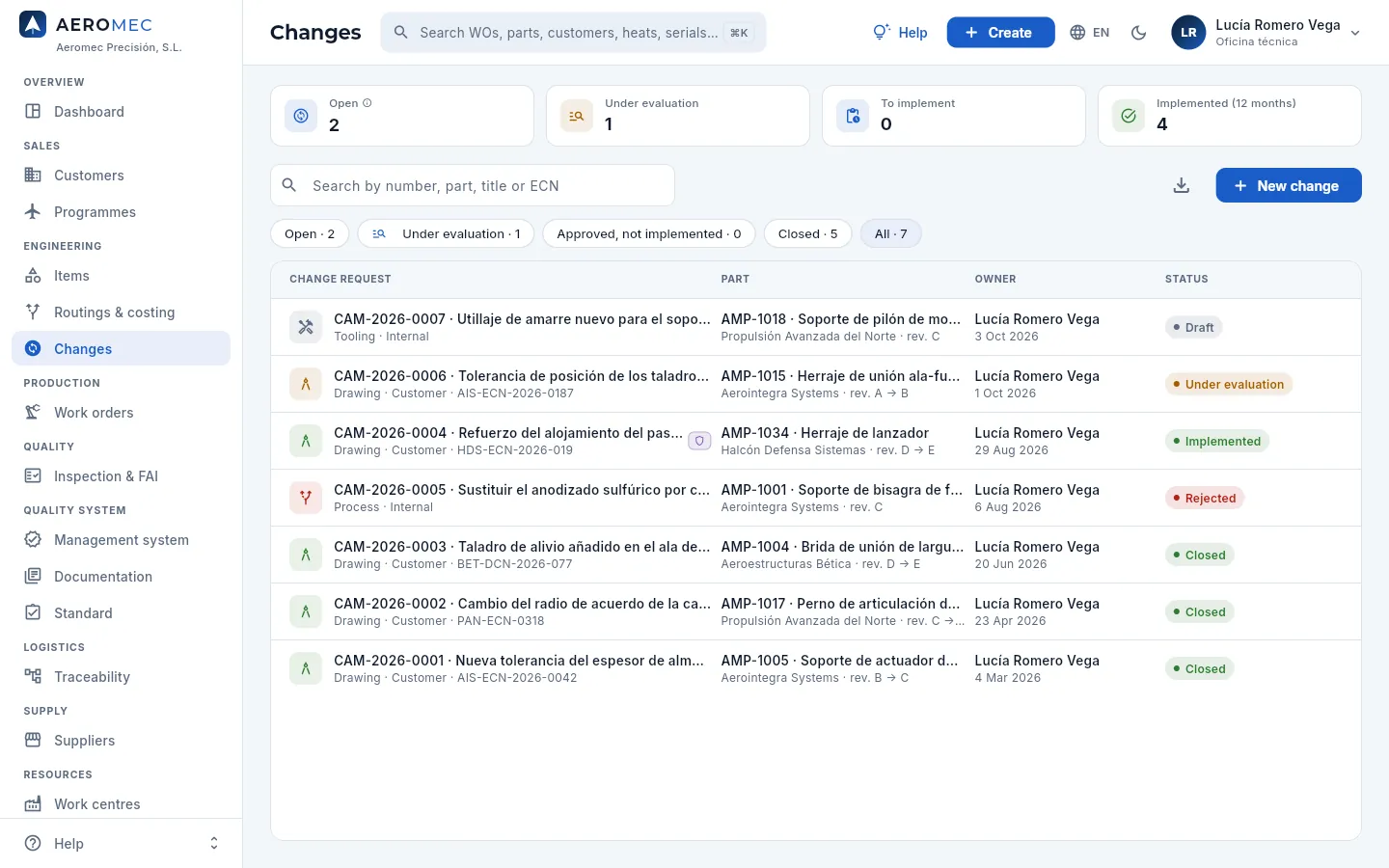 1234567
- 1Changes open, under evaluation, approved to be implemented and implemented in 12 months.
- 2Search by number, part, title or customer reference (ECN).
- 3New change (with «Manage changes»).
- 4Filters: open, under evaluation, approved not implemented, closed and all.
- 5Aerointegra's ECN for AMP-1015: type, origin, customer reference and the revision step A → B.
- 6An internal tooling change for AMP-1018, in draft.
- 7The status: draft, under evaluation, approved, rejected, implemented, closed or cancelled.
#Recording a change
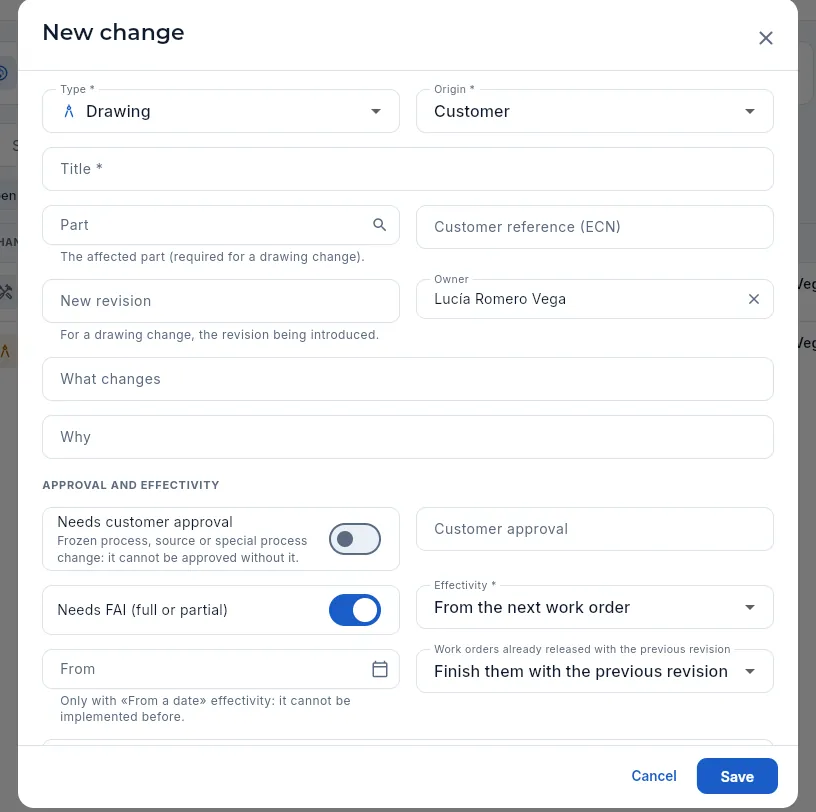 12345678
- 1The type (drawing, process, material…) and the origin (customer, internal, supplier).
- 2The affected part (mandatory for a drawing change) and, on the right, the customer's ECN reference.
- 3For a drawing change, the new revision being implemented.
- 4What changes and why.
- 5Whether it needs the customer's approval (frozen process, change of source or of special process) and, on the right, when and with what reference it was given.
- 6Whether it needs an FAI (full or partial) on the first work order with the change.
- 7The effectivity: immediate, from the next work order or from a date.
- 8What to do with the work orders already released: finish them with the previous revision, rework them to the new one or stop them until a decision is made.
A change can also be recorded from the part's record (Items → Configuration → New change): it comes with the part and its current revision already filled in. While it is in draft or under evaluation it can be edited (pencil on the record).
#The change record
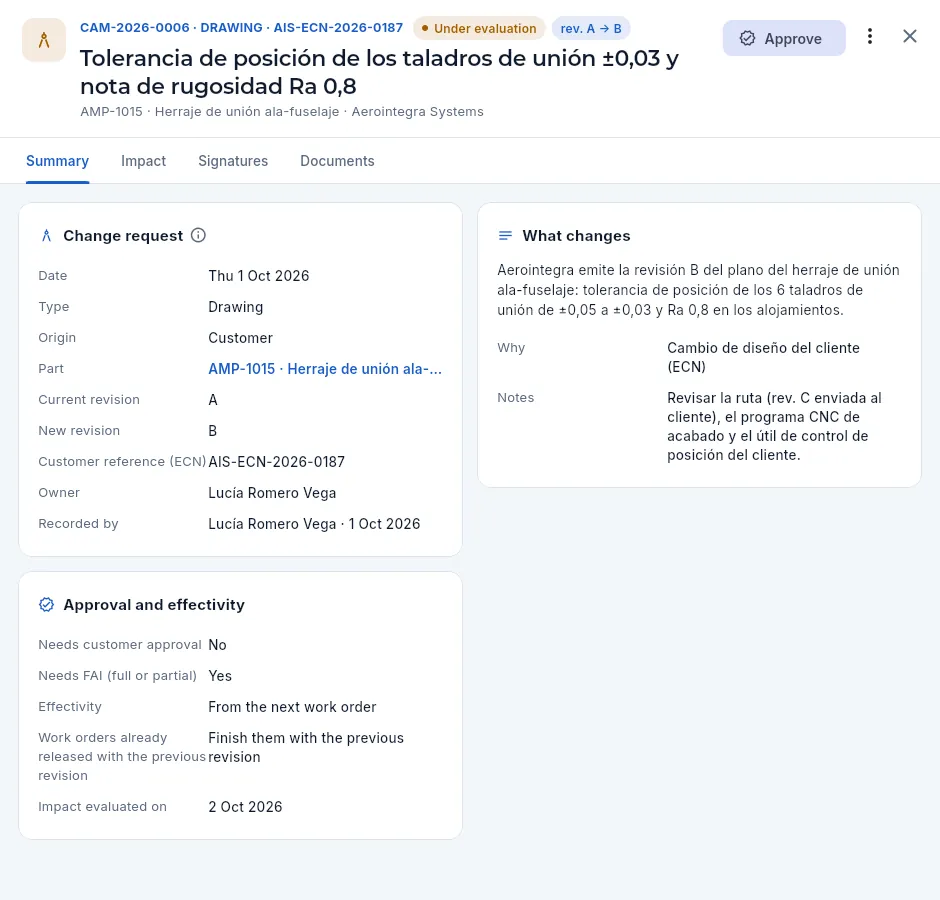 123456
- 1Number, type, ECN, status and the revision step; below, the part and its customer.
- 2The action due: Evaluate impact, Approve, Implement or Close, depending on the status.
- 3The others: Recalculate impact, Reject (with reason and signature), Edit and Cancel.
- 4The details: date, type, origin, part, current and new revision, ECN, owner and who recorded it.
- 5What changes, why and the notes.
- 6Whether it needs the customer's approval and an FAI, the effectivity, what to do with the work orders already released and when the impact was evaluated.
The Signatures tab shows the signed approval or rejection (who, when and with which stamp) and checks that what was signed has not changed; Documents keeps the customer's ECN, the new drawing or the meeting minutes.
#The impact of the change
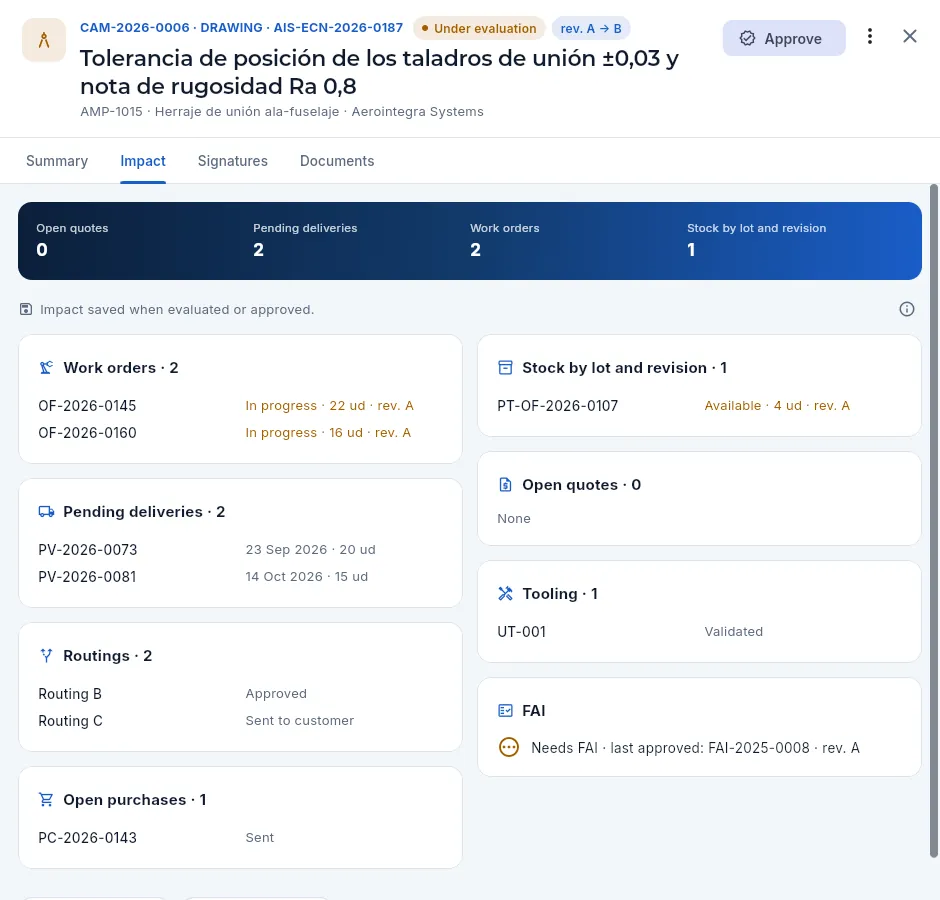 12345678
- 1Open quotes, pending deliveries, work orders and stock of the part.
- 2Saved when it was evaluated or approved (it goes into what is signed); in draft it is calculated when you open it.
- 3Open work orders with the revision they are made to: two in progress with A.
- 4The part's pending deliveries.
- 5The routings (C, sent to the customer) and, below, the open purchases.
- 6The stock by lot with its revision.
- 7The part's tooling.
- 8Whether it needs an FAI and the latest approved one (revision A).
#Approve or reject with a signature
A change under evaluation is approved or rejected by someone with «Approve changes» (Quality or Management), with their electronic signature: their Aeromec password and, if they have one, their inspection stamp. What is signed includes the evaluated impact.
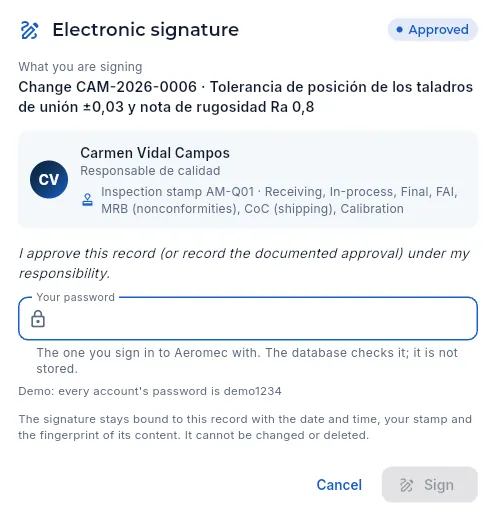 123456
- 1The meaning of the signature: approved.
- 2What you are signing: the change, with its number and title.
- 3The signer, their job title and their inspection stamp with its scopes.
- 4The declaration of what signing means.
- 5Your password: the same one you log in with; the database checks it and it is not stored.
- 6Sign: the change is approved with the date, the time and the hash of its content.
Open the change under evaluation and go over the Impact tab (if days have passed, Recalculate impact in the ⋮ menu).
If the change needs the customer's approval, record it first with the pencil (who, when and with what reference): without it, it cannot be approved.
Press Approve, enter your password and Sign.
#Implementing the change
Implement (with «Manage changes») puts the change into effect, never before its effectivity date:
- For a drawing change, the part moves to the new revision: work orders released from now on take it; those already released keep theirs (and what was decided is done with them: finish, rework or stop them). The part's drawing revision is no longer changed by hand on its record: it is changed with a change request.
- For the others, work orders released from now on follow the new routing, program or process.
- If it needs an FAI, the first work order with the change cannot be shipped without its approved FAI (full or partial) (Inspection & FAI).
Afterwards, Close the change when everything is done (FAI, documentation, tooling).
#A part's configuration
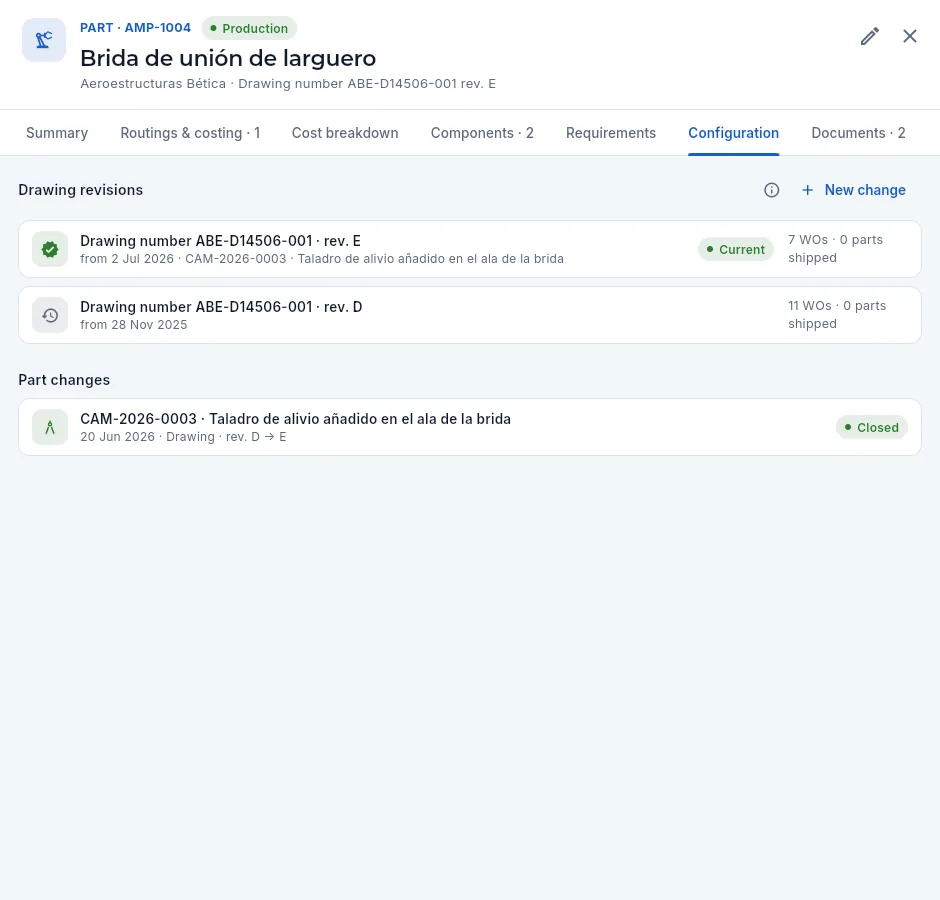 1234
1234
- 1New change for this part.
- 2The current drawing revision (E), since when, the change that brought it and how many work orders and shipped parts there are of it.
- 3The previous revision (D) with its work orders.
- 4The part's changes: press one to open it.
The drawing revision is frozen in the work order when it is released (Work orders) and its lots inherit it: the traceability of a serial number and the shipment's CoC state which revision it was made to. If there are work orders released with a revision earlier than the current one, the configuration warns you («N released work orders are being made to an earlier revision»).
Production
Work orders
The order that takes a lot of parts through its routing in the shop, from planned to closed. Releasing it freezes the routing revision and the drawing revision, checks its fixtures and the contract review of its order, chooses the material (the primary one or an approved alternative), decides the FAI, reserves the raw material by lot and heat and generates the serial numbers; then it is followed operation by operation with the shop-floor time records, the material, quality and the actual cost against the cost breakdown.
A work order (WO) says which part has to be made, how many, by when and how: with which routing revision (the approved operations and control plan) and with which material. It is born planned, usually to serve a line of a customer order (or for stock, or proposed by MRP), and is released to the floor when it is decided to start it: from then on its operations join each machine's queue, operators log their time records on the shop-floor terminal and Aeromec keeps adding up hours, good and rejected parts, material issued and actual cost.
Some trade terms used in this chapter:
- Release: send the WO to the floor. Releasing freezes the routing (the WO keeps the current revision even if another one is approved later) and also the drawing revision, chooses the material, decides whether an FAI is needed, reserves the raw material and generates the serial numbers.
- FAI (First Article Inspection, EN 9102 / AS9102): the full inspection of the first part, required if the customer asks for it and the part is new, the drawing revision changes or an alternative material is used for the first time (partial FAI).
- Heat: the melt a lot of material comes from; it is stated on its 3.1 certificate (EN 10204) and traced down to each part.
- FIFO (first in, first out): material is reserved starting with the lots that arrived first.
- Time record: each record from the shop-floor terminal (who, on which machine, on which operation, how long and how many parts).
- NCR: a nonconformance. If it «blocks the WO», no operation proceeds until Quality decides what to do with the parts.
- 1PlannedIt is born from an order line, from MRP or for stock, with the current routing and planned backwards from the due date.
- 2ReleasedRouting and drawing revision frozen, material chosen and reserved, FAI decided, serials generated.
- 3In progressOperators carry out the operations from the terminal; each time record adds hours and parts.
- 4Finished and closedGood parts go into stores; on closing, the actual cost is frozen.
| Status | What it means |
|---|---|
| Planned | Created, with dates, but not released: it takes no material and does not appear on the terminal. |
| Released | On the floor, with its material reserved; no operation has started yet. |
| In progress | At least one operation has started. |
| Blocked | Stopped by an NCR that blocks the WO. |
| Finished | The last operation has finished: the good parts are in finished goods stores. It still has to be closed. |
| Closed | Actual cost frozen: it accepts no more time records. |
| Cancelled | Not made (only if it had no time records). |
#The work order list
When you open it you see the WOs on the floor (released, in progress and blocked), sorted by due date. If the WO belongs to a programme (the aircraft or system the part is made for, see Programmes), its code appears below the customer, before the order.
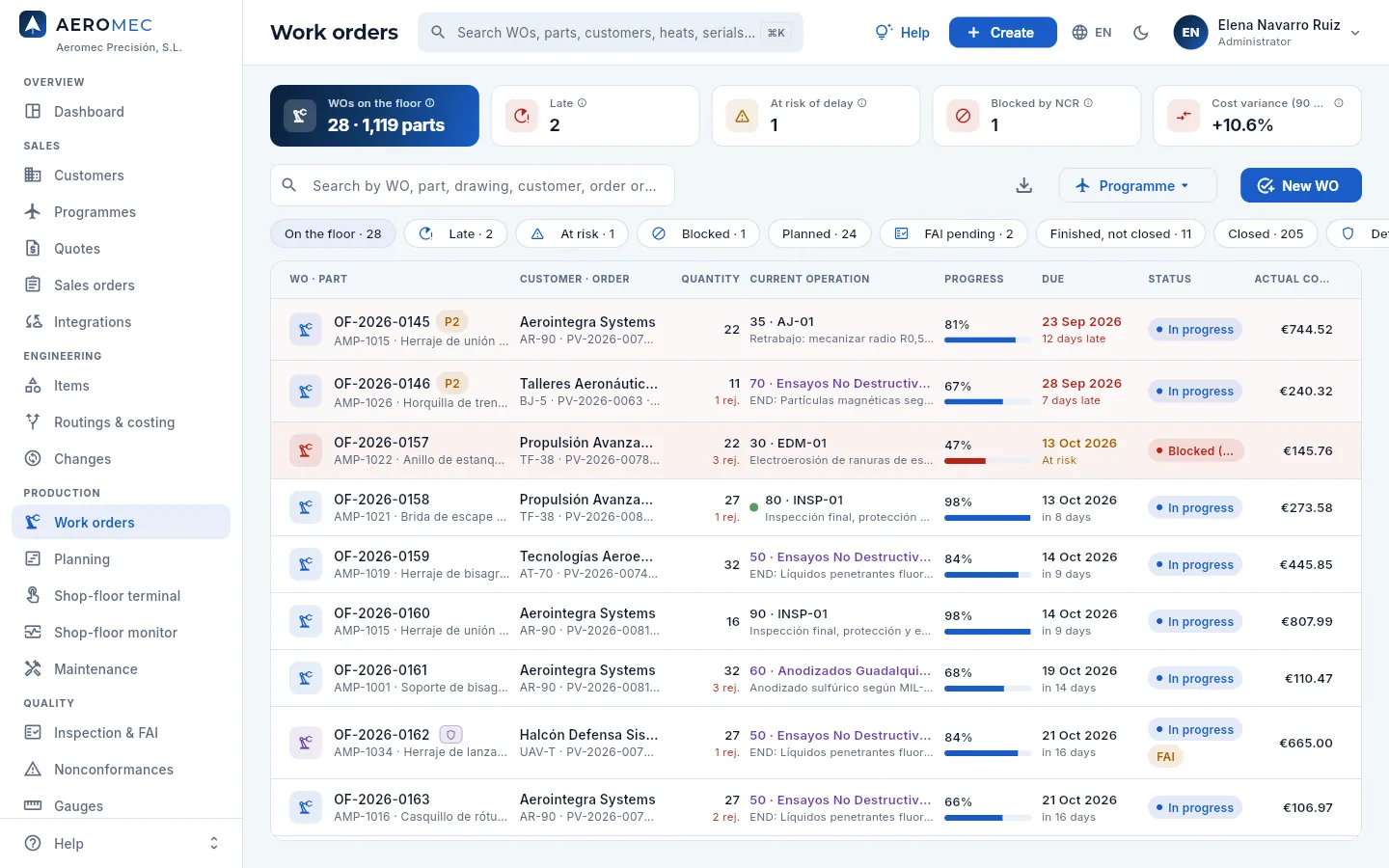 12345678
- 1The indicators: WOs on the floor and the parts they add up to, late, at risk of delay, blocked by NCR, and the average cost variance of WOs closed in the last 90 days (depending on your profile). Each ⓘ explains its calculation.
- 2The search box: by WO number, part, drawing, customer, order, customer reference or material heat.
- 3The filters, with their count. Scroll the row to see the last ones.
- 4The Programme filter leaves only the WOs of one programme (AR-90, TF-38…). To its left, Export CSV; to its right, New WO, which creates an order for stock.
- 5WO number and part; P1 (urgent) or P2 (high) if it has priority, and the shield if it is defence. Click the row to open its record.
- 6The current operation with its machine; in purple if it is at an outside supplier. The pulsing green dot means someone is working on it right now.
- 7Due date and, below it, the days late (red), «At risk» (amber) or how long is left. To its left, the progress.
- 8Actual cost per part and its variance against the cost breakdown (with the «See costs» permission).
| Filter | What it shows |
|---|---|
| On the floor | Released, in progress and blocked: the live shop load. |
| Late | Unfinished, with the due date already passed. |
| At risk | Still on time, but their plan ends after the due date or they have operations that should already have finished. |
| Blocked | Stopped by an NCR that blocks the WO. |
| Planned | Those waiting to be released. |
| FAI pending | Live, with an FAI required and not yet approved: their parts cannot ship. |
| Finished, not closed | Finished on the floor, waiting to be closed to freeze their cost. |
| Closed · Defence · All | The history, defence WOs (only with that permission) and all of them. |
In the Status column, the amber FAI tag warns that the WO needs an FAI that has not been approved yet. Rows of blocked WOs are tinted red and late ones a lighter red.
#Creating a WO
WOs are almost always created from the customer order (button on the order line, in Sales orders) or from MRP proposals (MRP › Generate). New WO creates a WO for stock (it can also be opened from Create in the top bar).
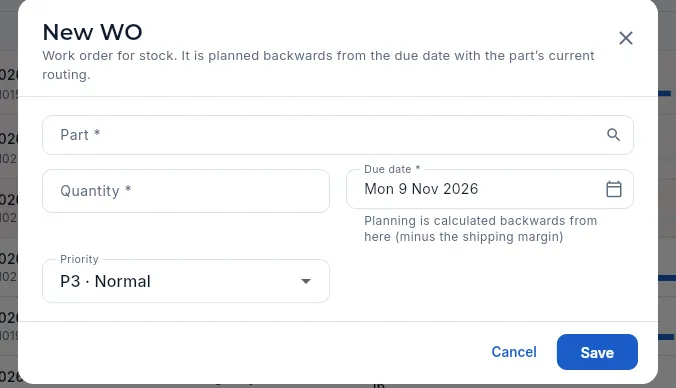 1234
1234
- 1Part (or semi-finished item), with a search box. It must have a routing.
- 2Quantity of parts. From an order line, if you leave it empty, the pending quantity plus the part's expected scrap is used.
- 3Due date: the WO is planned backwards from it, minus the shipping margin.
- 4Priority: from P1 «Urgent» to P5 «Filler». It orders the queues when two operations compete for the same machine.
Click New WO.
Choose the Part and type the Quantity.
Choose the Due date and the Priority.
Click Save.
#Releasing a WO to the floor
With the Planned filter you see the WOs waiting. Open the one you want to release: its record shows the plan, the queue forecast and the planned material.
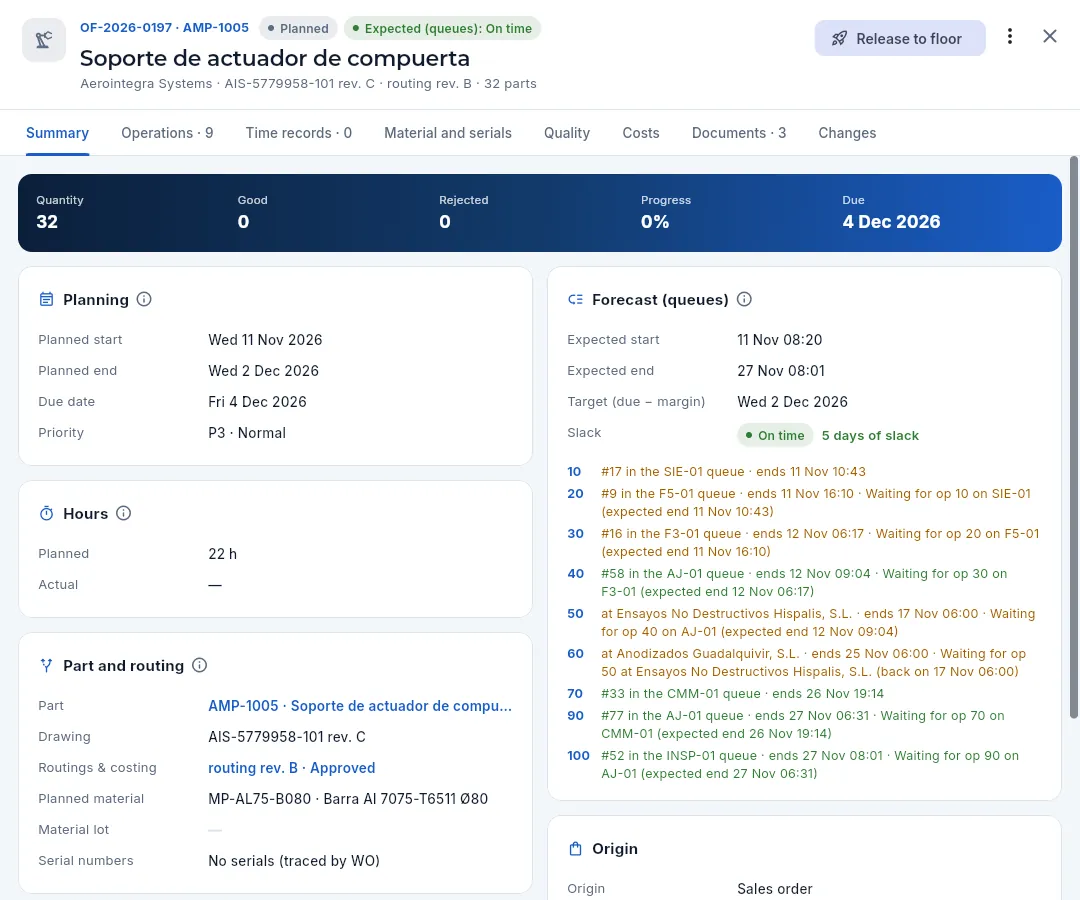 123456
- 1Number and part, Planned and what the machine queues forecast: on time, tight or late.
- 2Release to floor: the main action of a planned WO (with the «Release work orders» permission). In the ⋮ menu: edit, re-plan, flag for attention, see in the queues and cancel.
- 3Planning: planned start and end, due date and priority.
- 4Forecast (queues): when it will start and finish according to the order of each queue, its slack against the target and the position of each operation.
- 5The routing's theoretical hours for this quantity (the actual ones, once it starts).
- 6Part and routing: the drawing (its revision is filled in on release, with the one current at that moment), the routing revision it will be made with and the planned material (the primary one). The lot and the serials are also filled in on release.
When you click Release to floor Aeromec explains what is going to happen and lets you choose the material: the part's primary one or one of the approved alternatives in the routing, with what the WO needs of each and its free stock.
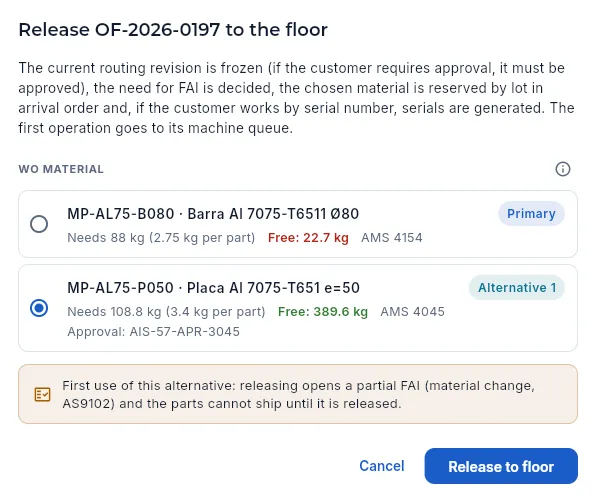 123456
- 1What happens on release: the routing revision is frozen, the FAI is decided, the chosen material is reserved by lot in arrival order and the serial numbers are generated.
- 2The ⓘ explains how what the WO needs and the free stock are calculated, with an example.
- 3The primary material: what the WO needs (kg per part × parts) and its free stock, in red because it does not cover the whole WO.
- 4An approved alternative in the routing, with its priority, its own blank, its free stock in green (it does cover it) and the customer's approval. It comes selected because it is the first one that covers the WO.
- 5The warning that this is its first use: releasing will open a partial FAI for the material change and the parts will not ship until it is released.
- 6Release to floor does it; Cancel closes without changing anything.
Filter Planned and open the WO.
Check the Forecast (queues) and the planned material.
Click Release to floor.
Read what is going to happen and choose the material: keep the selected one or choose another approved one. Watch the free stock (green if it covers the WO) and the partial FAI warning.
Click Release to floor.
When a WO cannot be released. Before releasing, Aeromec checks that everything the WO needs is in order. If something fails, the WO stays planned and the reason is shown:
| Reason | What happens | What to do |
|---|---|---|
| Contract review missing | A WO serving an order cannot be released if neither the order nor its quote has a signed contract review. When you click Release to floor, Aeromec asks «Contract review missing»: with the «Review contracts» permission you can do it there and then; without it, it warns you and does not release. | Do the contract review (see Quotes) and release again. |
| Fixture not fit for use | An operation in the routing uses a fixture that is not validated, blocked or has an overdue verification: «The work order uses tooling that is not validated or overdue (tooling record → Record verification)». In the demo, OF-2026-0201 for AMP-1018 cannot be released because fixture UT-002 has an overdue verification. | Verify the fixture and sign (see Fixtures); then release. |
| Routing not approved | The customer requires routing approval and the current revision is not approved («Request approval in Routings»). If the part has no routing, it cannot be released either. | Take the revision through the customer's approval (Routings & costing). |
#The WO record: summary
The record of a running WO tells you at a glance how it is going: the warnings that need attention, the key figures, the plan against the queue forecast, the hours, the origin and what it is made from.
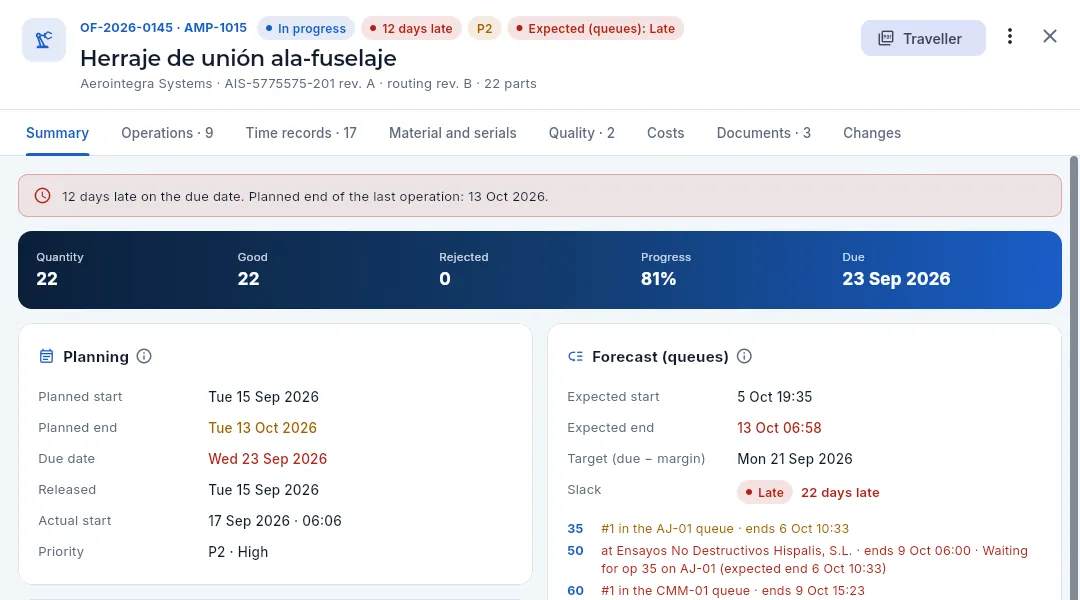 12345678
- 1The status and what needs attention: days late or «At risk», the FAI status, the priority, the queue forecast and the attention or defence tag.
- 2Customer, drawing and its revision (the one frozen on release), the routing revision it is made with and the quantity.
- 3The main action depending on the status: Release to floor, Pick material, Close WO or, if there is none, Traveller.
- 4The other actions, in the ⋮ menu.
- 5The tabs: Summary, Operations, Time records, Material and serials, Quality, Costs, Documents and Changes.
- 6The warnings: delay or risk, WO blocked by an NCR (with a link to it), FAI pending (with a link to the FAI) or the attention note.
- 7The key figures: quantity, good, rejected, progress and due date.
- 8Forecast (queues): the start and end the queues forecast, the target (due date − shipping margin), the slack and where each pending operation is.
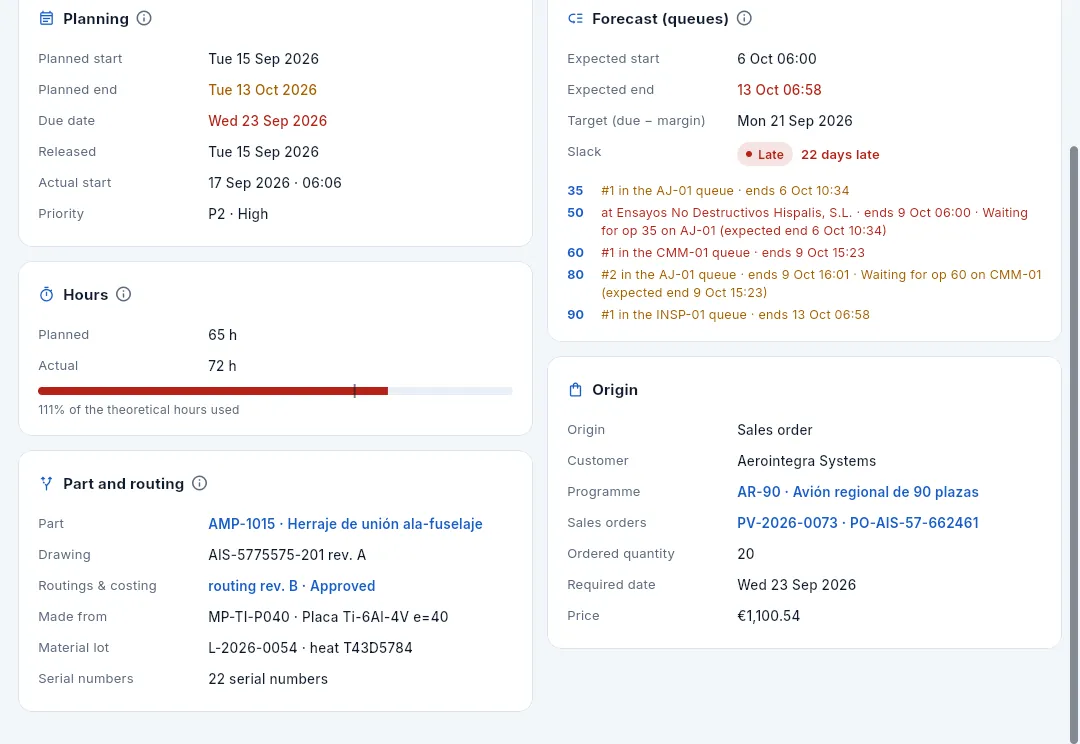 12345
12345
- 1Theoretical against actual hours, with a bar that marks 100% (in red above 110%).
- 2The routing revision frozen on release, with its status: it opens the routing.
- 3Made from: the material it was released with (with the «Approved alternative» tag if it is one; hover to see the customer's approval).
- 4The material lot and its heat, and how many serial numbers it has.
- 5Origin: the customer, the programme (opens its record), the customer order (opens the order), the ordered quantity, the required date and, with «See prices», the line price.
#WO actions
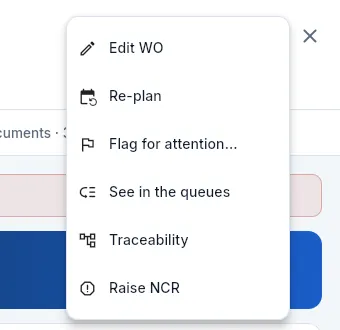 123456
- 1Edit WO: priority and notes (and, while it is planned, quantity and due date: changing them re-plans it automatically).
- 2Re-plan backwards from the due date or forwards from today.
- 3Flag for attention: a flag with a note that shows in the queues, in the weekly report and in the record.
- 4See in the queues: opens Planning › Machine queues, by WO.
- 5Traceability: the WO's full history (material, operations, operators, inspections, shipments).
- 6Raise NCR (Quality): a nonconformance already linked to the WO and the part.
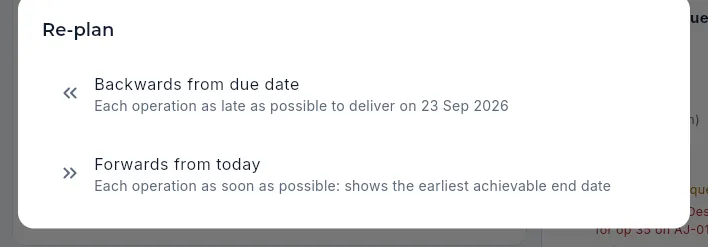 12
12
- 1Backwards: each operation as late as possible to deliver on time.
- 2Forwards: each operation as soon as possible; it shows the end date that can really be reached.
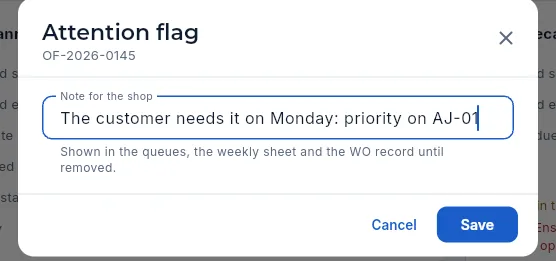 1
1
- 1The note: it will show in the queues, in the weekly report and in the WO record until the flag is removed.
The traveller (Traveller) is the landscape PDF that travels with the parts through the shop: part, drawing and revision, the routing with who approved it and their reference, customer, order, lot and heat; the operations to sign off (good, rejected, operator, date); the control plan with key characteristics marked ◆; the serial numbers and the release and quality sign-off signatures. It carries the «DEFENCE» or «FAI» mark when applicable and the footer «Controlled document. Print only the current revision.». It opens in the browser's print dialog, from where you print or save it.
The manufacturing record (Record (PDF), in the ⋮ menu of a released or finished work order) is the work order's complete record to keep it or send it to a customer or an auditor: the part with the drawing revision it was made to, the routing and who approved it, the order; the material with its heat, its validated 3.1 certificate and its signed receiving inspection; each operation with its machine or its supplier (and the special process), the CNC program and its validation, the tooling and its verification; each work log with who, when and how much and whether they held the qualification the machine requires; each inspection with its measurements and the gauge, with the calibration in force on the measuring date; the FAI, the NCRs, the scrap, the serial numbers, the lots produced, the shipments with their CoC, the documents with their SHA-256 fingerprint and every signature, each with its status («Intact»: the record is today exactly what was signed). With «See costs», also the actual cost against the standard.
#Operations
The Operations tab follows the WO operation by operation: at the top, a chart with each operation's plan against today and the due date; below, each operation with its machine or supplier, its dates, its hours and its parts.
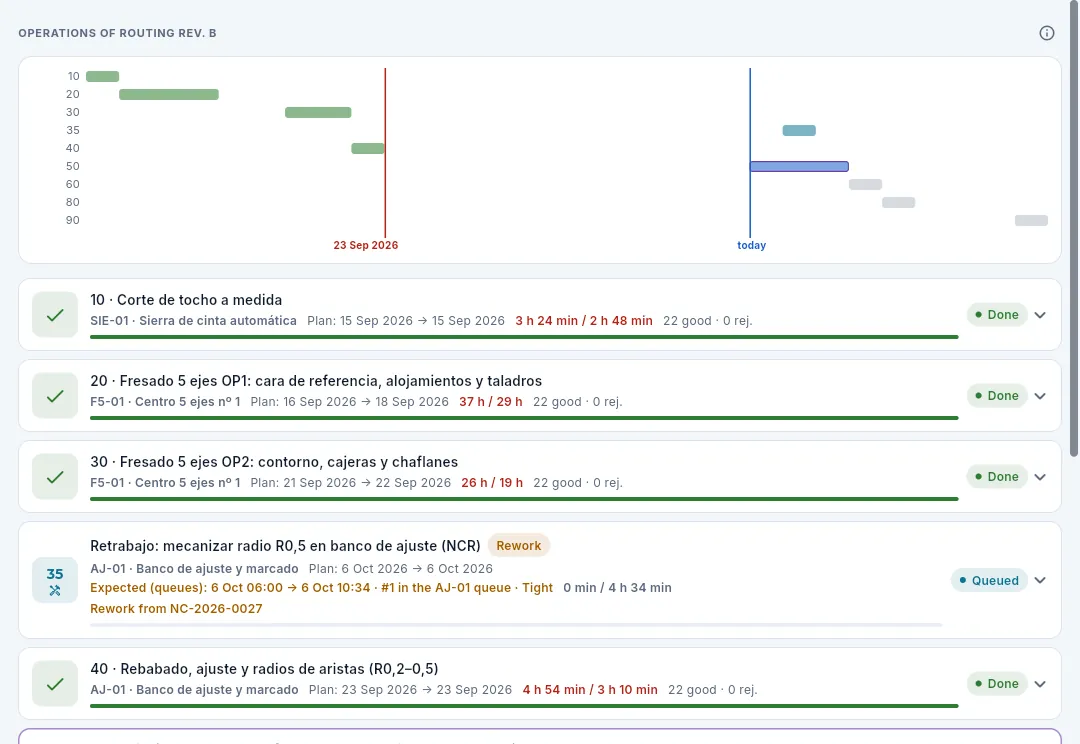 123456
- 1The routing revision it is made with (the one frozen on release).
- 2The chart: one bar per operation with its plan, in the colour of its status (lighter if still pending; with a purple border, outside operations), the blue today line and the red due date line. A bar to the right of the red line means a certain delay.
- 3A finished operation carries a tick.
- 4The operation's actual / theoretical hours; in red above 110%. Next to them, good and rejected parts.
- 5A rework operation: it comes from an NCR disposition (opens the NCR). Above it, its forecast in the queues: when it will start and finish, its position in the queue and whether it is on time.
- 6Each operation's status: pending, queued, in progress, paused, finished, blocked or skipped. Click the operation to expand it.
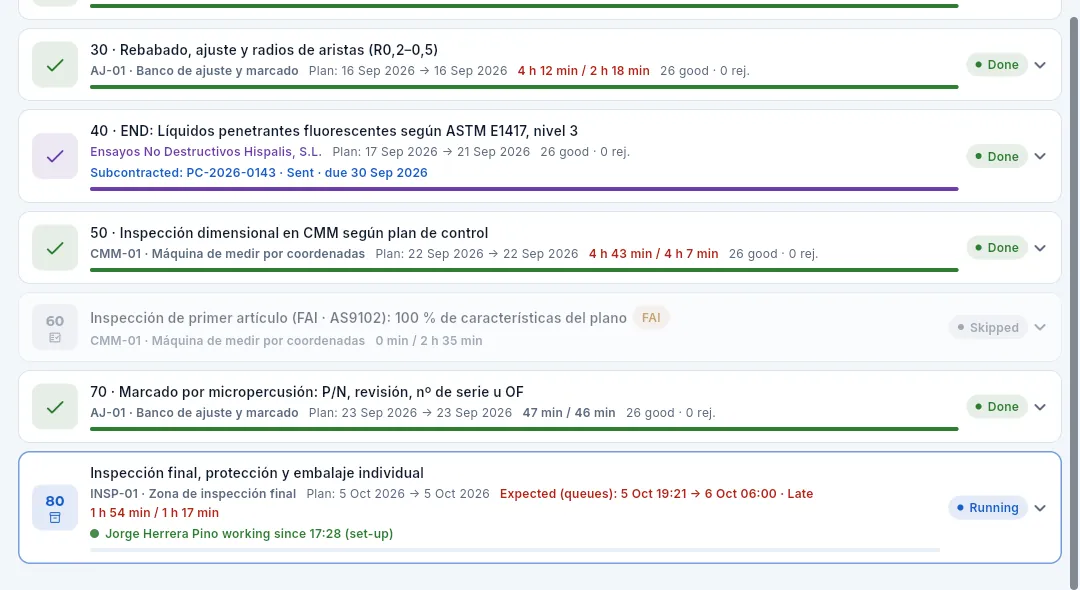 123
123
- 1An outside operation: the supplier in purple and the subcontracting purchase order, with its status and its due date (opens the order).
- 2The FAI operation, skipped: this part already had an approved FAI for the drawing revision.
- 3The operation in progress: who is working on it now, since when and on which type of record.
Click an operation to expand it: it shows its set-up and time per part, the CNC program, the control plan characteristics, the actual start and end, the instructions, its time records and the incidents logged on it (a broken tool, a breakdown…) with their solution.
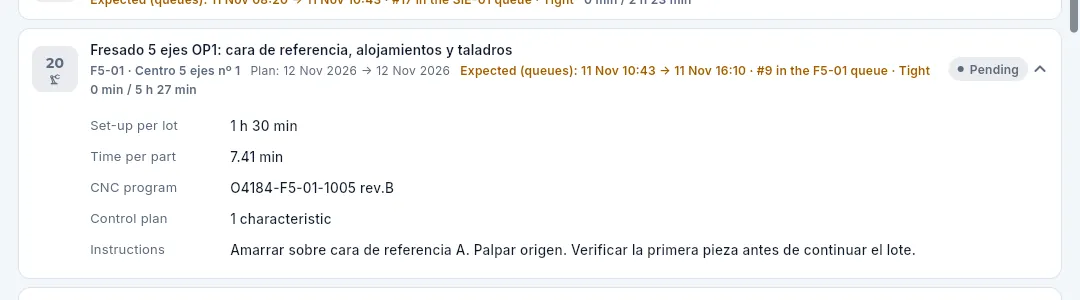 12
12
- 1The operation's forecast in the queues: when it will start and finish, its position in its machine's queue and whether it is on time, tight or late.
- 2The operation detail: set-up and time per part, control plan characteristics and instructions (and the CNC program, if the operation has one). In an operation with work done, also its actual start and end, its time records and its incidents.
#Time records
The Time records tab gathers everything logged on the shop-floor terminal for this WO: at the top, each person's hours; below, each time record.
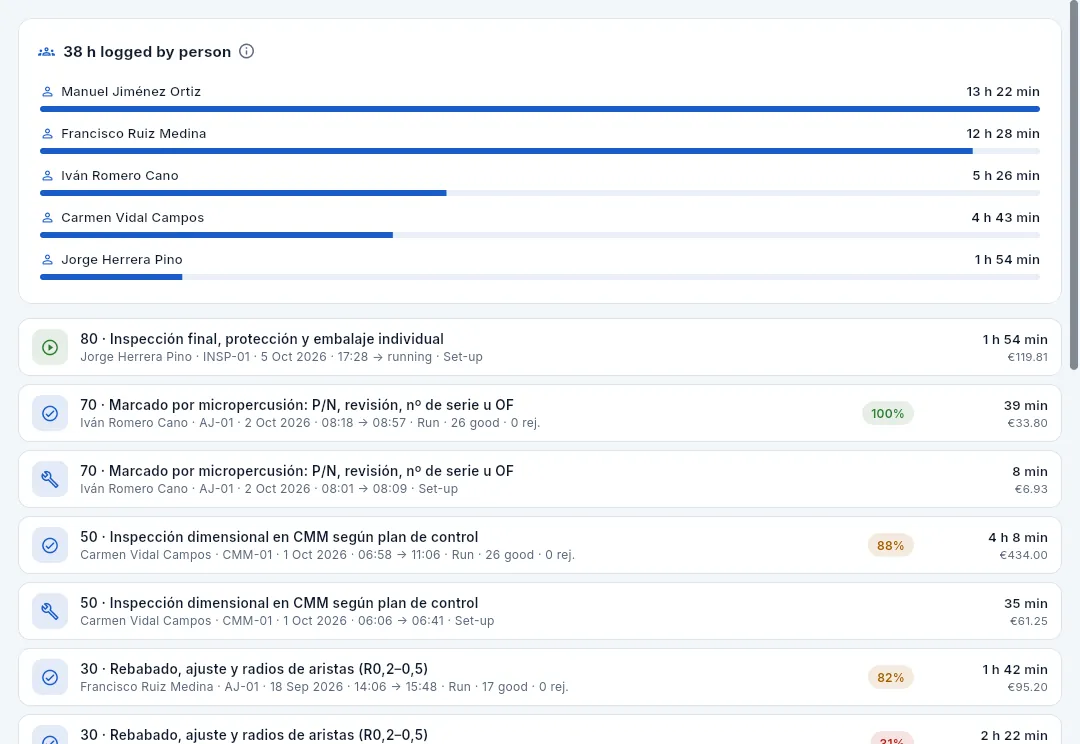 123456
- 1The logged hours and, in bars, the five people who have worked most on the WO. Its ⓘ explains the hours and the efficiency.
- 2An open record (green play icon): someone is working now; it counts up to this moment («running»).
- 3A set-up record (the spanner): clamping, loading the program and getting the first part out.
- 4Each record: operation, person and machine, start and end, type (set-up, run, rework), good and rejected parts and the rejection cause.
- 5The record's efficiency: green from 95%, amber from 80%, red below.
- 6The record's hours and its machine and labour cost (depending on your profile). If the person had another task at the same time, the hours booked to them show below.
#Material and serials
The Material and serials tab says which material was reserved and issued for the WO, from which lot and which heat, and which serial number each part has: the basis of traceability.
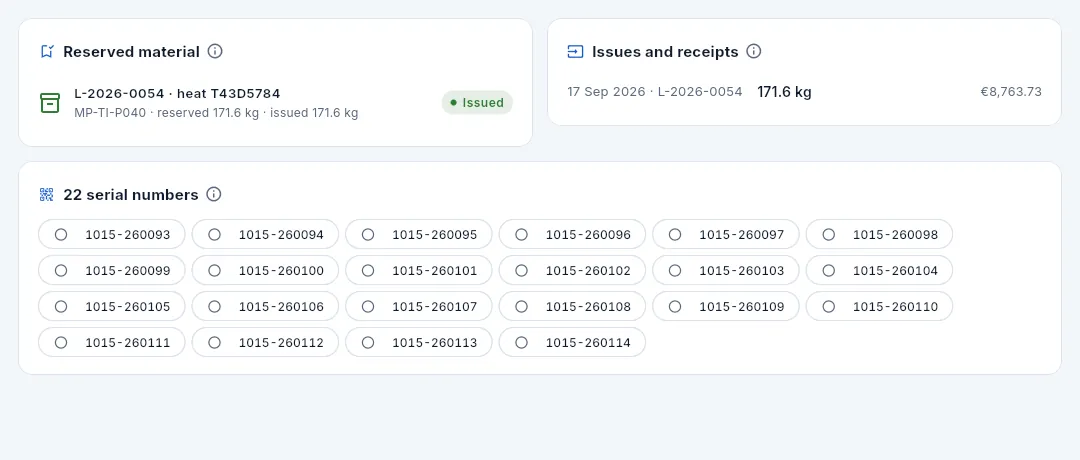 123
123
- 1Reserved material on release: lot and heat, how much was reserved and how much has been issued, its locations and the reservation status (active, issued or cancelled). Click it to open the lot.
- 2Issues and receipts: the material issued by lot, with its amount (depending on your profile), and the finished goods receipt into stores when it finishes.
- 3The serial numbers, one per part, with their status (in process, finished, rejected, shipped). Click one to see its full traceability.
While the WO is released and its reservation active, the warehouse issues the material with Pick material, the main action in the header: the reserved material is issued to the WO and the reservation becomes issued. If it is not picked beforehand, the material is issued automatically when the first operation starts on the terminal.
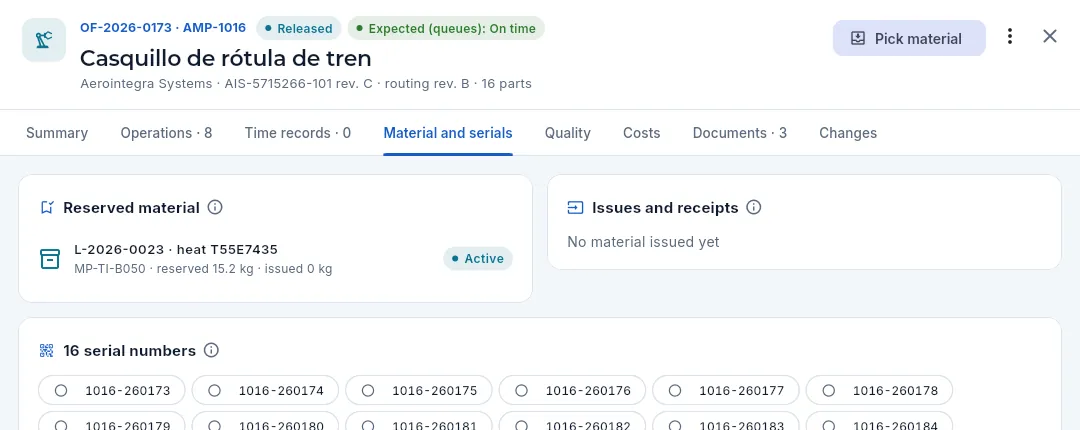 123
123
- 1Pick material (with the «Edit warehouse» permission): issues the reserved material to the WO.
- 2The reservation is active: the material is set aside for this WO, but still in its location.
- 3If the customer does not work by serial number, traceability is by WO and heat.
#Quality
The Quality tab gathers the WO's FAI, its NCRs and its inspections, and at the top the scrap (parts discarded). Each row opens its record in Inspection & FAI or in Nonconformances.
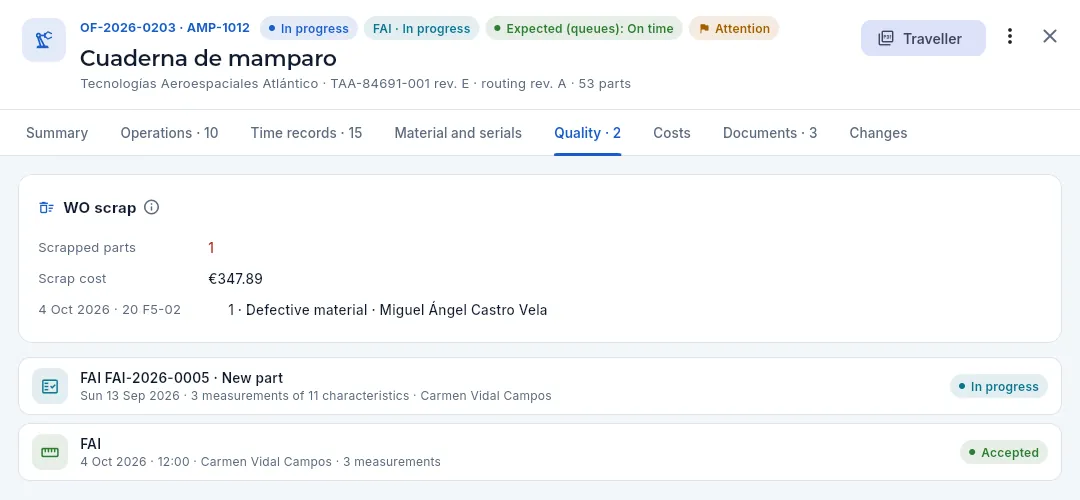 1234
1234
- 1The FAI status also shows in the header.
- 2Scrap: scrapped parts, their cost (depending on your profile) and, for each one, date, operation, machine, cause and person.
- 3The FAI: its number, the reason (new part, revision change, alternative material), how many of the plan's characteristics have been measured, the inspector and its status.
- 4Each WO inspection with its type, operation, date, inspector, measurements and result.
If an NCR blocks the WO, the Summary says so at the top and links to it. No operation can proceed, not even from the terminal, until Quality decides the disposition of the parts (rework, concession, scrap or return); if it is rework, a rework operation is added to the WO.
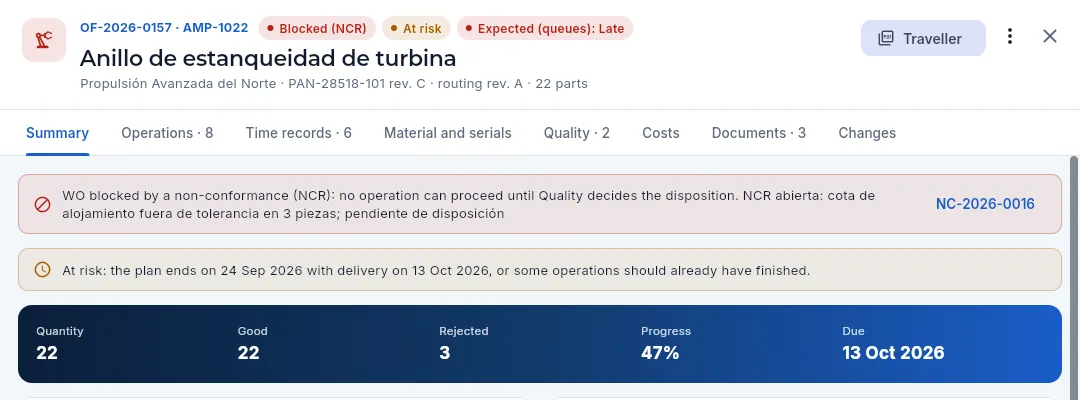 1234
1234
- 1Blocked (NCR) in the header (and in red in the list).
- 2The warning: which NCR blocks it and why.
- 3Click the NCR to open it: there Quality decides the disposition and the WO is unblocked.
- 4The WO's rejected parts, including those affected by the NCR.
#Costs: actual against cost breakdown
The Costs tab compares the WO's actual cost with the cost breakdown's theoretical cost for the same quantity, item by item, and works out the actual margin against the order price. Only profiles with «See costs» see it.
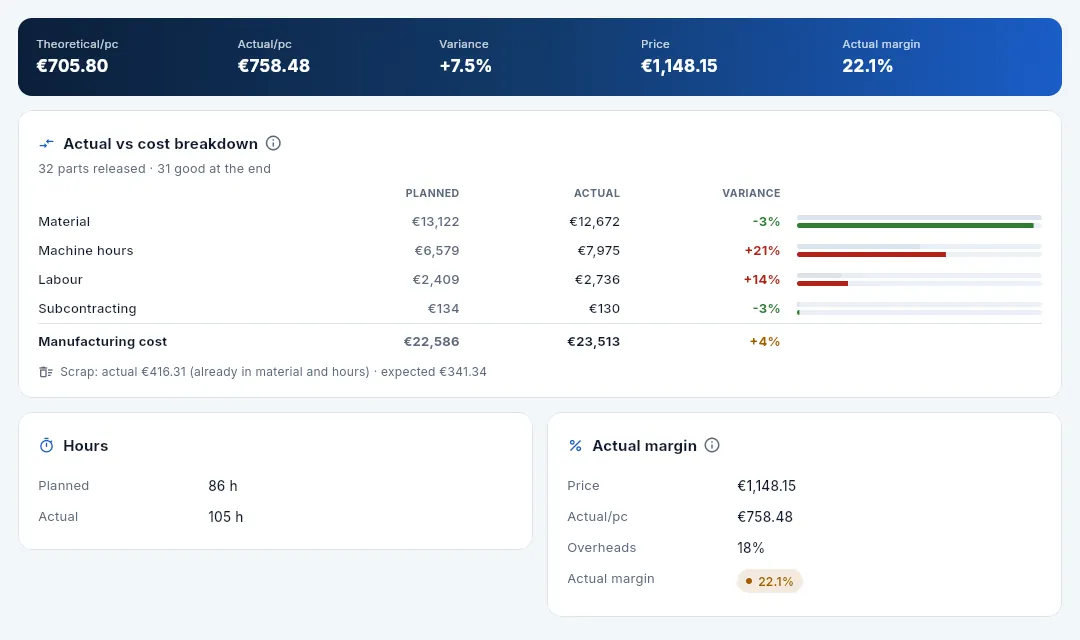 123456
- 1Theoretical per part (cost breakdown ÷ parts released), actual per good part, variance and, depending on your profile, the price and the actual margin.
- 2How many parts were released and how many good ones came out.
- 3Each item: material, machine hours, labour and subcontracting, and the manufacturing cost: theoretical, actual and variance, in green, amber or red (more than 5% above).
- 4The bars: grey for theoretical and coloured for actual. You can see at a glance which item explains the variance (here, machine hours).
- 5The actual scrap (already included in material and hours) against the scrap expected in the cost breakdown.
- 6Actual margin (with «See margins»): price, actual cost per part and overheads, and the margin in colour against the target.
 1
1
- 1Until the WO finishes, the theoretical cost is pro-rated by progress to compare what has been spent with what should have been spent so far.
#Finishing, closing and cancelling
When the operator finishes the last operation on the terminal, the WO becomes Finished on its own and its good parts go into finished goods stores (in a PT- lot for the WO); leftover serials are marked rejected. From there, Shipments sends them to the customer (if the WO has an unreleased FAI, its parts do not ship).
Then it has to be closed: Close WO freezes the actual cost and moves it into the comparison with the cost breakdown. A planned or released WO that has no time records yet can be cancelled from the ⋮ menu, with a reason.
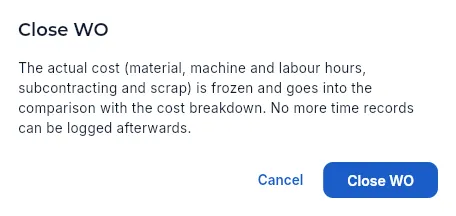 12
12
- 1What happens on closing: the actual cost is frozen and no more time records can be logged.
- 2Close WO does it (with the «Close work orders» permission).
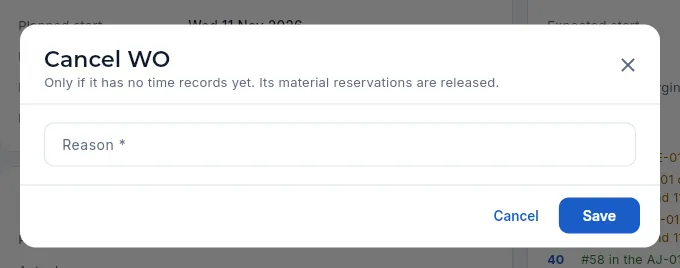 12
12
- 1Only if it has no time records yet: its material reservations and serial numbers are released.
- 2The reason for the cancellation (required).
Filter Finished, not closed and open the WO.
Check the Costs tab: actual against the cost breakdown and the margin.
Click Close WO and confirm.
#Documents and changes
Besides its own documents, the WO's Documents tab brings together the part drawings and the documents of the routing and of each operation (the CNC programs): everything needed to make it, in one place. Those of the part and the routing are read-only here; they are changed in their own record.
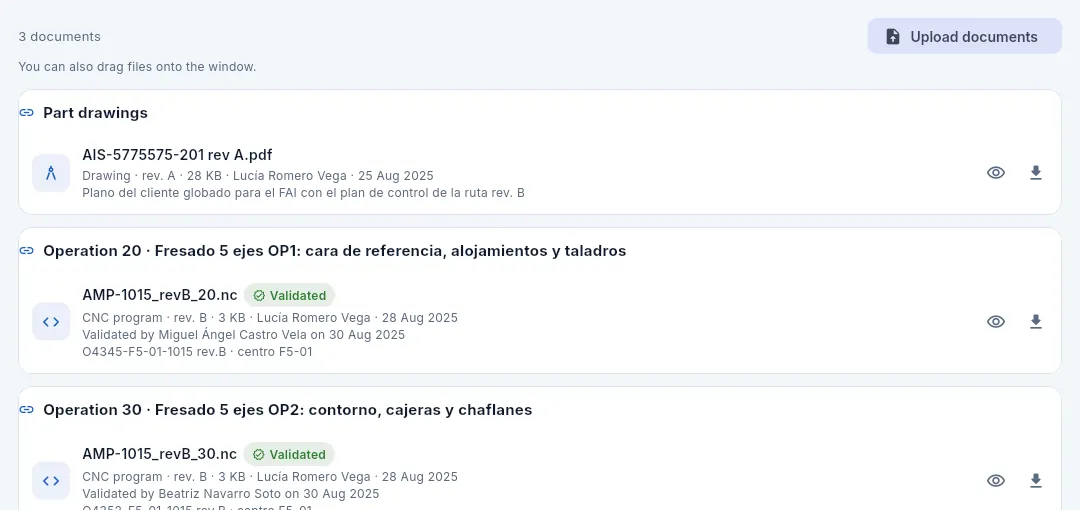 1234
1234
- 1Upload documents to the WO (or drag them onto the window): photos, reports, anything specific to this WO.
- 2Part drawings: the customer's drawing with its revision.
- 3The documents of each routing operation: here, their CNC programs.
- 4View inside the app (a CNC program, as text) or download.
The Changes tab (with the «See the change audit log» permission) shows who changed the WO and what: releases, status changes, dates, priority, quantity… Click a change to see each field with its value before and after.
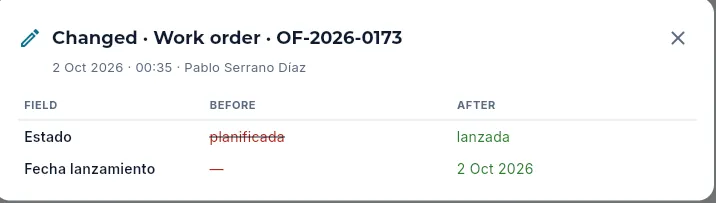 12
12
- 1Which record changed, when and who did it.
- 2Each field with its value before (struck through) and after.
#What changes with the profile
Antonio, the shop floor manager, releases, re-plans and closes WOs, but does not see costs or prices: the list has no cost column and no variance indicator, and the record has no Costs tab.
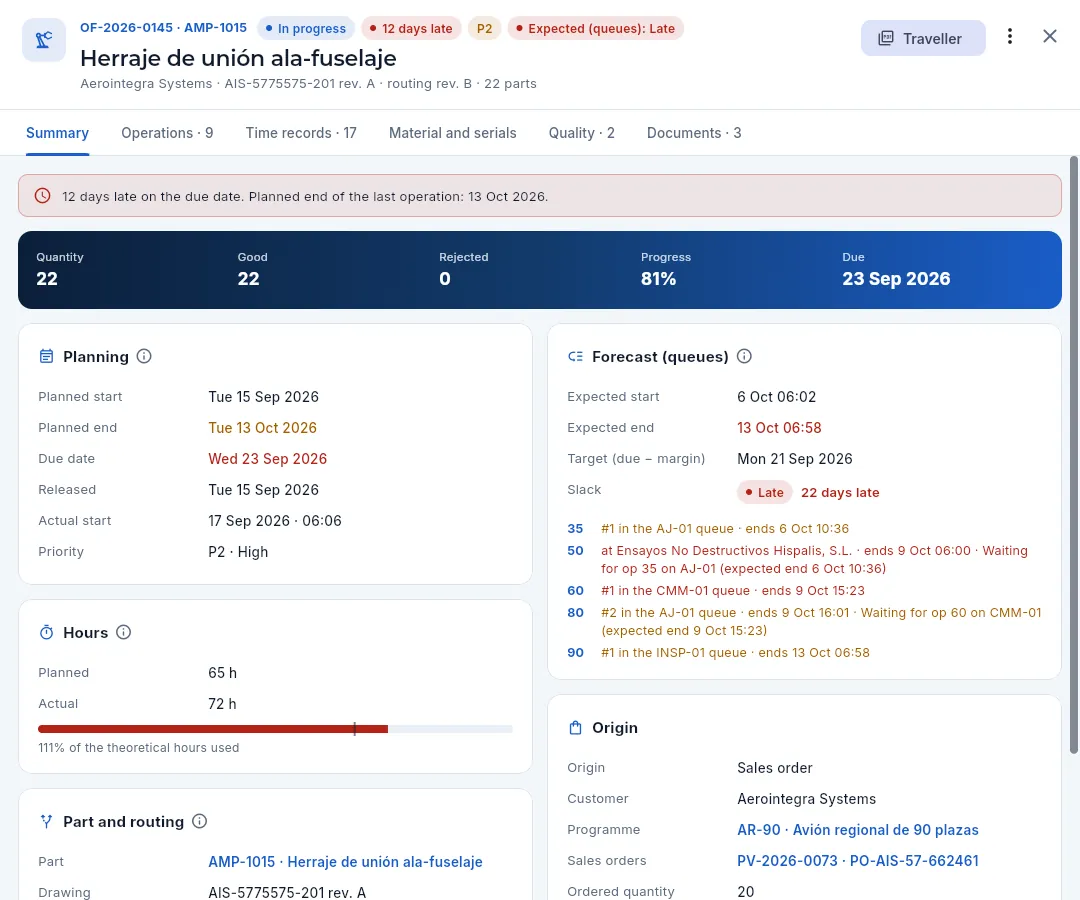 123
123
- 1No Costs tab (he does not have «See costs») and no Changes tab (he does not have the audit permission).
- 2The same actions as planning: edit, re-plan, flag for attention, see in the queues… and close finished WOs.
- 3Under Origin the order line price does not appear.
#Tips
Production
Planning
Decides the order in which work is done on each machine and tells you in time whether you will make it: machine queues with an hour-by-hour finite-capacity forecast, load map, WO Gantt, work calendar, and delays and risks.
Planning is where you decide what goes first on each machine and see, in good time, whether the work orders (WOs) will meet their due dates. Each work order is made in operations (the steps of its routing: sawing, milling, deburring, inspection…), and each operation waits its turn in the queue of its machine. Aeromec calculates the forecast of those queues hour by hour and at finite capacity: a machine only works the hours of its shift pattern (with its shifts, its holidays and its stoppages) and an operation does not start until the previous one of its work order has finished. So every operation shows as On time, Tight or Late before the delay happens.
The section has five views, chosen with the buttons at the top:
| View | What it is for |
|---|---|
| Load by machine | The load map: how many hours each machine has each week against its capacity. |
| WO Gantt | Each work order over time: its target plan against what the queues forecast. |
| Machine queues | The heart of the section: the order of the operations on each machine, with their forecast. |
| Work calendar | Holidays, closures, stoppages, maintenance and special shifts for the plant or a machine. |
| Delays and risks | The work orders that are late or will not make it, with the reason, and the order deliveries at stake. |
- 1Release the WOWhen it is released, its first operation joins the queue of its machine.
- 2Order the queuesPlanning decides what goes first on each machine and sees the forecast.
- 3Shop-floor terminalThe operator sees the queue in that same order and opens their time records.
- 4MonitorThe shop supervisor sees what each machine is doing right now.
#The Planning screen
At the top, four indicators sum up the state of the shop; below them, the buttons for the five views. Aeromec remembers the last view you used.
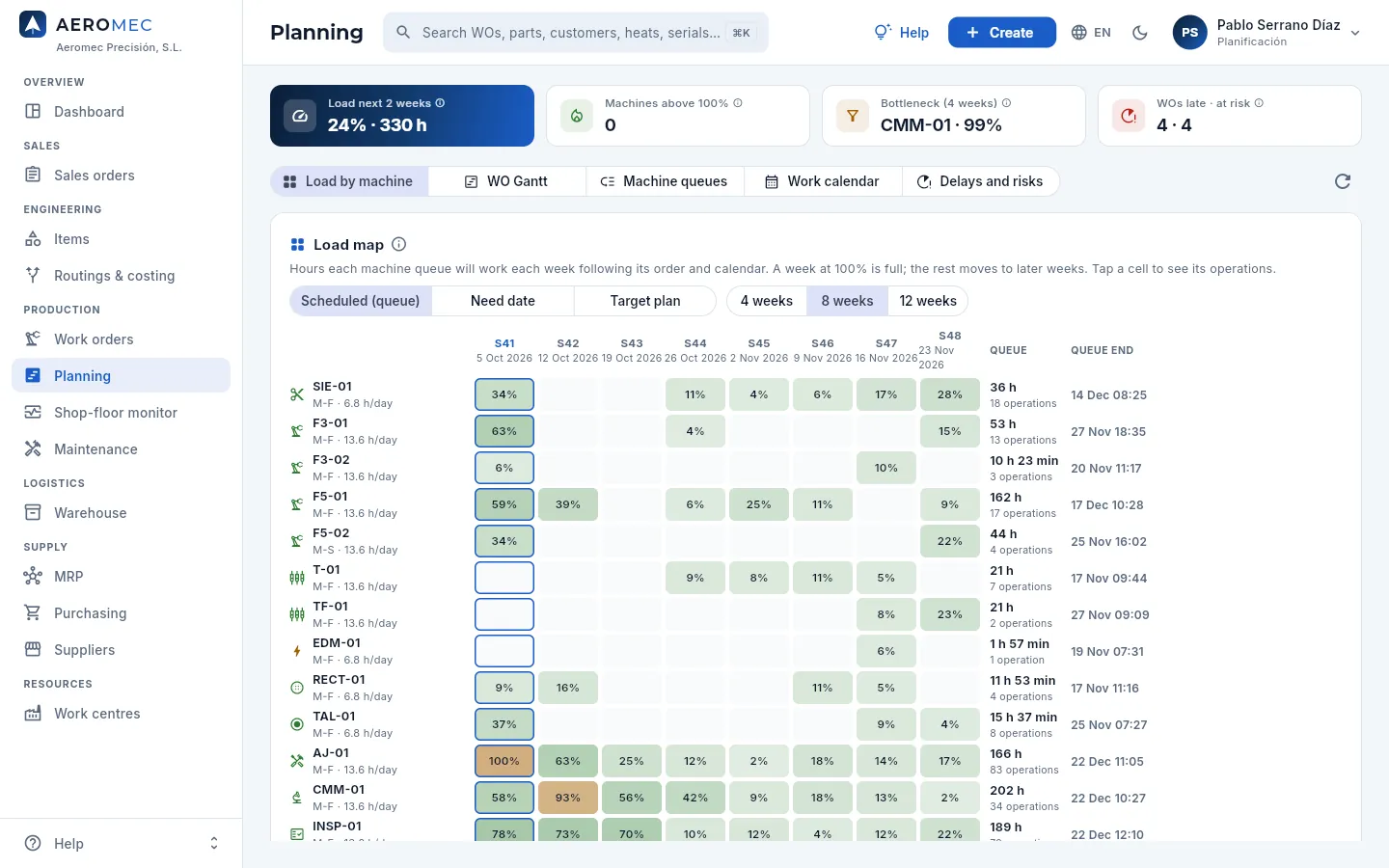 123456
- 1Load next 2 weeks: planned hours ÷ capacity of all machines this week and next, in % and in hours.
- 2Machines above 100%: how many exceed their capacity in any of the next 4 weeks, and which ones.
- 3Bottleneck: the most loaded machine over the next 4 weeks, the one that sets the pace of the whole shop.
- 4WOs late · at risk: those already past their due date and those that will not make it with the current plan. Click it to go to Delays and risks.
- 5The section's five views. The selected one is highlighted.
- 6Refresh reloads the data (the queues also refresh themselves every 30 seconds).
#Machine queues
In Machine queues you see the pending operations of each machine in the order they will be done. Planning decides that order, and it is the same one the operator sees on the shop-floor terminal: the first in the queue is the next one they will get. New operations join at the end, by their work order's priority and date.
There are two ways of looking at the queues: By operation (one machine's queue, operation by operation) and By WO (each work order with all its operations on its machines). Both can be shown as cards (with a picture of the part) or as rows (a table).
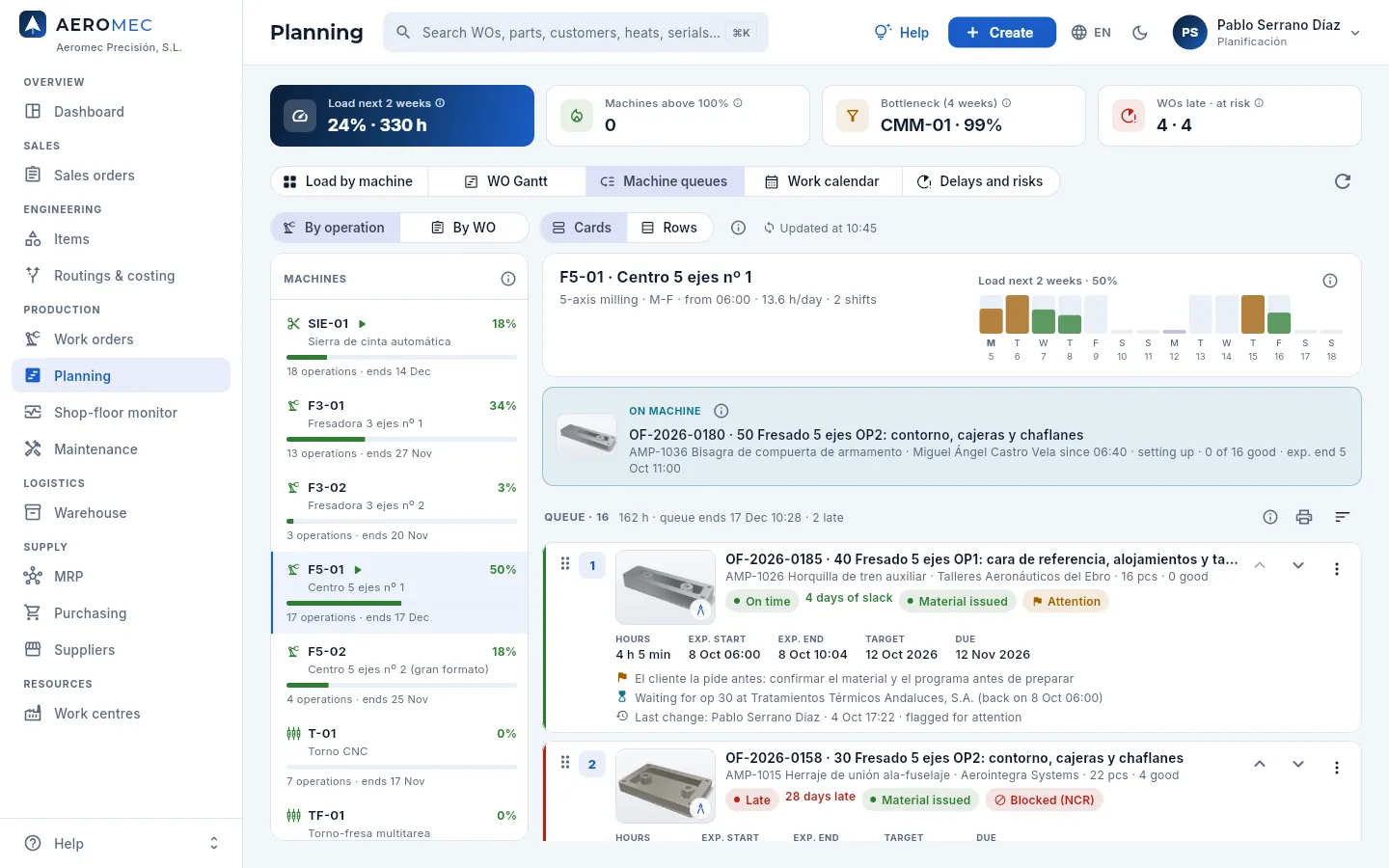 12345678
- 1By operation (one machine's queue) or By WO (each work order with its operations on all its machines).
- 2Cards (with a picture of the part) or Rows (a table with more columns).
- 3The view refreshes itself every 30 seconds and warns you if another user has changed a queue.
- 4The machines panel: each with its occupation over the next 2 weeks (green up to 85%, amber up to 100%, red above), its queued operations and when the last one ends. The green triangle means someone is working on it now. Click one to see its queue.
- 5The machine's header: type, working days, shift start, hours per day and shifts; on the right, its load over the next 14 days as bars (days without shifts in grey or in the colour of their calendar exception; hover to see the reason).
- 6On machine: what is being made right now, according to the time record open on the terminal (work order, operation, part, operator, since when, good parts and expected end). If nobody is working on it, «Machine idle».
- 7The queue: how many operations it has, their hours, when the last one ends («queue ends») and how many come out late.
- 8Print queue (weekly sheet) prints the week's work sheet as a PDF; Re-sort the queue (to its right) sorts it in one go.
Each card is an operation in the queue. It is designed to be read at a glance: what it is, when it will be done and whether it will be on time.
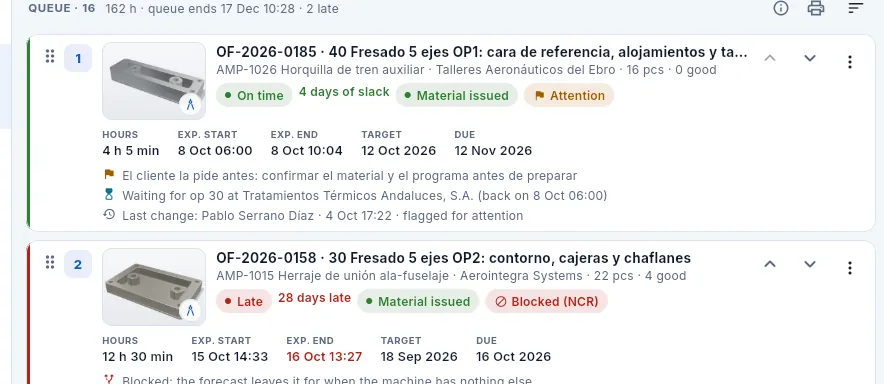 123456789
- 1The handle: drag the card by it to move it to another position in the queue.
- 2Its position in the queue (1 = next).
- 3The picture of the part: tap it to see it full size. The corner with the compass opens the drawing. If the part has no picture, the drawing thumbnail is shown.
- 4The work order, the operation (number and description) and, below, the part, the customer, the quantity and the good parts so far.
- 5The schedule status (On time, Tight or Late) with its slack in days, the material status and the flags: Attention, Blocked (NCR), FAI, rework, defence, priority P1 or P2.
- 6Hours left, expected start and end (hour by hour), target (when it should finish according to the plan) and the work order's due date.
- 7The attention note for the shop and the last change: who moved or flagged the operation, when and what they did.
- 8Move up and Move down one position, and the ⋮ menu with «Move to top», «Move to…», «Flag for attention…» and «Open WO». Click the card to open the work order record.
- 9Why it is waiting: here, «Blocked: the forecast leaves it for when the machine has nothing else» (its work order is held by an NCR). See the list below.
The schedule status of each operation compares its expected end with its target:
| Status | Slack | What it means |
|---|---|---|
| On time (green) | 3 days or more | It has room to spare. |
| Tight (amber) | 0 to 2 days | It will make it, but it can absorb little disruption: do not put it behind another without checking its slack. |
| Late (red) | negative | With the current order it will finish after its target: bring it forward, move it to the twin machine or extend the shift. |
Below the data, each card explains why it is waiting, if that is the case:
- «Waiting for op 30 on F3-02 (expected end …)»: it cannot start until its previous operation on another machine finishes (or comes back from the supplier).
- «Brought forward: the ones ahead are still waiting for their previous operation»: the machine does not sit idle; it does this operation first because the ones ahead are not ready.
- «Blocked: the forecast leaves it for when the machine has nothing else»: its work order is held by a nonconformance (NCR) and Quality has not yet decided what to do with the parts.
#Changing the order of a queue
With the «Edit work orders» permission you can change the order of any queue. Everything is recalculated at once (the expected dates and the schedule status of every operation in that queue and of those that depend on them) and the change is logged as the operation's last change.
Open Machine queues and choose the machine in the panel on the left.
Drag the card by its handle (the six dots on the left) and drop it in the position you want.
On a touch screen, or if you prefer not to drag, use the Move up and Move down arrows, or the ⋮ menu → Move to top.
Watch how the expected dates and the schedule status of the others change: if any turns Late, it may not be worth it.
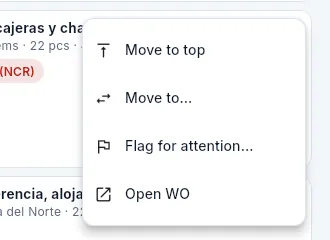 1234
1234
- 1Move to top: moves it to the first position in its queue.
- 2Move to…: to another position or to another machine that can do it.
- 3Flag for attention… with a note for the shop.
- 4Open WO: its full record.
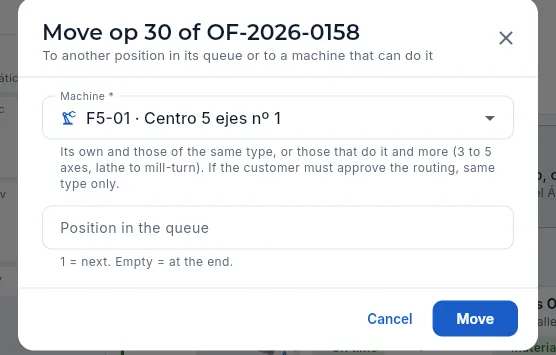 123
123
- 1The machine: its own and those that can do the operation, with their queued operations and their occupation over the next 2 weeks.
- 2The position in the destination queue (1 = next; empty = at the end).
- 3Move moves it; the forecast of both queues is recalculated.
In Machine queues → By operation, press and hold the operation's card for a moment until it lifts off.
Drag it onto the destination machine in the panel on the left: if that machine can do it, it lights up with «Drop here». Drop it.
Or, in the card's ⋮ menu, choose Move to…, pick the Machine and, if you like, the Position in the queue, and click Move.
The attention flag makes sure an operation does not go unnoticed: it shows in the queues, on the weekly sheet and in the work order record until someone removes it.
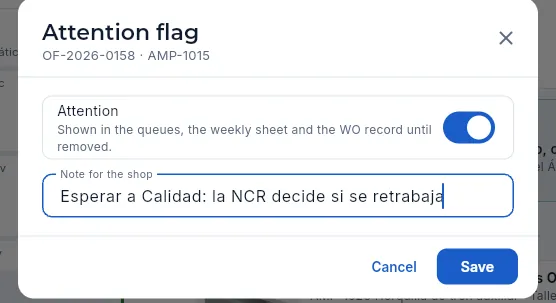 12
12
- 1Sets or removes the work order's attention flag.
- 2The note: new material, customer wants it earlier, new fixture…
 12
12
- 1By work order priority and target start date.
- 2By work order due date (then priority).
#The queue as rows
With Rows, the queue becomes a table with every column, handy for reviewing many operations on a large screen. It scrolls sideways if it does not fit.
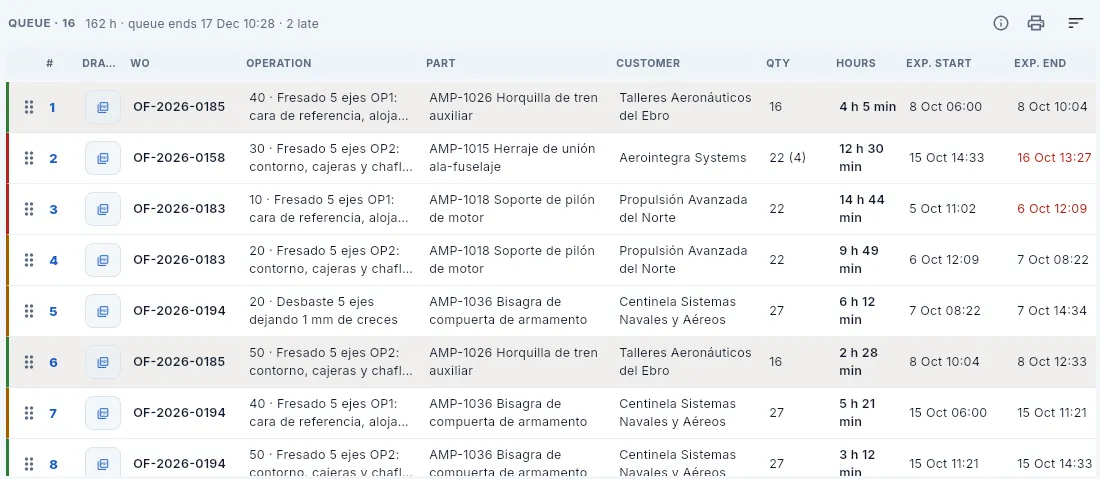 123456
- 1The position; to its left, the handle to drag the row.
- 2The thumbnail of the part's drawing: click it to open it.
- 3The work order, the operation, the part and the customer.
- 4The work order quantity; in brackets, the good parts this operation has made so far.
- 5Hours left and expected start and end (in red if it comes out late). Scroll the table to the right to see target, due date, slack, schedule status, FAI, material, priority, waiting for, last change and the arrows.
- 6Each row is an operation; the coloured edge on the left is its schedule status (green, amber or red). Click it to open the work order.
#The queues by work order
By WO shows the same information from the point of view of each order: all its operations, where each one is and when the work order will finish. It answers «when will this work order be done?» and lets you bring a work order forward on all its machines at once. Work orders on a machine come first, then by when their next operation starts.
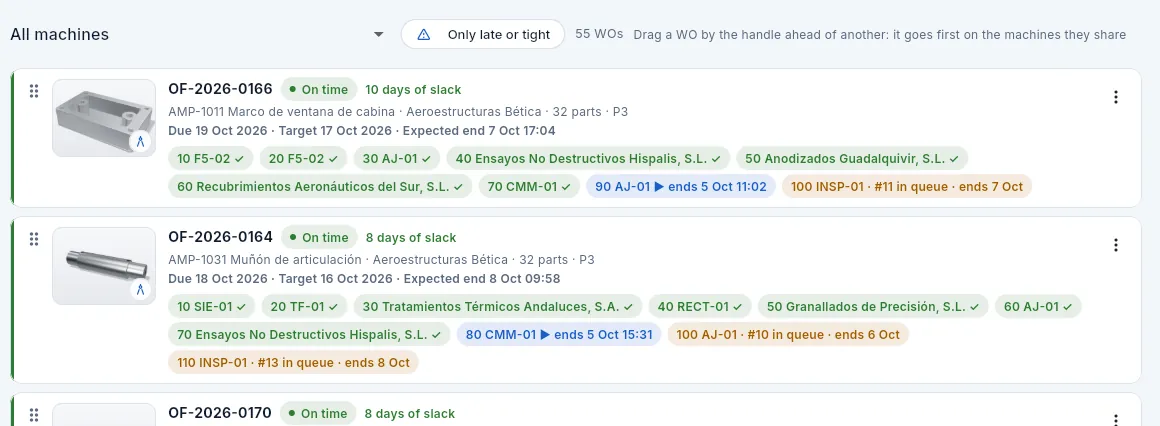 12345678
- 1Filters the work orders that have an operation on a machine.
- 2Only late or tight: the work orders that will not make it or are cutting it fine. To the right, how many work orders are shown.
- 3With «Edit work orders», drag a work order by its handle ahead of another to bring it forward.
- 4The picture of the part (its corner opens the drawing).
- 5The work order, its schedule status and its slack (and the attention, blocked, not released or defence flags).
- 6Part, customer, parts and priority; below, the work order's due date, target and expected end.
- 7Its operations, each with its machine: ✓ done, ▶ on the machine with its end, queued with its position («#11 in queue») and its end, or at the supplier with the date it comes back. Hover to see the description and the times.
- 8The ⋮ menu: «Bring forward on all its machines», «Flag for attention…» and «Open WO».
In Machine queues, switch to By WO (with Only late or tight you will find it sooner).
Drag the work order by its handle and drop it ahead of another one: on every machine they share, its operations go ahead of the other work order's (nothing changes on the other machines).
Or, in its ⋮ menu, choose Bring forward on all its machines: its operations become the first in each queue, behind whatever is on the machine.
#The weekly sheet as a PDF
The printer button of each queue (Print queue (weekly sheet)) produces that machine's weekly work sheet as a landscape PDF, to pin up next to it or hand out at the start of the week:
- The week (the current one or, at the weekend, the one starting on Monday) and when it was printed.
- The machine with its shift pattern, what is on the machine and a summary of the week (operations, hours and 2-week load).
- The queue in order: the operations starting that week with their position, work order, operation, part, quantity, hours, expected start and end, target and schedule status; a notes column (attention, waiting, blocked, FAI) and a «Done / sign» column. The ones flagged for attention are highlighted.
- The signatures of the shop supervisor and the operator.
It is a snapshot of the order at print time: if you change the queue afterwards, the shop-floor terminal rules.
#The load map
Load by machine draws a heat map: one row per machine and one column per week, with the percentage of its capacity that is taken. The stronger the colour, the heavier the load; in red, above 100%.
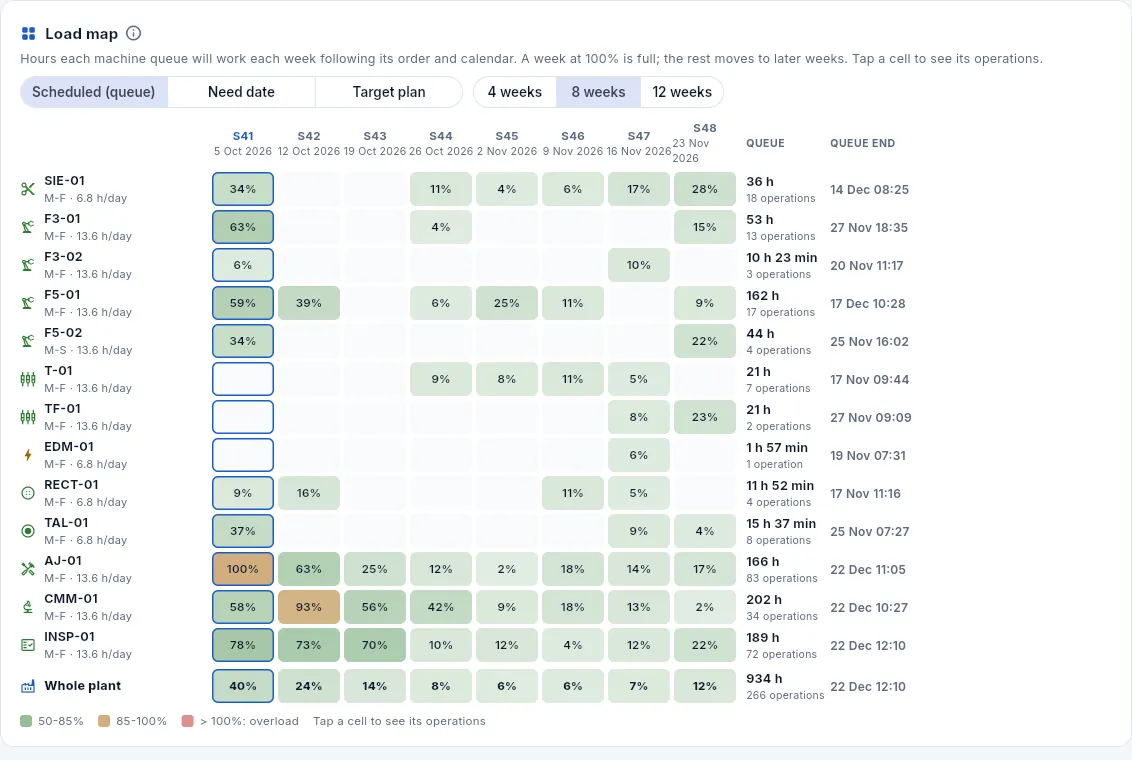 12345678
- 1The map's three modes: Scheduled (queue), Need date and Target plan (see the table below).
- 2How many weeks are shown: 4, 8 or 12.
- 3The current week, with the blue border. Each column shows its week number and its Monday.
- 4Each machine with its working days and its daily capacity («M-S · 13.6 h/day» on F5-02, which works Saturdays).
- 5Each cell: the % of that week's capacity that is taken. Hover to see the hours and the operations; click it to see which operations fill it.
- 6Queue: the hours and operations each machine has pending.
- 7Queue end: when the last one will finish. That of the most loaded machine sets the lead time of everything that goes through it.
- 8Whole plant: the sum of all machines; below, the colour legend.
| Mode | What each cell counts | How to read it |
|---|---|---|
| Scheduled (queue) | The hours the machine's queue will work that week following its order and its calendar, against the capacity it has left from now. | It never goes above 100%: what does not fit moves to the next week. A row full for many weeks in a row is the bottleneck. |
| Need date | The pending hours of the operations that must be finished that week (overdue ones count in this week), against its capacity. | Above 100% (red) there is not enough time with the current capacity: move operations to the twin machine, schedule a Saturday or talk to the customer. |
| Target plan | The hours of the backward plan (from the due date) spread over its working days. It also shows the two past weeks with the actual hours from the time records. | Use it to compare what was planned with what was done. |
Below the map are the Whole plant row and the colour legend (50-85%, 85-100% and above 100%), and further down the Whole-shop hours per week chart against capacity: if the bars drop well below it 3 or 4 weeks out, the order book is thin and it is time to push quotes.
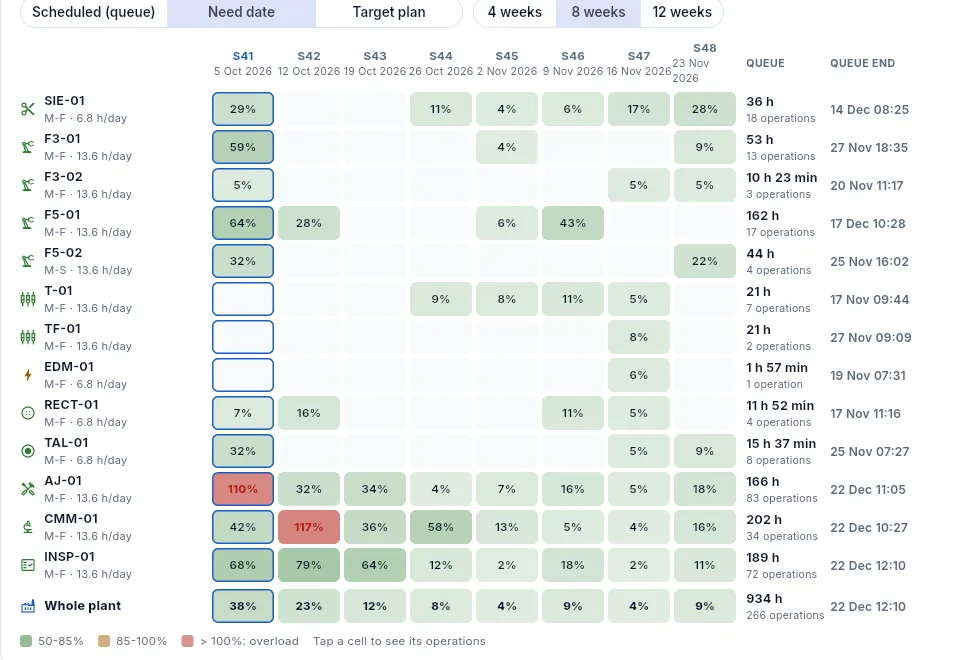 12
12
- 1Need date mode, active.
- 2The machines piling up work that must be finished soon: cells above 100% show in red.
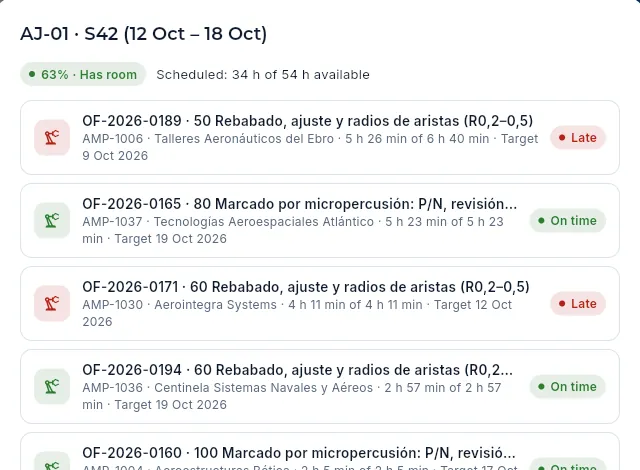 123
123
- 1The machine and the week (with its dates).
- 2Its load with the level («Has room», «Almost full», «Overloaded») and the hours against those available.
- 3Each operation: work order, part, customer, hours it adds to that week (out of those it has left), target and schedule status. Click it to open its work order.
#The WO Gantt
The Gantt draws every live work order (planned, released, in progress or blocked) over time. Each row has two things: the target (the backward plan from the due date, as an outline) and what the queues forecast (coloured strips, one per operation). It opens centred on today.
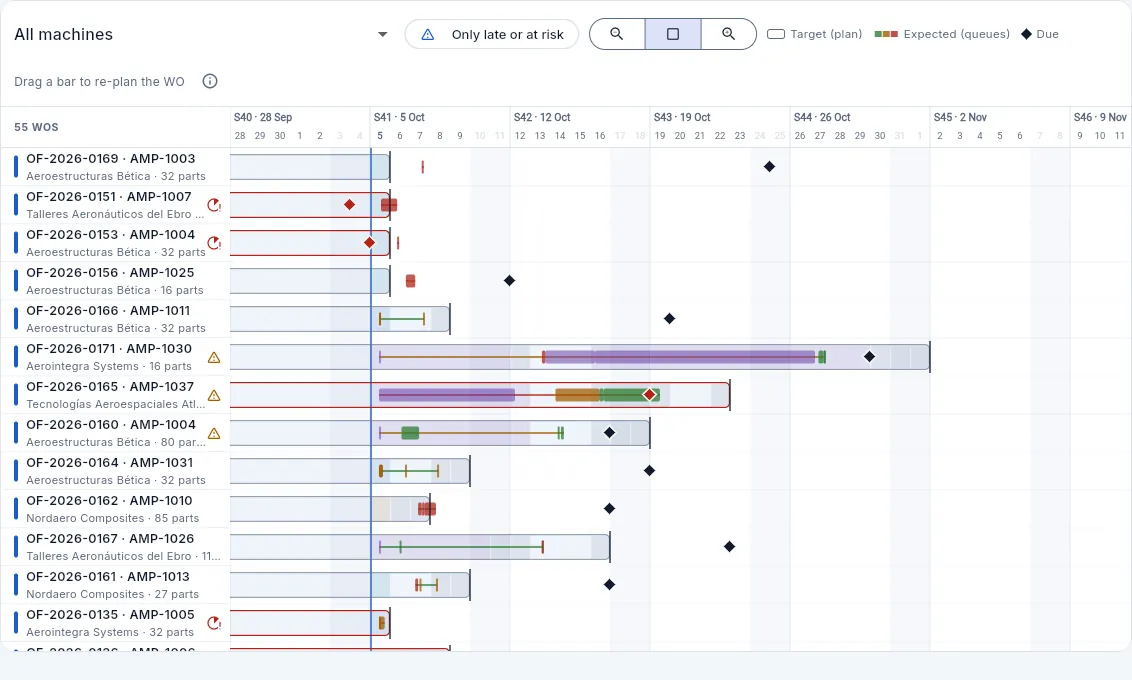 123456789
- 1Filters the work orders with an operation on a machine.
- 2Leaves only those late or at risk.
- 3The zoom: out, normal and in.
- 4The legend and, with «Edit work orders», the reminder that you can drag the bars.
- 5Each work order with its part, its customer and its quantity. The red icon is a late work order; the amber one, at risk. Click it to open its record.
- 6The blue line is today; weekends are shaded.
- 7The outline is the target (the backward plan from the due date) with the vertical mark at its end; here, with a red border because the work order finishes late.
- 8The strips are what the queues forecast, one per operation: green, amber or red according to their schedule status; purple if the operation is at a supplier.
- 9The diamond is the due date (red if the work order will be late).
How to read a row: if the forecast strips go past the vertical target mark or the due-date diamond, the work order will be late (the outline gets a red border and the diamond turns red). Hover over a bar to see its dates: target, forecast with its slack, due date and current operation.
With the «Edit work orders» permission, drag the work order's outline to the left (bring forward) or to the right (delay). While you drag, a label shows how many days («+3 d»).
When you let go, Aeromec asks «Delay OF-… by N working days» (or «Bring … forward»). Click Re-plan.
#The work calendar
The work calendar says which days the plant or a machine does not work, or works a different shift. With it, the queue forecast and the load map know, for example, that EDM-01 will be in maintenance for two days or that F5-01 will work a Saturday. The same list shows the public holidays with their scope (national, regional for Andalusia, local for La Rinconada or company). It is edited by the shop supervisor, Planning and Management.
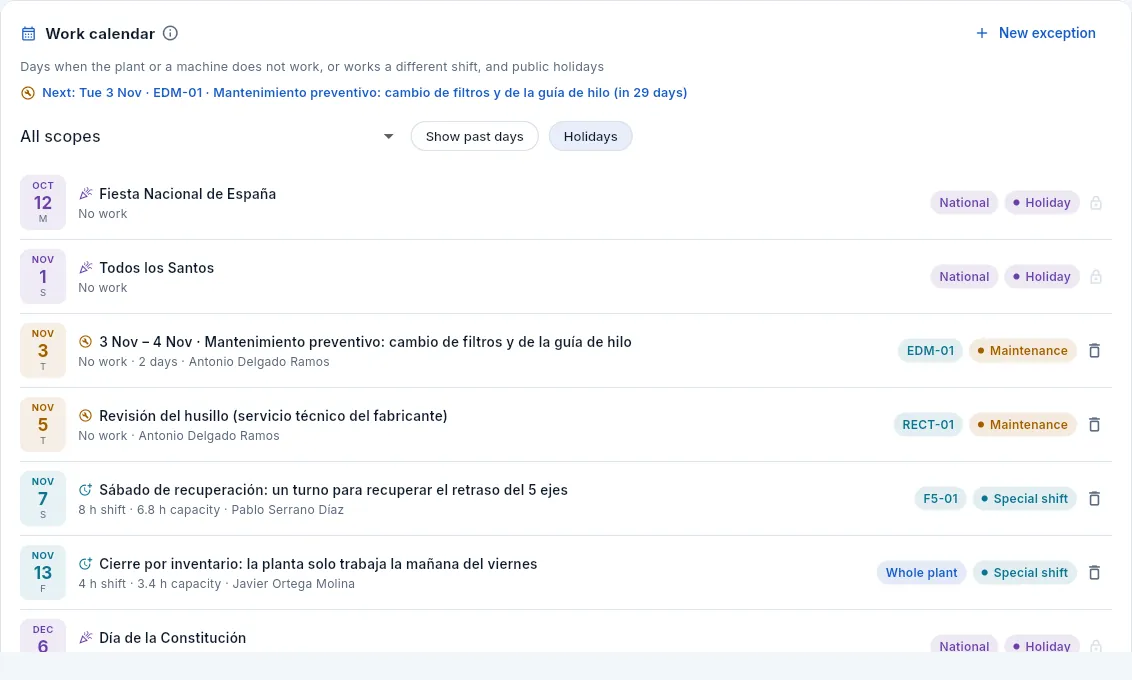 12345678
- 1New exception: a closure, a stoppage, maintenance or a special shift.
- 2The next exception, highlighted, and how long until it.
- 3Filter by scope: everything, only what affects the whole plant or one machine's.
- 4Show past days (by default only what is coming is shown) and show or hide the Holidays.
- 5A holiday, with its scope and the padlock: holidays are changed in Settings.
- 6A machine exception spanning several consecutive days, as a single group: dates, reason, shift and who scheduled it. On the right, the machine and the type. Click it to change it.
- 7A special shift: the shift hours and the capacity they give (8 h × 85% = 6.8 h).
- 8The bin removes the exception: those days go back to their usual shift.
| Type | What for | Scope |
|---|---|---|
| Closure | The plant does not open (holidays, bridge days). | Whole plant only. |
| Stoppage | The machine is not available: a planned repair, a move… | A machine or the whole plant. |
| Maintenance | Preventive maintenance or scheduled service. | A machine or the whole plant. |
| Special shift | A different shift is worked: a catch-up Saturday, half a day… Enter the hours. | A machine or the whole plant. |
With 0 hours, that day is not worked; with a special shift, the hours you enter (capacity applies the efficiency).
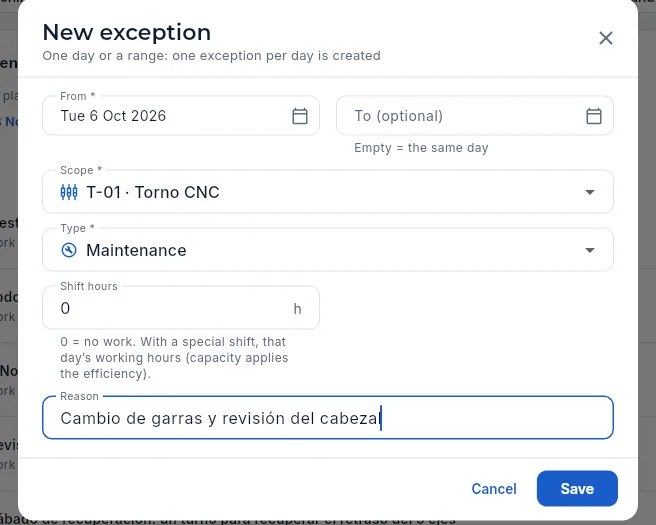 123456
- 1From and To: one day or a range (one exception per day is created). Empty «To» = the same day.
- 2The scope: the whole plant or a machine.
- 3The type: closure, stoppage, maintenance or special shift, each with its explanation.
- 4The shift hours for that day: 0 = no work.
- 5The reason, which everyone will see in the calendar and in the queue header.
- 6Save creates it; the forecast and the load map take it into account straight away.
In Work calendar, click New exception.
Enter the Saturday's date in From (leave To empty).
In Scope, choose the machine (for example, F5-01).
In Type, choose Special shift and enter the Shift hours (8 for one shift).
Write the Reason («Catch-up Saturday…») and click Save.
Click New exception and enter the dates in From and To (for example, two consecutive days).
In Scope, the machine; in Type, Maintenance, with 0 Shift hours.
Write the Reason and click Save.
#Delays and risks
Delays and risks gathers what needs attention, each with its reason: the work orders already late, those that will be late and the order deliveries at stake (the ones that will bring down the OTD, the on-time delivery percentage).
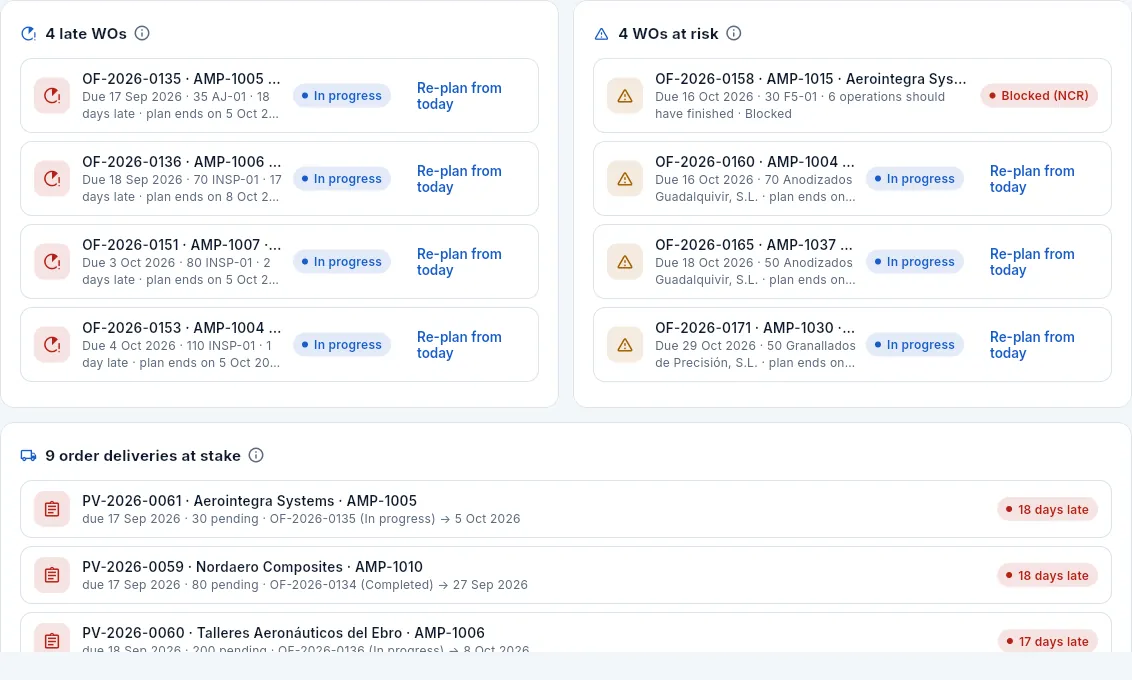 123456
- 1Late WOs: their due date has already passed. Those with the most days late, at the top.
- 2Each work order with its part and customer, its due date, the operation it is on and the reason: days late, «plan ends on …, after the due date», «N operations should have finished» or «Blocked». Click it to open its record.
- 3Re-plan from today recalculates its operations forwards from today, to see the real date it can make.
- 4WOs at risk: they have not passed their due date yet, but will not make it with the current plan.
- 5A work order blocked by a nonconformance is not re-planned: first Quality has to decide what to do with its parts.
- 6Order deliveries at stake: order lines whose due date has passed or that their work order will not reach, with what is pending, the work order serving them and its end. Click one to open the order.
#What each profile sees
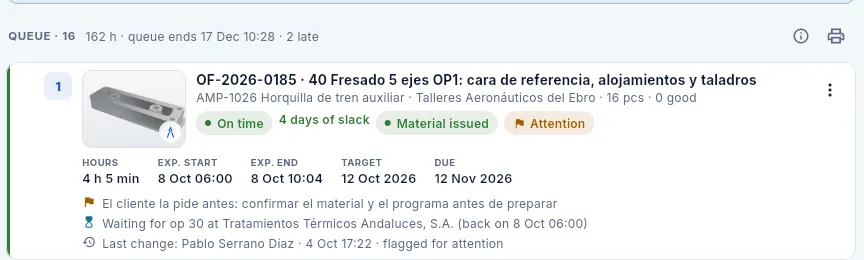 12
12
- 1Without «Edit work orders» there is no handle to drag…
- 2…no arrows to move up or down, and the ⋮ menu only has Open WO.
Production
Shop-floor terminal
The tablet next to the machines: each operator identifies with their badge or PIN, sees the queue of their machines and a notice of their qualifications that are expiring, opens and closes their time records, declares good and rejected parts, reports incidents, looks up the drawing, the program (current revisions only) and the control plan, does the machine's start-of-shift check, records tool changes, and takes and returns their measuring gauges.
The shop-floor terminal is the screen used by whoever works on the machines, usually a tablet mounted in each area of the shop. From it, each operator books their work with time records: a record logs a stretch of work on a machine and an operation of a work order (WO), with the start time, the end time and the parts that came out. There are set-up records (getting the machine ready: fixtures, tools, program, first part), production records and rework records (correcting parts that a nonconformance sent back for rework). Time is counted automatically, between the moment you press the start button and the finish one.
With those records Aeromec knows how each work order is going, how many actual hours it has taken and what it costs, the rejected parts (the scrap) and the OEE (overall equipment effectiveness). The same tablet is the gauge loan kiosk.
With the shop-floor operator profile, the application opens straight into the terminal, full screen and with no menu (kiosk mode): there is nowhere else to go.
- 1Identify yourselfYour badge or your name, and your 4-digit PIN.
- 2Choose machine and operationThe first in the queue is the one to do.
- 3Set upSet-up record; when finished, «Set-up done».
- 4RunThe clock is running; drawing, program and control plan at hand.
- 5FinishDeclare good and rejected parts: the operation moves on to the next machine.
#Identifying yourself: Who are you?
When the terminal opens, Who are you? appears, with a card for each person who uses it. You come first and highlighted if the tablet is signed in with your account.
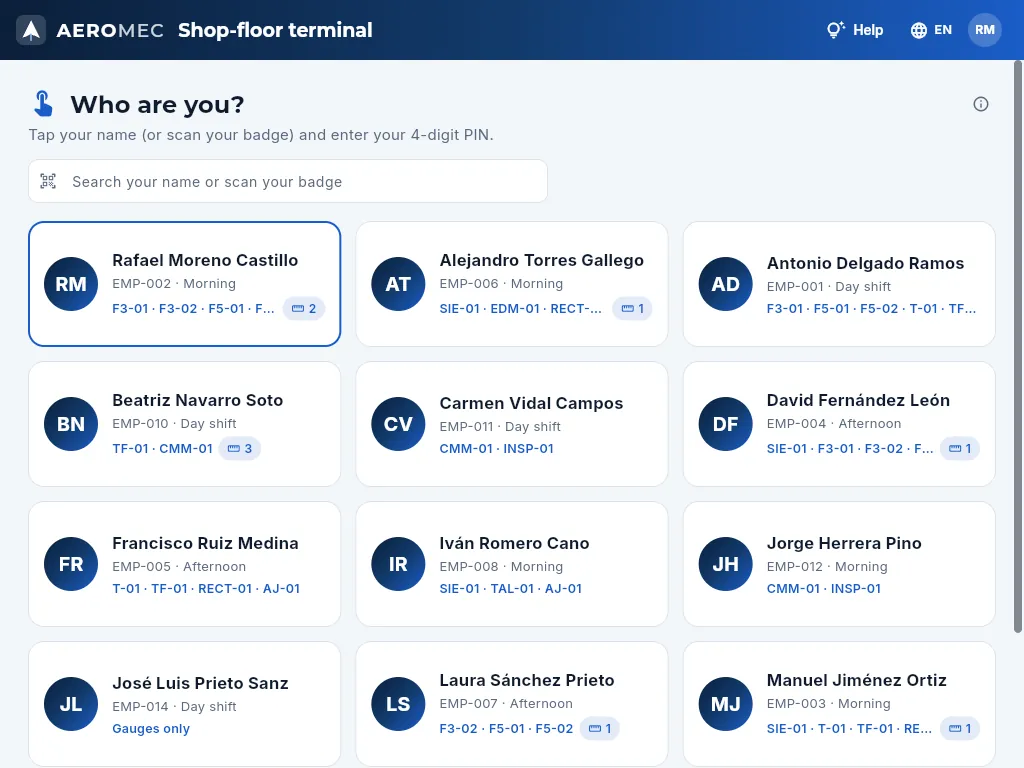 12345
12345
- 1Help (or F1) with the terminal guides, and the language.
- 2The account the tablet is signed in with; its menu has Sign out.
- 3Search your name or swipe your badge through the reader: with the badge you do not need to touch anything, your PIN opens.
- 4Each person: initials, name, employee code, shift, the machines they are qualified on and, in the blue circle, how many gauges they have on loan. Tap yours.
- 5Anyone who does not work on machines (warehouse, inspection…) is shown as Gauges only: they come in just to take and return gauges.
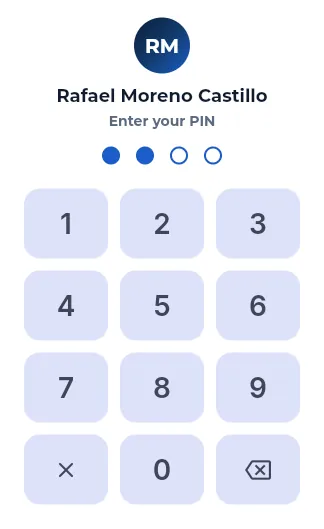 123
123
- 1Who you are identifying and, below, one circle per digit: they fill in as you type.
- 2The keypad: large keys for your finger (the computer keyboard works too). With the fourth digit, you are in.
- 3The ✕ cancels and the arrow deletes the last digit.
How to identify yourself
- Swipe your badge through the tablet's reader, or tap your name (or search for it at the top).
- Type your 4-digit PIN. With the fourth digit you enter your workstation.
In the demo everyone's PIN is 1234; in the shop, each person has their own, which is changed in People. The badge carries a barcode that is also printed from People.
If the PIN is wrong, «Wrong PIN» appears and you go back to the list.
#Your workstation: your machines and their queue
Once in, you see your workstation: on the left, your machines and the queue of the selected one; on the right, your gauges and your day. On entering, the first of your machines that has work and is free is selected automatically.
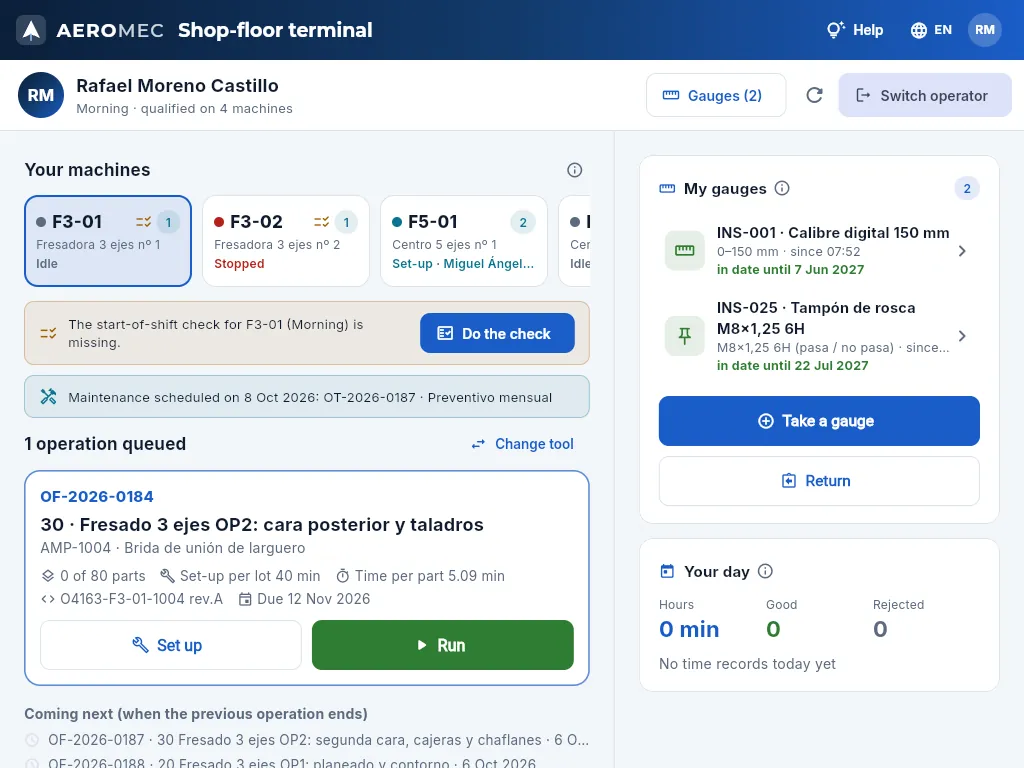 123456789
- 1Who you are, your shift and how many machines you are qualified on.
- 2Gauges (n): the ones you have on loan (in amber if any is due soon).
- 3Switch operator: you leave and the tablet goes back to «Who are you?». The circular arrow to its left refreshes the screen.
- 4Your machines, with their status in colour: idle (grey), running (green), set-up (blue), stopped (red) or maintenance; who is using it and how many operations it has queued. The checklist icon: its start-of-shift check is missing. Tap one to see its queue.
- 5The machine's maintenance notices: the pending start-of-shift check and its scheduled or ongoing maintenance (see below).
- 6The machine's queue, in the order Planning decides. Each operation with its work order (and P1/P2, FAI, rework, paused or days late), the operation, the part, the parts made, the theoretical set-up and cycle times, the CNC program and the due date. The first one, with the blue border, is the one to do. Above it, Change tool; below, the upcoming operations that will reach the machine.
- 7Set up opens a set-up record; Run, a production record (if the machine is already set up).
- 8My gauges: what you have on loan, with its calibration, and the buttons to take and return.
- 9Your day: your hours, good and rejected parts today.
If the machine you choose is not available, the terminal tells you and does not let you start on it:
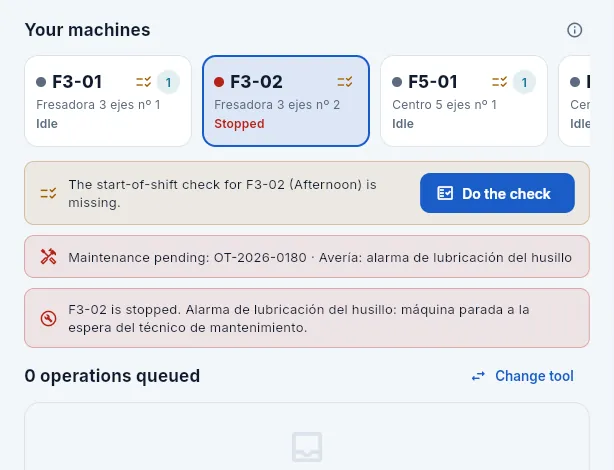 123
123
- 1F3-02, in red: stopped.
- 2The maintenance order that the breakdown opened.
- 3The notice says why it is stopped (the incident or the reason the shop supervisor entered). The buttons are disabled.
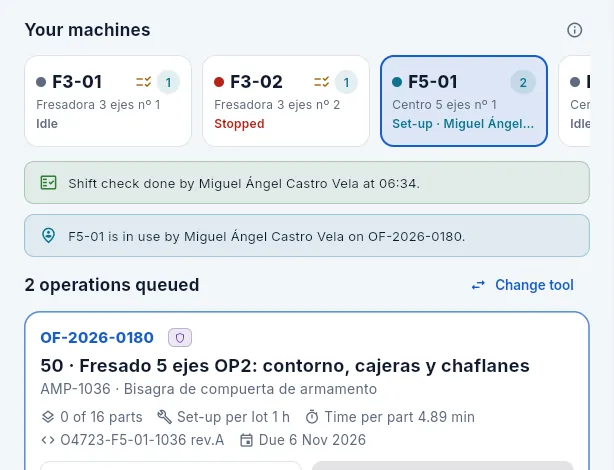 12
12
- 1T-01, in blue: in set-up by a colleague.
- 2Who is using it and with which work order: until they close their record, nobody else can start on it.
#Your qualifications
Some machines require a qualification in force (the 5-axis one on F5-01 and F5-02, for example; it is shown in Work centres). When you identify yourself, the terminal warns you at the top about your qualifications that expire in the next 30 days (in amber) and those that have already expired or been withdrawn (in red), with the machines you cannot work on until they are renewed. With an expired one, the machine still appears in your list, but when you tap Set up, Run or Resume the terminal does not let you start.
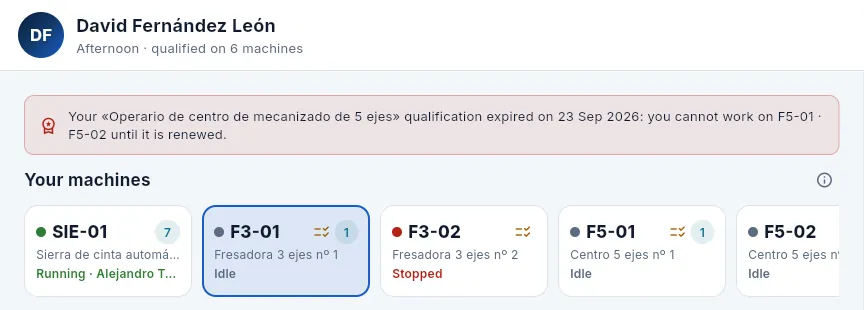 12
12
- 1In red: the expired qualification, since when, and the machines he cannot work on until it is renewed.
- 2F5-01 (and F5-02, to its right) is still in his list, but he cannot start on it.
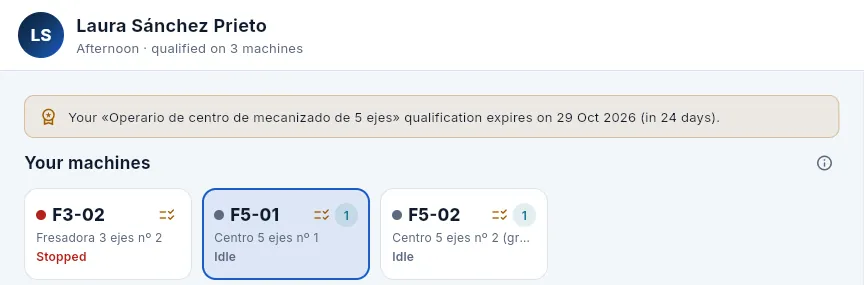 1
1
- 1In amber: it expires in less than 30 days. She can work, but must renew it in time.
If you get the notice, tell your supervisor: the qualification is renewed with a training session or an assessment in Competence & training, and your qualifications are shown in the Competences tab in People.
#Starting an operation
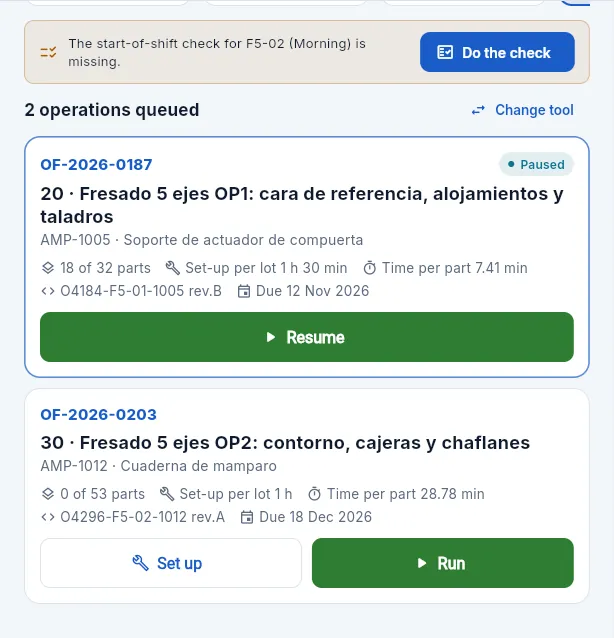 12
12
- 1Set up opens a set-up record for the operation.
- 2Run, a production record, if the machine is already set up. A paused operation (someone started it and left it half-done) only has Resume: it carries on where it stopped.
In Your machines, tap the machine you are going to work on.
In its queue, choose the operation (usually the first, the one with the blue border) and tap Set up if the machine needs setting up, or Run if it is already set up. On a paused operation, Resume; on a rework one, Rework.
If the operation's control plan asks for a gauge you do not have on loan, the terminal asks you (see below).
 123
123
- 1What the operation is measured with, and that you have none on loan.
- 2Continue without: you start anyway (you will use the machine's own gauge or a shared one).
- 3Take a gauge opens the loan with the ones suitable for this operation; then you start.
#Your work in progress
With a record open, the screen focuses on it. In the screenshot, a colleague is setting up an operation on T-01 (the terminal is the same for everyone: each person signs in with their PIN).
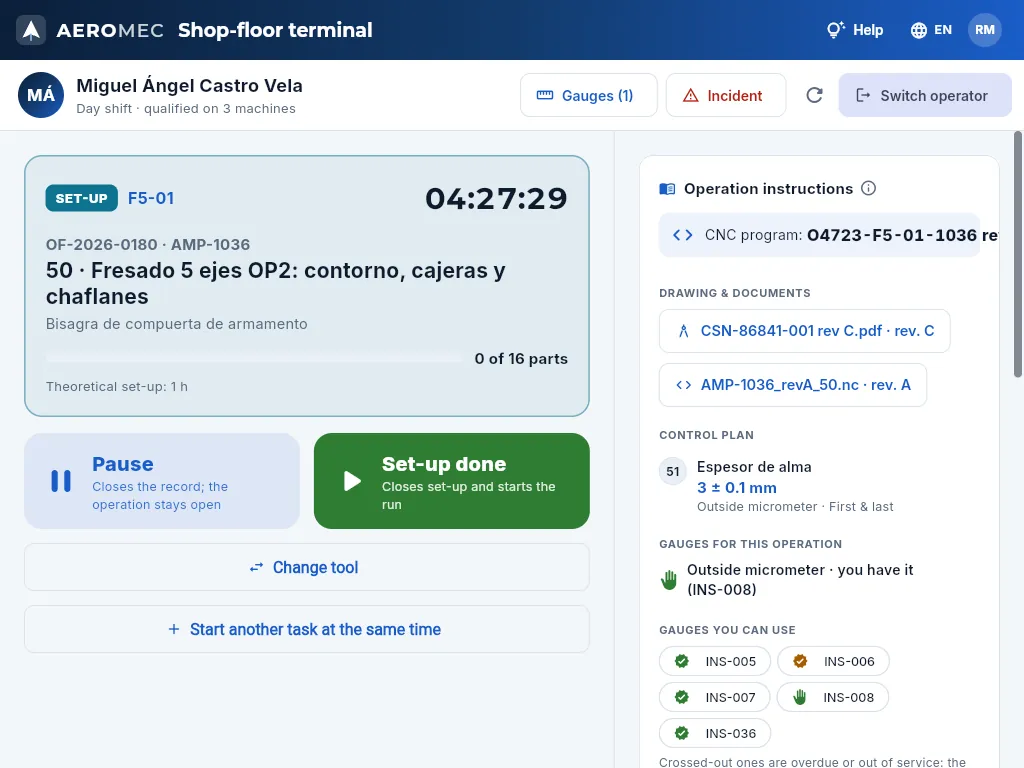 12345678910
- 1The record type in colour (blue, set-up; green, production or rework) and the machine.
- 2The clock: how long the record has been open.
- 3The work order and the part, the operation you are doing and the part's name.
- 4The parts made in the operation against those of the work order and the theoretical set-up time (or cycle time per part, in production): your reference.
- 5Pause: closes the record declaring what was done; the operation is paused so you or someone else can carry on.
- 6Set-up done (in production, Finish operation): the big green button.
- 7Change tool: records the cutter or insert you change (see below).
- 8Start another task at the same time, if you tend another machine while this one is running.
- 9Incident: tells the shop supervisor about a breakdown, a broken tool, missing material…
- 10On the right, the operation's instructions: drawing, CNC program and control plan.
What each button does when you finish:
| Button | When | What happens |
|---|---|---|
| Set-up done | When you finish setting up | Closes the set-up record (usually with 0 parts, or the first one if already approved) and immediately opens the production record, on the same machine and operation. |
| Pause | You move to something else, the shift ends, something is missing | Closes the record declaring the parts made in it (can be 0). The operation is paused: you or a colleague will continue it with Resume. Pausing a set-up just closes it. |
| Finish operation | You have made all the parts of the operation | You declare good and rejected parts. The operation is finished and the next one joins the queue of its machine (or goes to the supplier). If it was the last one, the work order finishes and its good parts go into the warehouse. |
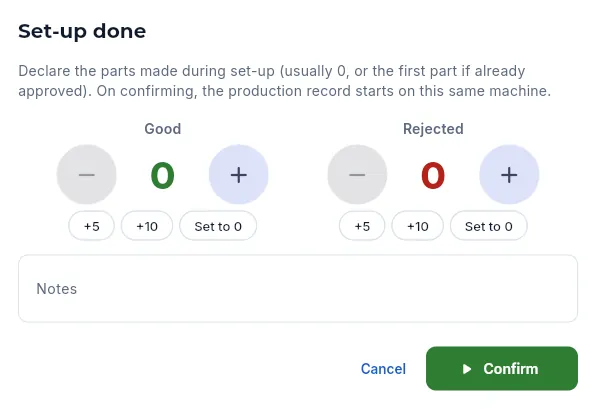 12
12
- 1What will happen on confirming: the set-up closes and production starts.
- 2Confirm closes the set-up and opens the production record.
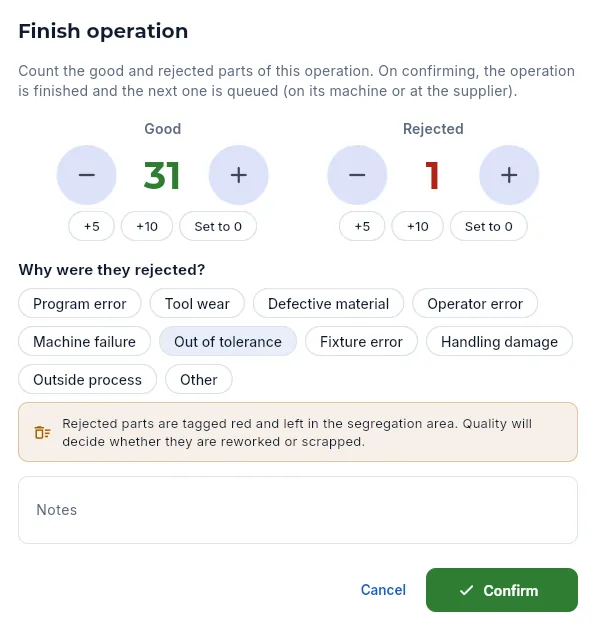 12345
12345
- 1Good: suggests the parts still to make. Change the figure with − and +, «+5», «+10» or «Set to 0».
- 2Rejected: each one you add is taken off the good ones.
- 3With any rejects, the cause is mandatory.
- 4The reminder: red tag and to the segregation area; Quality decides.
- 5Confirm closes the record and finishes the operation.
With the operation in production, tap Finish operation.
Check the good parts the terminal suggests (those still needed to complete the operation) and correct them if necessary.
If a part has come out wrong, add it under Rejected with + (the good count goes down at the same time) and choose why it was rejected: program error, tool wear, defective material, operator error, machine failure, out of tolerance, fixture error, handling damage, outside process or other.
If you like, write a note and tap Confirm.
#Several tasks at once
If you tend two or three machines (for example, setting up the next machine while one runs a long cycle), you can have a task open on each without closing the previous one. How many at once is decided by the company in Settings (with 1, the terminal works one at a time and this button does not appear).
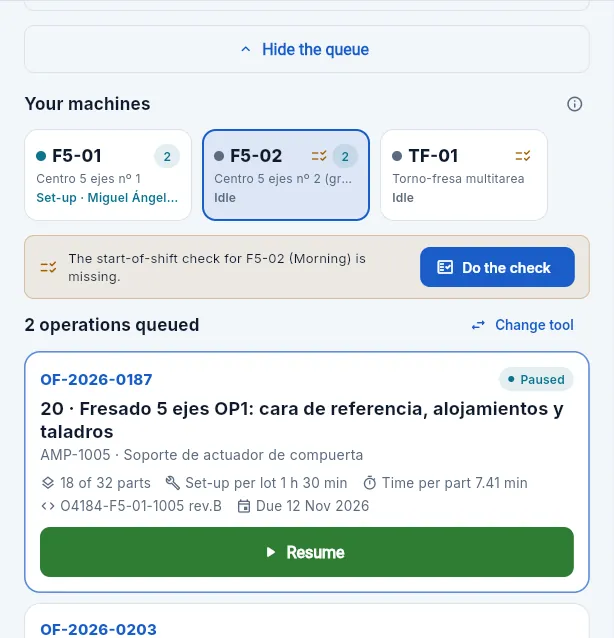 123
123
- 1The button changes to Hide the queue.
- 2Choose the other machine. You cannot start another task on the one where you already have one: one machine, one record.
- 3And start the operation as usual: Set up, Run or Resume. The first task keeps counting.
With two or more tasks open, Your open tasks (2 of 3) appears at the top: one card per task with its machine, its clock and its operation. Tap one to show it large so you can pause or finish it; the selected one shows its instructions on the right. Below the record type, the card reminds you how your time counts («Your time is split between the 2 open tasks: each one adds 1/2 while they stay open»). When you reach the maximum, the terminal asks you to pause or finish one before starting another.
#Instructions, drawing and CNC program
While you work, the right-hand column has everything about the operation, taken from the part's approved routing: the CNC program (the machine's numerical control program), the instructions, the documents and the control plan (which dimensions to measure, with what and how often).
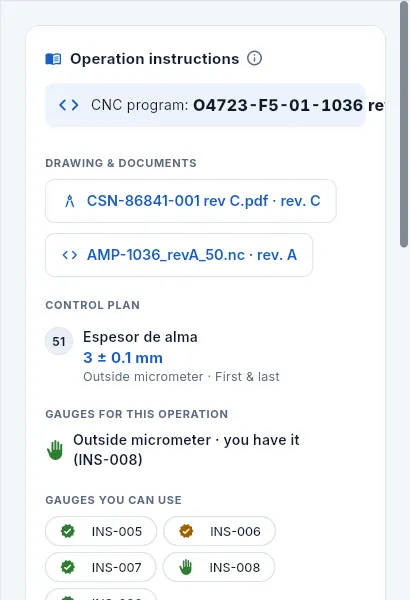 12345
12345
- 1The part's drawing with its revision: tap it to open it full screen.
- 2The operation's CNC program (and, if there are any, the instructions with photos and the work order's documents).
- 3The control plan: each characteristic with its balloon number on the drawing, the nominal size and its tolerance, the gauge and the frequency. Key characteristics (those affecting function or safety) have their balloon in amber.
- 4Gauges for this operation: «you have it (INS-…)» if you already carry one of the type the plan asks for, or «You need: …» with the Take button.
- 5Gauges you can use: those of the type the plan asks for, with their calibration (green in date, amber if due soon); the hand marks the one you have. Crossed-out ones are overdue or out of service: the database will not accept measurements with them.
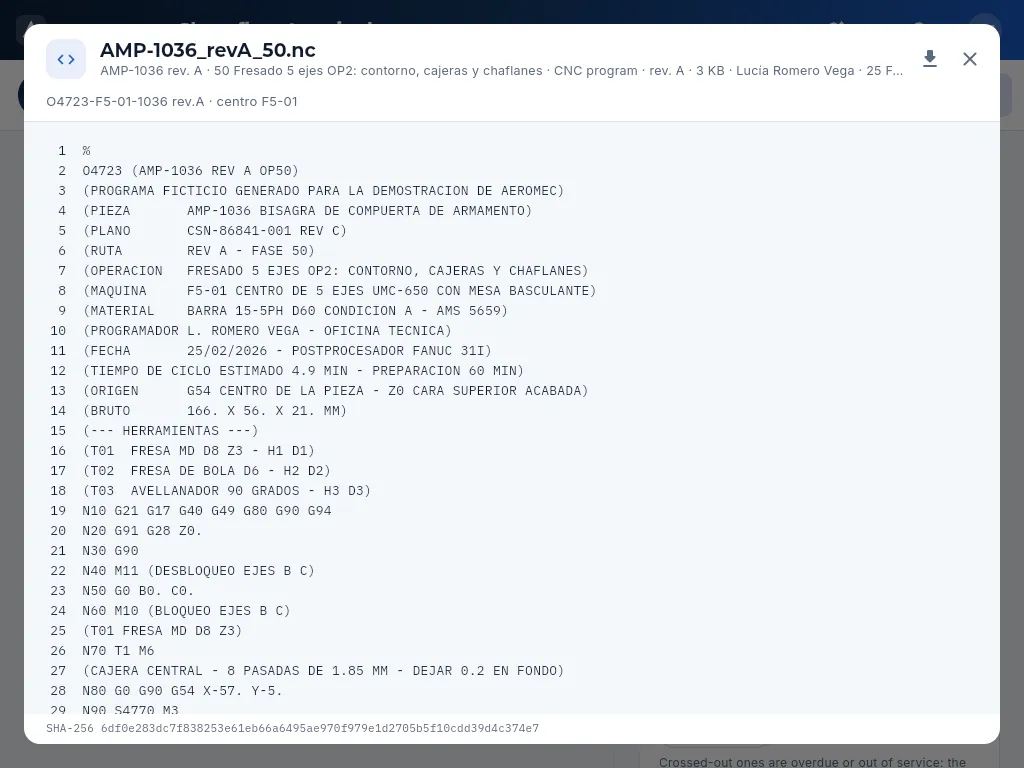 1234
1234
- 1The document: name, what it belongs to (part, routing revision and operation), type, revision, size, who uploaded it and when.
- 2The program, line by line: tools, origin, stock and operations, to check it before setting up. PDFs and images (the drawing, photos) are shown the same way, full screen.
- 3Its SHA-256 fingerprint: it guarantees it is exactly the file that was uploaded.
- 4Download and close.
Only current documents reach the machine: when a new revision of a drawing or a program is issued, the previous one is marked obsolete and disappears from the terminal (it is kept, but can no longer be used by mistake). A new CNC program starts on trial until its programmer validates it with their signature after a conforming first part (Documentation). Until then, its button has an amber border and the On trial label, and a notice below it says that the first part is made with the programmer present and fully measured before continuing.
#Reporting an incident
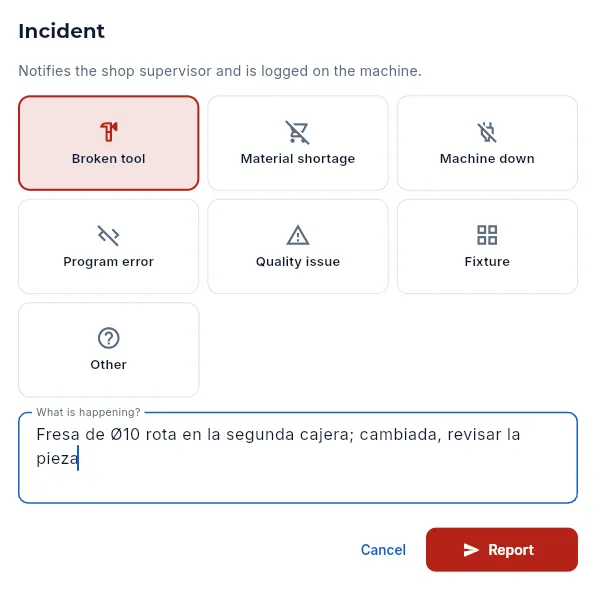 1234
1234
- 1It is logged on the machine (and on the operation, if you have a record open) and the shop supervisor sees it at once.
- 2The type, as large buttons: broken tool, material shortage, machine down, program error, quality issue, fixture or other.
- 3What is happening?, in a few words.
- 4Report sends it.
Tap Incident at the top (on a phone, below the big buttons).
Choose the type and say what is happening in What is happening?.
Tap Report.
#Start-of-shift check and tool change
At the start of the shift, each machine asks for its start-of-shift check (autonomous maintenance): its cards show a checklist icon and, when you choose the machine, the notice with Do the check appears. Below it, the machine's maintenance is also announced: scheduled (the day it will stop), in progress or pending. A machine in maintenance does not let you start operations.
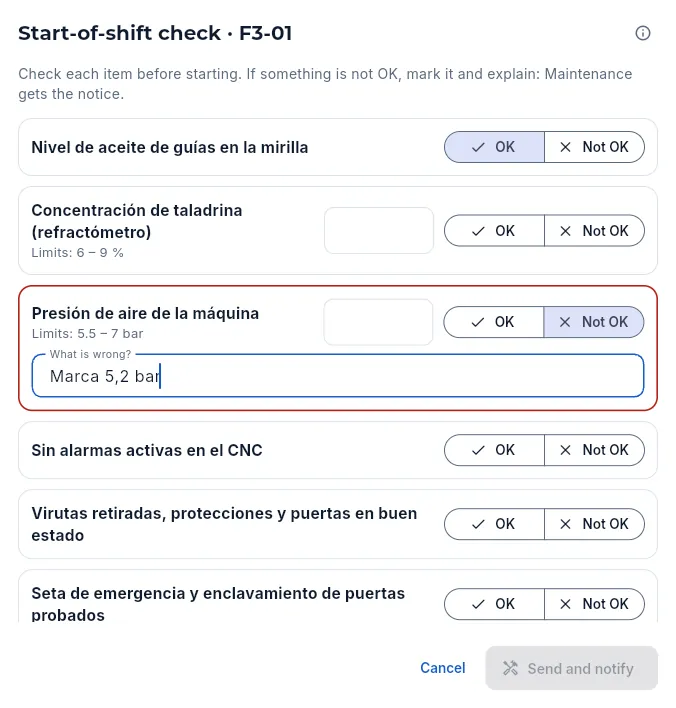 12345
12345
- 1The check items for that machine (Maintenance sets them in its plan).
- 2Each one, OK or Not OK.
- 3If something is not OK, what is wrong (for a measurement, its value).
- 4With something not OK, Maintenance is notified.
- 5Send and notify (or All OK) once they are all marked.
The check is recorded with who did it, when and on which shift (one per machine and shift). If something is not OK, Aeromec opens a notice to Maintenance: a work order with what you have seen, which the maintenance manager sees in Maintenance.
When you change a cutting tool (a cutter, a drill, a tap, an insert), record it with Change tool: it is in the machine's queue and, with an operation running, below the big buttons.
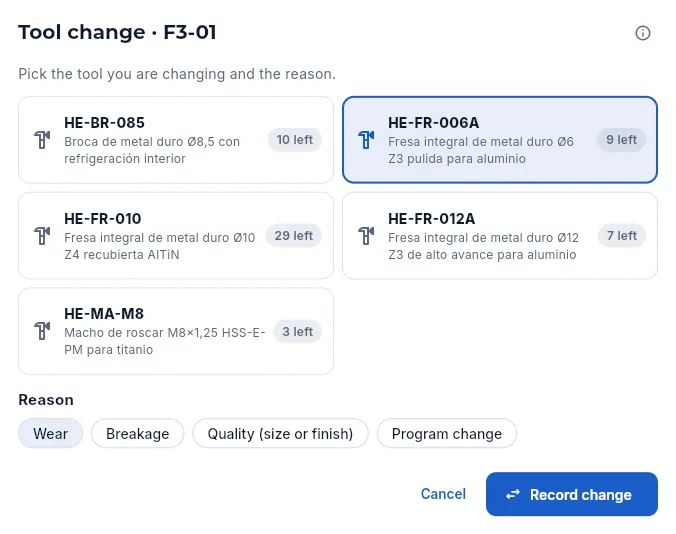 123
123
- 1The tools fitted on that machine, with how many are left in the warehouse.
- 2The reason: wear, breakage, quality (size or finish) or program change.
- 3Record change.
When you record it, one is taken from the warehouse and the time the previous one lasted is kept in machine minutes: that way Maintenance knows the actual life of each tool and when to order before they run out. If the system showed none left, the change is recorded anyway and the Warehouse checks it: the terminal never blocks you because of that.
#Your day
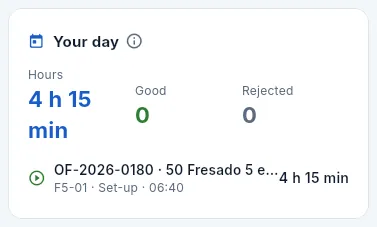 12
12
- 1The hours you have done today (those booked to you), and your good and rejected parts.
- 2Each of today's records: work order and operation, machine, type, start time (and end time) and parts; on the right, its hours. The open one has the green icon and counts until now.
Your day adds up your records today (the open one counts until now) and lists them with their work order, operation, machine, type, times and parts. With several tasks at once and the proportional rule, each record adds your share of the time and the time it spent on the machine is shown below («of 2 h on machine»); those that overlapped with another task say «at the same time as another task». If something does not add up (a record you forgot to close), tell the shop supervisor.
#Taking and returning gauges
The terminal is also the gauge loan kiosk (callipers, micrometers, dial indicators, plug and thread gauges): with the same identification and the same PIN you take a gauge from the cabinet and the system records who has it, since when and for which operation. Bench instruments (the coordinate measuring machine, the profile projector, the hardness tester) are used where they are and are not lent.
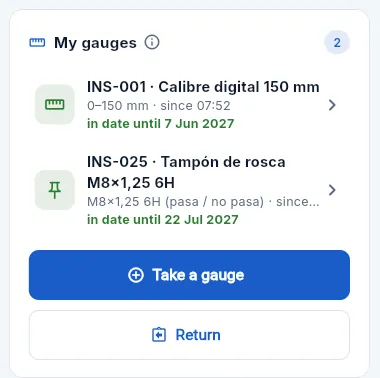 123
123
- 1Each gauge you have: code and name, range, since when you have had it and until when its calibration is in date (amber if it is due in less than 30 days; red, «Return it»). Tap it to return it.
- 2Take a gauge.
- 3Return.
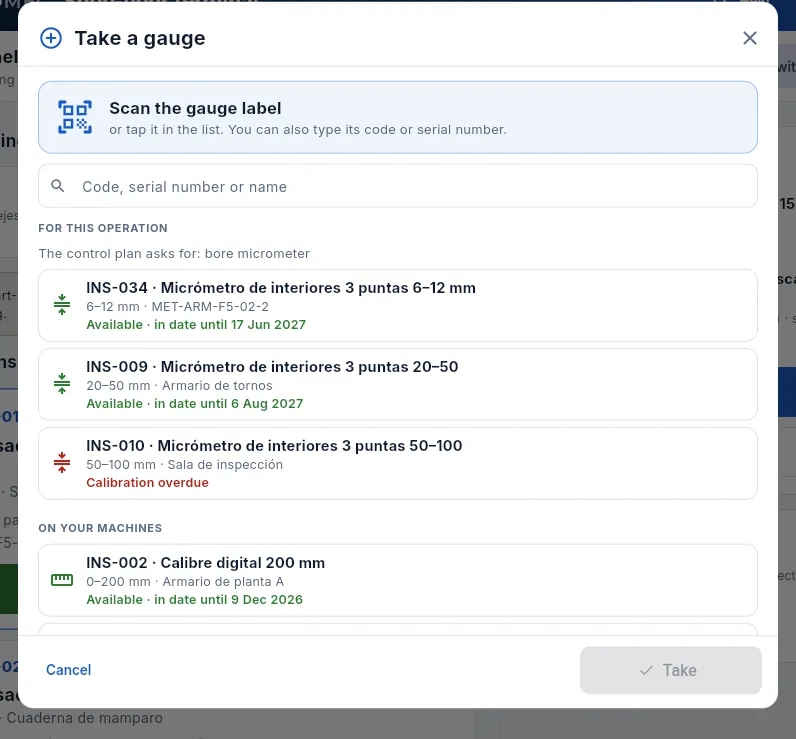 12345
12345
- 1Scan the gauge's label with the reader: it is selected automatically.
- 2Or type its code or its serial number (exact) and press Enter; it also filters the list by name.
- 3For this operation: the types the operation's control plan asks for and the gauges of those types.
- 4Each gauge with its range, its cabinet and whether it is available (green, with its due date), someone else has it (blue) or it cannot be taken (red, with the reason). «ENAC» if its calibration requires it.
- 5When you choose one, its summary appears at the bottom with the Take INS-… button (or Hand it to me).
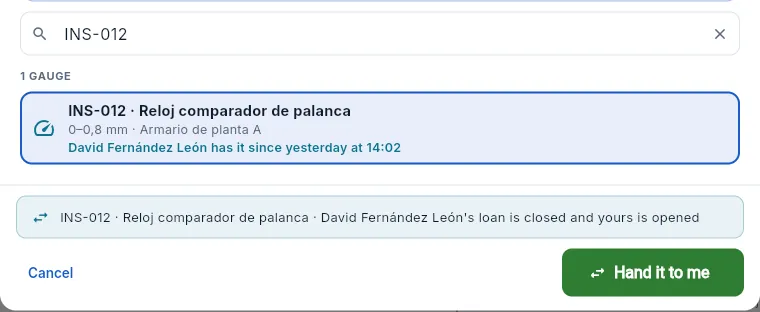 123
123
- 1The gauge: who has it and since when (in blue).
- 2What will happen: their loan is closed and yours is opened.
- 3Hand it to me, without going through Quality.
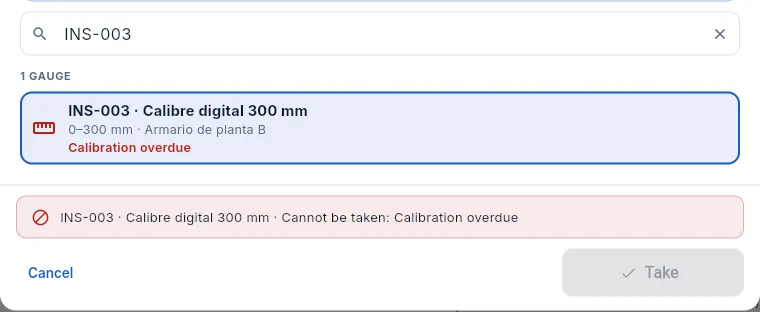 123
123
- 1The gauge, in red, with the reason.
- 2Cannot be taken: here, its calibration is overdue.
- 3The button stays disabled.
On your workstation, tap Take a gauge (or scan the gauge's label directly on the workstation).
Scan it, type its code or tap it in the For this operation or On your machines list (Show the rest shows the others).
If it is available, tap Take INS-…; if a colleague has it, Hand it to me.
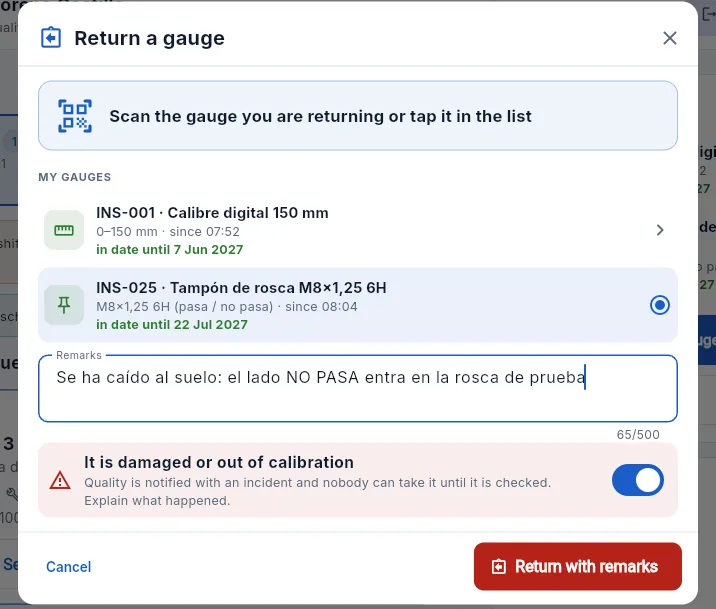 12345
12345
- 1Scan the one you are returning or tap it in the list. You can also return one someone else has (when you scan it, the terminal asks you).
- 2The selected one, marked.
- 3Remarks for Quality: low battery, broken case…
- 4It is damaged or out of calibration: you must explain what is wrong with it.
- 5Return (with remarks) closes the loan.
Tap Return in My gauges (or tap the gauge in the list, or scan it on the workstation).
Choose the one you are returning, if you have several.
If it has been dropped or reads oddly, turn on It is damaged or out of calibration and explain what is wrong in Remarks.
Tap Return.
#Who uses the terminal
 1
1
- 1Leave terminal: back to the rest of the application (only if the profile has other sections).
Production
Shop-floor monitor
The shop's andon: what each machine is doing right now, who is working on it and since when, the parts made this shift and the open incidents to resolve; with a full-screen mode for a shop-floor TV.
The Shop-floor monitor is the shop's andon: a board with one card per machine, painted in the colour of its status right now (running, set-up, stopped, idle or maintenance). It lets you see at a glance which machines are working, which are waiting for an operator and which are stopped, and resolve the incidents that operators report from the shop-floor terminal. It refreshes itself every 30 seconds and can be switched to full screen on a shop-floor TV.
Everything you see comes from the time records open on the terminal: a machine is running or in set-up because someone has a record open on it, and stops being so when they close it.
- 1The operatorOpens a time record or reports an incident on the terminal.
- 2The monitorThe machine changes colour and the incident appears below.
- 3The shop supervisorResolves the incident and writes down what was done.
- 4PlanningIf the stoppage will take long, re-plans in the queues.
#The monitor screen
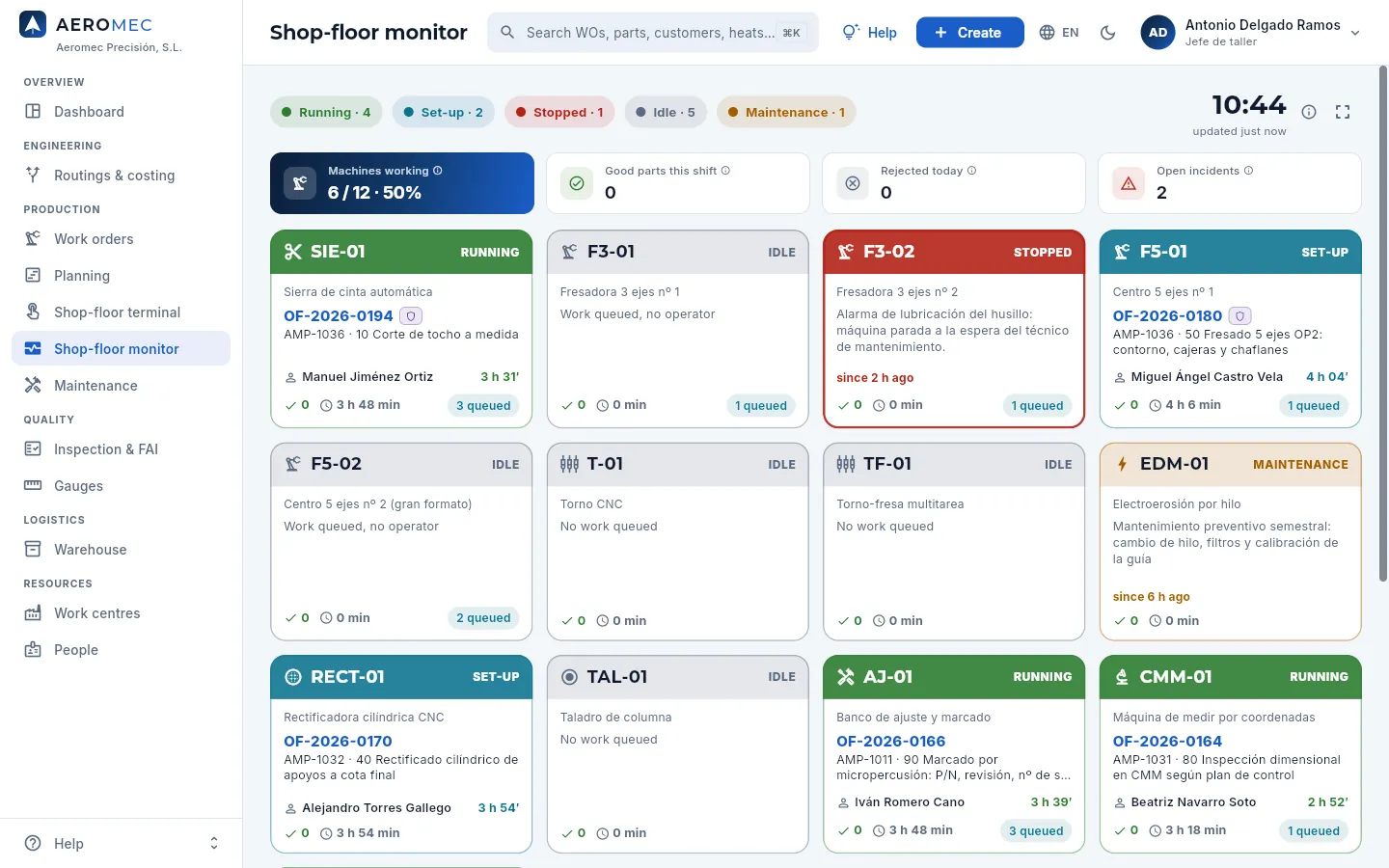 12345678
- 1How many machines are in each status, in its colour: running, set-up, stopped, idle and maintenance.
- 2The time and when it was last refreshed (it refreshes itself every 30 seconds).
- 3Full screen for a shop-floor TV.
- 4Machines working: running or in set-up, out of those available (not counting the ones in maintenance).
- 5Good parts this shift: those declared in the time records closed since the shift started.
- 6Rejected today on all machines.
- 7Open incidents: those reported from the terminal that nobody has resolved yet (the list is at the bottom of the page).
- 8One card per machine, in the colour of its status. Click it to open the work order it is running or, if it has none, the machine's record.
#How to read each card
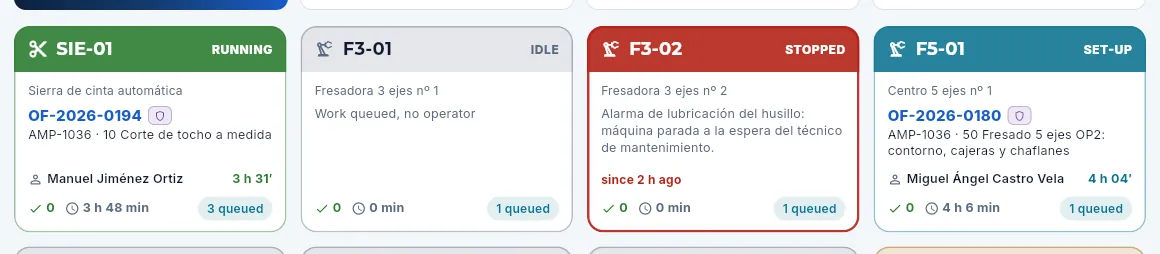 1234567
- 1The header with the machine type, its code and its status: filled with colour if it is working or stopped.
- 2What it is doing: the work order (with the defence badge if it is one), the part and the operation.
- 3Who is working on it and since when the record has been open.
- 4The footer: good parts this shift, rejects today (if any), hours worked today and how many operations it has queued (in amber if more than 5).
- 5Idle with queued work: «Work queued, no operator». This is the first loss to tackle: there is work and nobody at the machine.
- 6Stopped, with a thick border: the reason (the incident or what the shop supervisor entered) and since when.
- 7Set-up: someone is getting it ready for an operation.
| Status | Colour | When |
|---|---|---|
| Running | Green | There is an open production or rework record. |
| Set-up | Blue | There is an open set-up record. |
| Stopped | Red | The machine is flagged as stopped in Work centres, or has an open machine down, broken tool or fixture incident. |
| Idle | Grey | Nobody has a record open on it. If it has queued operations it says «Work queued, no operator»; otherwise, «No work queued». |
| Maintenance | Amber | It is flagged as in maintenance (with its reason). It does not count as available. |
#Resolving incidents
At the bottom of the page are the open incidents: those operators report from the terminal (a breakdown, a broken tool, missing material…) and the gauges returned damaged. They stay open until someone records what was done.
 123
123
- 1How many incidents are open.
- 2Each incident: the machine and the type (with its icon), what the person who reported it said, since when, who and, if they had a record open, the work order and operation.
- 3Resolve closes it with the solution.
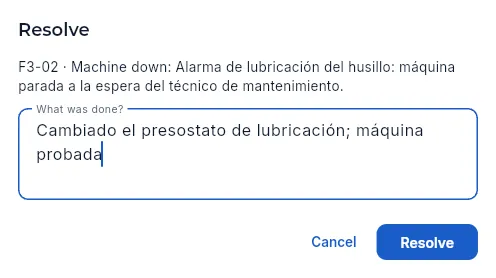 123
123
- 1The incident: machine, type and what the operator said.
- 2What was done? to fix it.
- 3Resolve closes it.
How to resolve an incident
- Scroll down to Open incidents and click Resolve on the one you want to close.
- In What was done?, write the solution («Lubrication pressure switch replaced; machine tested»).
- Click Resolve.
«Incident resolved» appears: it is closed with the solution, the time and who resolved it, and if it had stopped the machine, the andon no longer shows it as stopped.
A damaged gauge incident is reviewed by Quality in Gauges: until then, nobody can take that gauge at the terminal.
#Full screen for the shop-floor TV
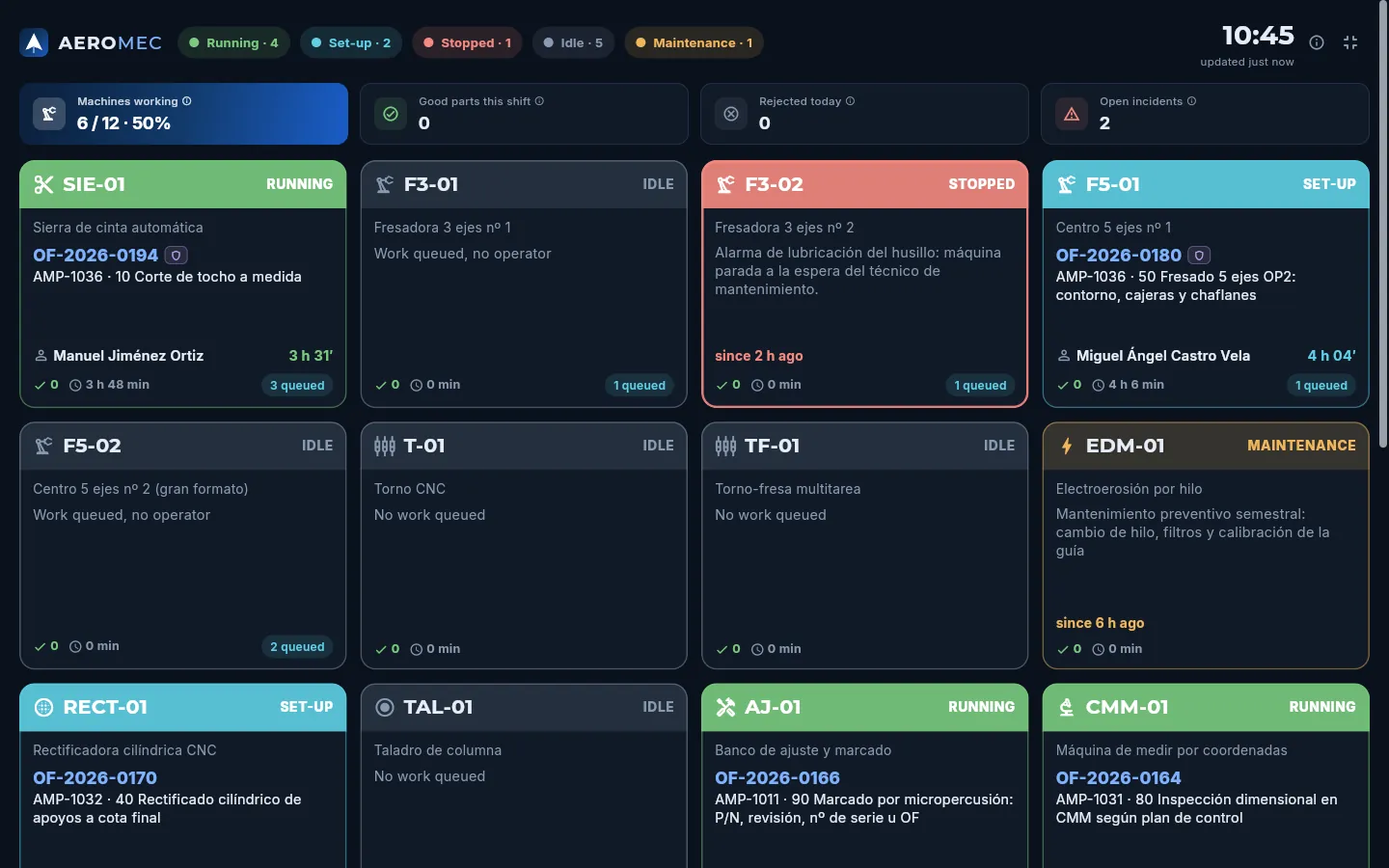 123
123
- 1No menu or sidebar: the logo, the statuses, the time and the indicators.
- 2Bigger cards and text, in dark mode, and no actions (incidents are not resolved from here).
- 3This button (or the Esc key) leaves full screen.
The monitor adapts to the width of the screen: from one column of cards on a phone to five on a very wide screen.
#What each profile sees
 1
1
- 1Without «Edit work orders» or «Book on the shop floor», Resolve does not appear.
Production
Maintenance
Maintenance of the machines and the auxiliary equipment: preventive plans, statutory inspections and geometric verifications; work orders (for breakdowns reported from the terminal, from the plans and the ones you open by hand) scheduled in the slot that pushes out the least load; corrective actions; replenishment of cutters, tools and spare parts based on actual usage and forecast load; and the MTBF, MTTR and availability KPIs.
Maintenance looks after everything the machines need to keep producing: each piece of equipment (the shop's 13 machines and the auxiliary equipment that does not produce but without which the shop stops: the compressor, the overhead crane, the air conditioning of the metrology room, the central coolant system, fire protection and the electrical switchboard) with its maintenance plans and its history, and the work done on it, with its cost.
A plan says what is done, how often and for how long it stops the machine:
- Preventive: lubrication, filters, backlash, coolant… every so many days or every so many machine hours (whichever comes first). Hours are not entered by hand: they come from the time records of the shop-floor terminal, so each machine's hour meter knows how much it has really worked.
- Statutory: the inspections required by law (pressure equipment, lifting equipment, fire protection, electrical installation), usually carried out by an authorised company.
- Verification: the geometric verification of the machine (ISO 230: positioning, straightness, squareness, circularity with the ballbar), which tells you whether it is still machining within tolerance.
- Autonomous: the start-of-shift check the operator does on the terminal (levels, pressure, alarms, guards, emergency stop button).
The work is organised in work orders (OT): those from the plans, those for the breakdowns the operator reports from the terminal and those you open yourself. Each one is scheduled on the day that takes the least load away from the machine, it is carried out (tasks, measurements and spare parts from the warehouse) and it is closed: the machine goes back to producing and its history is kept.
The section has six views: Work orders, Equipment, Schedule, Actions, Tools & spares (replenishment) and KPIs.
- 1PlanEvery N days or N machine hours, with its tasks, measurements and spare parts.
- 2BreakdownThe operator reports it on the terminal: an urgent order is opened.
- 3ScheduleThe day that pushes out the least load; the stop goes into the calendar and the queues.
- 4Carry outTasks, measurements with limits and spare parts taken from the warehouse.
- 5CloseSolution, cause or result, hours and cost: the machine goes back to producing.
- 6Corrective actionWhatever was found wrong is corrected and verified; if it affects parts, an NCR.
#The work orders
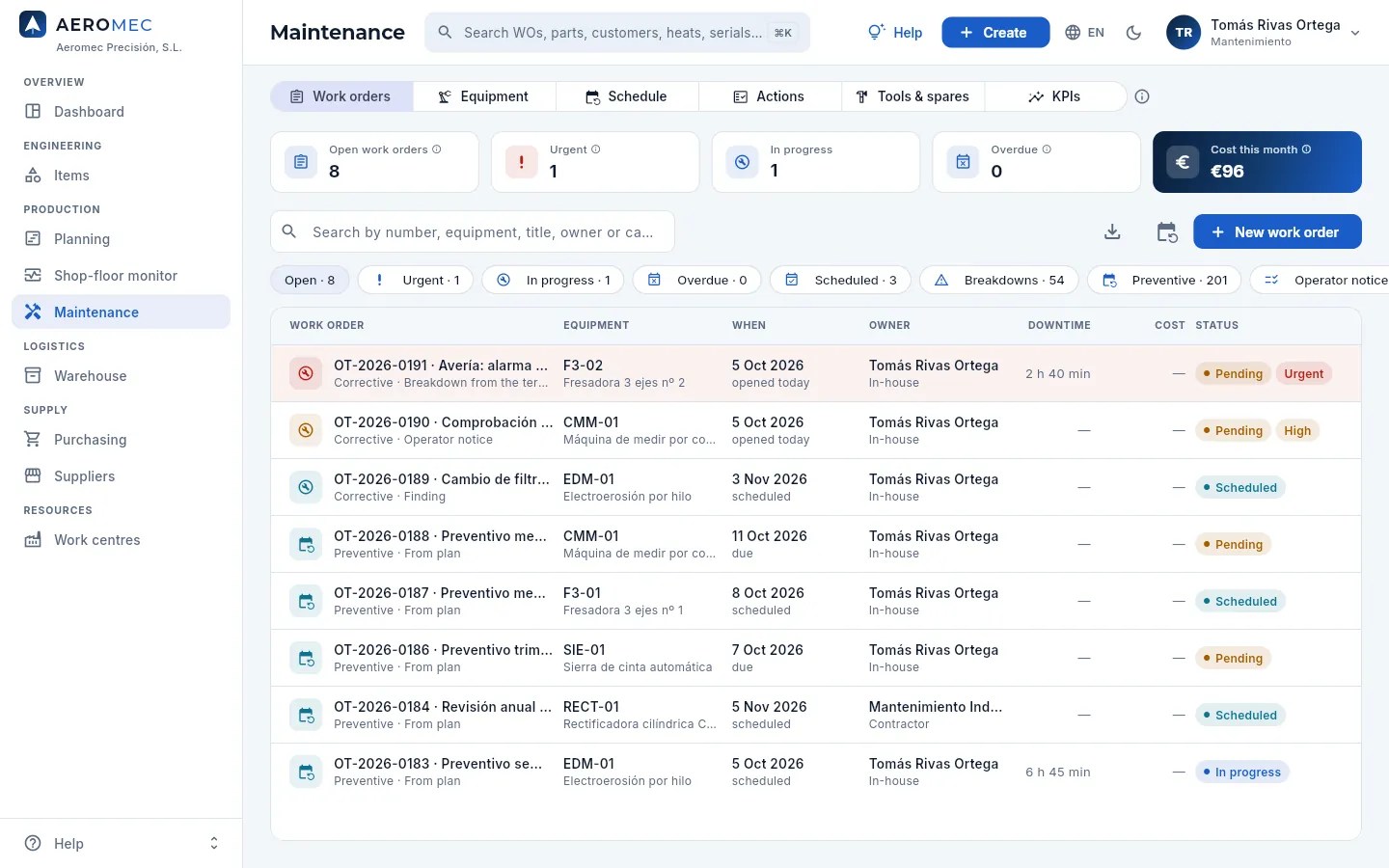 1234567
- 1The six views of the section (Aeromec remembers the last one).
- 2Open, urgent (a machine down), in progress and overdue orders, and the cost this month (with «See costs»).
- 3Generate plan orders: creates the orders for the plans that are due.
- 4New work order: a breakdown, a check or an improvement outside the plan.
- 5The filters: open, urgent, in progress, overdue, scheduled, breakdowns, preventive, operator notices and closed (swipe to see them all).
- 6The breakdown the operator reported from the terminal this morning: in red, urgent and counting downtime hours.
- 7Downtime: how long the machine has been (or was) down because of the order; then the cost and the status.
Each row shows the number (OT-…) and the title, the type (preventive, corrective, statutory, verification or improvement) and its origin (from plan, breakdown from the terminal, operator notice, finding or manual); the equipment; when (the due date or the scheduled one; «due» in amber if it has no day yet); the owner and who does it (in-house or a contractor); the downtime hours; the cost and the status:
| Status | What it means |
|---|---|
| Pending | Created, with no day: it needs scheduling |
| Scheduled | It has a day; if it stops the machine, the stop is already in the machine's calendar |
| In progress | Being done: the machine is in maintenance (or down, if it is a breakdown) |
| Closed | Done, with its solution, its hours and its cost |
| Cancelled | Not done (with the reason) |
Priority goes from urgent (a machine down) to low; an urgent or overdue order shows in red.
#Dealing with a breakdown
When an operator reports a machine down on the terminal (Shop-floor terminal, Incident), Aeromec automatically opens an urgent corrective order for that machine (if it already has an open breakdown, it does not open another one). The machine shows as down on the Shop-floor monitor and in the Planning queues until the order is closed.
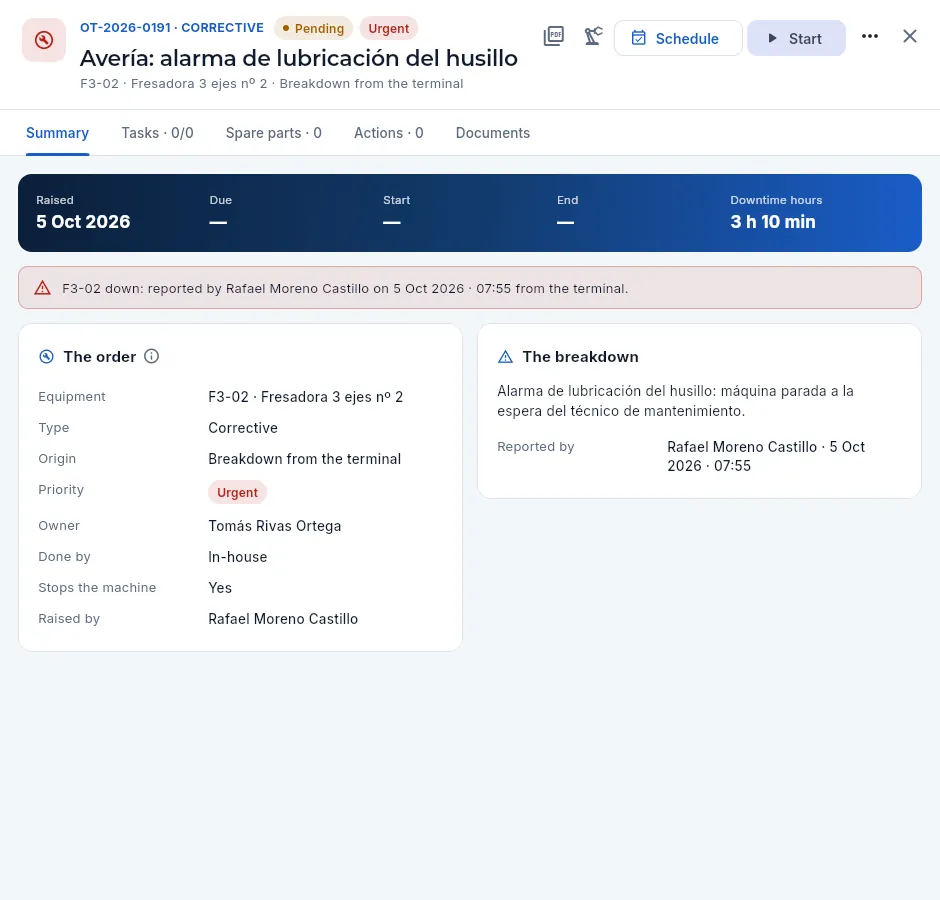 12345678
- 1The number, type, status and priority; below, the equipment and the origin.
- 2The work order PDF for the technician: tasks with tick boxes, measurements with their limits, spare parts and signature.
- 3Opens the equipment record.
- 4Schedule: choose the day (see below).
- 5Start: the order goes to in progress in your name and the machine to down (or to maintenance, for preventive work).
- 6Raised, due, start, end and the downtime hours (for a breakdown, since it was reported).
- 7Who reported it from the terminal and when.
- 8What the operator wrote.
Open the urgent order (at the top of the list, in red) and click Start when you get to the machine.
In Tasks, note what you check; in Spare parts, what you use from the warehouse.
Click Close order and write the solution and the cause (wear, lubrication, electrical, electronics, hydraulic, pneumatic, mechanical, cooling, software, misuse or other) and your hours.
#Carrying out and closing an order
Orders from a plan come with their tasks and their planned spare parts. Tick them off as you go: that way anyone can see how it is going and the work order PDF comes out with what has been done.
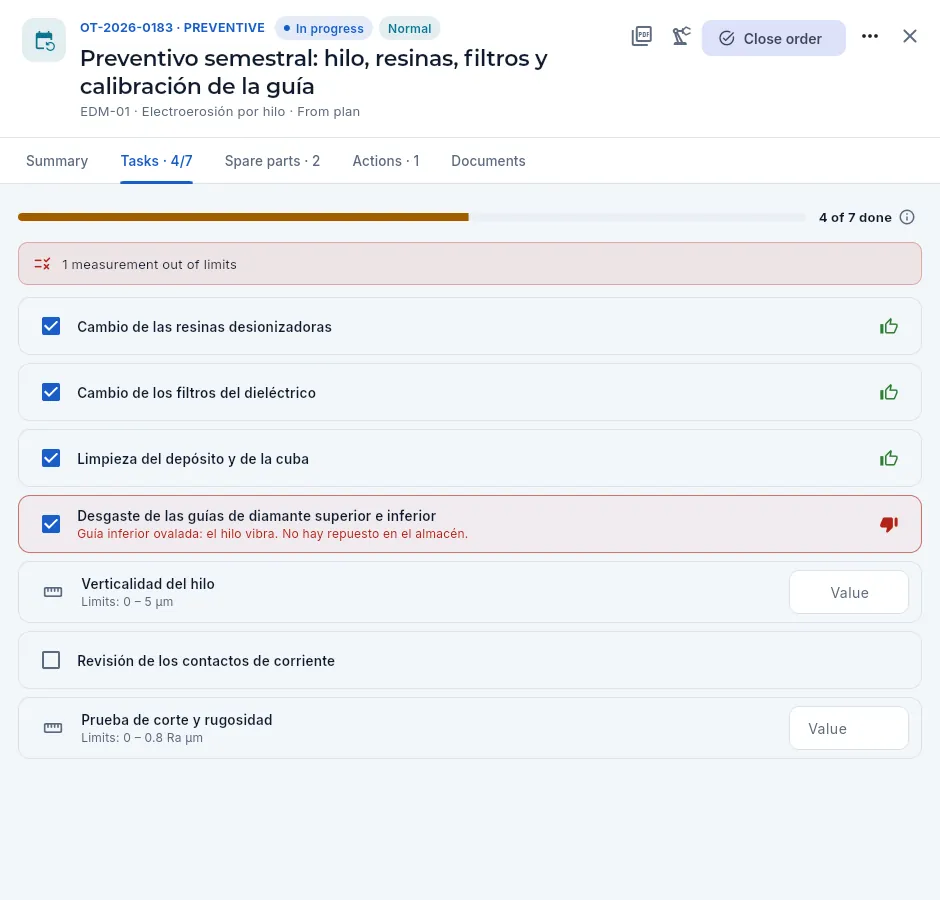 12345
12345
- 1How many are done out of how many.
- 2Warning of measurements out of limits.
- 3A done task: its box ticked and, on the right, whether it was OK.
- 4A task marked not OK, with its note: a corrective action comes from here.
- 5A measurement with its limits: type the value; out of limits it shows in red and counts as not OK.
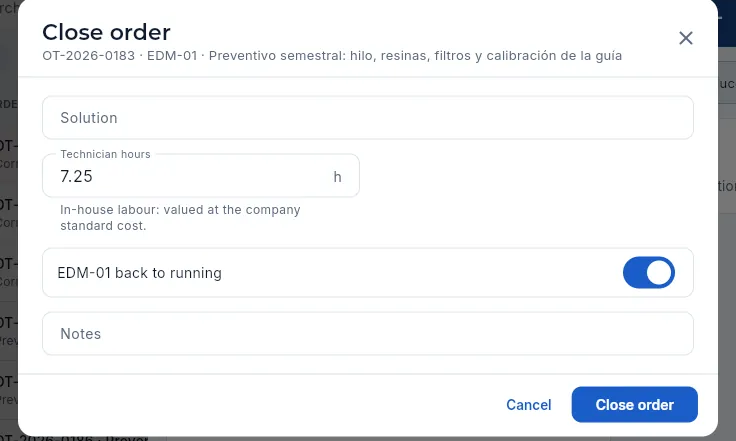 1234
1234
- 1Solution: what has been done (required for a breakdown).
- 2Technician hours: valued at the company's labour cost.
- 3Whether the machine goes back to running (untick it if it stays down waiting for something).
- 4Close order.
Depending on the type, closing asks for more: for a breakdown, the cause; for a statutory inspection or a verification, the result (Pass, Pass with remarks or Fail); and for an order done by an outside company, its cost (with «See costs»). In Spare parts, each spare part you add is taken from warehouse stock at its cost (and goes back if you remove it while the order is open); Actions gathers the corrective actions opened from the order and Documents, the service company's report, the inspection certificate or the photos.
#Scheduling a stop in the best slot
Stopping a machine to maintain it takes hours away from its WOs. Schedule shows, for each day of the next three weeks, how much work would be delayed and suggests the best one.
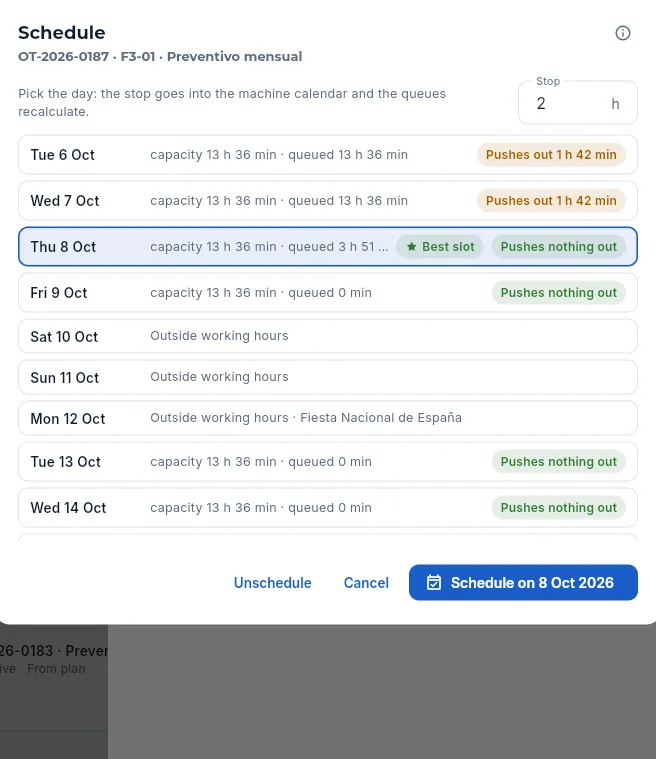 123456
- 1The stop hours (the plan's; you can change them).
- 2A day with a full queue: stopping the machine would push out that work.
- 3The best slot: the working day that pushes out the least load (and the earliest). It comes preselected.
- 4Weekends and holidays: they push out nothing, but they would mean overtime for the technician.
- 5Unschedule: the order goes back to pending and its stop is removed from the calendar.
- 6Schedule on the chosen day.
#The equipment
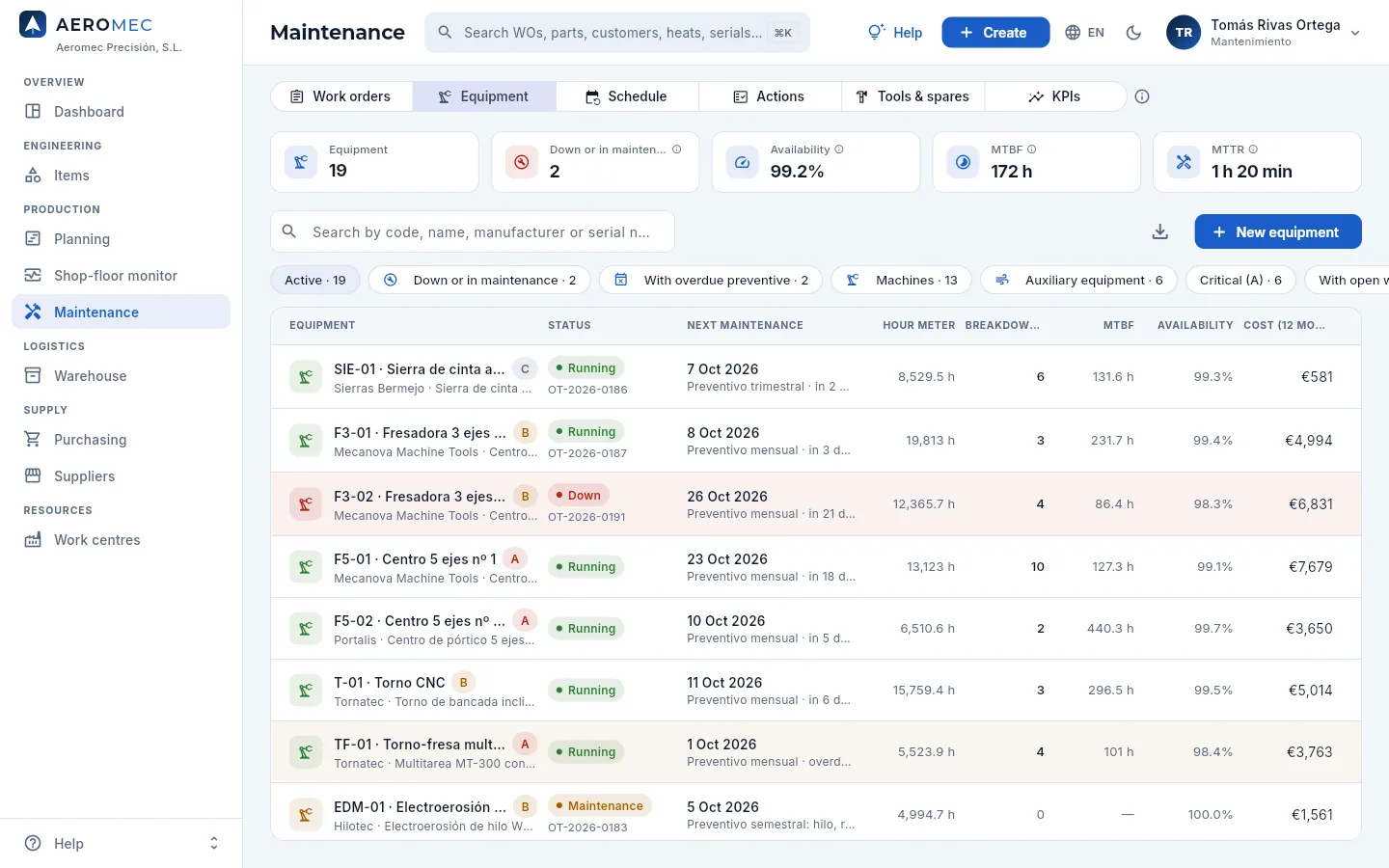 123456
- 1Equipment, down or in maintenance and, over the last 12 months, availability, MTBF and MTTR.
- 2New equipment: an auxiliary item (machines are equipment from the moment they are created in Work centres).
- 3Filters: down, with overdue preventive, machines, auxiliary, critical, with an open work order or with open actions.
- 4F3-02, down because of the breakdown. The letter is its criticality: A (without it production stops), B or C.
- 5The next maintenance from its plans and its open order.
- 6The machine's hour meter (the hours from its time records); then breakdowns, MTBF, availability and 12-month cost.
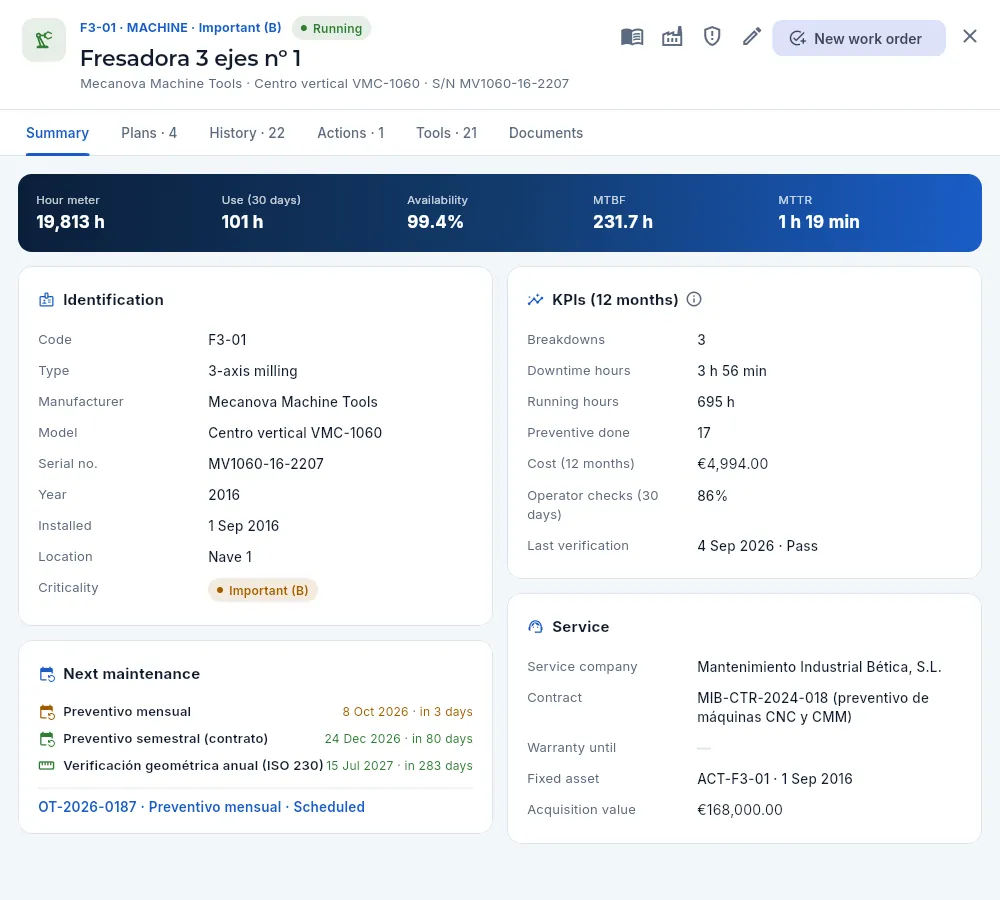 12345678
- 1Code, type, criticality and status; below, manufacturer, model and serial no.
- 2The maintenance log as a PDF: the record, the plans and the whole history, for an audit.
- 3Its work centre (capacity, calendar, people).
- 4The impact of its last failed verification (see below).
- 5New work order for this equipment.
- 6Hour meter, use over 30 days, and 12-month availability, MTBF and MTTR.
- 7Breakdowns, downtime and running hours, preventive work done, cost, shift check compliance and last verification.
- 8What is next for each plan, with its order.
The other tabs: Plans (each plan with its frequency, the last time and the next; New plan, and Create order to bring one forward), History (all its orders, with their cost), Actions (its corrective actions), Tools (the tool changes from the terminal, with the actual life of each tool) and Documents (manual, diagrams, inspection certificates). Auxiliary equipment has its own status; a machine's is that of its work centre.
#The schedule: what is due and when
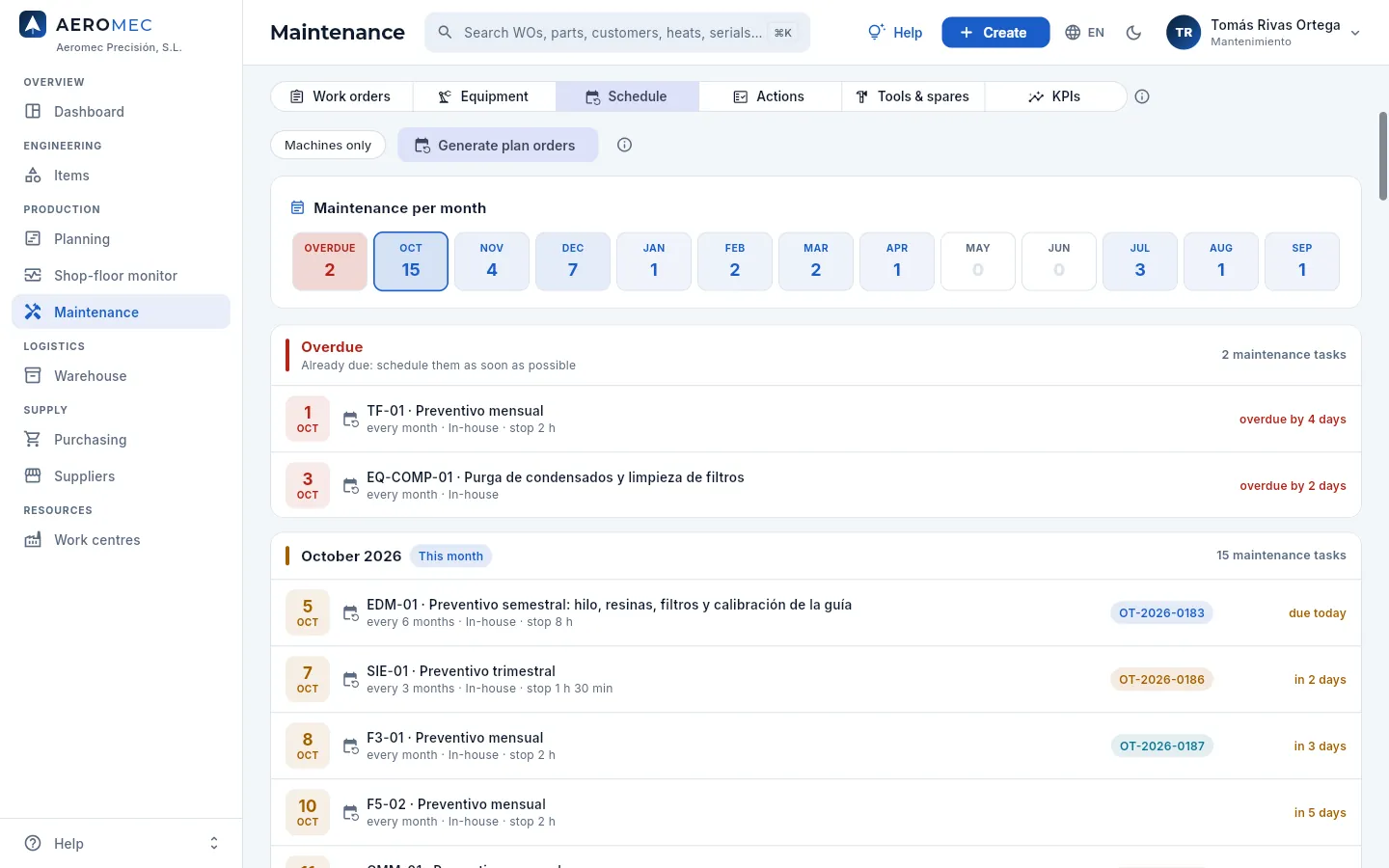 12345
12345
- 1Machines only (without the auxiliary equipment).
- 2Generate plan orders: those for the next 14 days and the overdue ones that do not have an order yet.
- 3How many maintenance tasks are overdue and how many fall in each of the next 12 months; click a month to go to it.
- 4The overdue ones: they were already due. Schedule them as soon as possible.
- 5Each one with its frequency, who does it, the stop and its order (if it has one).
#A failed verification
If a geometric verification fails, the machine has been machining out of tolerance for an unknown length of time. When you close it with that result, Aeromec offers to show its impact and to open the corrective action. The impact is also in the equipment record (the shield button).
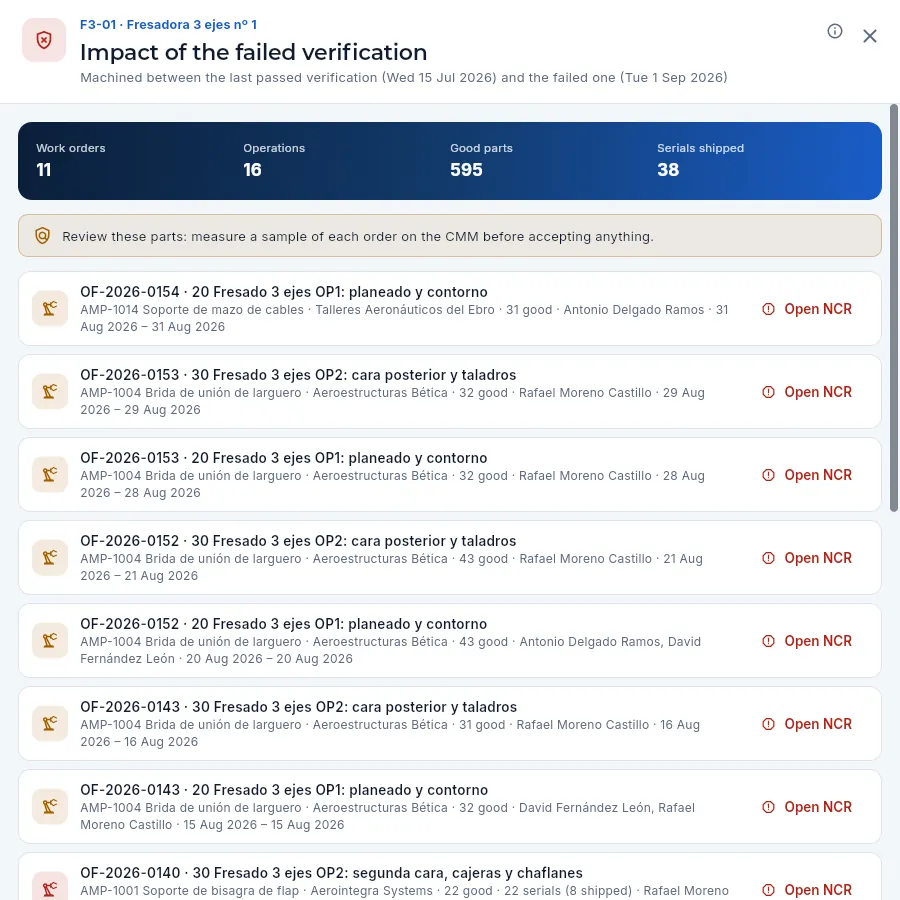 12345
12345
- 1The period: from the last passed verification to the failed one.
- 2The WOs, the operations, the good parts and the serials already shipped.
- 3What to do: measure a sample from each WO before accepting anything.
- 4Each machined operation: WO, part, customer, good parts, serials, who and when. Click it to open the WO.
- 5Open NCR: the nonconformance for that WO, already filled in (with «Edit quality»).
#Corrective actions
A corrective action (MC-…) is what is done to correct something that has been found wrong: in an inspection, in a verification, in a recurring breakdown, in the operator's check or in an audit. It has an owner, a due date and, once done, a check of its effectiveness.
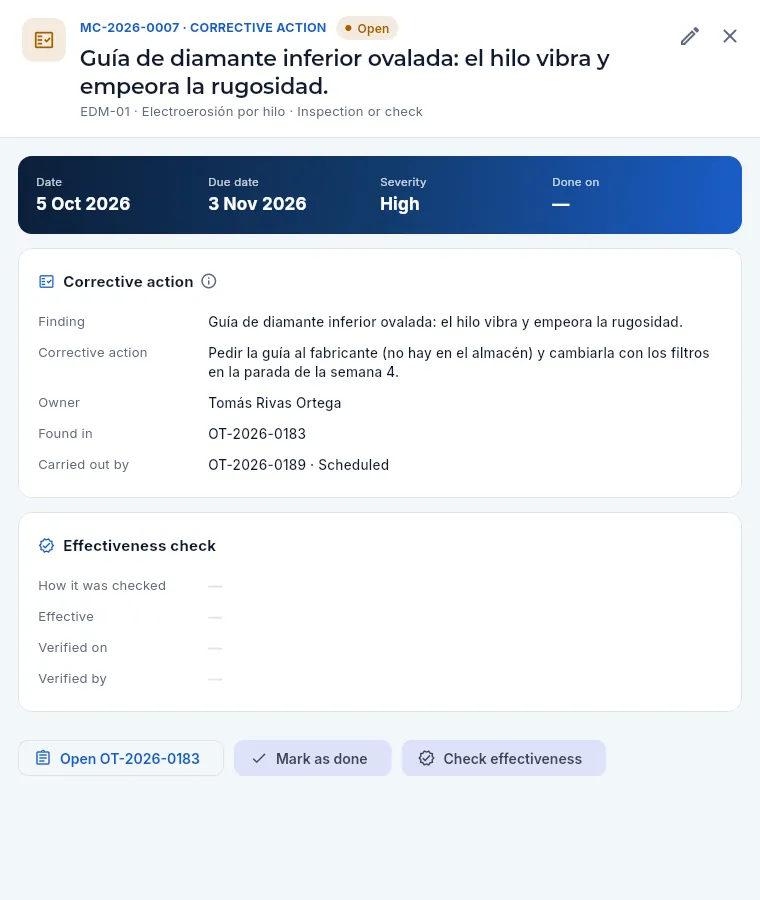 12345
12345
- 1The number and the status; below, the finding, the equipment and its origin.
- 2Date, due date, severity and when it was done.
- 3The finding, the action, the owner, the order where it was found and the one that carries it out.
- 4The effectiveness check: how it was confirmed that it works, whether it was effective, when and by whom.
- 5Mark as done and, later, Check effectiveness.
Create it from the order where the problem was found (Actions tab) or with New corrective action: finding, action, severity, owner and due date.
If work is needed on the machine, Create the order to carry it out (it stays linked).
When it is done, Mark as done.
After a while, Check effectiveness: how it was checked and whether it was effective. If it was not, the action goes back to in progress.
#Tools and spare parts: never run out
The cutters, drills, taps and inserts of the CNC machines wear out every day, and a missing spare part leaves a machine down. The Tools & spares view keeps an eye on the replenishment of cutting tools, spare parts and consumables (oils, grease, EDM wire, coolant) using two figures: actual usage and the machines' forecast load.
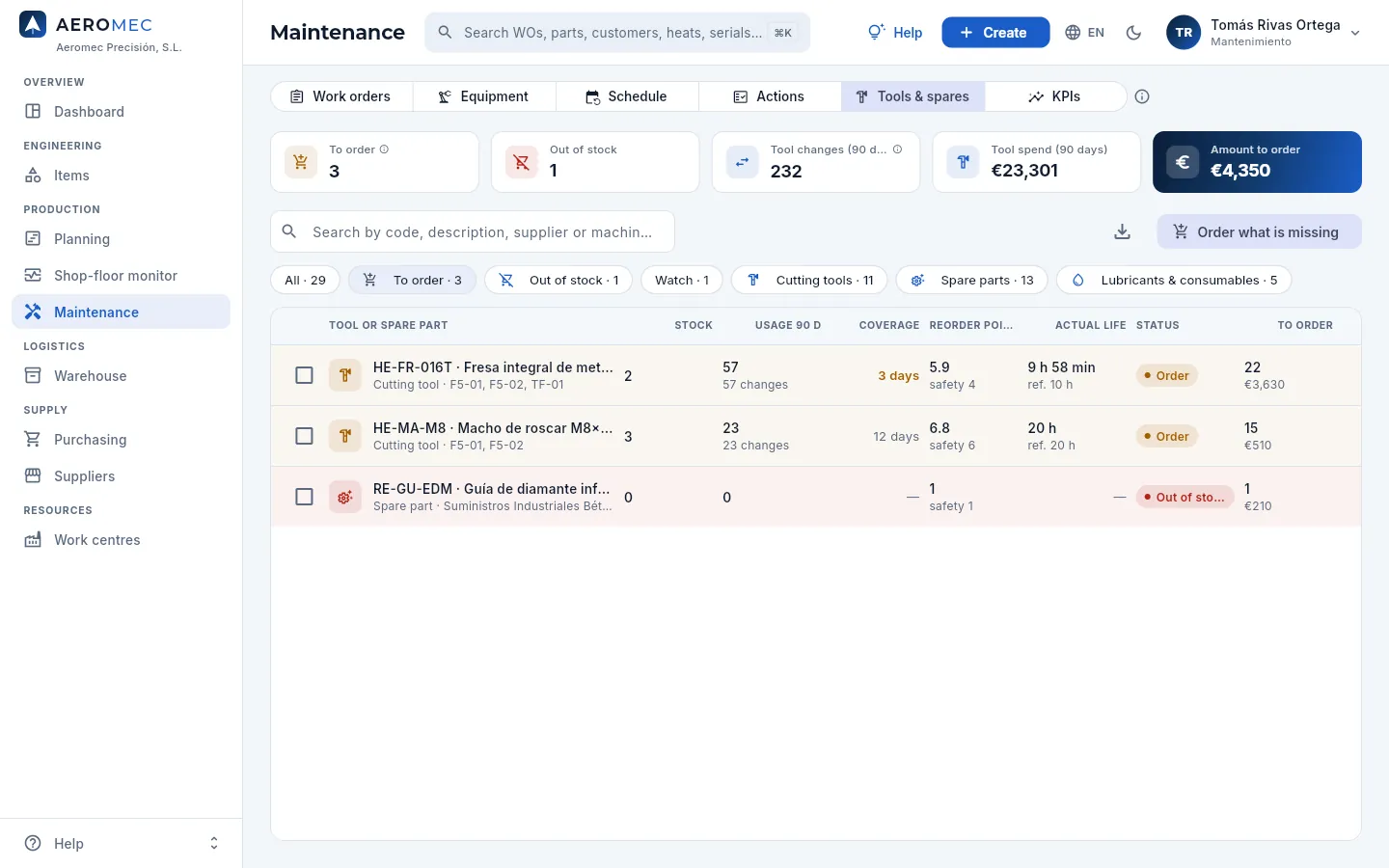 1234567
- 1How many need ordering and how many are out of stock, the tool changes over 90 days, the tool spend and the amount to order (amounts with «See costs»).
- 2Order what is missing: the purchase orders in one click.
- 3Filters by status (to order, out of stock, watch) and by type: cutting tools, spare parts, lubricants and consumables.
- 4Coverage: how many days the stock will last at the current rate of usage.
- 5Reorder point: below it, you must order so that it arrives in time.
- 6Actual life of the tool (from the changes on the terminal) against the reference life.
- 7A tap for titanium: with the load on F5-01 and F5-02, it has to be ordered now.
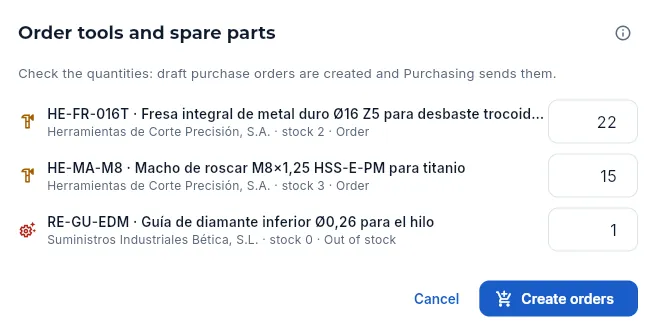 123
123
- 1Draft purchase orders are created: Purchasing reviews them and sends them.
- 2Each item with its supplier, its stock and the suggested quantity (you can change it).
- 3Create orders: one per supplier, with its price list and its lead time.
Click an item to see its usage and its changes, and to adjust its reference life (machine minutes), the machines or equipment it is fitted on (this is what the terminal offers when a tool is changed) and its safety stock: with a safety stock, MRP also replenishes it. Spare parts orders are posted to the other supplies account, like tool orders (Purchasing).
#The KPIs
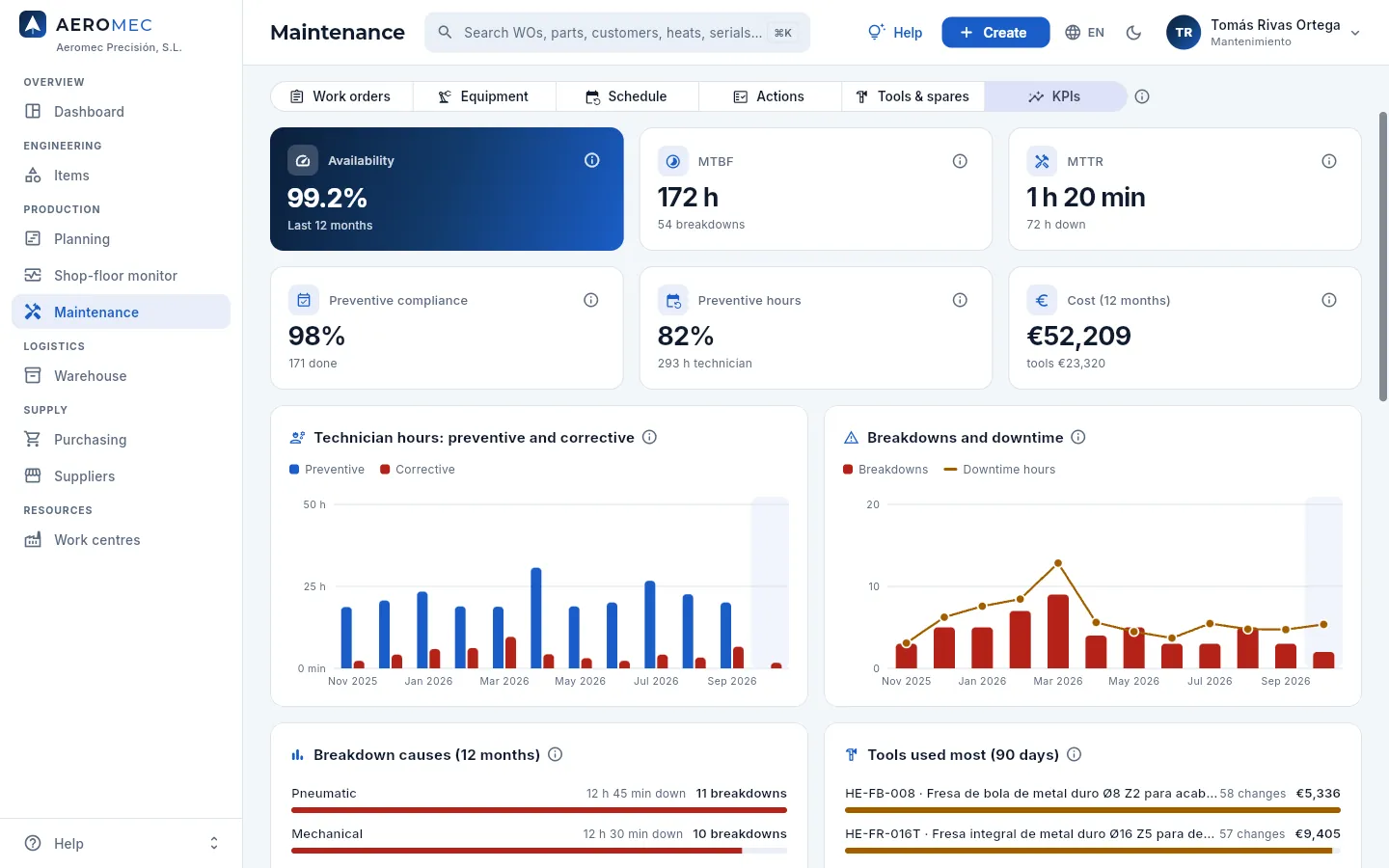 1234567
- 1Availability: the time the machines were able to work over the total (excluding breakdowns).
- 2MTBF: running hours between breakdowns. The higher, the better.
- 3MTTR: mean time to repair. The lower, the better.
- 4Preventive compliance: the ones done on time over the ones done.
- 5% of hours on preventive against corrective: planned work against unplanned work.
- 6Cost of maintenance and of tools (with «See costs»).
- 7The causes of breakdowns (Pareto) and, on the right, the tools used most.
#Maintenance in the rest of Aeromec
- Shop-floor terminal: each machine's start-of-shift check (an anomaly opens a notice to Maintenance) and the tool change (the tool is taken from the warehouse and its actual life is recorded); the operator sees the scheduled or in-progress maintenance of their machine, and a machine in maintenance does not allow operations to be started.
- Planning: a scheduled stop takes capacity away from the machine in its calendar and the queues take it into account.
- Shop-floor monitor: the machines that are down or in maintenance.
- Dashboard: the Maintenance block (machines down, urgent breakdowns, overdue plans, actions past due, tools to order, availability, MTBF and MTTR).
- Work centres: the Maintenance button opens the machine's equipment record.
- Purchasing: orders of type spare parts; Items: the spare part type, tool life and which machines each tool is fitted on.
- Claude: «What maintenance is due this week?», «schedule F3-01's preventive maintenance in the best slot», «order the cutters we are missing».
Quality
Inspection & FAI
Receiving, in-process and final inspections with their measurements characteristic by characteristic and their electronic signature, the first article inspection (FAI) to EN 9102 / AS9102 with its forms and its signed release, the capability of each process (Cp/Cpk) with its control chart, the inspection stamps with the integrity check of everything signed, and foreign object (FOD) prevention.
Inspection & FAI holds everything that is measured in the shop and the decision taken on it. There are five views:
- Inspections: every inspection recorded —receiving of material, in-process on a work order operation and final before shipping— with its measurements, its result and the signature of whoever performed it.
- FAI (first article): the first article inspection (FAI) of every new part, every new revision of its drawing or every change that affects it, with the forms of the EN 9102 / AS9102 standard and the signature that releases the part for series production.
- Capability Cp/Cpk: using all the measurements of a characteristic, whether the process makes it within tolerance with margin to spare or is drifting towards a limit, and its control chart.
- Stamps & signatures: each person's inspection stamps (what they may sign) and the check that nothing signed has changed.
- FOD: foreign object prevention (Foreign Object Debris/Damage): the shop areas and their inspections.
Measurements are taken against the routing's control plan: the list of drawing characteristics to be checked at each operation, each with its balloon number (the number it carries on the drawing), its nominal value and tolerances, and the type of gauge used to measure it (see Routings & costing). Aeromec compares each value with its limits as you type and, since every measurement stores the gauge it was taken with, it does not accept measurements with an overdue or out-of-service gauge (see Gauges).
Whatever inspects or releases product is signed: recording an inspection, releasing or rejecting a lot at receiving and approving or rejecting an FAI ask for your password and an inspection stamp with that scope (The electronic signature). Signed records can no longer be changed or deleted: a mistake is corrected with a reason and another signature.
#Where inspection happens: from receiving to shipping
- 1ReceiptReceived material waits in quarantine until Quality validates its 3.1 certificate, the heat and, where needed, the hardness, and releases it with their signature.
- 2In-processOn operations with a control plan, their characteristics are measured with an in-date gauge, and signed.
- 3FAIThe first piece of a new part, a new drawing revision or a change that affects it is measured (EN 9102 / AS9102) and released with a signature.
- 4FinalThe final inspection of the lot before shipping it; for a critical part, essential for it to ship.
- 5ShippingThe delivery note and the certificate of conformity (CoC) are only issued if the part's FAI is approved.
#The inspection list
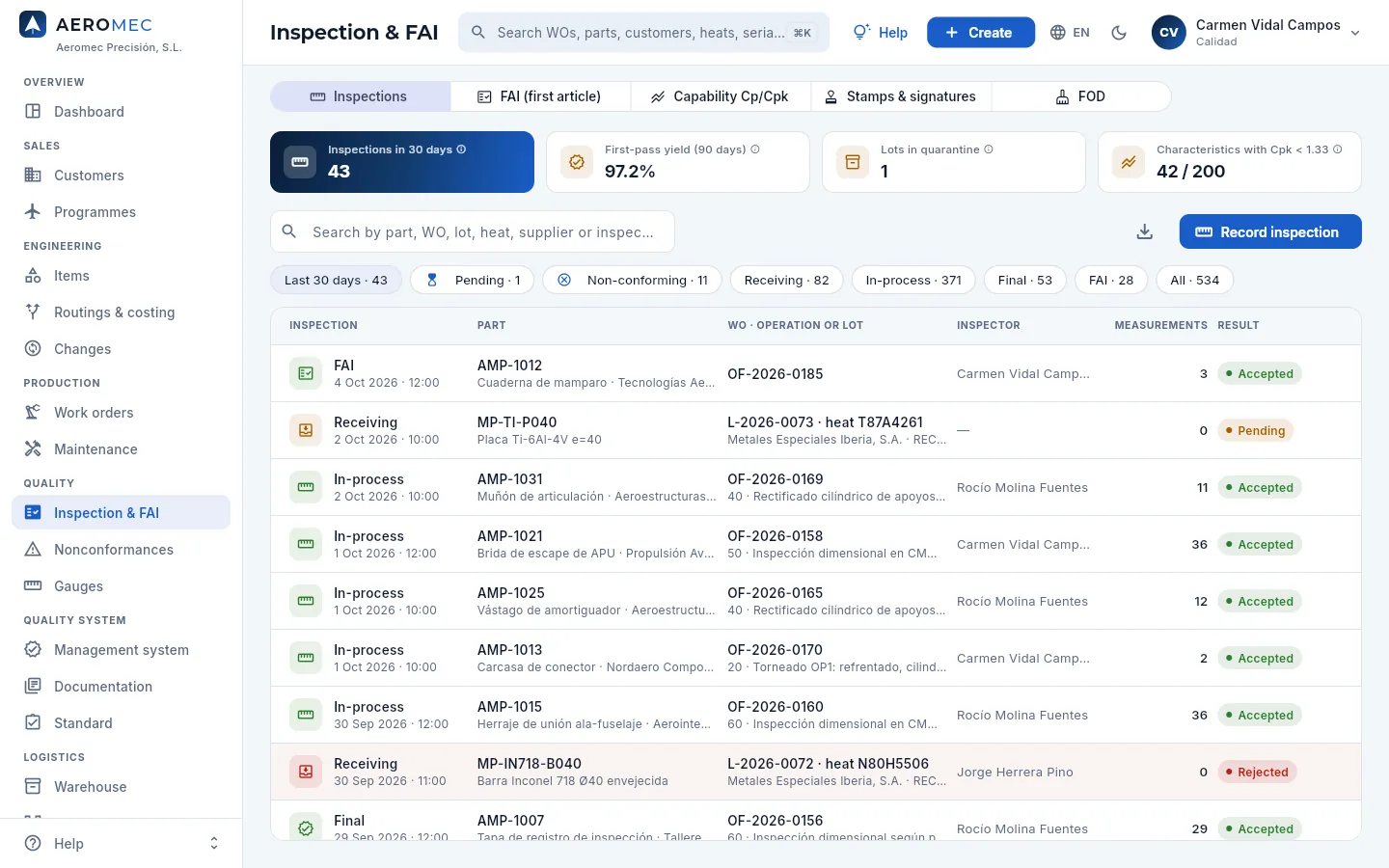 12345678
- 1The five views of the section: Inspections, FAI (first article), Capability Cp/Cpk, Stamps & signatures and FOD. Aeromec remembers the last one you used.
- 2Inspections in 30 days and First-pass yield (the share of production inspections accepted in the last 90 days).
- 3Lots in quarantine: received material waiting for its receiving inspection. In amber if there is any.
- 4Characteristics with Cpk < 1.33 out of all those analysed. Click it to go to the capability view.
- 5Search by part, work order, lot, heat, supplier or inspector.
- 6Record inspection opens the measurement record of an operation (shown further down).
- 7The filters: last 30 days, pending, non-conforming, one per type (receiving, in-process, final and FAI) and all.
- 8A pending receiving inspection: the lot with its heat and its supplier, with no inspector yet. Open it to inspect it.
Each row is an inspection: the type and date (the icon in green, amber or red depending on the result), the part with its customer, the work order and operation (or, for receiving, the lot and its heat with the supplier and the goods receipt), the inspector, how many measurements it has —and how many out of tolerance, in red— and the result. Rejected ones are shown with the row highlighted in red. Defence parts carry the shield and are only visible to whoever has the «Defence data» permission.
| Type | What is inspected | Where it comes from |
|---|---|---|
| Receiving | A raw material lot: 3.1 certificate, heat, identification and, where applicable, hardness | When a purchase is received (it stays pending) |
| In-process | The control plan characteristics of a work order operation | Record inspection, here or from the work order |
| Final | The finished lot before shipping it | Record inspection, choosing the «Final» type |
| FAI | The first piece, 100% of the drawing characteristics | The work order's FAI operation (see below) |
The result is Pending (receiving not yet inspected), Accepted or Rejected (some measurement out of tolerance or a rejected lot).
For a critical part (one that affects aircraft safety, see Items) the final inspection is not optional: its parts only ship from a work order with a conforming final inspection, and the CoC says so.
#Recording an inspection with measurements
Record inspection starts by choosing the operation being inspected: it lists the operations of released, in-progress or blocked work orders that have a control plan. Then the record opens with all its characteristics.
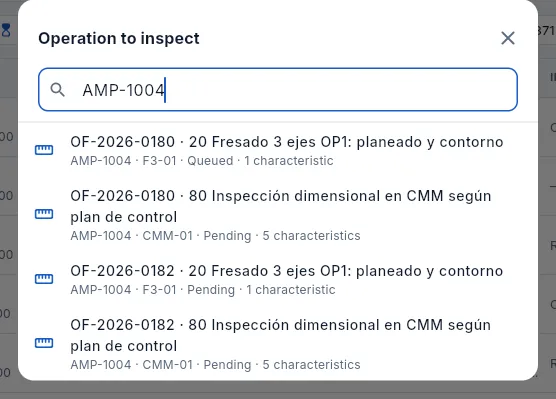 12
12
- 1Search by work order, by part or by the operation description.
- 2Each operation: work order, number and description; below, the part, the machine, the operation status and how many characteristics its control plan has.
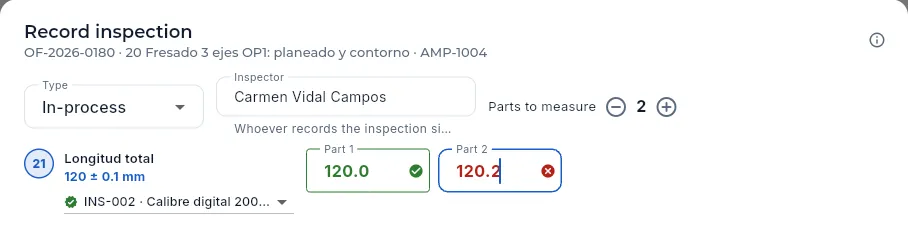 12345678
- 1The work order, the operation and the part you are inspecting. The ⓘ explains how a measurement is judged.
- 2The type: in-process, final or FAI (on the work order's FAI operation it comes preset).
- 3The inspector is you: whoever records the inspection signs it.
- 4Parts to measure (1 to 10): one column of measurements per part.
- 5Each control plan characteristic: its balloon on the drawing (key ones in amber), what it is and its tolerance (nominal ± tolerance, or its limits).
- 6The gauge: the first in-date one of the type the plan asks for; open the list to choose another.
- 7Within tolerance, the measurement turns green with a ✓…
- 8…and out of tolerance, red with a ✗, as soon as you type it.
When you open the gauge list of a characteristic you get those of the type its control plan asks for (for a length, calipers). Each one shows its calibration status:
- with a green ✓, in date: it can be used to measure;
- struck through with a padlock, overdue, not calibrated or out of service: you can pick it, but the measurement will be rejected.
In the demo, caliper INS-003 is overdue for calibration (and someone on the shop floor also has it on loan: see Gauges).
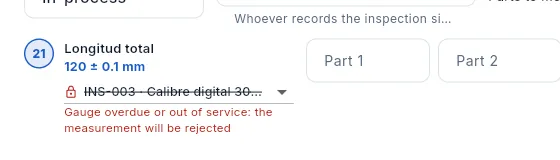 12
12
- 1If you choose an overdue or out-of-service gauge, it is struck through with a padlock…
- 2…and Aeromec warns in red: the measurement will be rejected. If you still click Record, the database refuses it.
In Inspections, click Record inspection (also from the top bar: Create → Record inspection).
Search for the work order or the part and choose the operation you are inspecting.
Check the type and how many parts you are going to measure (the inspector is you).
For each characteristic, check the gauge (in date) and type each part's measurement. For attribute characteristics (go / no-go, such as a thread with its plug gauge) tick OK or NOK per part.
Click Record: the signature dialog opens. Type your password and click Sign.
When you click Record, Aeromec asks for your electronic signature before saving anything. The dialog shows what you are signing (the inspection type, the work order, the operation and the part), the meaning of the signature —«Performed»: you declare that you carried out the inspection and that what you record is true and complete— and the inspection stamp you sign with.
To sign you need a current stamp with the scope of what you sign: «In-process» for an in-process inspection, «Final» for a final one, «FAI» for the first article and «Receiving» to release a received lot (see Stamps & signatures). If you do not have it, the dialog says so and does not let you sign; nor does it if the qualification granting that scope has expired (Competence & training).
The signature stays bound to the inspection with the date and time, your stamp and the fingerprint of its content. How it works (the password, the lock after five failures, what is stored), in The electronic signature.
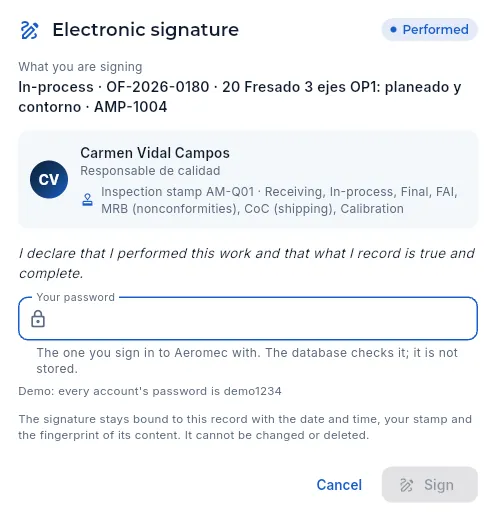 123456
- 1The meaning of the signature: «Performed».
- 2What you are signing: the inspection type, the work order and operation, and the part.
- 3Who signs and their inspection stamp, with everything it may sign.
- 4What you declare by signing.
- 5Your password, the one you sign in with. The database checks it and it is not stored.
- 6Sign saves the inspection with the signature; Cancel saves nothing.
#The inspection record
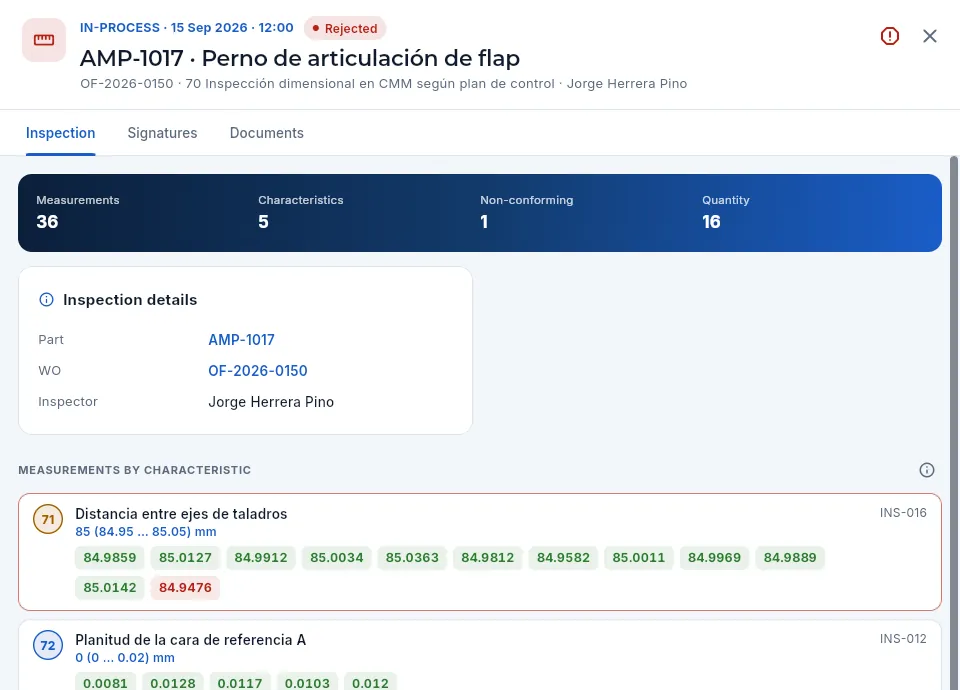 123456
- 1The type, the date and the result; below, the part, the work order and operation, and the inspector.
- 2Raise NCR (in red) appears when there are measurements out of tolerance: it opens the nonconformance already linked to the work order and the operation.
- 3The tabs: the inspection, its signatures and its documents (the CMM report, photos…).
- 4The figures: measurements, characteristics, non-conforming and parts inspected.
- 5The part and the work order (click them to open them), the inspector and the notes.
- 6Each characteristic with its balloon and tolerance, and the measurements part by part: green for accepted and red for those that are not. On the right, the gauge.
If you hover over a measurement, Aeromec tells you which part it belongs to (and its serial number, if it has one) and which gauge it was measured with. Inspection measurements also appear in the serial number traceability (Traceability) and, on the work order, in its quality tab (Work orders).
The Signatures tab shows who signed the inspection, with which stamp and when, and whether its content is still exactly what was signed (The Signatures tab). A signed inspection cannot be edited or deleted: if a measurement was entered wrongly, Correct (on that tab) asks for the right value, the reason and another signature, and the previous value stays in the history.
#Receiving inspection: releasing a quarantined lot
When the warehouse receives a raw material purchase (Purchasing), each lot goes into quarantine and a pending receiving inspection appears here. Meanwhile the lot cannot be reserved or used on any work order. Quality checks the 3.1 certificate against the material specification, the lot identification and, where applicable, the hardness, and then releases or rejects it.
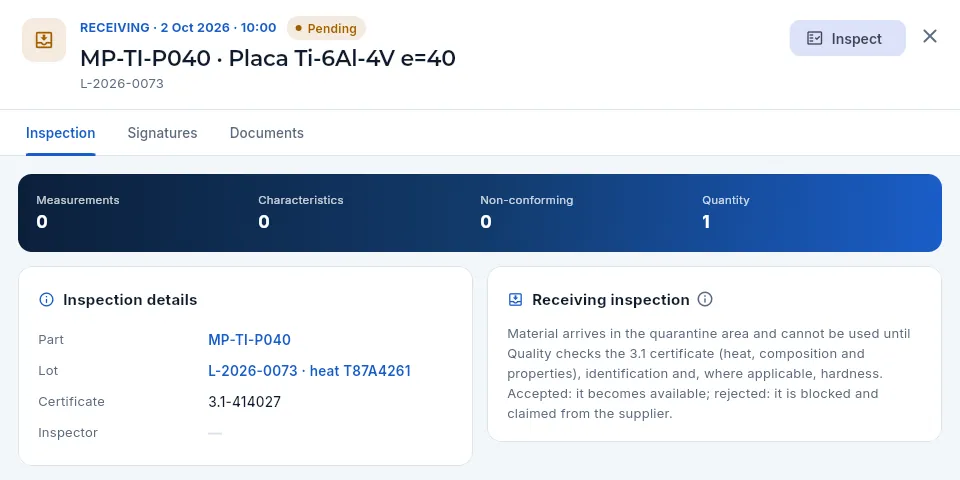 12345
12345
- 1Receiving, with its date and the Pending status; below, the material and the lot.
- 2Inspect opens the decision on the lot.
- 3The tabs: the inspection, its signatures (when it is released or rejected) and its documents.
- 4The lot with its heat (click it to open it in Warehouse) and, below, the supplier's 3.1 certificate number.
- 5What is checked at receiving and what happens to the lot depending on the result.
For raw material, Inspect validates the 3.1 certificate point by point: six checks, each answered Yes, No or N/A:
| Check | What to look at |
|---|---|
| Material and specification | The alloy, specification, condition and dimensions are those of the order |
| Heat | The one on the certificate is the one marked on the material |
| Chemical composition | Within the specification |
| Mechanical properties | Tensile strength, yield strength, elongation and hardness within the specification |
| Manufacturer's signature | Signed by its authorised inspection representative |
| Traceable origin | Issued by the manufacturer or by an authorised distributor, unaltered |
Below, the measured hardness if you check it (for example, 36 HRC), whether the lot is accepted and some notes (an illegible marking, a certificate that has been requested again…). A lot is not released with any «No» on the certificate; and if the origin is not traceable, Aeromec warns in red: when it is rejected, the NCR is raised as a suspected counterfeit, which is not granted a concession, reworked or returned (see Purchasing and Nonconformances). For material that is not raw material, the certificate is accepted or not with a single tick box.
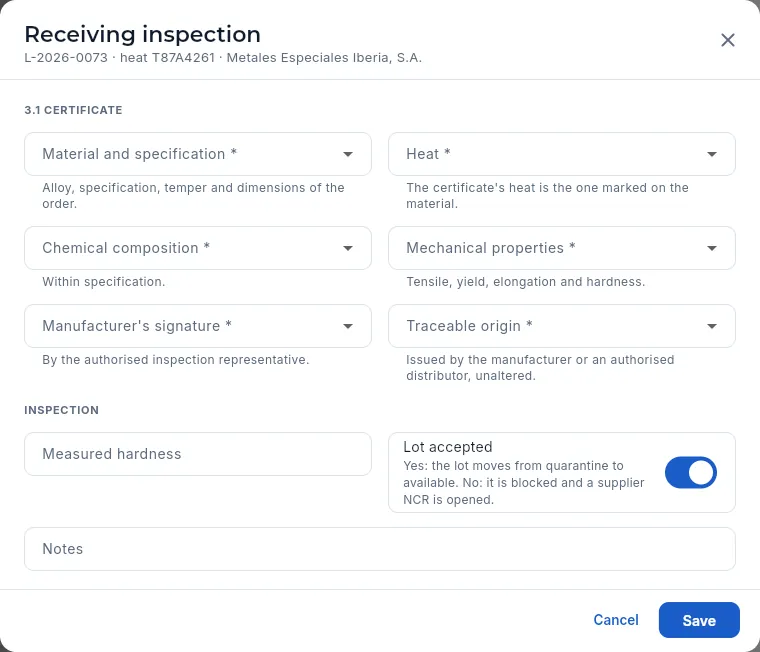 123456
- 1The lot, its heat and the supplier.
- 2The six checks of the 3.1 certificate, each with Yes, No or N/A; under each one, what to look at.
- 3Traceable origin: with «No», Aeromec warns of a suspected counterfeit.
- 4The measured hardness, if you check it.
- 5Lot accepted: yes, it leaves quarantine; no, it stays blocked and the NCR to the supplier is raised.
- 6Save asks for your signature: «Released» or «Rejected», with a stamp of «Receiving» scope.
In Inspections, filter Pending (the Lots in quarantine KPI tells you how many there are) and open the receiving inspection.
Have the lot's 3.1 certificate to hand (the scanned one is in the lot's documents): the heat must match the material's and the composition and properties must be within its standard.
Click Inspect. Answer each certificate check, enter the Measured hardness if you measure it and decide Lot accepted.
Click Save and sign with your password.
#FAI: first article inspection (EN 9102 / AS9102)
The FAI (First Article Inspection) is the complete, documented verification of the first part made with the final process: every drawing characteristic is measured, the certificates for the material, the special processes (heat treatments, anodising…) and the tests are gathered, and someone qualified signs it. Until then the part is not considered «in series» and the database does not allow it to be shipped. The governing standard is EN 9102 (the European one; it is equivalent to the American AS9102, which is how many customers and the FAI labels refer to it).
Aeromec opens the FAI when the work order is released (Work orders) if the customer requires it and the part needs it; the work order then carries an FAI operation. The FAI records its reason, one of those covered by EN 9102:
| Reason | When | FAI |
|---|---|---|
| New part | The part's first work order | Full |
| Drawing revision change | The first work order at a new drawing revision (an implemented drawing change, see Changes) | Full |
| Process change | The routing changes | Full |
| Not built for 2 years | The part has not been made for two years | Full |
| Alternative material (partial FAI) | The first use of an alternative material approved on the routing | Partial |
| Manufacturing process change, Location or machine change, New or modified tooling, New or modified CNC program, Special process supplier change | A change that may affect the part | Full or partial, depending on what it affects |
| After a corrective action | After correcting the cause of a nonconformance | Full or partial |
A partial (or delta) FAI does not repeat everything: it focuses on what the change affects (for example, the material and the characteristics that depend on it), form 1 states so and which characteristics it covers are recorded. A full FAI, on the other hand, cannot be approved while any drawing characteristic is still unmeasured.
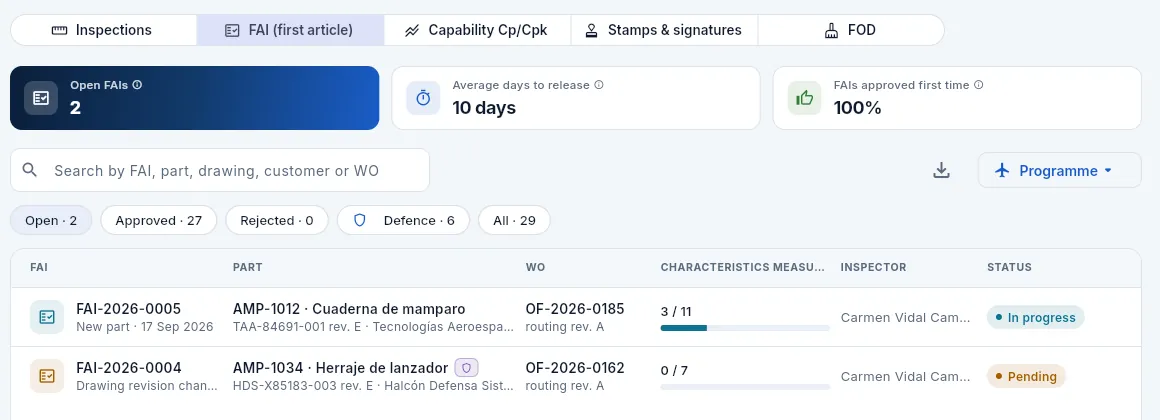 12345678
- 1Open FAIs: pending or in progress. Each one has shipping of its part blocked.
- 2Average days to release: from opening to approval, for approved FAIs.
- 3FAIs approved first time: approved without any rejection.
- 4Programme: shows only the FAIs of a programme's parts (AR-90, TF-38…; see Programmes).
- 5The filters: open (on entry), approved, rejected, defence (with that permission) and all.
- 6Each FAI with its number, its reason and the date; the part with its drawing and revision, the customer and the programme; the work order and the routing revision.
- 7Characteristics measured against those in the plan, with a progress bar (and the non-conforming ones in red).
- 8The status: pending (nothing measured), in progress, approved or rejected.
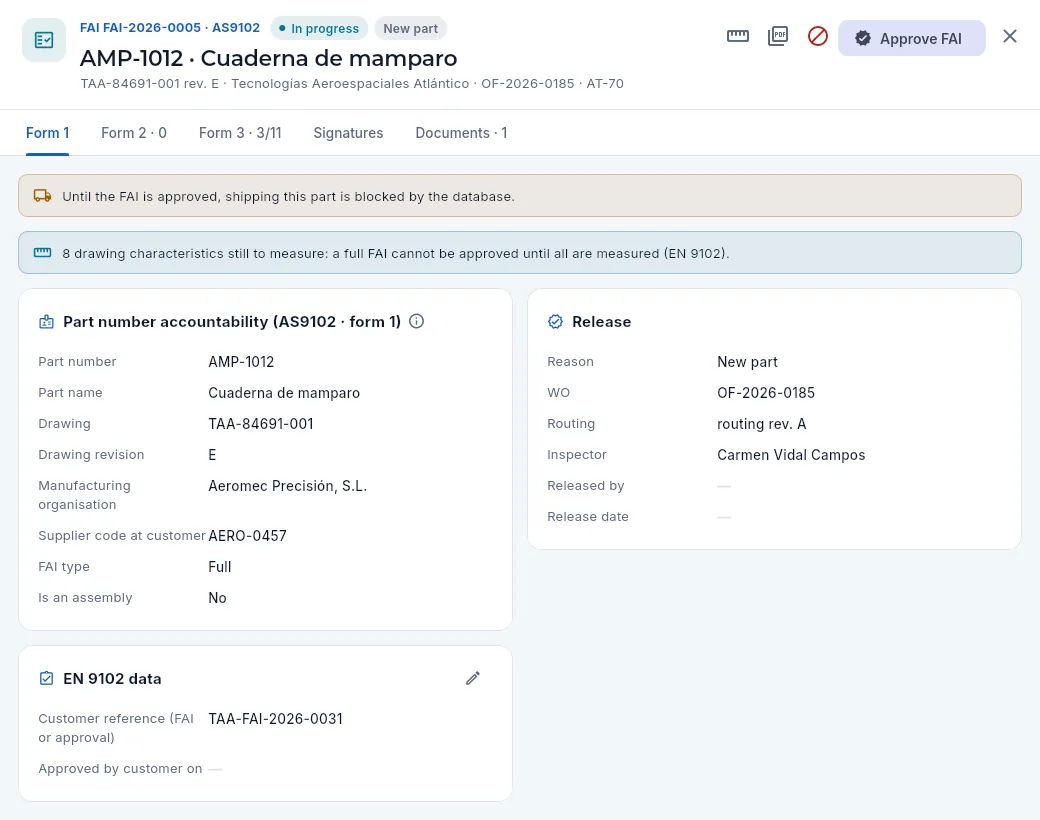 123456789
- 1The FAI number, its status and its reason; below, the part, the drawing with its revision, the customer, the work order and the programme.
- 2Record FAI measurements (the ruler): opens the measurement record on the work order's FAI operation.
- 3FAI report PDF: the forms in a landscape report for the customer.
- 4Reject FAI (asks for the reason) and Approve FAI: only with «Release FAI», and both are signed.
- 5The tabs: the three forms (2 and 3 with their count), the signatures and the documents.
- 6The messages: while the FAI is not approved, shipping of this part is blocked; and how many drawing characteristics are still to be measured.
- 7Form 1: part number, part name, drawing and revision, the manufacturing organisation, the supplier code at the customer and the FAI type (full or partial).
- 8Release: reason, work order, routing revision, inspector and, once signed, who released it and when.
- 9EN 9102 data: the customer reference (their FAI or approval number), when the customer approved it and, for a partial FAI, which characteristics it covers. The pencil edits them while the FAI is open.
 1234
1234
- 1The Form 2 tab, with how many rows it has.
- 2The material with its specification, the supplier and the heat's 3.1 certificate.
- 3Each special process (anodising, heat treatment, passivation…) with the supplier that did it and its certificate.
- 4The tests (here, penetrant inspection) and their result, accepted or not.
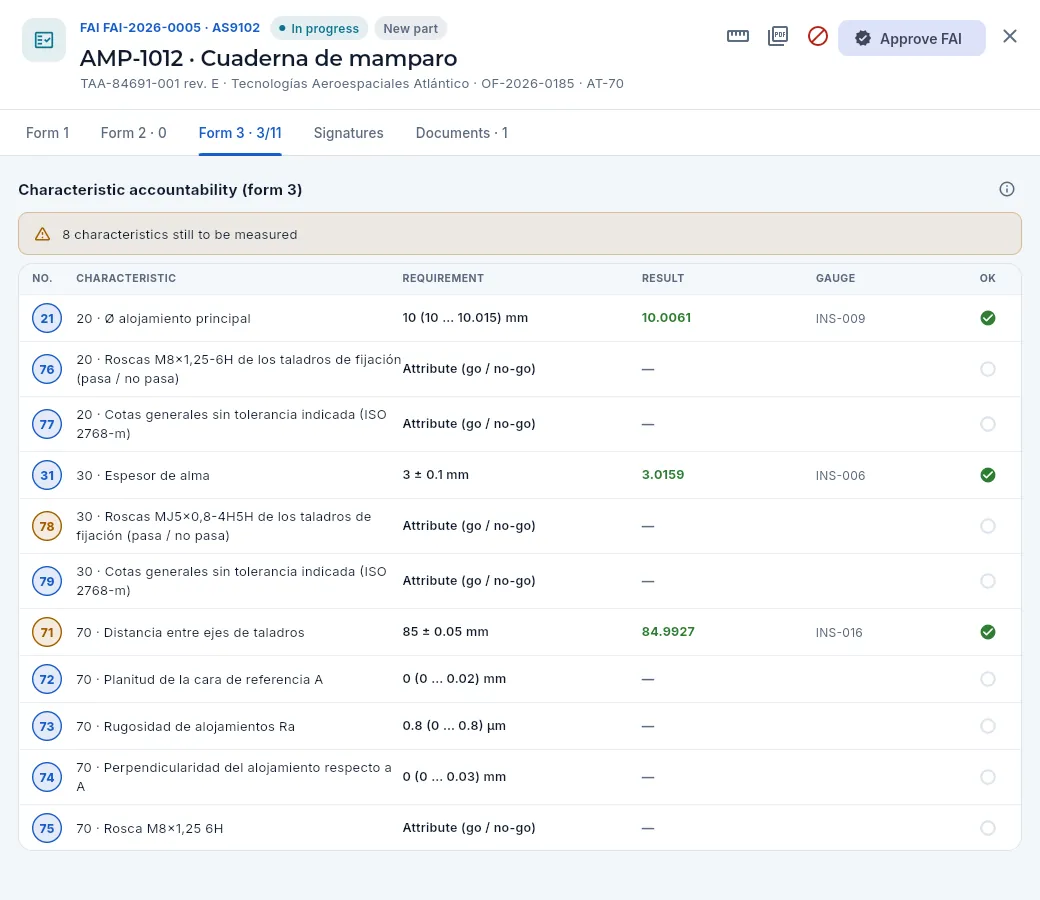 123456
- 1The tab shows how many characteristics are measured out of those in the plan (for a full FAI, EN 9102 requires 100%).
- 2The warning about those still to be measured (and, if any, the measurements out of tolerance, in red).
- 3The balloon of each characteristic on the drawing: key ones (affecting function or safety) in amber.
- 4The operation and the characteristic and its requirement (nominal and limits, or «attribute» for go / no-go).
- 5The measured result (in green or red) and the gauge it was measured with.
- 6✓ accepted, ✗ rejected and an empty circle if not measured yet.
In FAI (first article), with the Open filter, open the FAI.
Check form 1: the drawing and its revision must be those on the customer's order. Enter in EN 9102 data the customer reference (their FAI or approval number), the date they approved it if they already have and, for a partial FAI, which characteristics it covers: they are edited while the FAI is open and signed with the release.
Check in form 2 that the material and each special process and test are there with their certificate (the certificates are in the Documents tab).
Click the ruler Record FAI measurements, measure the missing characteristics (the type already comes as FAI) and sign; repeat until form 3 is complete.
If everything conforms, click Approve FAI, confirm and sign («Released», with a stamp of FAI scope). If something does not, Reject FAI with the reason and sign: the process will have to be corrected and the FAI repeated.
Produce the FAI report PDF to send it to the customer.
When you click Approve FAI on a full FAI that still has drawing characteristics not measured, Aeromec stops: it tells you how many are missing, because EN 9102 requires 100% (and the database does not let it be approved either). With everything measured, it asks for confirmation and the signature. A partial FAI only needs what the change affects.
The FAI report PDF gathers the header (number, date, reason, part, customer, work order and routing revision) and forms 2 and 3 as tables, with key characteristics highlighted, the APPROVED, REJECTED or IN PROGRESS stamp and the signatures of the inspector and of whoever released it, with the fingerprint of the signed record at the foot. The browser's print dialog opens, from which you print it or save it as a PDF.
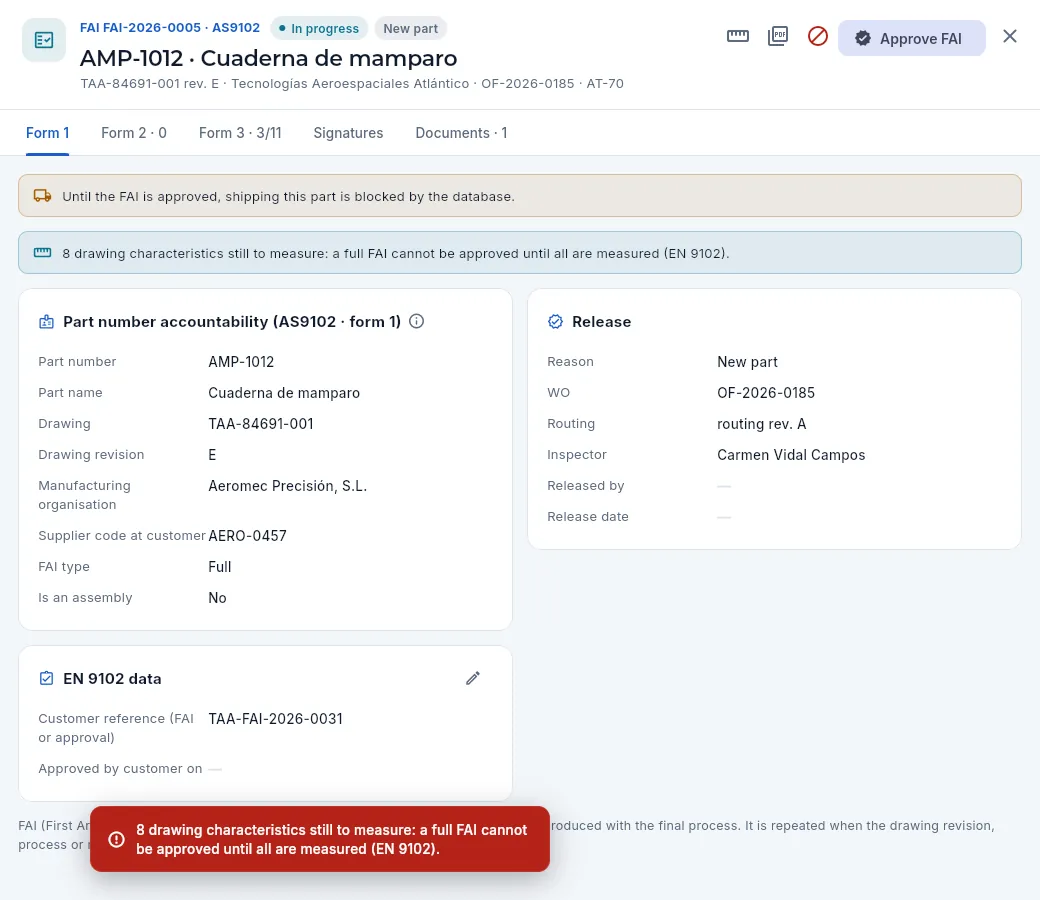 12
12
- 1Approve FAI…
- 2…on a full FAI with characteristics not measured, it says how many are missing (EN 9102: 100%) and goes no further.
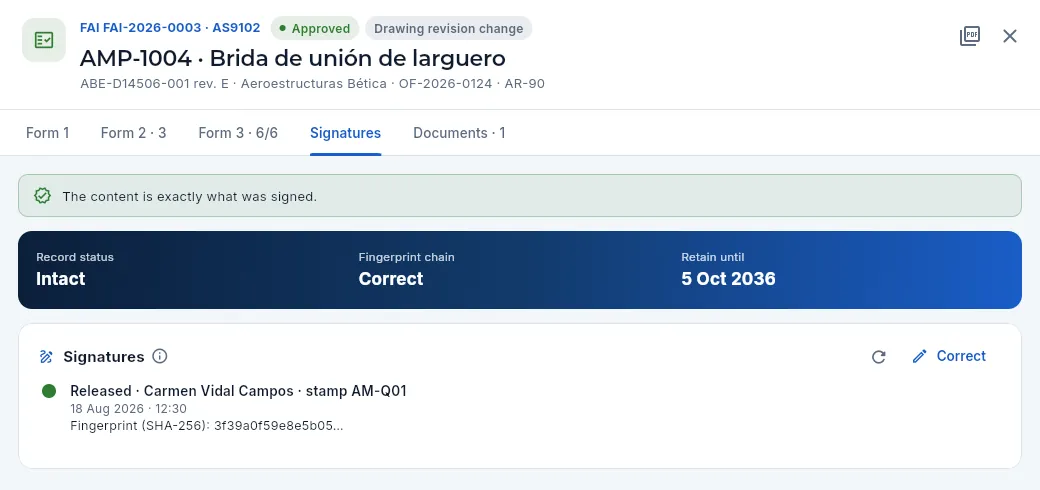 1234
1234
- 1The FAI's Signatures tab.
- 2Intact: the content is exactly what was signed; the fingerprint chain and how long it must be retained.
- 3The signature: «Released», who, with which stamp, when, and the fingerprint of the content.
- 4Correct a detail of the signed FAI, with a reason and another signature.
As with inspections, a signed FAI can no longer be edited: the Signatures tab shows the release (or the rejection) with its stamp and its fingerprint, and Correct changes the drawing revision with a reason and another signature (measurements are corrected on the FAI inspection). More in The Signatures tab.
 1
1
- 1Without «Edit quality» the ruler to record measurements does not appear, and without «Release FAI» neither do Reject nor Approve FAI: only the PDF is left.
#Process capability: Cp and Cpk
The Capability Cp/Cpk view takes all the measurements of each control plan characteristic (at least 5) and works out whether the process makes it within tolerance and with margin to spare. Two figures sum it up:
- Cp tells you whether the process spread fits within the tolerance: how many times the process width (6 σ) fits into the tolerance width.
- Cpk says the same taking into account how centred it is: it is measured from the mean to the nearest limit. If Cp is good and Cpk is not, the process is off-centre and correcting the offset on the machine is enough.
| Cpk | Reading |
|---|---|
| ≥ 1.33 | Capable (green): what aerospace customers usually require on key characteristics |
| 1 – 1.33 | Marginal (amber): watch the trend and tool wear |
| < 1 | Not capable (red): the process makes parts out of tolerance; it needs a corrective action or 100% inspection |
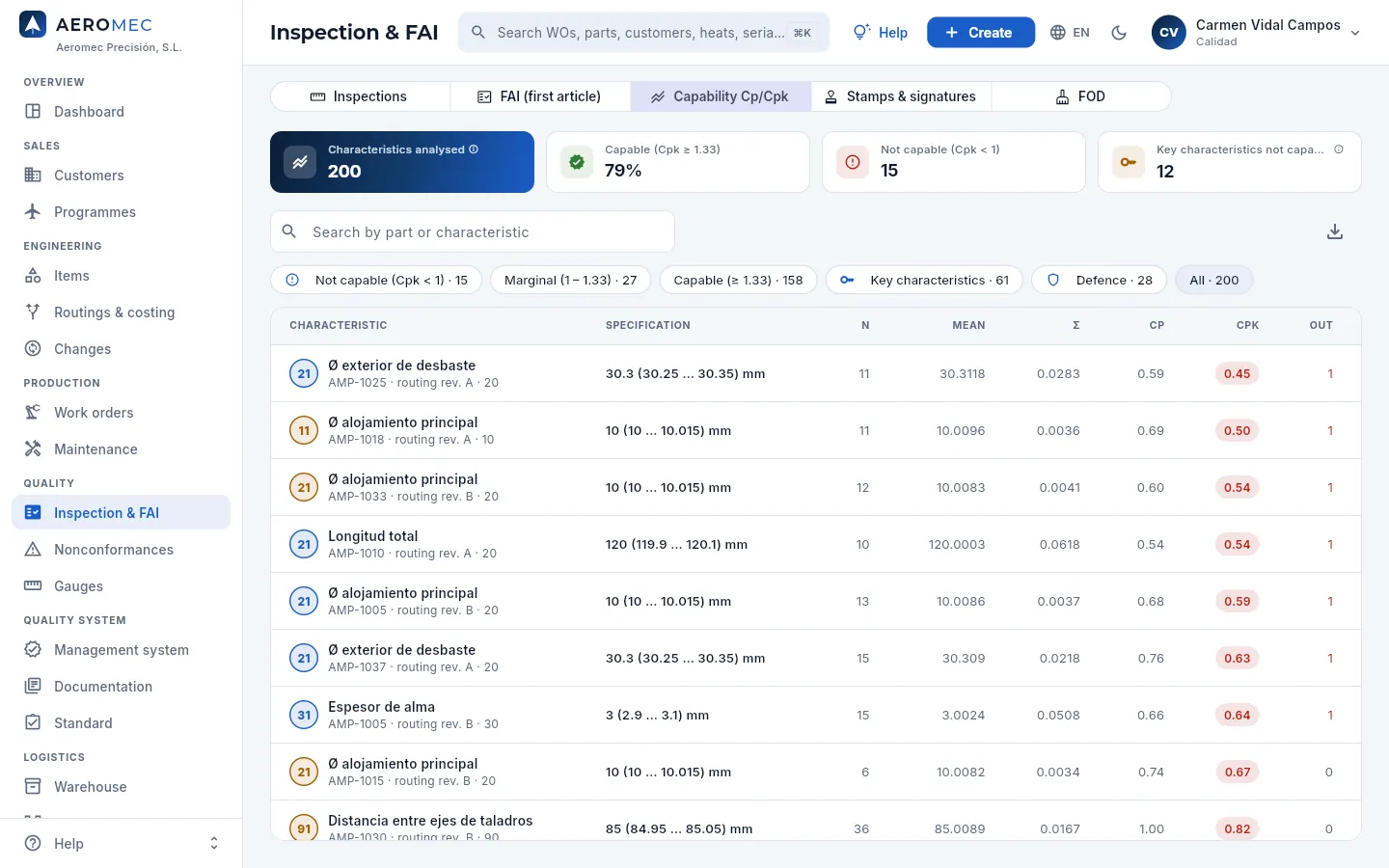 1234567
- 1Characteristics analysed (those with 5 or more measurements), the share that are capable and how many are not capable.
- 2Key characteristics not capable: key characteristics with Cpk below 1.33. They are the priority.
- 3The filters by capability (not capable, marginal, capable), the key characteristics, the defence ones and all.
- 4Each characteristic: its balloon, what it is, the part, the routing revision and the operation; next to it, its specification.
- 5n: how many measurements; their mean and their spread (σ, the standard deviation).
- 6Cp and Cpk, in red, amber or green according to the criterion above.
- 7Out: how many measurements have been out of tolerance.
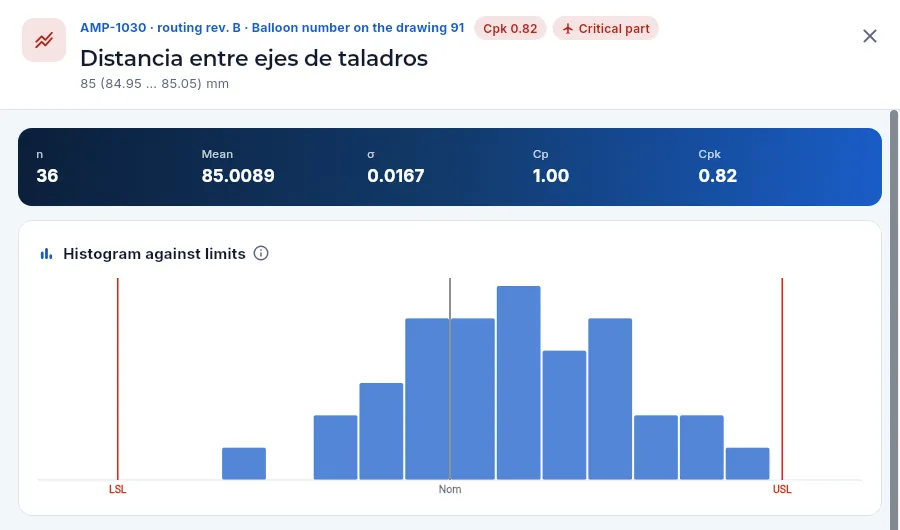 123
123
- 1The part, the routing revision and the balloon, with its Cpk and, if it is one, Critical part; below, the characteristic and its specification.
- 2The figures: n, mean, σ, Cp and Cpk.
- 3The histogram: how many measurements fall in each band, with the lower and upper limits (LSL and USL, in red) and the nominal. A narrow, centred bell between the two red lines is a capable process; if it touches or crosses a line, it is not.
#Control chart of key characteristics
Cpk tells you whether the process fits within the tolerance; the control chart tells you whether the process is still the same as before. It is the EN 9103 tool for key characteristics (those flagged by the drawing or the customer because they affect function or safety, with the balloon in amber), and above all for those of critical parts.
Below the histogram, the characteristic's record draws the individuals chart (I-MR): each point is a measurement, in the order it was taken (the last 60). The centre line is the mean and the two orange ones are the control limits (UCL, upper, and LCL, lower), which come from how much each part varies from the previous one (the moving range). The dashed red lines are the drawing tolerance. The chart flags a signal (the Western Electric rules):
- a point outside the control limits;
- 7 points in a row on the same side of the mean;
- 6 points in a row rising or falling.
A signal means the process has changed —a tool wearing, a zero that has shifted, another heat— even though the parts are still within tolerance: it is time to act, before the NCR. With no signals, the chart says In control.
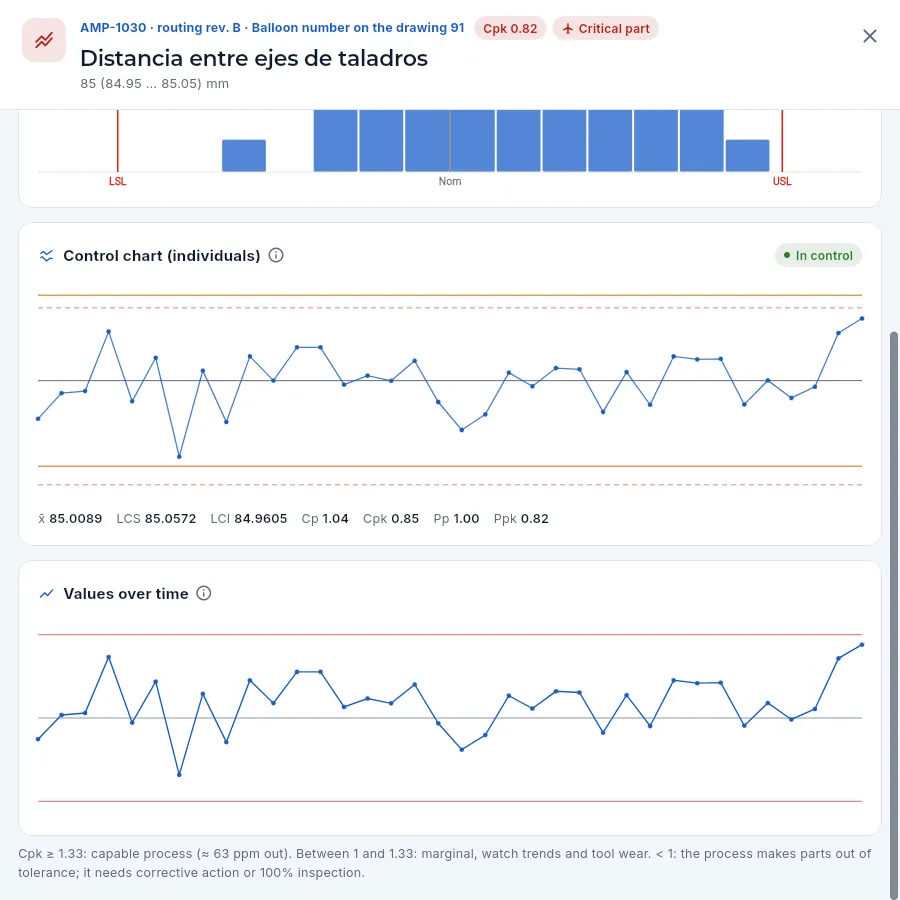 123456
- 1Critical part: its failure affects aircraft safety (see Items).
- 2The control chart and, on the right, whether it is in control or how many signals it has.
- 3The measurements in order: the mean (grey), the control limits (orange) and the tolerance (dashed red). A point that triggers a signal is shown in red and, below, which rule it breaks and at which points.
- 4The mean (x̄), the UCL and LCL limits, Cp and Cpk with the part-to-part variation and Pp and Ppk with the overall variation.
- 5Values over time: each measurement in date order against the tolerance limits and the nominal; in red, those that fell outside. A trend towards a limit is usually tool wear.
- 6How to read the Cpk and what to do in each case.
In the example, the characteristic is in control (no signals) and yet its Cpk is below 1: the process is stable, but its natural variation no longer fits comfortably within the tolerance (the control limits lie outside the tolerance limits). It is not fixed by adjusting the machine part by part, but by changing the process (another machining strategy, another fixture) or by inspecting 100% in the meantime. Conversely, a capable process with a signal calls for a look at what has changed.
#Stamps & signatures
An inspection stamp is a person's authority to accept product: its number (the one that used to be stamped on paper, such as AM-Q01) and its scope, that is, what it may sign. The Stamps & signatures view is the register of all the company's stamps:
| Scope | What it may sign |
|---|---|
| Receiving | Releasing or rejecting a received lot |
| In-process | An in-process inspection |
| Final | A final inspection |
| FAI | An FAI inspection and approving or rejecting an FAI |
| MRB (nonconformities) | Deciding the disposition of an NCR (see Nonconformances) |
| CoC (shipping) | Shipping with the certificate of conformity (see Shipments) |
| Calibration | Recording a calibration (see Gauges) |
Each person holds at most one current stamp. A number is never reused: a lost stamp, or that of someone who changes job, is withdrawn with its date and reason and another one is issued. Neither a stamp's number nor its holder change, a withdrawn one can no longer be touched and none are deleted: that way every old signature still says which stamp it was made with.
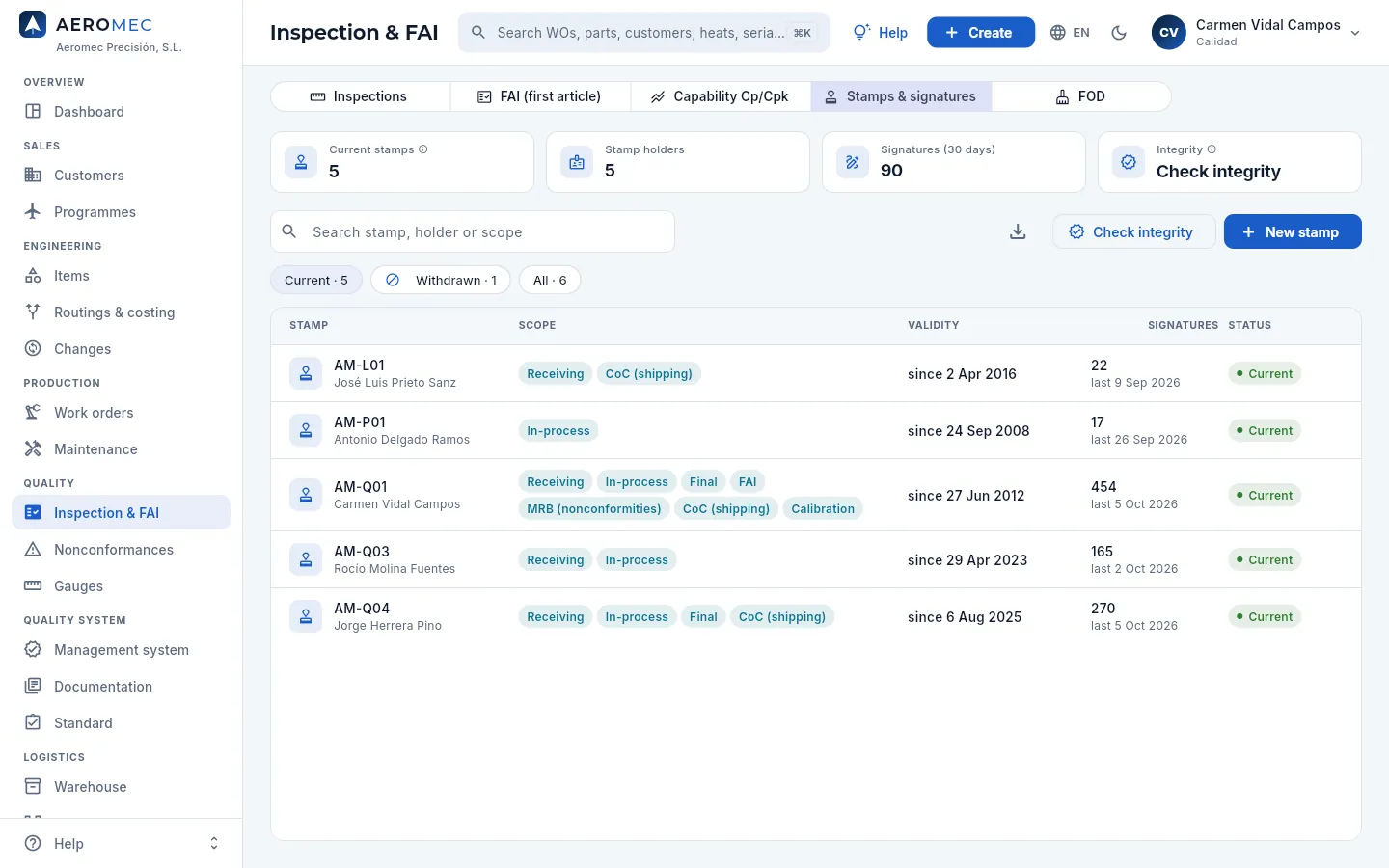 123456
- 1The Stamps & signatures view.
- 2Current stamps, stamp holders and signatures in the last 30 days.
- 3Integrity: checks that no signed record has changed (see below).
- 4New stamp: number, holder, from when and scope (with «Manage stamps»).
- 5The filters: current, withdrawn and all.
- 6Each stamp: its number and holder; its scope, from when it is valid (and, if withdrawn, when), how many signatures have been made with it and the last one, and its status. Click it to change its scope or withdraw it.
Clicking a stamp opens its form: the scope (tick what it may sign), some notes and, while it is current, Withdraw with the date and the reason (lost, change of job, qualification ended…). From that date it is no longer valid for signing, but the signatures made with it are kept.
To give authority to someone new, New stamp asks for the number (it cannot repeat one already used), the holder, from when and the scope. Signing does not depend on the «Manage stamps» permission: everyone signs with their own password and stamp; that permission is only for keeping this register. Bear in mind that, besides the stamp, the person needs the current qualification to sign with that scope (Competence & training).
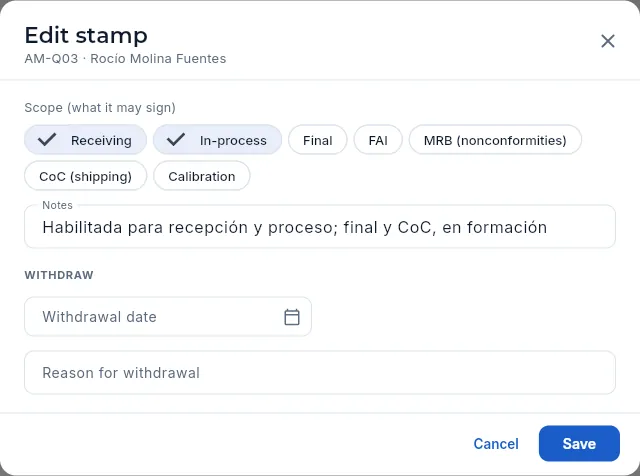 1234
1234
- 1The stamp's number and holder: they do not change.
- 2The scope: what may be signed with it.
- 3Withdraw: the date from which it is no longer valid…
- 4…and the reason, mandatory.
Check integrity goes through all the signed records in Aeromec —inspections, FAIs, NCRs, CAPAs, calibrations, routings, CoCs, documents, audits, changes…— and compares their content today with the fingerprint stored when they were signed. The result is shown by record type: how many there are, how many are signed, how many are intact (their content is what was signed), altered (something changed without using «Correct»: only possible by editing the database by hand) and being edited (back to draft, like a routing rejected by the customer). Do it before an audit: it is the evidence that the electronic records have not been tampered with.
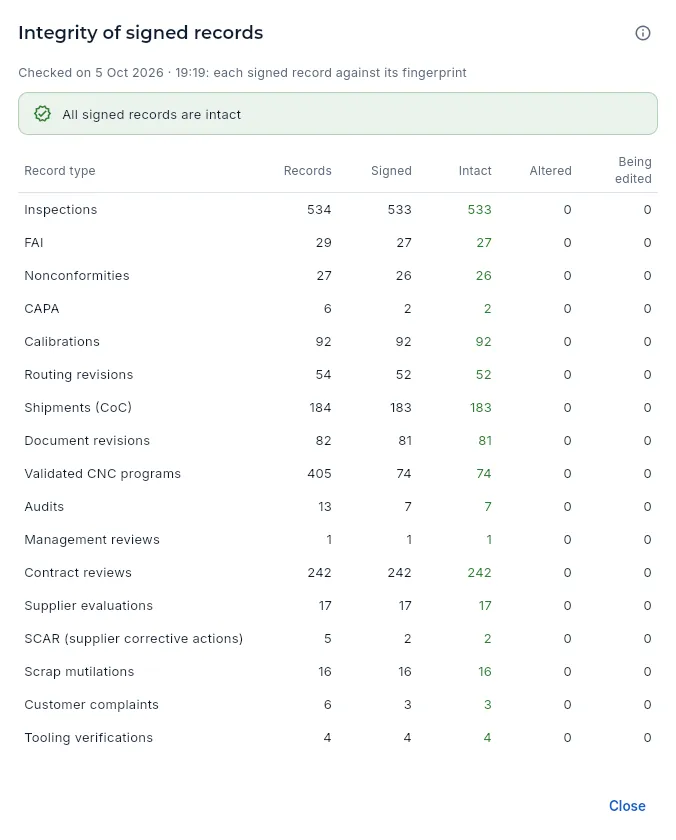 123
123
- 1When it was checked.
- 2The result: in green if everything is intact; in red, how many records are altered and, below the table, which ones and what changed.
- 3By record type: how many there are, how many are signed, intact, altered and being edited.
#FOD: foreign object prevention
FOD (Foreign Object Debris, or the damage it causes, Foreign Object Damage) is anything that should not be in a part or an aircraft: a chip, a screw, a forgotten spanner, a rag. In aviation it can destroy an engine, so the shop organises its areas and inspects them regularly. The FOD view keeps that control:
- each area (the 5-axis centres, the fitting bench, metrology…) with its machines, its level —Critical, Controlled or General—, its controls (tool shadow board with inventory, closed boxes, covers on openings) and every how many days it is inspected;
- the inspections of each area, with the shift, who did it, the result (No findings or With findings), the objects found and the actions.
An area not inspected on time is shown in red, with Inspection overdue. In the demo, the fitting and marking bench has gone several days without its weekly inspection.
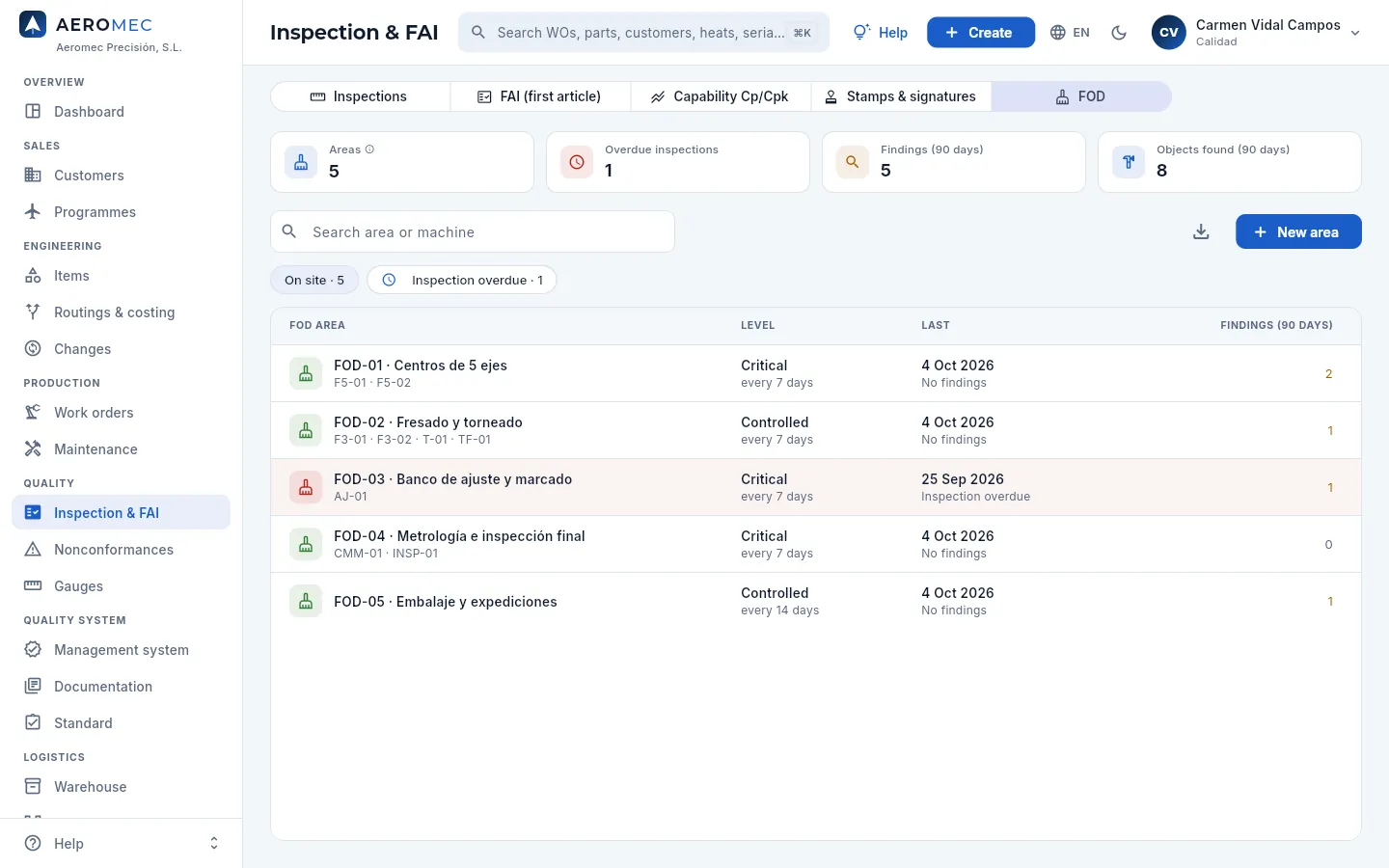 12345
12345
- 1Areas, overdue inspections, findings and objects found in the last 90 days.
- 2New area (with «Edit quality»).
- 3The filters: the active areas and those with the inspection overdue.
- 4An overdue area, in red: its last inspection is older than its frequency.
- 5Before it, the level and frequency; here, the last inspection with its result (or «Inspection overdue») and, on the right, the findings in 90 days.
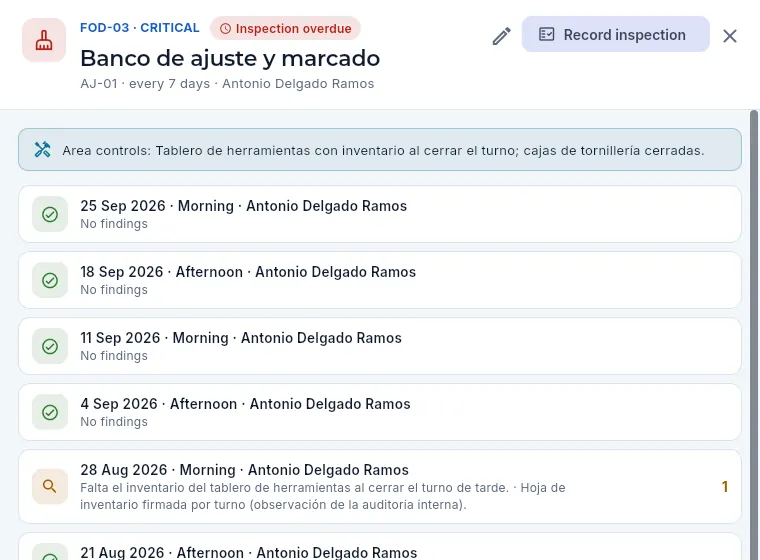 1234
1234
- 1Code, level and the inspection overdue warning; below, its machines, the frequency and the person responsible.
- 2Record inspection.
- 3The area's controls.
- 4An inspection with findings: what was found, the action and, on the right, how many objects.
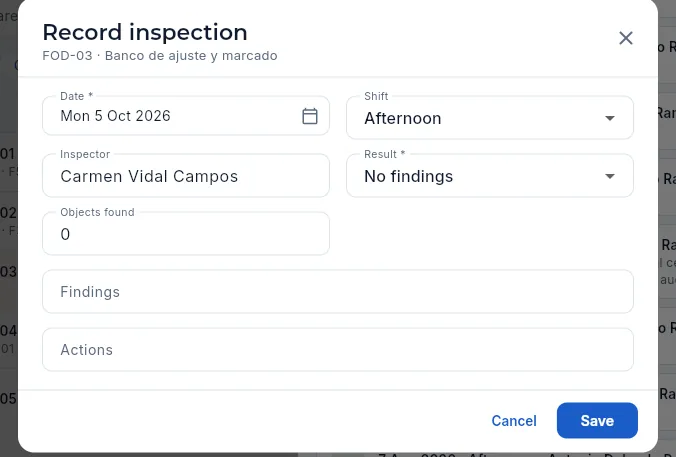 123
123
- 1The date, the shift and the inspector (you).
- 2The result: no findings or with findings, and how many objects were found.
- 3The findings (mandatory if there are any) and the actions.
In FOD, filter Inspection overdue (or open the area that is due) and click the area.
Walk the area with its controls: the tool shadow board complete, boxes closed, nothing loose on the machines or the parts.
Click Record inspection, check the date, the shift and the inspector, and choose the result.
If there are findings, say how many objects you found, what they were and where, and what was done. Click Save.
#What each profile sees
Quality
Nonconformances
Internal, supplier and customer non-conformances (NCRs) with the EN 9131 data: what happened, on which part, work order or lot, what the MRB decides to do with the parts (rework, repair, use as is with the customer's concession, scrap with its mutilation, or return) with its signature, the product already shipped that may be affected and the notification to each customer; the corrective action in 8D with the EN 9136 root cause analysis; customer complaints with their deadlines; and the shop's quality KPIs: OTD, PPM, scrap, COPQ, rework and ageing, with their Paretos.
A non-conformance is any part or material that does not meet what was ordered: a dimension out of tolerance, a 3.1 certificate out of specification, an illegible marking, parts the customer rejects. Each one is documented in an NCR (Non-Conformance Report) stating what happened, how many parts, where (part, work order and operation, lot and heat, supplier or customer), who detected it and what is decided to do with them.
There are three origins:
| Origin | What it is | Where it usually comes from |
|---|---|---|
| Internal | Something detected inside the shop | An inspection with measurements out of tolerance, the work order, a gauge found unfit |
| Supplier | Material or subcontracted work that arrives wrong | The receiving inspection of a lot (rejecting it raises one automatically), a heat treatment or an anodising |
| Customer | Parts the customer rejects or complains about | A complaint; or parts already shipped for which a concession is requested |
The section has four views: Non-conformances, Corrective actions (CAPA) —those that remove the cause so that it does not happen again—, customer Complaints and Quality KPIs.
What decides about the product is signed with your password (The electronic signature): the disposition (with an inspection stamp with the MRB scope), the customer's response to a concession, closing and voiding an NCR, the mutilation of scrap, closing a CAPA and closing a complaint. What is signed no longer changes: it is corrected with a reason and another signature in the Signatures tab of the record (The Signatures tab).
#The life cycle of a nonconformance
- 1DetectionAn inspection, the terminal, a lot's receiving inspection or a customer complaint.
- 2NCR raisedWhat, how many parts and where, with the EN 9131 data. If needed, it blocks the work order: no operation progresses on the shop floor.
- 3Disposition (MRB)Rework, repair, use as is, scrap or return, signed. The work order is unblocked.
- 4ClosureOnce what was decided is done (with the customer's response or the scrap mutilated), the NCR is closed with a signature.
- 5CAPA 8DThe corrective action analyses the root cause (EN 9136), removes it and verifies that it does not recur.
#The NCR list
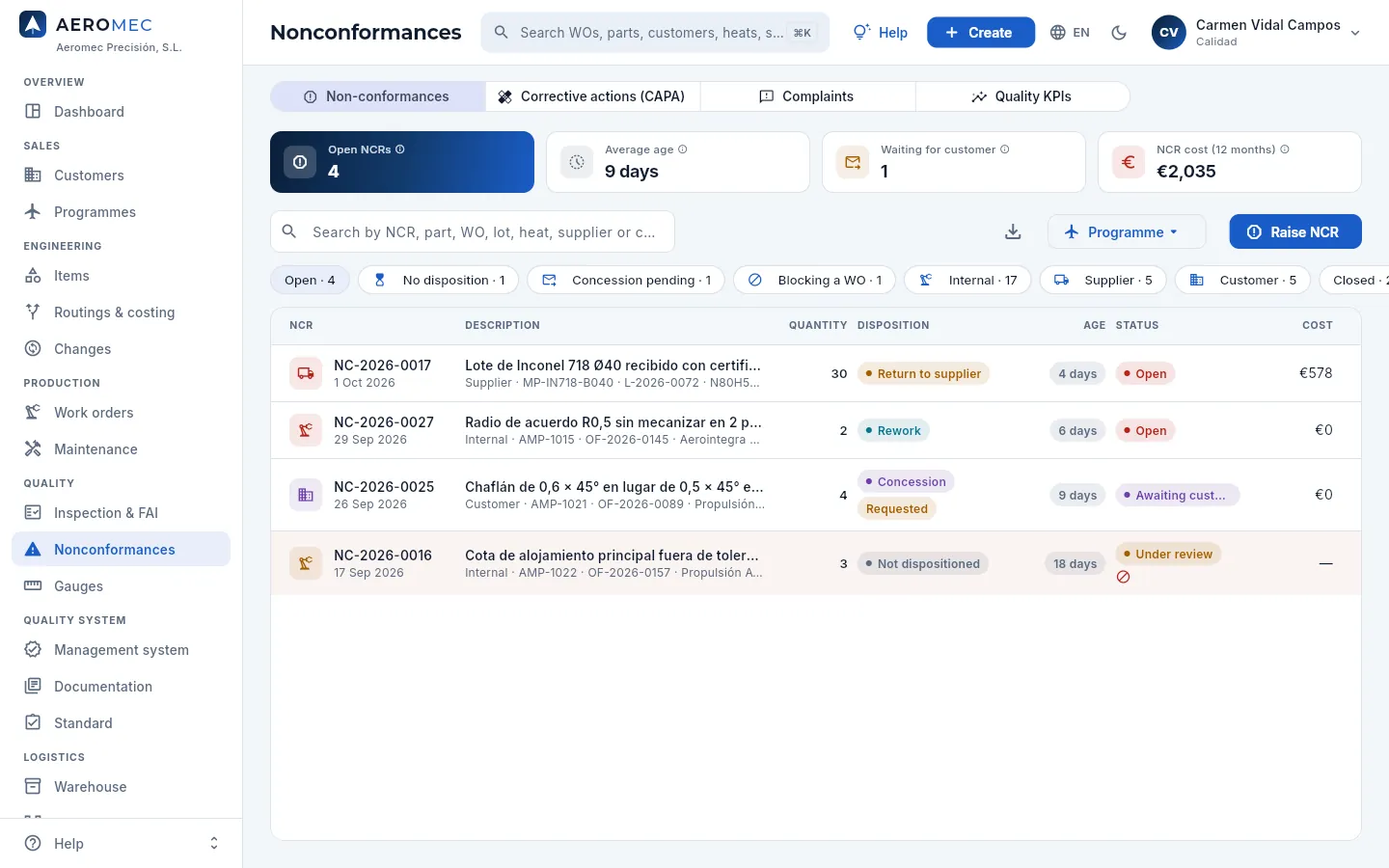 12345678910
- 1The four views: Non-conformances, Corrective actions (CAPA), Complaints and Quality KPIs.
- 2Open NCRs: internal, supplier and customer NCRs not yet closed.
- 3Average age of the open ones: amber over 30 days and red over 60.
- 4Waiting for customer: concessions requested that have not been answered yet.
- 5NCR cost over the last 12 months (only with «See costs»).
- 6Raise NCR records a new non-conformance; Programme keeps only those of one programme (AR-90, TF-38…; see Programmes).
- 7The filters: open (on entry), no disposition, concession pending, those blocking a WO, by origin, closed and all.
- 8An NCR that blocks its work order: the row in red and the ⊘ icon next to the status. It is the first one to resolve.
- 9The disposition and, if a concession was requested, where it stands.
- 10The age, the status and the cost of each NCR.
Each row shows the NCR number with its date (the icon tells the origin: the machine, internal; the lorry, supplier; the building, customer), the description with the part, the work order, the lot and the heat and the supplier or the customer, the affected parts, the disposition, the age (days open), the status and the cost. The search finds by number, part, work order, lot, heat, supplier or customer.
| Status | What it means |
|---|---|
| Open | Just recorded: the parts are segregated awaiting a decision |
| Under review | It is being studied, a rework or a repair is under way or the scrap still has to be mutilated |
| Awaiting customer | A concession or a repair has been requested from the customer and their answer is awaited |
| Closed | Resolved: the closing date is kept |
| Void | It was raised by mistake (it stays recorded all the same) |
#Raising an NCR
An NCR is raised with Raise NCR on the list (or under Create in the top bar), but it is usually raised from where it is detected, because then it comes already linked to everything:
- from the record of an inspection with measurements out of tolerance (the red Raise NCR icon, see Inspection & FAI): with the work order, the operation and the part;
- from the work order (Work orders), with Raise NCR in its menu;
- from a lot's receiving inspection: rejecting it raises the supplier NCR automatically;
- from the impact of a failed gauge (Gauges), with the description already written.
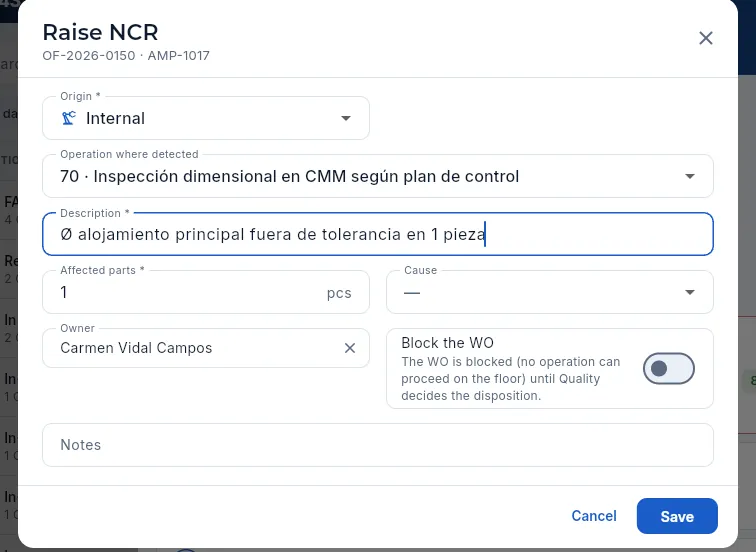 123456
- 1The origin: internal, supplier or customer.
- 2The work order operation where it was detected (it appears when raised from a work order or an inspection).
- 3The description: what was found, on which characteristic and with what value. Measurable facts.
- 4The affected parts and the cause (tool wear, program error, defective material…).
- 5The owner responsible for resolving it (defaults to you). Whoever detects it is recorded automatically.
- 6Block the WO: no operation of the work order can proceed on the shop floor until the disposition is decided.
In Inspection & FAI, open the rejected inspection and click the red Raise NCR icon.
Check the origin and the operation; write the description with the characteristic and the value (for example, «Bore Ø 10.020; max. 10.015»).
Enter the affected parts and the cause if you already know it.
If not a single part more should be made until a decision is taken, turn on Block the WO.
Click Save.
In the record that opens, complete the EN 9131 data (the pencil on its card): the characteristic, the requirement, what was found, where it was detected and the drawing revision.
#The NCR record
The record has four tabs: Summary, Scrap (the parts scrapped by this NCR, with their cost), Signatures (the disposition, the customer's response and the closure, signed) and Documents (photos, reports, the customer's complaint…). In the summary, besides what happened and where, come the non-conformance data per EN 9131:
| Data | What is entered | Example |
|---|---|---|
| Characteristic | The drawing characteristic, with its balloon | Balloon 7 · main bore Ø |
| Requirement (specified) | What the drawing or the specification requires | Ø42.000 +0.025/0 |
| Found (measured or observed) | What was measured or seen (in red) | Ø42.031 to Ø42.041 on 3 parts (CMM) |
| Detection point | Receiving, in-process, final inspection, at the customer, audit or other | Final inspection |
| Drawing revision | The revision it was made to | C |
They are filled in while the NCR has no disposition (when raising it or with the pencil on its card) and, with the disposition, they are signed together with the MRB that decided: afterwards they can only be corrected with a reason and a signature. In the demo, NC-2026-0016 (a dimension out of tolerance that blocks its work order) has them complete.
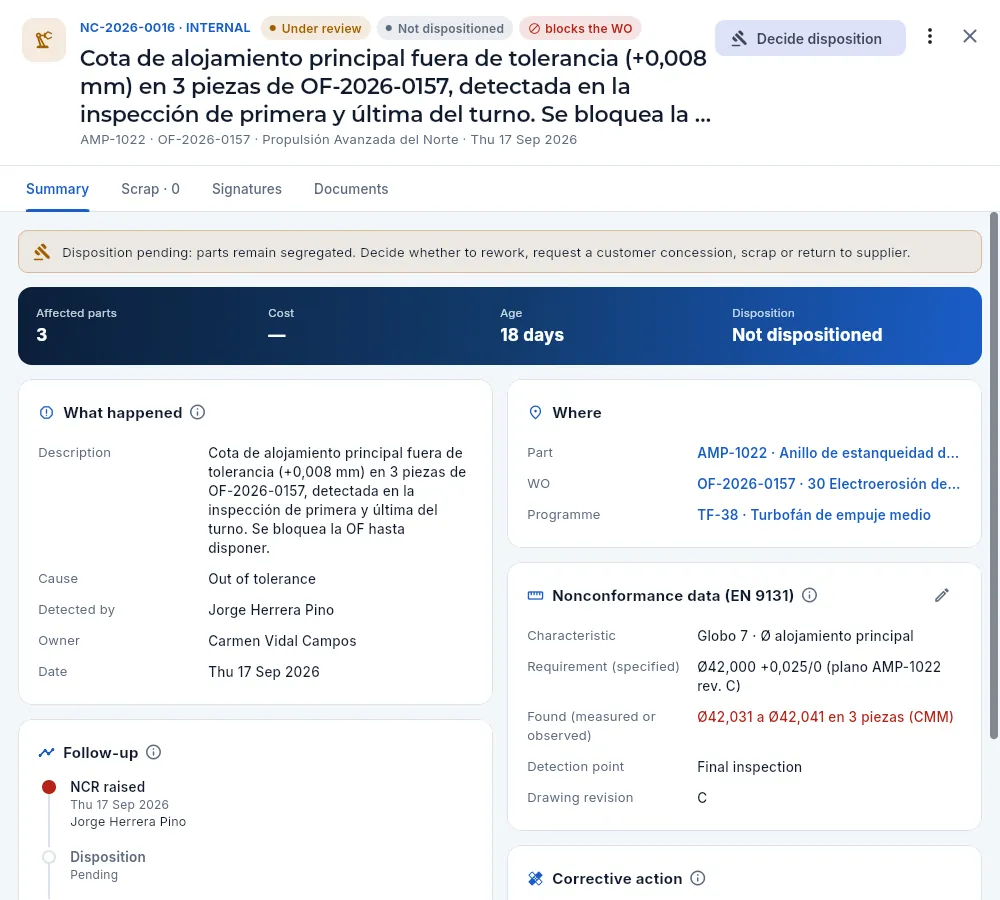 123456789
- 1The number and the origin, the status, the disposition and, in red, that it blocks the WO. Below, the description, the part, the work order, the customer and the date.
- 2Decide disposition: the main action while there is no disposition (with «Disposition NCs»).
- 3The ⋮ menu: edit the NCR, create its corrective action (if it has none), request the supplier's one (SCAR) or void it if it was raised by mistake.
- 4The tabs: Summary, Scrap, Signatures and Documents.
- 5The warning: the parts remain segregated until it is decided what to do with them.
- 6The figures: affected parts, cost, age and disposition.
- 7What happened: description, cause, who detected it, the owner and the date. Below, the step-by-step tracking.
- 8Where: the part, the work order with its operation, the programme, the lot and the heat, the supplier or the customer and, if any, the serial numbers. Click them to open them.
- 9The EN 9131 data: characteristic, requirement, what was found (in red), where it was detected and the drawing revision. The pencil edits them until the disposition. Further down, the linked corrective action.
#Deciding the disposition
The disposition decides what is done with the nonconforming parts. It is taken by the MRB (Material Review Board, the nonconforming product board: usually Quality, Engineering and, if the contract requires it, the customer's representative) and signed by whoever has the «Disposition NCs» permission and an inspection stamp with the MRB scope. The options depend on the NCR: rework needs a work order and return, a lot or a supplier.
| Disposition | What Aeromec does | The NCR |
|---|---|---|
| Rework | Adds a rework operation («Rework · NC-…») to the work order on the machine you choose (by default, the fitting bench), with the instructions: the part meets the drawing again | Goes to «Under review» until you close it |
| Repair | Asks the customer to approve the repair procedure (the part will be usable, but not fully meet the drawing); once approved, it adds the «Repair · NC-…» operation to the work order with the procedure | «Awaiting customer» and, once approved, «Under review» |
| Use as is (concession) | Asks the customer to accept the parts as is (a concession or deviation) | «Awaiting customer» |
| Scrap | Records the scrap of the parts with its cost (what has been built up to the operation) | «Under review» until its mutilation is recorded; then it is closed |
| Return to supplier | Takes the blocked or quarantined lot out of the warehouse as a return | It is closed |
In any of these cases, if the NCR blocked the work order, the work order is unblocked (unless another open NCR also blocks it): it goes back to «In progress» and its blocked operations, back to the queue.
In the dialog you choose the disposition (only those that fit that NCR are shown), enter the MRB that decides it and, for a repair, the procedure (mandatory: the one the customer is asked to approve, for example one from their repair manual). For a rework you choose the machine of the new operation. The instructions stay with the NCR and, in a rework, are what the operator sees at the terminal.
When you click Save Aeromec asks for your signature with the meaning «Dispositioned (MRB)»: the MRB, the repair and the EN 9131 data are signed with the disposition (The electronic signature).
Until it is decided, the NCR is «Not dispositioned» and shows in the No disposition filter.
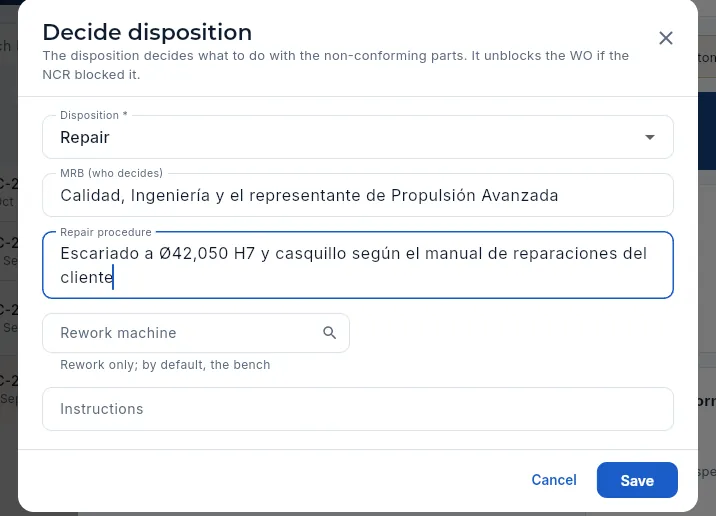 12345
12345
- 1The disposition: rework, repair, use as is, scrap or (for supplier or lot NCRs) return; below, what it involves.
- 2The MRB: who decides.
- 3The repair procedure: mandatory for a repair; it is what the customer will approve and what the shop will do.
- 4Rework only: the machine for the new operation; left empty, the bench.
- 5Save asks for your signature; then it is applied and the work order is unblocked.
In Nonconformances, filter Blocking a WO and open the NCR.
Read what happened and the EN 9131 data, and look at the work order and the part under Where. If needed, check the inspection measurements.
Click Decide disposition and choose the Disposition; enter the MRB. For a rework, choose the machine (or leave it empty for the fitting bench) and write the instructions; for a repair, the procedure.
Click Save and sign with your password.
 12
12
- 1With the disposition already taken (here, rework)…
- 2…once the rework is done and inspected, Close NCR.
#Customer concession
A concession (or deviation) means asking the customer to accept the parts as they are even though they do not meet the drawing, because the defect does not affect their function: a 0.6 chamfer instead of 0.5, a slightly smaller radius, a roughness a little above the limit. Only the customer can approve it; until they answer, those parts cannot be shipped and stay set aside.
In the demo, the customer NCR from Propulsión Avanzada del Norte (AMP-1021, Brida de escape de APU) has a concession requested and is awaiting an answer.
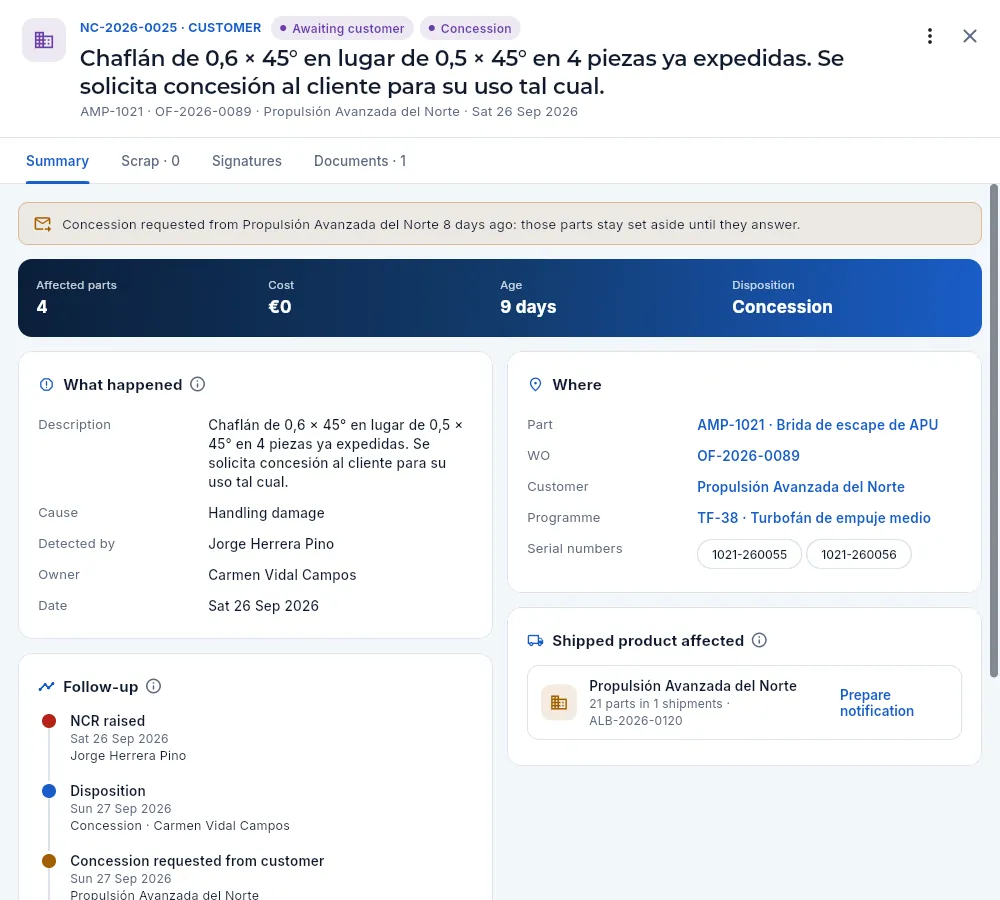 12345
12345
- 1Origin customer, status Awaiting customer and disposition Concession.
- 2Who it was requested from and how long ago: those parts stay set aside until they answer.
- 3The affected serial numbers (in customer NCRs, the parts shipped to them).
- 4The follow-up: NCR raised, disposition, concession requested, customer answer and closure, each step with its date and who.
- 5Under Documents, the complaint or the concession request sent to the customer.
The customer's response is recorded by whoever has «Approve concession» (by default, Management): in the NCR record Concession approved appears and, in the ⋮ menu, Concession rejected. Both are signed («Approved» or «Rejected»).
- Approved: with the customer's reference (their concession or deviation number) and their comments. For a use as is, the NCR is closed and the parts can be shipped; for a repair, the work order gets the «Repair · NC-…» operation on the fitting bench with the approved procedure, and the NCR stays «Under review» until it is done and you close it.
- Rejected: with the customer's comments (mandatory). The NCR goes back to «Under review» without disposition: another one has to be decided (rework or scrap).
Quality, which does not have that permission, sees the NCR but not those buttons.
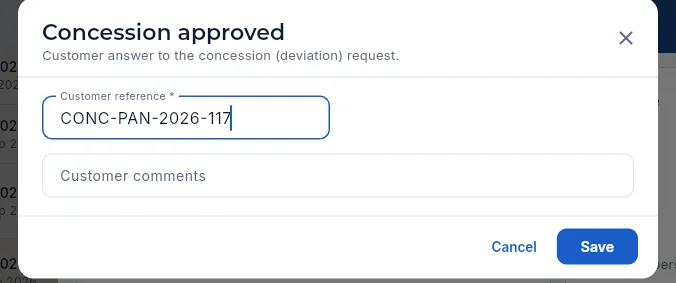 12
12
- 1The concession reference at the customer (required when approving).
- 2Whatever the customer says: conditions, parts it applies to…
In the NCR, click Decide disposition, choose Use as is (concession) (or Repair, with its procedure), enter the MRB and explain in Instructions what is asked of the customer. Save and sign.
Send the request to the customer through the usual channel and upload it to the NCR's Documents.
When the customer answers, whoever has «Approve concession» opens the NCR and clicks Concession approved (with the customer's reference) or, in the ⋮ menu, Concession rejected (with their comments), and signs.
#Scrap: the signed mutilation
A part that is scrapped must be left unusable so that nobody can use it again or sell it as good: it is mutilated by cutting it through the nonconforming characteristic, drilling it, crushing it, melting it or marking it «SCRAP», if possible with a witness. That is why a scrap NCR is not closed when it is decided: it stays «Under review» with the warning that the mutilation is missing, and the record's main action becomes Record mutilation: how many parts, how they were mutilated, the witness and some notes. It is signed («Performed») and, only then, Close NCR appears.
In an NCR for suspected counterfeit, mutilation is mandatory.
#Affected shipped product and escape notification
When a non-conformance is found late, parts with the same defect may already have gone out: it is an escape. The Affected shipped product card of the NCR works it out by itself:
- the shipments of the same work order (or only of its serial numbers, if the NCR has them);
- if the defect is in the material (an NCR on a lot), the shipments of every work order that consumed that lot, like forward traceability (Traceability).
For each customer it says how many parts and on which delivery notes, and carries Prepare notification: the escape notification (AVE-…), with the text for the customer (what happened, which parts and what we ask of them: hold them, return them, inspect them), its shipments and serial numbers and the letter as a PDF. It is marked as sent and, when the customer answers, their acknowledgement is recorded with their reference. If no part has gone out, the card says so and nobody needs to be notified.
In the demo, NC-2026-0011 (anodising thickness out of specification on a subcontracted job) is a scrap already mutilated and closed whose parts from the same work order reached Aerointegra Systems: the notification has been sent and acknowledged.
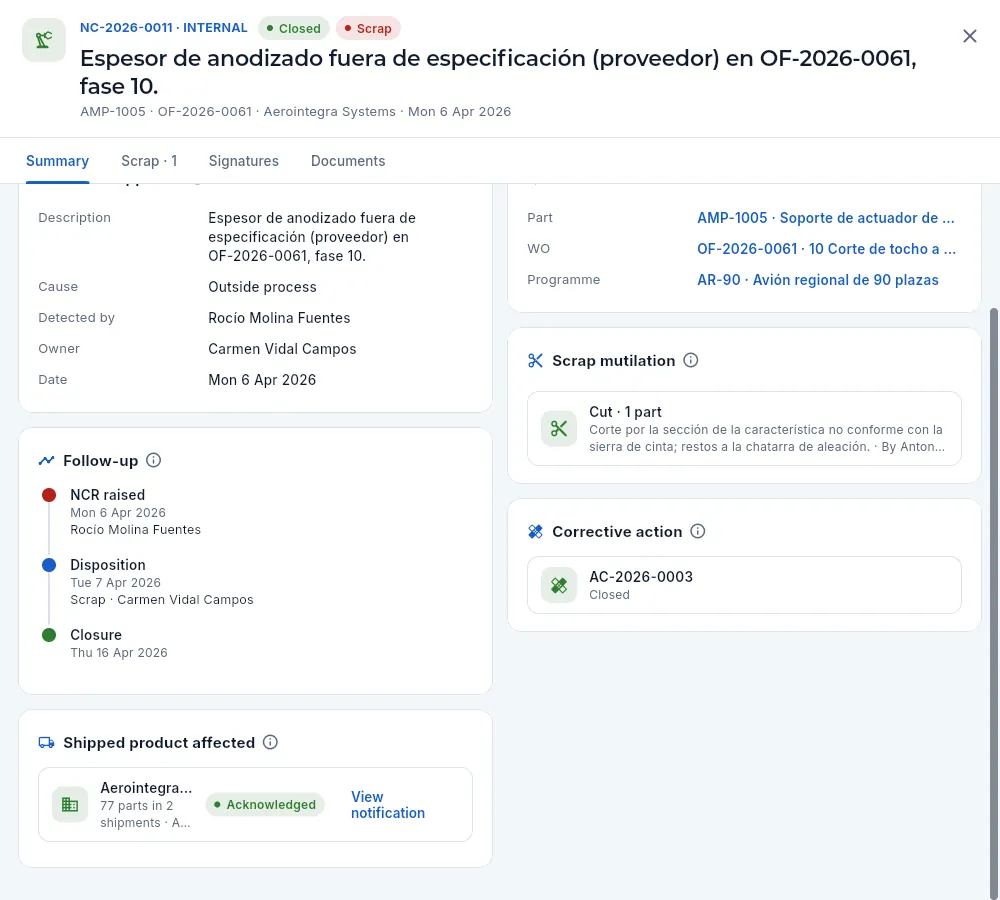 12345
12345
- 1The NCR, closed, with a scrap disposition.
- 2The mutilation: how (here, cutting), how many parts, who did it and the witness.
- 3Affected shipped product: for each customer, how many parts in how many shipments…
- 4…the status of their notification (to send, sent or acknowledged) and View notification (or Prepare notification, if it has none yet).
- 5The corrective action for the cause.
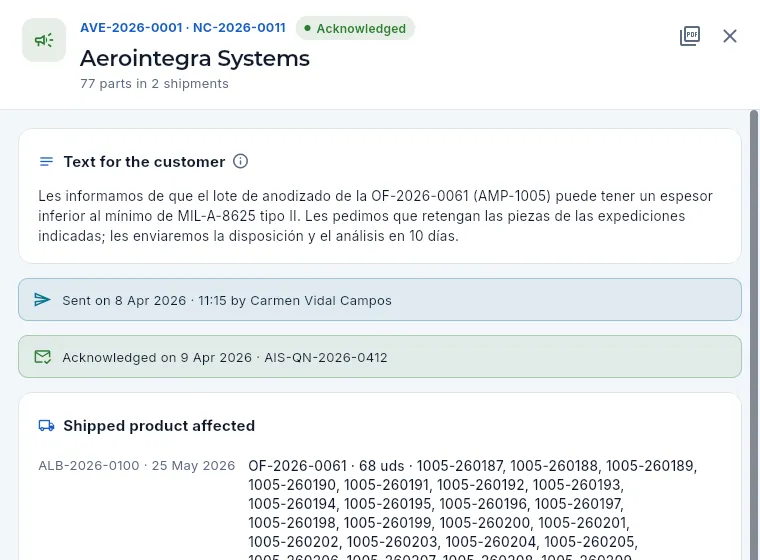 123456
- 1The notification number (AVE-…), its NCR and its status; below, the customer and how many parts.
- 2The letter for the customer as a PDF.
- 3The text: what happened and what is asked of them. While it is still to be sent it can be edited, and it is marked as sent.
- 4Sent: when and by whom.
- 5Acknowledged: when the customer answered and their reference.
- 6Each delivery note with its date, the work order, the units and the serial numbers.
In the NCR, scroll down to Affected shipped product and click Prepare notification on the customer.
Review the text Aeromec proposes and edit it: what happened, which parts and what you ask of them.
Produce the letter as a PDF and send it to the customer through their usual channel; then click Mark as sent.
When the customer answers, click Record customer acknowledgement and enter their reference.
#Corrective actions (CAPA) in 8D
The NCR contains the problem; the CAPA (Corrective And Preventive Action) removes its cause so that it does not happen again. Aeromec documents it with the 8D method (eight disciplines), the one aerospace customers ask for in their complaints:
| Step | What is written |
|---|---|
| D1 · Team | Who works on the problem (quality, shop floor, engineering…) |
| D2 · Problem | What, where, when and how much: measurable facts |
| D3 · Containment | What has already been done to protect the customer (segregate, 100% check…) |
| D4 · Root cause | Why it happened and why it was not detected, with the chosen method (5 whys or Ishikawa, the fishbone diagram of the 6Ms: machine, method, material, manpower, measurement and milieu) |
| D5-D6 · Corrective action | The action that removes the cause and when it is implemented |
| D7 · Prevention | How it is avoided on similar parts and processes (routings, control plans, training) |
| D8 · Verification and closure | The evidence that it works (no recurrence over the period) and whether it was effective |
A CAPA is created with New corrective action in its view (from an NCR, a complaint, an audit or an improvement), from the ⋮ menu of an NCR or from a complaint (Open its CAPA), and they are then linked. Several NCRs with the same cause can share one CAPA. Those from an audit finding are opened in Management system.
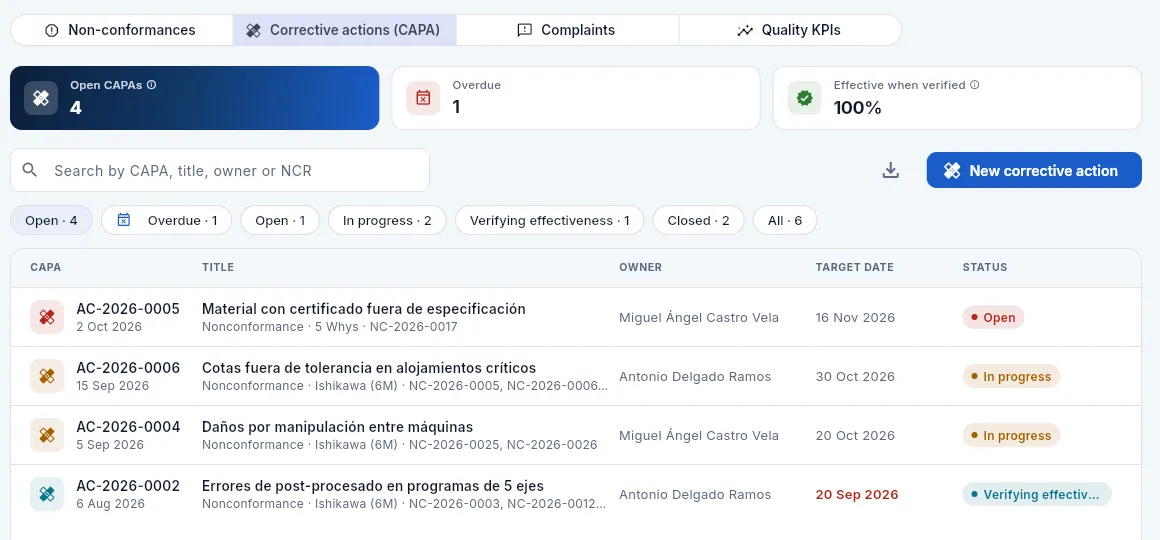 12345
12345
- 1Open CAPAs, those that are overdue and the share effective when verified.
- 2New corrective action: title, origin, method, owner, target date and the problem (D2).
- 3The filters: open, overdue, by status and all.
- 4Each CAPA: number and date, the title, its origin, the analysis method and the NCRs that gave rise to it.
- 5The owner and the target date (in red if it has passed without closing it).
The status moves forward by itself as the steps are completed: Open → In progress (when D1 to D4 are written) → Verifying effectiveness (when D5-D6 are completed with the implementation date) → Closed (when the D8 verification is signed as effective). The record has four tabs: 8 disciplines problem solving (8D), Analysis (EN 9136), Signatures and Documents.
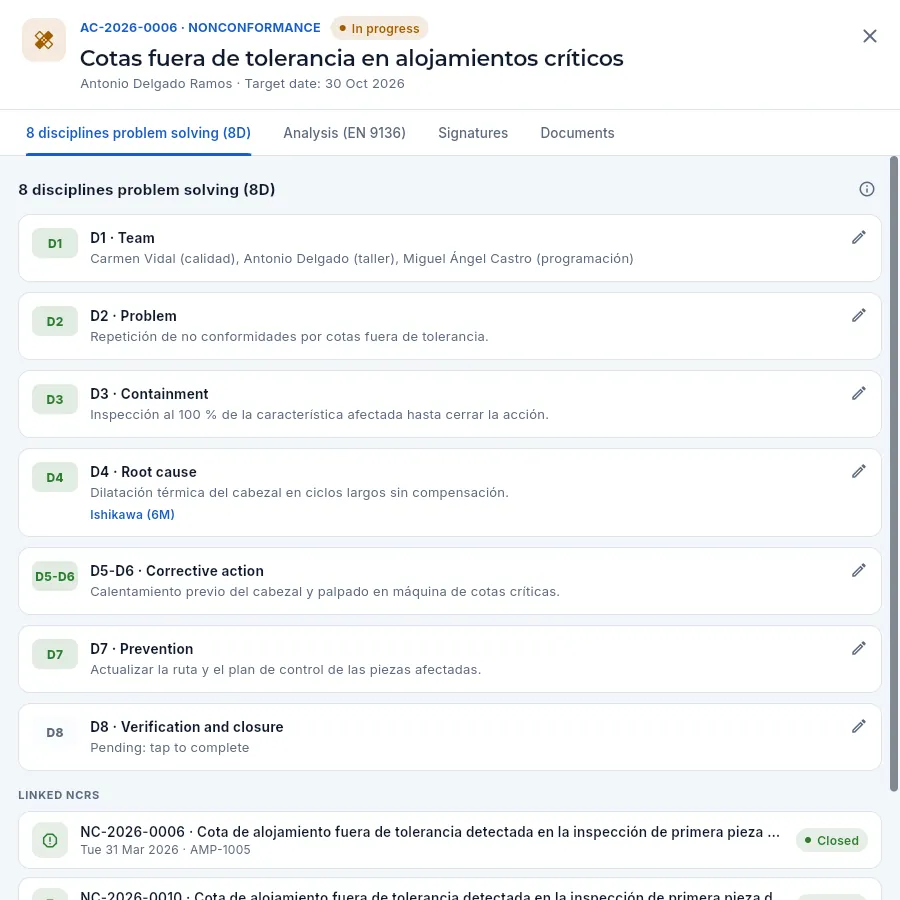 1234567
- 1The number, the origin and the status (and «Overdue» if the target date has passed); below, the title, the owner and the target date.
- 2The Analysis (EN 9136) tab: the root cause analysis (you can see it further down).
- 3The ⓘ summarises the 8D method and the customer's usual deadlines.
- 4Each discipline in its block: the code turns green once it is written. Click a block to complete it.
- 5The D4, the root cause, with the analysis method below.
- 6The pending D8: «Pending: tap to complete».
- 7The linked NCRs of this CAPA: click them to open them.
The Analysis (EN 9136) tab documents the root cause analysis as required by EN 9136, the standard aerospace customers use to judge an 8D response. It has four blocks, each with its pencil while the CAPA is open:
| Block | What is written |
|---|---|
| Problem description (5W2H) | What, where, when, who, how much, how and why it matters: the seven questions that bound the problem with facts |
| Possible causes (Ishikawa, 6M) | The candidate causes for each «M»: manpower, method, machine, material, measurement and environment |
| 5 whys | The chain of whys, from what is seen to the root cause (the last one, highlighted) |
| Root cause, escape and system | Why it was not detected (the escape point), the systemic cause (what in the system allowed it), the human factors, the extension to other products and processes and the lessons learned |
When the CAPA is closed, the analysis is signed with it. In the demo, AC-2026-0006 (dimensions out of tolerance in critical bores) has it almost complete.
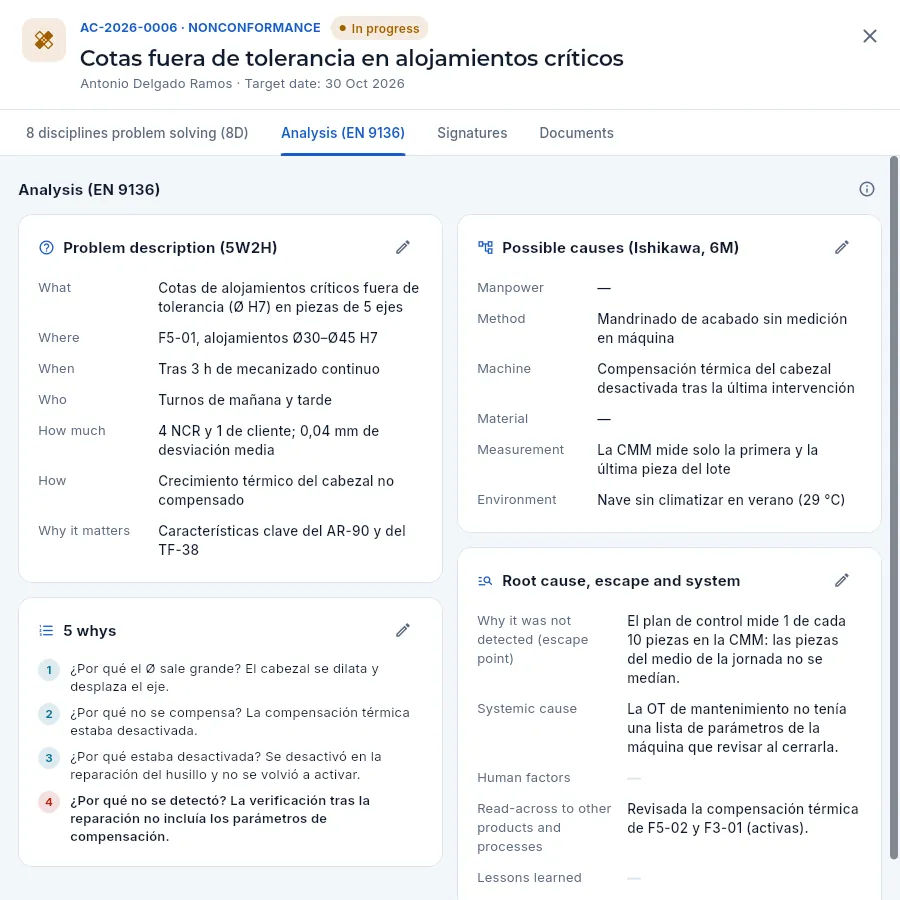 123456
- 1The Analysis (EN 9136) tab.
- 2The problem in 5W2H: what, where, when, who, how much, how and why it matters.
- 3The possible causes by the 6Ms (the Ishikawa diagram); «—» where there is none.
- 4The 5 whys, down to the root cause (highlighted).
- 5Why it was not detected, the systemic cause, the human factors, the extension to other machines or parts and the lessons.
- 6The pencil of each block edits it while the CAPA is open.
The D8 closes the CAPA. You record what has been checked (for example, «30 work orders without the dimension out of tolerance recurring»), the verification date and whether the action was effective, and you sign.
- Effective: the CAPA is closed (signature «Closed») and its 8D and its EN 9136 analysis are signed.
- Not effective: the root cause was not the real one; the verification is signed («Verified») and the CAPA goes back to In progress to rethink the action from D4 with more data.
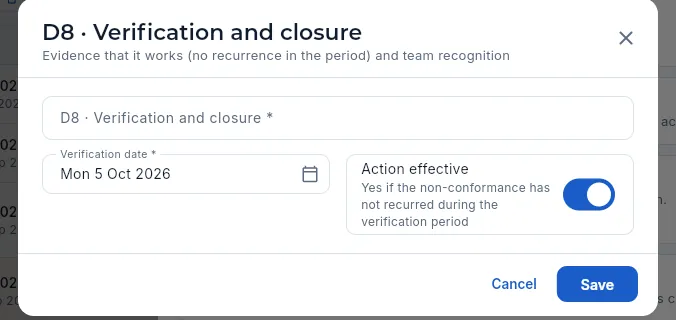 123
123
- 1The verification: the evidence that it works.
- 2The verification date.
- 3Action effective: yes, if it has not recurred during the period.
From the NCR, ⋮ menu → New corrective action (or in Corrective actions (CAPA) → New corrective action). Enter the title, the method (5 Whys or Ishikawa), the owner and the target date (by default, 30 days ahead).
Complete D1 (team), D2 (problem) and D3 (containment) as soon as it is opened: the customer usually asks for containment within 24-48 hours.
Analyse the cause in the Analysis (EN 9136) tab (5W2H, Ishikawa, 5 whys, why it was not detected and the systemic cause) and summarise the root cause in D4.
Write the action in D5-D6 with its implementation date, and the prevention in D7 (the extension to other products and processes).
Once the verification period is over, complete D8 with the evidence, mark whether it was effective and sign.
#Customer complaints
A complaint is what the customer tells us has gone wrong: parts that do not conform, a delay, missing documentation, damaged packaging, poor service. It is not always a product non-conformance (a delay is not), but it always has two deadlines:
- containment: what is done straight away to protect the customer (hold, check the stock and what is in progress); usually, by the next day;
- the full response, with the cause analysis and the corrective action (the 8D): usually, within 30 days.
The Complaints view holds them all, with their type (quality, delivery, documentation, packaging, service or other), their severity (critical, major or minor), the customer's reference and the deadlines. From each one you open its customer NCR and its CAPA, record the containment and the response, and Quality closes it with its signature. They also show in the Complaints tab of the customer record (Customers), where they are added.
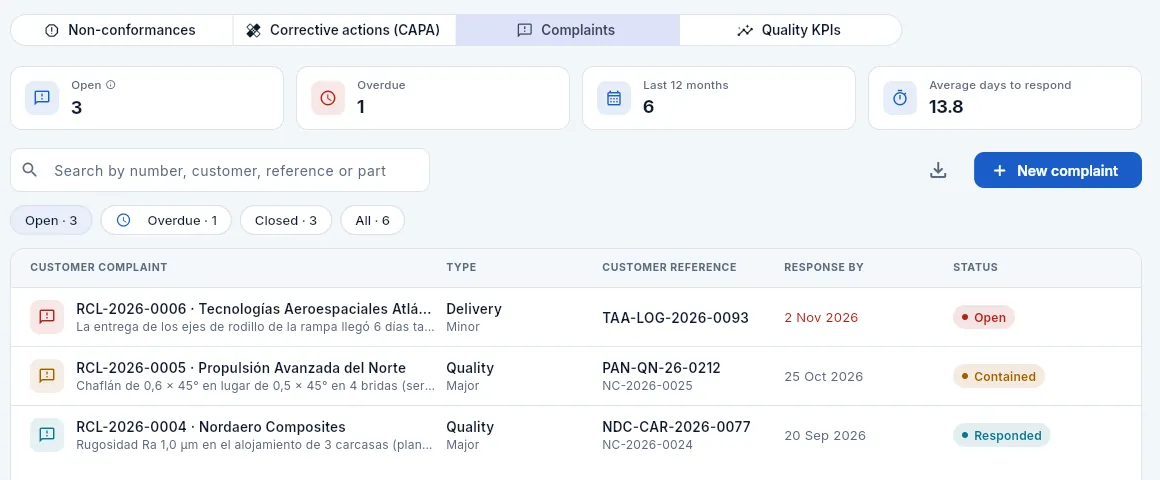 123456
- 1The Complaints view.
- 2Open, those with an overdue deadline, those of the last 12 months and the average days to respond.
- 3New complaint: customer, type, severity, reference, description and the deadlines (they default to tomorrow and 30 days).
- 4The filters: open (on entry), overdue, closed and all.
- 5Each complaint: number, customer and description; the type and the severity; the customer's reference and, below, its NCR.
- 6The response deadline (in red if it is due or overdue) and the status: open, contained, responded or closed.
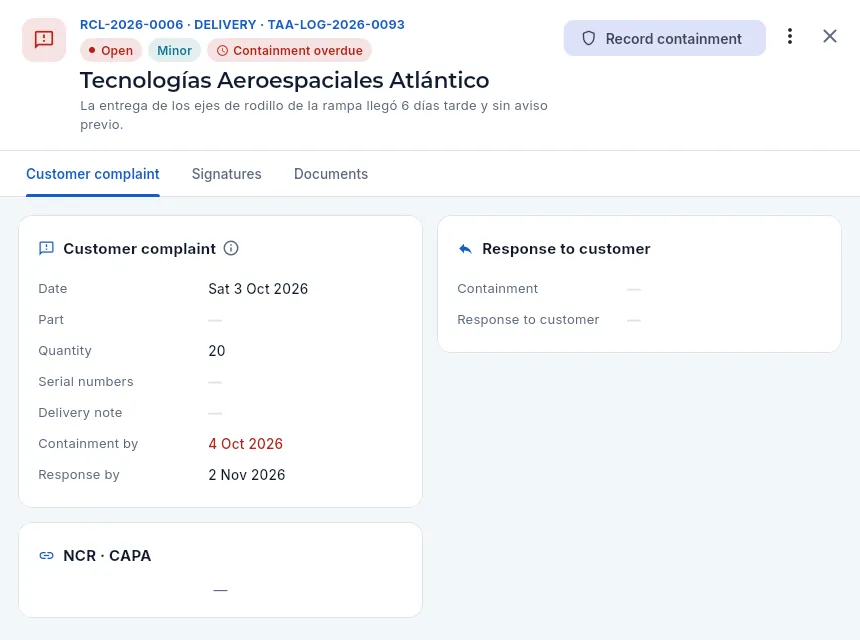 12345
12345
- 1Number, type and customer's reference; the status, the severity and, in red, Containment overdue (or how many days are left to respond).
- 2The action due: Record containment; then Record response and Close complaint (with a signature).
- 3The ⋮ menu: record the response, Open its NCR (customer) and Open its CAPA (already linked), edit it or cancel it with the reason.
- 4What they complain about: date, part, quantity, serial numbers, delivery note and the containment and response deadlines, the overdue one in red.
- 5Its NCR and its CAPA, once it has them: click them to open them.
In the customer record → Complaints → New complaint (or in the Complaints view): the type, the severity, their reference, what they complain about and, if any, the part, the quantity, the serial numbers and the delivery note.
Before the containment deadline, click Record containment and write what has been done (parts held, stock checked…).
If it is a product problem, ⋮ menu → Open its NCR and Open its CAPA; solve the CAPA in 8D with its analysis.
Before the response deadline, click Record response with what is sent to the customer.
When the customer accepts it, click Close complaint and sign.
#Quality KPIs
The Quality KPIs view sums up twelve months of delivery and quality, each figure against its target (the OTD, PPM and scrap targets are set in Settings). Every ⓘ explains the calculation with an example.
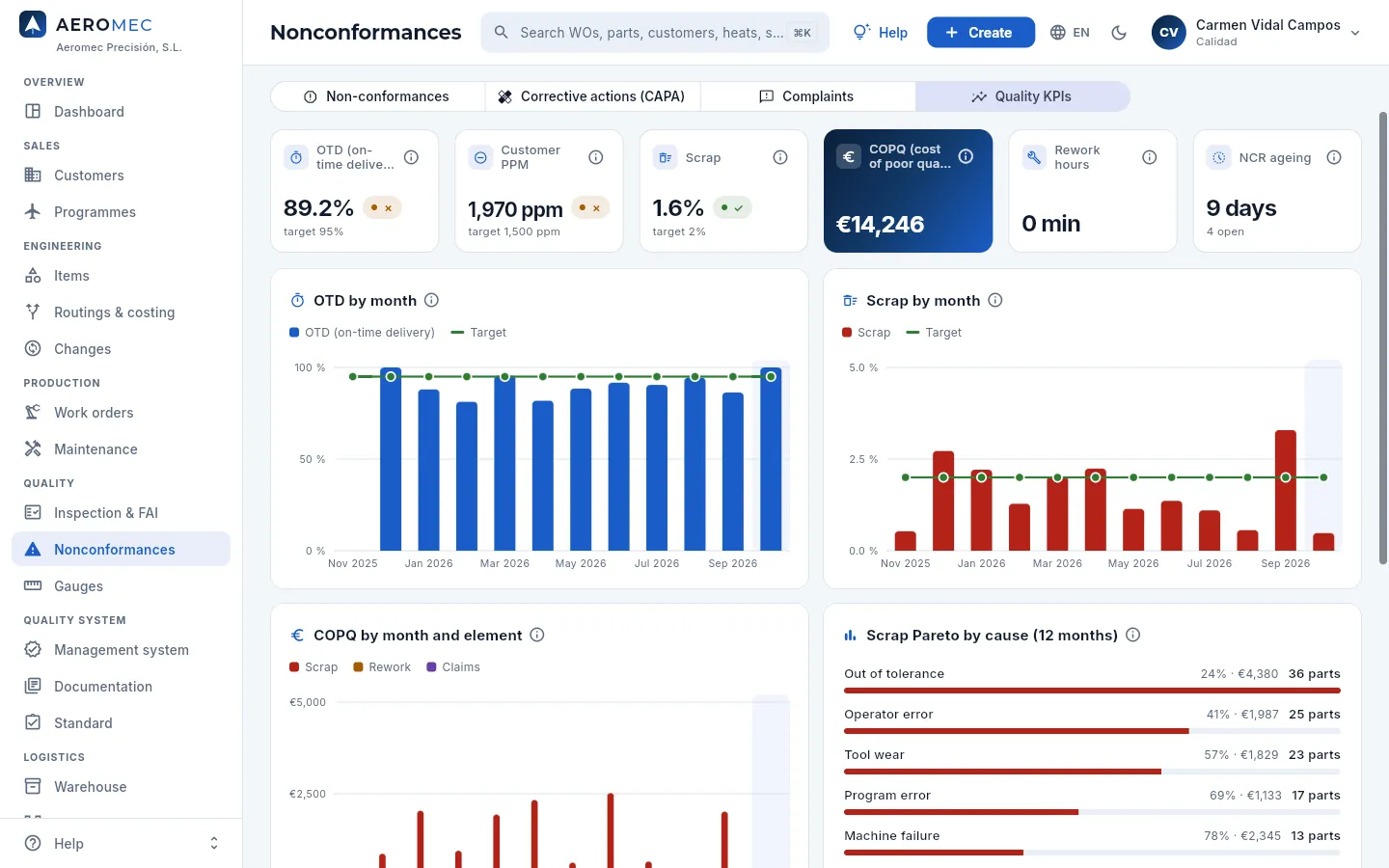 123456789
- 1OTD (On-Time Delivery): deliveries shipped on time, with ✓ or ✗ against the target.
- 2Customer PPM: parts rejected by customers per million shipped.
- 3Scrap: share of parts scrapped over parts made.
- 4COPQ (Cost Of Poor Quality): what not getting it right first time costs, and what share of sales it represents.
- 5Rework hours booked on the shop floor.
- 6Average age of the open NCRs and how many there are.
- 7OTD by month against the target (the green line); the current month highlighted.
- 8Scrap by month against its target.
- 9COPQ by month, split into scrap, rework and claims.
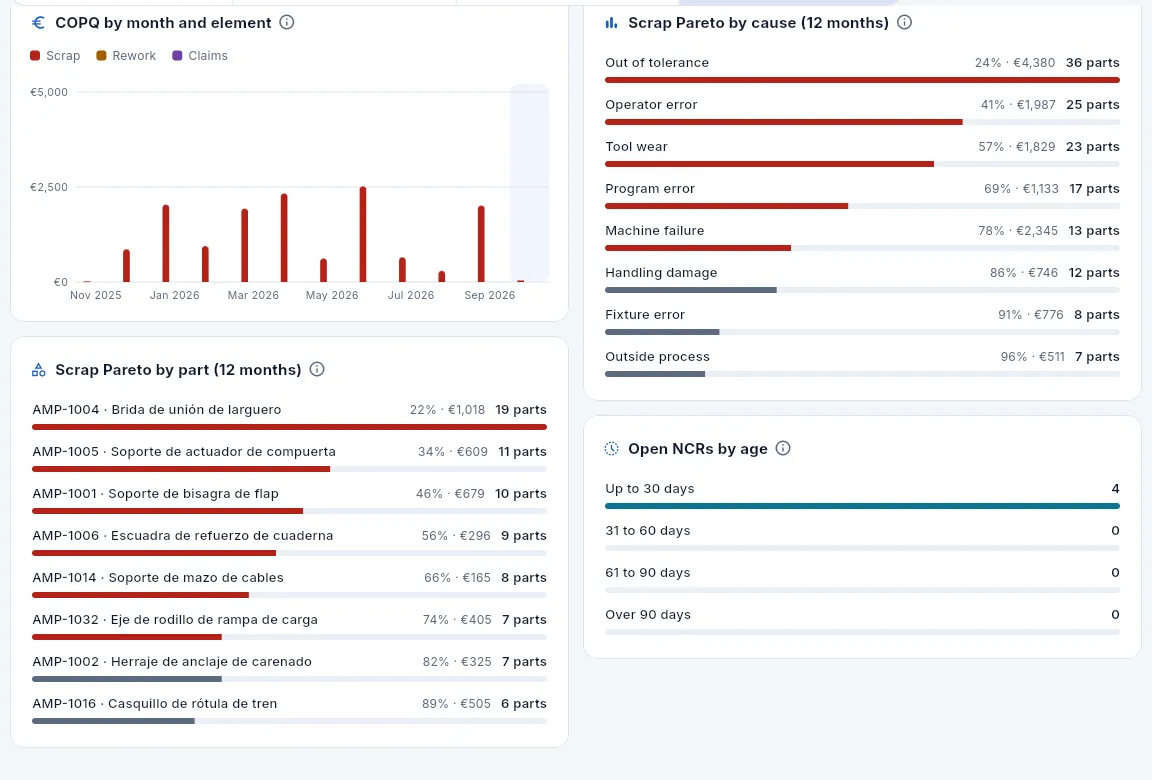 1234
1234
- 1The scrap Pareto by cause: causes from largest to smallest, with the cumulative % and their cost.
- 2The red bars add up to 80%: they are the few causes to act on first (the 80/20 rule). The grey ones, the rest.
- 3The same analysis by part: which part numbers account for most scrap and what it costs.
- 4Open NCRs by age: up to 30 days, 31 to 60, 61 to 90 and over 90.
#What each profile sees
 1
1
- 1The shield marks what is defence: whoever does not have «Defence data» does not see this row, nor is it counted in the KPIs.
Quality
Gauges
Measuring and test equipment with its signed calibration (measured value against its criteria, result and a warning if ENAC is required and the laboratory is not accredited), the calibration calendar, loans —who has each gauge and since when—, the serial number, the status and the cabinet of each one, barcode labels and the impact of a gauge found unfit.
Gauges holds all the shop's measuring and test equipment: calipers, micrometers, dial indicators and height gauges, the coordinate measuring machine (CMM), the profile projector, roughness and hardness testers, gauge blocks and fixed gauges (plain and thread plug gauges and ring gauges, which say «go / no-go»). For each one, Aeromec knows:
- whether it is calibrated and in date: its last calibration, its certificate and when the next one is due;
- where it is: its cabinet and drawer, its whereabouts (in use, at the lab, under repair, missing) and, if someone has taken it, who has it and since when;
- what has been measured with it: the inspections and operations it was used on.
The underlying rule: an overdue, uncalibrated or out-of-service gauge is blocked. Measurements with it are not accepted (Inspection & FAI) and the shop-floor terminal does not lend it (Shop-floor terminal). The database enforces it, not just the screen.
The section has three views: Gauges (the list), Loans and Calendar.
#The life of a gauge
- 1Set-up and labelUnique code, serial number, cabinet, interval and acceptance criterion. The Code128 label carries the code.
- 2LoanAt the terminal it is taken by scanning the label and returned; the office sees everything.
- 3MeasurementEvery inspection measurement stores the gauge it was taken with.
- 4CalibrationBefore it falls due, off to the lab; when it comes back the certificate and the measured value are recorded.
- 5FailOut of service and a review of what was measured with it since the last passing calibration, with «Open NCR».
#The gauge list
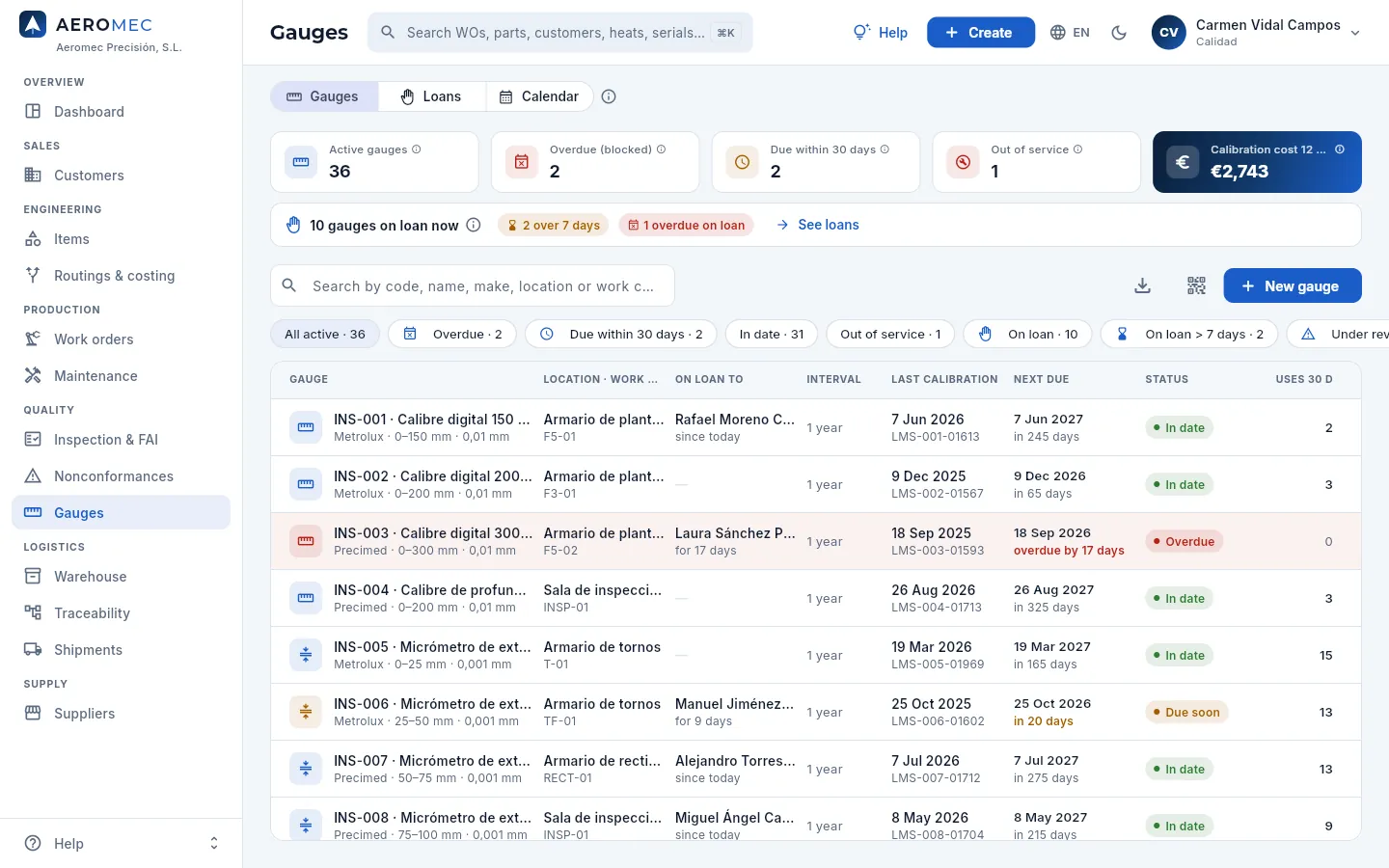 12345678
- 1The three views: Gauges, Loans and Calendar (Aeromec remembers the last one).
- 2Active gauges, overdue ones (blocked), those due within 30 days and those out of service.
- 3Calibration cost over the last 12 months (with «See costs»).
- 4The loans strip: how many are out now, how many have been out over 7 days and how many are overdue on the shop floor. See loans opens that view.
- 5The labels mode: tick gauges and print their barcode labels.
- 6The filters: by calibration status, by loan and whereabouts, those requiring ENAC and by family (swipe to see them all).
- 7INS-003, overdue: the row in red, the next calibration «overdue by…» and the Overdue status. On top of that, someone on the shop floor has it.
- 8On loan to: who has it now and since when. Then the interval, the last and next calibration, the status and the uses in 30 days.
Each row shows the gauge's code and name with its make, range, resolution and serial number; its location (cabinet and drawer) and the work centre it is assigned to; who it is on loan to; the calibration interval; the last one (with its certificate) and the next one (amber if due within 30 days, red if already overdue); the status and how many times it has been used to measure in the last 30 days. Click a row to open its record.
| Status | What it means | Can it be used to measure? |
|---|---|---|
| In date | Calibration valid | Yes |
| Due soon | Due within 30 days: time to send it to the lab | Yes, until it falls due |
| Overdue | The next calibration date has passed | No (blocked) |
| Not calibrated | It has no calibration on record | No (blocked) |
| Out of service | Flagged by hand: damaged, lost or failed | No (blocked) |
Besides the status, a second tag tells you if it is away from its place (whereabouts: At the lab, Under repair or Missing) or Under review because it was returned damaged. None of them is lent.
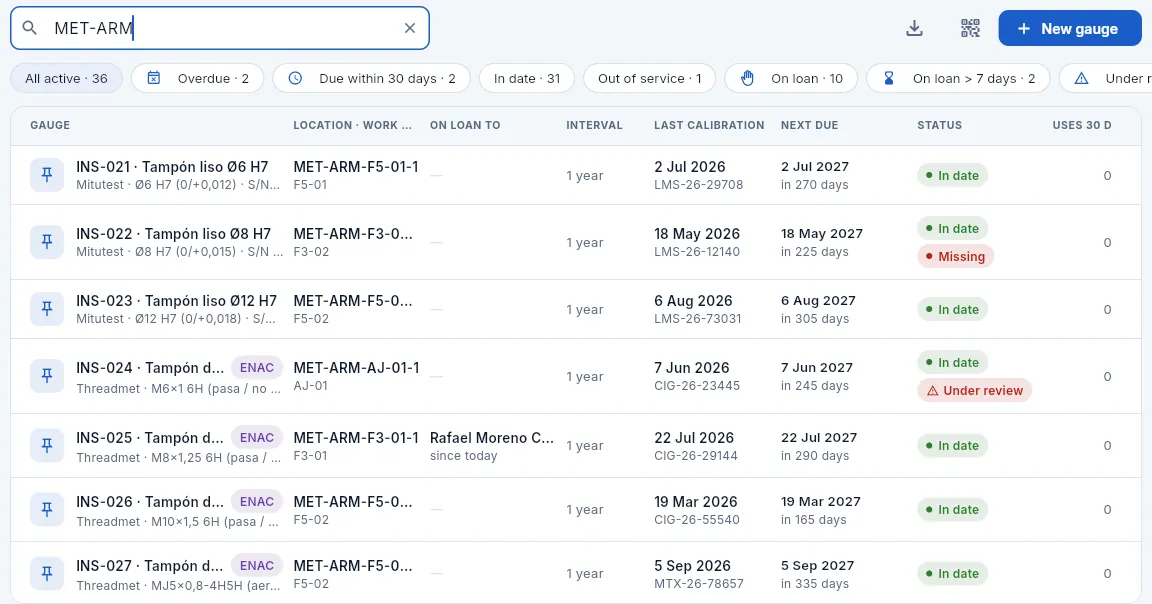 123456
- 1The search box finds by code, name, make, serial number, location, work centre, type or the person who has it.
- 2Under the name, the make, the range (for a fixed gauge, the size and its tolerance) and the manufacturer's serial number.
- 3The location: machine cabinet and drawer (MET-ARM-F5-01-1 = F5-01 cabinet, drawer 1).
- 4Missing: in date, but not in its place. It is not lent until it turns up and is checked.
- 5ENAC: its calibration must be done by an accredited laboratory.
- 6Under review: it was returned damaged and nobody can take it until Quality checks it.
#The gauge record
The record has four tabs: Summary, Loans (who has had it), History (its calibrations) and Documents (its calibration certificates, the manual…).
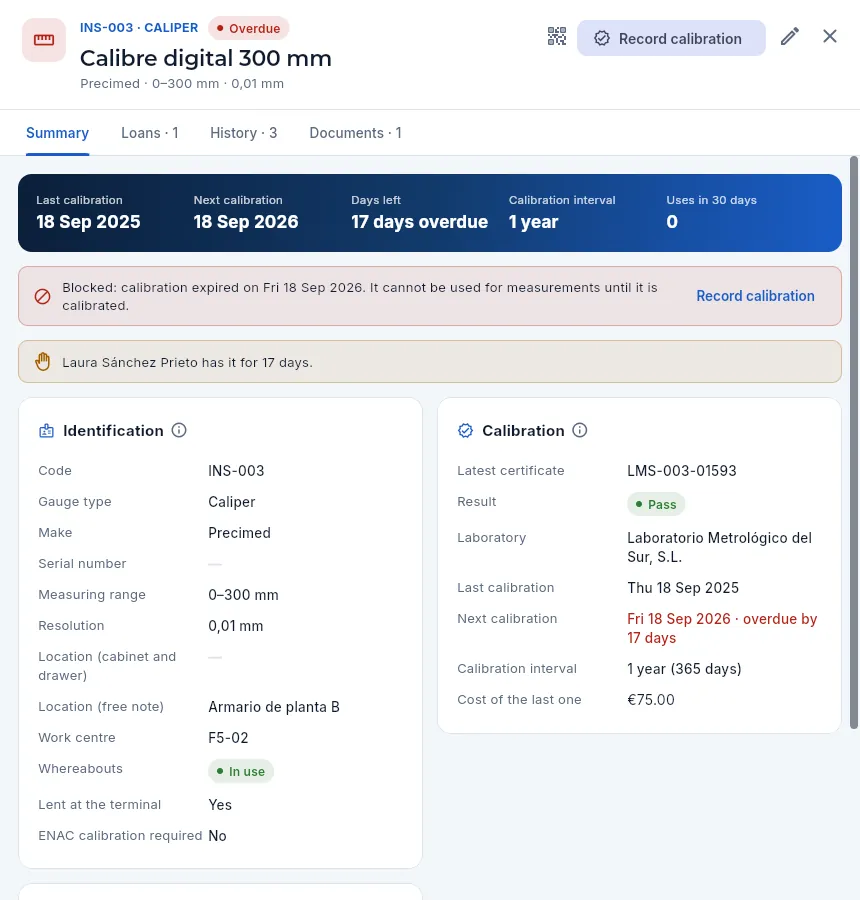 12345678
- 1The code and the type, with its status; below, the name, make, range, resolution and serial number.
- 2Prints its barcode label.
- 3Record calibration (with «Edit quality») and, next to it, edit the gauge details.
- 4The figures: last and next calibration, days left (or how many it has been overdue), interval and uses in 30 days.
- 5The block warning: since when it has been overdue and that it cannot be used to measure. With a link to record the calibration.
- 6Who has it and since when (amber after 7 days).
- 7Identification: code, type, make, serial number, range and resolution, cabinet and drawer, work centre, whereabouts, whether it is lent and whether it requires ENAC.
- 8Calibration: last certificate, result, laboratory, dates, interval and cost of the last one.
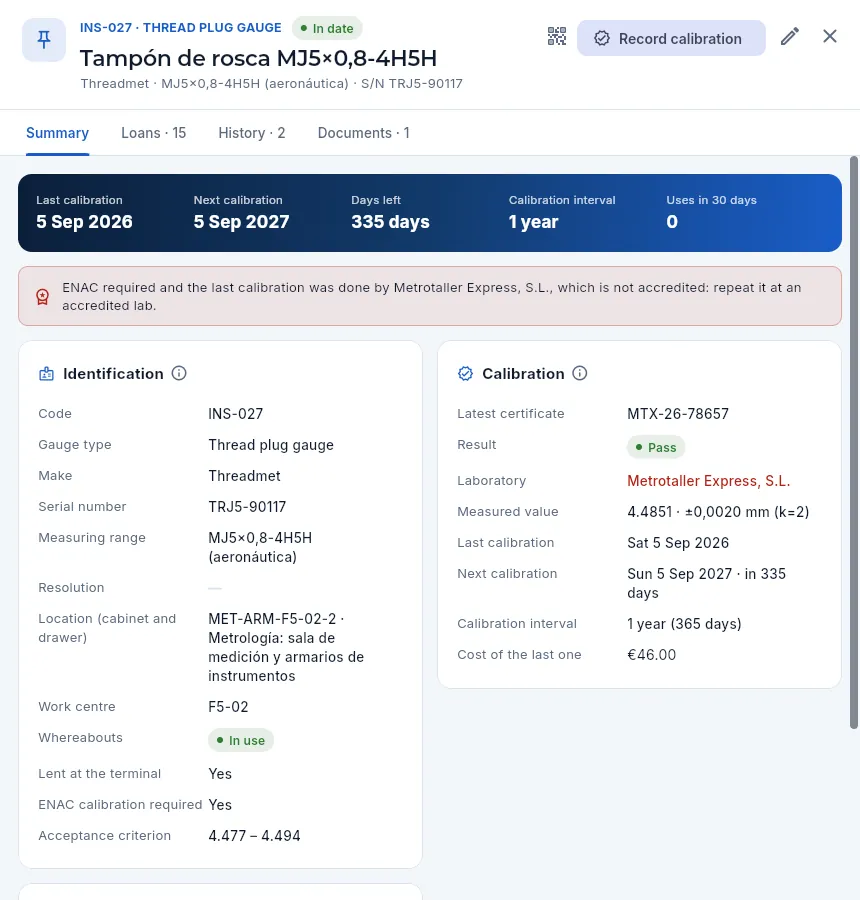 123456
- 1The manufacturer's serial number (S/N), also on the label and in the search.
- 2The warning: it requires ENAC and the last calibration was done by a non-accredited laboratory; it has to be repeated at an accredited one.
- 3The location in the metrology store: cabinet and drawer.
- 4The acceptance criterion: the range within which the laboratory's measurement must fall for it to pass.
- 5The laboratory, in red because it is not accredited for a gauge that requires ENAC.
- 6The measured value at the last calibration and its uncertainty.
Further down in the Summary, the Use in measurements card tells you whether the gauge is available for measuring or blocked, how many measurements have been taken with it in 30 days and how many loans it has had. A gauge that is never used may not need one more calibration; one that is used a lot wears faster and deserves a shorter interval.
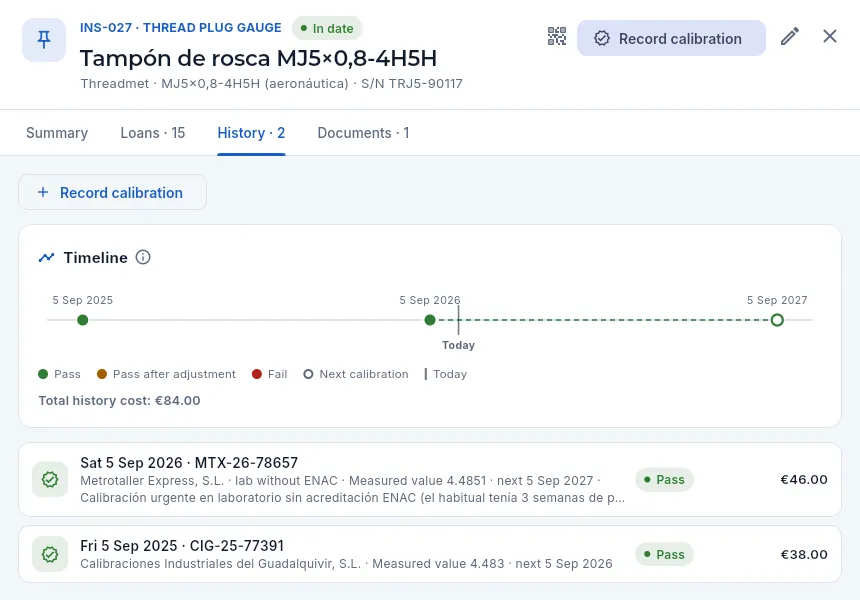 12345
12345
- 1The History tab, with how many calibrations it has.
- 2Record calibration from here too.
- 3The timeline: one dot per calibration coloured by its result (pass, pass after adjustment, fail), the today mark and, hollow, the next one. A gap longer than the interval is a period overdue.
- 4The cost of all its calibrations (with «See costs»).
- 5Each calibration: date and certificate, laboratory («laboratory without ENAC» if it was required and it is not), measured value, next one and notes; on the right, the result and the cost. Click it to correct it (with a reason and a signature, because it is signed).
#Recording a calibration
When a gauge comes back from the lab its calibration is recorded with the data on the certificate. If the gauge has an acceptance criterion, just type the measured value: Aeromec proposes the result (within the criterion, pass; outside, fail) and explains it in a green or red message. «Pass after adjustment» is chosen by hand when the lab had to adjust it. If the gauge requires ENAC and the chosen lab is not accredited (ISO/IEC 17025), it warns you too: the certificate may not be accepted by the customer.
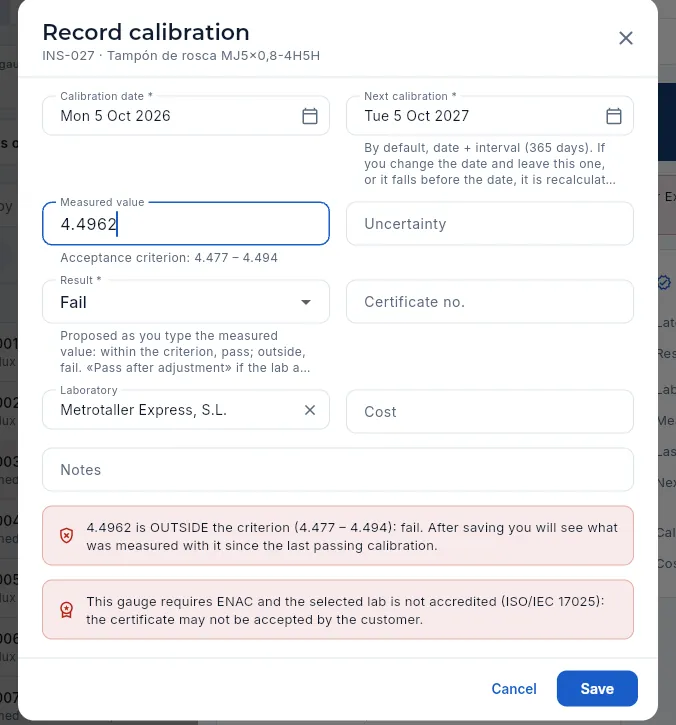 1234567
- 1The calibration date (today) and the next one: date + interval, which you can change.
- 2The measured value from the certificate, with the acceptance criterion below.
- 3The result, proposed as you type the value: here Fail.
- 4The uncertainty and the certificate no., copied from the certificate.
- 5The laboratory (the last one that calibrated it comes preset) and, next to it, the cost.
- 6The value is outside the criterion: fail. After saving you will see what was measured with it since the last passing calibration.
- 7The ENAC warning: the selected lab is not accredited.
Open the gauge (from the list, the calendar or the search box in the top bar) and click Record calibration.
Check the calibration date; the next one is worked out from the interval.
Type the measured value and the uncertainty from the certificate and check the result Aeromec proposes (change it to «Pass after adjustment» if the lab adjusted it).
Type the certificate no. and choose the laboratory; if the ENAC warning appears, check whether that certificate is valid for the customer.
Click Save, sign with your password and upload the scanned certificate to Documents.
When you click Save, Aeromec asks for your electronic signature: the dialog says what you are signing (the gauge, the date of the calibration and its result) with the meaning «Performed». To sign you need an inspection stamp in force with the Calibration scope (Stamps & signatures) and the qualification that enables it in force (Competence & training); otherwise the dialog does not let you continue. If you cancel the signature, the calibration is not saved.
How signing works, in The electronic signature.
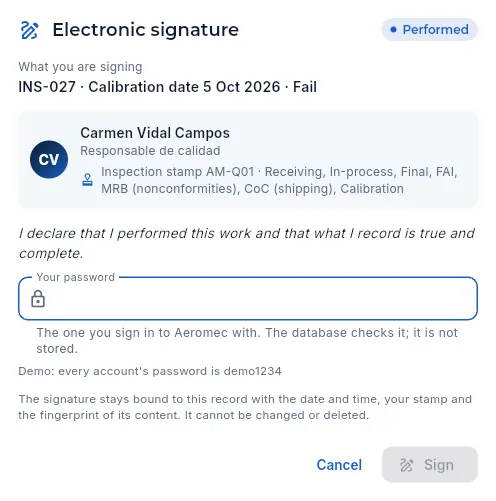 1234
1234
- 1The meaning: «Performed».
- 2What you are signing: the gauge, the date of the calibration and the result.
- 3Your inspection stamp: it has to include Calibration.
- 4Your password.
A signed calibration cannot be edited or deleted: clicking it in the History opens Correct a signed record, the same form with one more field, the reason for the correction, which is mandatory. When you save, Aeromec asks for another signature («Corrected») and the previous value stays in the change history. The cost can be changed without signing: it is not part of what was signed.
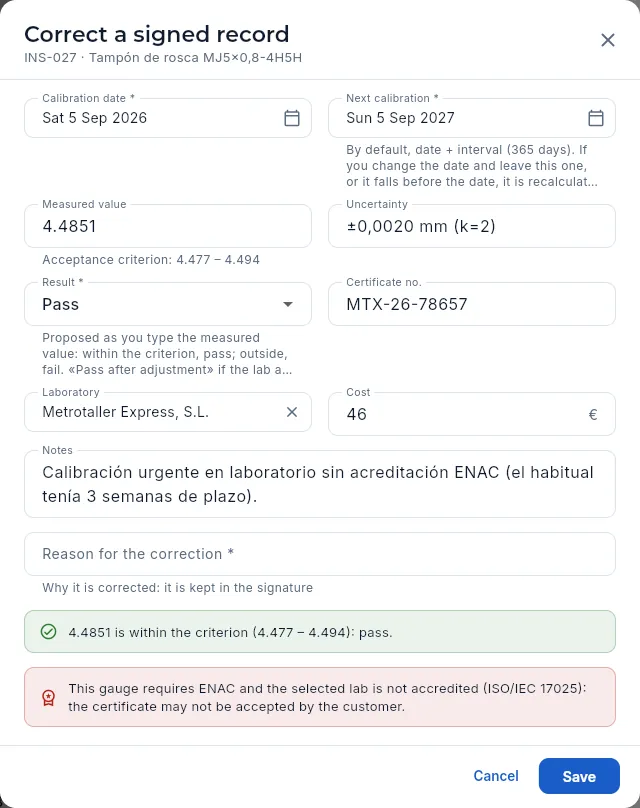 1234
1234
- 1Correct a signed record: the calibration and its gauge.
- 2The same calibration data: change only what is wrong.
- 3The reason for the correction (mandatory): it is kept with the signature.
- 4Save asks for the «Corrected» signature.
#Impact of a failed gauge
A gauge that fails calibration may have accepted parts that were not good. The standard requires assessing what was measured with it since its last passing calibration (AS9100, 7.1.5.2). When a «Fail» calibration is saved, Aeromec:
- offers to take it out of service, so that nobody measures with it or takes it at the terminal;
- opens the impact of a failed gauge, which can also be opened later from the red icon on its record while its last calibration is «Fail».
The impact gathers, from the last passing calibration until today:
| Block | What it shows |
|---|---|
| Figures | WOs measured with it, serials of those WOs, how many are already shipped and operations while on loan |
| WOs measured with it | Each work order with its part, how many measurements, its serials (and how many shipped), the dates and the customer |
| Operations done by whoever had it on loan | The operations whose plan requires that gauge type done by whoever had it on loan: person, machine, hours and good parts |
| Loans in the period | Who had it, when and on which machine |
Each work order and each operation has Open NCR, which opens the nonconformance with the work order and operation filled in and the description already written («Measured with INS-… (its name), which FAILED its calibration: measurements since … not assured. Repeat with a passing gauge.»). Decide for each one whether the measurements still hold (repeating them with a passing gauge) and raise the NCR where they cannot be assured; if any serials have been shipped, the customer may need to be told. Defence work orders are not shown to anyone without «Defence data» (the impact says how many are hidden).
#Calibration calendar
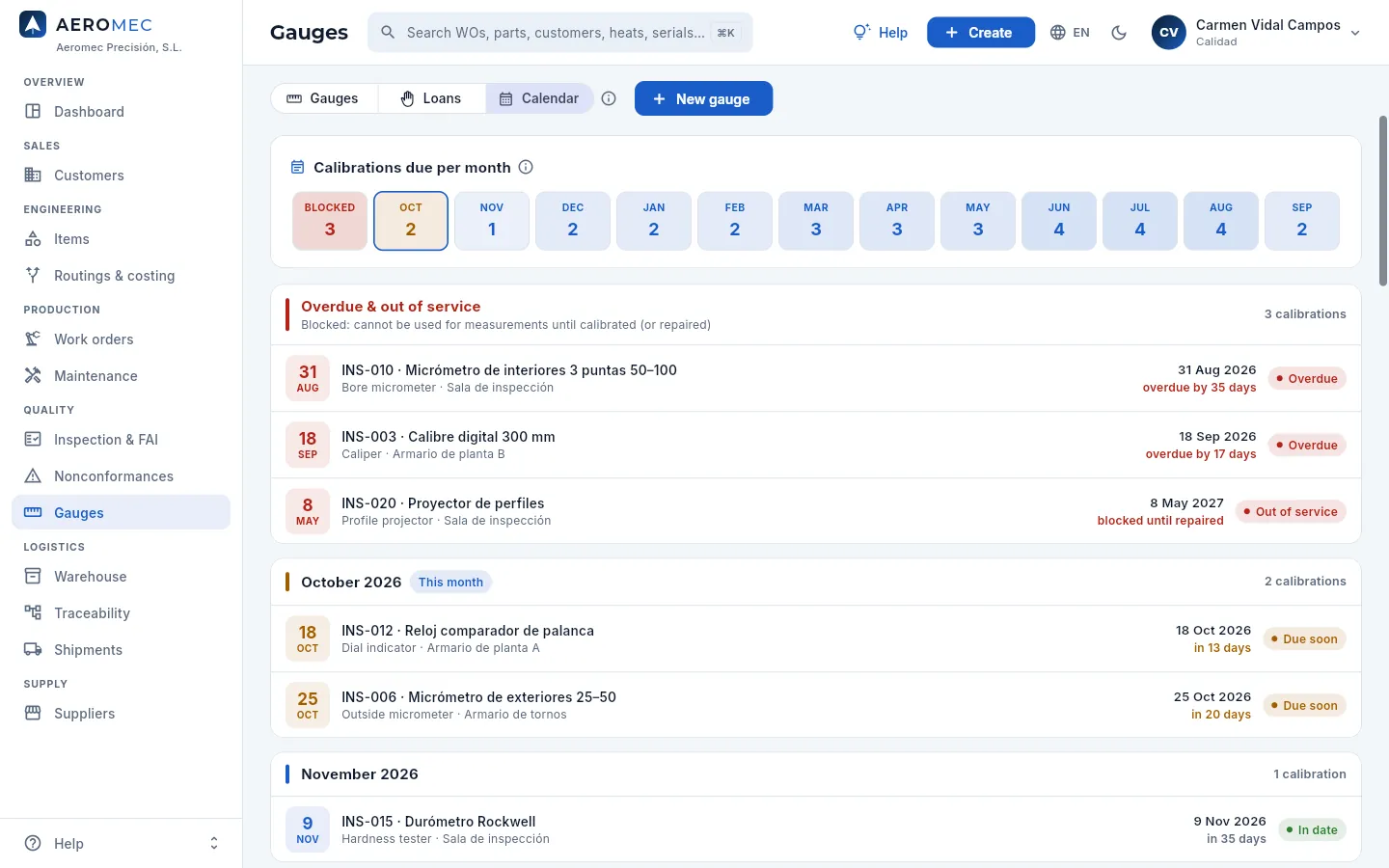 123456
- 1New gauge, from here too.
- 2Blocked: overdue, not calibrated and out of service. Click it to jump to them.
- 3One box per month for the next 12 with how many calibrations fall due (the current month outlined; amber if any falls due within 30 days). Click one to jump to that month.
- 4Overdue & out of service: they cannot be used until calibrated or repaired. First, those overdue the longest.
- 5Each gauge with the planned date, its type and location, how long is left (or how long it has been overdue) and its status. Click it to open its record.
- 6Then, month by month: those due this month and the following ones.
Open Calendar. Look at the Blocked box: those can no longer be used; send them first.
Check the current month and the next: those due within 30 days show in amber («Due soon»). An external lab usually takes one or two weeks.
If many of the same type coincide in a month, bring some forward so the shop floor is never left without one.
When you send them, change their whereabouts to «At the lab» (edit button on the record): that way nobody looks for it in the cabinet and it is not lent. When it comes back, record the calibration and set it back to «In use».
#Loans: who has each gauge
Gauges are lent at the shop-floor terminal: the operator, identified with their card or their name and PIN, takes a gauge by scanning its label (or choosing it from those their operation requires), returns it when finished —saying whether it is damaged— or hands it to a colleague («Hand it to me»). The terminal does not lend an overdue, uncalibrated, failed, out-of-service, off-site or under-review gauge, and if someone else already has it, it can only change hands with «Hand it to me» (see Shop-floor terminal). The Loans view brings all of that together for Quality, and lets you record at the office whatever did not go through the terminal.
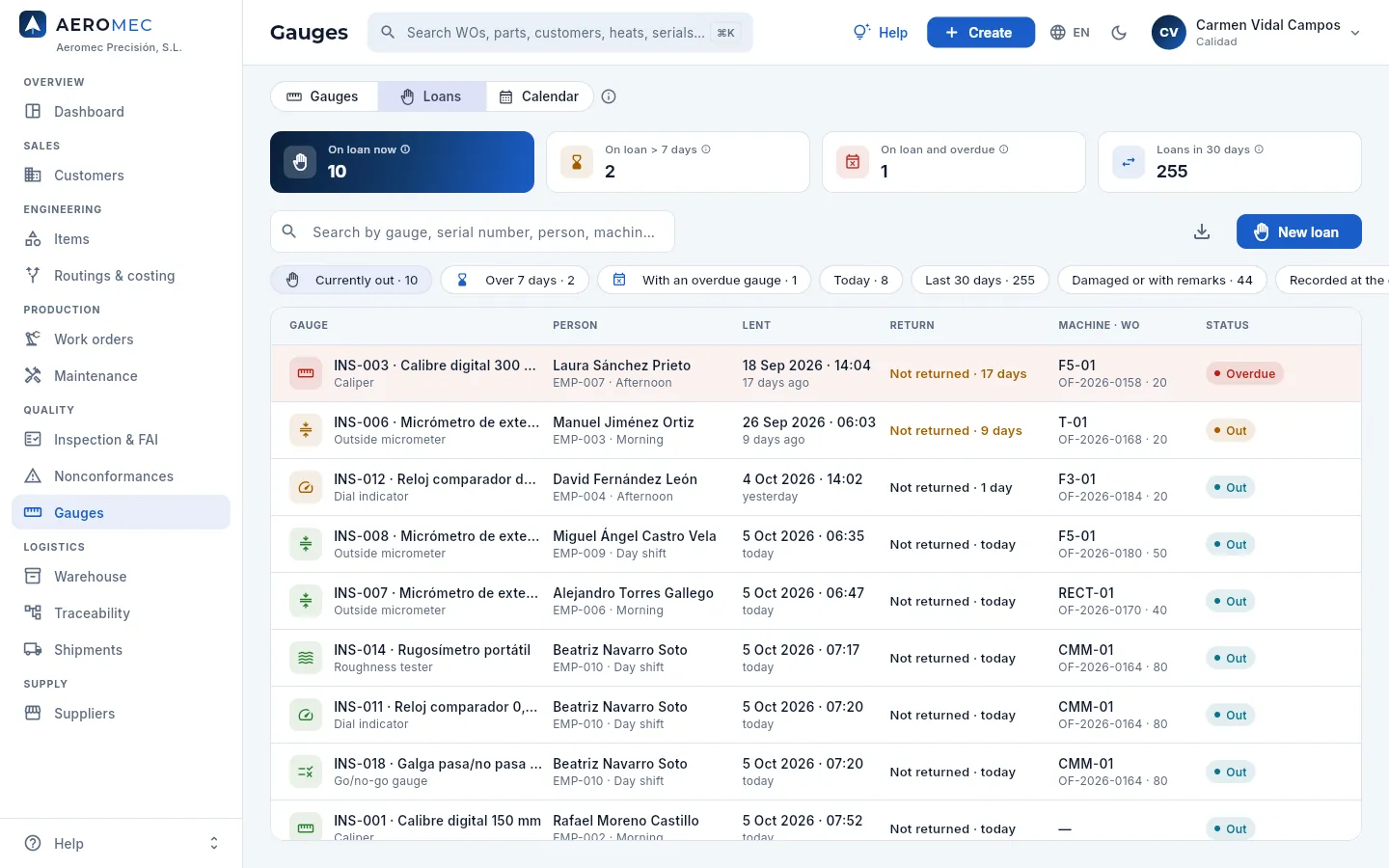 12345678
- 1On loan now: open loans, from the terminal or the office.
- 2On loan > 7 days: they are normally returned at the end of the shift.
- 3On loan and overdue: gauges that should no longer be used and are still on the shop floor.
- 4Loans in 30 days: how much each gauge is really used.
- 5New loan records at the office a loan that is open or already returned.
- 6The filters: currently out (on entry), over 7 days, with an overdue gauge, today, last 30 days, damaged or with remarks, recorded at the office, cancelled and all.
- 7Each loan: the gauge, the person with their shift, when it was lent and the return («Not returned · …» in amber if over 7 days).
- 8The machine and the work order and operation it was used on, and the status: out, overdue, returned, returned damaged, with remarks or cancelled.
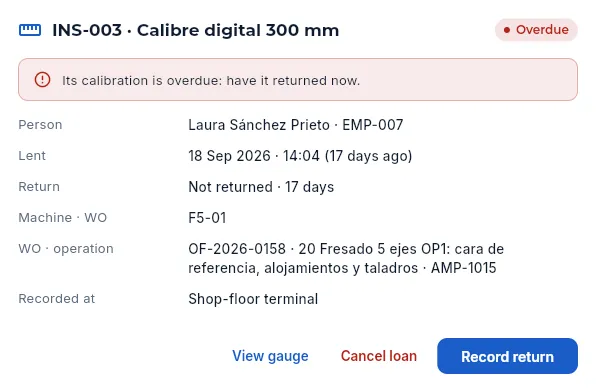 123456
- 1The warning: have it returned now and send it for calibration.
- 2The person, when it was lent, the return (or the days it has been out) and the machine.
- 3The work order and operation it was taken for (the one chosen on the terminal) and the part.
- 4Where it was recorded: shop-floor terminal or office (and by whom).
- 5View gauge opens its record; Cancel loan, one recorded by mistake (asks for the reason and nothing is deleted).
- 6Record return from the office.
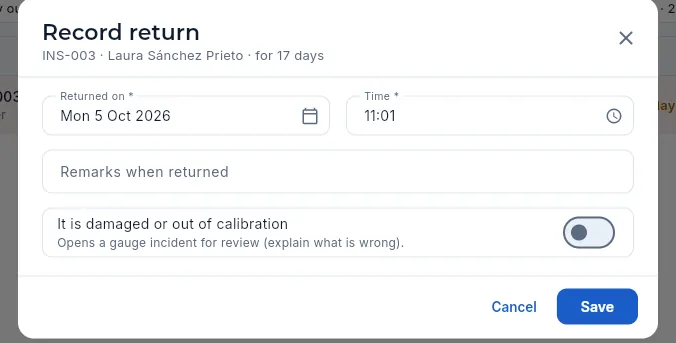 123
123
- 1The date and time of the return (by default, now).
- 2The remarks: what condition it comes back in.
- 3It is damaged or out of calibration: opens a review for Quality (you have to explain what is wrong).
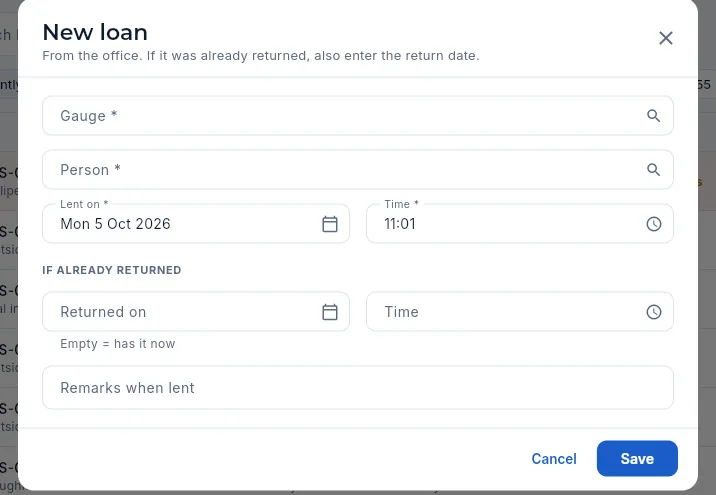 123
123
- 1The gauge (those that are lent, with who has them or why they cannot be lent) and the person.
- 2When it was lent.
- 3If it has already been returned, the return date and time: that is how a past loan is recorded. Empty, they have it now.
In Loans (or with See loans from the strip on the list), filter With an overdue gauge.
Click the loan: you will see who has it, since when and on which machine and work order they used it.
Ask for it back. If they bring it to the office, click Record return, check the date and time and note the condition it comes back in.
Send it for calibration: open its record with View gauge and change its whereabouts to «At the lab».
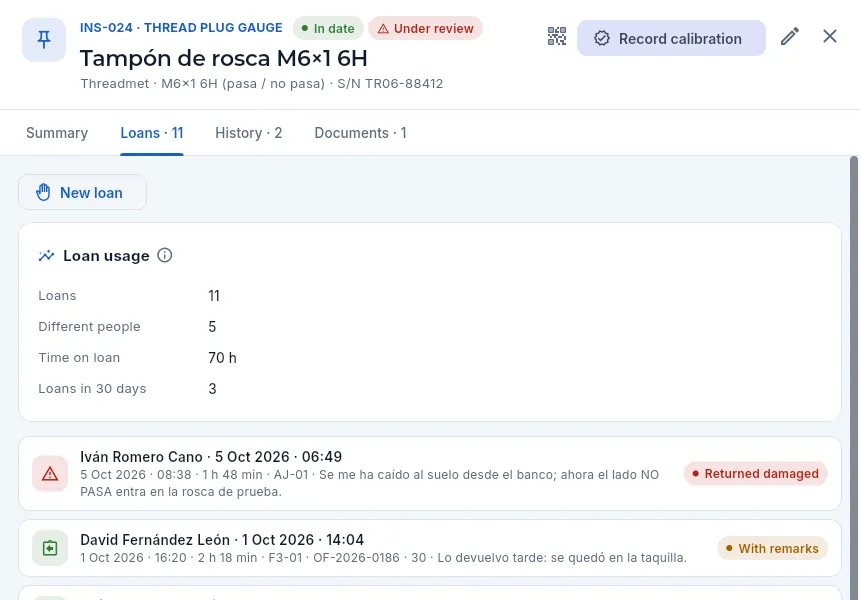 1234
1234
- 1The Loans tab on the record, with how many it has had.
- 2New loan for this gauge (if someone has it, instead you see who and Record return).
- 3Loan usage: loans, different people, time on loan and loans in 30 days.
- 4Each loan, newest first: person and time, return and duration, machine, work order and the remarks. This one came back damaged.
#Gauge returned damaged: reviewing it
When someone returns a gauge marking it as damaged (at the terminal or at the office), a review is opened for Quality: the gauge shows Under review, appears under the Under review (damaged) filter and on the Shop-floor monitor, and nobody can take it until it is reviewed. In the demo, thread plug gauge INS-024 was returned damaged today.
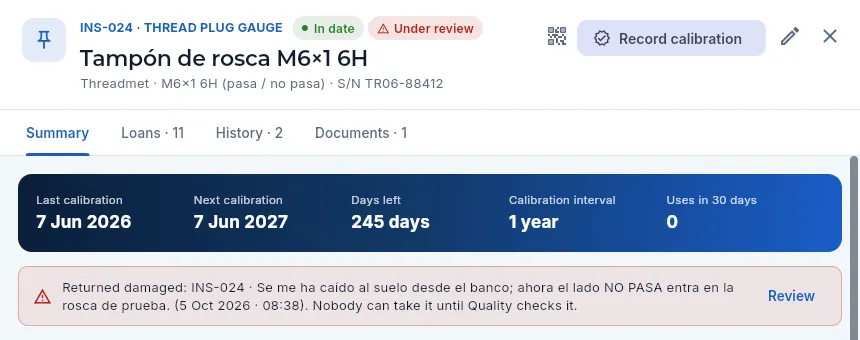 123
123
- 1The Under review status, next to the calibration status.
- 2What is wrong with it (what the person returning it wrote) and when. Nobody can take it until it is reviewed.
- 3Review closes the review.
When reviewing it you decide what happens to it:
- It is fine: back in use, and it can be lent again;
- To be repaired: its whereabouts change to «under repair» and it is not lent;
- Out of service: it is blocked for measuring and for lending.
And you write what was found when checking it (for example, «checked with the master ring: the NO-GO side is worn»). If the doubt is whether it measures correctly, send it for calibration and record the calibration.
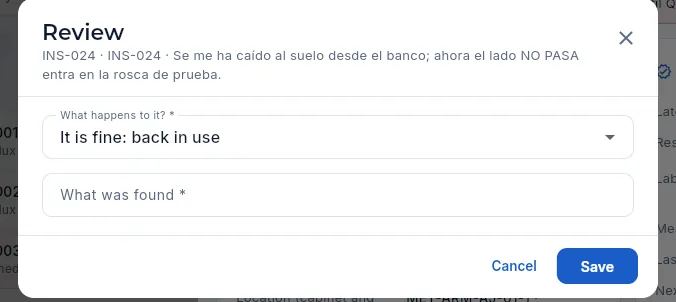 12
12
- 1What happens to it.
- 2What was found.
#Setting up a gauge: serial number, whereabouts, fixed gauges and cabinets
New gauge (on the list or the calendar) and the Edit pencil on the record open the same form. What is worth knowing about each field:
- Code: the one on the barcode label; unique (e.g. INS-037). The serial number is the manufacturer's: it can also be scanned at the terminal.
- Gauge type: decides its family in the filters and which control plan characteristics it can measure. Fixed gauges have their own types: plain plug and thread plug gauges (for holes and internal threads), plain ring and thread ring gauges (for shafts and external threads) and spline gauges.
- Location (cabinet and drawer): a location in the metrology store: the measuring room or each machine's cabinet with its drawers (MET-ARM-F5-02-2 = F5-02 cabinet, drawer 2). It is where inspectors and auditors will look for it.
- Whereabouts: where it physically is: in use, at the lab, under repair or missing. Unless «in use» it is not lent.
- Lent at the terminal: turn it off for gauges always used where they are (CMM, projector, bench hardness tester).
- Interval in days (365 = yearly), ENAC calibration required and the acceptance criterion (minimum and maximum of the value measured at calibration: the permissible error or the go-side size of a fixed gauge).
- Out of service (damaged, lost or failed: blocked even if in date) and Active (retired gauges are left out of the calendar and cannot be used, but keep their history).
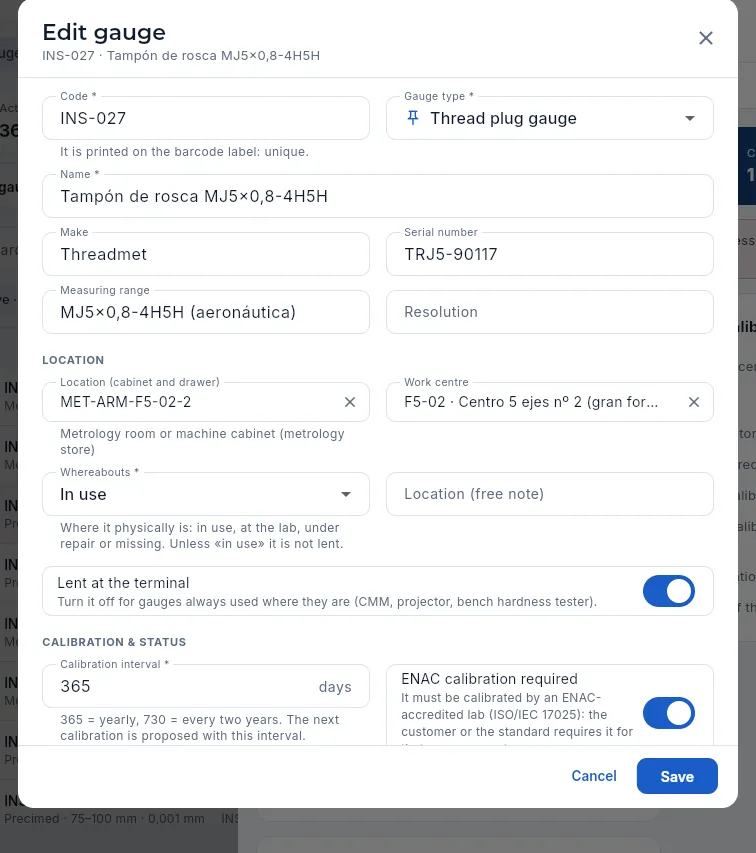 123456
- 1The code, unique: the one on the label.
- 2The type (here, thread plug gauge).
- 3The manufacturer's serial number.
- 4The cabinet and drawer in the metrology store.
- 5The whereabouts: in use, at the lab, under repair or missing.
- 6Whether it is lent at the terminal.
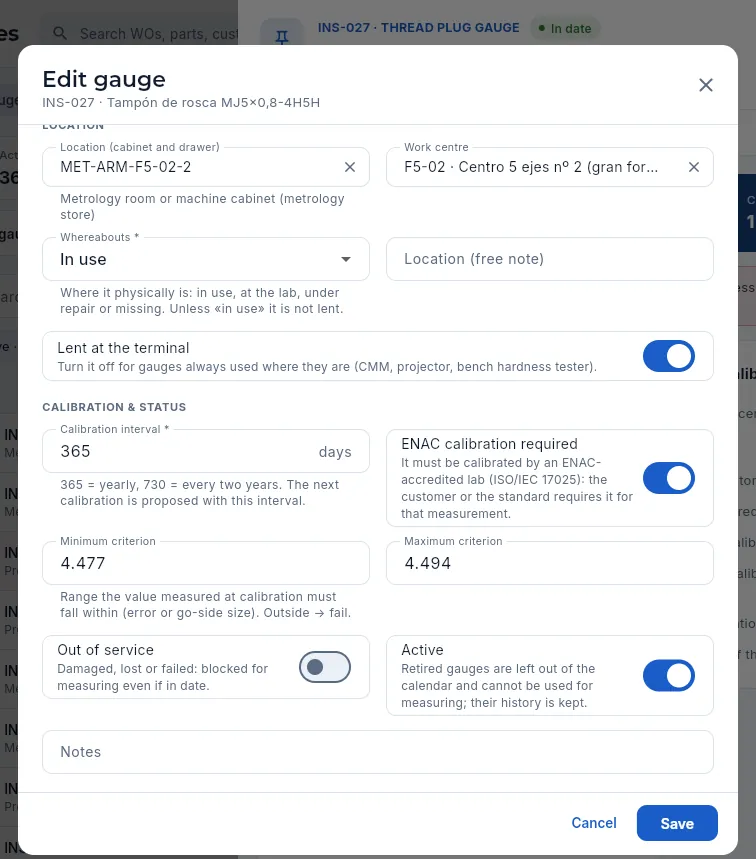 1234
1234
- 1The interval in days: the next calibration is proposed with it.
- 2ENAC calibration required: enables the non-accredited lab warning.
- 3The acceptance criterion, minimum and maximum: with it, the measured value proposes the result.
- 4Out of service and Active (retire it without losing its history).
#Barcode labels (Code128)
Each gauge carries its code on a Code128 barcode label, which the terminal scanner reads to take it or return it. The label shows the company name and «Metrology» at the top, the bars, the code in large print and, below, the name, the range and the serial number. They are printed one at a time from the record (barcode icon) or several at once from the list.
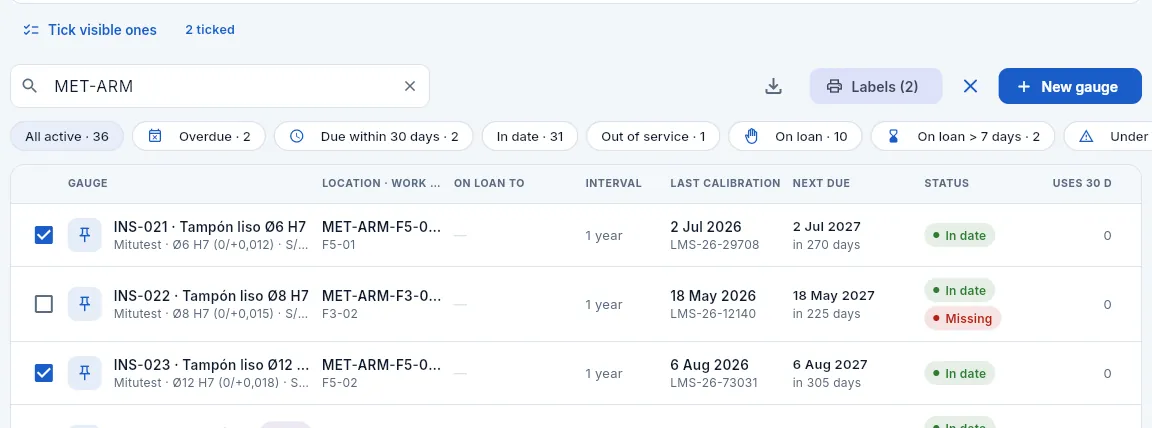 1234
1234
- 1Tick visible ones: all those left by the filter or search; next to it, how many you have ticked.
- 2Tap a row (or its box) to tick or untick it.
- 3Labels (2) prints the ticked ones.
- 4The ✕ leaves labels mode.
When printing you choose the label height (2 to 5 cm; the width adjusts) and the layout: on an A4 sheet (5 to 2 labels per row, depending on the size) or one per page for a label printer. The browser's print dialog opens.
People's cards for identifying themselves at the terminal are printed the same way from People.
 123
123
- 1The label height and its final size.
- 2A4 sheet or one per page.
- 3Print opens the print dialog.
#What each profile sees
 1
1
- 1Antonio (shop-floor manager) has «Edit centres & people»: he can edit the gauge (whereabouts, cabinet…), but without «Edit quality» Record calibration does not appear.
Quality system
Management system
The company's quality management system: objectives with their calculated indicator, risks and opportunities with their heat map, the audit programme with its findings and signed closure, the management review, customer satisfaction, the processes, the context, the requirements and every improvement action.
A company certified to EN 9100 (the quality standard for aviation, space and defence, which extends ISO 9001) has to show that it plans, measures and improves its system: which objectives it sets and whether it meets them, which risks it has and what it does about them, what the audits say and what management does with all of it. Management system holds all of that, with indicators calculated automatically from Aeromec's data (OTD, PPM, scrap, suppliers, CAPAs…), with no separate spreadsheets.
The section has nine views: Objectives, Risks, Audits, Management review, Satisfaction, Processes, Context, Requirements and Actions. Closing an audit and approving the management review minutes are signed electronically and cannot change afterwards.
- 1ContextExternal and internal issues and interested parties.
- 2RisksProbability × impact, treatment and actions.
- 3ObjectivesTarget and value calculated from the data, month by month.
- 4AuditsFindings, CAPAs and signed closure.
- 5ReviewManagement reviews the inputs and decides; signed minutes.
- 6ActionsWith an owner and a deadline, until their effectiveness is verified.
#Objectives
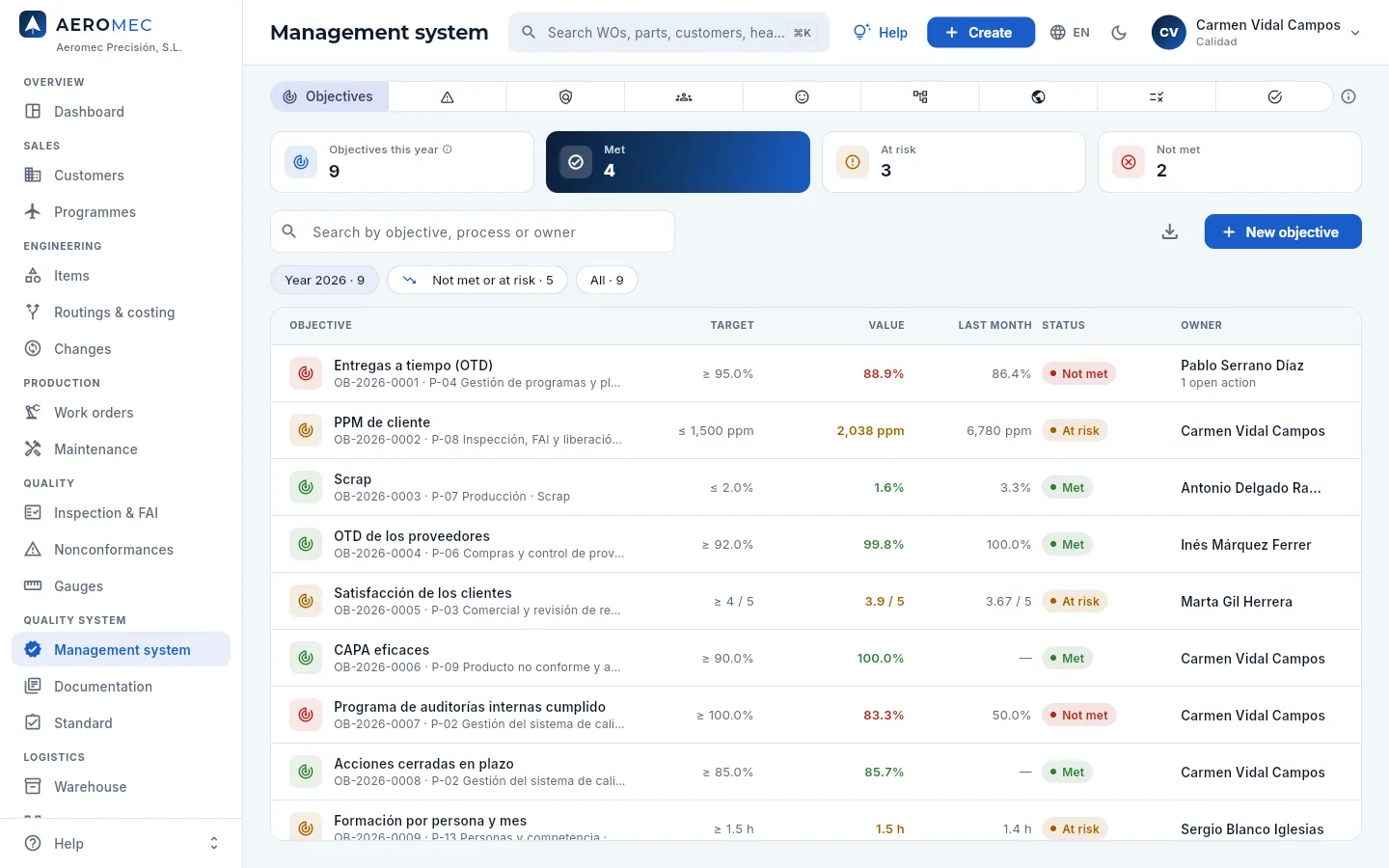 1234567
- 1The section's nine views (hover over an icon to see its name).
- 2Objectives for the year, those that are met, those at risk and those not met.
- 3New objective (with «Edit the management system»).
- 4Filters: this year's, those not met or at risk, and all.
- 5Each objective with its number, its process and its indicator.
- 6The target, the year's value and the last month's, calculated from the data.
- 7The status: met, at risk or not met; and the owner.
An objective's indicator can be one that Aeromec calculates automatically —OTD (on-time delivery), customer PPM, scrap, supplier OTD, customer satisfaction, effective CAPAs, customer NCRs, actions closed on time and audit programme completed— or a manual one, with a measurement entered every month (in the demo, training hours per person).
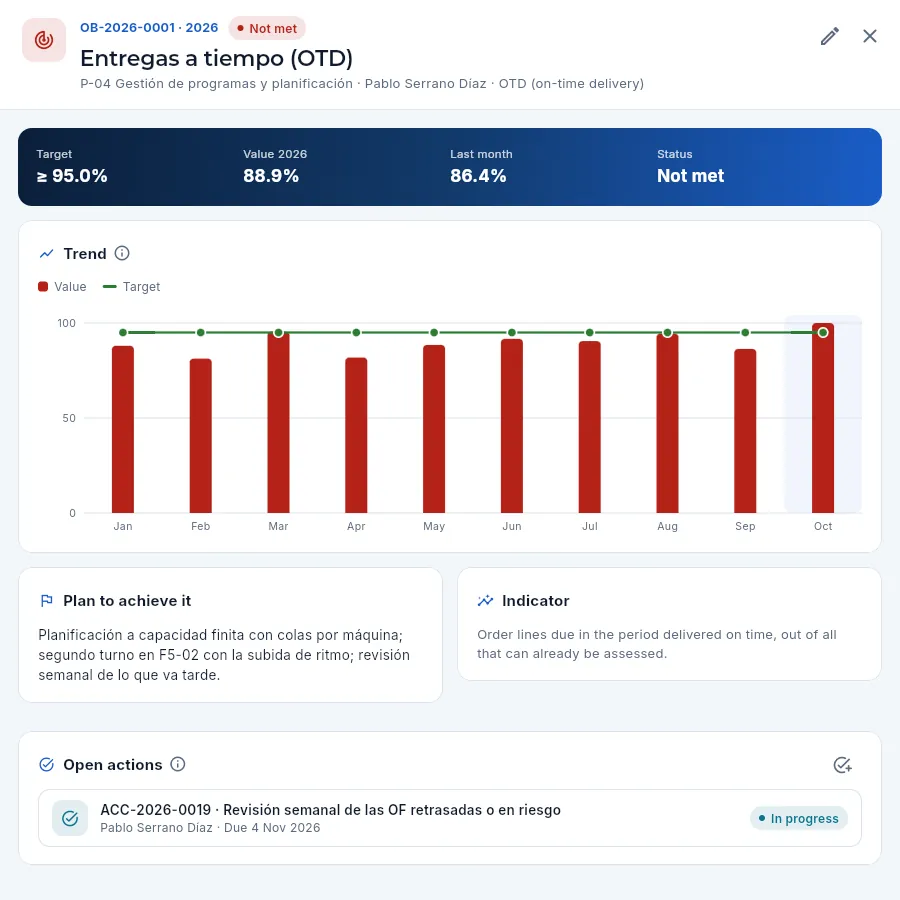 123456
- 1Number, objective and status; below, the process, the owner and the indicator.
- 2Target, the year's value, last month and status.
- 3The month-by-month trend against the target.
- 4The plan to achieve it: what will be done, with what resources, by whom and when.
- 5How the indicator is calculated.
- 6The open actions to achieve it; New action adds another.
#Risks and opportunities
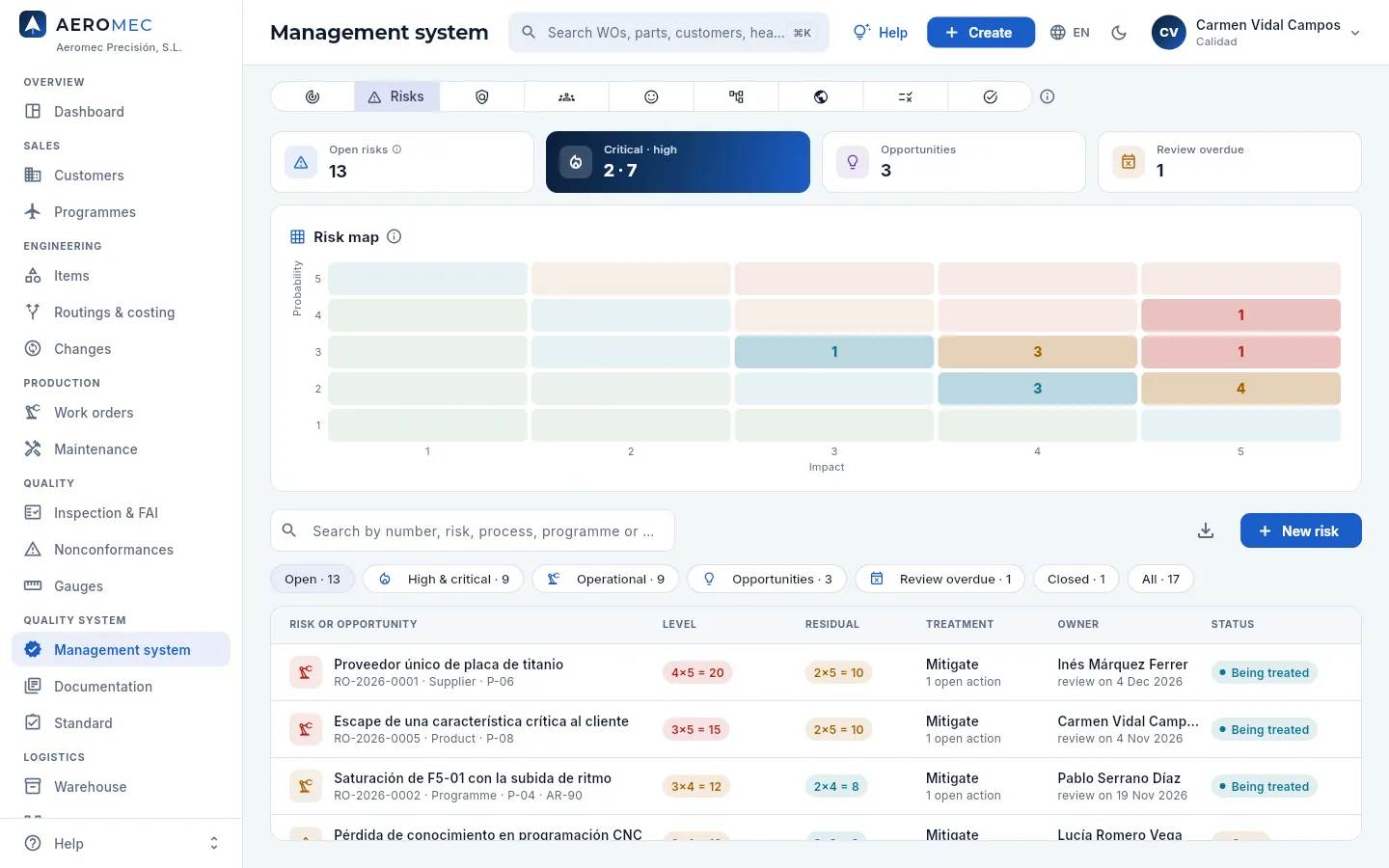 1234567
- 1Risks open, critical · high, opportunities and those with an overdue review.
- 2The heat map: each cell counts the open risks with that probability (bottom to top) and impact (left to right).
- 3The red cell for probability 4 × impact 5: the single titanium supplier. Press a cell to open its risk.
- 4New risk or opportunity.
- 5Filters: open, high and critical, operational, opportunities, review overdue, closed and all.
- 6The level (probability × impact) and the residual level, what remains once the actions are done.
- 7The treatment (accept, mitigate, transfer, avoid or exploit) with its open actions, the owner with the next review, and the status.
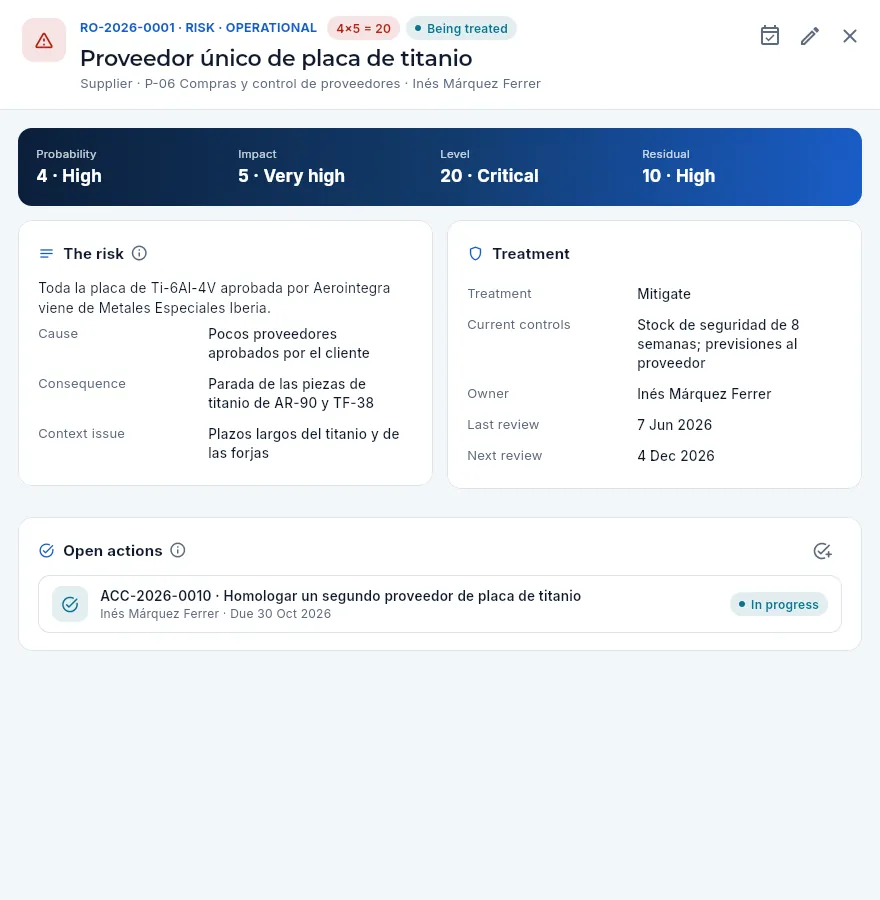 123456
- 1Number, type (risk or opportunity), scope (system or operational), status and level; below, the category, the process and the owner.
- 2Mark as reviewed: the assessment still holds; the next review, in 6 months.
- 3Probability, impact, level and residual.
- 4The risk: description, cause, consequence, the context issue it comes from and the programme, if it belongs to one.
- 5The treatment, the existing controls, the owner and the reviews.
- 6The treatment actions (here, qualifying a second supplier).
System risks (business, environment, people) and operational ones (production, a supplier or a programme: in the demo, the saturation of F5-01 with the AR-90 rate increase) go in the same list; those of defence programmes are only visible with «Defence data». Opportunities are handled the same way, with the exploit treatment.
#Audits
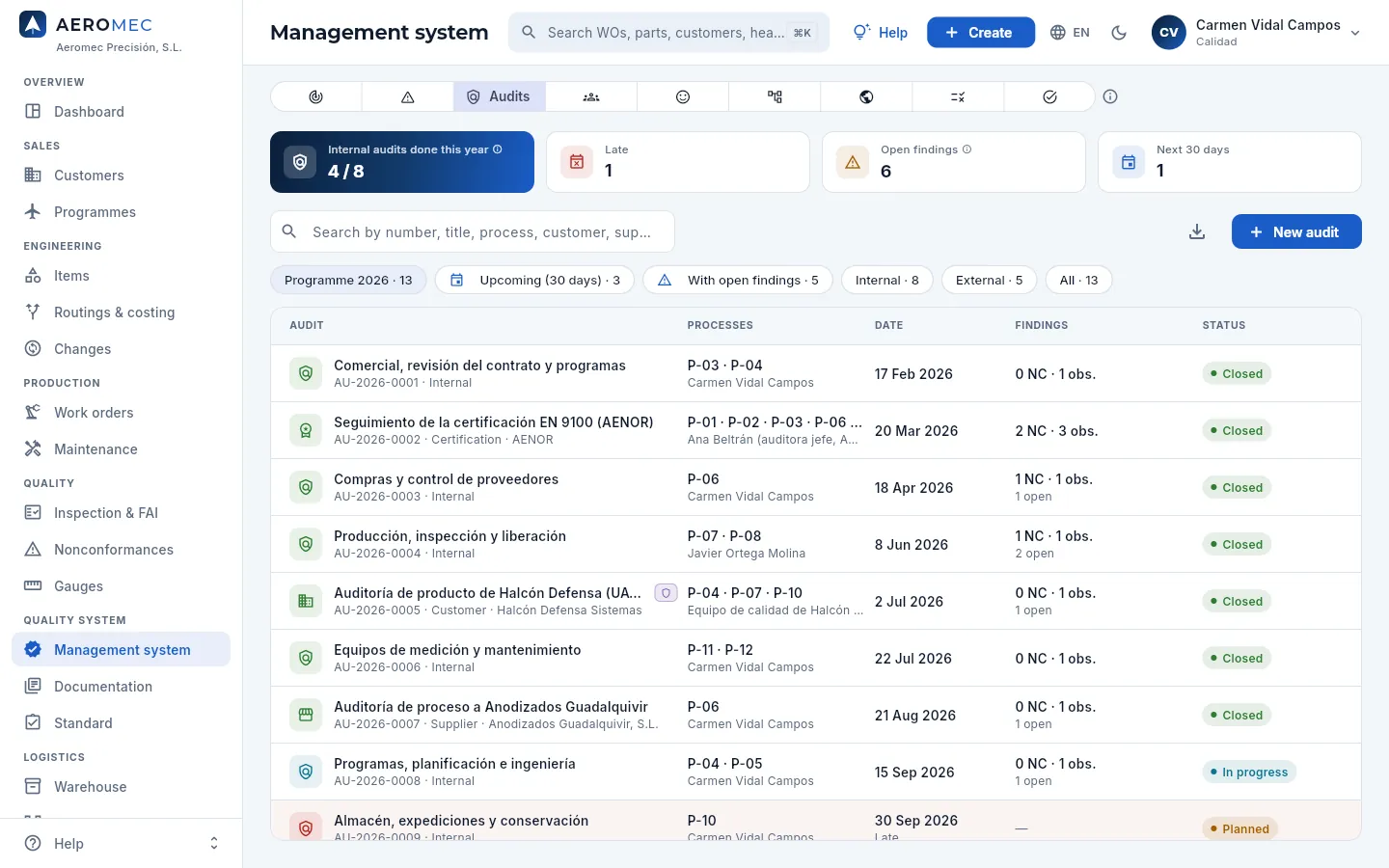 1234567
- 1Internal audits done this year out of those planned, those late, the open findings and those in the next 30 days.
- 2New audit: internal, certification, by a customer or at a supplier.
- 3Filters: the year's programme, upcoming, with open findings, internal, external and all.
- 4The AENOR surveillance audit: closed, with its minor nonconformities.
- 5The findings: major and minor NCs, observations and how many are still open.
- 6An internal audit in progress.
- 7A late one: planned, with its date already past.
An audit goes from planned to in progress (Start) and to closed. It has its scope, the clauses of the standard and the processes audited, the lead auditor (external or from another area: auditors do not audit their own work) and, for external ones, the body, the customer or the supplier. Those of defence customers are only visible with «Defence data».
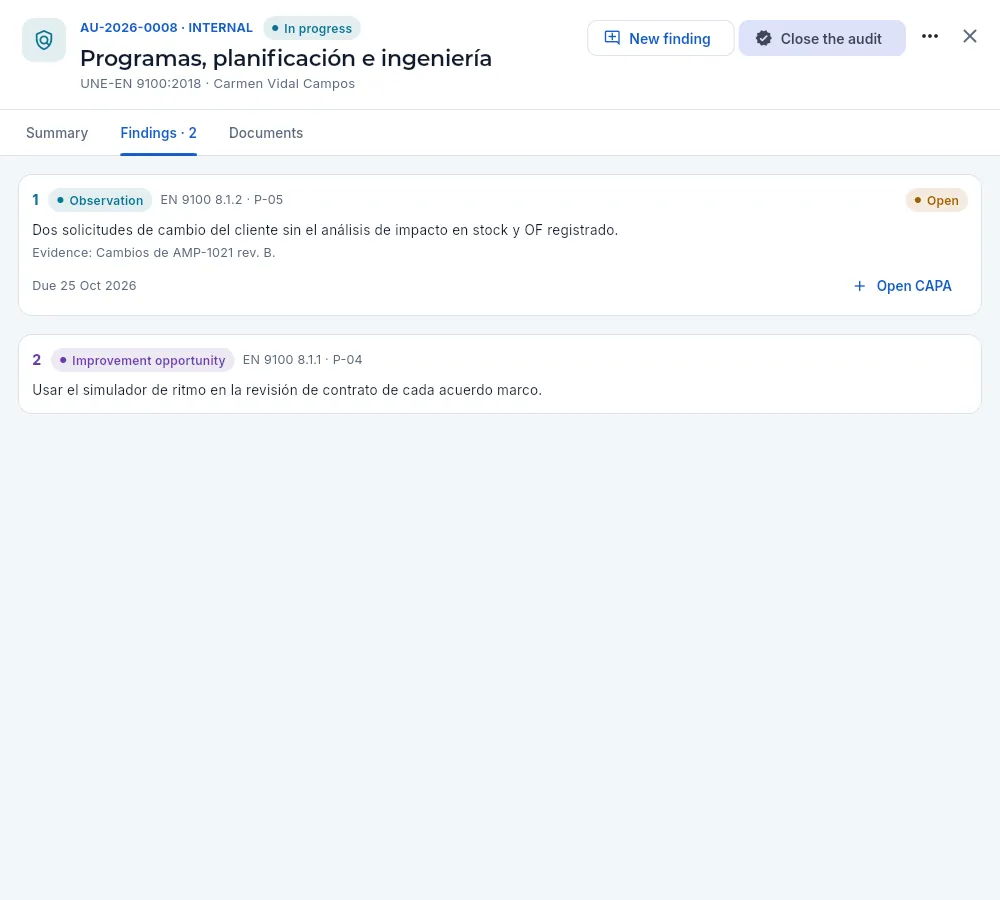 12345
12345
- 1New finding: major or minor NC, observation, opportunity for improvement or strength, with the clause, the process, the evidence, the owner and the deadline.
- 2Close the audit with the conclusion and the signature.
- 3A finding: type, clause of the standard, process, status, what was found and the evidence.
- 4Open CAPA: the corrective action (8D) with the finding as the problem (Nonconformances).
- 5An opportunity for improvement (strengths and opportunities do not open a CAPA).
With the audit in progress, record each finding with New finding and, for nonconformities, Open CAPA.
Press Close the audit and write the conclusion: the conformity and effectiveness of what was audited.
Press Close & sign, enter your password in the electronic signature and Sign.
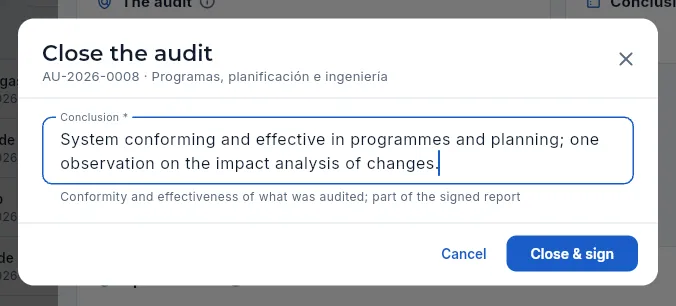 123
123
- 1The audit being closed.
- 2The conclusion: it forms part of the signed report.
- 3Close & sign: asks for your electronic signature (meaning «closed»).
#Management review
At least once a year management reviews the whole system and decides what to change. In Management review each review (RD-…) has its inputs —calculated automatically from the period's data— and its outputs, the decisions.
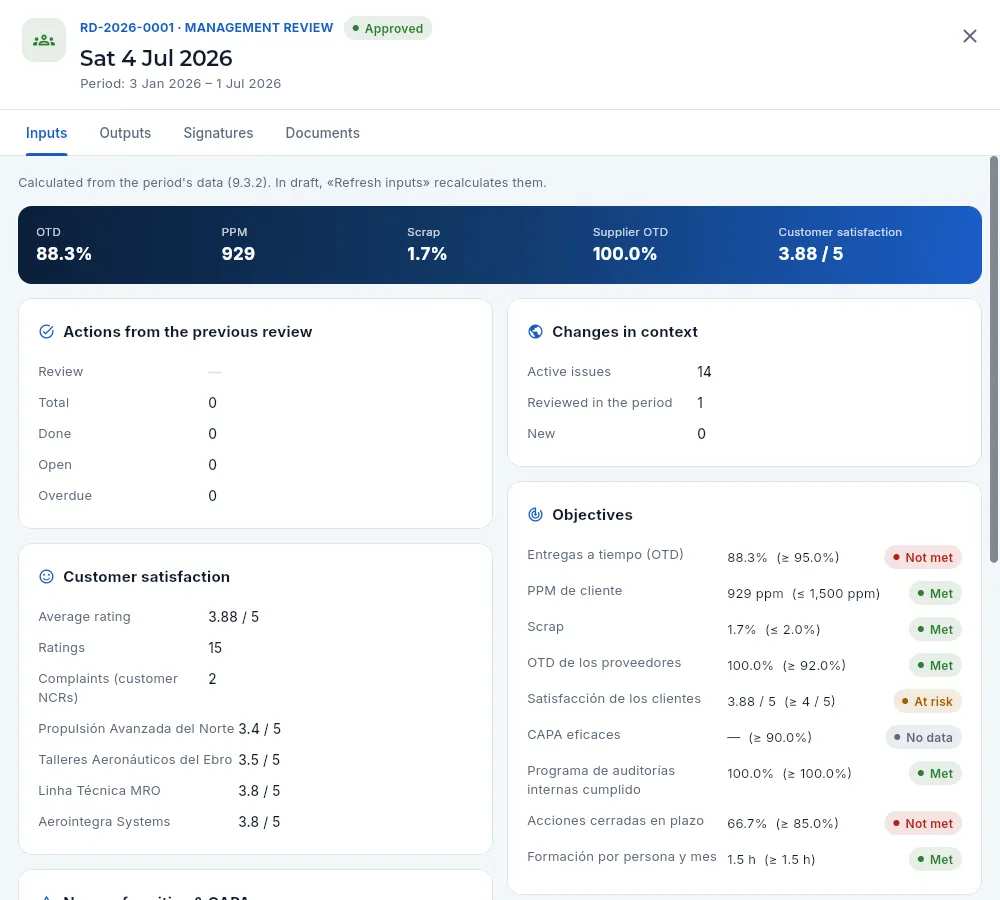 12345
12345
- 1Number, date, status (draft or approved) and the period it covers.
- 2Outputs: conclusions, opportunities for improvement, changes to the system and resource needs. Signatures: the signed approval.
- 3The period's OTD, PPM, scrap, supplier OTD and satisfaction.
- 4The inputs: actions from the previous review, satisfaction, nonconformities and CAPAs…
- 5…changes in the context, the objectives, audits, suppliers, risks and resources.
Press New review: it starts in draft with the period's inputs calculated (from the previous review up to today).
Before the meeting, Refresh inputs recalculates them with today's data.
In the meeting, Edit minutes: conclusions on the suitability and effectiveness of the system, improvements, changes and resources. Decisions with an owner and a deadline, as actions.
Management presses Approve and signs.
#Customer satisfaction
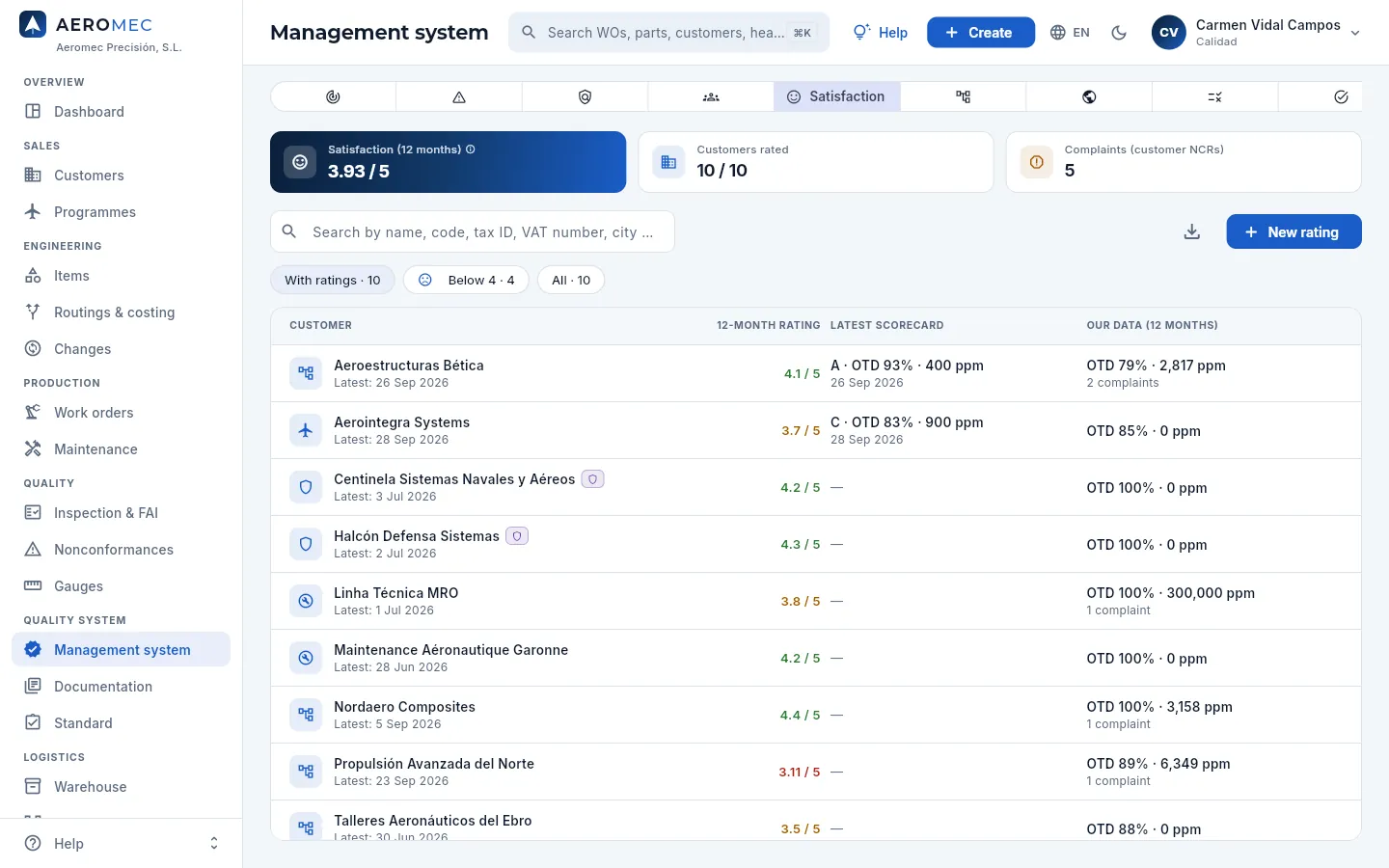 1234567
- 1Average 12-month satisfaction, customers rated and complaints (customer NCRs).
- 2New rating: a survey, a scorecard, a meeting, a complaint or a compliment.
- 3Filters: with ratings, below 4 and all.
- 4The 12-month score (in amber, below 4) and the date of the latest rating.
- 5The customer's latest scorecard: its grade and the OTD and PPM it measures.
- 6Our data for 12 months: OTD, PPM and complaints.
- 7Aerointegra: its scorecard gives a slightly different OTD from ours because it counts deliveries at its goods-in.
The score is the average of the marks from 1 to 5 (quality, delivery, service, price and communication). A scorecard is the assessment a customer makes of its suppliers (with its own OTD and PPM and a grade A, B, C…): comparing it with our data reveals differences to clear up with the customer. Ratings can also be seen on each customer record.
#Processes and context
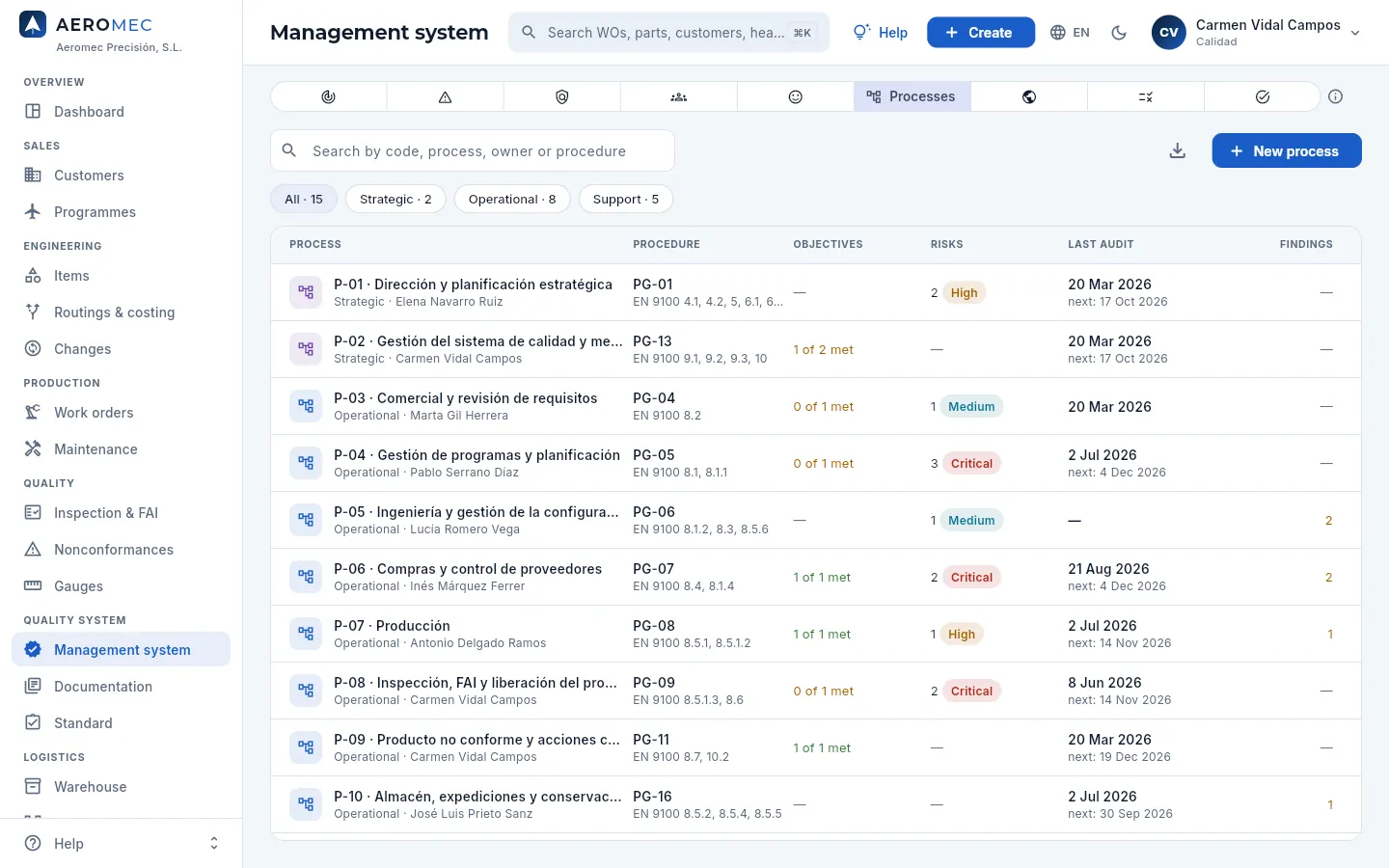 12345
12345
- 1Strategic, operational and support processes.
- 2Each process with its owner. Press one to see its purpose, inputs, outputs, resources and the Aeromec sections where it is carried out.
- 3The procedure that describes it (Documentation) and the clauses of the standard.
- 4Its objectives (how many are met) and its risks (the level of the worst one).
- 5The latest audit, the next one and the open findings.
Context holds the external issues (the ramp-up of the civil programmes, titanium lead times, export control in defence…) and internal ones (dependence on the 5-axis centres, succession in CNC programming…), with their effect (positive, negative or neutral) and their monitoring, and the interested parties (customers, authorities, suppliers, people) with what they expect of the company. Each issue can give rise to risks or opportunities and is reviewed in the management review.
#Requirements
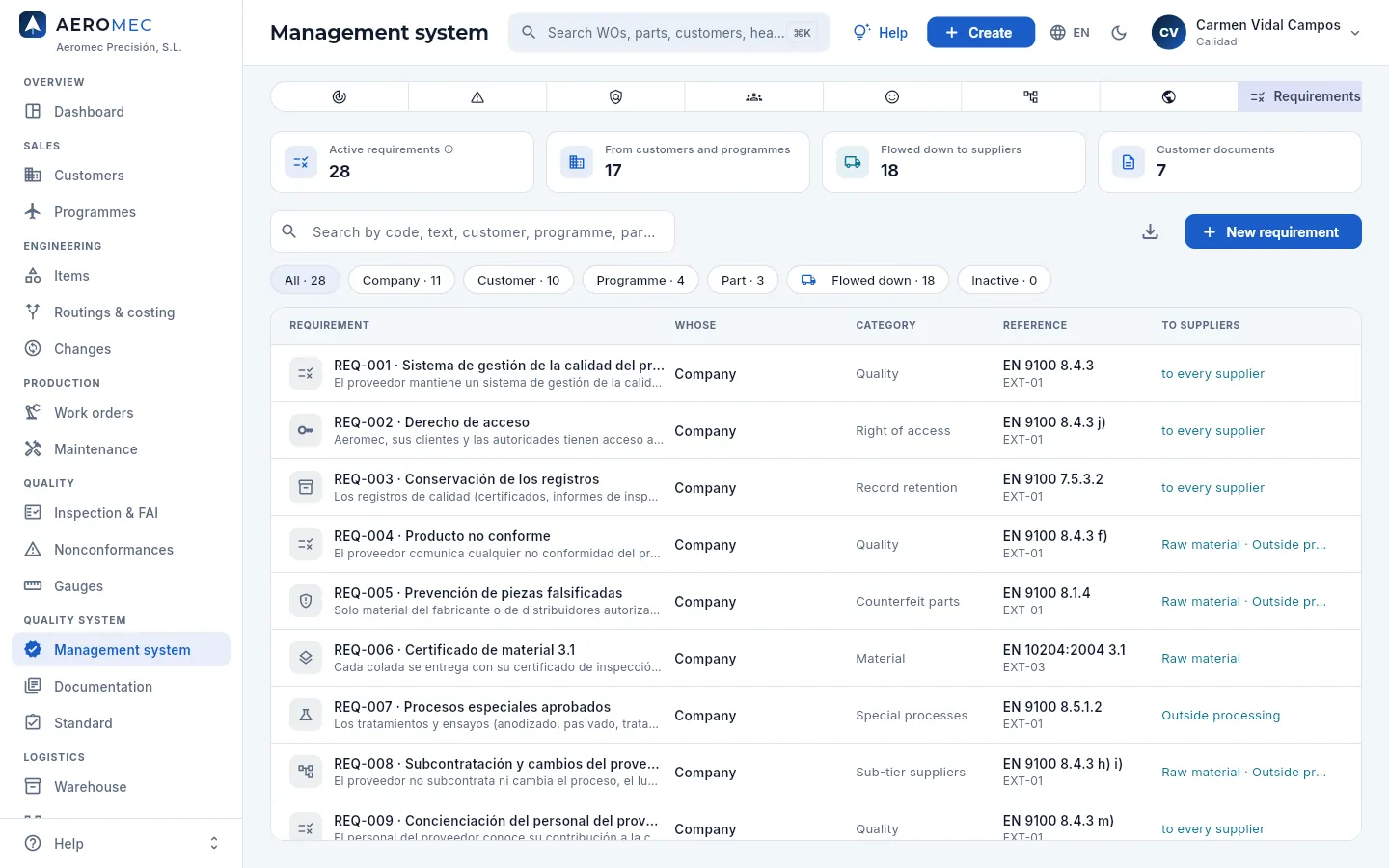 123456
- 1Active requirements, those of customers and programmes, those flowed down to suppliers and the customer documents they come from.
- 2New requirement.
- 3Filters by scope (company, customer, programme, part), those flowed down and the inactive ones.
- 4Each requirement (REQ-…) with what it requires.
- 5Whose it is (the company, a customer, a programme or a part), its category and its reference (the clause: QR-14 §3.2).
- 6Whether it is flowed down to suppliers and to which types of purchase.
Requirements apply automatically: the contract review of a quote or an order brings in those of the company, the customer, its programmes and its parts; and those flowed down go into each purchase order (by purchase type) when it is sent, and are frozen in it. Those of a customer, programme or part can also be seen and added on its record (Requirements tab).
#Actions
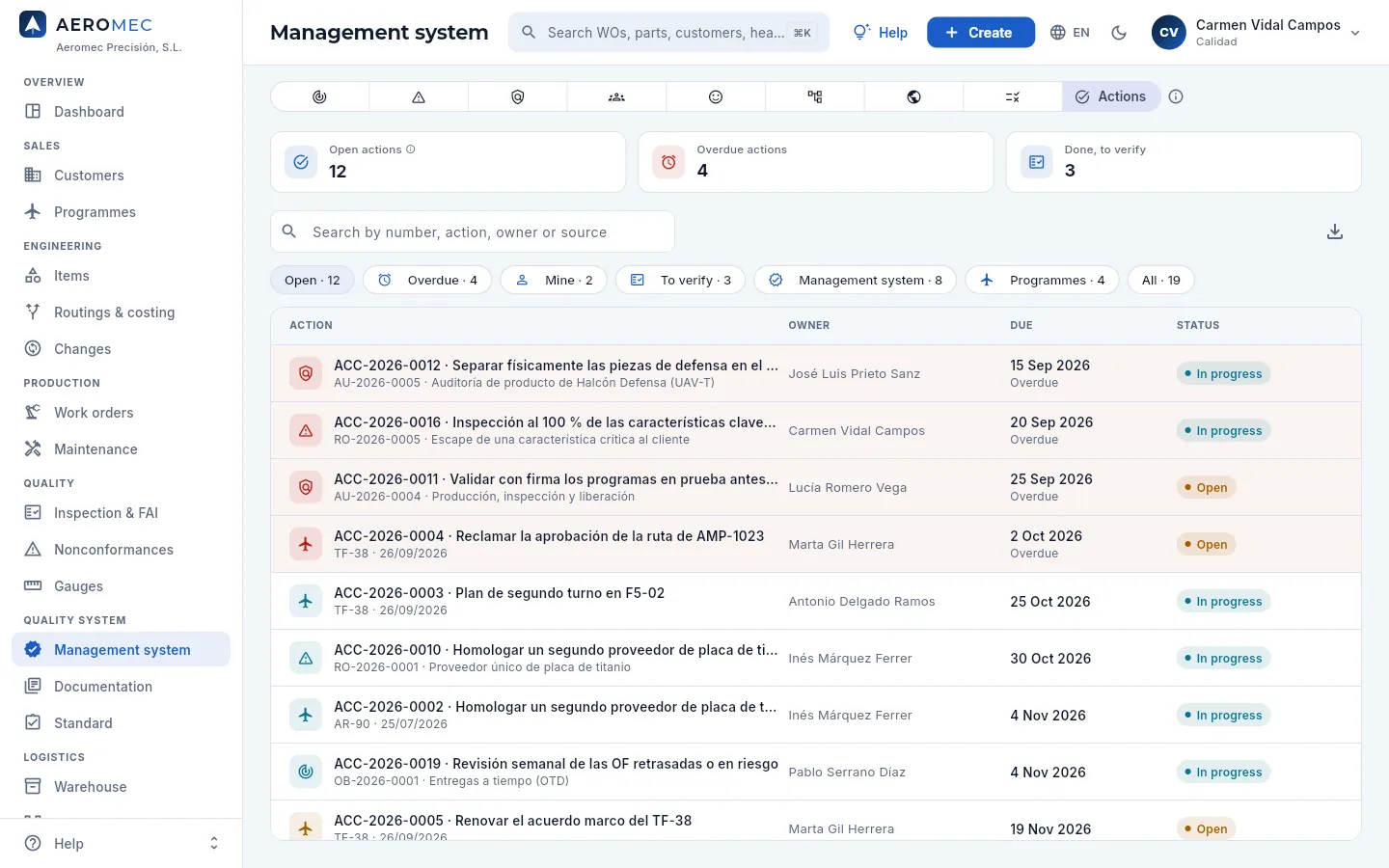 1234
1234
- 1Actions open, overdue and done, to be verified.
- 2Filters: open, overdue, mine, to verify, from the system, from programmes and all.
- 3Each action (ACC-…) with its origin: a risk, an audit, an objective, the management review or a programme review.
- 4The owner, the deadline (in red, overdue) and the status.
An action goes from open to in progress, done (with its result) and verified (stating how its effectiveness was checked and whether it was effective). Its owner can take it to “done” even without managing the system; verifying it belongs to Quality or Management.
Quality system
Documentation
The quality system documentation: the master list (manual, policy, procedures, work instructions and forms) and the external documents (standards and customer clauses), each with its current revision approved with a signature, its periodic review and the read confirmation from those who need to know it.
The quality system relies on documents: the quality manual, the policy, the procedures (PG-…), the work instructions (IT-…) and the forms (FR-…), plus the external documents: standards (EN 9100, ISO 9001, EN 10204…) and the customers' quality clauses (Aerointegra's QR-14, Bética's RQ-200…). The standard requires that only the current revision is used at each workstation, that every change is reviewed and approved by an authorised person, and that whoever needs to know a document has read it.
In Documentation each document has its current revision (with its PDF), its history of revisions with their signatures, its owner, its periodic review and its distribution: the profiles whose people must confirm they have read it. The section has four views: Master list, External, To read and Revisions in progress.
- 1DraftThe author prepares the new revision and uploads its file.
- 2Under reviewSomeone other than the author reviews and signs it.
- 3ApprovedManagement or Quality approves it with a signature: it becomes current.
- 4ObsoleteThe previous one stops being valid the same day.
- 5ReadEach person in the distribution confirms they have read it.
#The master list
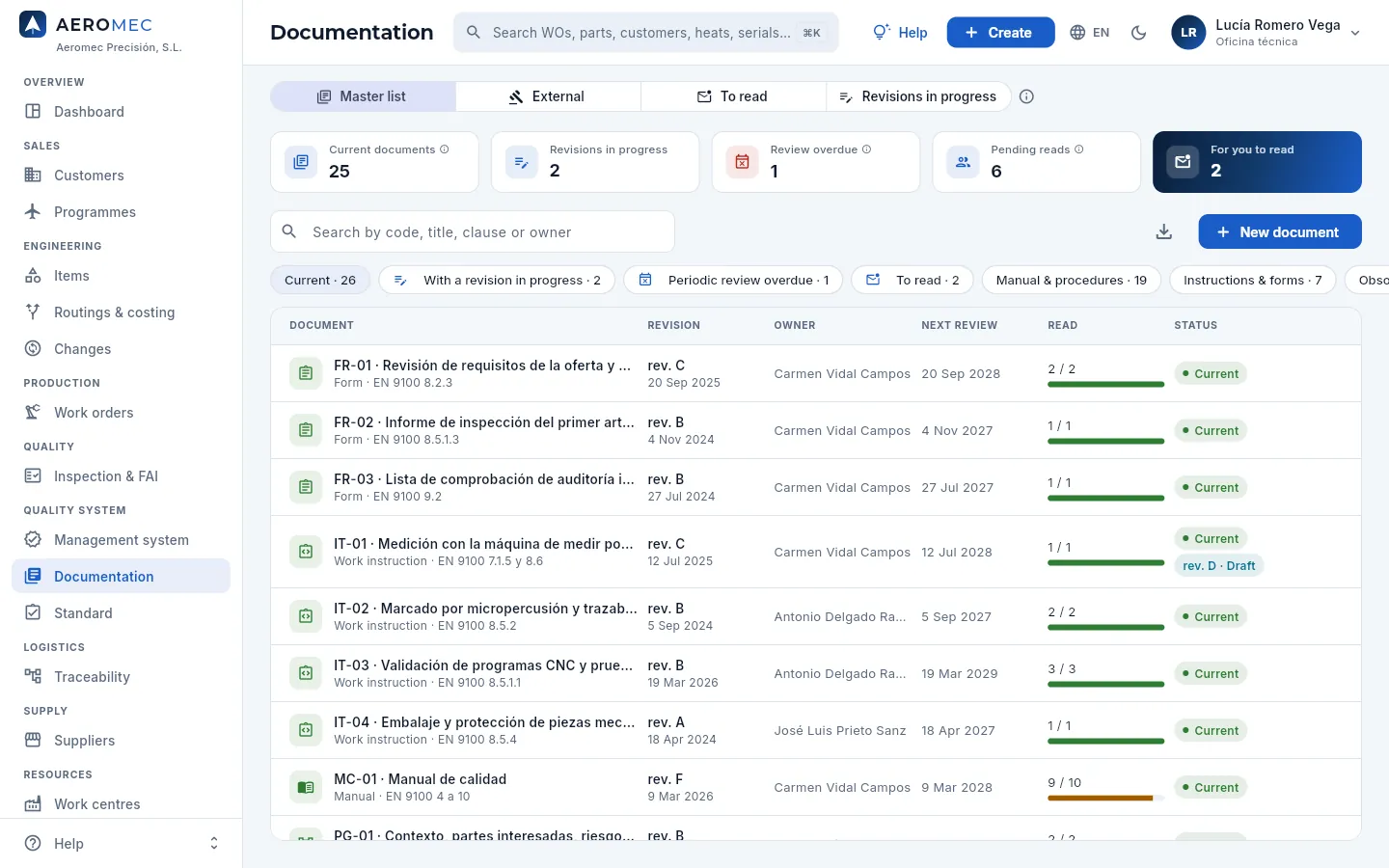 12345678
- 1The four views: master list, external, to read and revisions in progress.
- 2Documents current, revisions in progress, with an overdue periodic review, pending reads of everyone and what you have to read.
- 3New document: it starts with revision A in draft (with «Edit documentation»).
- 4Filters: current, with a revision in progress, periodic review overdue, to read, manual and procedures, instructions and forms, obsolete (scroll to see them all).
- 5The current revision and since when; the owner.
- 6When the periodic review is due (in red, overdue).
- 7How many people in its distribution have confirmed they have read the current revision.
- 8A current document with a new revision in draft (rev. D): C remains valid until D is approved.
#A document record
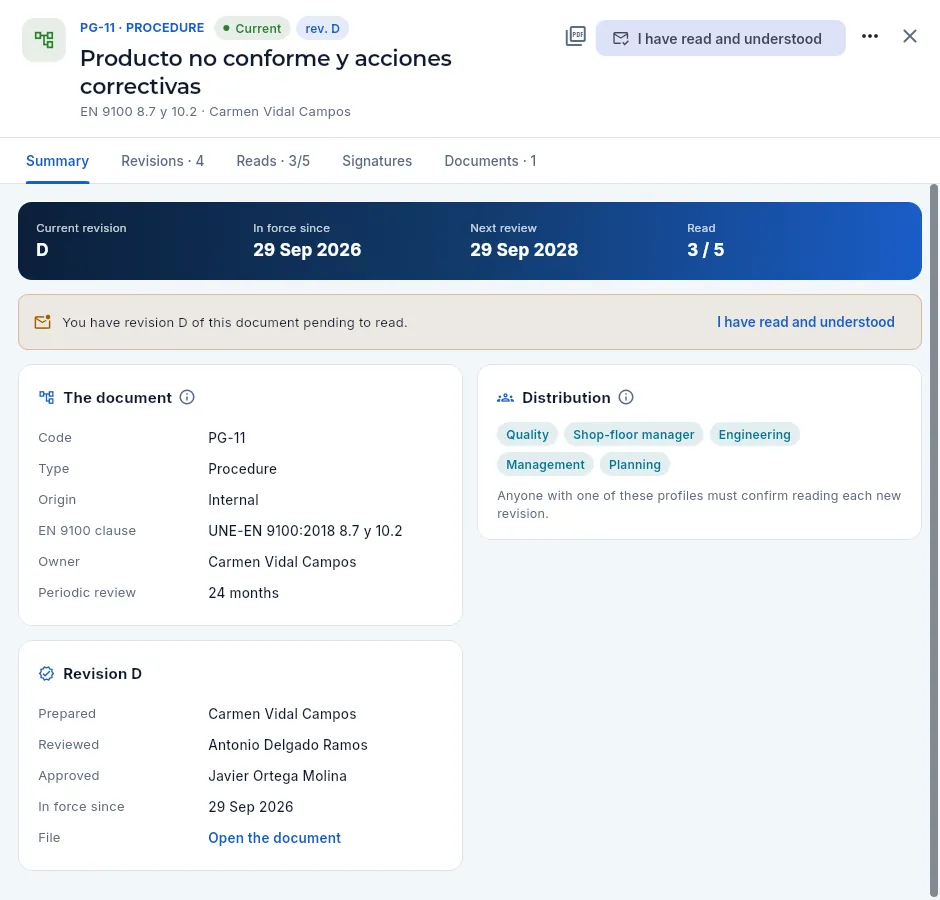 12345678
- 1Code, type, status and current revision; below, the EN 9100 clause it implements and its owner.
- 2Open the document: the PDF of the current revision.
- 3I have read and understood: confirms your reading of this revision.
- 4Current revision, in force since, next review and read.
- 5The notice of what is due: read it, an overdue review, a revision in progress…
- 6The details: code, type, origin, EN 9100 clause, owner and how often it is reviewed.
- 7The distribution: the profiles whose people must read it.
- 8The current revision: who prepared, reviewed and approved it, since when it is valid, and its file.
The current document is not edited: to change its content you issue a new revision. The ⋮ menu (with «Edit documentation» or «Approve documents») has Edit details (owner, distribution, periodic review…), Still current (checked) —to record that it is still correct without changing it— and Withdraw (with a reason and a signature).
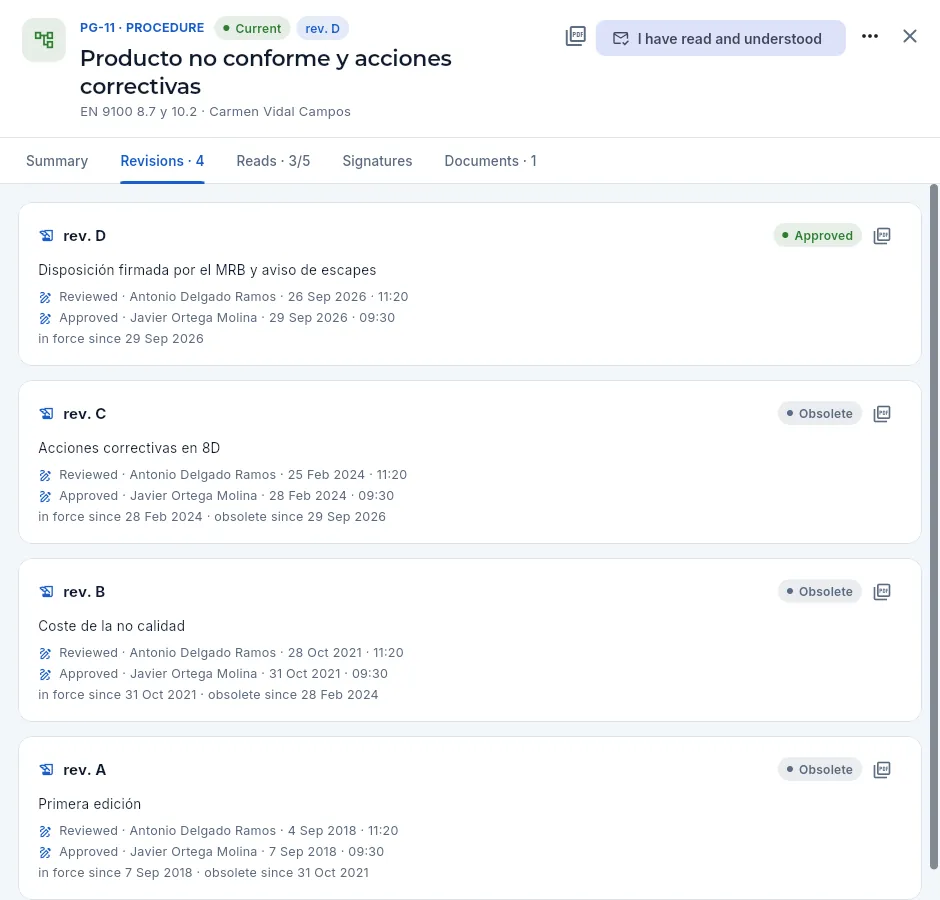 123
123
- 1The approved revision: what changed, who reviewed it and who approved it, with the date and time of each signature.
- 2Its PDF, bound to the signature: it cannot be changed or deleted.
- 3The earlier ones, obsolete since the next one was approved: they are kept for the history.
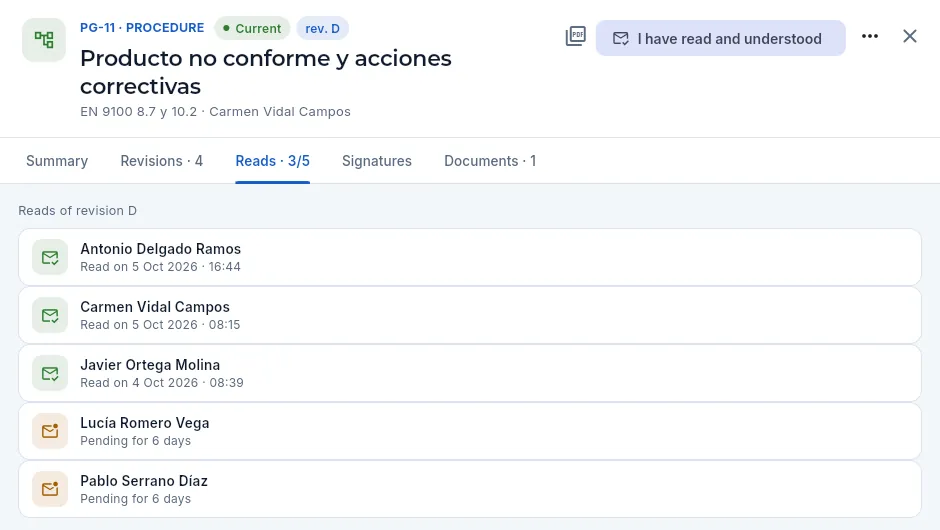 123
123
- 1How many people in the distribution have read it, out of how many.
- 2Those who have read it, with the date and time.
- 3Those who still have it pending, and since when.
Go to To read (or the notice on the Dashboard): the documents you need to read are there.
Open it and press the PDF icon to read the current revision.
Press I have read and understood.
#What you have to read
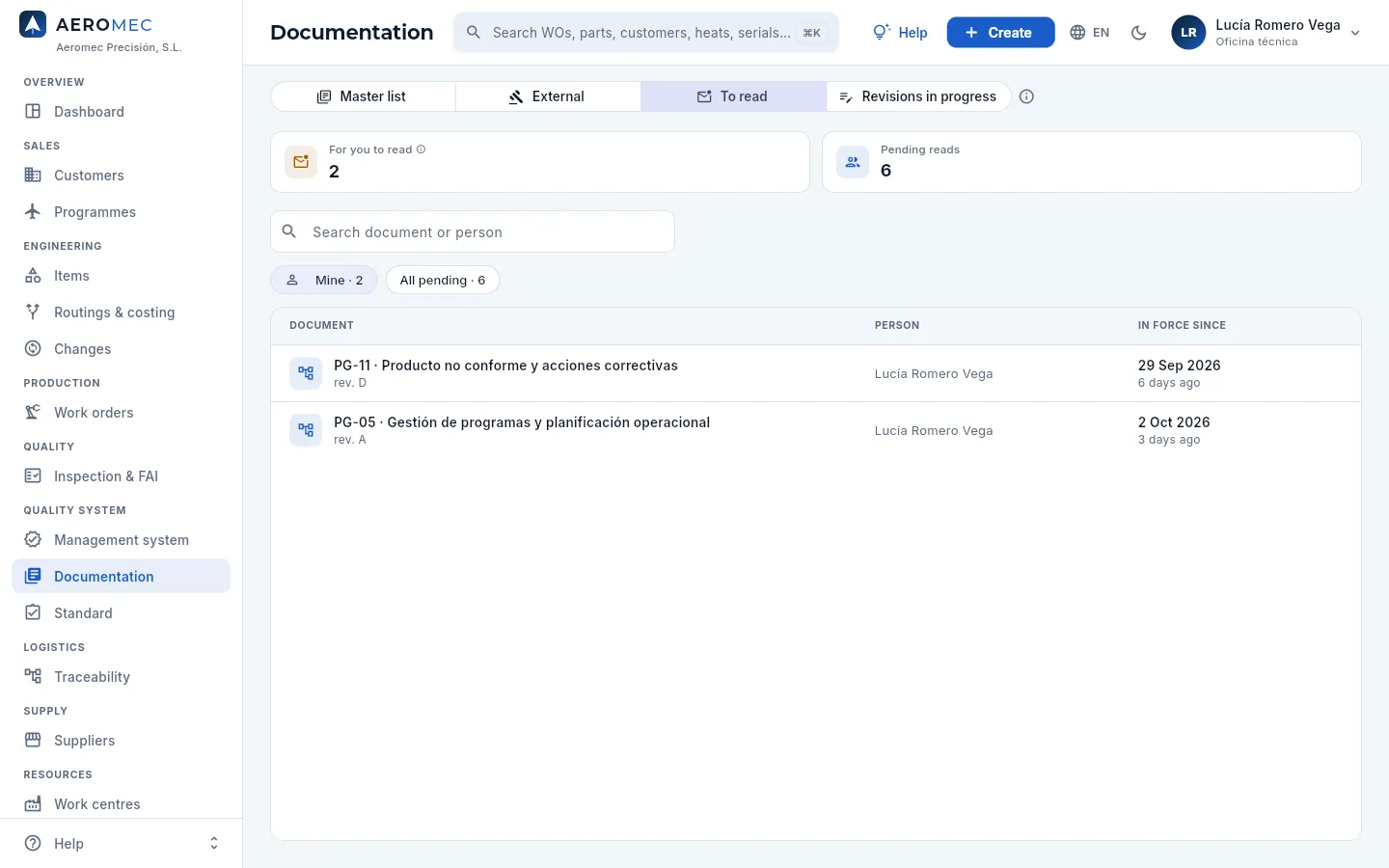 123
123
- 1How many documents you have to read.
- 2Mine or all pending reads of everyone (with «Edit documentation»: to chase them up).
- 3Each document with the revision to be read, the person and since when it has been in force.
#External documents
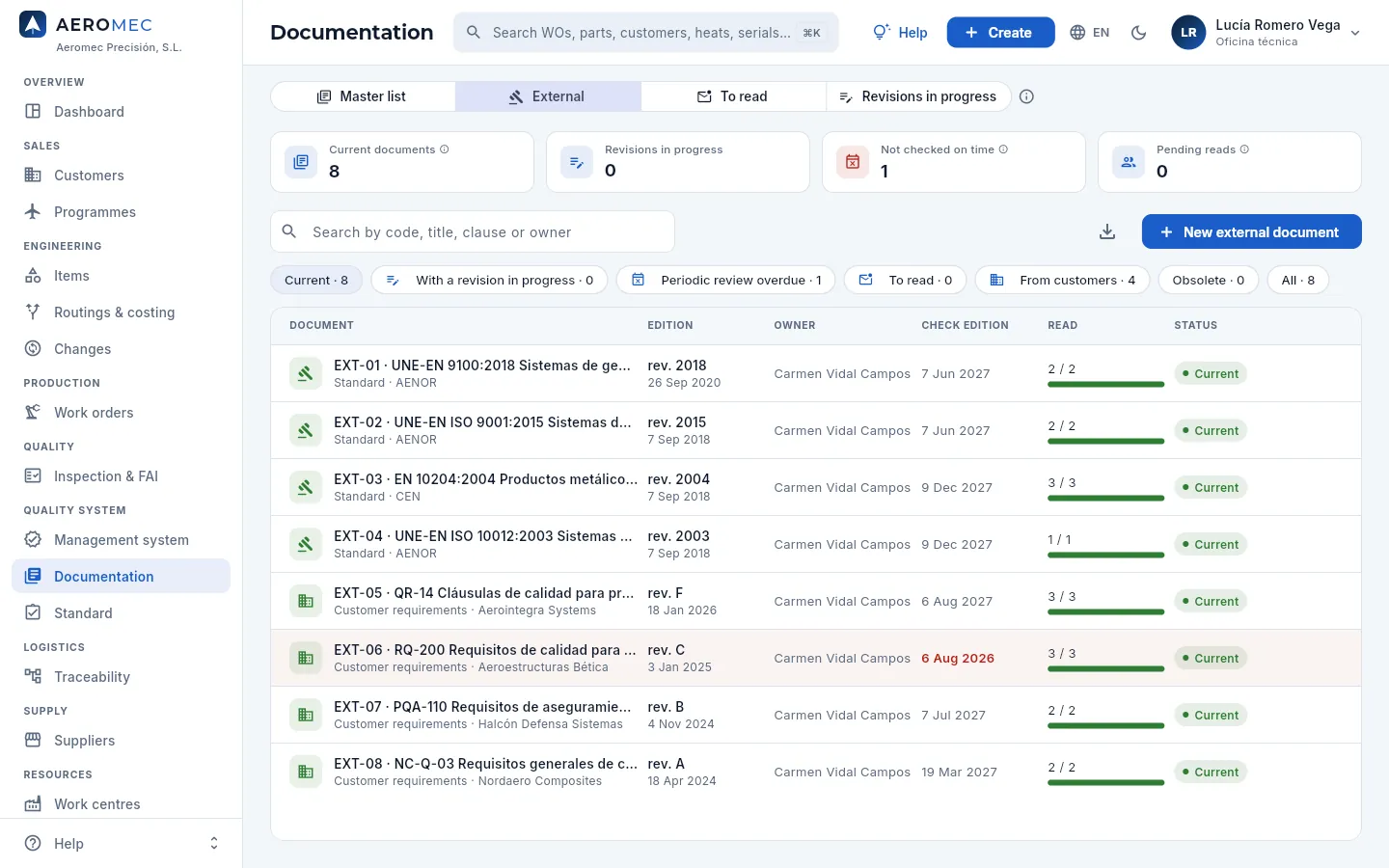 123456
- 1Those that must be checked to confirm they are still the issuer's current edition and have not been checked in time.
- 2New external document: a standard, a specification or a customer's clauses.
- 3From customers: their quality requirements.
- 4The issuer's edition and when it was registered.
- 5When it is due to be checked that it is still current.
- 6Bética's RQ-200: it should have been checked and it has not been.
You don't issue a revision of an external document: you register the issuer's new edition when it comes out (it goes through approval just like an internal one) or, if it is still the same, you record it with Still current (checked). A customer's clauses are the source of its requirements, which the contract review checks and which are flowed down to suppliers.
#Preparing a new revision
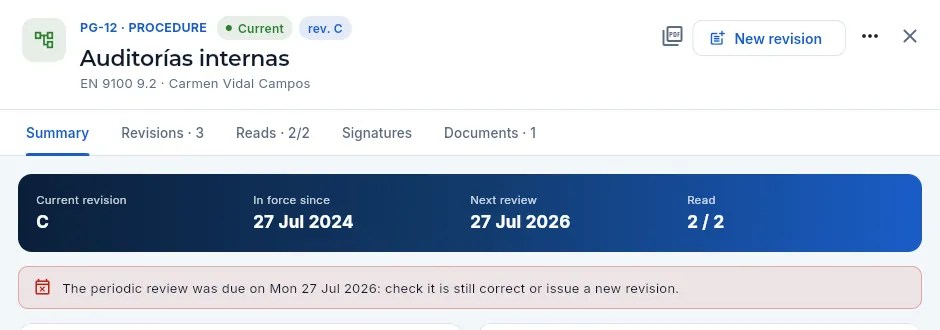 1234
1234
- 1New revision: the next letter (or the one you choose) and what changes; it starts in draft.
- 2More actions: edit details, still current (checked) and withdraw.
- 3The next review date has passed.
- 4The notice: check that it is still correct or issue a new revision.
On the document record, press New revision and write what changes (the letter is filled in automatically).
In the Documents tab, upload the file of the new revision (the PDF of the procedure).
Press Send for review.
Someone other than the author opens it and presses Review and sign; if something needs correcting, Reject with what has to change (it goes back to the author).
Management or Quality presses Approve and signs.
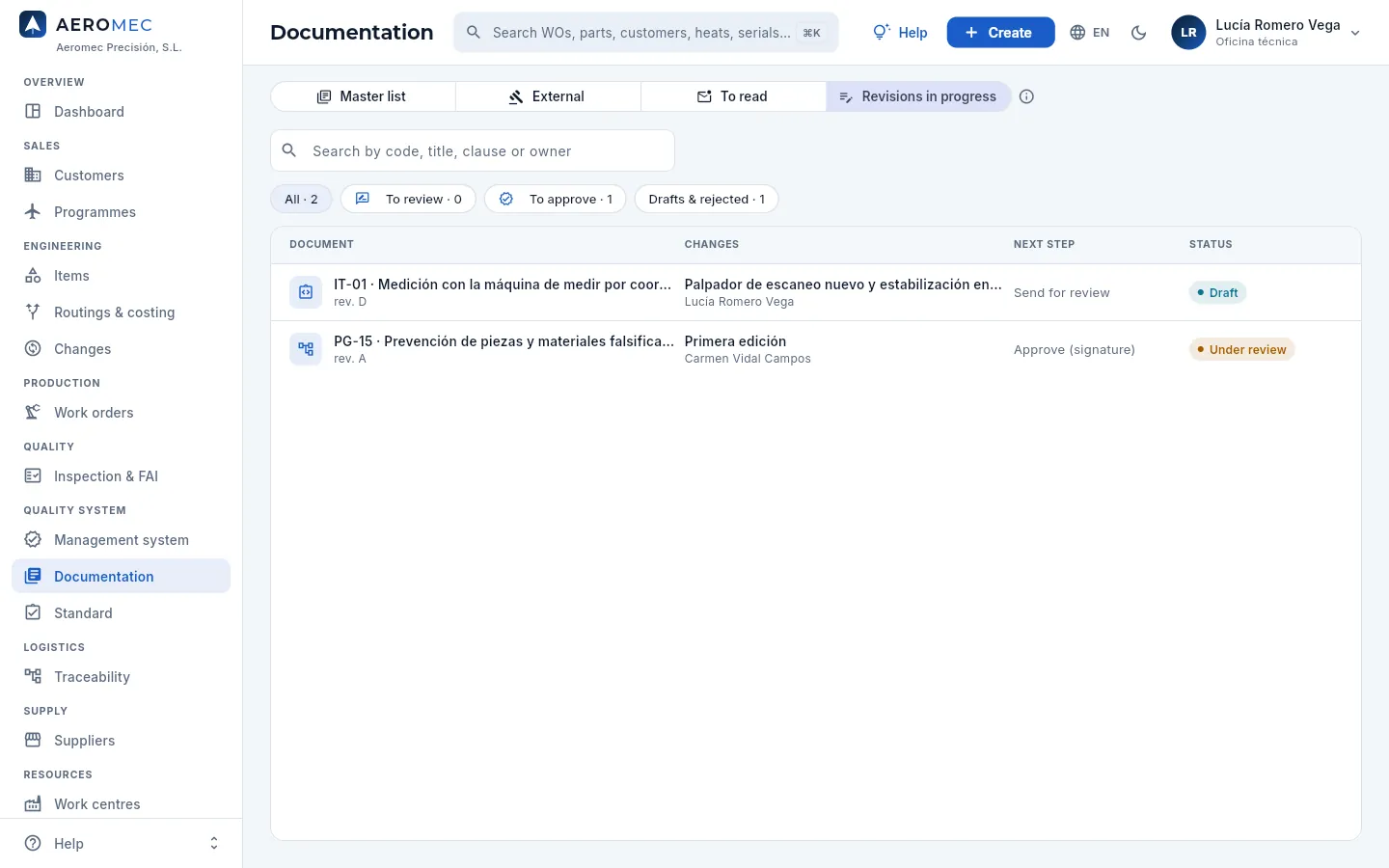 1234
1234
- 1Filters: all, to review, to approve and drafts and rejected.
- 2Revision D of IT-01 in draft: what changes and who is preparing it.
- 3The next step: upload the file, send for review, review (signature), approve (signature) or correct.
- 4PG-15, already reviewed by Lucía: awaiting approval with a signature.
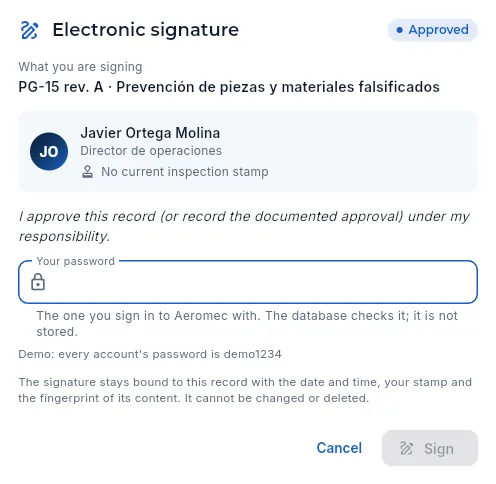 12345
12345
- 1The meaning of the signature: approved.
- 2What you are signing: the document and the revision.
- 3The signer (Javier, from Management).
- 4His password.
- 5Sign: revision A becomes current and its file is bound to the signature.
#CNC programs
The operations' CNC programs (on the routing record, Routings & costing) follow the same control: a new program is on trial until its programmer validates it with a signature after proving out the first part (with a current programming qualification, Competence & training), and the shop-floor terminal only shows the operator the current ones. A validated program is not changed: a new one is uploaded.
Quality system
Standard
The ISO 9001 and EN 9100 compliance matrix, clause by clause: what it requires, how Aeromec covers it, where it is, the evidence in the data and the tests that check it; and the validation of the software: the version in service with its tests, the backups with their verified restore and the dossier for the auditor.
In a certification audit the auditor goes through the standard clause by clause and asks for evidence: “show me how you control changes”, “where are the competence records?”. Standard gives that answer ready-made: the compliance matrix of ISO 9001:2015 and what EN 9100:2018 adds (the standard for aviation, space and defence), with what each clause requires, how Aeromec covers it, which section it is in (one click takes you there), how many records demonstrate it right now and which automated tests check it.
The Validation view answers the auditor's other question when software holds the quality records: how do you know it works properly and that data is not lost? With the version in service and the tests it passed, the backups verified by restoring them, and the integrity of the signed records.
#The compliance matrix
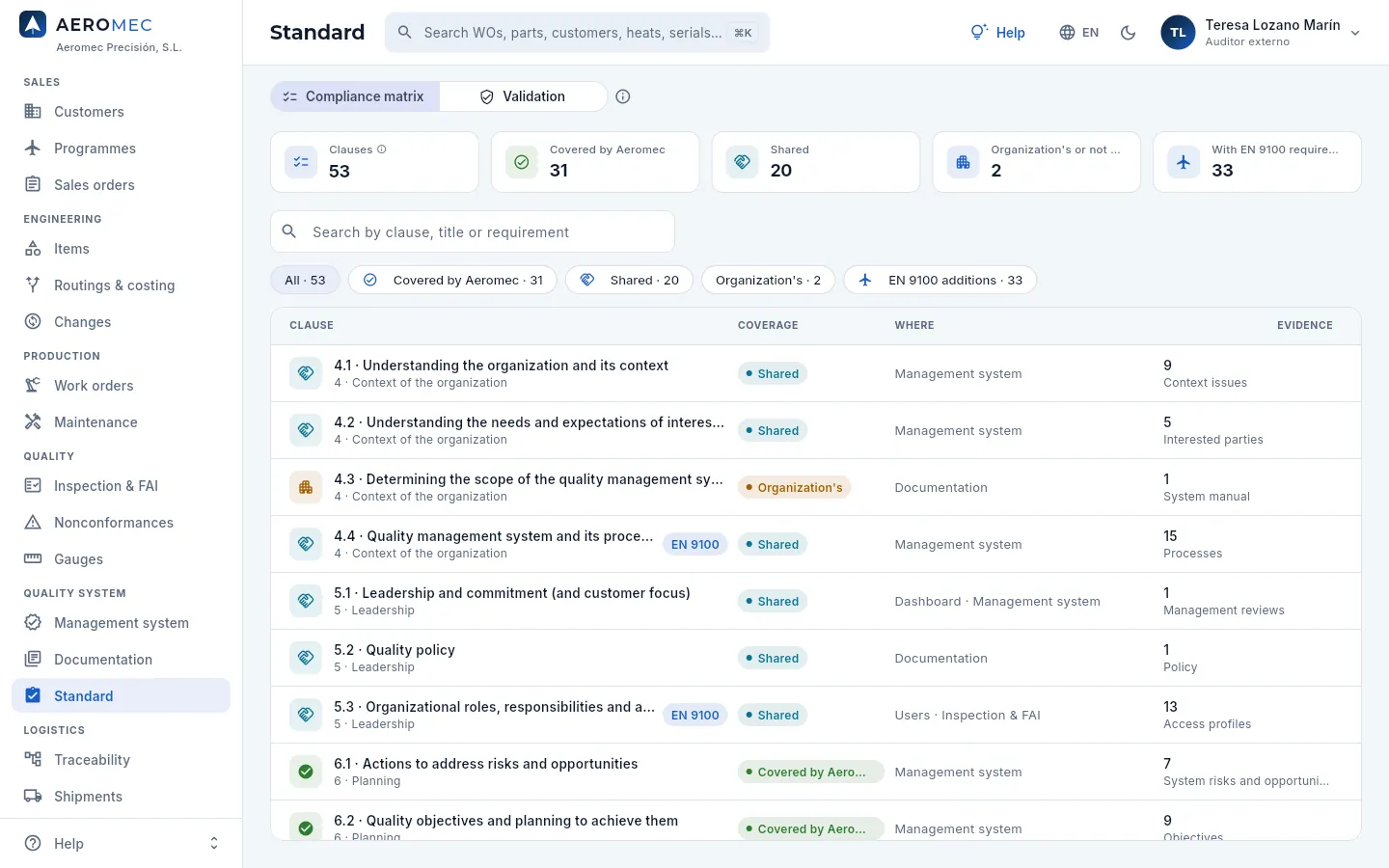 123456789
- 1The two views: compliance matrix and validation.
- 2Clauses, those covered by Aeromec, the shared ones, the organisation's ones (or not applicable) and those with EN 9100 requirements.
- 3Search by clause number, title or what it requires.
- 4Filters by coverage.
- 5EN 9100 additions: the clauses in which the aerospace standard requires more than ISO 9001.
- 6Each clause with its chapter; the EN 9100 tag means it has requirements from the aerospace standard.
- 7The coverage: covered by Aeromec, shared, the organisation's or not applicable.
- 8Where it is in Aeromec.
- 9The evidence: how many records there are right now (context issues, processes, management reviews…).
| Coverage | What it means |
|---|---|
| Covered by Aeromec | The tool and the record are in the app: the clause is met by using it (risks, objectives, competence, control of changes, traceability, release, nonconformities…). |
| Shared | Aeromec provides the tool and the evidence, but the decision or activity belongs to the organisation: context, policy, leadership, product safety, special processes… |
| Organization's | The company decides and documents it (the scope of the system): Aeromec only keeps the document. |
| Not applicable | Design and development (8.3): a shop that manufactures to the customer's drawing does not design the product. |
#A clause record
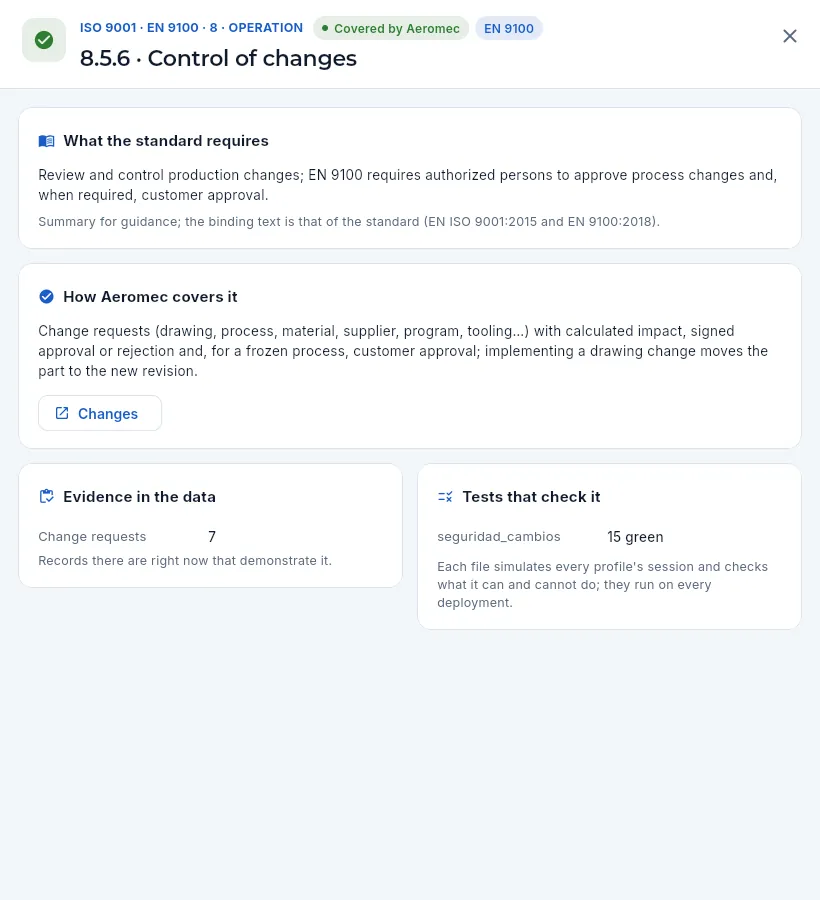 123456
- 1The clause, its chapter, the coverage and the EN 9100 tag.
- 2What the standard requires, summarised for guidance (what counts is the text of the standard).
- 3How Aeromec covers it.
- 4Where it is: one click takes you to the section (and the view) that covers it.
- 5The evidence: the records that exist right now and demonstrate it (here, the change requests).
- 6The tests that check it on every deployment, and their result.
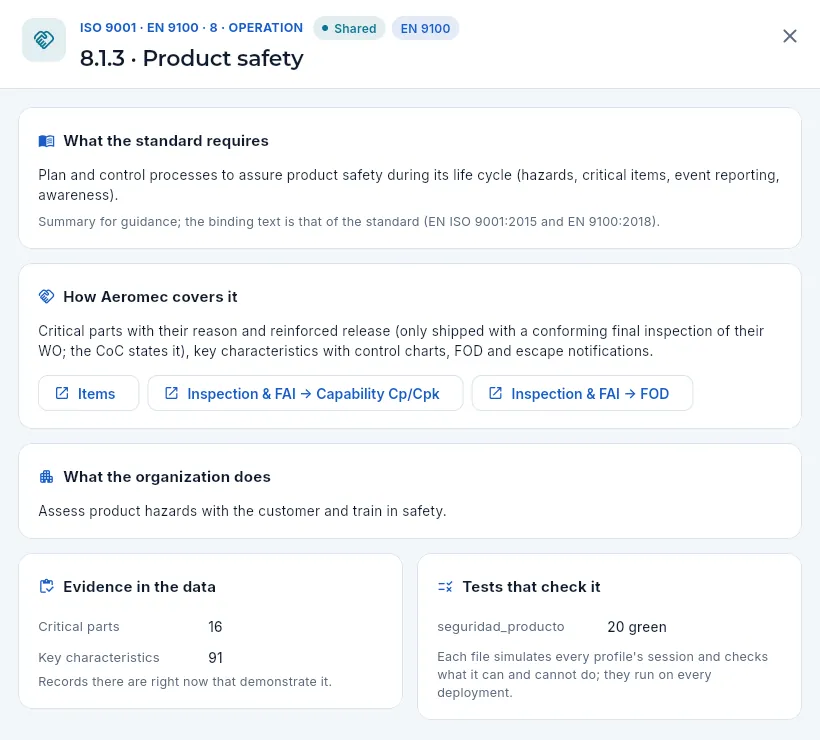 123
123
- 1What Aeromec provides: critical parts with their reinforced release, key characteristics with their statistical control, FOD prevention…
- 2When several sections cover it, one button for each.
- 3What the organisation does: what is left in the company's hands.
In Compliance matrix, search for the clause being asked about (for example, «8.5.6» or «changes»).
Read how Aeromec covers it and what the organisation does.
Press the where it is button to show the auditor the section with the real records, and the evidence to give the figure.
If they ask how you know the software does not let anyone bypass the control, the tests that check it and the Validation view.
#Validation of the software
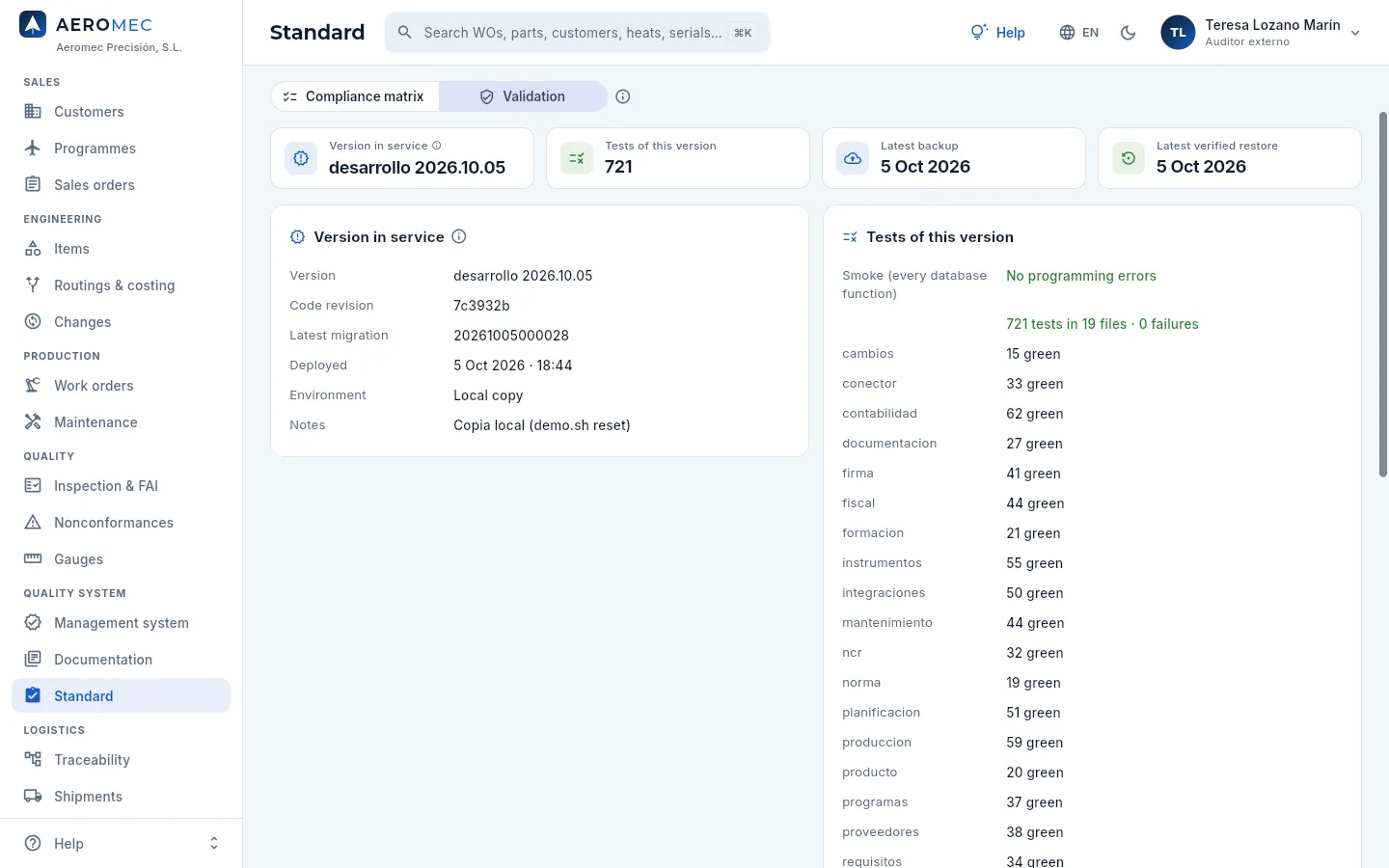 123
123
- 1The version in service, the tests it passed, the latest backup and the latest verified restore.
- 2The version: number, code revision, latest database update, when it was deployed and where (the demo server or a local copy).
- 3The tests of this version: the smoke test (every database function) and, file by file, the security tests, with how many passed and the failures.
Every time a version is installed all the tests are run and recorded with it: the smoke test calls every database function and each security file simulates the session of each profile and checks what it can and cannot do (that Sales does not see costs, that a signed record does not change, that a work order cannot be released without the contract review…). A version with any failure says so in red.
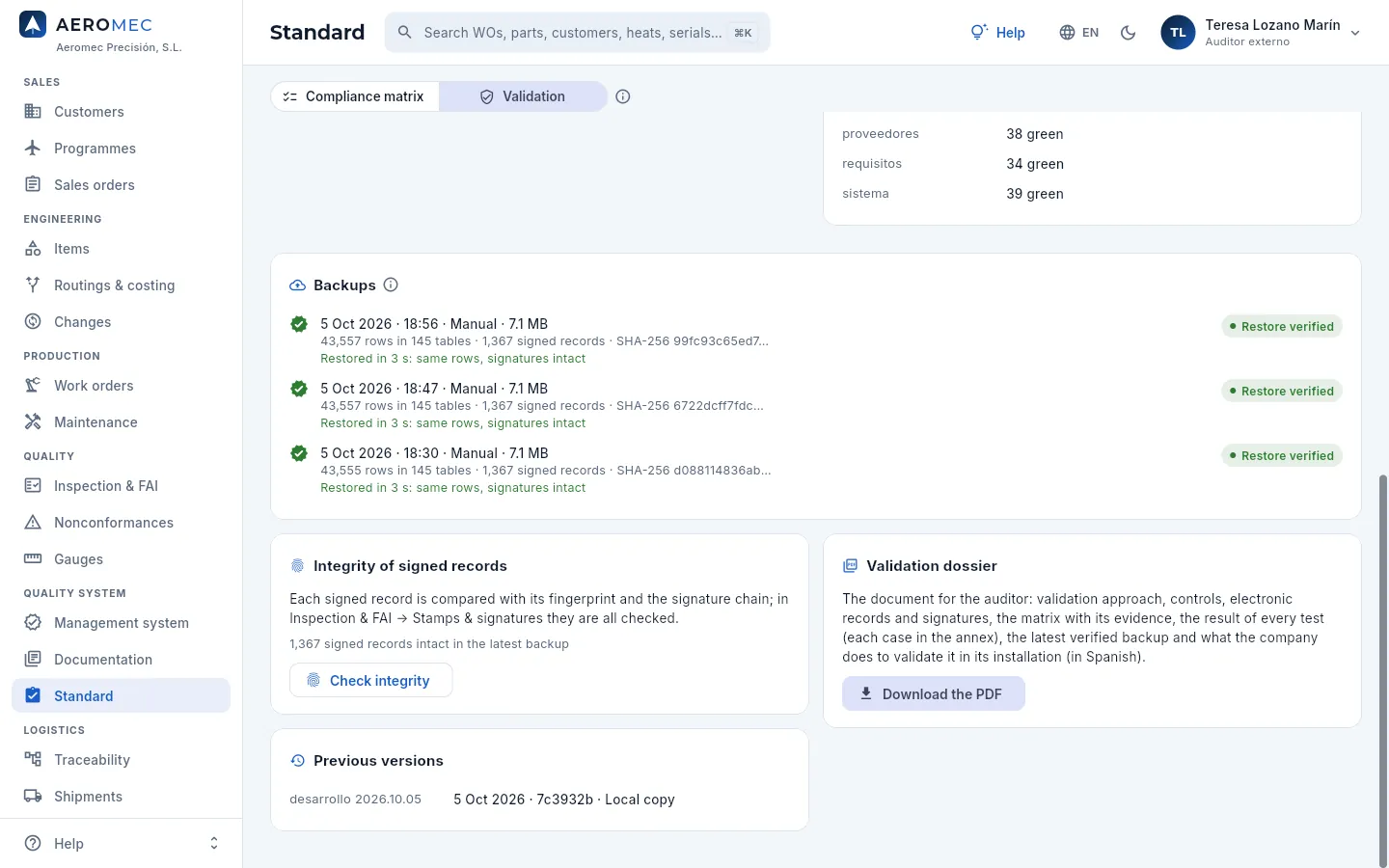 123456
- 1The backups: when, what type and their size; the rows, tables and signed records they hold, their SHA-256 hash and, on the right, the result of restoring them.
- 2The integrity of the signed records in the latest backup.
- 3Check integrity of all of them, now (Inspection & FAI → Stamps & signatures, with the Quality section).
- 4The validation dossier for the auditor.
- 5Download the PDF.
- 6The previous versions, with their date and code revision.
The validation dossier is the document for the auditor: the validation approach, the controls, the electronic records and signature, the matrix with its evidence, the result of all the tests (each case in an appendix), the latest verified backup and what the company has to do to validate it in its own installation.
Logistics
Warehouse
Stock by item, lot, location and status (available, quarantine or blocked), lots with their heat, 3.1 certificate and expiry, the movement log, reservations and picking for work orders, cycle counts, the location map and customer property.
The Warehouse is where you know, at any time, what material there is, which lot and heat it belongs to, where it is and whether it can be used. In an aerospace shop that is no detail: every bar or plate must be traceable from the mill's certificate to the part delivered, and material that has not yet passed its check must never reach a machine.
Aeromec keeps stock by item × lot × location × status. A single lot of titanium plate may be spread over two slots, with part of it available and part on hold. Everything that comes in, goes out or changes place or status does so through a movement, recorded with its date, its user and its document.
The section has seven views, chosen at the top: Stock, Lots, Movements, Reservations & picking, Cycle counts, Locations and Customer property (what customers leave with you). The one you choose is remembered for next time.
#How material moves
- 1ReceiptWhen a purchase is received, raw material comes in as a new lot, with its heat and 3.1 certificate, in the receiving area.
- 2QuarantineThe lot awaits its receiving inspection. It cannot be reserved or issued.
- 3InspectionQuality validates the 3.1 point by point and the hardness: conforming, the lot becomes available in its slot; nonconforming, it stays blocked.
- 4FIFO reservationWhen a work order is released, its material is set aside, oldest lot first.
- 5PickingThe warehouse picks the material and issues it to the shop floor: it leaves the lot with an «Issue to WO».
- 6Finished goodsThe work order's good parts come in as a finished-goods lot and leave on shipping, with their CoC.
The three stock statuses have the same colour throughout the app:
| Status | Colour | What it means |
|---|---|---|
| Available | Green | It can be reserved for a work order and issued. |
| Quarantine | Amber | On hold: material just received awaiting its receiving inspection, or set aside by Quality while a doubt is cleared. MRP counts it as a future receipt, but nobody can use it. |
| Blocked | Red | Nonconforming: rejected at inspection, defective, expired or held by a nonconformance (NCR). It must leave the warehouse, returned to the supplier or scrapped, as Quality decides. |
#The Stock view
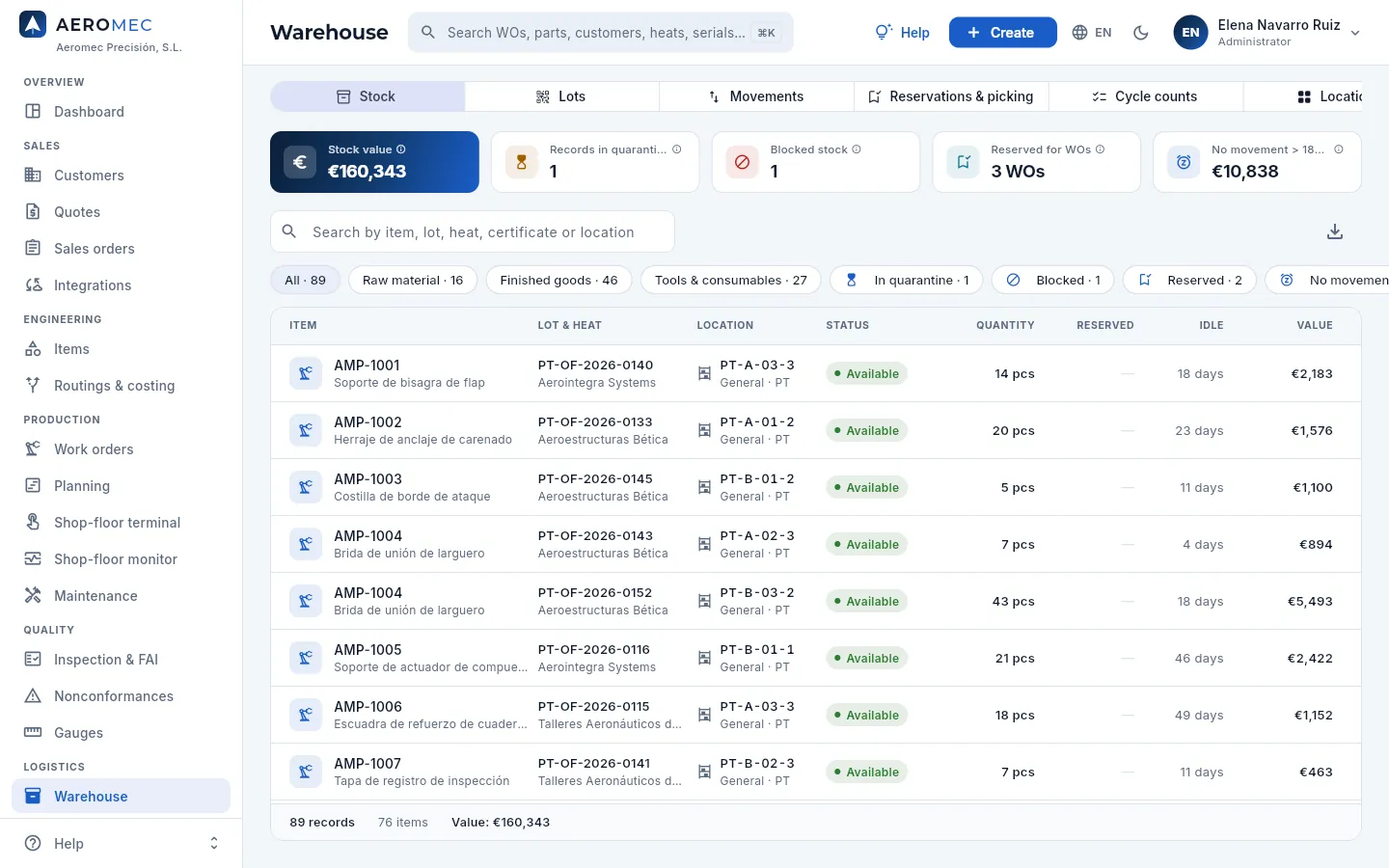 12345678
- 1The warehouse's seven views. To their right, the ⓘ explains how stock moves, with an example. On a narrow screen, the row scrolls sideways.
- 2Stock value: what the stock in the list is worth, at weighted average price (WAP). Only with «See costs»; without it, this indicator counts the items in stock.
- 3Records in quarantine and Blocked stock: how many records are on hold or rejected. Clicking them filters the list.
- 4Reserved for WOs: how many work orders have material set aside that has not yet been issued to the shop floor.
- 5No movement > 180 days: the value (or number of records) idle for more than half a year: tied-up capital and the risk that a revision change makes it useless.
- 6The search box finds by item, lot, heat, 3.1 certificate number or location.
- 7The filters, with their counts: by type (raw material, finished goods, tools & consumables), by status (in quarantine, blocked), reserved, no movement and defence.
- 8Export CSV downloads the list you see, for Excel.
Each row is a stock record: one item, from one lot, at one location and in one status. The list footer adds up the records, the distinct items and the value of what is filtered. Clicking a column header sorts the list.
 123456
- 1The item: code and description. The icon says whether it is raw material, finished goods or a tool.
- 2The lot and its heat; the 3.1 pill says the lot has its material certificate (hover for its number). For finished goods, the work order lot and the customer.
- 3The location: the slot (WAREHOUSE-AISLE-RACK-SLOT) and, below, the zone and the warehouse.
- 4The status: available, quarantine or blocked.
- 5Reserved: what is already committed to released work orders and not yet issued. Free = quantity − reserved.
- 6Idle: days since the lot's last movement.
#Quarantined and blocked material
The In quarantine filter keeps the material that cannot be used yet: what has arrived and awaits its receiving inspection, in which Quality checks the 3.1 certificate against the material specification, the heat marked on the bars and the hardness. Blocked keeps what was rejected: nonconforming material awaiting return to the supplier or scrap.
 123
123
- 1The In quarantine filter. Next to it, Blocked keeps the rejected material.
- 2The row shaded amber: Ti-6Al-4V plate with its heat and 3.1, at location REC-01 (receiving) and in Quarantine status. Until Quality releases it, neither MRP nor reservations use it.
- 3The indicator counts the same as the filter: if something has been here for days, tell Quality, because it may be holding up a work order.
Clicking any row opens a dialog with what can be done with that stock. At the top, the lot, the heat, the location and the quantity; below, the actions.
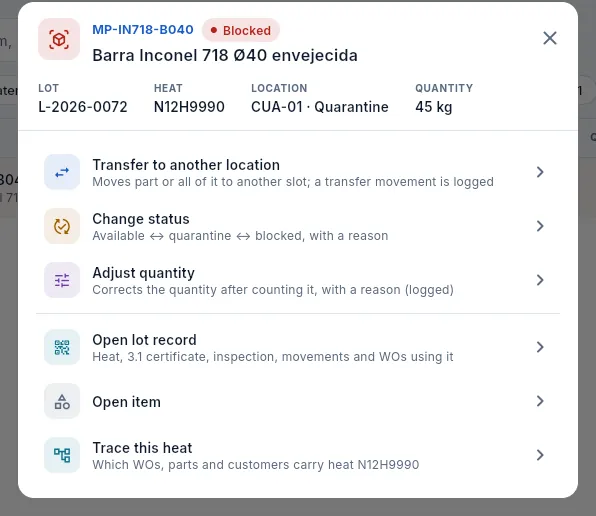 123456
- 1Which stock it is: lot, heat, location (here CUA-01, the quarantine area) and quantity.
- 2Transfer to another location: moves part or all of it to another slot. A transfer movement is logged.
- 3Change status: available ↔ quarantine ↔ blocked, always with a reason.
- 4Adjust quantity: corrects the quantity after counting it (breakage, a receiving error), with a reason.
- 5Open lot record: its heat, its 3.1 certificate, the inspection, the movements and the work orders using it.
- 6Trace this heat: which work orders, parts and customers carry that heat (see Traceability). Open item, above, opens the item record.
#Transferring, changing status and adjusting
All three actions always ask for the quantity (with the All button for the whole record) and are logged as a movement under your user. The reason is required for status changes and adjustments: it is what an auditor will read.
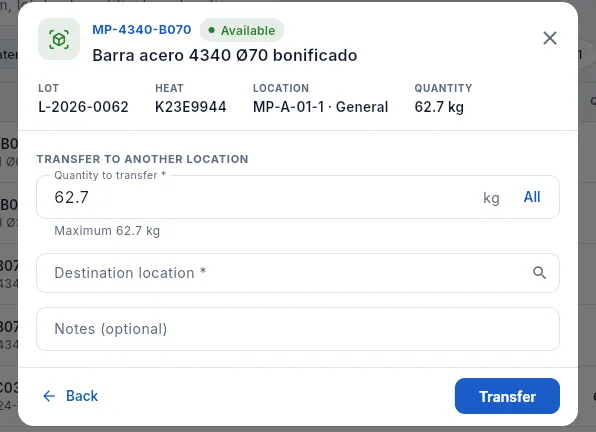 1234
1234
- 1The quantity moved; below, the maximum (what this record holds). All fills it in.
- 2The destination location: the drop-down shows which slots are free and how many items each holds.
- 3Back returns to the list of actions without changing anything.
- 4Transfer makes the movement. The lot, heat and status do not change: only the place.
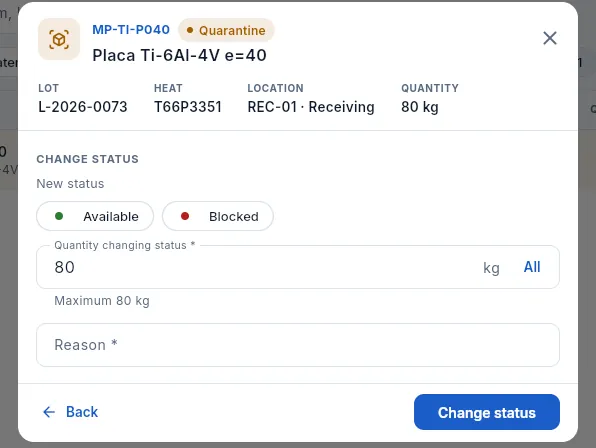 1234
1234
- 1The new status: here, since the stock is in quarantine, Available (release it) or Blocked (reject it).
- 2The quantity that changes: you can release or block just part of it.
- 3The reason, required: it is kept in the movement and in the lot history.
- 4Change status applies the change. Holding it (to quarantine or blocked) moves the material to the quarantine area; releasing it leaves it available in the same slot.
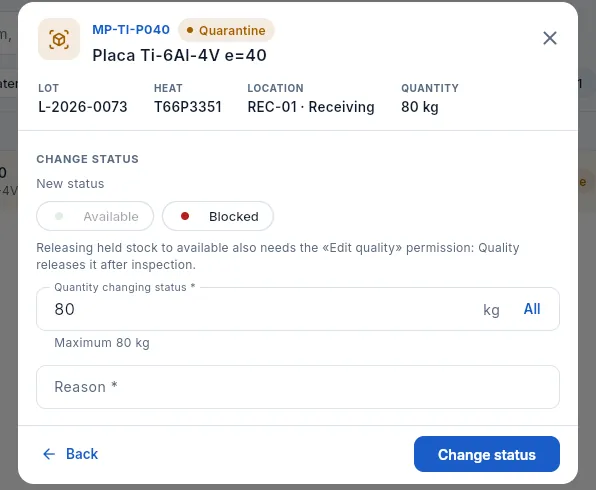 12
12
- 1Available is disabled: releasing held material also needs the Edit quality permission.
- 2The notice explains it: Quality releases it after inspecting it (in Inspection & FAI).
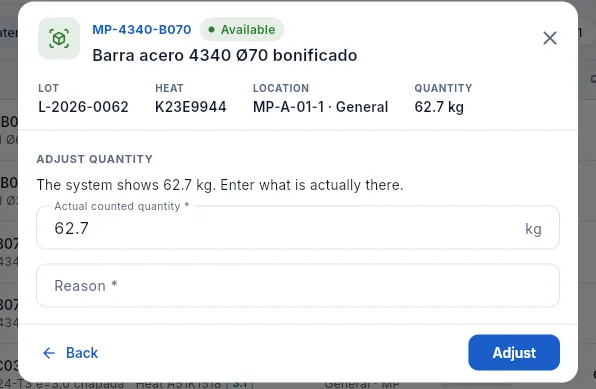 123
123
- 1What the system says is in this slot.
- 2The actual counted quantity: what is really there. The difference is adjusted with a movement.
- 3The reason (handling damage, receiving error…), required.
In Stock, search for the lot or the heat and click its row.
Click Change status and choose Blocked (or Quarantine, if something just needs checking).
Enter the quantity (or All) and write the reason: what was seen and who asked for it.
Click Change status. If a nonconformance must be raised, do it in Nonconformances.
#Lots: heat and 3.1 certificate
A lot is each entry of material into the warehouse: every purchase receipt creates one, and every completed work order creates its own finished-goods lot (PT-OF-…). The lot is the unit of traceability: if a lot has a problem, you know exactly which parts carry it.
The heat is the mill's melt batch: all the metal from one heat has the same chemical composition. The 3.1 certificate (EN 10204, type 3.1) is the document signed by the mill's quality department, independent from production, with the actual test results for that heat: chemistry, mechanical properties and heat treatment. Several receipts may share a heat.
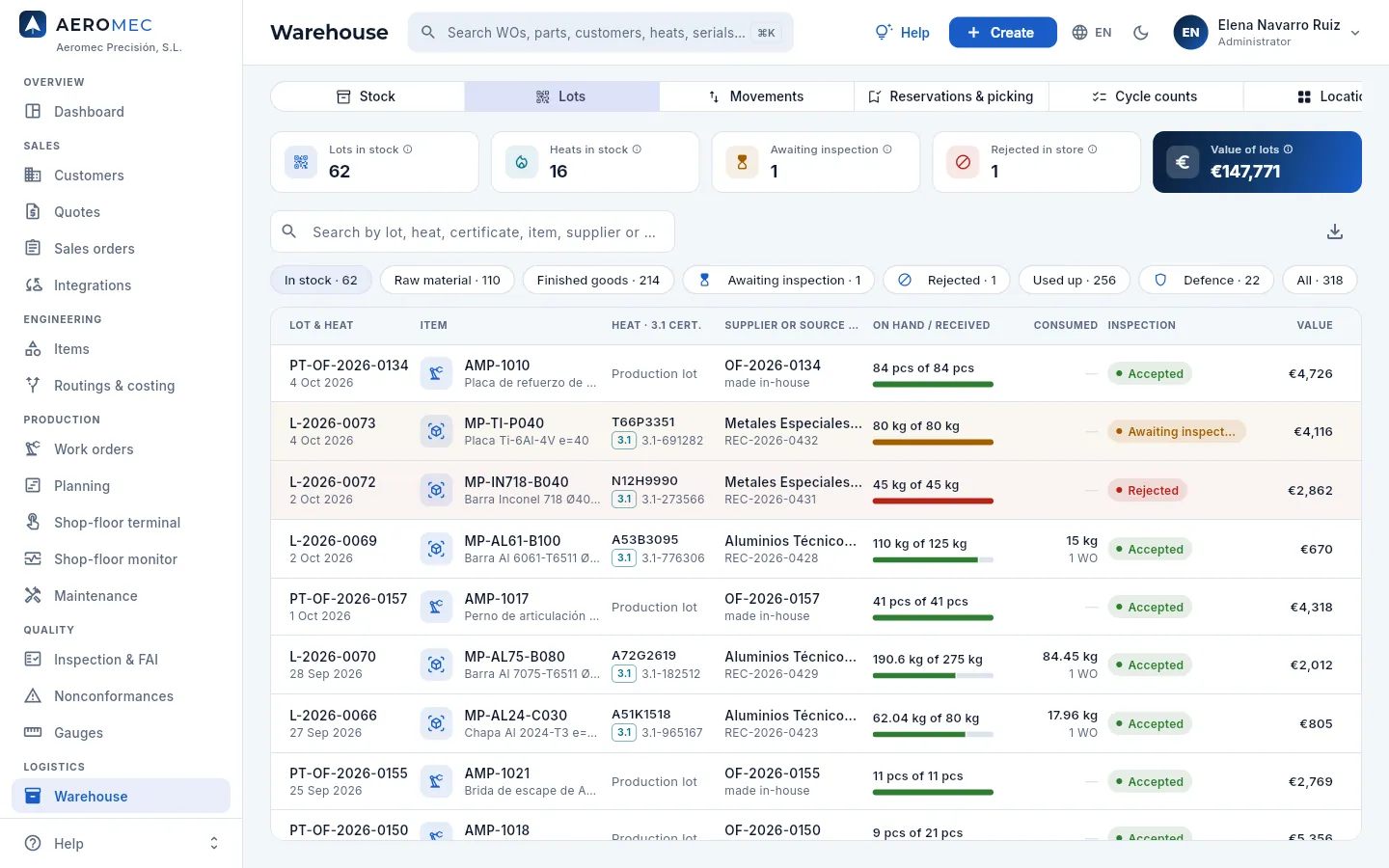 12345
12345
- 1Lots in stock and Heats in stock: how many lots and how many different heats are in the warehouse now.
- 2Awaiting inspection and Rejected in store: lots in quarantine and rejected lots still holding stock.
- 3The filters: in stock (the default), by type, awaiting inspection, rejected, used up (the history), defence and all.
- 4Value of lots: what their stock on hand is worth (with «See costs»).
- 5The search box: by lot, heat, certificate, item, supplier or WO.
 12345
12345
- 1The heat and the 3.1 certificate number. Finished-goods lots show «Production lot».
- 2Where it comes from: the supplier and the receipt (REC-…), or the work order that made it.
- 3How much is left of what came in. The bar shows it by status: green available, amber quarantine, red blocked; grey has already left.
- 4Consumed: what was issued to the shop floor and to how many work orders.
- 5The receiving inspection result: accepted, pending or rejected.
Two more things a lot can carry:
- Expiry. Items with a shelf life —adhesives, sealants, greases, cutting fluids: it is set on their record, see Items— give each lot its expiry date on receipt (receipt date + shelf life), shown on the Material & certificate card of its record. An expired lot is not issued or shipped: Aeromec does not let it go to a work order or onto a delivery note; hold it (blocked) until Quality decides.
- Suspected counterfeit. If at receiving inspection the certificate's origin was not traceable (see Purchasing), the lot carries the red Suspected counterfeit pill on the list and on its record: it is not returned to the supplier; it is mutilated as scrap according to its NCR.
Finished goods lots also keep the drawing revision their work order was made to (frozen when it is released: see Changes); it goes to traceability and the CoC, and the impact of a drawing change counts the stock of each revision.
#The lot record
Click a lot (or Open lot record from a stock row) to open its record. It has the Summary, Where it is, Movements, WOs, Documents and, with the audit permission, Changes tabs.
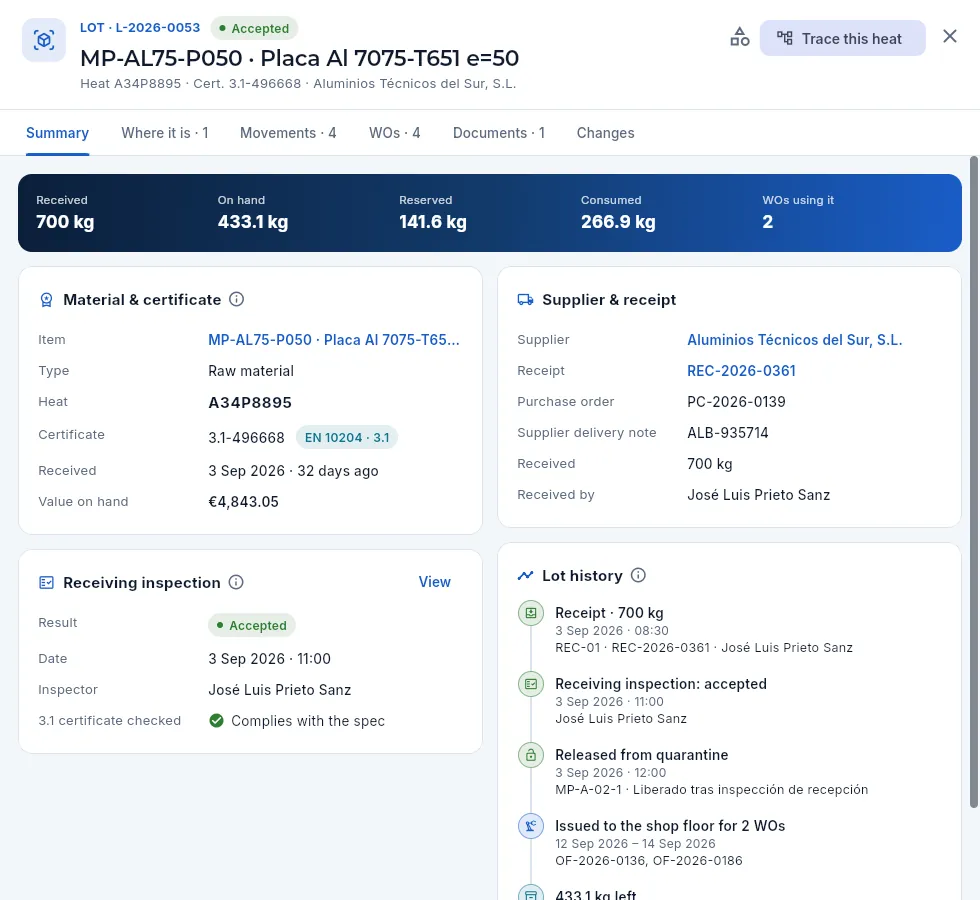 1234567
- 1The lot code and its inspection result; below, the item and the line with its heat, certificate and supplier.
- 2Trace this heat leads to everything made from that heat. The icon to its left opens the item.
- 3The banner: what came in, the stock on hand left, what is reserved, what was consumed and by how many work orders.
- 4Material & certificate: item, type, heat, 3.1 number (the EN 10204 · 3.1 pill), receipt date and value on hand.
- 5Supplier & receipt: the supplier, the receipt (click it to open the order), the purchase order, the supplier delivery note, the quantity received and who received it.
- 6Receiving inspection: result, date, inspector and whether the 3.1 was checked. View opens the full inspection.
- 7Lot history: its story in a few lines: receipt, inspection, release, issues to the shop floor and what is left today.
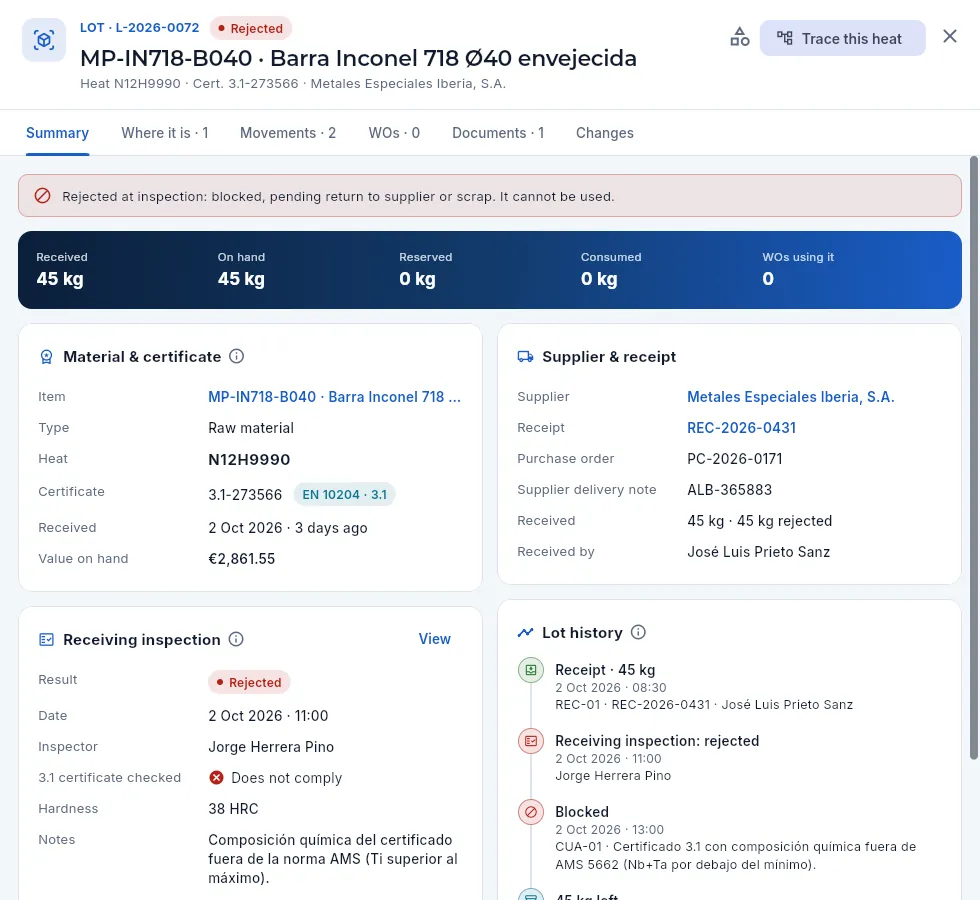 1234
1234
- 1Rejected status.
- 2The notice: the lot is blocked, pending return to the supplier or scrap. It cannot be used.
- 3The rejected inspection, with the 3.1 certificate marked as nonconforming, the measured hardness and the inspector's notes: why it was rejected.
- 4In the history, the receipt, the rejected inspection and the block in the quarantine area, with its reason.
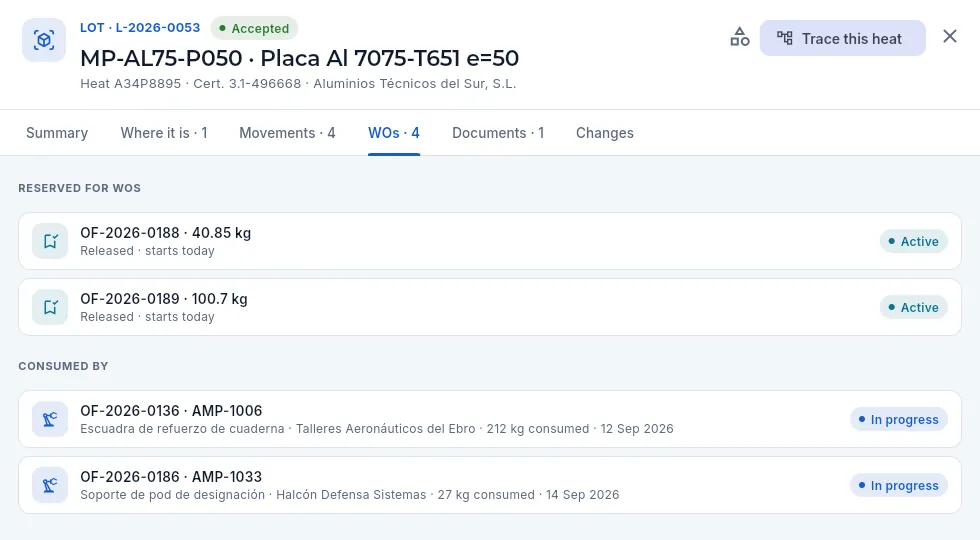 123
123
- 1The WOs tab, with the number of work orders that have reserved or consumed it.
- 2Reserved for WOs: released work orders with material from this lot set aside, with the quantity and when they start.
- 3Consumed by: the work orders it has been issued to, with the part, the customer, the kilos and the date. Click one to open it.
The other tabs complete the story:
- Where it is: the lot breakdown (available, quarantine, blocked and what has already left) and each location with its quantity, what is reserved and the days idle.
- Movements: each of the lot's movements with its balance: the receipt, the release, each «Issue to WO», the transfers…
- Documents: the scanned 3.1 certificate and the supplier delivery note attached at receipt, and any other document you upload (drag it onto the window).
#Movements
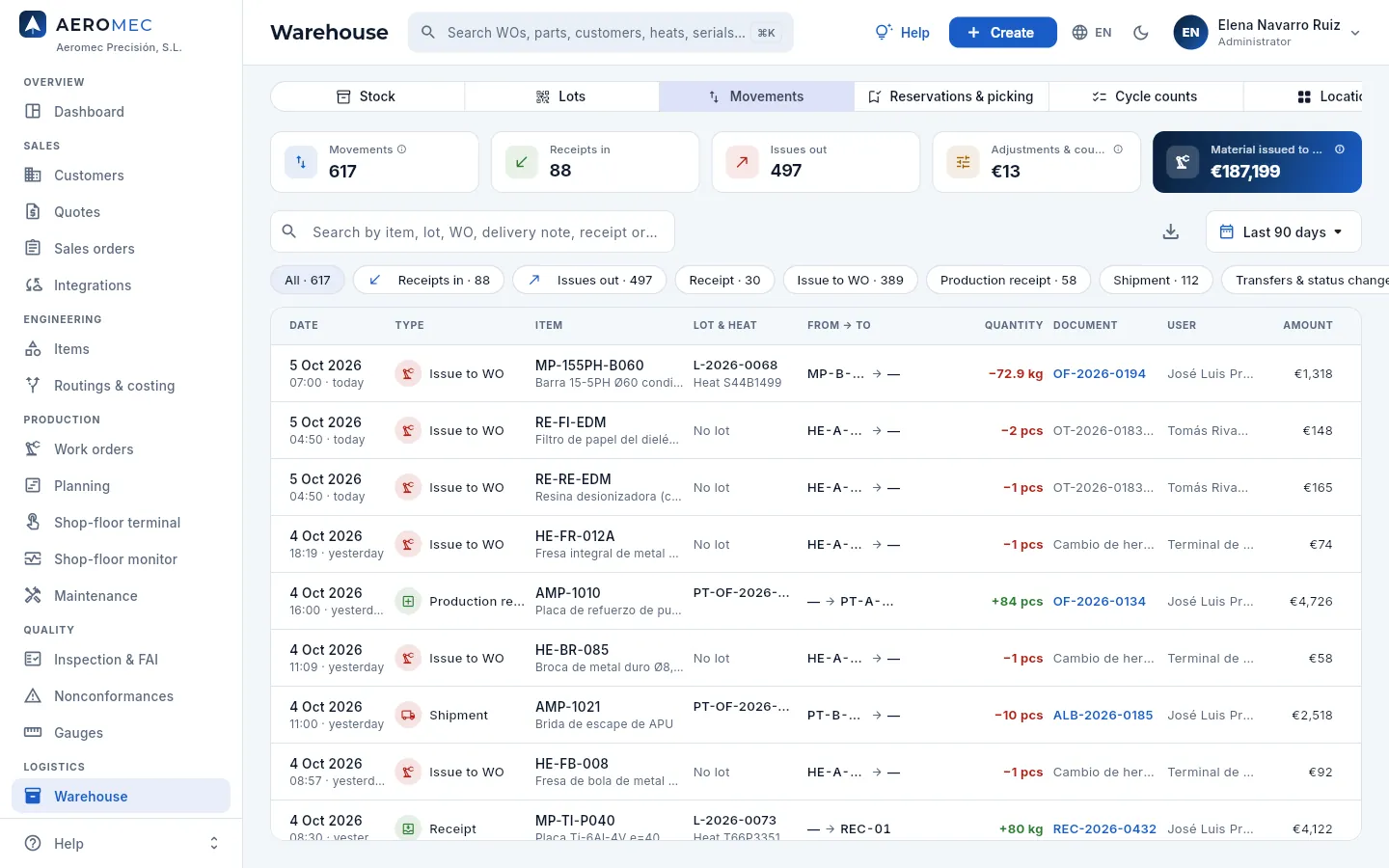 12345678
- 1How many movements, receipts in and issues out there are in the period.
- 2Adjustments & counts: the signed value of the corrections (+ surplus, − shortage). Few and small = a reliable warehouse.
- 3Material issued to WOs: the cost of the material sent to the shop floor in the period.
- 4The period: last 30 or 90 days, 12 months or all history.
- 5The filters by type: receipts in, issues out, receipt, issue to WO, production receipt, shipment, transfers & status changes, adjustments.
- 6The movement type, with its icon and colour.
- 7From → to: from which slot to which slot (and, for a status change, from which status to which).
- 8The quantity, in green with + when coming in and in red with − when going out; the document that caused it (work order, delivery note, receipt), which opens when clicked, and the user.
Movements are never deleted or edited: they are the evidence for traceability. If something is wrong, it is corrected with another movement (an adjustment, a transfer). The types you will see:
| Type | When it happens |
|---|---|
| Receipt | When a purchase is received: the lot comes in (in quarantine if it is raw material). |
| Status change | When releasing after inspection, blocking a rejection or holding something by hand. |
| Transfer | When moving material from one slot to another. |
| Issue to WO | When a work order's material is picked. |
| Production receipt | When a work order's last operation is completed: good parts come in as finished goods. |
| Shipment | When a delivery note ships: finished goods leave for the customer. |
| Adjustment · Cycle count · Scrap | Manual corrections, closed counts and scrapped material. |
#Reservations and picking
When a work order is released (in Work orders), Aeromec reserves the material it needs, lot by lot FIFO (first in, first out: oldest lot first), so nobody uses it for anything else. Picking means preparing that material and issuing it to the shop floor. The Reservations & picking view is the warehouse's work list.
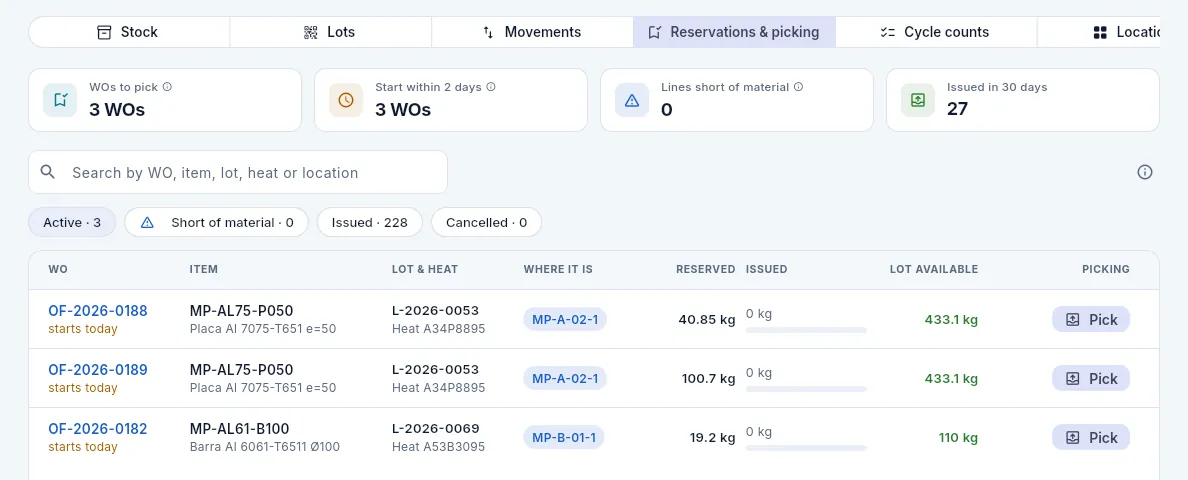 1234567
- 1WOs to pick: work orders with reserved material not yet issued.
- 2Start within 2 days: the ones to pick first.
- 3Lines short of material: reservations whose lot no longer has enough available. Warn Purchasing or Planning.
- 4The filters: active, short of material, issued and cancelled.
- 5The work order and when it starts (amber if today or tomorrow); on the right, the item, the reserved lot and heat and where it is.
- 6What is reserved, what is issued (with its bar) and the lot available (red if it falls short).
- 7Pick issues that reservation's material to the shop floor.
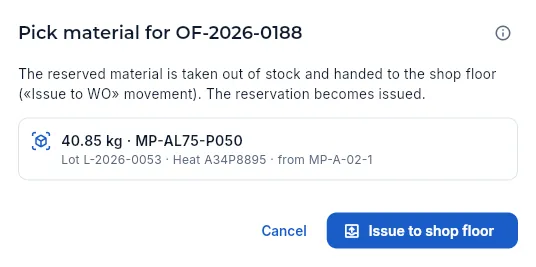 123
123
- 1What will happen: the material leaves the warehouse with an Issue to WO movement and the reservation becomes issued.
- 2What is issued: quantity, item, lot, heat and the slot it comes from. If there is not enough, it warns what will remain pending.
- 3Issue to shop floor records the issue. From then on, every part of the work order knows which heat it comes from.
In Reservations & picking, keep the Active filter. Start with the work orders that start soonest (amber).
Read the row's lot, heat and slot, and go and fetch the material.
Click Pick and check in the dialog that the lot and heat match what you have in your hand.
Click Issue to shop floor and take the material to the machine.
#Cycle counts
A cycle count counts the warehouse in parts (an aisle, a zone) throughout the year, instead of stopping everything for one annual stocktake: the warehouse never stops, counts are more accurate (fewer items each time) and errors are caught sooner. Expensive or fast-moving items are best counted more often.
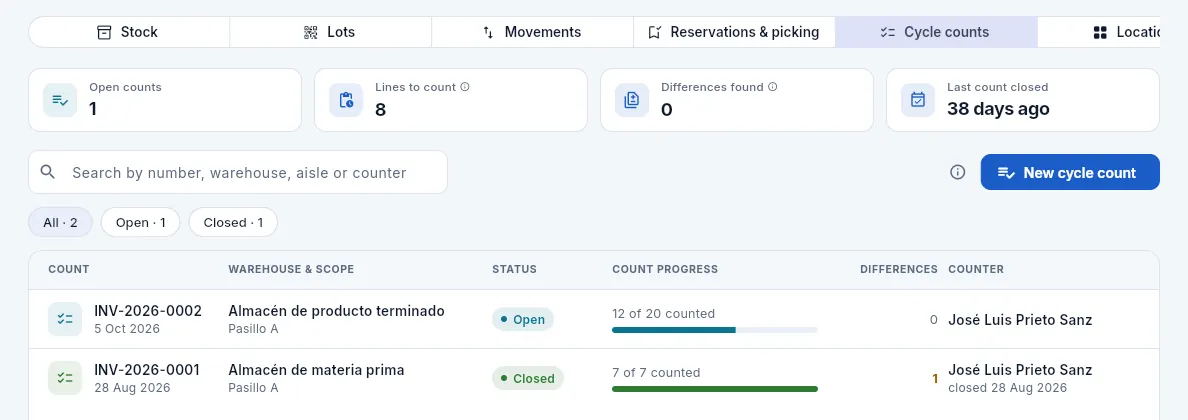 12345
12345
- 1Open counts, Lines to count and Differences found in them.
- 2Last count closed: how long since one was closed.
- 3New cycle count opens a count.
- 4Each count: number and date, warehouse and scope (whole warehouse or one aisle) and status.
- 5The progress: how many lines have been counted; to its right, the differences and the counter.
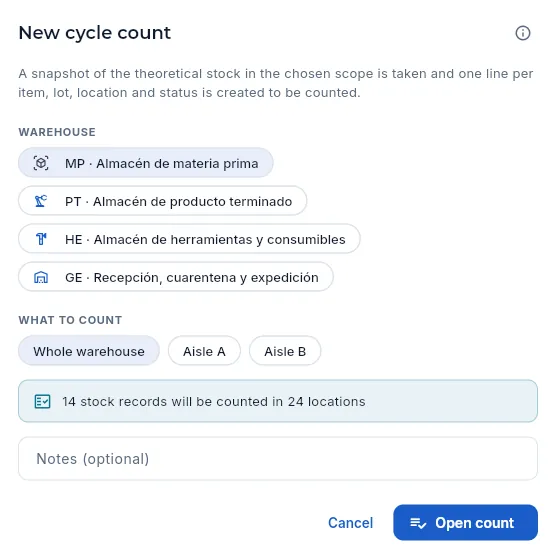 12345
12345
- 1Opening it takes a snapshot of the expected stock in the chosen scope: one line per item, lot, location and status.
- 2The warehouse: raw material, finished goods, tools & consumables, or receiving, quarantine and shipping.
- 3What to count: the whole warehouse or one aisle.
- 4How many records and locations the count will cover, to estimate the time.
- 5Open count creates it, ready for counting.
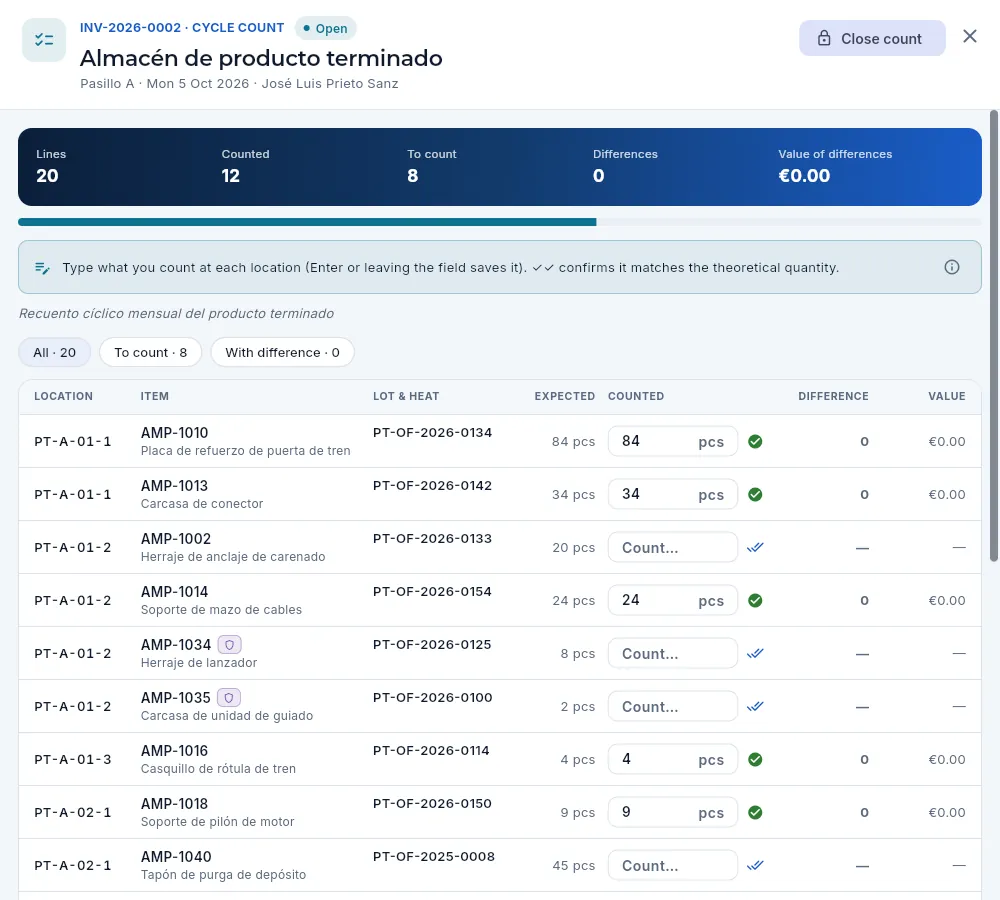 1234567
- 1Close count: when you finish, adjusts each difference with a «Cycle count» movement.
- 2The count figures: lines, counted, to count, differences and their value, with the progress bar.
- 3How to count: type what there is at each location (Enter or leaving the field saves it); ✓✓ confirms it matches the expected quantity.
- 4The All, To count and With difference filters.
- 5The expected quantity (what the system says) and, to its right, the Counted field.
- 6A line not counted: enter the quantity or click the ✓✓ on its right if it matches.
- 7The difference (counted − expected) and its value, right away.
In Cycle counts, click New cycle count, choose the warehouse and the aisle, and click Open count.
Go through the locations in order. On each line, type what you count and press Enter, or click ✓✓ if it matches the expected quantity.
With the With difference filter, recount the large differences: a typo would become an adjustment.
Click Close count and confirm.
#The location map
The Locations view draws each warehouse with its aisles, racks and slots, plus the special zones (receiving, quarantine, shipping and production). A slot code is WAREHOUSE-AISLE-RACK-SLOT: MP-A-02-1 is the raw material warehouse, aisle A, rack 02, slot 1 (the bottom one).
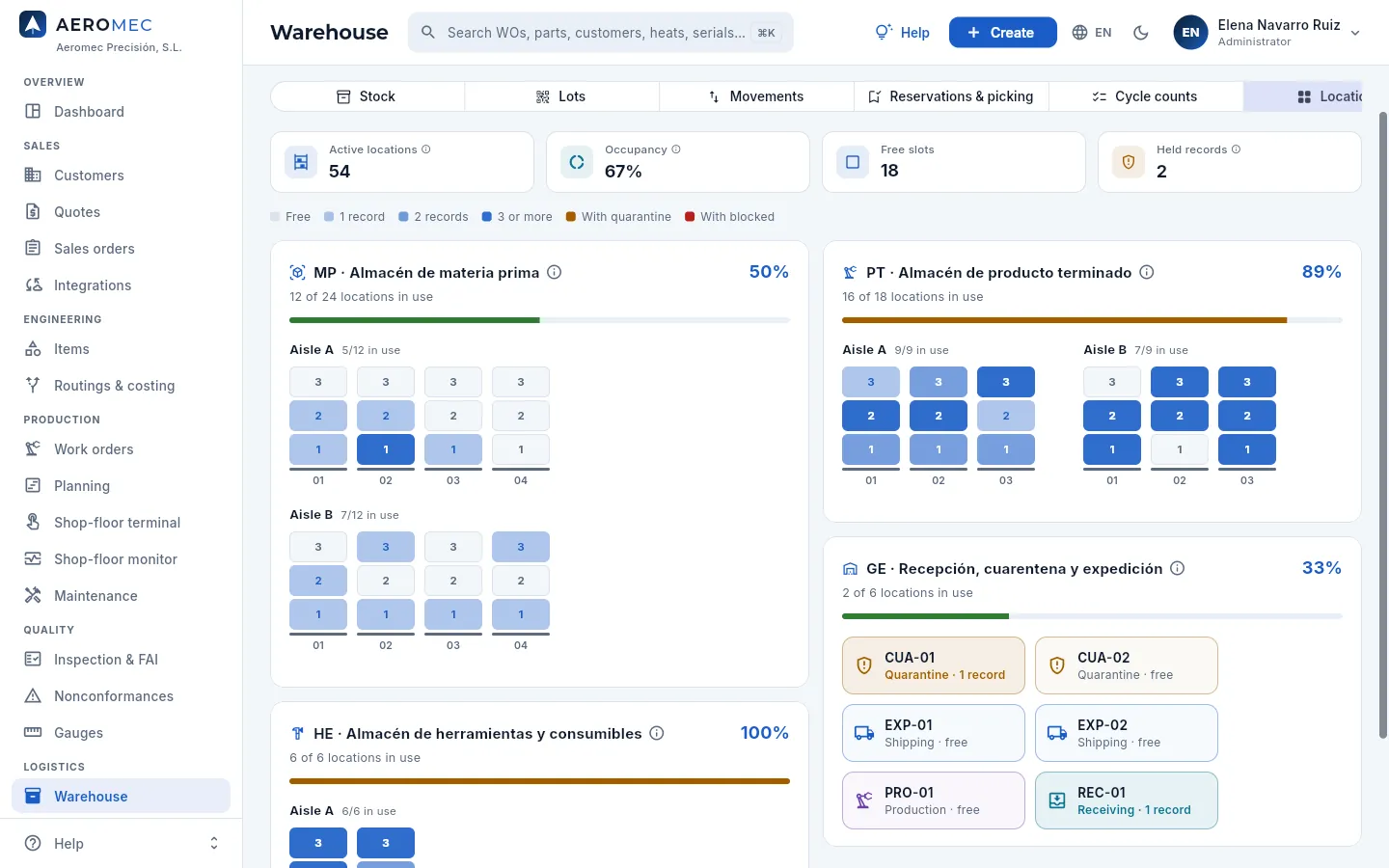 123456
- 1Active locations, Occupancy (slots holding something ÷ active slots) and Free slots.
- 2Held records: what is in quarantine or blocked, wherever it is.
- 3The legend: each slot's colour by how many stock records it holds, and amber or red if something is on hold.
- 4Each warehouse, with its ⓘ, its occupancy percentage and its bar (green, amber above 85%).
- 5Each aisle: racks (01, 02…) with their slots from bottom to top. Hover over a slot to see what is there and click it to act on that stock.
- 6The special zones: quarantine (CUA), shipping (EXP), production (PRO) and receiving (REC), with what they hold.
#Customer property
Customer property is everything a customer leaves with you that is not yours: material for its parts (a titanium bar for its programme), tooling and inspection fixtures, documentation (drawings and 3D models), equipment (gauges, returnable containers), software or data. It must be identified on receipt, checked to arrive in good condition, looked after while in the shop and, if it is damaged or lost, the customer notified and a record kept. The Customer property view is that register (PCL-…).
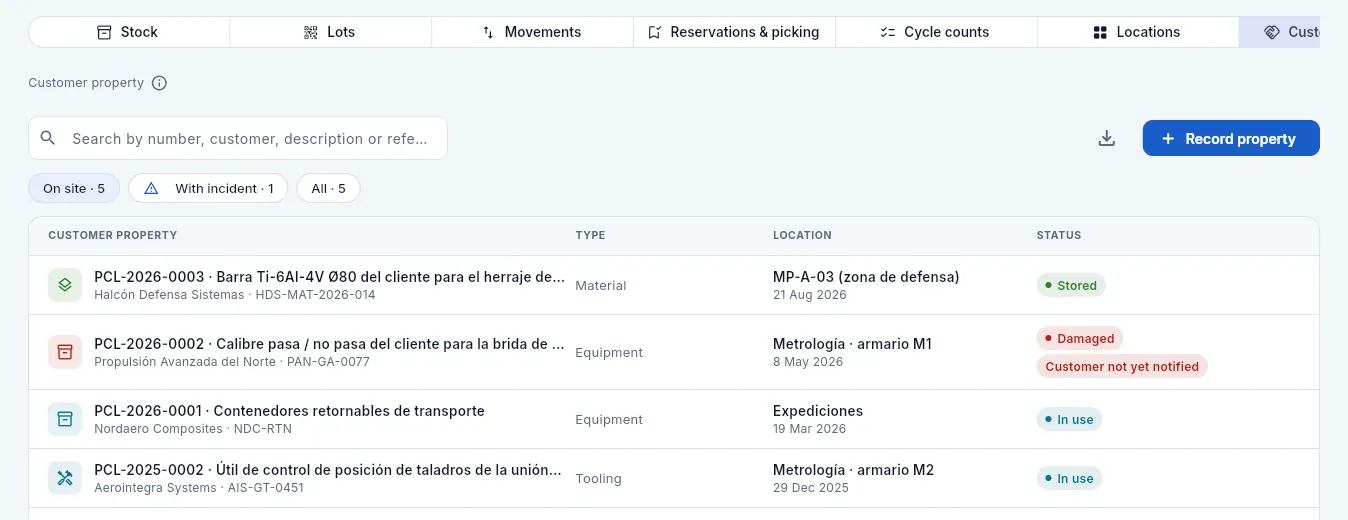 123456
- 1Its ⓘ explains what customer property is and what has to be done with it.
- 2The search box: by number, customer, description or customer reference.
- 3The filters: on site (stored, in use or damaged), with incident (damaged or lost) and all, including what was returned or consumed.
- 4Record property registers what arrives from a customer (with «Edit warehouse» or «Edit quality»). To its left, Export CSV.
- 5Each record: number and description, the customer and its reference, the type, the location with the date it arrived and the status. Here, a titanium bar from a defence customer, kept in its own area.
- 6Propulsión Avanzada del Norte's go / no-go gauge: Damaged and with the red Customer not yet notified pill. Click the row to open it.
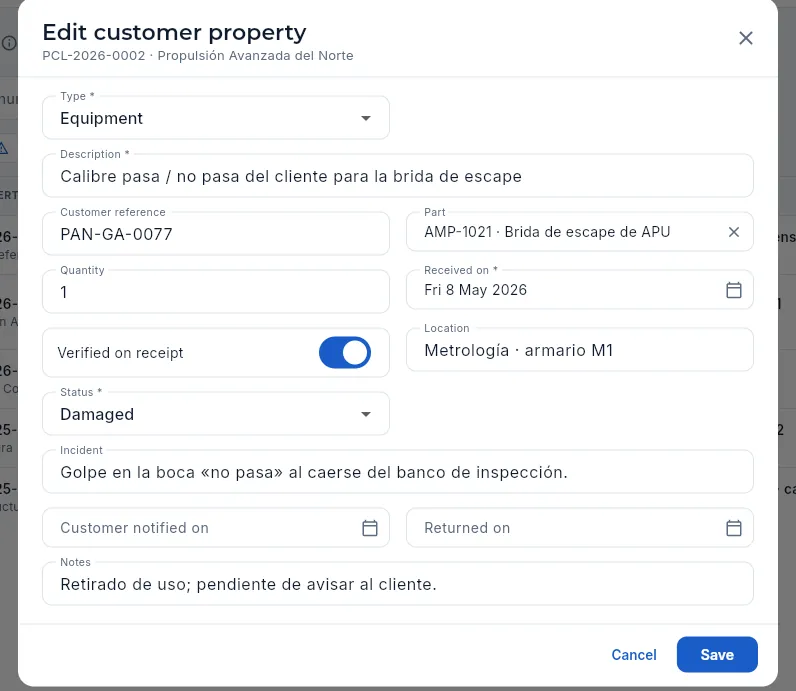 123456
- 1The type (material, tooling, documentation, equipment, software or data), the description, the customer reference, the part it is for and the quantity.
- 2Received on and Verified on receipt: that it arrived complete and in good condition.
- 3Where it is: a warehouse slot, a metrology cabinet, the engineering server…
- 4The status: stored, in use, returned, consumed, damaged or lost.
- 5Incident: what happened. It is required if it is damaged or lost.
- 6Customer notified on: while it is empty, the list says Customer not yet notified. Next to it, Returned on.
In Customer property, click the record.
Change the Status to Damaged or Lost and describe what happened in Incident.
Notify the customer (email, call, its portal) and enter the date in Customer notified on.
Click Save. If it affects parts already made (a damaged inspection fixture), open an NCR in Nonconformances.
#What each profile sees
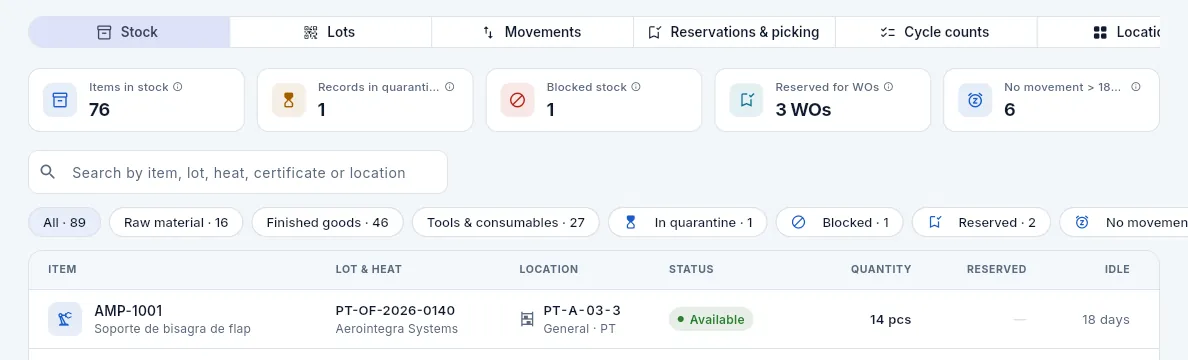 123
123
- 1Instead of the stock value, Items in stock: how many different items have stock on hand.
- 2No movement counts records, not euros.
- 3The list has no Value column (and no value in the footer).
#Tips
Logistics
Traceability
From any part (by its serial number or its work order) to the drawing revision it was made to, its heat, its 3.1 certificate, its machines, operators, gauges, inspections and its shipment; and from a heat or a lot to every work order, part and customer that carries it.
Traceability links each part to everything involved in it: the metal's heat and its 3.1 certificate, the approved routing, the machines, the operators, the gauges it was measured with, the nonconformances and the certificate of conformity (CoC) it shipped with. It is required because an aircraft part may fly for thirty years: after a complaint or a notice from the mill you must be able to answer two questions within hours:
- What is this part made of and how was it made? That is backward traceability: from the serial number (or the work order) to its origin.
- Which parts carry this heat and who did we deliver them to? That is forward traceability: from the heat (or the lot) to the customers.
Aeromec needs nothing special to provide it: it comes from what is recorded as you work. Each receipt stores the lot's heat and certificate; each picking says which lot the work order consumed; each work log from the terminal says who worked on which operation and on which machine; each measurement stores the gauge; and each delivery note stores the work orders, lots and serial numbers that left.
#A part's chain
- 1Heat and 3.1The mill's melt and its material certificate, which arrive with the purchase.
- 2LotEach warehouse receipt, with its receipt record and its receiving inspection.
- 3WOThe work order that consumed the lot, with the routing approved by the customer.
- 4OperationsEach operation with its machine or supplier, its operators, dates and good and rejected parts.
- 5InspectionsWho measured, with which calibrated gauges and with what result; the FAI and the NCRs.
- 6Shipment and CoCThe delivery note, the certificate of conformity, the customer and the serial numbers.
#Searching: serial number, work order, heat or lot
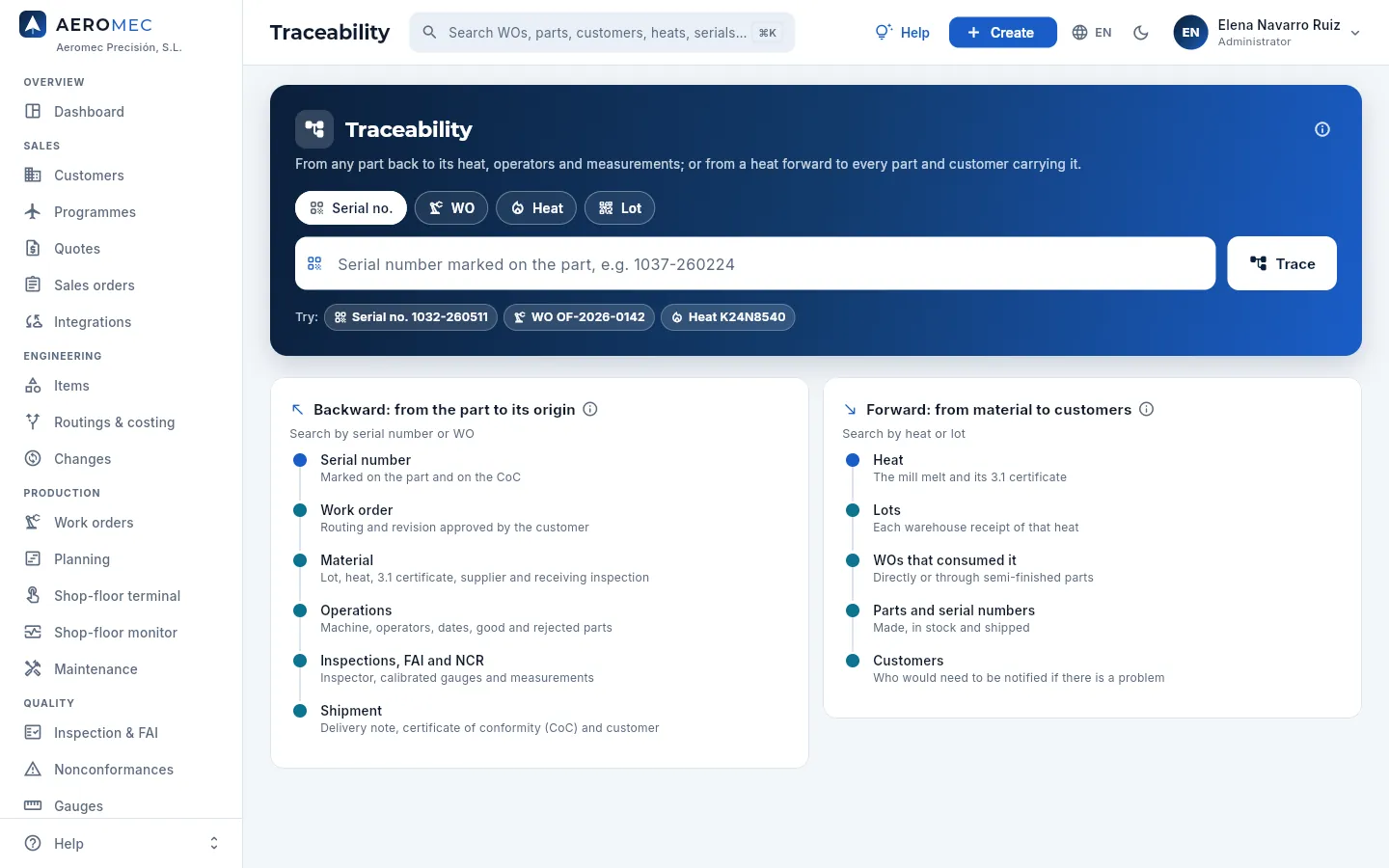 1234567
- 1The search type: Serial no. or WO (backward), Heat or Lot (forward).
- 2The field: type or paste the number (the example below changes with the type). Matches appear as you type.
- 3Trace runs the search (or press Enter).
- 4Try: real examples from today (a shipped serial, a closed work order and a heat already consumed). Your recent searches will appear below.
- 5Backward: the links you will see when searching for a serial or a work order.
- 6Forward: what you will see when searching for a heat or a lot.
- 7The ⓘ explains what traceability is, why it is required and how it runs, with an example.
You also get here from many other places: a heat's arrow on a lot record, the Trace this heat button in the Warehouse, the serial numbers on a delivery note in Shipments or the global search in the top bar (⌘K / Ctrl+K), which finds heats and serial numbers.
#Backward: the history of a part
Searching for a serial number (the one marked on the part and on the CoC) first shows a summary of its history in one sentence, with a counter for each thing; below, the traceability chain link by link. Searching for a work order gives the same for all its parts.
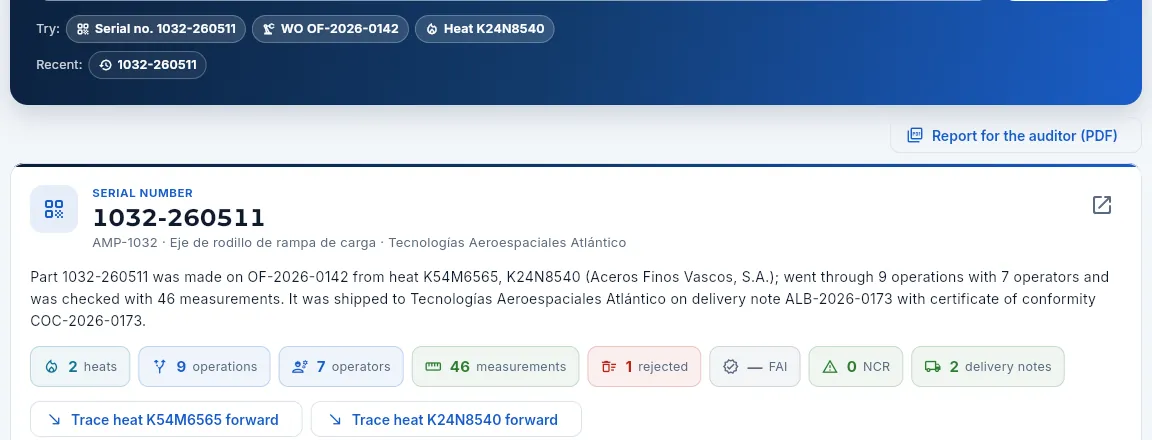 123456
- 1Recent: what you traced last, to go back with one click.
- 2The serial number, with the part, its description and the customer.
- 3Open the WO: the record of the work order that made it.
- 4The history in one sentence: work order, heat and supplier, operations, operators, measurements, delivery note and CoC.
- 5The counters: heats, operations, operators, measurements, rejected parts, FAI, NCRs and delivery notes. Green means fine, red means worth a look.
- 6Trace heat … forward: jumps to the forward search for this part's heat.
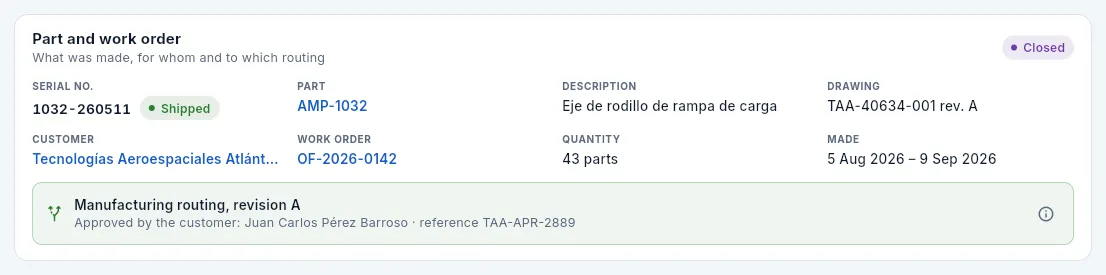 123456
- 1The serial number and its status: in production, in stock, shipped or rejected.
- 2The part (opens its record in Items) and its description.
- 3The drawing with the revision it was made to (the one frozen on the work order when it was released) and the dates it was made.
- 4The customer and, to its right, the work order (open it with a click) and the quantity.
- 5The work order's status.
- 6The routing it was made to and its approval: who approved it at the customer and with which reference, or «Internal approval» if the customer does not require it.
The drawing revision shown here is the work order's: Aeromec freezes it at release and passes it on to the lots it produces. If the part later moves to a new revision (an implemented customer drawing change, see Changes), the parts already made still state which revision they were made to, here, on the delivery note and on the certificate of conformity. It is the first thing the customer asks when a drawing changes: which parts they have of the previous revision.
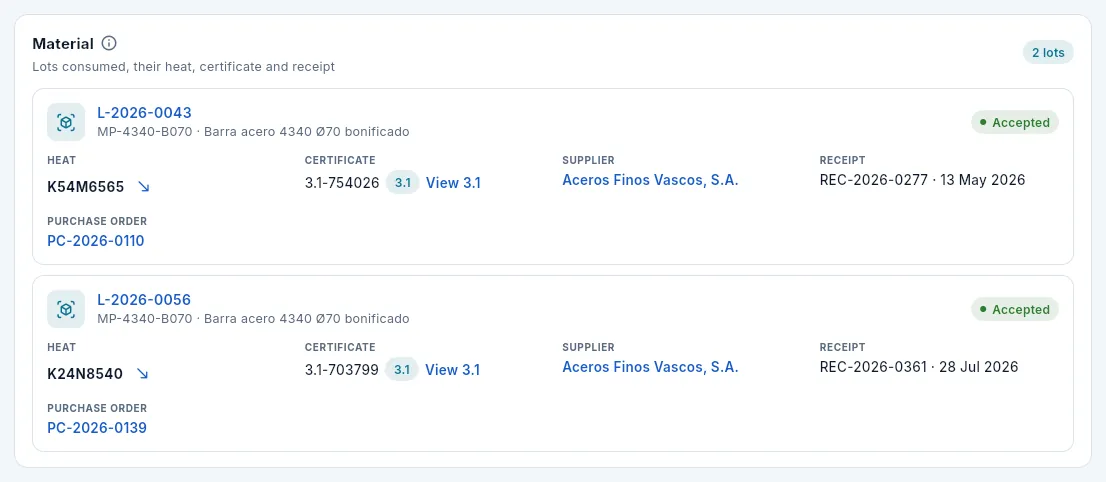 123456
- 1Each lot the work order consumed (click it to open its record in the Warehouse), with its item.
- 2The result of its receiving inspection.
- 3The heat; the arrow traces it forward.
- 4The 3.1 certificate number; View 3.1 opens the scanned certificate (see below).
- 5The supplier and the receipt (number and date).
- 6The purchase order it came on.
If the work order consumed more than one lot, all of them are listed: its parts may come from any of them and, in an alert, all of them count. If the part was made from an alternative material approved in the routing, the link says so, with the customer's approval reference. And if a work order has no material recorded, the link warns in red: without picking there is no traceability.
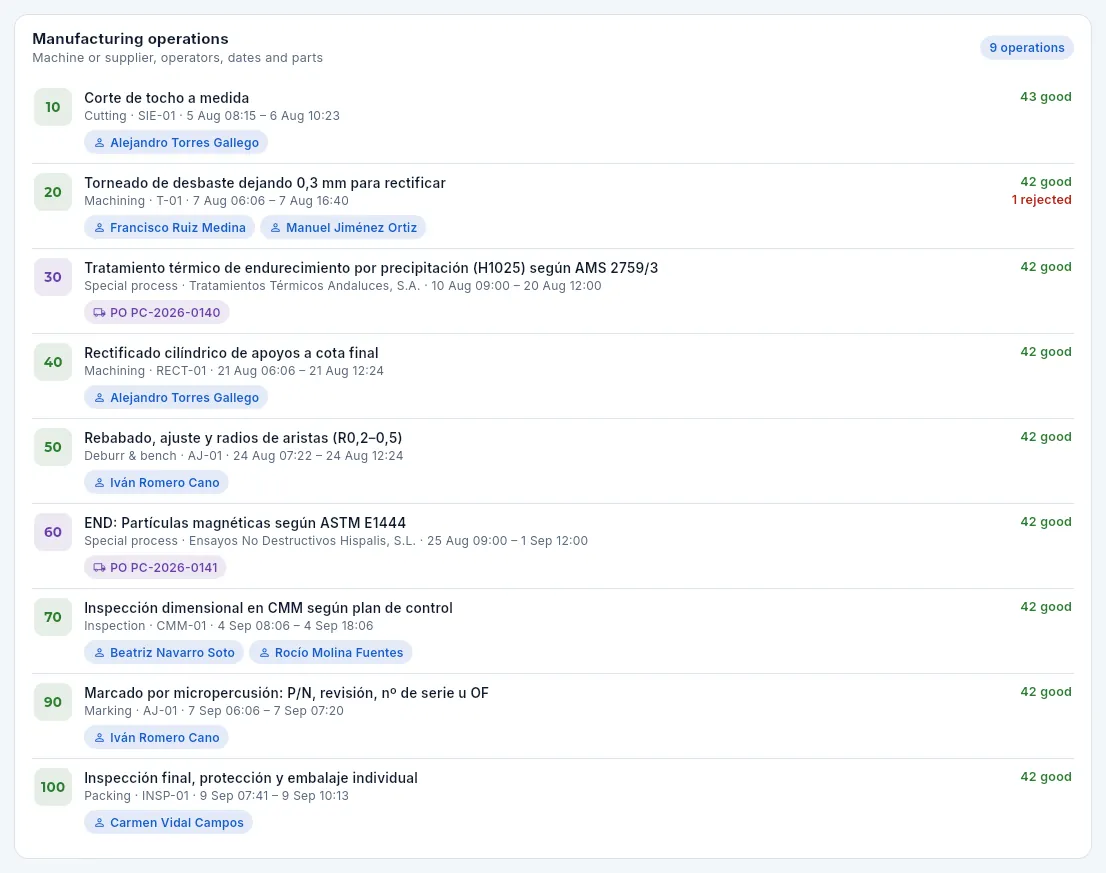 12345
12345
- 1How many operations the work order has.
- 2Each operation: number, description, type, machine, and the dates and times of its first and last work log.
- 3The operators who worked on it, taken from the shop-floor terminal work logs.
- 4Each operation's good parts and, in red, its rejected ones.
- 5An outside operation (special process, non-destructive testing…): instead of a machine, the supplier and the purchase order it was done on.
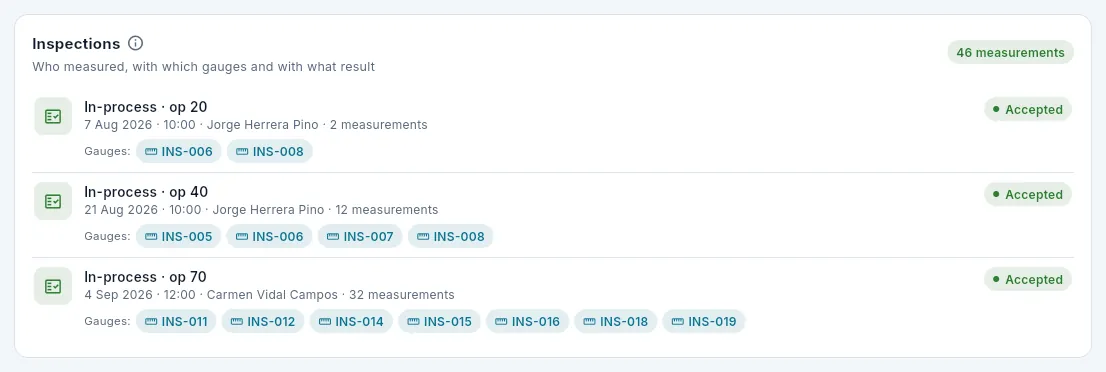 1234
1234
- 1The total measurements recorded.
- 2Each inspection: type (in-process or final) and operation, date, inspector and number of measurements.
- 3The gauges it was measured with: only gauges within calibration are accepted. Click one to open its record.
- 4The inspection result.
If a gauge turned out to be out of calibration, its record in Gauges tells you which inspections —and therefore which parts— have to be reviewed. After the inspections come two more links:
- FAI (first article inspection): the EN 9102 / AS9102 report that released the part, who released it and when; or the note that this work order did not need one because the part was already approved with the same drawing and routing revision.
- Non-conformances (NCRs): every deviation on this work order, with the affected parts and their disposition (rework, customer concession, scrap or return).
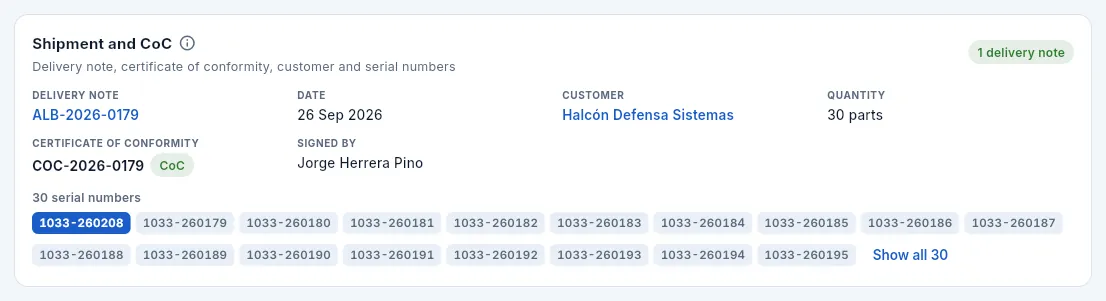 123456
- 1The delivery note (open it in Shipments) and the date it left.
- 2The customer and the quantity.
- 3The certificate of conformity (CoC) issued on shipping…
- 4…and who signed it at shipment (with their electronic signature, see Shipments).
- 5The shipment's serial numbers; the one you searched for is highlighted. Click another to trace it.
- 6Show all … expands them all.
Choose Serial no., type the number marked on the part (or the one on the customer's CoC) and click Trace.
Read the summary: work order, heat, operations, operators, measurements, delivery note and CoC. Counters in red (rejects, NCRs) are the first thing to look at.
Go down the chain: in Material, the heat and its certificate (View 3.1); in Operations, who and on which machine; in Inspections, with which gauges.
If needed, follow the thread: the heat's arrow traces it forward and each link opens its record (work order, lot, order, delivery note, gauge).
To put it in writing, Report for the auditor (PDF) (above the result) produces the traceability report: the sentence that sums up the chain (which material, how many operations and people, how many measurements and whether every gauge had its calibration in force when measuring, who it was shipped to and with which CoC) and, below, the full record of its work order: the material with its validated 3.1 and its signed receipt, each operation and each work log (with the person's qualification that day), each measurement with its gauge and its calibration, the FAI, the NCRs, the serial numbers, the shipments, the documents with their fingerprint and every signature with its integrity. Forward (a heat or a lot), the report holds the lots with their receipt, the work orders that consumed it and, for each one, its shipments and serial numbers: the list to notify each customer.
#Viewing the 3.1 certificate
View 3.1 opens the scanned material certificate attached when the purchase was received, without leaving the screen. Use it to check the heat, the specification and the test results there and then.
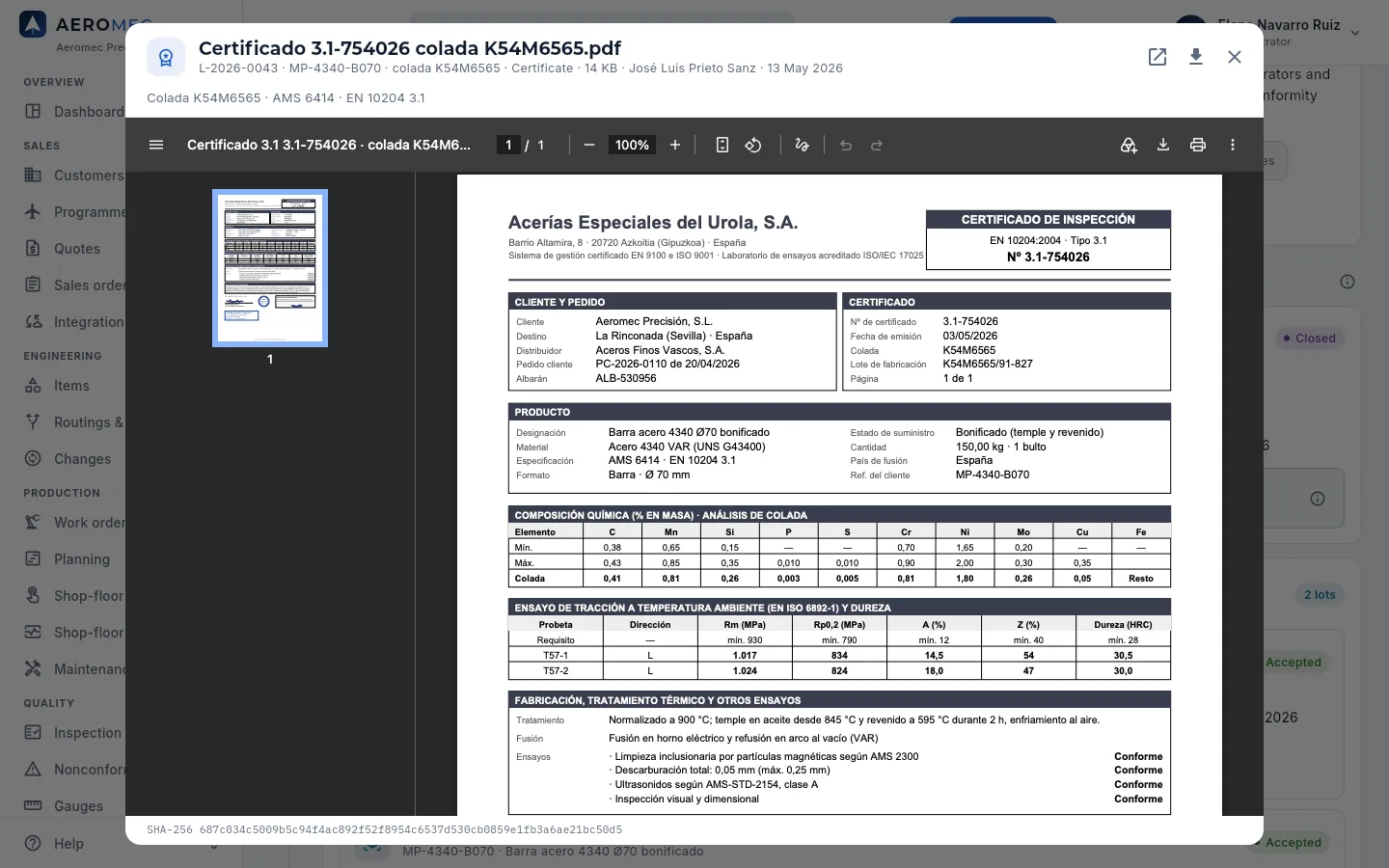 12345
12345
- 1The document: name, lot, item, heat, type, size, who uploaded it and when.
- 2Open in a new tab, download or close.
- 3The certificate: mill, number, EN 10204 type 3.1, customer and order, heat and product.
- 4The heat's tests: chemistry against the specification limits (AMS…), tensile and hardness.
- 5The file's SHA-256 fingerprint: proof that the document has not changed since it was uploaded.
#Forward: where a heat has gone
Searching for a heat (the number on the 3.1 certificate) or a lot, Aeromec follows all its issues: the lots of that heat, the work orders that consumed them, the parts made, those shipped and the customers who hold them. It follows the chain up to three levels, in case a semi-finished part was made from that material and then consumed by another work order.
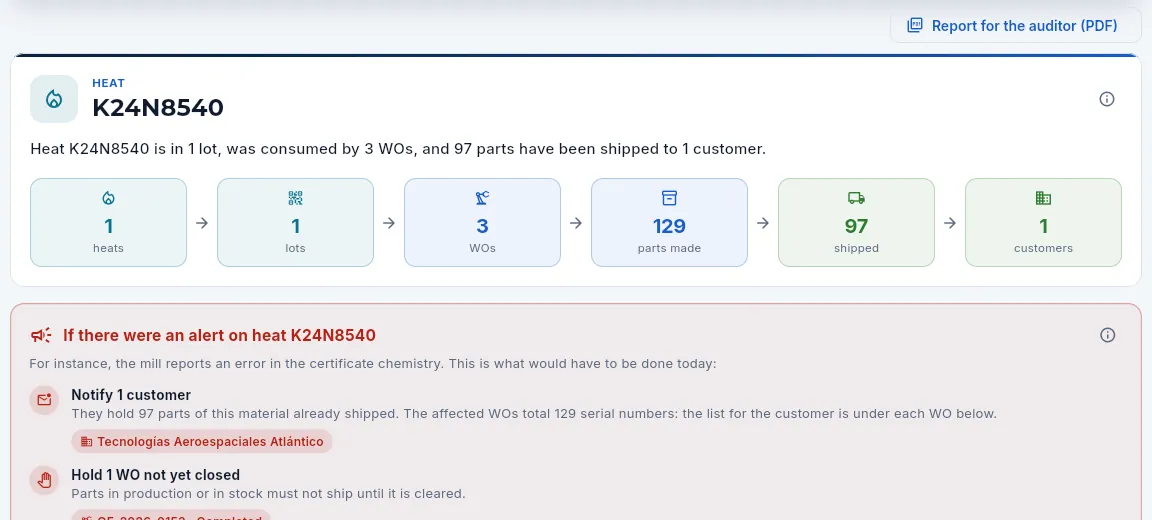 123456
- 1The heat searched for (or the lot).
- 2The summary in one sentence: how many lots it is in, how many work orders consumed it and how many parts have shipped to how many customers.
- 3The chain in figures: heats → lots → WOs → parts made → shipped → customers.
- 4If there were an alert: what would have to be done today if the mill reported an error in the certificate.
- 5Notify N customers: those holding shipped parts made from this material.
- 6Hold N WOs not yet closed: parts in production or in stock must not ship until it is cleared. If material from the heat is left, Block … in the warehouse appears too.
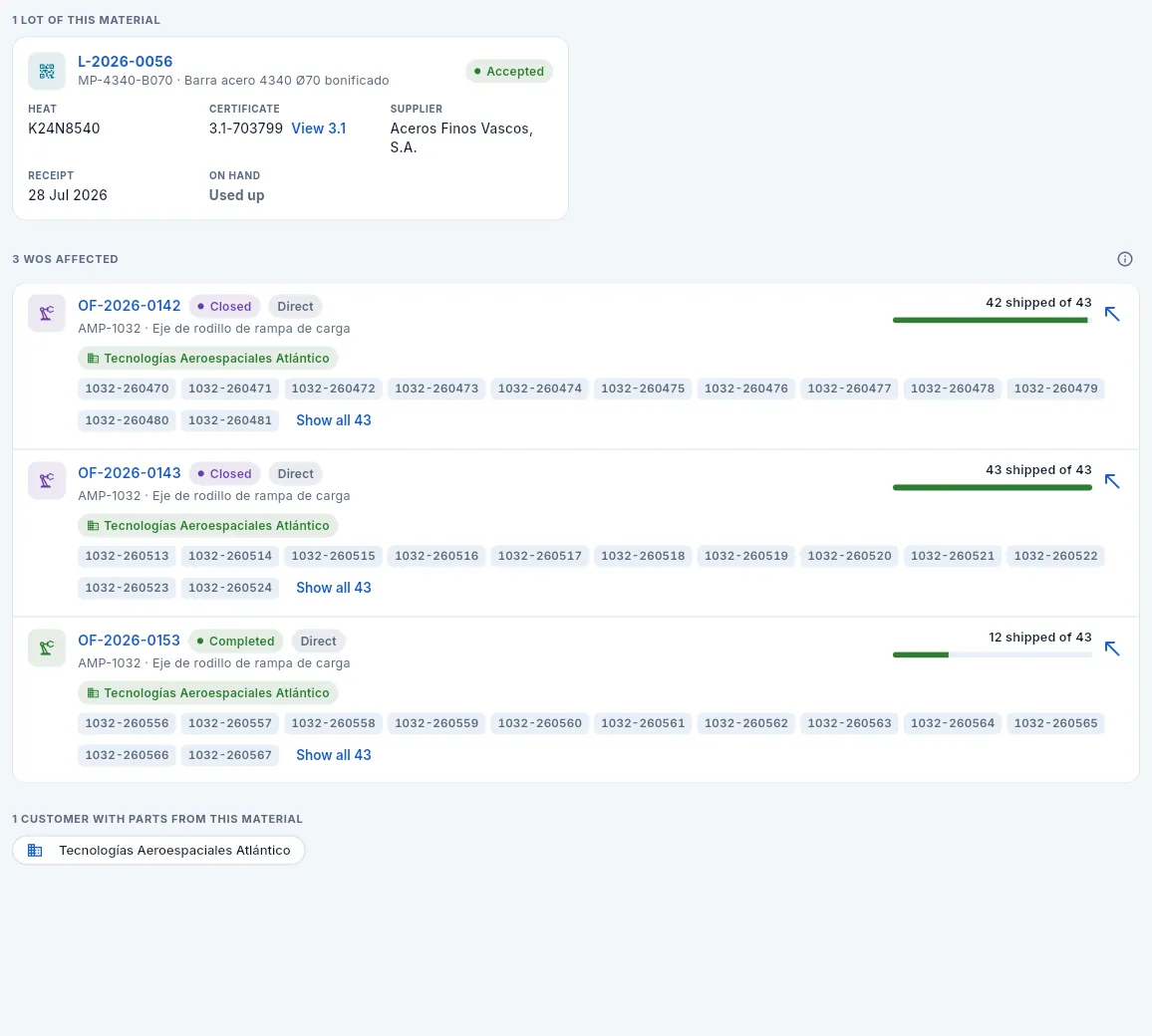 123456
- 1The heat's lots: supplier, certificate (View 3.1), receipt and on hand (or «Used up»).
- 2The WOs affected, with their ⓘ.
- 3Each work order: status, whether it is affected directly or via a semi-finished part, the part and the customer.
- 4Its serial numbers: the list you would give the customer.
- 5Shipped of what was made, with its bar; the arrow traces that work order backward.
- 6The customers with parts from this material.
Choose Heat, type the heat number from the notice (the one on the 3.1 certificate) and click Trace.
Read the If there were an alert box: which customers to notify, which material to block and which work orders to hold.
First, what is in the plant: in the Warehouse, set the material left from the heat to Blocked, and hold the affected work orders not yet closed (with an NCR in Nonconformances if appropriate).
Then, the customers: go down to WOs affected and copy, work order by work order, the serial numbers shipped to each customer.
Raise an NCR to the material supplier.
#What each profile sees
#Tips
Logistics
Shipments
Delivery notes to customers: they are prepared from the order, shipped with the signature of whoever releases the product after checking the FAI, finished-goods stock, the final inspection of critical parts and lot expiry, give each line its work order, lot and serial numbers, and issue the certificate of conformity (CoC) with every heat, 3.1 certificate and the drawing revision.
Shipments is where the delivery notes for sales orders are prepared and shipped. The delivery note is prepared in advance (which parts from which deliveries go out, in how many packages and with which carrier) and, once the material is packed, it is shipped. When shipping, Aeromec does in one go what cannot go wrong in an aerospace shop:
- It checks that there are finished goods for every line and that the part has an approved FAI if the customer requires it (FAI, First Article Inspection: the full inspection of the first part per EN 9102 / AS9102). Nothing leaves a work order whose FAI has not been released. If the part is critical, it only ships from a work order with its conforming final inspection, and no expired lot leaves the store.
- It asks for the signature of whoever releases the product: their password and their inspection stamp with the CoC scope.
- It takes the parts out of the finished-goods store, oldest lots first.
- It assigns each line its work order, its lot and its serial numbers, which links the part to its heat and to the drawing revision it was made to.
- It issues the certificate of conformity (CoC): the signed statement that the parts meet the order, the drawing and the specifications, with every heat and 3.1 certificate of the material.
#How an order ships
- 1Finished goodsWhen the last operation is completed, the work order's good parts go into the finished-goods store.
- 2Delivery note being preparedYou choose the order and what ships from each delivery. Stock does not move yet.
- 3ChecksEnough finished goods, approved FAI, critical parts inspected and nothing above what was ordered.
- 4Ship and signWith your signature the parts leave, each line takes its work order, lot and serials, and the CoC is issued.
- 5Delivery note and CoC as PDFThe documents that travel with the parts.
- 6InvoiceFinance invoices the delivery note.
#The delivery note list
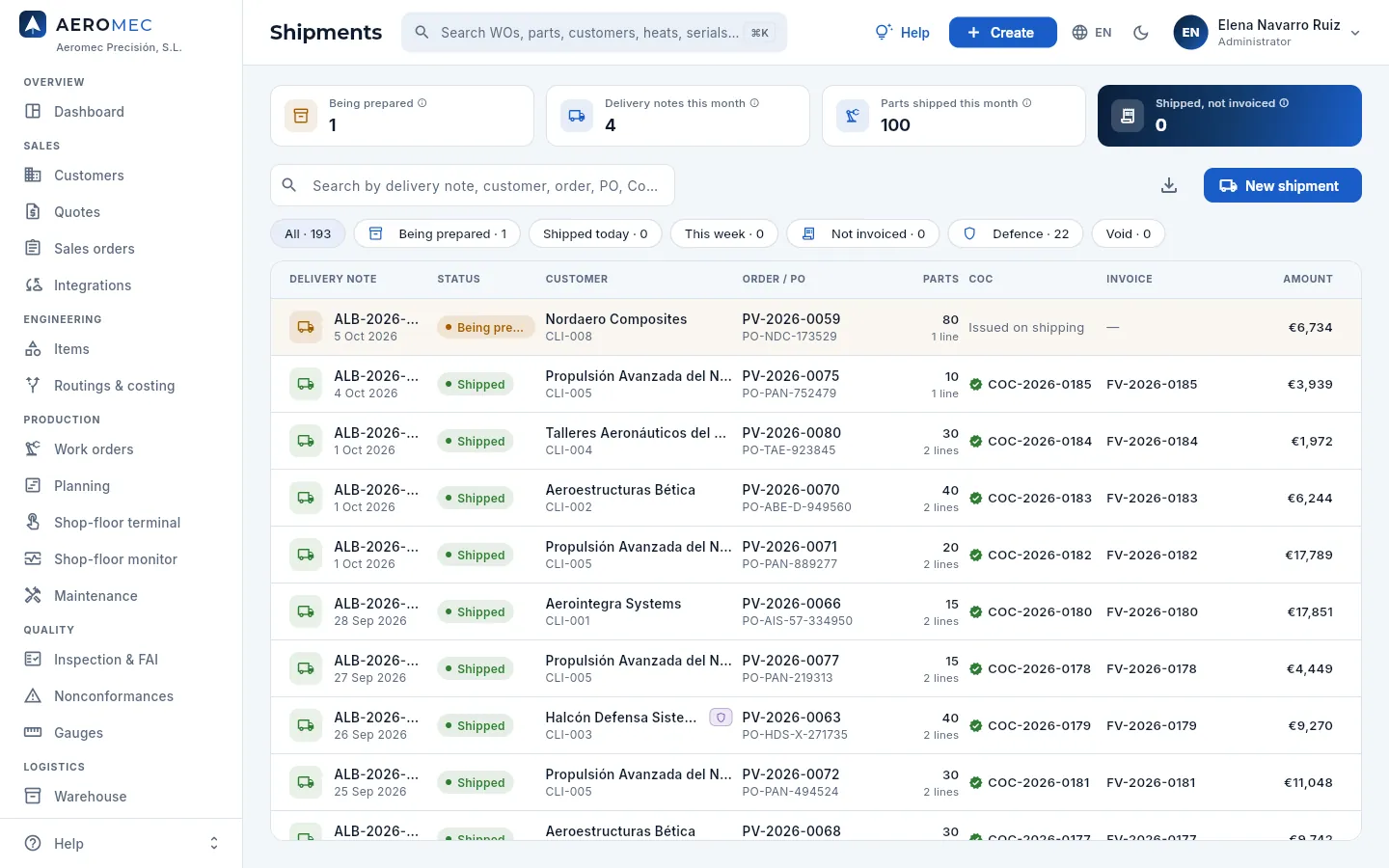 12345678
- 1Being prepared: delivery notes created but not yet shipped; the parts are still in the warehouse.
- 2Delivery notes this month and Parts shipped this month: the delivery pace.
- 3Shipped, not invoiced: what has already left and has no invoice yet (its value, if you see prices). It is money still to invoice.
- 4The search box: by delivery note, customer, order, customer PO, CoC or invoice.
- 5The filters: being prepared, shipped today, this week, not invoiced, defence and void.
- 6New shipment prepares a delivery note. To its left, Programme (only the delivery notes of one programme) and Export CSV.
- 7Each delivery note: number and date, status, customer with the programme of its parts, order and customer PO, parts and lines.
- 8CoC: the number of the certificate issued, «Issued on shipping» or «No CoC» if the customer does not require it. To its right, the invoice and the amount.
The statuses of a delivery note:
| Status | What it means |
|---|---|
| Being prepared (amber) | Created, with its lines and shipping details. The parts are still in the warehouse and the note can be changed or voided. |
| Shipped (green) | The parts have left, each line has its work order, lot and serials, and the CoC has been issued. It can no longer be changed. |
| Void (grey) | Voided before shipping: nothing left the warehouse and the order's open quantity did not change. |
Delivery notes for defence parts carry the purple shield next to the customer and are only visible with the «Defence data» permission.
#Preparing a delivery note
New shipment (or Create in the top bar) first asks which order is shipping: orders with open parts are listed, those with late deliveries first (with the warning triangle). Type to search by order, customer or PO and choose one.
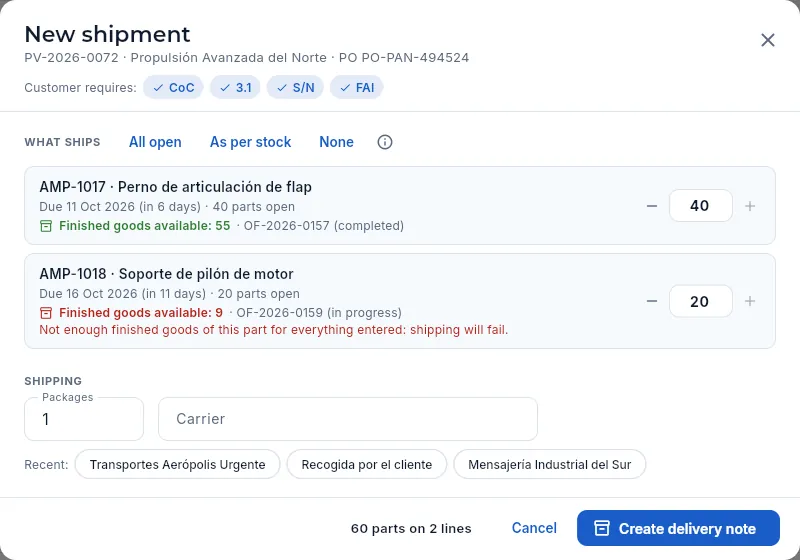 12345678
- 1The order, the customer and its PO.
- 2Customer requires: CoC, 3.1 certificate, serial number (S/N) and FAI. What it does not require is not shown.
- 3What ships: All open (the default), As per stock (what there is in finished goods) or None to go line by line.
- 4Each open delivery: part, date (and how long until then), open parts, the finished goods available and the work order serving it.
- 5The quantity shipping on this note; adjust it with − and +.
- 6In red, if there are not enough finished goods for everything entered: shipping would fail.
- 7Shipping: packages and carrier (or a recent one with one click).
- 8The total parts and lines, and Create delivery note, which leaves it being prepared.
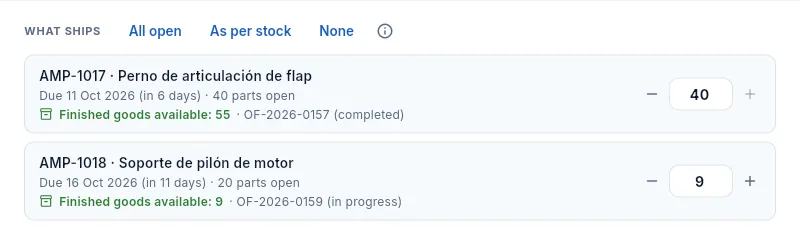 12
12
- 1As per stock spreads the available finished goods across the deliveries, in date order.
- 2The line that fell short drops to what is available, and the warning disappears.
#The record of a delivery note being prepared
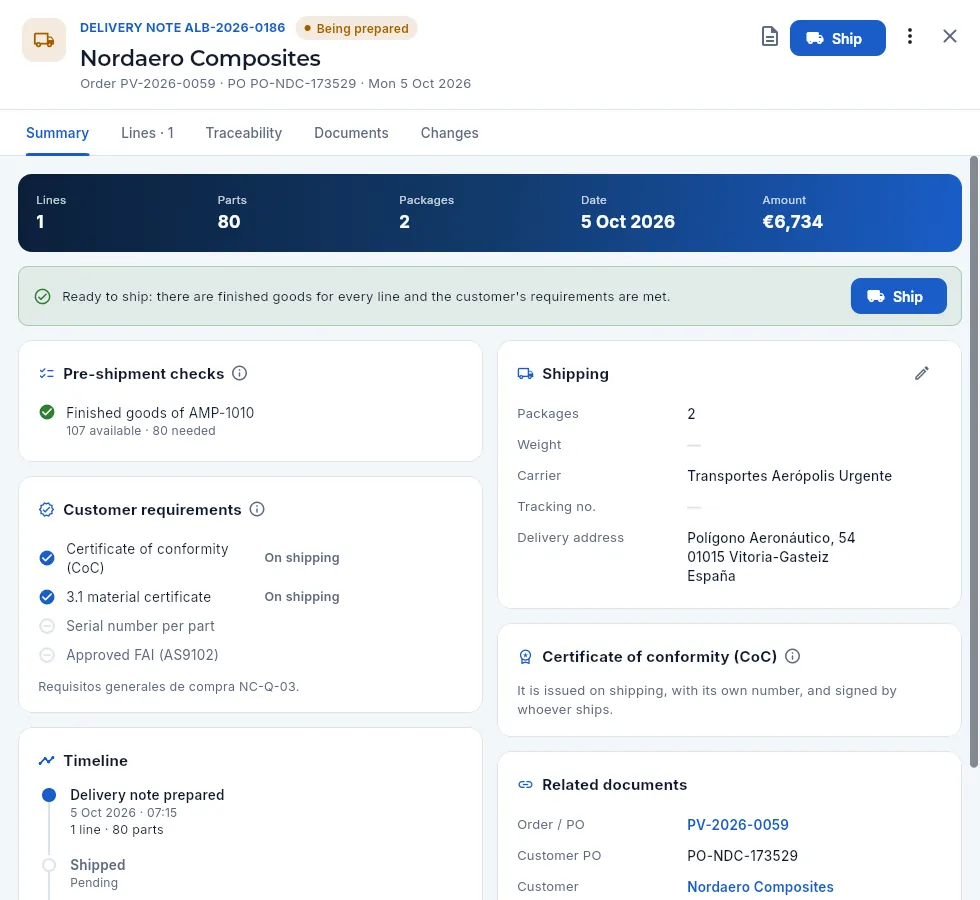 12345678
- 1The delivery note number and its status; the customer, the order, the customer PO and the date.
- 2The delivery note as PDF (a draft while being prepared), Ship and the ⋮ menu.
- 3The banner: lines, parts, packages, date and amount (with «See prices»).
- 4The notice: «Ready to ship» in green, or in red how many checks fail.
- 5Pre-shipment checks, worked out now: finished goods of each part (available against needed), approved FAI if the customer requires it, and nothing above what was ordered.
- 6Customer requirements: CoC, 3.1 certificate, serial number per part and FAI; those not required, in grey. Below, the customer's general purchasing requirements.
- 7Shipping: packages, weight, carrier, tracking no. and delivery address (blank = the customer's usual one). The pencil changes them.
- 8The CoC is issued on shipping, with its own number, and signed with their stamp by whoever ships.
Below, the Timeline (prepared → shipped → CoC issued → invoiced) and the Related documents (order, customer PO, customer and invoice). The Lines tab shows each delivery with its quantity; while being prepared, click it to change the quantity. Traceability explains that the work order, lot, heat and serials are assigned on shipping.
 123
123
- 1Edit shipping details: packages, weight, carrier, tracking and address.
- 2View order and View customer open their records.
- 3Void delivery note: only while being prepared; nothing has left and the order's open quantity does not change.
#Ship
Shipping is releasing the product: whoever does it declares that the parts meet the requirements and that their documentation is complete. That is why Ship does not ask for a simple confirmation but for your electronic signature: your password and your inspection stamp with the CoC scope (see Electronic signature and the stamps in Inspection & FAI → Stamps & signatures). The signature is linked to the delivery note and its CoC.
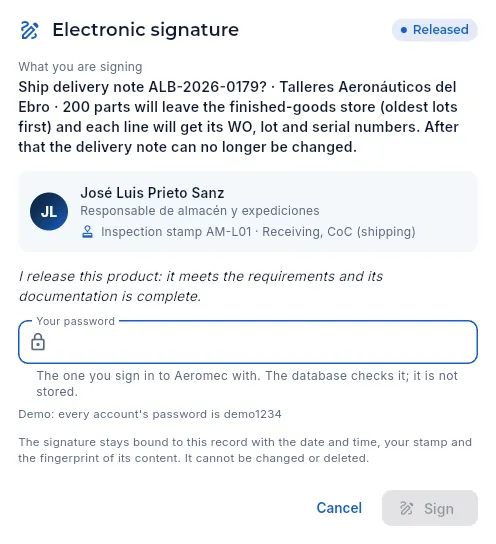 123456
- 1The electronic signature with its meaning: Released.
- 2What you are signing: the delivery note and the customer, how many parts leave the finished-goods store (oldest lots first), that each line will get its work order, lot and serial numbers and that afterwards the delivery note can no longer be changed.
- 3Who signs, with their inspection stamp and its scope: shipping needs the CoC scope. Without it, the dialog says so and does not let you sign.
- 4What you declare by signing.
- 5Your password, the same one you use to log in to Aeromec.
- 6Sign does it all in one go and issues the CoC with your signature. Then it offers to print the delivery note and the CoC as PDF.
Filter Being prepared and open the delivery note that is packed.
Look at the notice: if it shows in red, review the Pre-shipment checks (see the table below).
Check the Shipping details (packages, carrier, tracking); the pencil changes them.
Click Ship, check what you are going to sign, type your password and click Sign.
In the «Delivery note … shipped» message, print the Certificate of conformity and the Delivery note as PDF so they travel with the parts.
If a check fails, the database rejects the shipment without moving anything and Aeromec explains why:
| Message | What happens | What to do |
|---|---|---|
| Approved FAI missing | The customer requires an approved first article inspection on the current drawing revision and some part lacks it. | Quality releases the FAI in Inspection & FAI, or remove that line from the note. |
| Not enough stock | There are not enough finished goods available for some line (quarantined or blocked stock does not count). | Reduce the line quantity, or wait for its work order to finish and reach the store. |
| Quantity above the open quantity | A line exceeds what is left of its delivery on the order. | Adjust the quantity in the Lines tab. |
| It is a critical part: it only ships from a work order with its conforming final inspection | The part is critical and the lot due to ship comes from a work order without a conforming final inspection. | Quality performs that work order's final inspection in Inspection & FAI, or ship another work order of the part that already has it. |
| The lot has expired | The finished-goods lot is past its expiry date (parts with a shelf life). | Remove it and decide what to do with it; it cannot be shipped. |
| Signature | Wrong password (after 5 failures signing is locked) or your stamp does not have the CoC scope. | Re-enter the password or ask Quality to extend your stamp's scope; meanwhile, someone who has it ships. |
#The shipped delivery note and its CoC
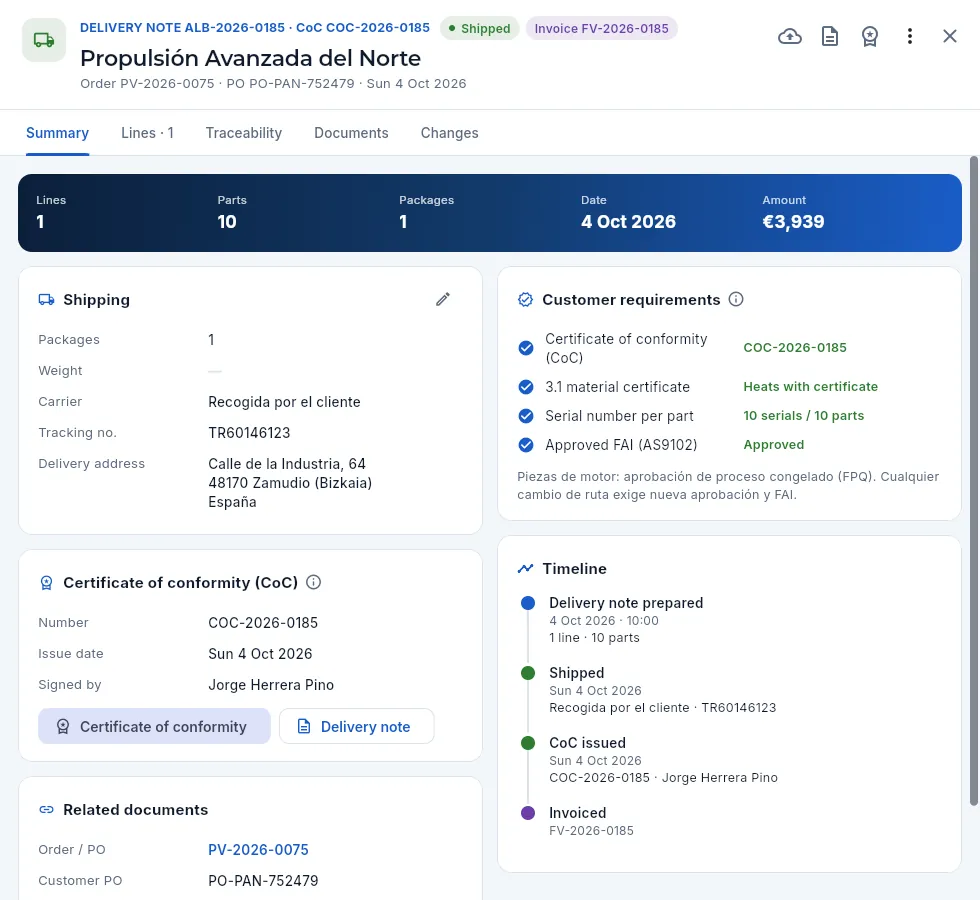 123456
- 1The delivery note with its CoC number, the Shipped status and the invoice if it has been invoiced.
- 2With a SAP Business Network customer, the cloud generates the ship notice (ASN). To its right, the delivery note and the CoC as PDF.
- 3Customer requirements, now checked: the CoC with its number, heats with certificate, as many serials as parts and the approved FAI. A requirement in red is a paperwork gap.
- 4The CoC: number, issue date and who signed it, with their stamp.
- 5Certificate of conformity and Delivery note: the two PDFs that travel with the parts.
- 6The Timeline: prepared, shipped (with carrier and tracking), CoC issued and invoiced.
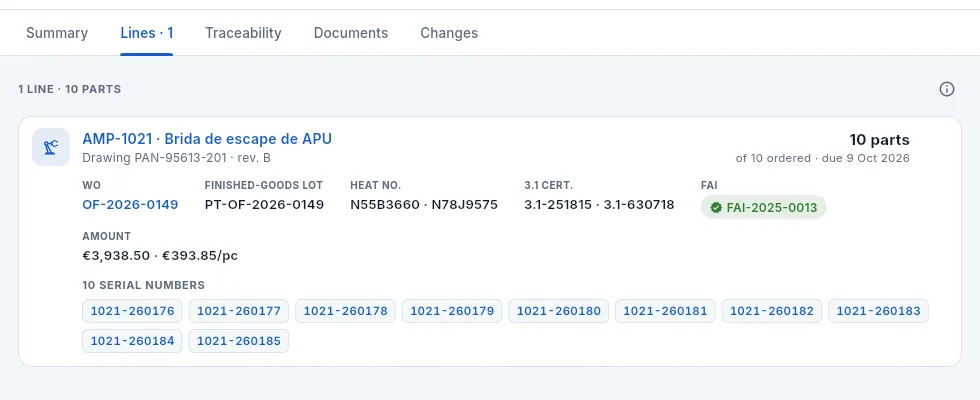 12345
12345
- 1The part (opens its record) and its drawing with the revision it was made to (the one the work order froze when it was released); on the right, this line's parts, the quantity ordered and the delivery date.
- 2The work order that made it and the finished-goods lot it came from.
- 3The heats and 3.1 certificates of all the material the work order consumed (here, two heats).
- 4The approved FAI behind it.
- 5The serial numbers: click one to see its full history.
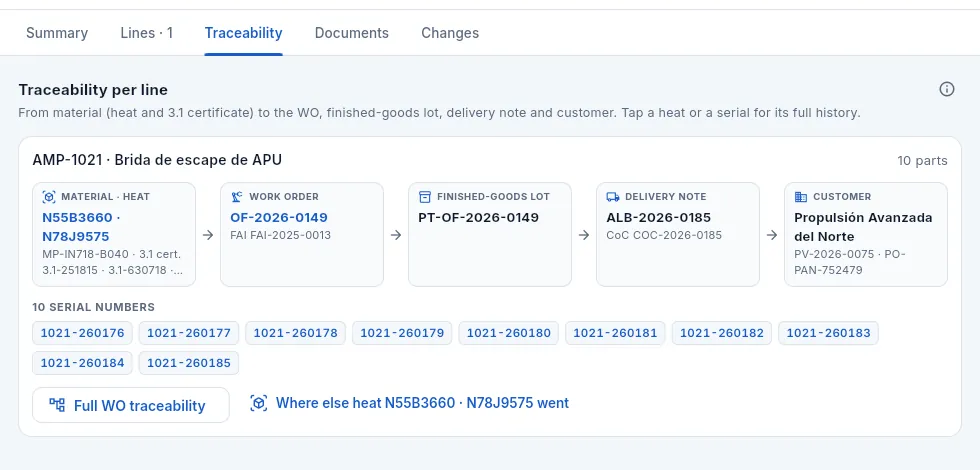 12345
12345
- 1The material: heats, item, 3.1 certificates and lot. Click it to trace the heat forward.
- 2The work order and its FAI; then the finished-goods lot, the delivery note with its CoC and the customer with its order.
- 3The line's serial numbers.
- 4Full WO traceability: the backward chain in Traceability.
- 5Where else the heat went: which other parts and customers received it.
The Signatures tab of a shipped delivery note shows the signature it was released with (who, with which stamp, when and with what meaning) and whether the record is still intact: what was signed (the lines, quantities, work orders, lots and serials) can no longer be changed or deleted. See The Signatures tab.
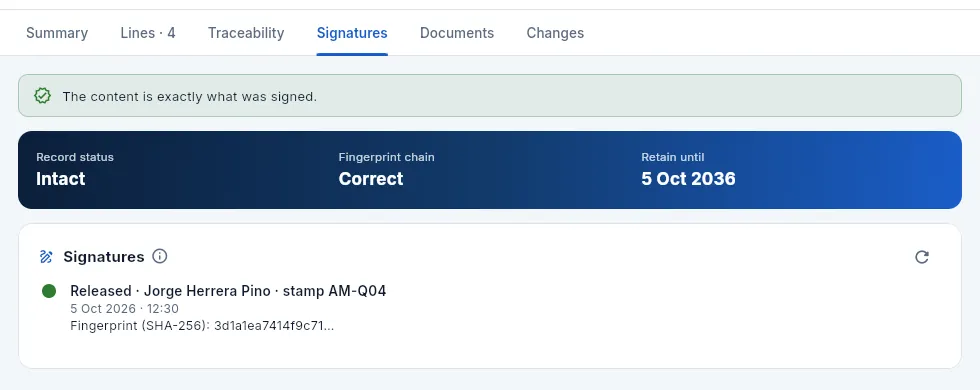 123
123
- 1Intact: the content of the delivery note is exactly what was signed.
- 2The record status, the hash chain and until when it must be retained.
- 3The signature: Released, who signed, with which stamp, when and the hash of what was signed.
The certificate of conformity PDF carries the declaration of conformity («the parts listed have been manufactured, inspected and tested in accordance with the order, the drawing and the applicable specifications at their current revision…»), the certified parts (part number P/N, drawing revision they were made to, quantity, work order, material, heat and 3.1 certificate, FAI and serial numbers), the Critical parts section if any are, the customer requirements applied and the signature of whoever released it, with their stamp and the date. The drawing revision is the one the work order froze when it was released, not the one current today: if the part has changed revision since, the CoC still states which one these parts were made to (see Items). The delivery note PDF lists the parts delivered, transport, the accompanying documents (the CoC, the heats' 3.1 certificates, the FAI) and space for the customer's receipt signature. Defence parts add the export control notice.
#Shipments outside Spain
When the customer is in another country, the delivery note also carries the Foreign trade block: the destination and the type of transaction (intra-Community, to the EU, or export, outside it), the Incoterm and the transport mode. Shipments to the EU are added to the Intrastat dispatches return for the month they leave (see Tax), with the invoice value and the net mass of the parts.
The Incoterm (ICC Incoterms 2020) is the delivery term agreed with the customer: who pays for transport and insurance and where the risk passes. FCA (Free Carrier: handed over to the customer's carrier) is usual for aerospace parts; there are also EXW (Ex Works: the customer collects), CPT and CIP (carriage, and with CIP also insurance, paid to destination) or DAP, DPU and DDP (delivered at destination; DDP with import duties paid). If the delivery note has none, the company defaults apply (Settings).
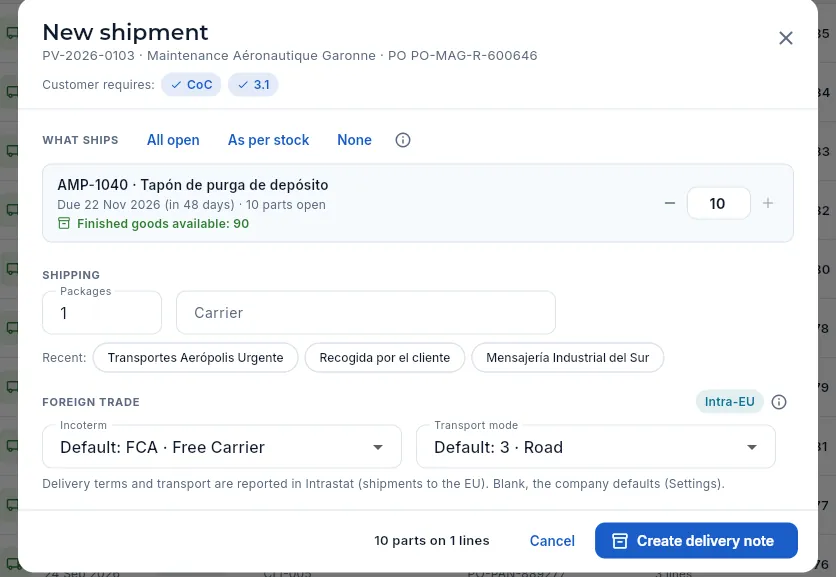 1234
1234
- 1An order from a customer in France.
- 2The Foreign trade block, only for customers outside Spain, and the type of transaction: Intra-EU.
- 3Incoterm: blank, the company default (here, FCA). Use the one stated on the customer's order.
- 4Transport mode: the Intrastat code (3 road, 4 air, 1 sea…).
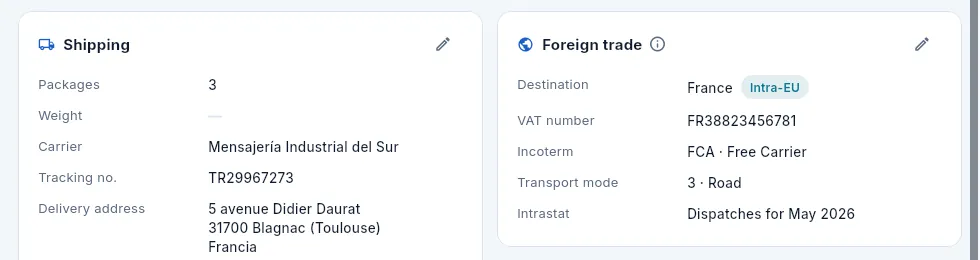 123456
- 1Destination: the customer's country and the type of transaction.
- 2The customer's VAT number. If it is missing, or lacks the country prefix, it is flagged here: fix it on the customer record before invoicing.
- 3Incoterm: FCA · Free Carrier.
- 4Transport mode: road.
- 5Intrastat: which return it goes into (the dispatches for the month it left).
- 6The pencil changes the Incoterm and the transport.
#What each profile sees
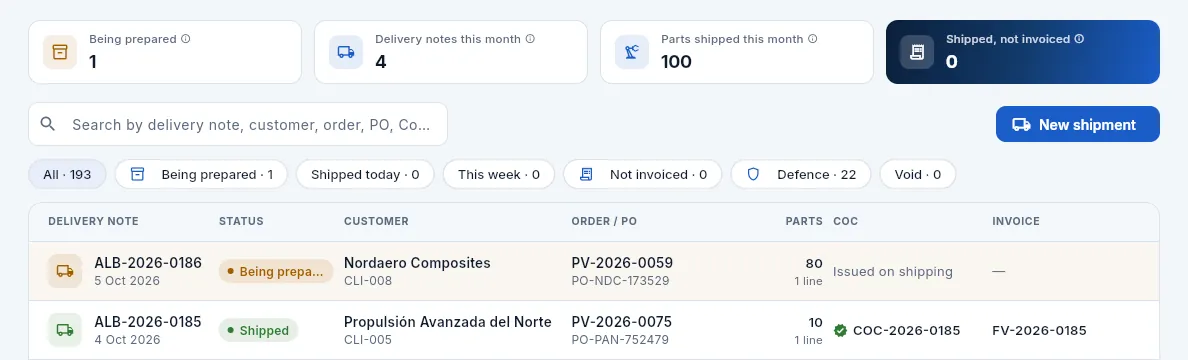 123
123
- 1Shipped, not invoiced counts delivery notes, not euros.
- 2He has Ship: he prepares, ships and voids delivery notes.
- 3Without See prices, the list has no Amount column (and the record has no amount in its banner).
#Tips
Supply
MRP
Material requirements planning: what to buy or make, how much and when, with the pegging that shows which work order or order each requirement comes from, the use of approved alternative materials, each item's coverage with its chart, the alerts and the generation of purchase orders and work orders.
MRP (Material Requirements Planning) answers one question: what must be bought or made, how much and when, to serve the orders without running out of material? For each item it walks the coming months day by day: it starts from the available stock, subtracts the demand (customer orders, forecasts —for spares and for programmes— and work order consumption) and adds what is already due in (open purchases, work orders in progress and material in quarantine). When the balance drops below the safety stock —the minimum buffer you always want to keep of each item— it proposes ordering or making what is missing, with the date it must be ordered by to arrive in time.
Each proposal keeps its pegging (from peg, to hook on to): the specific demand behind it, so you know which work order or order every kilo comes from. And if a planned work order is short of its primary material but its routing has a customer-approved alternative material in stock, MRP uses it before proposing a purchase.
The section has three views: Proposals, Coverage by item and Alerts.
#How it calculates
- 1Available stockWhat is available today. Blocked stock does not count; quarantined stock comes in as a planned receipt.
- 2DemandCustomer orders, spares and programme forecasts and work order consumption, on their dates.
- 3Planned receiptsOpen purchases (drafts included), the item's live work orders and material in quarantine.
- 4AlternativesIf the primary material falls short, the alternative approved in the routing that has stock.
- 5ProposalsBuy or make what is missing, with its pegging and its order date.
- 6GenerateDraft purchase orders by supplier and planned work orders.
#Proposals
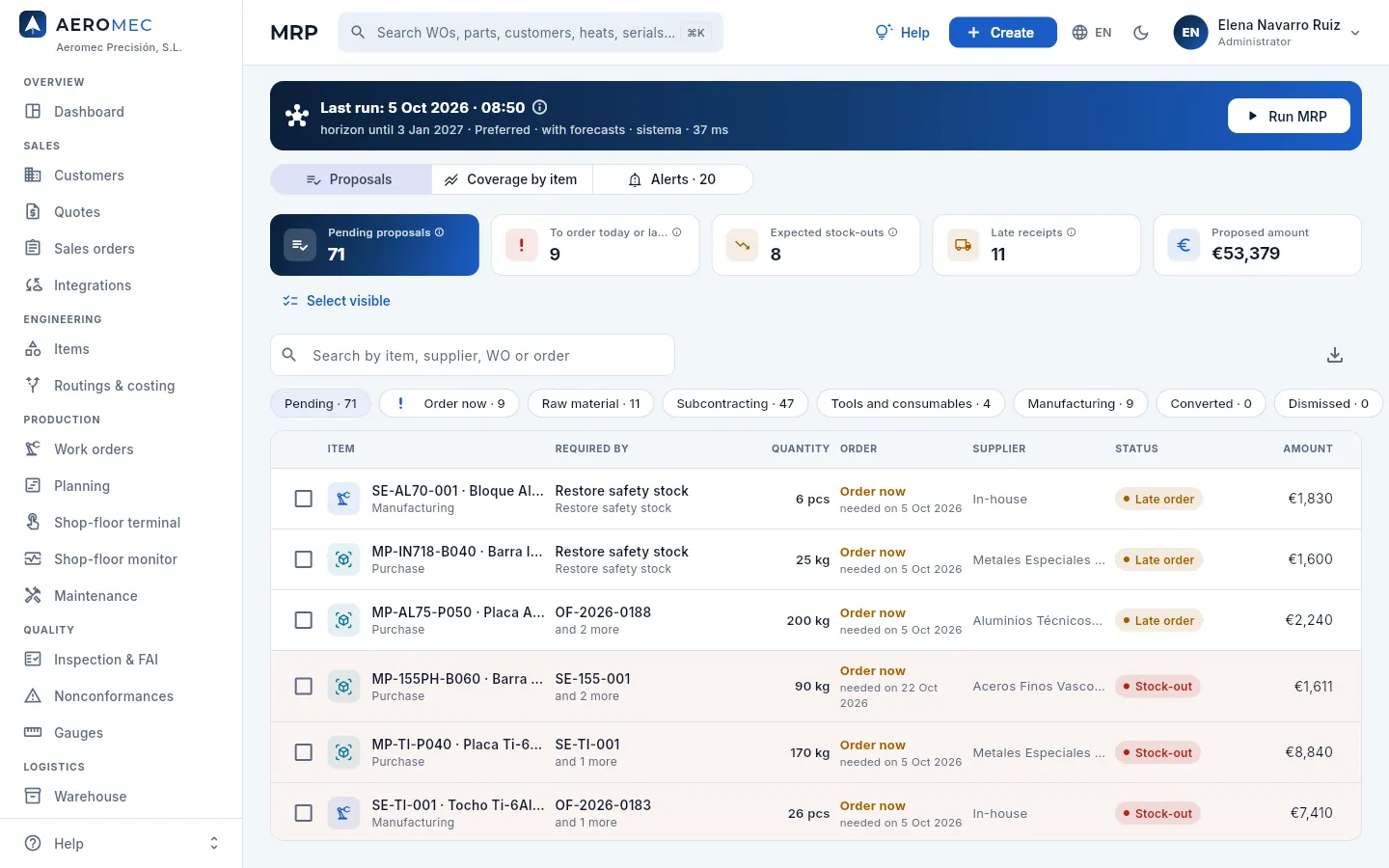 12345678
- 1Last run: when it was made, how far it looks (the horizon), with which supplier criterion, whether it included forecasts and who ran it. Its ⓘ explains the calculation rule.
- 2Run MRP runs it again with current orders, work orders, purchases and stock (see below).
- 3The three views; the alerts one with its count.
- 4Pending proposals: those from the last run not yet converted or dismissed.
- 5To order today or late, Expected stock-outs and Late receipts: what is urgent. Clicking an indicator filters the list.
- 6Proposed amount: what buying everything proposed would cost (with «See costs»).
- 7Select visible ticks every proposal in the filtered list, to generate or dismiss them in one go.
- 8The filters: pending, order now, by type (raw material, subcontracting, tools, manufacturing), converted and dismissed.
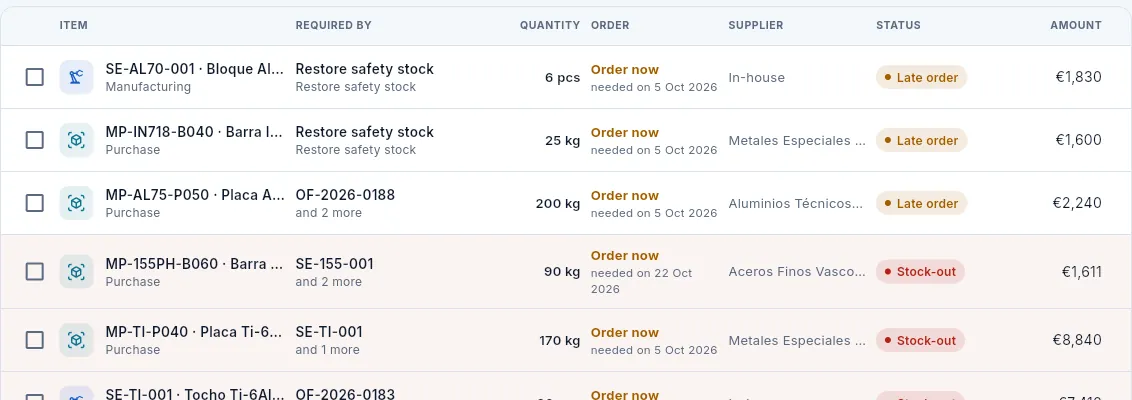 1234567
- 1The checkbox to select it and the item, with the proposal type: purchase, manufacturing or operation subcontracting.
- 2Required by: the demand behind it (a work order, an order, a semi-finished item proposal or restoring safety stock) and how many more there are.
- 3The proposed quantity.
- 4Order: the order date («Order now», in amber, if it is today or already past) and when it is needed.
- 5The proposed supplier (or «In-house»).
- 6The status: on time, late order (the order date has passed) or stock-out (the balance goes negative), with the row in red.
- 7The amount at the supplier's price.
#A proposal's record: the pegging
Click a proposal to open its record. Here, the one for the 40 mm titanium plate (MP-TI-P040), which runs out of stock.
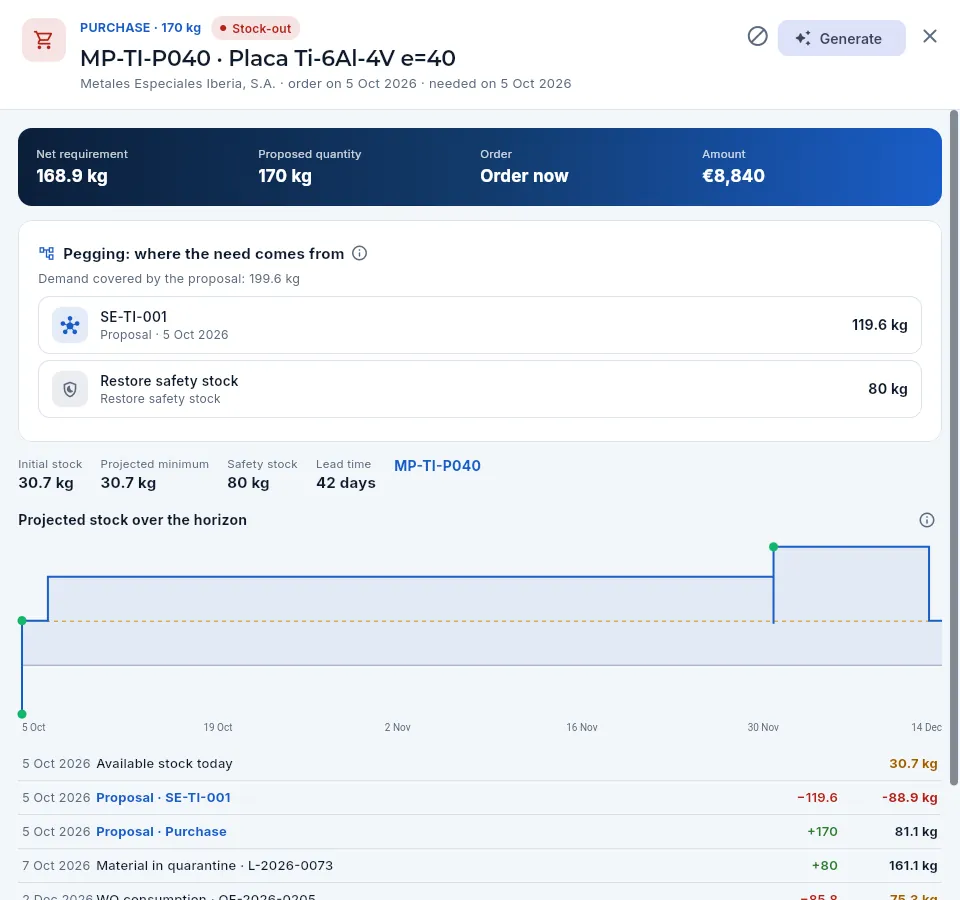 1234567
- 1The type and quantity, the status (here, stock-out), the item, the supplier and the order and need dates.
- 2Dismiss (the crossed-out circle) and Generate: they convert just this proposal.
- 3The banner: net requirement (what is really missing), proposed quantity (rounded to the lot and multiple), when to order and the amount.
- 4The pegging: each demand the proposal covers, with its quantity. Here, the proposal to make the SE-TI-001 titanium billet (a semi-finished item made from this plate) and restoring safety stock. Click a line to go to its work order or order.
- 5The item data: initial stock, projected minimum over the horizon, safety stock and lead time; its code opens the item record.
- 6The projected stock over the horizon: the blue step is the balance, the dashed line the safety stock, red dots stock-outs and green ones proposals.
- 7Each planned movement with its date and the balance it leaves: today's stock, the proposals, the material in quarantine that will come in once released, the work order consumption…
#Running MRP
MRP does not recalculate by itself: Purchasing or Planning run it when they want to see the current situation (for example, every morning or after accepting new orders).
 12345
12345
- 1What it does: recalculates the projected stock of every item. Pending proposals from the previous run are replaced.
- 2The horizon: how many days ahead it looks.
- 3Proposed supplier: each item's preferred one, the best price or the shortest lead time.
- 4Include forecasts: on top of firm orders, the forecast consumption of MRO spares (maintenance, repair and overhaul) and the programme forecasts (see below).
- 5Run starts the run: it takes a few seconds.
#Programme forecasts
A programme is the aircraft, engine or system you manufacture for (AR-90, TF-38…), with its rate: how many aircraft a month the customer assembles. On the programme record (see Programmes), Generate forecasts turns that rate into demand forecasts for its parts over the next 6 months: what the rate requires (parts per aircraft × aircraft per month) and is not yet ordered, on the 15th of each month. Each time it is clicked, it replaces that programme's previous forecasts.
Then run MRP here with Include forecasts: MRP will propose the work orders and material for those parts as if they were already ordered. That way long lead-time raw material (titanium, forgings) is ordered before the customer's order arrives. In a proposal's pegging they appear as Forecast, with the note «Programa …».
#Generating purchase orders and work orders
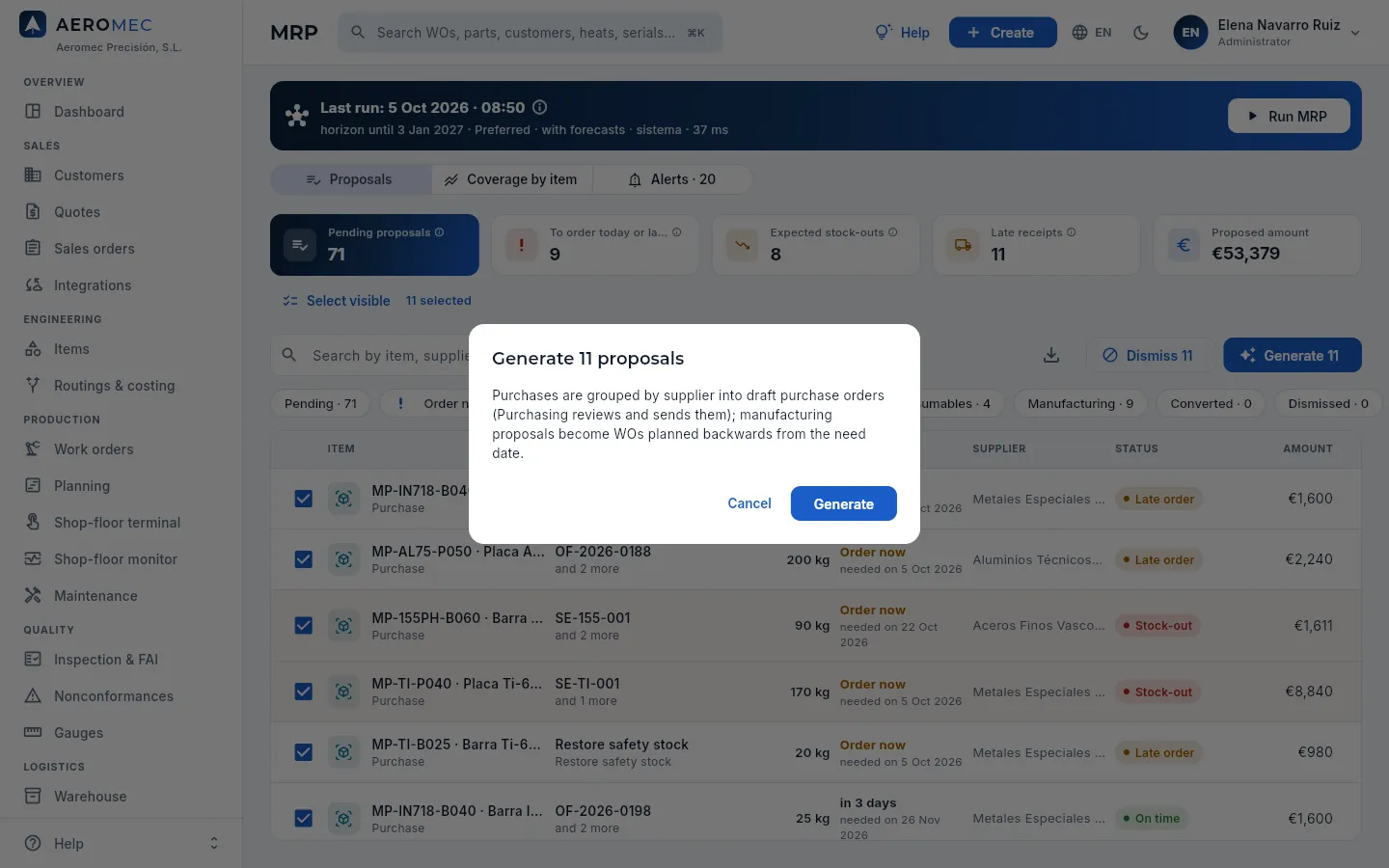 12345
12345
- 1How many proposals are selected.
- 2With at least one selected, Dismiss … and Generate … appear.
- 3The ticked checkboxes.
- 4What will happen: purchases are grouped by supplier into draft purchase orders (Purchasing reviews and sends them) and manufacturing proposals become planned work orders, scheduled backwards from the need date.
- 5Generate creates the documents and shows the list to open them.
Review the last run (or click Run MRP if anything has changed since).
Filter Order now to start with what is urgent, or by type (Raw material, Subcontracting…).
Open the doubtful proposals and look at their pegging. Dismiss those that do not apply.
Tick the ones you want (or Select visible) and click Generate; confirm.
In the list of generated documents, open the purchase orders: review them and send them to the supplier in Purchasing.
#Alternative materials
A part's routing may include customer-approved alternative materials: for example, AMP-1015 is made from 40 mm titanium plate, but its routing also has the 50 mm plate approved (more kilos per part and more cost, but valid). Before proposing a raw material purchase, MRP looks at the consumption of planned work orders and proposals: if the primary material drops below its safety stock and an approved alternative can supply it without dropping below its own, it moves that consumption to the alternative and flags it with the Covered by alternative alert.
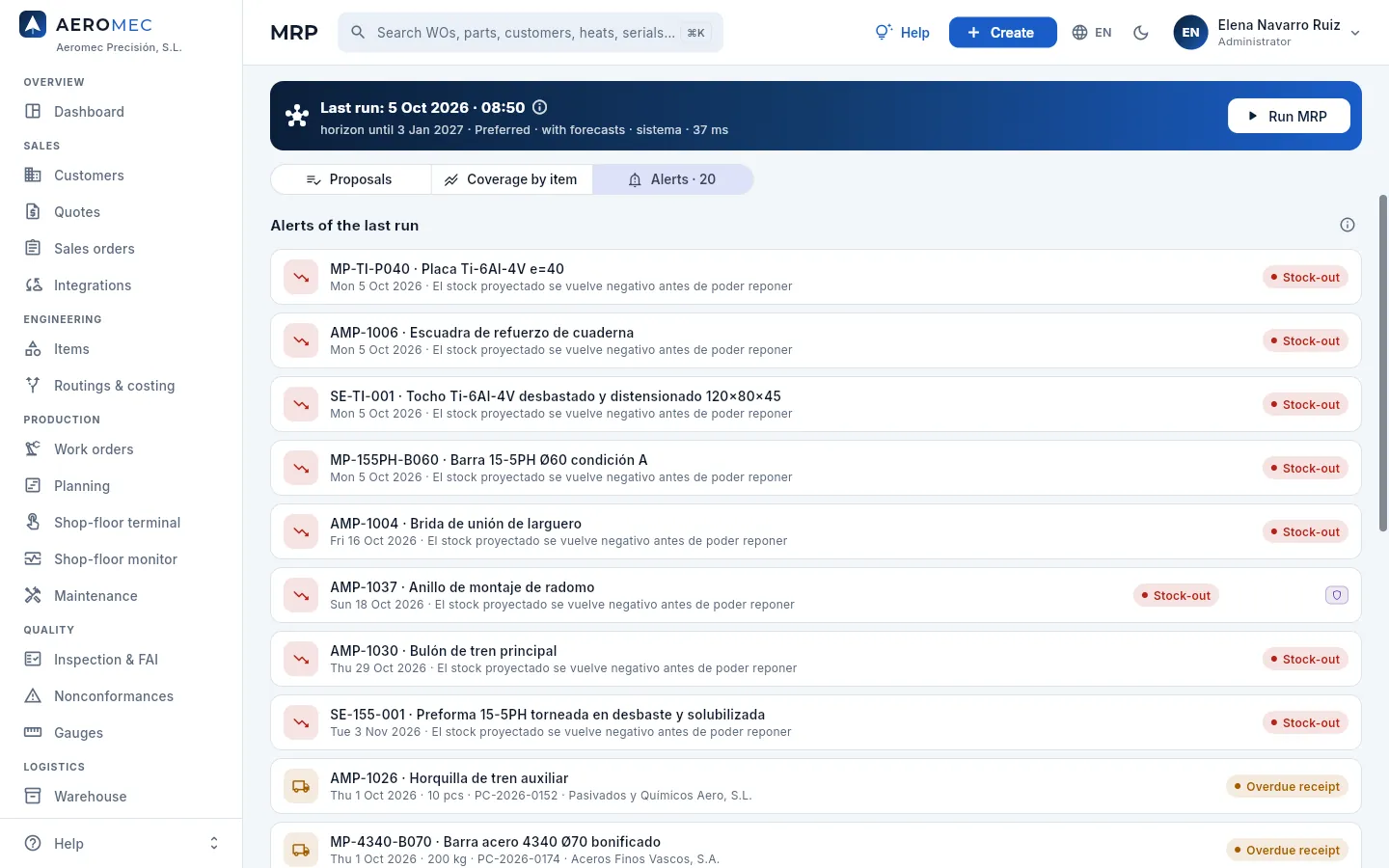 1234
1234
- 1The alerts of the last run; its ⓘ explains each type.
- 2Each alert: the item, the date and what happens. Click one to see the item's coverage.
- 3The type: stock-out (red), late order, overdue receipt, excess or covered by alternative.
- 4Overdue receipts, with the purchase order and the supplier: chase them, because MRP still counts on that material.
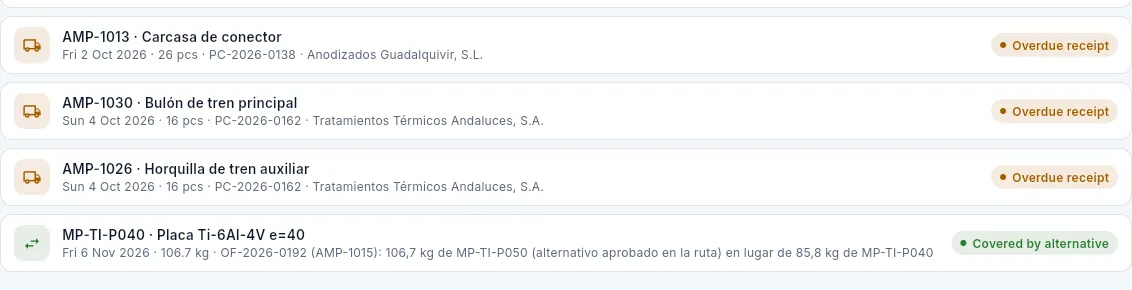 12
12
- 1Covered by alternative: the AMP-1015 work order is short of 40 mm plate, and MRP assigns it the 50 mm plate approved in the routing, which is in stock, instead of proposing a purchase. It says how many kilos of each material: the alternative needs more.
- 2Above, the overdue receipts: on an outside-processing line, the order is the one for the work order's external operation.
#Coverage by item
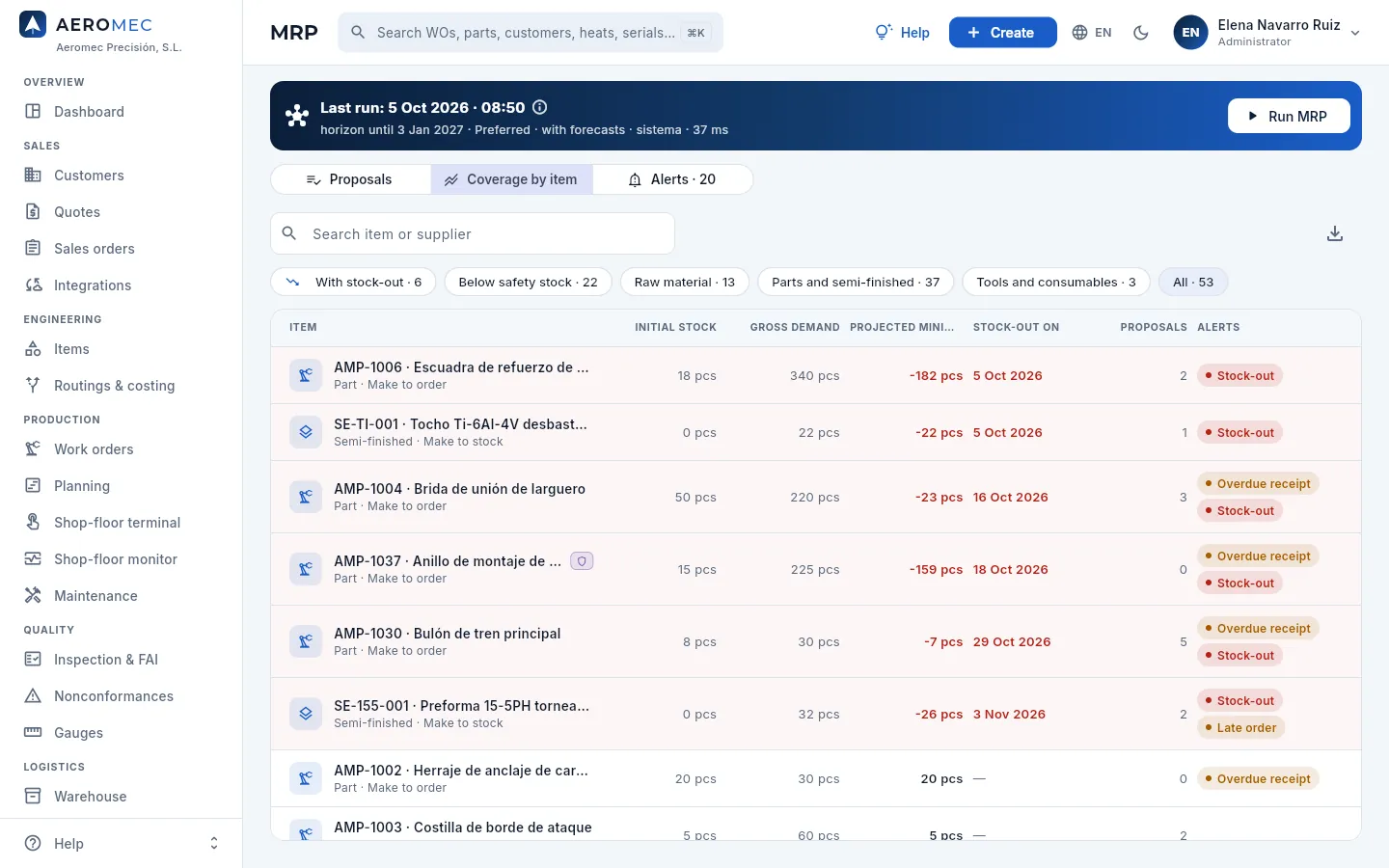 123456
- 1Search by item or supplier.
- 2The filters: with stock-out, below safety stock, by type and all.
- 3Initial stock and gross demand: what there is today and everything to be consumed over the horizon.
- 4Projected minimum: the lowest balance it will reach, in red if negative.
- 5Stock-out on: the first day the balance drops below zero even counting planned receipts.
- 6How many proposals it has and its alerts. Click the row to see its chart.
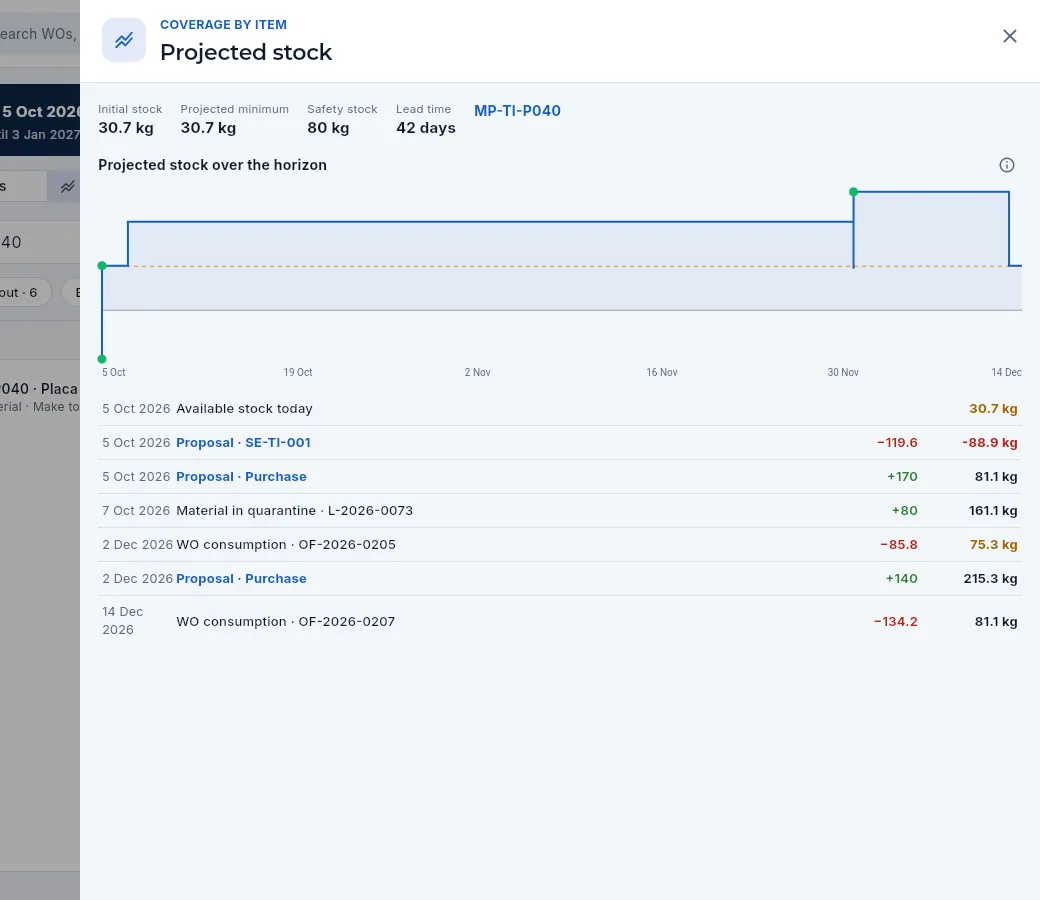 123
123
- 1Initial stock, projected minimum, safety stock and lead time.
- 2The chart: blue step = balance; dashed line = safety stock; red dots = negative balance; green = proposals. If the step crosses zero before a receipt, that receipt is late.
- 3The movements one by one: date, description (with its work order, purchase, lot or proposal), quantity and balance.
#What each profile sees
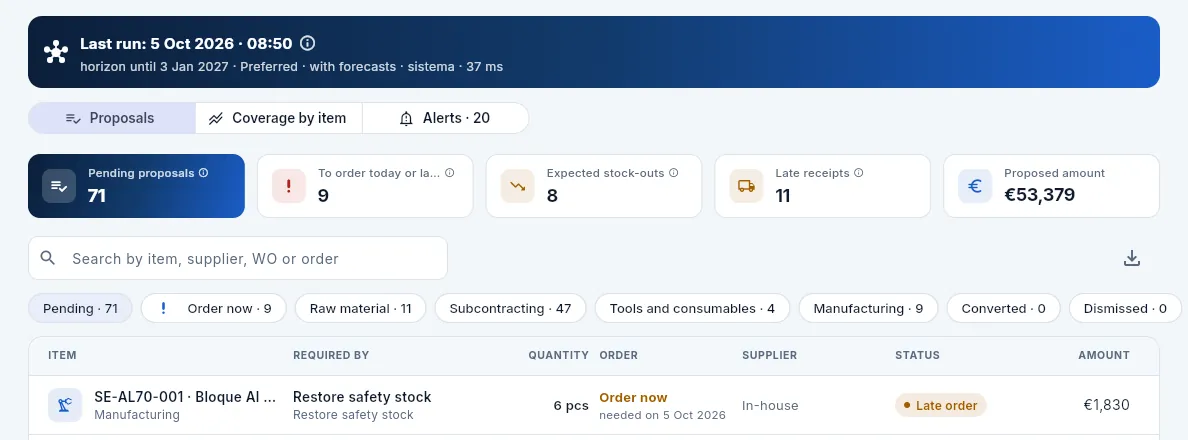 12
12
- 1Without Run MRP there is no Run MRP button.
- 2Without Generate orders there are no checkboxes and no Select visible: proposals can be viewed, not converted.
#Tips
Supply
Purchasing
Purchase orders —raw material, outside processing of work order operations, tooling, consumables, spare parts, calibrations and services— from draft to receipt: what Aeromec checks before they are sent, the requirements flowed down to the supplier, each lot's heat and 3.1 certificate with its documents, and the receiving inspection that validates the 3.1 point by point and releases or rejects the material.
Purchasing handles everything bought in: raw material (bars, plates, billets) with its material certificate, outside processing of the operations a supplier performs (heat treating, anodising, non-destructive testing, shot peening…), tooling, consumables, machine spare parts (ordered by Maintenance: see Maintenance), calibrations and services.
An order starts in one of three ways: by hand, from MRP (which groups its proposals by supplier) or from a work order with external operations. On receipt, each type does its own thing:
- Raw material comes in as a new lot in quarantine, with its heat and its 3.1 certificate, and cannot be used until Quality performs the receiving inspection.
- Parts coming back from outside processing complete their work order operation, and the next one is queued.
- Tooling, consumables and spare parts go straight to available.
Before an order is sent, Aeromec checks that what is being ordered may be bought from that supplier (its approval, its approved scope and the customer's approved sources), and when it is sent it flows down the requirements the supplier must meet.
#The order list
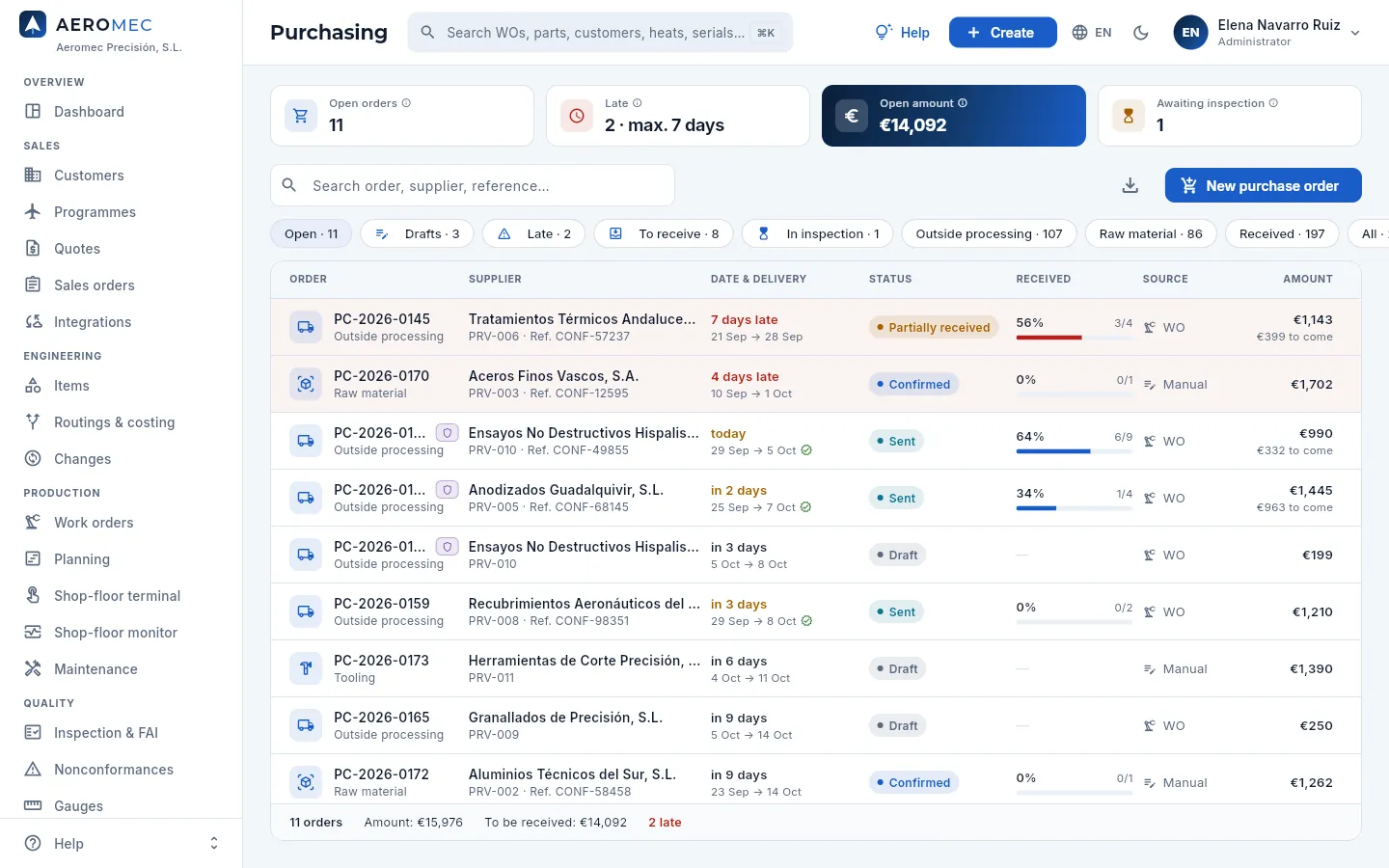 1234567
- 1Open orders: drafts, sent, confirmed and partially received.
- 2Late and the longest delay in days: orders whose date (the one confirmed by the supplier or, if none, the requested one) has passed without being received in full.
- 3Open amount: what is still to be received on open orders, before VAT (with «See costs»).
- 4Awaiting inspection: lots already received, waiting in quarantine for Quality to inspect them.
- 5The search box: by number, supplier, supplier reference or order type.
- 6New purchase order creates a draft by hand. To its left, Export CSV.
- 7The filters: open (the default), drafts, late, to receive, in inspection, outside processing, raw material, received and all.
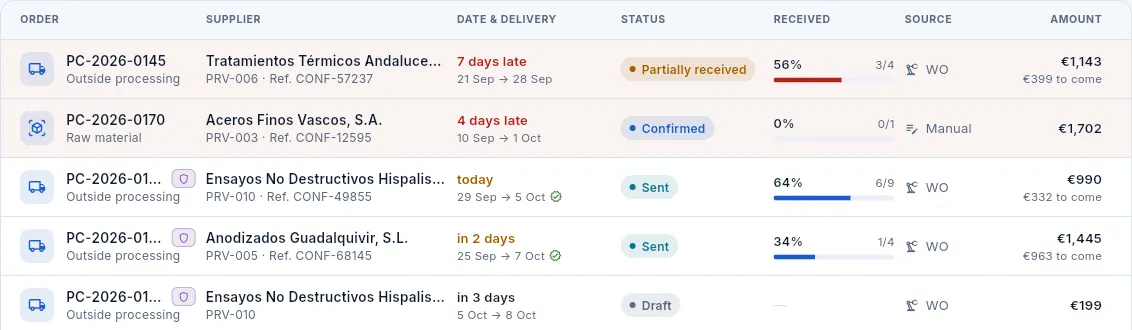 1234567
- 1The number (PC-year-number), with the icon and the order type.
- 2The supplier, its code and the reference it gave when confirming.
- 3Date & delivery: how long until delivery or how many days late it is (in red), and the order date → the delivery date, with ✓ if the supplier confirmed it.
- 4The order status (see the table below).
- 5Received: the percentage by value, with its bar, and the lines received in full over the total.
- 6Source: Manual, MRP or WO (outside processing of operations).
- 7The amount and what is still to come.
The list footer adds up the orders, the amount, what is still to be received and how many are late. Orders with defence parts carry the purple shield and are only visible with the «Defence data» permission.
#The life of an order
- 1DraftBy hand, from MRP or from a work order. Lines are added and corrected.
- 2SentIf the supplier is approved for it, the PDF goes out with its requirements. The lines can no longer be changed.
- 3ConfirmedThe supplier gives its date and reference: that date is the one used for lateness.
- 4ReceiptWith the delivery note, each line's heat and 3.1, and their documents.
- 5InspectionQuality validates the 3.1 point by point and releases the lot or rejects it with a supplier NCR.
- 6InvoiceFinance records the supplier's invoice and matches it against what was received.
| Status | What it means | What you can do |
|---|---|---|
| Draft (grey) | Prepared, the supplier does not know about it yet. | Add and change lines, edit its details, send it (if it passes the checks) or delete it. |
| Sent (blue) | Sent to the supplier, awaiting confirmation. | Record the confirmation, receive or cancel. |
| Confirmed (blue) | The supplier has given its delivery date and reference. | Receive, change the confirmed date or cancel. |
| Partially received (amber) | Part has arrived: some lines are outstanding. | Receive the rest. |
| Received (green) | Everything has arrived. | View it, inspect what is pending, record its invoice. |
| Cancelled (red) | No longer expected. | View it. |
In addition, a sent, confirmed or partially received order whose date has passed carries the red N days late pill.
#Creating an order and its lines
MRP and work order orders arrive as drafts, with the dates production needs. To order something by hand, click New purchase order (or Create in the top bar).
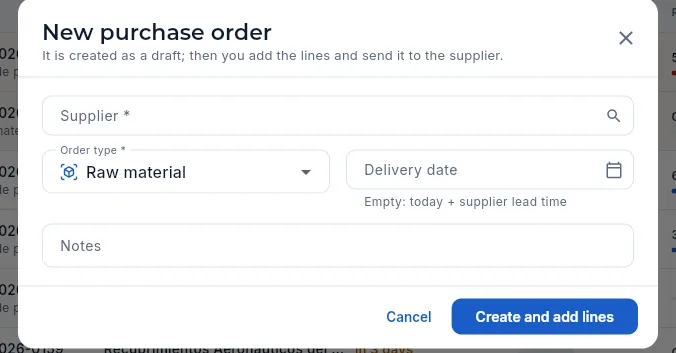 1234
1234
- 1The supplier (required).
- 2The type: raw material, outside processing, tooling, consumables, calibration or services.
- 3Delivery date: if left empty, today plus the supplier's lead time.
- 4Create and add lines saves it as a draft and opens its record.
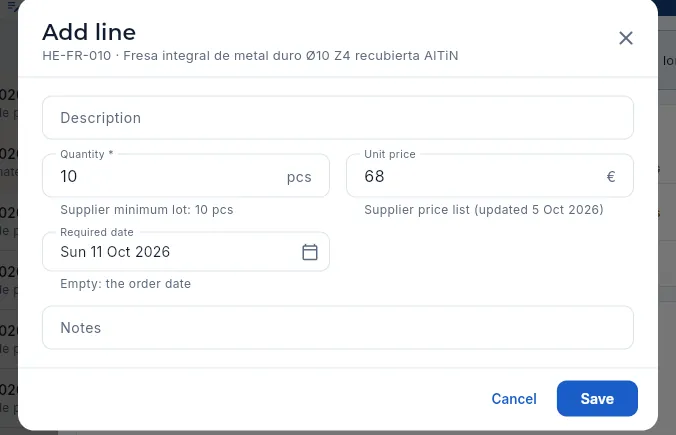 1234
1234
- 1Description: the process, the specification or the text for the supplier.
- 2Quantity; below, the supplier's minimum lot.
- 3Unit price: it comes from the supplier's price list (and when it was updated).
- 4The line's required date: if empty, the order's. It is the one that counts for OTD.
Clicking Add line first asks for the item: those on this supplier's price list come first, with their price and reference. On an outside-processing order, the line is the work order operation the supplier performs; Aeromec creates those lines when it generates the order from the work order.
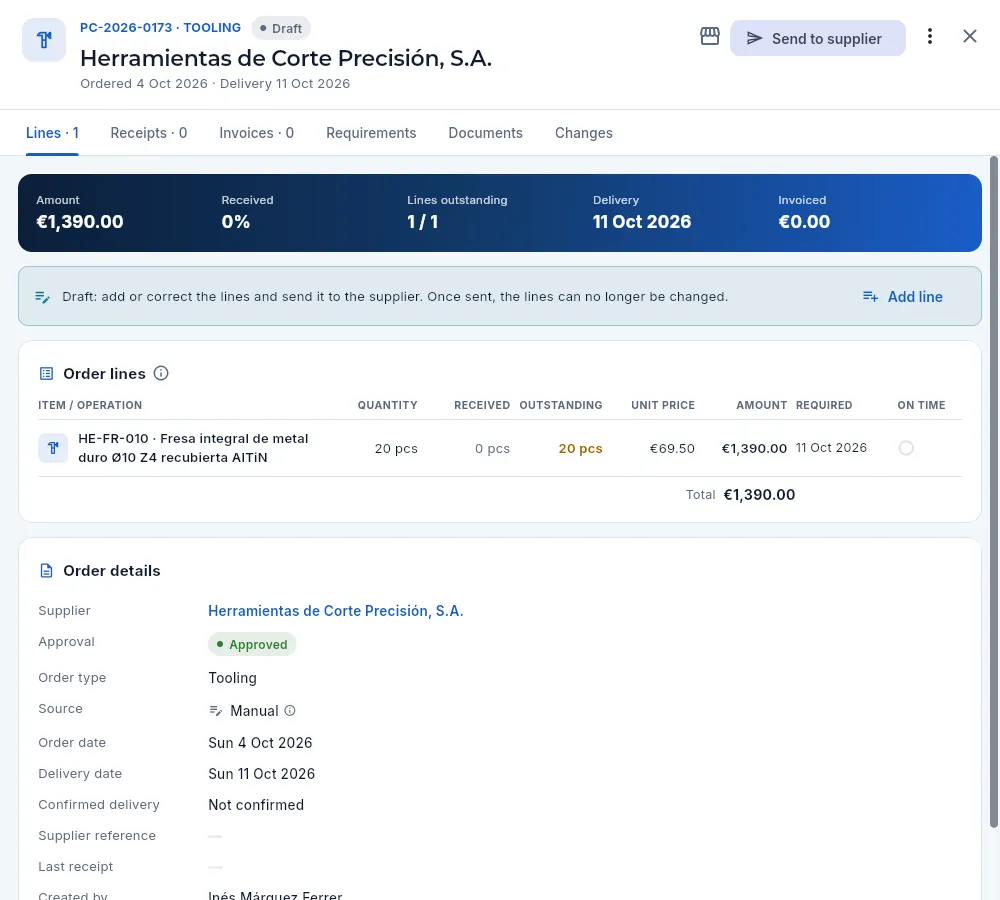 1234567
- 1The number and type, the status, the supplier and the order and delivery dates.
- 2The shop icon opens the supplier record; Send to supplier is the main action, and the ⋮ menu has the rest.
- 3The banner: amount, % received, lines outstanding, delivery and amount invoiced.
- 4The status notice: in draft, the lines can be added or corrected; once sent, they cannot.
- 5Add line: choose the item and enter its quantity.
- 6The lines: item or operation, quantity, received, outstanding, price, amount, required date and whether it arrived on time. In draft, click one to change it.
- 7Order details: supplier and its approval, type, source, dates, confirmed delivery, supplier reference, last receipt and who created it.
#Before sending: what Aeromec checks
A draft order is not sent to just anyone. While it is a draft, its record warns of anything that would stop it being sent, and when you click Send to supplier Aeromec checks again:
| Check | If it is not met |
|---|---|
| The supplier is approved or conditional (not pending or suspended). | It is not sent: Quality must approve it with a signed evaluation. |
| Its approval has not expired. | It is not sent until its new evaluation. |
| In outside processing, each phase's special process is within the supplier's current scope. | It is not sent: usually an expired Nadcap. |
| If the work order's customer only accepts its approved sources, the supplier is on its list for that process. | It is not sent. |
There are also warnings that do not stop the order but are worth reading: a conditional supplier (apply the controls of its evaluation), a distributor not authorised by the manufacturer (counterfeit risk: require traceability to the mill and a check test) and a scope that expires in less than 30 days. All of it is put right in Suppliers: the scope, the evaluation and each customer's sources.
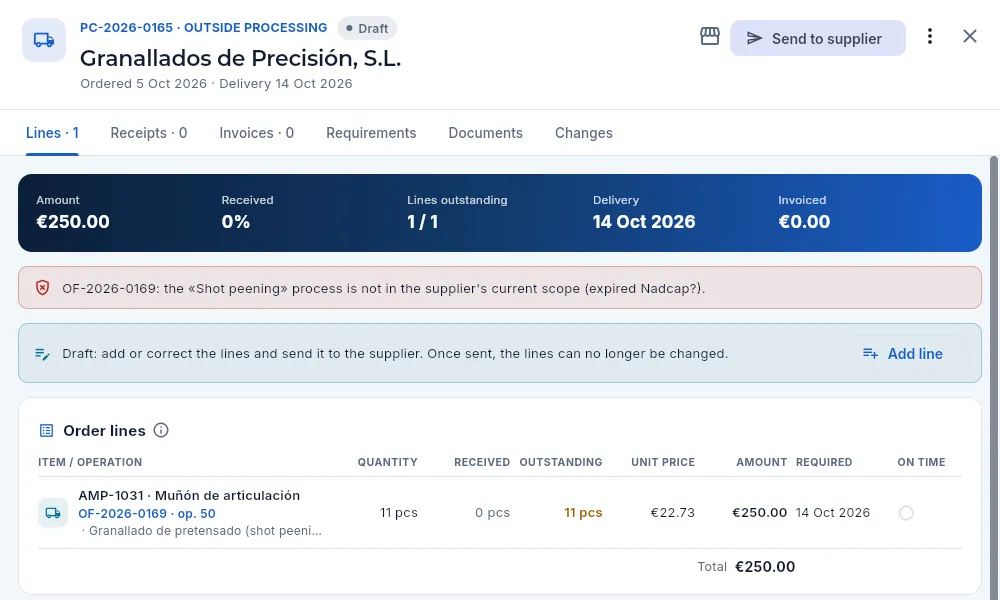 1234
1234
- 1An outside processing order in draft to Granallados de Precisión.
- 2The block, in red: the phase's process (shot peening) is not within the supplier's current scope. Its Nadcap has expired.
- 3The line: the work order phase being subcontracted, with its process and its specification.
- 4Send to supplier will not let it be sent.
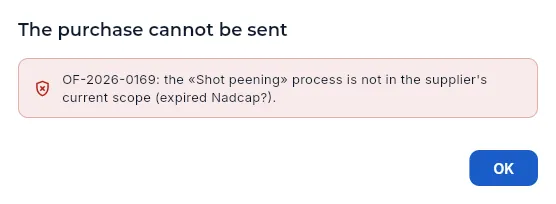 123
123
- 1The purchase cannot be sent…
- 2…and why: the work order, the process and what is missing. If there are several problems, they are all listed.
- 3OK closes the warning: the order stays in draft.
Read the warning on the record: it says what fails (approval, scope or customer sources) and in which work order.
If it is an expired Nadcap, ask the supplier for the renewed certificate and have Quality record it in its Scope (see Suppliers).
If the supplier is not approved or has expired, Quality must evaluate it and sign the decision.
If the supplier cannot do it, change the supplier (Edit order) to one with the process in its scope and, if the customer requires it, on its list.
Click Send to supplier again.
#Sending and confirming
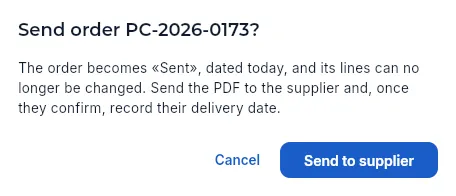 12
12
- 1The order becomes Sent with today's date, its lines can no longer be changed and its requirements are flowed down. Send the PDF to the supplier. Any warnings (conditional supplier, non-authorised distributor) appear here.
- 2Send to supplier marks it as sent.
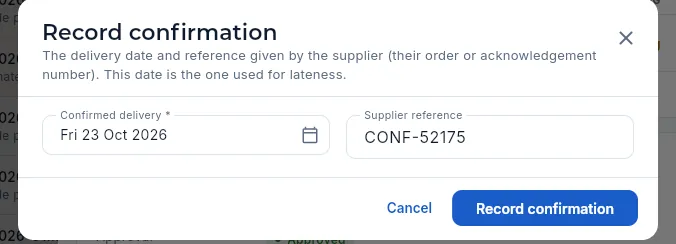 12
12
- 1The delivery date the supplier confirms: from now on it is the one used for lateness.
- 2Its reference (its order or acknowledgement number).
The order PDF (⋮ menu → Order PDF) carries the lines with their prices, the payment terms and the requirements the supplier must meet, with their reference: the same ones as the Requirements tab (see below).
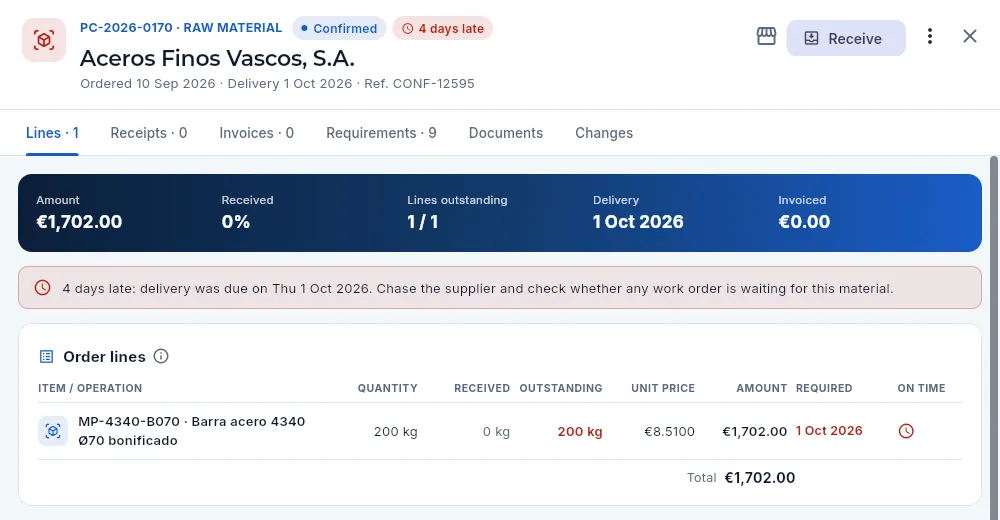 12345
12345
- 1The Confirmed status and the red days late pill.
- 2The confirmed delivery and the supplier's reference.
- 3Receive, when the material arrives.
- 4The notice: chase the supplier and check whether any work order is waiting for this material.
- 5The line: the required date in red and the on time clock: «required date passed without full receipt».
Delays also show in the Late filter, in the Overdue receipt alerts in MRP and in the supplier's OTD in Suppliers.
#Requirements flowed down to the supplier
Each order tells the supplier what it must meet: its requirements, which come on their own from two places:
- The company's for that purchase type: its quality system, the right of access for Aeromec, its customers and the authorities, record retention, how to report a nonconforming product, counterfeit-part prevention, approved special processes, no subcontracting or process changes without permission…
- Those of the customers, programmes and parts being bought for: from each line's work order in outside processing, or from the parts that use that material in a raw material purchase (see Management system, Requirements view).
In a draft, the Requirements tab shows the ones that will be flowed down; when it is sent, a snapshot of what was flowed down is kept with its date, and it does not change even if a requirement is changed later. They also go on the order PDF.
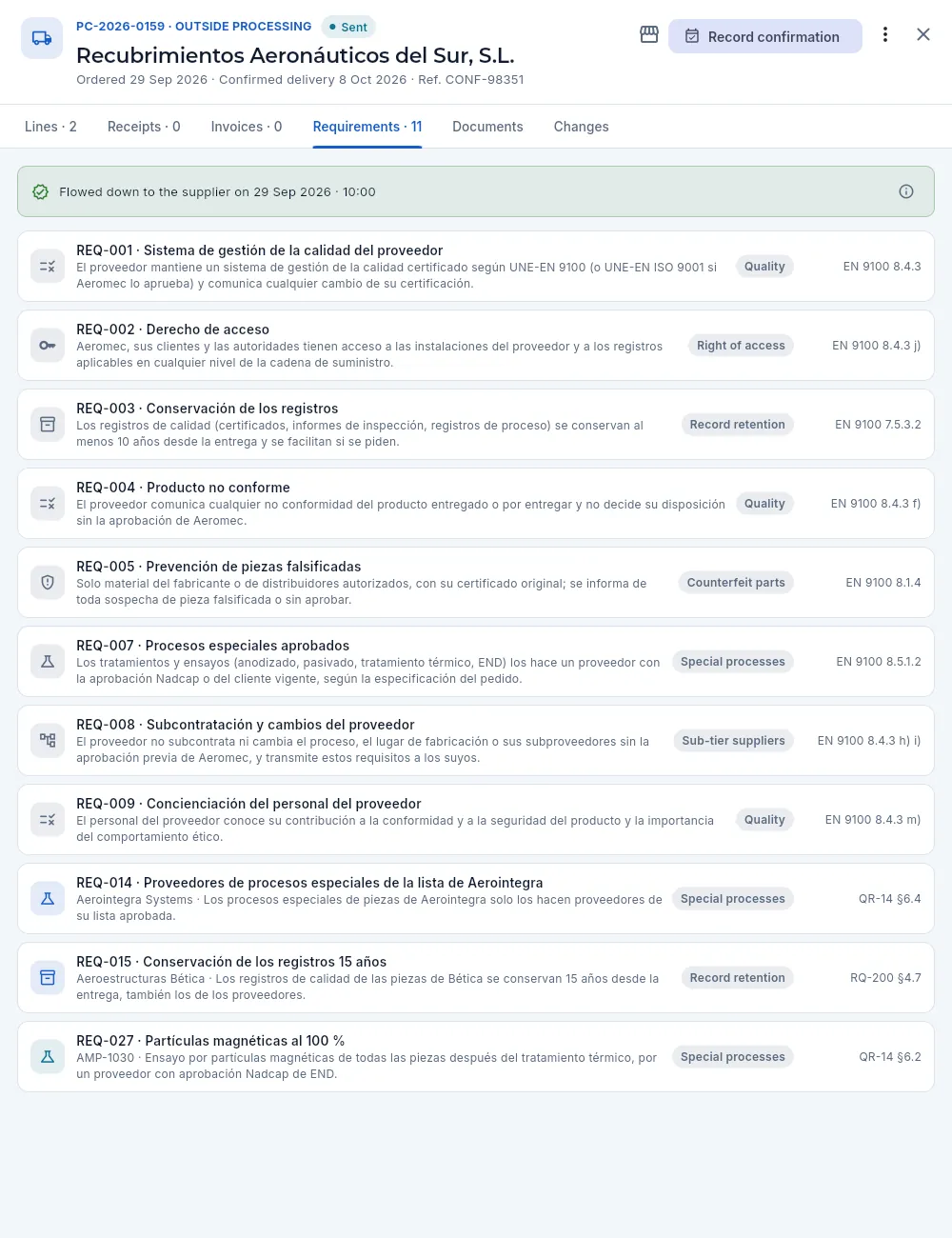 1234567
- 1The Requirements tab, with how many were flowed down.
- 2Flowed down to the supplier on the day and time the order was sent: that snapshot no longer changes. Its ⓘ explains where they come from.
- 3A company requirement: code, title and text. Click it to open it.
- 4Counterfeit-part prevention: only material from the manufacturer or its authorised distributors, with its original certificate.
- 5A customer requirement, with the customer before the text: it appears because the line's work order is for one of its parts.
- 6A requirement of the part being subcontracted.
- 7The category and the reference: the customer's clause or the standard clause it comes from.
#Receiving raw material: heat and 3.1 certificate
When the material arrives, open the order (the To receive filter keeps those in the supplier's hands) and click Receive. For raw material, each line needs the heat number —the mill's melt number, marked on the material itself— and the number of the 3.1 certificate, the maker's inspection certificate per EN 10204 type 3.1, signed by its quality department, independent from production, with the actual chemistry and mechanical properties of that heat.
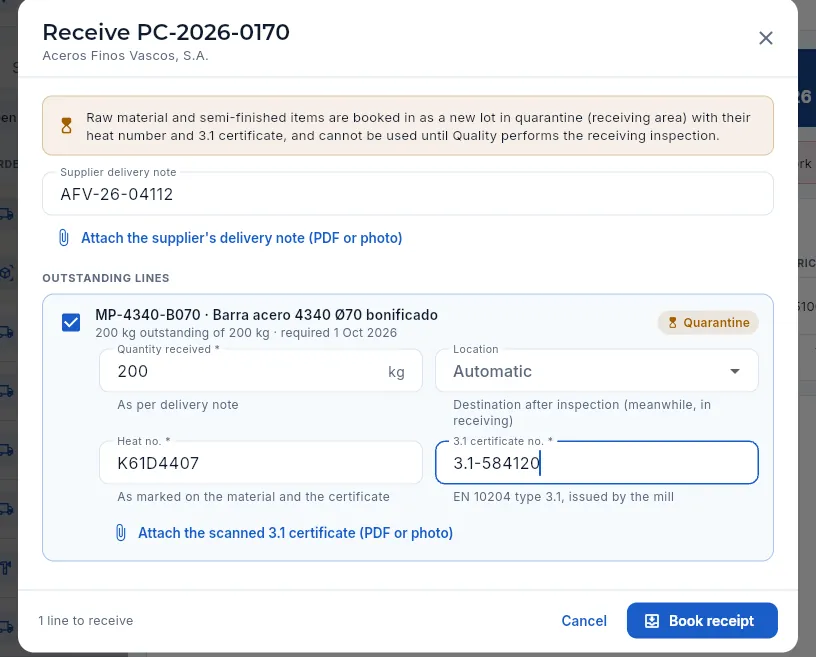 123456789
- 1What will happen: raw material comes in as a new lot in quarantine (receiving area) with its heat and 3.1, and cannot be used until the receiving inspection.
- 2The supplier delivery note.
- 3Attach the scanned delivery note (PDF or photo): it is kept in the receipt's documents.
- 4Each outstanding line, with its checkbox (untick it if it has not arrived), what is outstanding and the required date; on the right, Quarantine.
- 5Quantity received: as per delivery note (it comes filled with the outstanding quantity).
- 6Location: the slot it will go to after inspection; meanwhile, it stays in receiving. Automatic picks a free one.
- 7Heat no. (required): as marked on the material and on the certificate. Next to it, the 3.1 certificate no. (required).
- 8Attach the scanned 3.1 certificate: it is kept in the lot's documents, and from Traceability it opens with View 3.1.
- 9Book receipt records it all in one go.
Filter To receive and open the order that has arrived. Click Receive.
Enter the supplier delivery note number and attach the scanned delivery note (or drag the file onto the window).
On each line, check the quantity received, copy the heat number marked on the bars or plates and the 3.1 certificate no., and attach the scanned certificate.
If a line has not arrived, untick it. Choose the final location if you do not want the automatic one.
Click Book receipt.
#Outside processing of operations
When a routing operation is performed by a supplier (heat treating, anodising, a penetrant test…), the work order generates an outside processing order, grouping several work orders' operations by supplier: each line is one work order's operation, with the process specification. When the parts come back, that operation is completed with the quantity received, and the next one is queued on its machine in Planning.
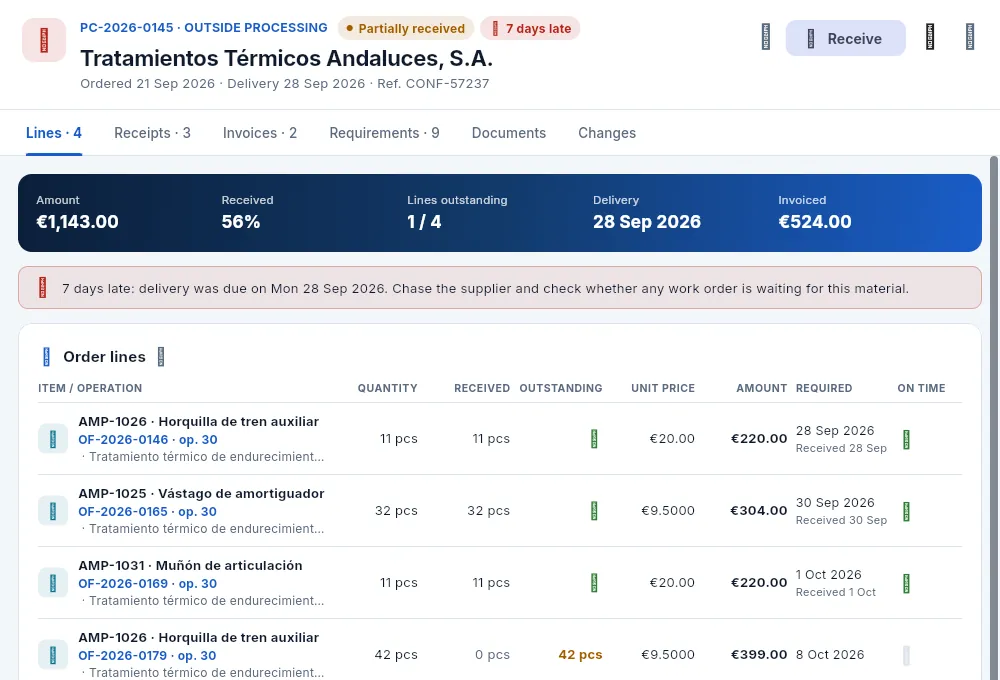 12345
12345
- 1Outside processing, partially received and late.
- 2What has been received, the lines outstanding and the confirmed delivery.
- 3The work order and operation the supplier performs (click it to open the work order) and, below, the process to its specification.
- 4The required date, when it was received and whether it arrived on time (green ✓).
- 5What is outstanding, in amber: parts still at the supplier.
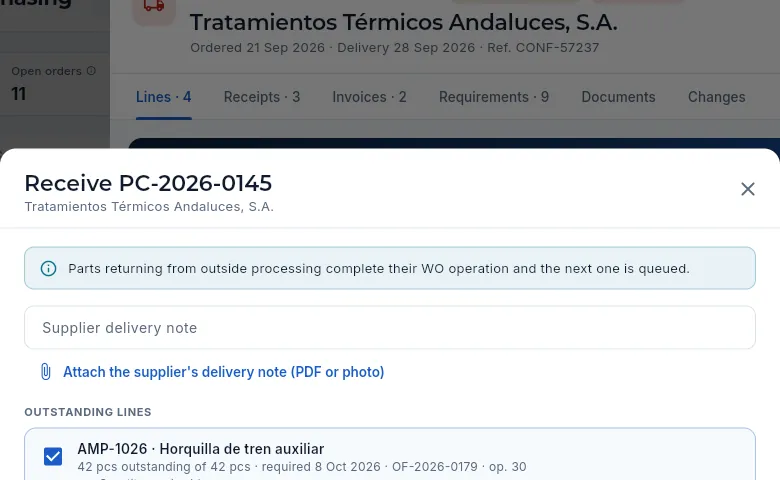 123
123
- 1Parts coming back complete their work order operation and the next one is queued.
- 2Each line: the part, what is outstanding, the required date and the work order and operation.
- 3The work order operation is completed with this quantity: enter the parts that have actually come back.
Tooling and consumables are received the same way, but go straight to available at the location you choose, without receiving inspection.
#The receiving inspection
The order's Receipts tab lists each receipt with its delivery note, who received it and, line by line, the lot created, the heat, the certificate, the location and the result of the receiving inspection. While a lot is pending, the order carries the amber N in inspection pill.
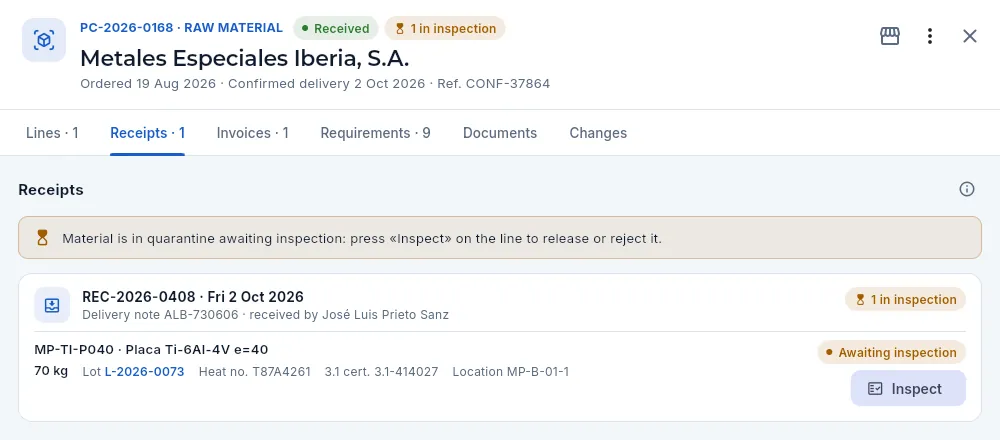 123456
- 1The order's in inspection pill.
- 2The notice: there is material in quarantine awaiting inspection. Anyone with «Edit quality» releases or rejects it from here.
- 3The receipt: number, date, supplier delivery note and who received it.
- 4The line: quantity, lot (click it to open its record in the Warehouse), heat, 3.1 certificate and final location.
- 5The result: Awaiting inspection.
- 6Inspect opens the receiving inspection.
Quality normally does it from Inspection & FAI, in the receiving inspections view; anyone with «Edit quality» and the Purchasing section can also do it here, with Inspect. Releasing or rejecting a lot is signed with your password and your inspection stamp with the receiving scope (see The electronic signature and the inspection stamps).
#The 3.1 certificate, point by point
For raw material, the 3.1 certificate is not accepted with a general «yes»: it is checked point by point against the order and against the material in front of you, and each point is answered Yes, No or N/A:
| Point | What is checked |
|---|---|
| Material and specification | That the alloy, specification, temper and dimensions are those of the order. |
| Heat | That the certificate's heat is the one marked on the bars or plates. |
| Chemical composition | That each element is within the material specification (AMS, EN…). |
| Mechanical properties | Tensile strength, yield strength, elongation and hardness within the specification. |
| Manufacturer's signature | That it is signed by the manufacturer's authorised inspection representative, independent of production. |
| Traceable origin | That it is issued by the manufacturer or an authorised distributor and has not been altered (crossings-out, data that does not add up, copies). |
With any point answered No, the material cannot be released: the result switches to Reject on its own. For the other purchase types that are inspected, you only tick whether the certificate conforms.
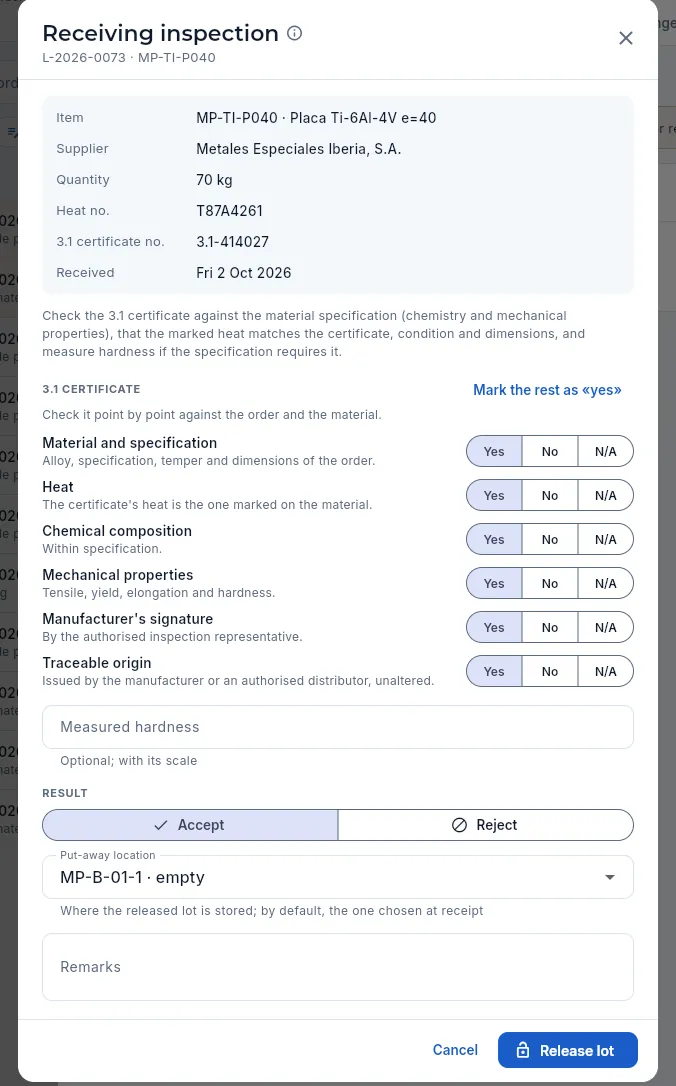 12345678
- 1What is being inspected: item, supplier, quantity, heat, 3.1 certificate no. and receipt date. The scanned certificate is in the lot's documents.
- 23.1 certificate: check it point by point against the order and the material.
- 3Mark the rest as «yes» answers «Yes» to those still unanswered: only use it after checking them.
- 4Each point, with what to look at and its Yes, No or N/A.
- 5Traceable origin: from the manufacturer or an authorised distributor and unaltered. A «No» here is a suspected counterfeit (see below).
- 6Measured hardness (optional), with its scale: «36 HRC».
- 7The result: Accept or Reject; below, the put-away location of the released lot and the notes.
- 8Release lot asks for your signature with the receiving stamp and moves the lot from quarantine to available.
Open the order with the in inspection pill (In inspection filter) and its Receipts tab. You can also do it from Inspection & FAI, in the receiving inspections view.
Click Inspect on the line.
With the 3.1 certificate in front of you (it is in the lot's documents), answer the six points one by one; measure the hardness if the standard requires it.
If everything is Yes (or N/A), choose Accept, pick the put-away location and click Release lot; if something fails, choose Reject, write the reason and click Reject lot.
Sign with your password: the receiving stamp is filled in automatically.
#Suspected counterfeit material
If the certificate is not traceable —it is not issued by the manufacturer or an authorised distributor, its data does not add up or it looks altered—, answer No for Traceable origin. The dialog warns that it is a suspected counterfeit part and, when the lot is rejected, the NCR is opened with that cause.
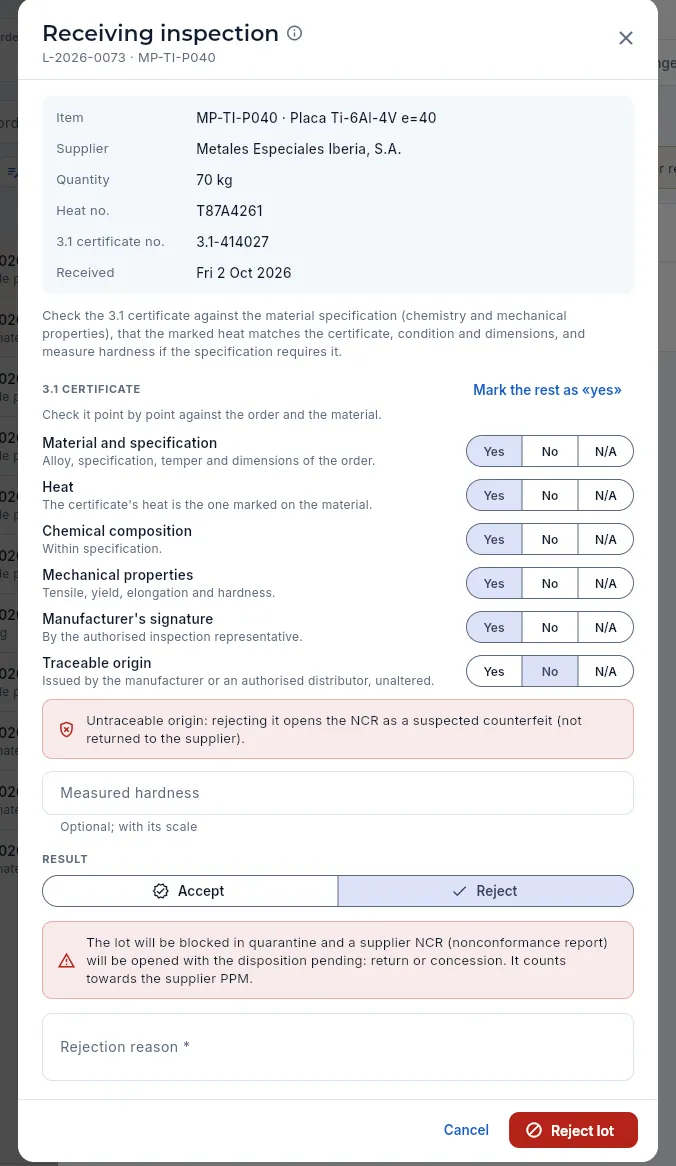 123456
- 1Traceable origin answered No.
- 2The warning: rejecting it opens the NCR as a suspected counterfeit part, and it is not returned to the supplier.
- 3The result switches to Reject on its own: with a point answered «No» it cannot be released.
- 4The lot will be blocked in quarantine, with its supplier NCR.
- 5Rejection reason (required): what does not add up on the certificate.
- 6Reject lot blocks it, opens the NCR and asks for your signature.
This is how a rejected lot looks in the Receipts tab: the Inconel 718 bar whose certificate had titanium above the AMS maximum.
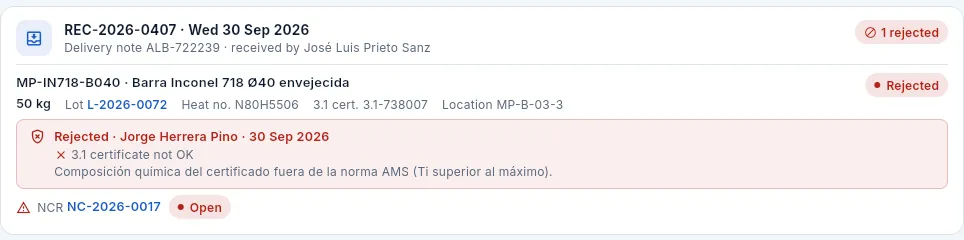 123
123
- 1The receipt and the Rejected line.
- 2The result: inspector, date, the 3.1 not OK, the hardness and the reason.
- 3The supplier NCR (open it in Nonconformances): from it, the corrective action is requested from the supplier (SCAR).
#The order's invoices
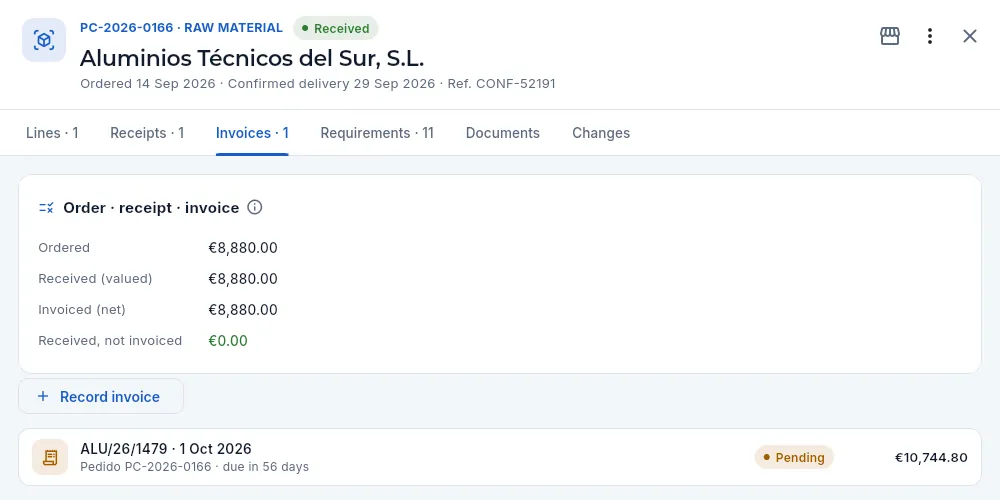 123
123
- 1The three-way match: what was ordered, received (valued at the order price), invoiced (net amounts before VAT) and received, not invoiced.
- 2Record invoice: the supplier's invoice (Finance, with «Edit payables»).
- 3Each invoice: supplier number, date, due date, payment status and total. Click it to open it in Payables.
#More options
 123
123
- 1Add line and Edit order: supplier, type, dates and notes (draft only).
- 2Order PDF to send to the supplier.
- 3Delete draft: deletes it completely. On a sent order with no receipts, Cancel order.
The options depend on the status: on a sent order, Record confirmation and Receive appear; on a confirmed one, Change confirmed date; and on any order that is not a draft, Record invoice for Finance.
#What each profile sees
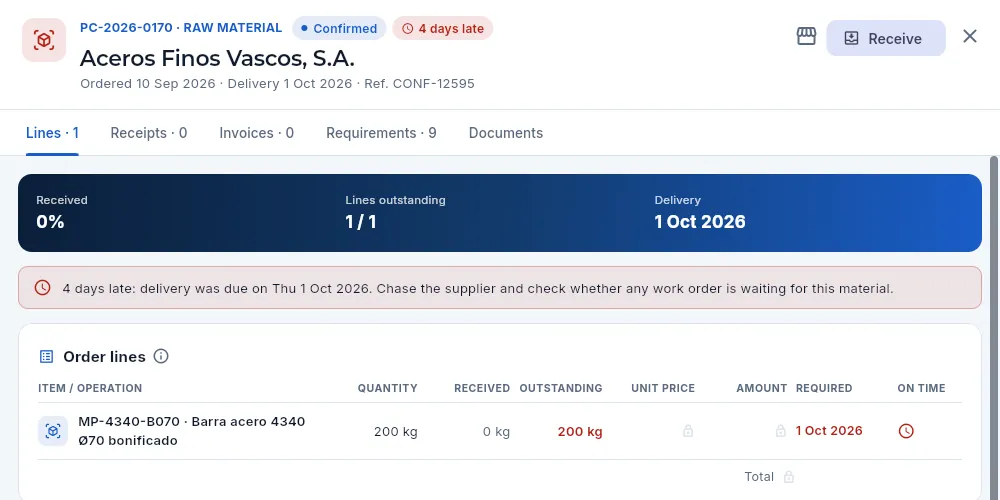 123
123
- 1He has Receive, but not Edit purchasing: no confirming or cancelling.
- 2Without See costs, the banner has no amount and no amount invoiced.
- 3Price and amount show a padlock.
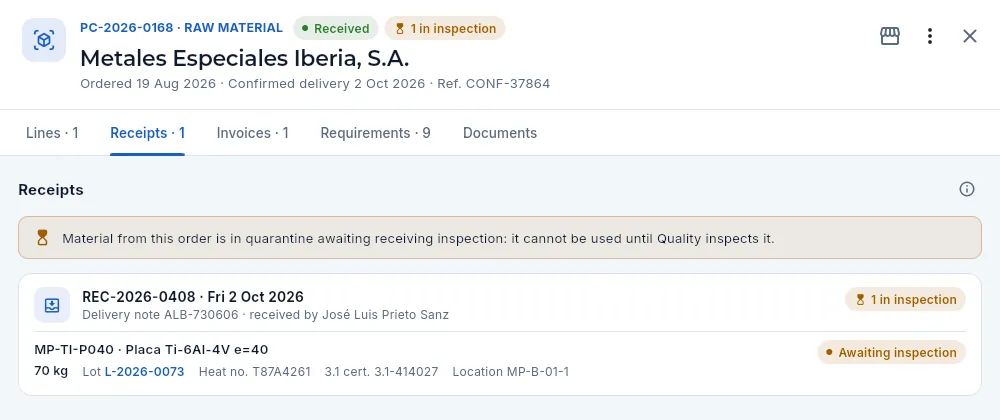 12
12
- 1Without Edit quality, the notice says the material cannot be used until Quality inspects it…
- 2…and there is no Inspect button.
#Tips
Supply
Suppliers
The approved supplier list and its control: each supplier's approval and when it expires, its approved scope (special processes with their Nadcap, materials, calibrations, services), the signed evaluation that decides the approval, the corrective actions requested (SCAR), its 12-month punctuality (OTD) and quality (PPM), its prices, its purchases and invoices and its tax details.
In aerospace you cannot buy from just anyone: EN 9100 / AS9100 (clause 8.4, control of externally provided products and services) requires an approved supplier list (ASL) with what each supplier is approved for, evaluating suppliers, monitoring how they perform and asking them for a corrective action when they fail. Suppliers is that control: each supplier with its approval (whether you may buy from it and until when), its approved scope (which processes, materials or services), its signed evaluations, its corrective actions and its terms.
The section has four views, chosen at the top: Suppliers (the supplier list), Approved list (each scope of each supplier with its expiry), Evaluations and SCAR. The one you choose is remembered for next time.
Acronyms you will see throughout the section:
- OTD (On-Time Delivery): the share of order lines that arrived complete by their date.
- PPM (parts per million): how many units were rejected per million received.
- Nadcap: the aerospace industry accreditation for special processes (heat treating, chemical processing, non-destructive testing, shot peening…), process by process and with an expiry date.
- SCAR (Supplier Corrective Action Request): the corrective action requested from a supplier for a nonconformity of theirs.
#The supplier list
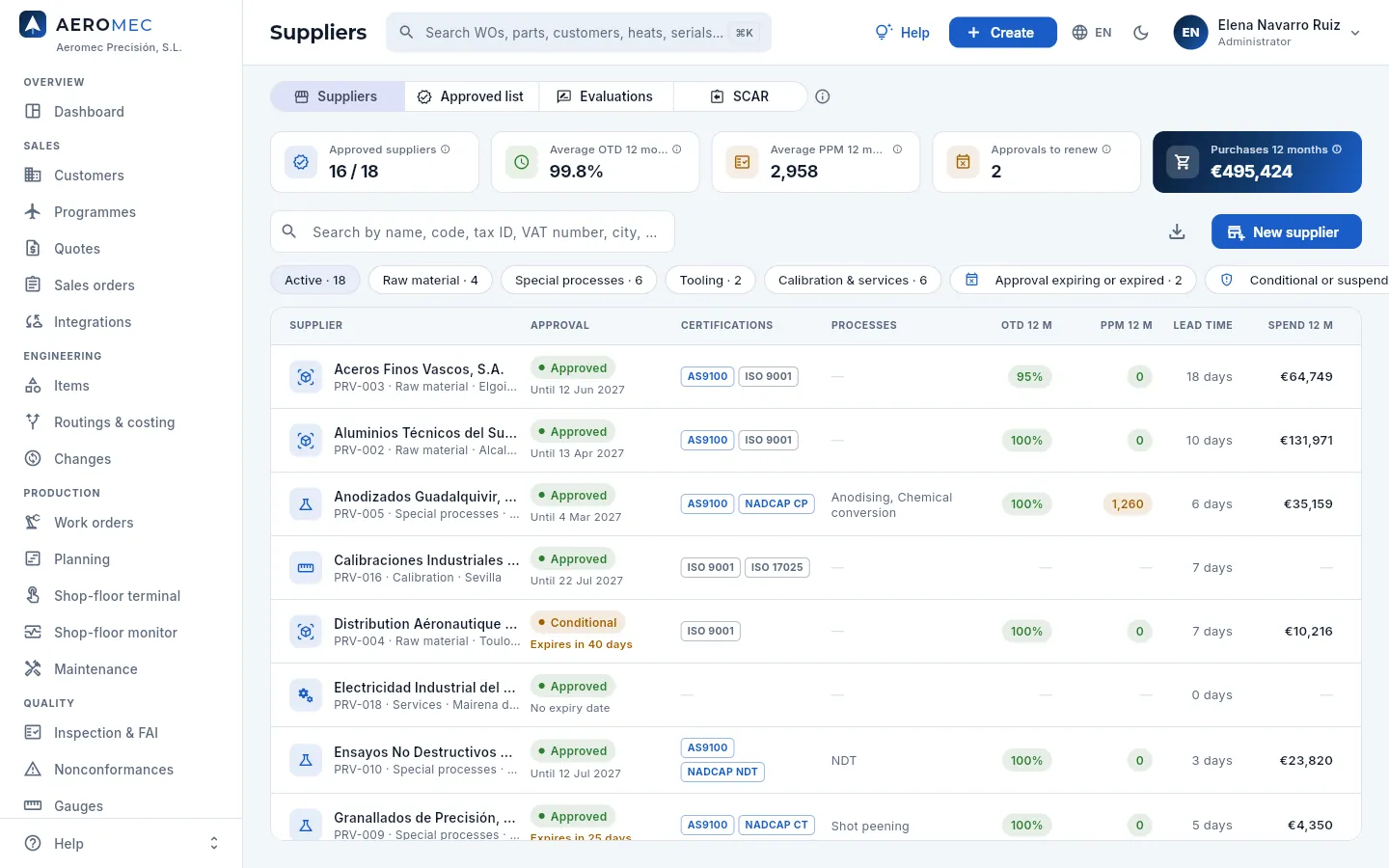 12345678
- 1The section's four views: Suppliers, Approved list, Evaluations and SCAR. Its ⓘ explains what Aeromec checks when a purchase is sent.
- 2Approved suppliers: active suppliers with a valid approval against all active suppliers. They make up the approved supplier list.
- 3Average OTD and average PPM over 12 months, weighted by each supplier's lines and units.
- 4Approvals to renew: those expiring within 60 days or already expired (red if any has expired).
- 5Purchases 12 months: what was bought, before VAT (with «See costs»).
- 6The search box: by name, code, tax ID, VAT number, city, country or process («anodising», «NDT»…).
- 7New supplier adds one. To its left, Export CSV.
- 8The filters: active, by type (raw material, special processes, tooling, calibration & services), approval expiring or expired, conditional or suspended and inactive.
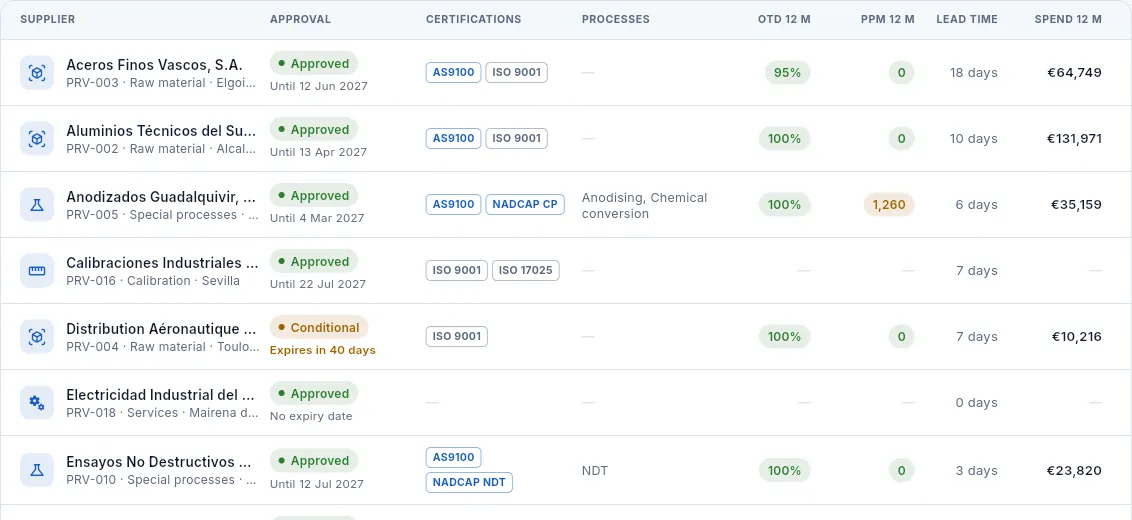 1234567
- 1The supplier: name, code, type and city.
- 2The approval (approved, conditional, pending or suspended) and its expiry: «Until…», in amber «Expires in N days» or in red «Expired N days ago».
- 3The certifications: hover over each acronym to see what it certifies.
- 4The special processes a special-process supplier can perform.
- 512-month OTD and PPM, in green, amber or red; a dash if there is no data yet.
- 6The agreed lead time.
- 7What was purchased in 12 months: sort the column to see who you depend on most.
The certifications you will see:
| Acronym | What it certifies |
|---|---|
| AS9100 (EN 9100) | Aerospace quality management system: ISO 9001 plus the industry's requirements (product safety, configuration management, counterfeit-part prevention). |
| ISO 9001 | General quality management system. |
| NADCAP | The aerospace industry accreditation for special processes, audited process by process by the PRI (Performance Review Institute): HT heat treating, CP chemical processing (anodising, passivation, conversion coating), NDT non-destructive testing, CT coatings. |
| ISO 17025 | Competence of testing and calibration laboratories, accredited in Spain by ENAC. |
The certifications on the list say what the supplier holds; what it is approved for with you, process by process and with its expiry, is its scope (see below).
#Approval: conditional and suspended suppliers
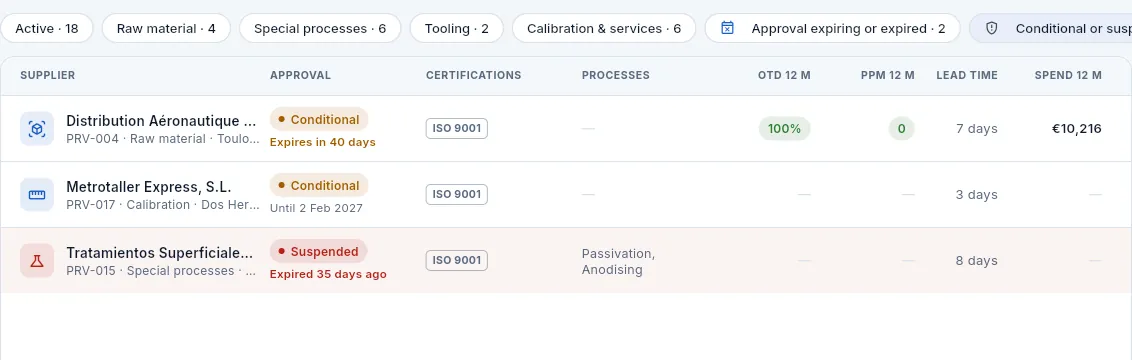 123
123
- 1The Conditional or suspended filter.
- 2A conditional supplier: you may buy from it applying the additional controls of its evaluation (tightened receiving inspection, monitoring of its deliveries); and its approval expires soon.
- 3A suspended supplier, with its approval expired (row in red): do not buy from it.
| Status | What it means |
|---|---|
| Approved (green) | Accepted after assessing its quality system (audit or certificates) and its deliveries. |
| Conditional (amber) | Accepted with restrictions: you may buy from it applying the additional controls set out in its evaluation. |
| Pending (grey) | Under assessment: a new supplier starts like this until its first signed evaluation. No purchases are sent to it. |
| Suspended (red) | You may not buy from it until a new signed evaluation approves it again. |
An approval has an expiry date: the date by which the supplier must be re-evaluated. From 60 days before, it shows in amber on the list and counts in Approvals to renew; once past, in red. Status and expiry only change with a signed evaluation (see below): nobody changes them by hand. And when a purchase is sent, Aeromec checks that the supplier is approved or conditional and not expired (see Purchasing).
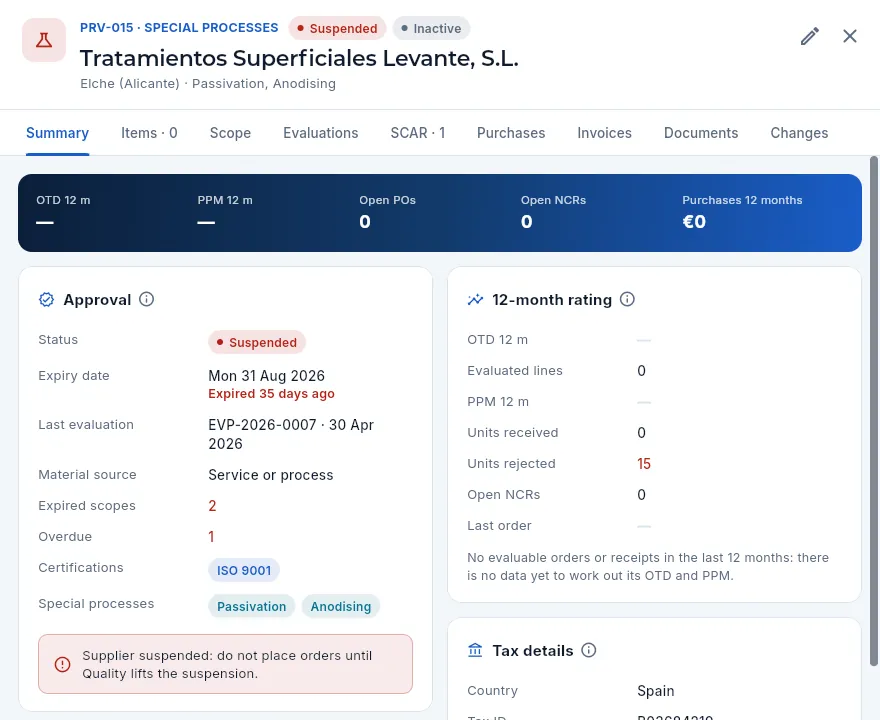 1234
1234
- 1The code, the type and the Suspended and Inactive pills (inactive suppliers do not appear in the purchasing or routing pickers).
- 2Approval: status, expiry (here, overdue), the last evaluation (the extraordinary one that suspended it), the material source, how many scopes have expired and how many SCARs are overdue, its certifications and its special processes.
- 3The warning: no orders should be placed with it. If you tried to send one, Aeromec would not allow it.
- 4With no purchases in 12 months there is no OTD or PPM to work out.
#The supplier record: 12-month rating
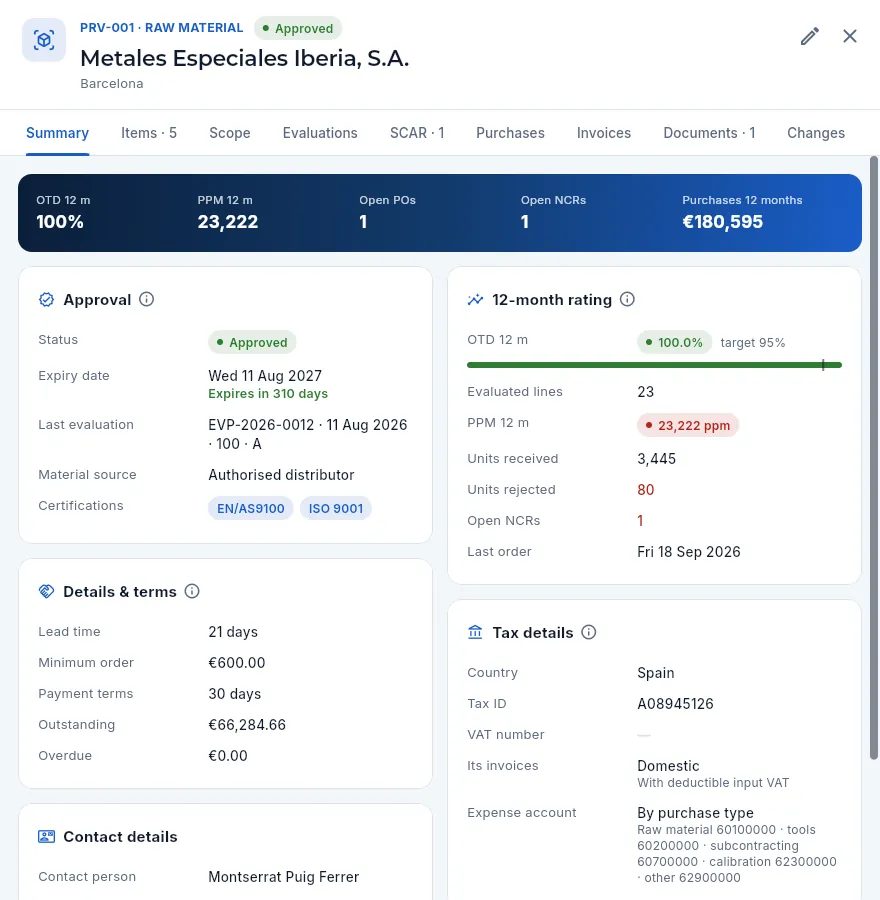 12345678
- 1The code and type, the approval, the name and the city.
- 2Edit (the pencil): type, tax details, material source, certifications, processes and terms.
- 3The tabs: Summary, Items (prices), Scope, Evaluations, SCAR, Purchases, Invoices, Documents and Changes.
- 4The banner: 12-month OTD and PPM, open POs, open NCRs and 12-month purchases.
- 5Approval: status, expiry (and how long is left), the last evaluation with its score, the material source and the certifications.
- 612-month rating: the OTD with its bar and the target mark (95%), the evaluated lines, the PPM with the units received and rejected, the open NCRs and the last order.
- 7Details & terms: lead time (the one MRP uses when the price entry has none of its own), minimum order, payment terms, and what is outstanding and overdue. Below, the contact details.
- 8Tax details: country, tax ID, VAT number, how VAT treats their invoices and which expense account they are posted to (see below).
#Material source
The material source says where what a supplier sells comes from: Manufacturer (the mill or the rolling plant), Authorised distributor of the manufacturer, Non-authorised distributor or Service or process (those who process your parts). Buying raw material from a non-authorised distributor is the first risk of counterfeit material: a copied certificate or a heat that is not what it claims. Aeromec shows it in amber on the record and warns when you buy raw material from it (see Purchasing); require traceability to the mill and, if in doubt, a check test.
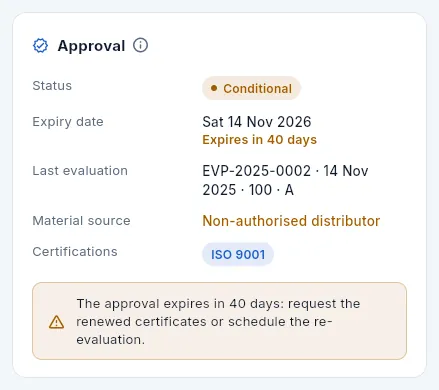 123
123
- 1Conditional, with its expiry close.
- 2The material source: a non-authorised distributor, in amber. Its raw material purchases carry the counterfeit-risk warning.
- 3The expiry warning: it is time to re-evaluate it.
#The approved scope and the customers' sources
A supplier being approved does not mean you can order anything from it: its approved scope says what it is approved for and until when. Each scope is one of these types:
| What is approved | Example | Who approves it |
|---|---|---|
| Special process | Shot peening to AMS 2430, anodising to MIL-A-8625, penetrant testing to ASTM E1417 | Nadcap for that process (or the customer itself) |
| Material | 4340 and 15-5PH steels in forged bar | Aeromec, with its audit or questionnaire |
| Calibration | Dimensional and temperature | ENAC (ISO 17025 accredited laboratory) |
| Service | Electrical maintenance of machines | Aeromec |
When a work order phase is subcontracted, Aeromec looks at that phase's special process (set on the routing phase, see Routings & costing) and only lets the purchase be sent to a supplier with that process in force in its scope. If its Nadcap expires, its purchases for that process stop until the new certificate is recorded.
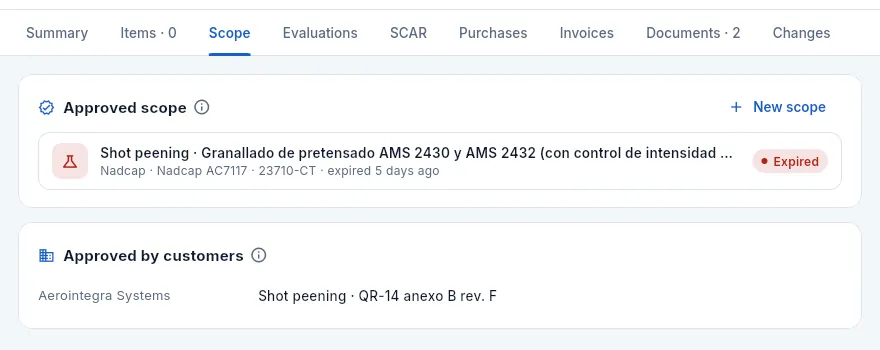 1234
1234
- 1Approved scope: what the supplier is approved for; its ⓘ explains what is checked against it.
- 2New scope adds one (with «Approve suppliers»).
- 3Each scope: the process and its specification, who approves it (Nadcap), the certificate and the expiry, with its status: in force, expiring soon or expired, as here. Shot peening purchases from this supplier stop (PC-2026-0165, in Purchasing). Click it to edit it.
- 4Approved by customers: the customers that have it on their approved sources list for a process, with their clause (here, Aerointegra, QR-14 annex B).
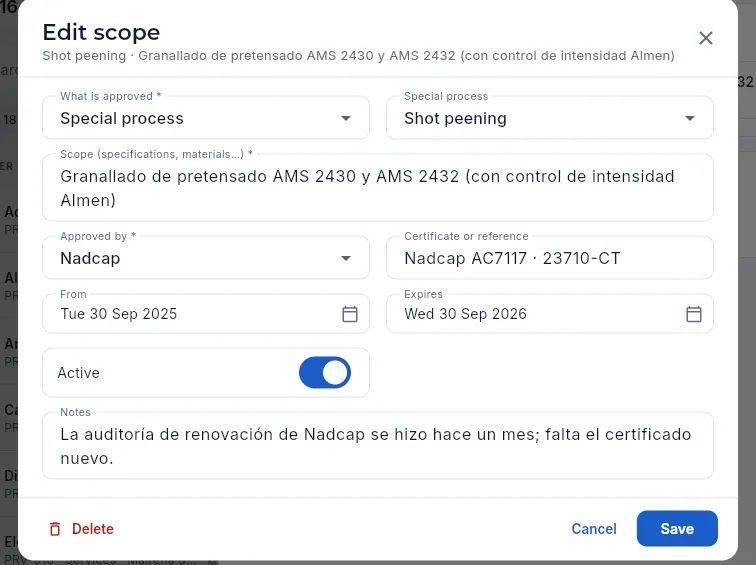 1234567
- 1What is approved: special process, material, service or calibration.
- 2The special process: the same catalogue as the routing phases, so that Aeromec can compare them.
- 3The scope: specifications, materials or classes it covers.
- 4Approved by: Nadcap, the customer, Aeromec (audit or questionnaire), ENAC or other.
- 5The certificate or approval reference: the renewed Nadcap number goes here.
- 6From and Expires: with the new expiry date, the scope is in force again.
- 7Active: untick it if the supplier stops doing that process. Delete, at the bottom, removes it.
Ask the supplier for the renewed Nadcap certificate and upload it to the Documents tab of its record.
In the Scope tab, click the expired scope.
Type the new certificate number in Certificate or reference and set its new date in Expires.
Click Save.
Some customers only accept their own subcontractors for each special process (Aerointegra in its QR-14, Halcón in its PQA-110). Those customer-approved sources are kept on the customer's record, Approved sources tab (see Customers), and shown here under Approved by customers. If the customer requires them, a purchase of a phase of its parts from a supplier that is not on its list for that process is not sent, even if the supplier is approved.
#The approved supplier list
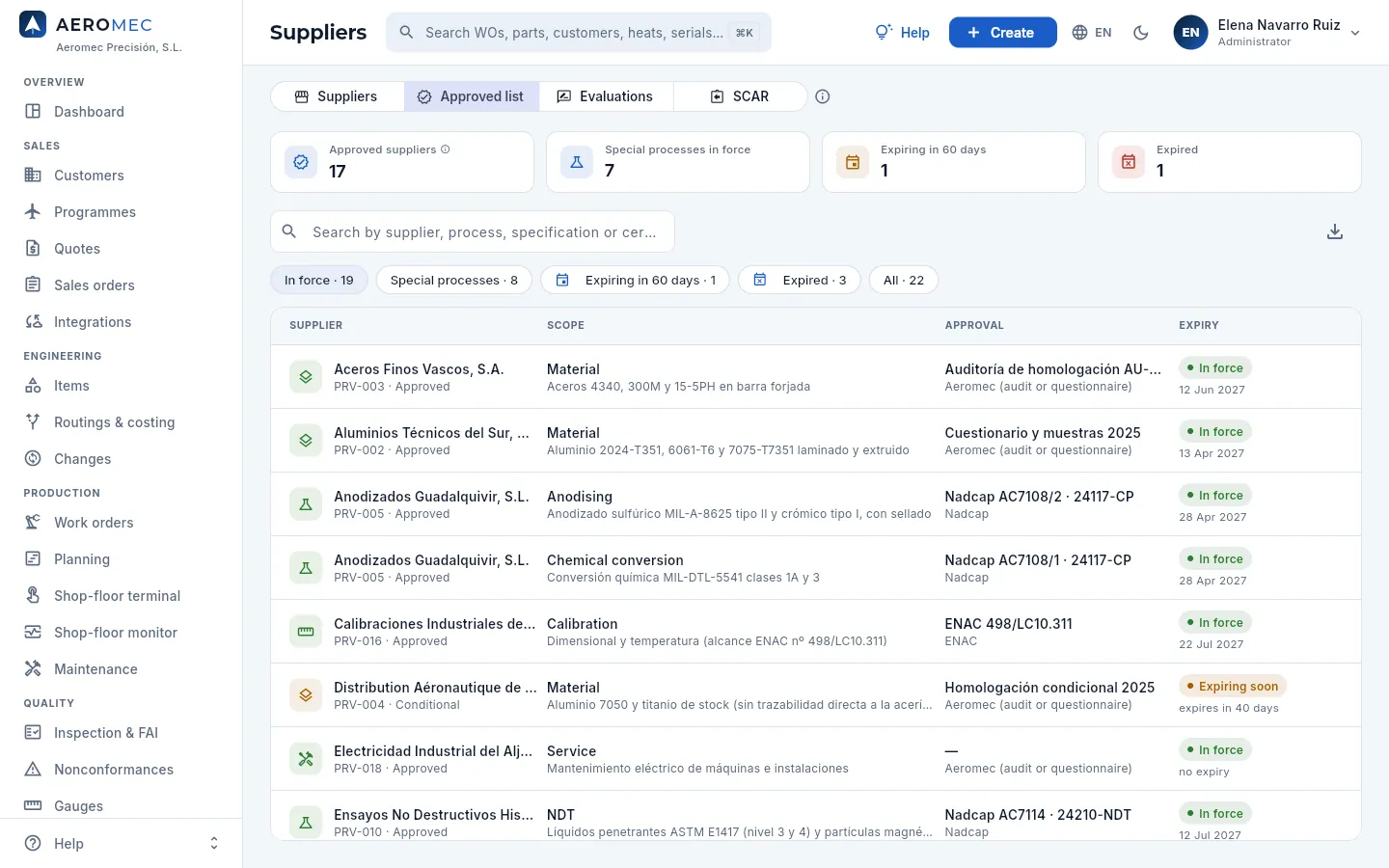 1234567
- 1Approved suppliers: those with some scope in force, not counting suspended or inactive ones.
- 2Special processes in force: how many processes you have covered with their approval in force.
- 3Expiring in 60 days and Expired: what must be renewed now.
- 4The search box: by supplier, process, specification or certificate number.
- 5The filters: in force, special processes, expiring in 60 days, expired and all.
- 6Export CSV: the list for the auditor or to send to a customer.
- 7The scope, the approval (certificate and body) and the expiry, with its status: expiring soon in amber, expired in red. Click a row to open the supplier.
#The supplier evaluation
The evaluation is the periodic review of each supplier with the period's data (the last 12 months): its OTD, its PPM, its NCRs (nonconformances), the SCARs requested and how many expired without a response, and its expired scopes. With them Aeromec works out a score and a rating (A, B or C) and proposes a decision. Quality decides and signs (see The electronic signature):
- Approve, until a date (by default, one year from now).
- Conditional, until a date and with the additional controls written in the comments.
- Suspend, with the reason.
It is the only way to change the approval and its expiry, and it stays in the supplier's signed history. There are three types: initial (a new supplier, which starts as pending), periodic (every year, before it expires) and extraordinary (after a serious problem: that is how Tratamientos Superficiales Levante was suspended).
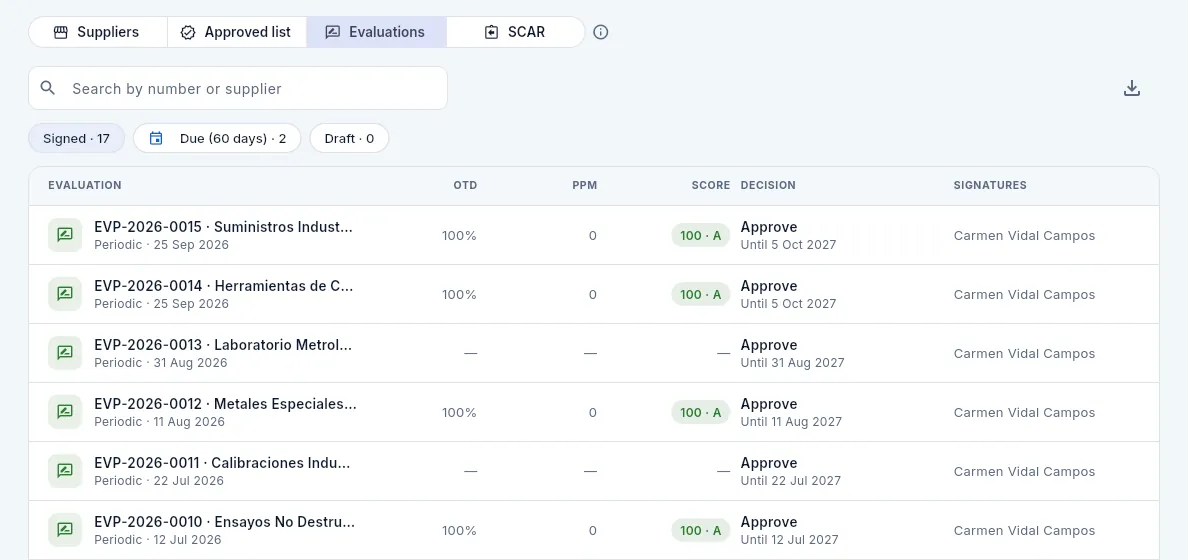 12345
12345
- 1The search box, by number (EVP-…) or supplier.
- 2The filters: signed, due (approval expiring within 60 days: the periodic evaluation is due) and draft.
- 3The evaluation: number, supplier, type and date.
- 4OTD, PPM and the score with its rating (A in green, B in amber, C in red); a dash if there were no purchases in the period.
- 5The signed decision (approve, conditional or suspend), until when, and who signed it.
 123
123
- 1Approval and its expiry are only changed by the signed evaluation.
- 2Evaluate prepares the evaluation with the last 12 months' data (with «Approve suppliers»).
- 3The history: each signed evaluation with its type, date, score, OTD, PPM, approval end date, comments, who signed it and the decision.
Clicking Evaluate opens the Evaluate the supplier dialog: at the top, the period and the type (initial, periodic or extraordinary); below, a band with the OTD, the PPM, the NCRs, the SCARs (and the overdue ones) and the score with its rating, the formula, and a warning if it has expired scopes or if there were no purchases in the period (then the decision is based on the audit or questionnaire). Then the decision with Aeromec's proposal, the Approved until date and the comments, required for conditional or suspend. Sign the evaluation asks for your password.
In the Evaluations view, filter Due (60 days) (or, in Suppliers, Approval expiring or expired) and open the supplier.
Ask for the renewed certificates (AS9100, Nadcap for its processes) or carry out the audit, and upload them to Documents. If a process certificate has changed, update it in Scope.
In the Evaluations tab, click Evaluate and review the figures, the score and the proposal.
Choose the decision and the Approved until date; if it is conditional or suspend, write why and which controls apply.
Click Sign the evaluation and sign with your password.
#SCAR: the supplier's corrective action
When a supplier delivers something nonconforming (a supplier NCR, in Nonconformances), Quality asks it for a corrective action: the SCAR. It is created from the NCR with Request corrective action (SCAR) and goes through these statuses:
| Status | What it means | What you do |
|---|---|---|
| Not sent | Created from the NCR, with its response due date (30 days by default). | Send to supplier, with the PDF for the supplier. |
| Sent | Waiting for the response; overdue if the due date passes without it. | Record the response: containment, root cause, corrective and preventive action. |
| Responded | To verify. | Close with verification (effective or not, signed) or Reject the response with the reason and a new due date: back to Sent. |
| Closed | Verified and signed. | Look it up. |
Overdue and ineffective SCARs count in the supplier's evaluation.
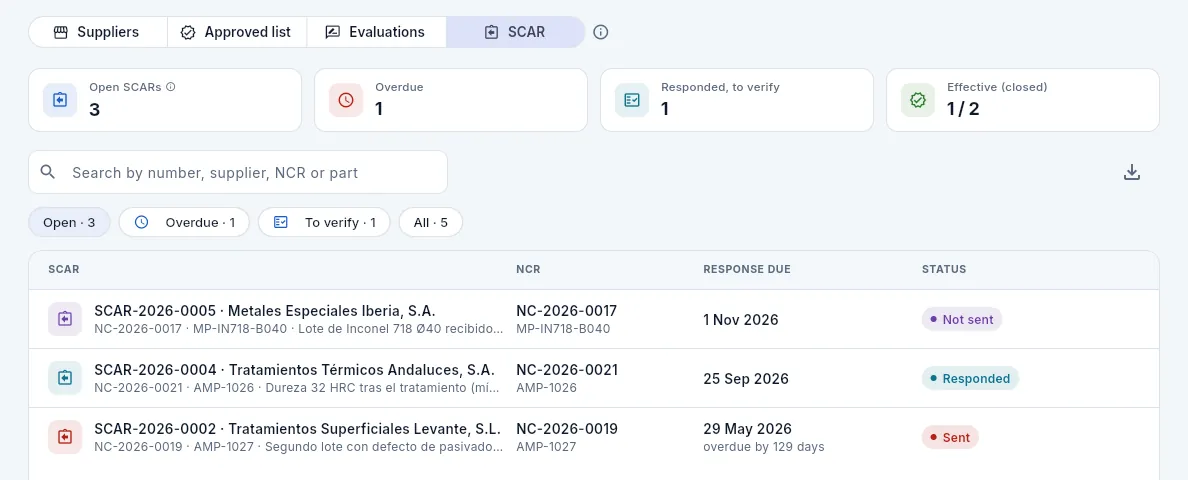 1234567
- 1Open SCARs: not sent, sent and responded.
- 2Overdue: sent, past their due date and without a response.
- 3Responded, to verify: it is up to Quality to close or reject them.
- 4Effective (closed): how many of the closed ones were effective.
- 5The filters: open, overdue, to verify and all. The search box finds by number, supplier, NCR or part.
- 6Each SCAR: number, supplier, its NCR with the part, the response due date and the status. The one for Tratamientos Térmicos Andaluces is responded…
- 7…and the one for Tratamientos Superficiales Levante is overdue: the due date says how many days ago.
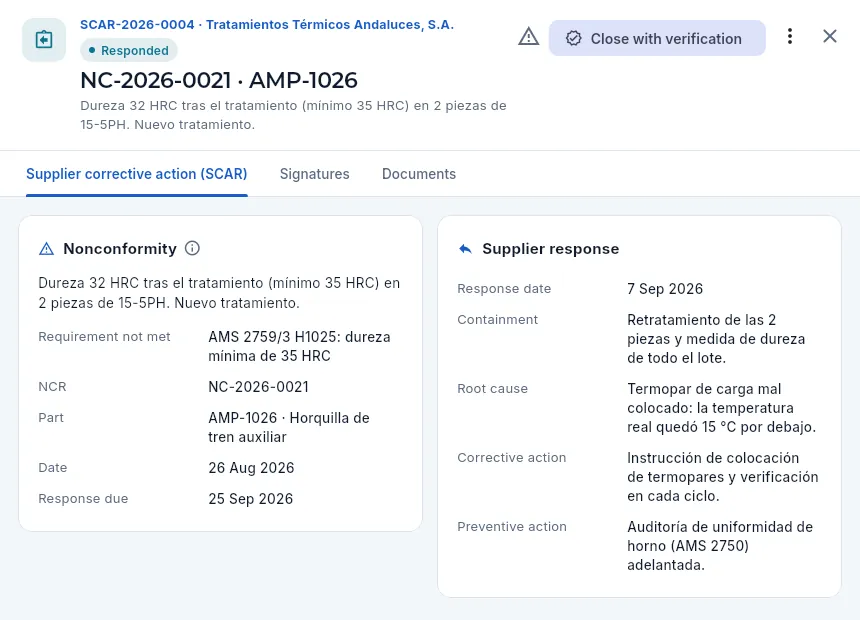 123456
- 1The number, the supplier and the status; below, the NCR, the part and the nonconformity.
- 2Opens the NCR it comes from.
- 3Close with verification, the next action; in the ⋮ menu, Reject the response and PDF for the supplier.
- 4The tabs: the SCAR, its Signatures (the closure is signed) and its Documents (the supplier's response, its evidence).
- 5Nonconformity: what happened, the requirement not met, the NCR, the part, the date and the response due date.
- 6Supplier response: the containment, the root cause, the corrective action and the preventive one, and when it responded.
 123
123
- 1Effectiveness check (required): how you have confirmed that the action works; for example, the hardness of the following lots.
- 2Effective: untick it if it was not; an ineffective SCAR counts in its evaluation.
- 3Save asks for your signature and closes the SCAR: it no longer changes.
In the supplier's NCR (in Nonconformances), click Request corrective action (SCAR): it is created with its due date and opened.
Click Send to supplier and send it the PDF for the supplier (⋮ menu).
When it responds, Record the response: containment, root cause, corrective and preventive action. Attach its report in Documents.
If the response is not enough, Reject the response with the reason and a new due date.
When you can check it (the following lots, an audit), Close with verification: write how you verified it, tick whether it was effective and sign.
#Prices, purchases and invoices
 123
123
- 1Prices are added and changed from the item record, Suppliers tab (Items).
- 2Each item: the supplier reference, its lead time, the minimum lot and the price.
- 3Preferred: the supplier MRP proposes by default for that item.
 12
12
- 1Each purchase order: number, type and date. Click it to open it in Purchasing.
- 2Its status and amount.
 12
12
- 1Each invoice: the supplier's number, the date and the order it relates to. Click it to open it in Payables.
- 2Its payment status (unpaid, paid, overdue) and its total.
#Tax details and expense account
The Tax details card says how the Tax Agency treats the supplier's invoices, and their country decides it:
- Spain: a domestic purchase, with input VAT that is deducted.
- Another EU country: an intra-Community acquisition. The invoice arrives without VAT and the company self-assesses it: it declares it both as output VAT and as deductible VAT (it costs nothing, but it is declared on form 303). It also goes to the SII, form 349 and, for goods, Intrastat. Their VAT number is needed (the intra-EU VAT number, with their country prefix: FR, DE, IT…).
- Outside the EU: an import. VAT is paid at customs with the import declaration (SAD), not on the supplier's invoice.
The expense account is the sub-account of the Spanish chart of accounts in which Accounting posts their invoices. Blank, it is chosen by the purchase order type (raw material, tools, subcontracting, calibration); for overhead suppliers (power, maintenance, rent, insurance) it is worth setting it so their invoices do not end up in «Other services».
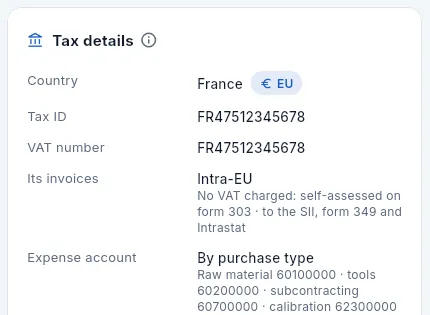 1234
1234
- 1The country, with the EU badge.
- 2Their VAT number, with the FR prefix.
- 3Its invoices: without VAT, which is self-assessed on form 303; they go to the SII, form 349 and Intrastat.
- 4Expense account: no account of its own, so the one for each purchase type.
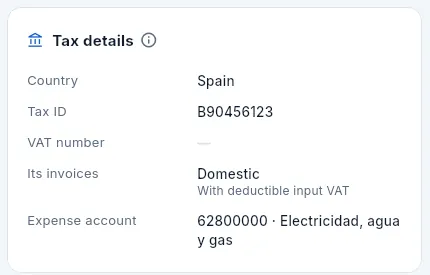 12
12
- 1A domestic supplier: its VAT is deducted.
- 2Its expense account: 62800000 «Electricity, water and gas», where Accounting posts its invoices.
#Editing a supplier
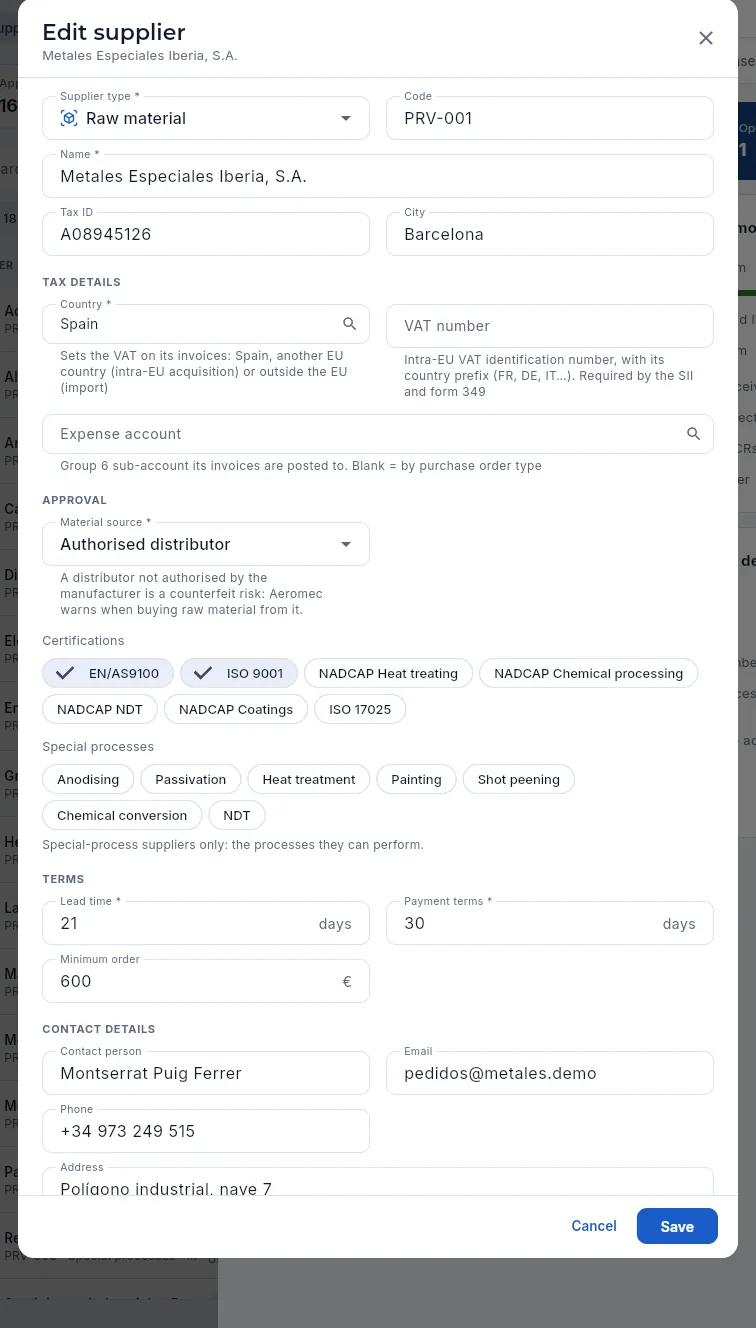 1234567
- 1The type: raw material, special processes, tooling, calibration or services. Next to it, the code; below, name, tax ID and city.
- 2Tax details: the country (from a list: it decides the VAT on their invoices) and the VAT number, with their country prefix, required by the SII and form 349.
- 3Expense account: the group 6 sub-account their invoices go to; blank, by the type of each purchase.
- 4The material source: manufacturer, authorised or non-authorised distributor, or service. With a non-authorised distributor, Aeromec warns when you buy raw material from it.
- 5The certifications it holds: click them to tick or untick.
- 6The special processes it can perform (only for processing suppliers). What it is approved for in each one goes in its scope.
- 7The terms (lead time, payment, minimum order) and, further down, the contact, the active status and the notes.
Approval and its expiry are no longer on this form: at the bottom, a notice reminds you that the signed evaluation changes them (see above). A new supplier starts as pending until its initial evaluation.
#What each profile sees
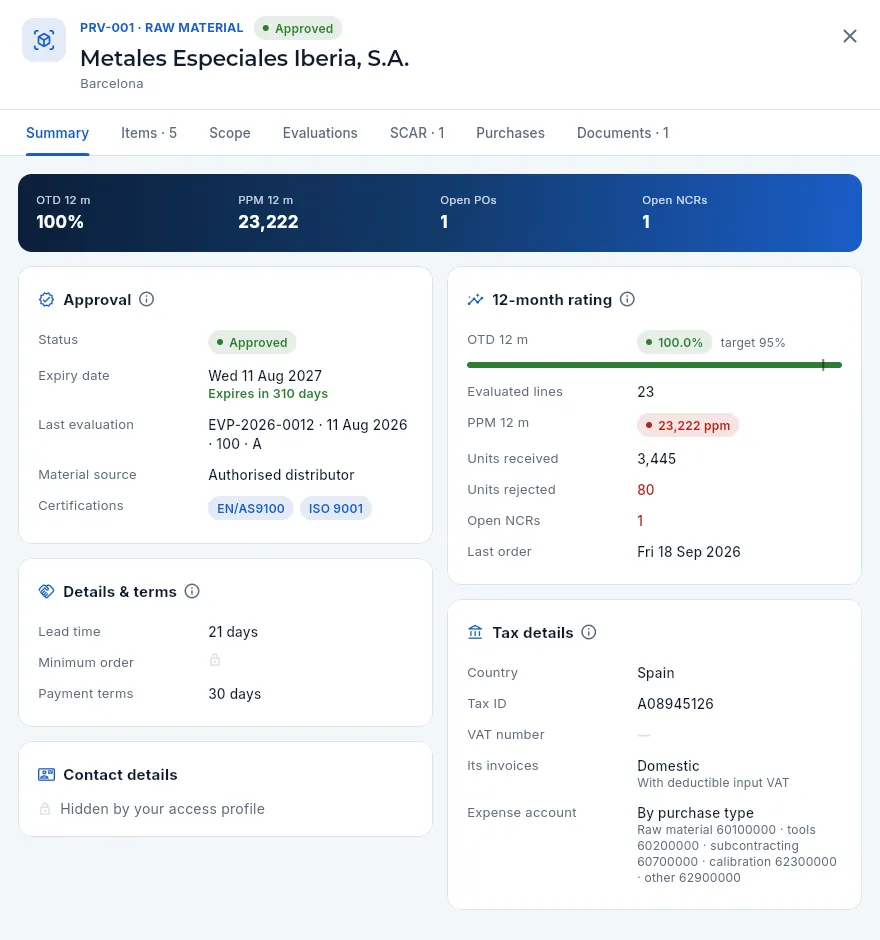 1234
1234
- 1Without the Payables section there is no Invoices tab; without the audit log, no Changes either. And without Edit suppliers, no pencil.
- 2The banner without Purchases 12 months.
- 3Without See costs: the minimum order shows a padlock, and there is no outstanding or overdue amount.
- 4Without Contact data: «Hidden by your access profile».
#Tips
Resources
Work centres
The shop's machines and workstations: their capacity, working days and hours, status (operational, under maintenance or down), hourly rate, who is qualified to work on each one and the qualification it requires.
A work centre is every place where a routing operation is done: a machine (the saw, the 3- and 5-axis mills, the CNC lathe, the mill-turn, the wire EDM, the grinder, the drill), a manual station (the fitting and marking bench) or a measuring station (the CMM, coordinate measuring machine, and the final inspection area).
For each centre Aeromec keeps what the other sections need:
- Capacity and calendar: how many shifts it works, which days, when its working day starts and its exceptions (a Saturday, a maintenance stop). With that, Planning works out the hour-by-hour forecast of each queue and the load map.
- Status: operational, under maintenance or down. A centre that is not operational adds no capacity.
- Hourly rate: what an hour of machine time costs (without the operator). The routing cost breakdown and the actual cost of the work orders (WOs) use it.
- Qualified people: who can work on it and at what level. The shop-floor terminal does not let anyone start an operation if they are not qualified.
- Required qualification: the one anyone working on it must hold in force (in the demo, the 5-axis one on F5-01 and F5-02). Without it, the terminal does not let them start either.
- 1CentreShifts, working days, shift start, rate and status.
- 2CalendarHolidays, stoppages, maintenance and special shifts for the plant or the machine.
- 3PlanningThe machine queue with its hour-by-hour forecast and the load against capacity.
- 4QualificationsWho can work on the machine, at what level and with which qualification in force.
- 5Shop-floor terminalThe qualified machinist books the operation; the machine counts its time.
- 6Actual costMachine hours × rate, plus each person's labour.
#The list of centres
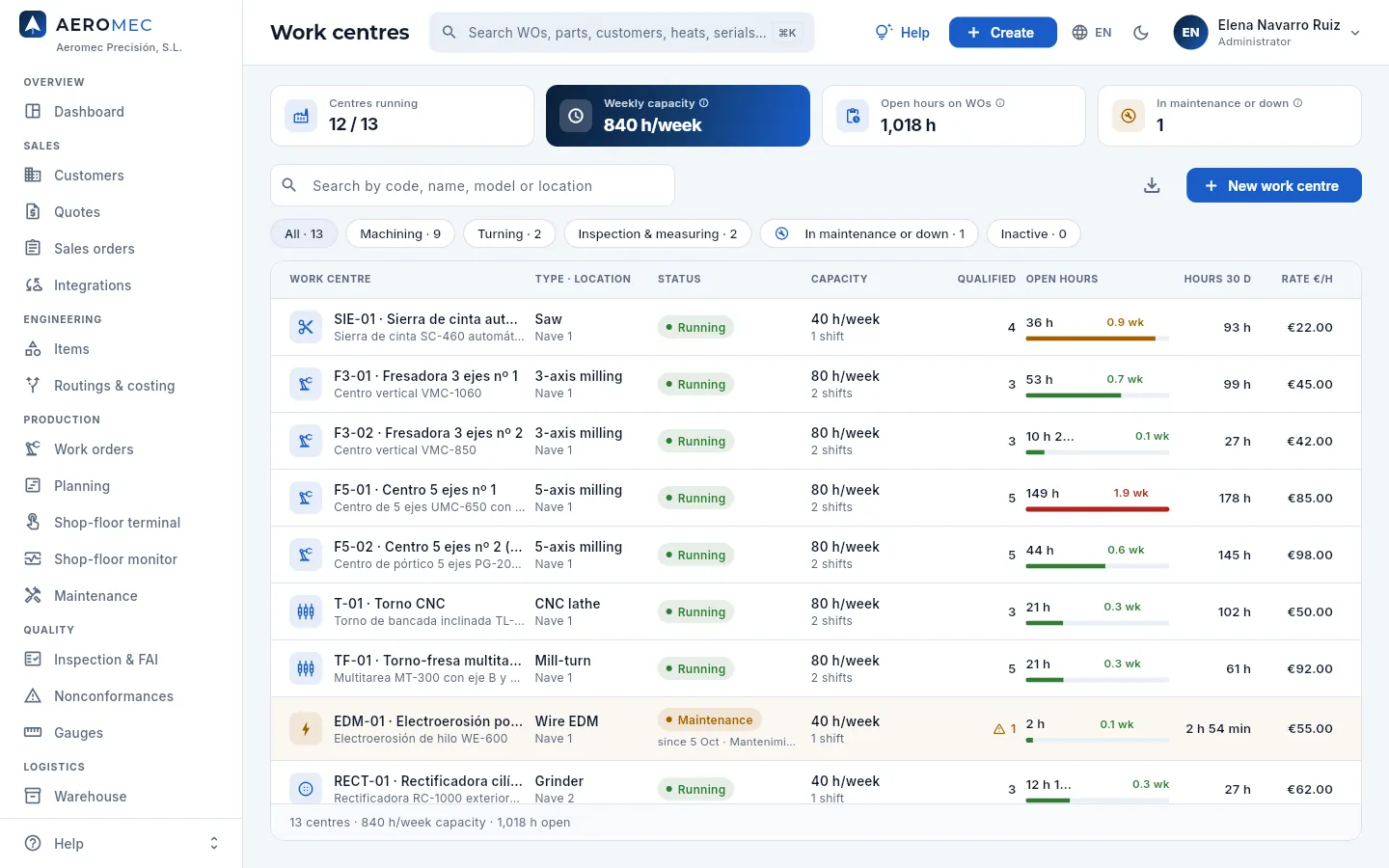 12345678
- 1Centres running: the active centres working normally, out of all active centres.
- 2Weekly capacity: the hours the running centres can deliver in a normal week (those in maintenance or down do not add up).
- 3Open hours on WOs: the work still to do on the operations assigned to the centres, in planned, released or in-progress WOs.
- 4In maintenance or down: how many centres are not running right now; amber if there is any.
- 5The search box finds a centre by its code, name, machine model, building or type.
- 6The filters group by type (Machining, Turning, Inspection & measuring) and isolate those In maintenance or down and the Inactive ones. Each one shows its count.
- 7Export CSV downloads the centres you are looking at, to open them in a spreadsheet.
- 8New work centre adds a machine or a station (with the «Edit centres & people» permission).
Centres are listed in the order of the part flow (the saw first, inspection last), set with the Sort order field of each centre. Click a row to open its record on the right.
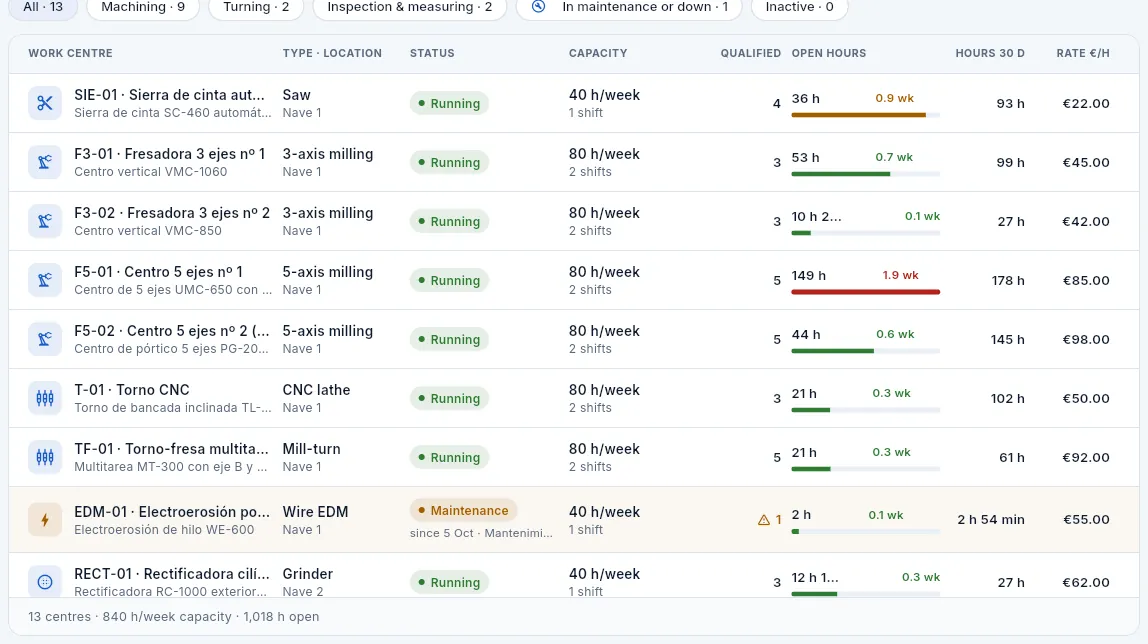 1234567
- 1A centre in maintenance is highlighted and its Status says since when and why (the full reason when you hover over it).
- 2Capacity: hours per week and number of shifts.
- 3Qualified: how many people may work on the centre. With only one (or none) the ⚠ warning shows: if that person is absent, the machine stops.
- 4Open hours and weeks of load: the bar fills up with one week of work and turns green, amber or red (bottleneck).
- 5Hours 30 d: what the machine has worked (booked hours) in the last 30 days.
- 6Rate €/h: the cost of one machine hour. Only shown with the «See costs» permission.
- 7The footer counts the centres you see and adds up their capacity and open hours.
#A centre's record
The record has the Summary, Qualified people, Gauges, Calendar, Documents (manuals, maintenance plans, photos…) tabs and, with the audit permission, Changes (who changed what and when). The Summary brings together the essentials of the machine in cards (in Identification, the required qualification, if any). With the Maintenance section, the Maintenance button in the header opens its equipment (its plans, its work orders and its history; see Maintenance) and a line warns of its open work order and its next maintenance.
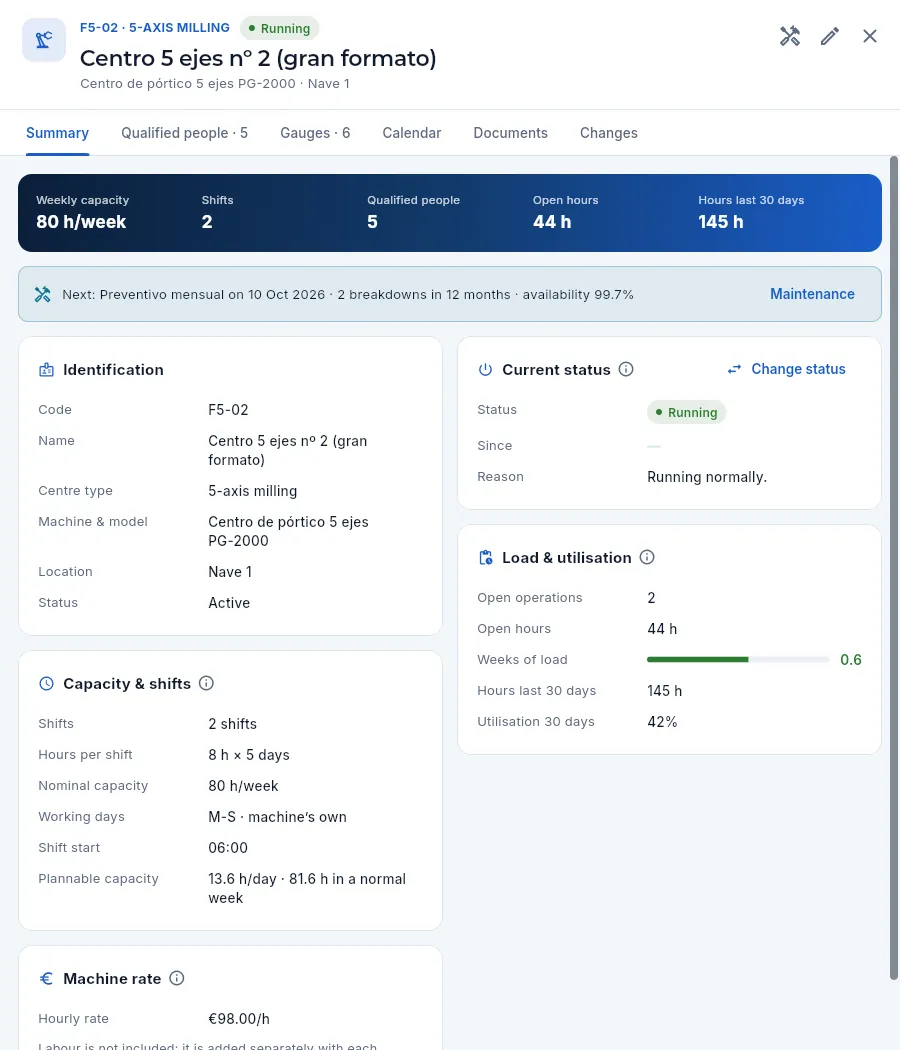 123456789
- 1Code and type, status (running, maintenance or down), name, machine model and building.
- 2The Edit pencil opens the centre form: shifts, working days, shift start, rate…
- 3Maintenance: its equipment record, with its plans and its history.
- 4The tabs: qualified people, gauges at the station, calendar, documents and changes.
- 5The key figures: weekly capacity, shifts, qualified people, open hours and hours in the last 30 days.
- 6Current status with its date and reason; Change status switches it to maintenance, down or running.
- 7Working days (the company's or the machine's own, as here, Monday to Saturday), shift start and plannable capacity per day and per week.
- 8Load & utilisation: open operations and hours, weeks of load, hours worked in 30 days and utilisation.
- 9Machine rate: the hourly cost without labour (which is added separately with each person's cost).
| Capacity & shifts field | What it is |
|---|---|
| Shifts and Hours per shift | How many shifts the machine works and the productive hours of each one (the company's, in Settings). |
| Nominal capacity | Shifts × hours per shift × 5 days: the yardstick the load is compared with. |
| Working days | The company's or the machine's own (for example, Monday to Saturday). |
| Shift start | The time from which each day's capacity is counted; empty, the company's first shift. |
| Plannable capacity | The one planning really uses: shift length × planning efficiency on each of the machine's working days. |
Open the centre and, on the Current status card, click Change status.
Choose the Status: Running, Maintenance (planned stop: preventive, spindle replacement…) or Down (breakdown or unplanned stop).
Type the Reason: what is happening and until when («spindle replacement, back on Thursday»). It is shown in the list of centres.
Click Save. The current date and time become the start of the new status.
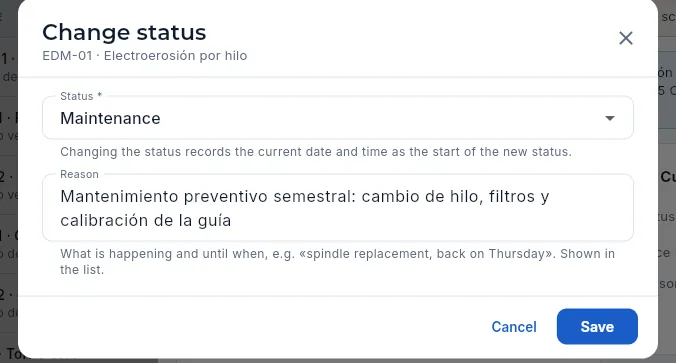 123
123
- 1Status: running, maintenance or down. Changing it records the current date and time.
- 2Reason: what is happening and until when.
- 3Save applies the change; Cancel closes without touching anything.
#Adding or editing a centre
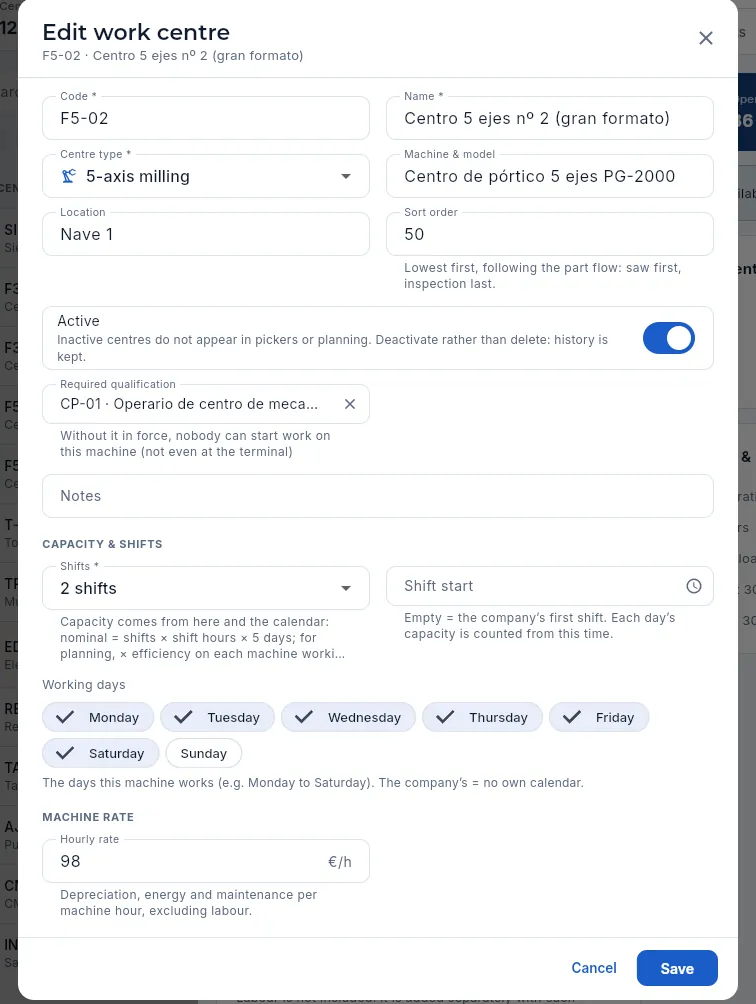 123456789
- 1Centre Code and Name (required). The code is the one shown in routings, queues and the terminal.
- 2Centre type: saw, 3- or 5-axis milling, lathe, mill-turn, EDM, grinder, drill, bench work, CMM or inspection. It decides to which machines an operation can be moved in the queues.
- 3Sort order: lowest first, following the part flow.
- 4Active: inactive centres do not appear in pickers or planning. Deactivate rather than delete: history is kept.
- 5Shifts: 1, 2 or 3. Nominal capacity comes from here: shifts × shift hours × 5 days.
- 6Shift start: from what time each day's capacity counts. Empty, the company's first shift.
- 7Required qualification: the one anyone working on the machine must hold in force (see below). Left empty, being qualified on the machine is enough.
- 8The machine's own working days (here, Monday to Saturday). If you tick the same ones as the company, it has no calendar of its own.
- 9Hourly rate: depreciation, energy and maintenance per machine hour, excluding labour. Only with «See costs».
Adding a centre works the same from New work centre: fill in at least the code, name, type and shifts. Capacity is no longer typed in: Aeromec works it out from the shifts, the company's hours per shift and the calendar. A centre can only be deleted while it has no open operations, no booked hours and no qualified people; otherwise, deactivate it.
#Qualified people
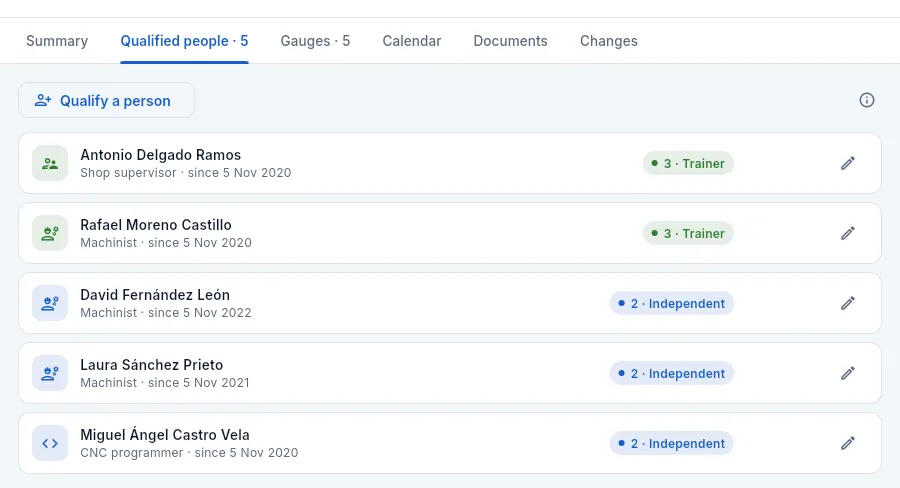 12345
12345
- 1The tab shows the number of people qualified on the machine.
- 2Qualify a person adds someone with their level.
- 3The ⓘ explains the qualification levels.
- 4Each person with their role, since when they have been qualified and their level: 1 · supervised, 2 · independent or 3 · trainer. Click the row to open their record.
- 5The pencil changes the level or removes the qualification.
A qualification is the same thing seen from both sides: what you add here appears in the person's Machine qualifications tab (People), and vice versa.
 1234
1234
- 1Person: only those not yet qualified on this centre are listed.
- 2Level: 1 supervised, 2 independent (the one suggested) or 3 trainer.
- 3Qualified since: the date of the training or assessment (today by default).
- 4Save creates the qualification.
#The qualification the machine requires
Some machines, besides being qualified on them, require a qualification in force: a 5-axis centre, for example, may only be run by someone who has passed the 5-axis training and assessment and renews it every two years. It is chosen in the Required qualification field of the centre form and shows in the Identification card of its record.
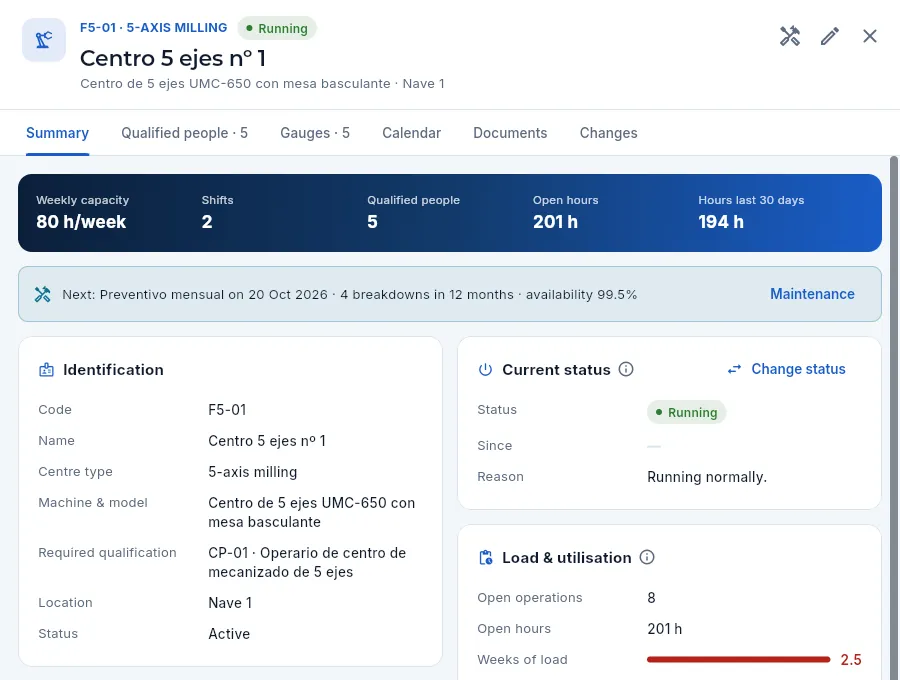 12
12
- 1Required qualification: the code and name of the qualification anyone working here must hold in force.
- 2Who is qualified: on top of that, each of them needs the qualification in force to start.
With a required qualification, when an operation is started or resumed on the machine Aeromec checks that whoever is doing it holds it in force that day: if it has expired or been revoked, the terminal does not let them («Your qualification for this has expired») and, when they identify themselves, it warns them which machines they cannot work on (Shop-floor terminal). In the demo, David Fernández has an expired 5-axis qualification and cannot start on F5-01 or F5-02 until his requalification. Each person's qualifications, their expiry dates and the training that renews them are kept in Competence & training and shown in the Competences tab of People.
#Gauges at the station
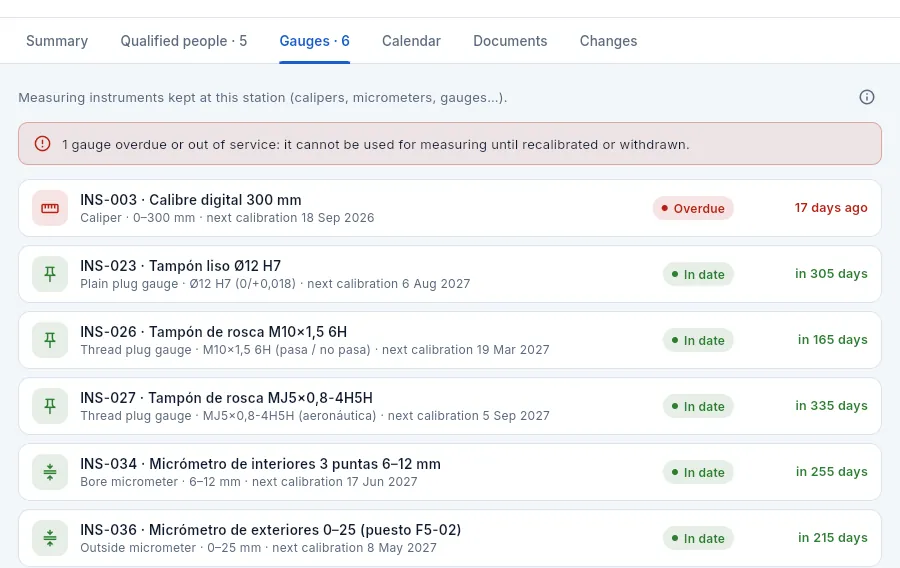 123
123
- 1The measuring instruments kept at the station (calipers, micrometers, gauges…).
- 2A warning if any is overdue or out of service: it cannot be used for measuring until it is recalibrated or withdrawn.
- 3Each gauge with its type, its range, the next calibration and its status: in date, due soon, overdue or out of service. Click to open its record in Gauges.
#The machine calendar
The Calendar tab shows the load for the next 14 days and everything that changes the machine's working day: its own exceptions (a stoppage, maintenance, a Saturday), those for the whole plant (a closure for a stock count) and the holidays. It is the same work calendar as in Planning, filtered for this machine.
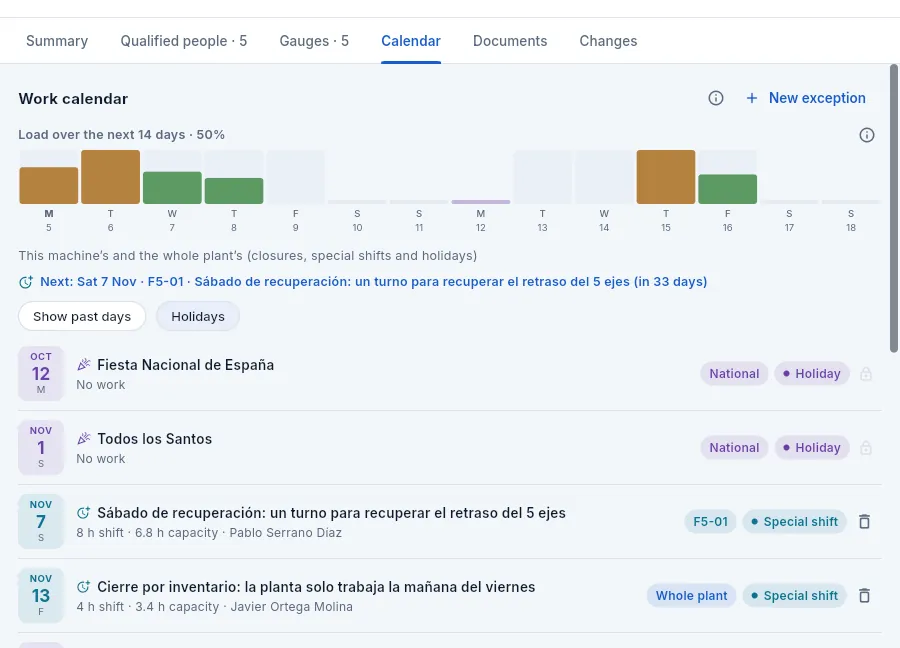 123456
- 1Load over the next 14 days: one bar per day, with the queue's occupation against that day's capacity (days without a shift are left empty).
- 2The next exception affecting the machine and how far off it is.
- 3Show past days and Holidays show or hide those rows.
- 4A holiday, with its scope. Holidays are changed in Settings; here they carry a padlock.
- 5A machine exception: here, a special 8 h shift on a Saturday (6.8 h of capacity with the efficiency), with who created it.
- 6New exception adds a stoppage, maintenance or a special shift (with the «Edit calendar» permission).
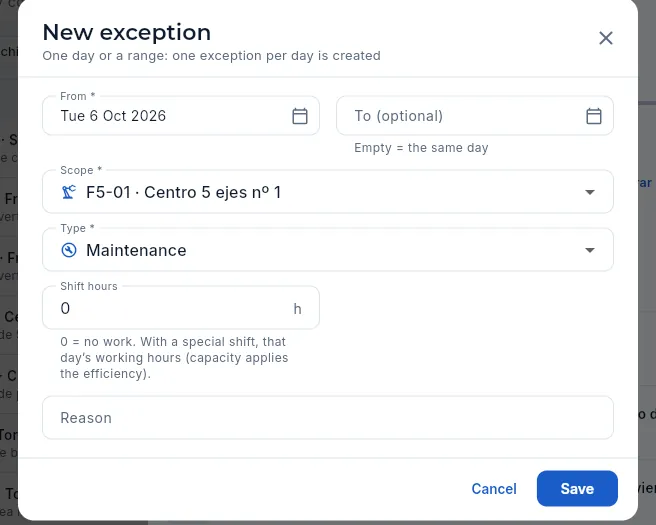 123456
- 1From and To (optional): one day or a range (one exception is created per day; one year at most).
- 2Scope: this machine, another one or the whole plant.
- 3Type: closure (whole plant only), stoppage, maintenance or special shift.
- 4Shift hours: 0 = no work; with a special shift, that day's working hours (capacity applies the efficiency).
- 5Reason: preventive maintenance, catch-up Saturday, stock-count closure…
- 6Save: the queue forecast and the load map take it into account at once.
#What changes with your profile
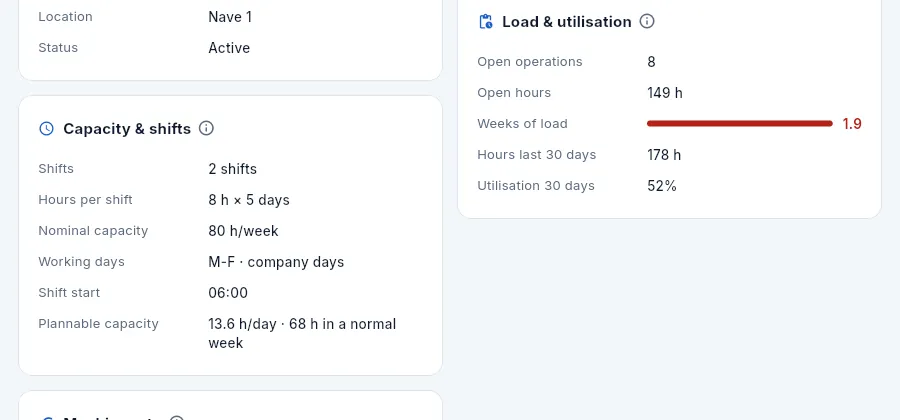 12
12
- 1Capacity, calendar and load look the same.
- 2Without See costs the rate is not read: the database returns it empty and a padlock is shown instead.
Resources
People
The people in the shop: which machines they can work on and at what level, which processes they can sign off, their qualifications and training with their validity, how they identify themselves at the shop-floor terminal (badge and PIN), what they are doing right now and how many hours they have worked.
People is the shop's workforce: operators, CNC programmers, inspectors and every other role. For each person Aeromec keeps:
- Their machine qualifications, with a level (1 · supervised, 2 · autonomous, 3 · trainer). The shop-floor terminal does not let anyone start an operation on a machine they are not qualified on.
- Their process qualifications: what they can do or sign off besides running machines, such as releasing an FAI (first article inspection per EN 9102 / AS9102), signing the CoC (certificate of conformity that goes with each shipment), programming the CMM or doing dye penetrant non-destructive testing (NDT).
- Their competences: the qualifications, training and awareness they hold, with when they expire. An expired qualification prevents what it enables (working on a machine that requires it, signing with a stamp…).
- How they identify themselves at the shop-floor terminal: a badge with their barcode and a 4-digit PIN.
- Their cost per hour (company cost), used to work out the labour in the actual cost of each work order.
- What they are clocked on to right now and their hours over the last 30 days.
#The list of people
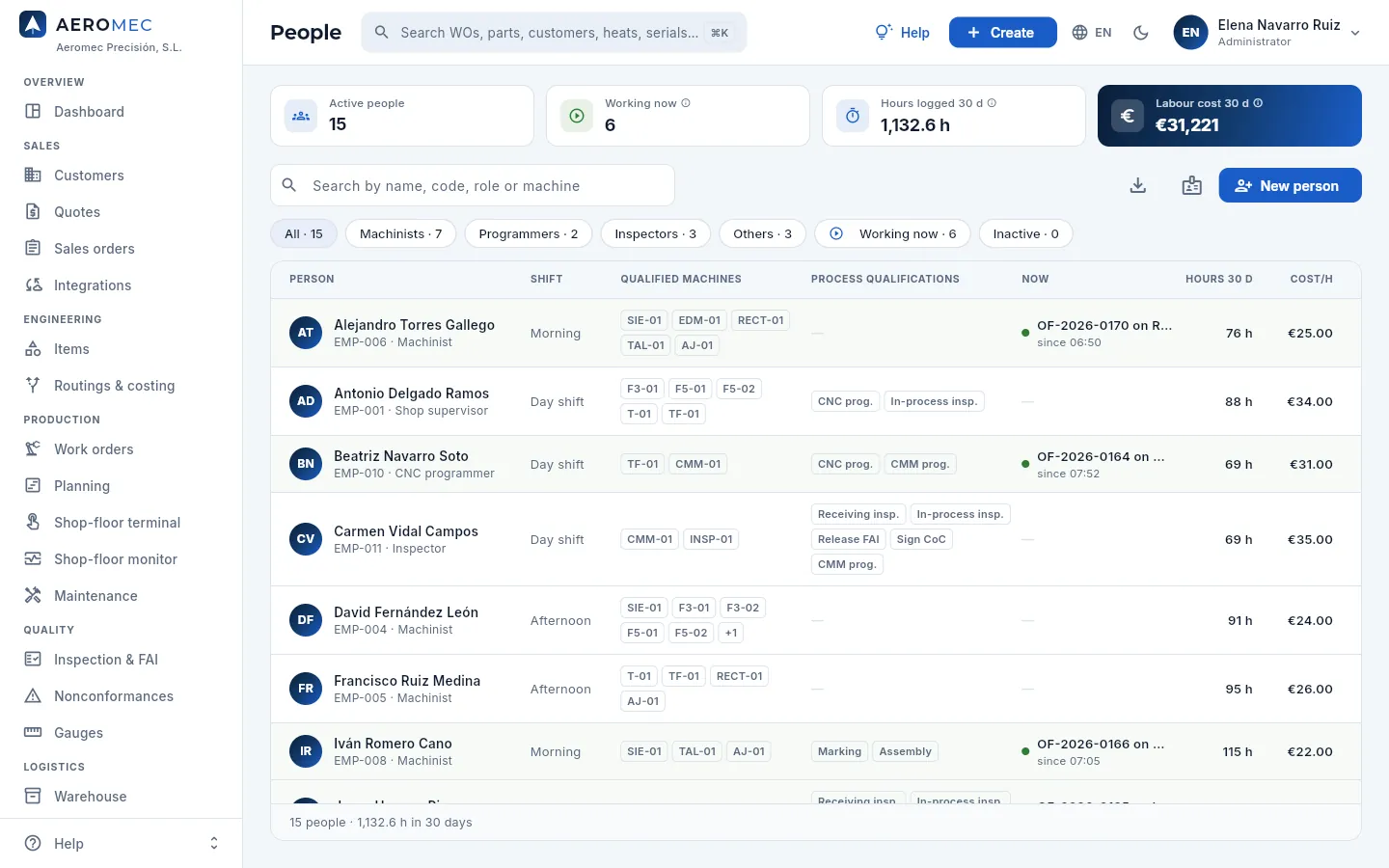 12345678
- 1Active people: the current workforce (leavers are deactivated and appear under the Inactive filter).
- 2Working now: how many people have an open time record at the shop-floor terminal right now.
- 3Hours logged 30 d: the hours booked to people on the time records of the last 30 days.
- 4Labour cost 30 d: those hours times each person's hourly cost (only with «See staff rates»).
- 5The search box finds a person by name, employee code, role, a machine they are qualified on or the WO they are booking.
- 6The filters by role (Machinists, Programmers, Inspectors, Others), Working now and Inactive, with their counts.
- 7Badges for the terminal: prints the barcode badges of the people you choose.
- 8New person adds someone to the workforce.
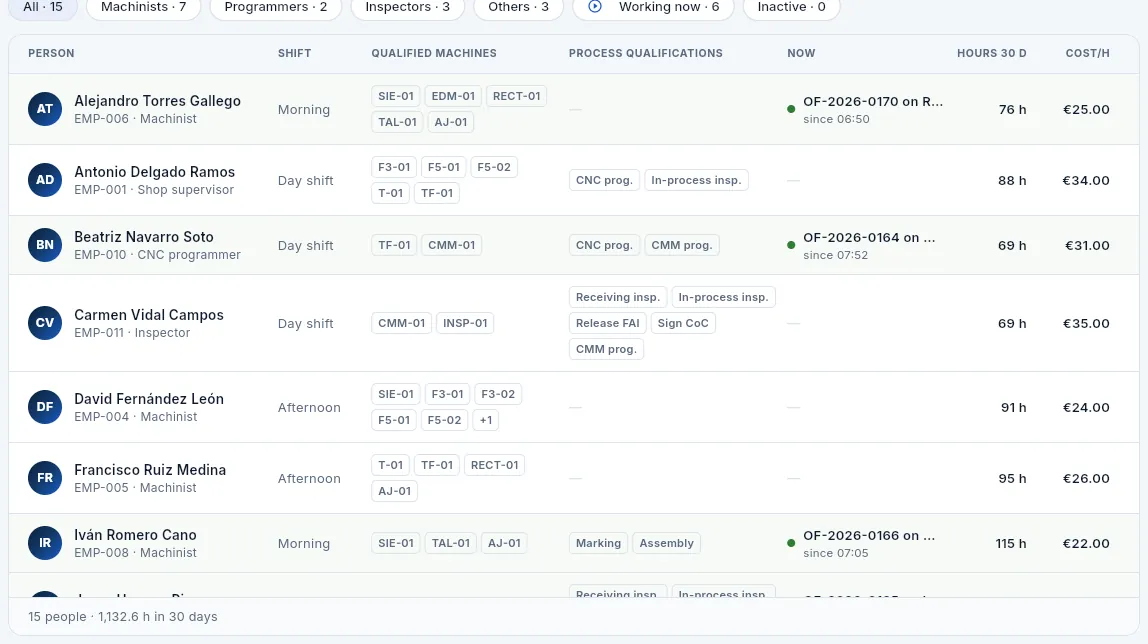 1234567
- 1Person: name, employee code and role. Click the row to open their record.
- 2Shift: morning, afternoon, night or day shift.
- 3Qualified machines: the codes of the machines they may work on (from the fifth on, «+n»).
- 4Process qualifications in short (Release FAI, Sign CoC, CNC prog.…); the full name when you hover over it.
- 5Now: the WO and machine of the latest time record they have open and since when (with several tasks at once, «(+1 task)»). The row is highlighted in green.
- 6Hours 30 d: the hours booked to the person in the last 30 days.
- 7Cost/h: their hourly cost, only with «See staff rates».
#A person's record
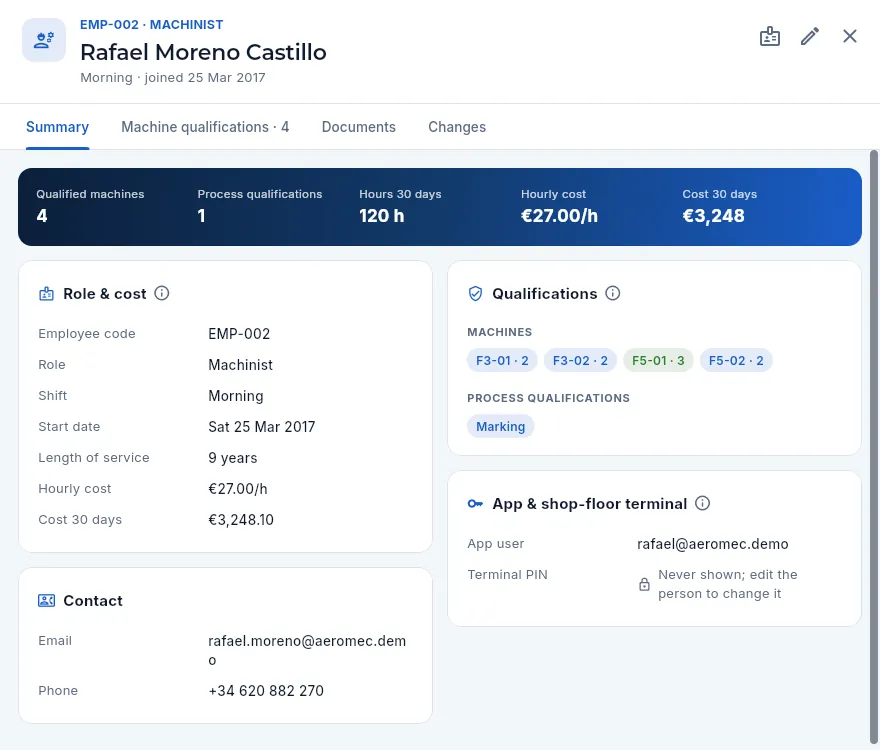 12345678
- 1Employee code and role, name, shift and start date. If they are booking time, a green «Working» label.
- 2Terminal badge: prints their barcode badge.
- 3Edit: role, shift, cost, contact, process qualifications and new PIN.
- 4The Machine qualifications tab, with the number of machines, and the Competences tab (see below).
- 5The key figures: qualified machines and processes, 30-day hours and, with permission, hourly cost and 30-day cost.
- 6Role & cost: code, role, shift, start date, length of service, hourly cost and cost over the last 30 days.
- 7Qualifications: each machine with its level («F5-01 · 3» means trainer on F5-01) and the processes they may perform or sign.
- 8App & shop-floor terminal: their app user, if any, and the PIN, which is never shown.
If the person is clocked on, a green notice appears below the figures: «Working now on OF-… · F5-01, since 08:12» and, if they have several tasks open at once at the terminal, how many. The Competences (see below), Documents (training certificates, NDT qualifications…) and Changes (with the audit permission) tabs complete the record.
#Machine and process qualifications
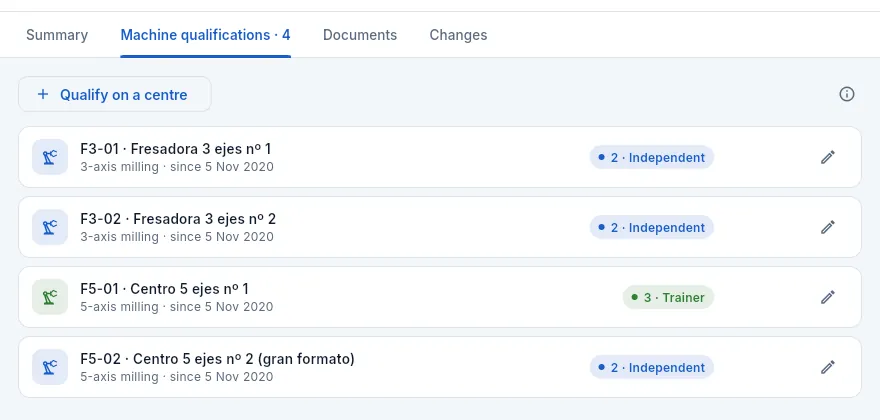 1234
1234
- 1Qualify on a centre adds a machine with its level and date.
- 2The ⓘ explains the three levels.
- 3Each machine with its type, since when they have been qualified and their level. Click the row to open the machine.
- 4The pencil changes the level (or removes the qualification).
| Level | What it means |
|---|---|
| 1 · Supervised | Still learning: only works on the machine with someone of level 2 or 3 on the shift. |
| 2 · Independent | Sets up the machine and runs it alone. |
| 3 · Trainer | May also train others on that machine. |
Process qualifications are ticked in the person's form: receiving inspection, in-process inspection, release FAI, sign CoC, CNC programming, CMM programming, NDT by liquid penetrant (level 2), marking and assembly. For example, Carmen has «Release FAI» and can approve an FAI in Inspection & FAI; anyone without it cannot.
#Competences: qualifications and training
The Competences tab brings together what the person knows how to do and can demonstrate, with its validity: those their role requires and any others they hold. There are three kinds: qualifications (running the 5-axis, inspecting, programming…, renewed every so often), training (drawing reading, load handling…) and awareness (FOD —foreign object damage—, counterfeit parts, product safety, export control). They are managed in Competence & training; here you see one person's.
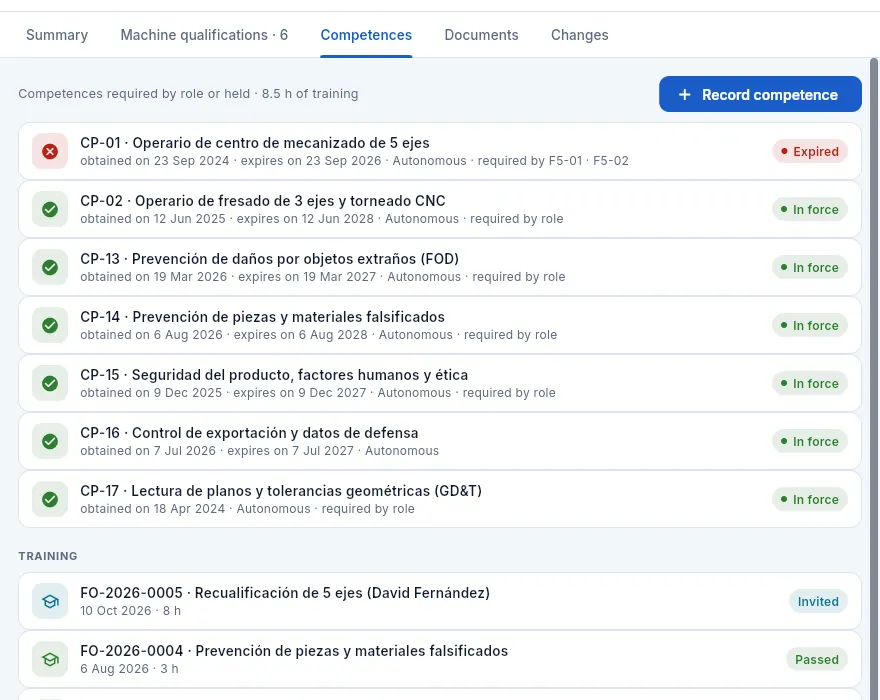 123456
- 1The Competences tab (with the Competence & training section).
- 2Those their role requires or that they hold, and their training hours.
- 3Record competence (or click a row to renew it), with «Edit training».
- 4Each competence with when it was obtained, when it expires, its level and who requires it: their role or a machine («required by F5-01 · F5-02»). This one, expired: he cannot work on those machines.
- 5An awareness competence (FOD), in force: it is renewed every year.
- 6Their training: the 5-axis requalification, scheduled; the others, passed or not.
| Status | What it means |
|---|---|
| In force | They hold it and it is in date. |
| Expiring soon | It expires within the next 30 days: its renewal has to be planned. |
| Expired or Revoked | It no longer counts: it blocks what it enables until it is renewed. |
| Missing | Their role requires it and they do not hold it. |
Some qualifications enable something and, unless they are in force, Aeromec does not allow it:
- Working on a machine that requires it (Work centres): the terminal does not let them start or resume an operation on it and warns them when they identify themselves (Shop-floor terminal). That is what happens to David on F5-01 and F5-02.
- Signing with a scope of the inspection stamp (receiving, in-process, final, FAI, MRB, CoC, calibration; see the stamps).
- Validating CNC programs (Documentation) and closing internal audits (Management system).
When someone passes training that grants a qualification (David's requalification), closing it in Competence & training renews the qualification automatically.
#Adding or editing a person
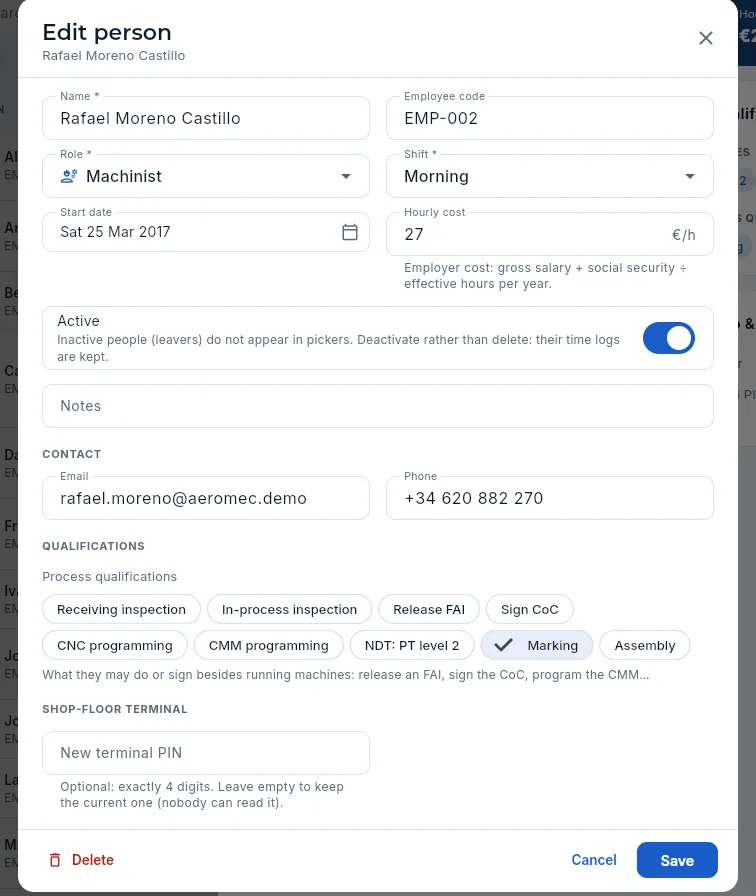 12345678
- 1Name (required) and employee code: the code is the one on their barcode badge.
- 2Role and shift (morning, afternoon, night or day shift).
- 3Hourly cost: employer cost (gross salary + social security ÷ effective hours per year). Only with «See staff rates».
- 4Active: leavers are deactivated; that way their time records are kept and they do not appear in pickers.
- 5Contact: email and phone, only with «Contact data».
- 6Process qualifications: tick what they may do or sign.
- 7New terminal PIN: exactly 4 digits. Empty, the current one is kept (nobody can read it).
- 8Save applies the changes.
In People, click New person. Type the name, the employee code (EMP-…), the role and the shift.
If your profile allows it, enter the hourly cost and the contact details.
Tick their process qualifications and type a 4-digit PIN for the terminal. Click Save.
Open their record, Machine qualifications tab, and click Qualify on a centre for each machine they may work on, with their level.
Print their badge with the Terminal badge icon in the header.
#Badges for the terminal
 123
123
- 1The badge carries the employee code as a Code128 barcode, the name and the role. At the terminal it is scanned and then the PIN is typed.
- 2All active people with a code come ticked: untick those you do not want to print.
- 3Print (with the number of badges) opens the print preview.
You can also print a single person's badge with the Terminal badge icon on their record. The badge does not replace the PIN: at the terminal, scanning the badge only selects the person; to book time, their PIN has to be typed.
#Person hours and machine hours
Every time someone starts an operation at the terminal a time record is opened (set-up, run or rework), which is closed when they pause or finish. A time record gives two kinds of hours:
- Machine hours: the full duration of the record. These count for capacity, load, OEE (overall equipment effectiveness) and machine cost (hours × the centre's rate).
- Person hours (booked hours): those charged to that person and to their labour cost. If they had only one record open, they match the machine hours.
Someone tending several machines at once can have several tasks open at the terminal (one per machine, up to the maximum the administrator sets in Settings). The person's time is then booked according to the company's booking rule:
| Rule | From 8:00 to 10:00 with two tasks open (F5-01 and F5-02) |
|---|---|
| Proportional | Each moment is split between the open tasks: 1 h to each WO. The person totals 2 h booked, the time they were there. It is the real labour cost. |
| Full | Each task counts the whole time: 2 h to each WO. The person totals 4 h booked, more than their working day. It says how long each WO had someone tending it. |
In both cases, each machine counts its full 2 h.
#What changes with your profile
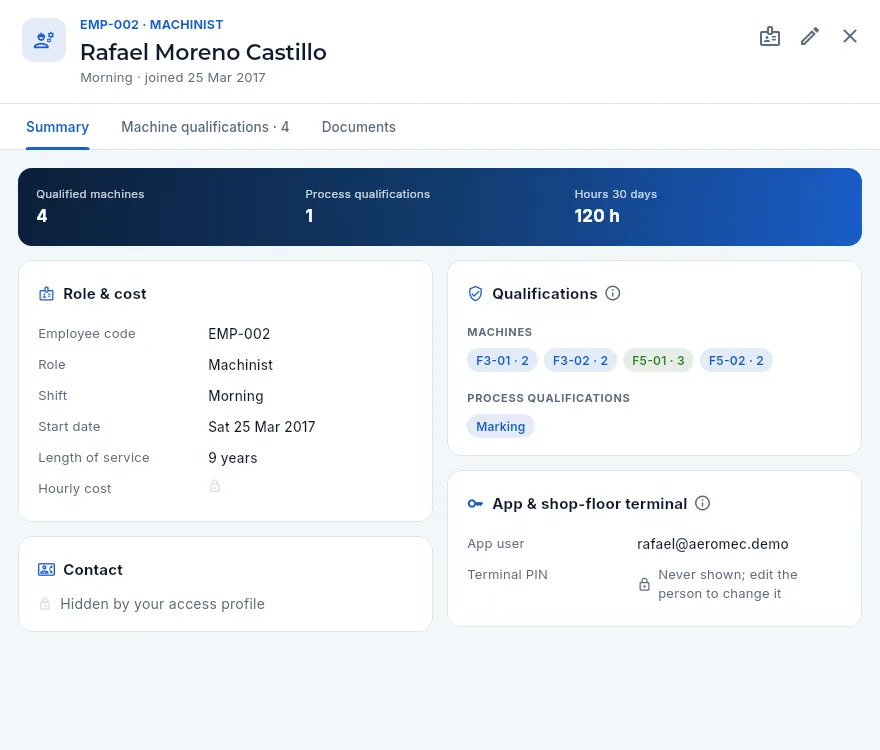 1234
1234
- 1Antonio can edit (he has «Edit centres & people»), but the form neither shows him nor lets him change the cost or the contact.
- 2The key figures without the hourly cost or the 30-day cost.
- 3The hourly cost shows a padlock: the database does not return it to him.
- 4Email and phone stay hidden without «Contact data».
Resources
Competence & training
People's competence: what each role and each machine requires, what each person holds and when it expires, and the training sessions with their attendees and the assessment of their effectiveness. An expired qualification blocks what it enables: signing with a stamp scope, validating CNC programs, closing internal audits or working on a machine.
An auditor's first question on the shop floor is usually “who made this part and how do you know they are qualified?”. Competence & training holds the answer: the catalogue of competences —qualifications (5-axis operator, final inspection, FAI, MRB, CMM, internal auditor…), training and awareness (FOD, counterfeit parts, product safety, export control)—, what each role and each machine requires, what each person holds with its expiry date, and the training sessions given.
Some competences enable something, and without them in force Aeromec does not allow it: signing with a scope of the inspection stamp (receiving, in-process, final, FAI, MRB, CoC, calibration), validating CNC programs, closing an internal audit or starting work on a machine that requires it (also at the shop-floor terminal, which warns operators of what is about to expire).
The section has four views: Matrix, Expiries, Competences and Training. Each person's competences can also be found on their People record (Competences tab).
- 1CompetenceWhat it enables, how often it is renewed and which roles and machines require it.
- 2MatrixEach person: in force, expiring soon, expired or missing.
- 3TrainingIt is planned, people are invited and those who passed are marked.
- 4ClosureWhoever passes gains or renews the competence.
- 5EffectivenessDoes it show in the work? It is assessed afterwards.
#The competence matrix
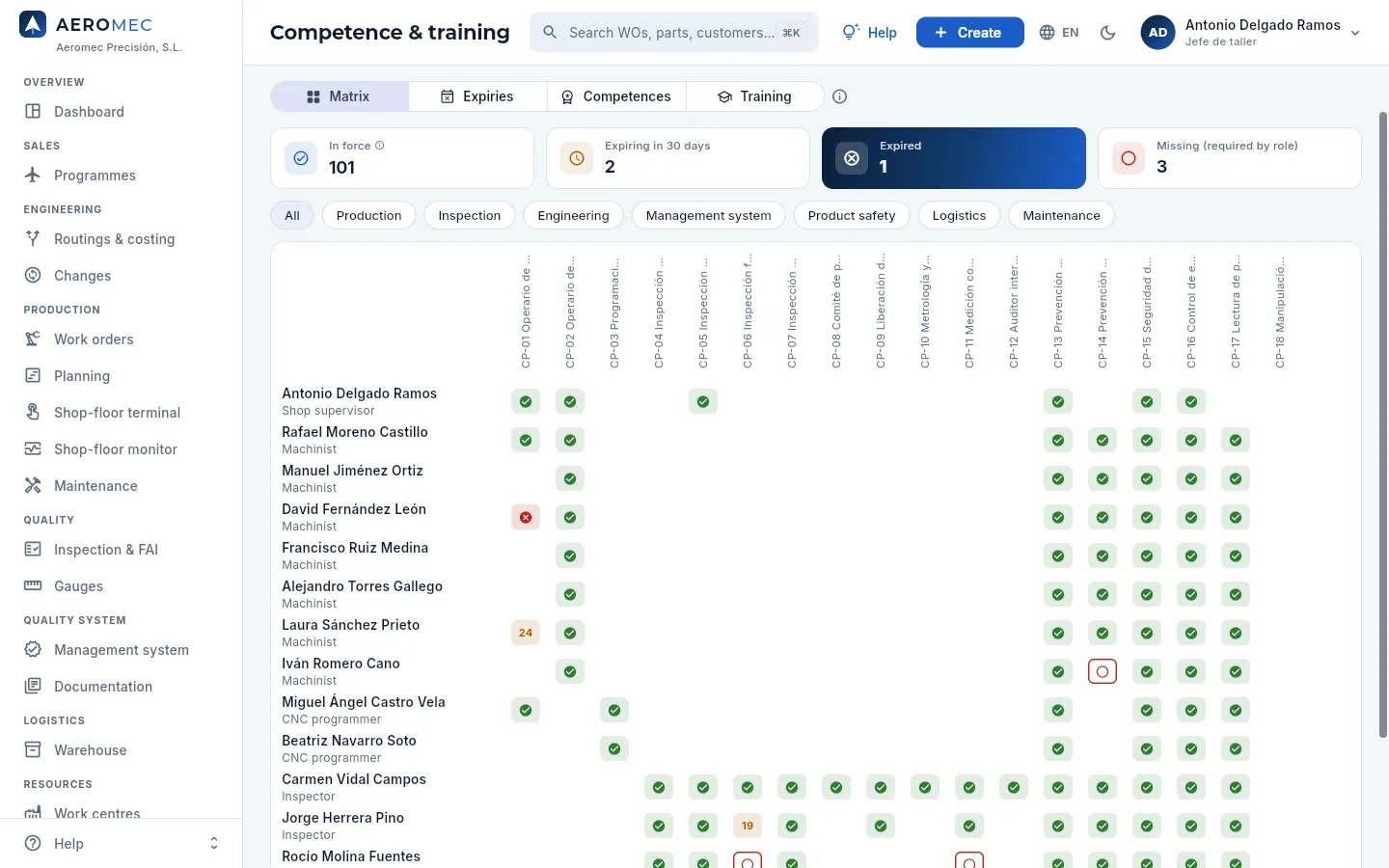 12345678
- 1The four views: matrix, expiries, competences and training.
- 2Competences in force, those expiring in 30 days, those expired and those missing (required by the role and not held).
- 3Filter the columns by area: production, inspection, engineering, management system, product safety, logistics, maintenance.
- 4One column per competence (hover to see its name).
- 5One row per person, with their role.
- 6David's 5-axis qualification, expired: he cannot work on F5-01 or F5-02. Press a cell to renew or record it.
- 7The days left on one that is expiring soon (Laura's).
- 8One that is missing: the role requires it and the person does not hold it (Iván missed the training).
| Cell | What it means |
|---|---|
| Green ✓ | In force |
| Amber with a number | Expiring soon: the days left (30 or fewer) |
| Red ✕ | Expired (or revoked) |
| Empty red circle | Missing: required by the person's role (or by the machine they work on) and not held |
| Blank | Neither held nor required |
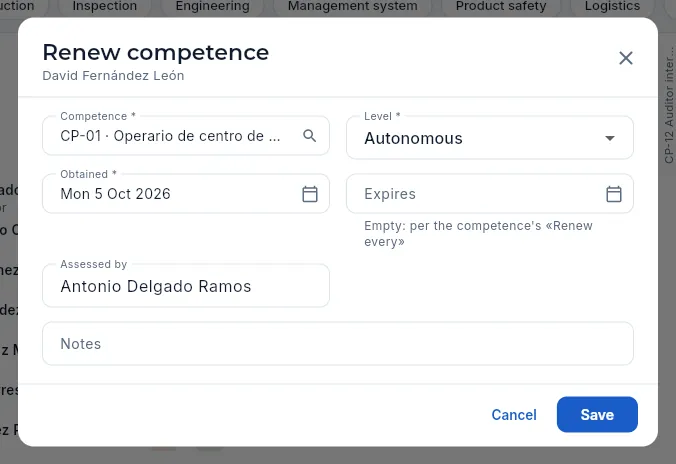 12345
12345
- 1The person.
- 2The competence and the level: in training, autonomous or trainer.
- 3When it was obtained (or renewed).
- 4When it expires; if left blank, according to the competence's «renew every».
- 5Who assessed it.
To withdraw a competence before it expires (a bad practice, a change of role), open it and enter the revoked date with the reason: from that day it blocks the same things as an expired one.
#Expiries
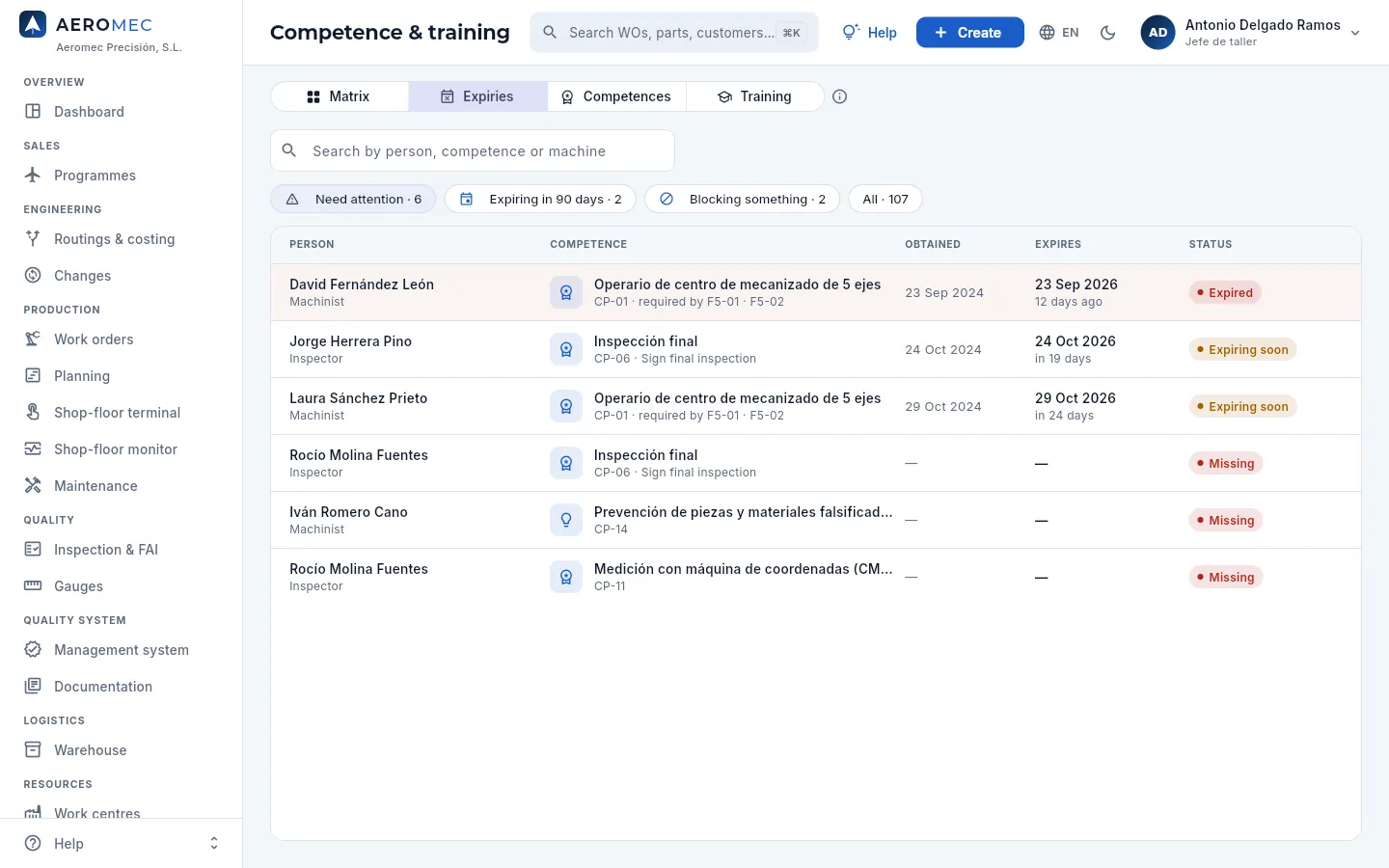 12345
12345
- 1Search by person, competence or machine.
- 2Filters: those that need attention (expired, about to expire or missing), those expiring in 90 days, those blocking something and all.
- 3David's 5-axis qualification: F5-01 and F5-02 require it, and it expired 12 days ago.
- 4One expiring soon: what it enables (signing final inspection) and the days left.
- 5The status: expired, expiring soon, revoked or missing.
#The competence catalogue
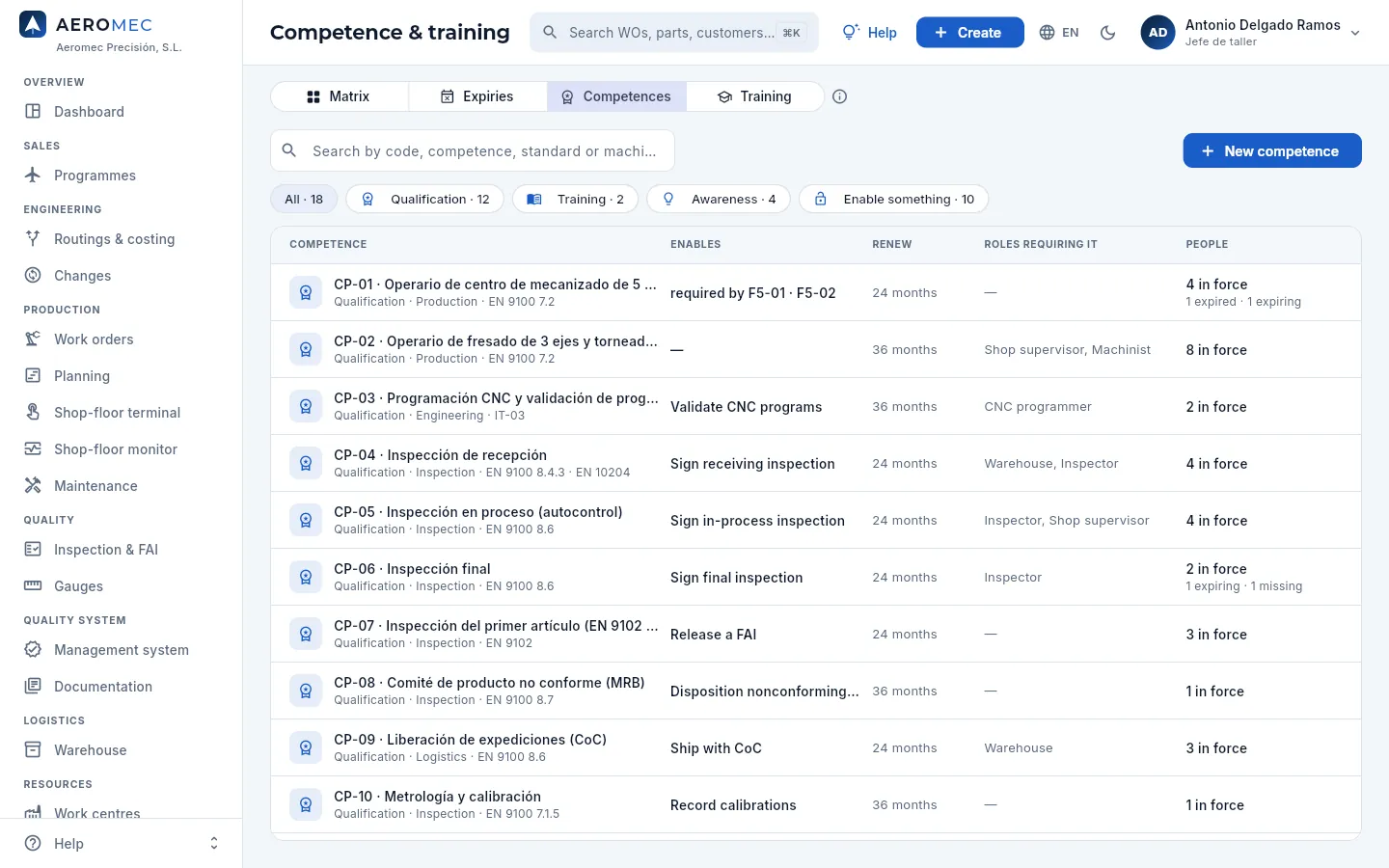 123456
- 1New competence: code, name, type, area, standard, how often it is renewed, what it enables and which roles require it.
- 2Filters by type (qualification, training, awareness) and those that enable something.
- 3Each competence with its type, area and reference standard or instruction.
- 4What it enables (a stamp scope, validating programs, closing audits) or which machines require it.
- 5How often it is renewed and the roles that require it.
- 6The people: in force, expired, about to expire and missing.
Whether a machine requires a qualification is decided on its work centre (Work centres, field Required qualification): without it in force nobody can start work on that machine, not even from the terminal.
#Training sessions
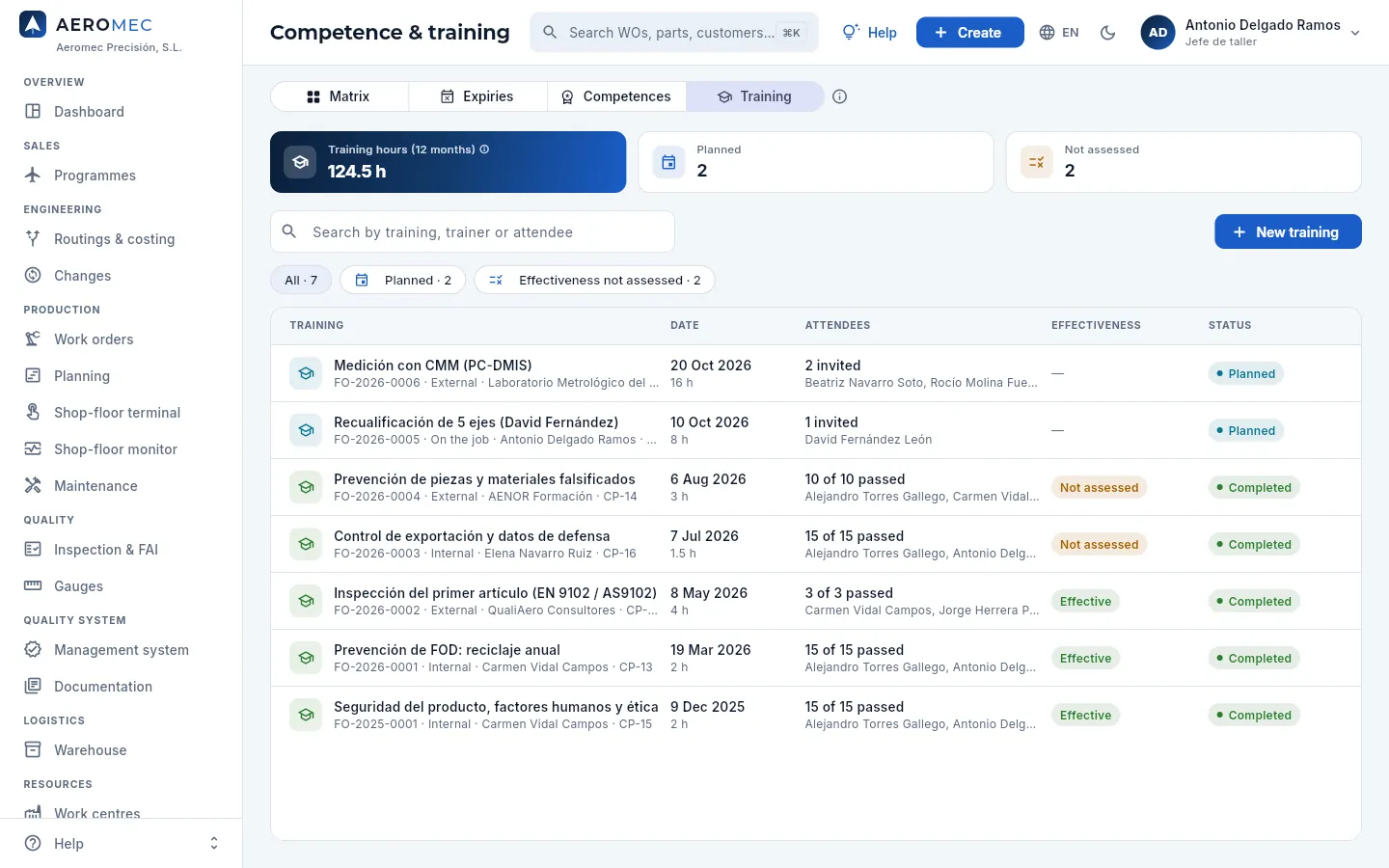 123456
- 1Training hours over 12 months, sessions planned and not yet assessed for effectiveness.
- 2New training: title, type (internal, external or on the job), date, hours, trainer and the competence it gives.
- 3Filters: all, planned and effectiveness not assessed.
- 4David's requalification, planned.
- 5The attendees: invited, or how many passed.
- 6The effectiveness (effective, not effective or not assessed) and the status.
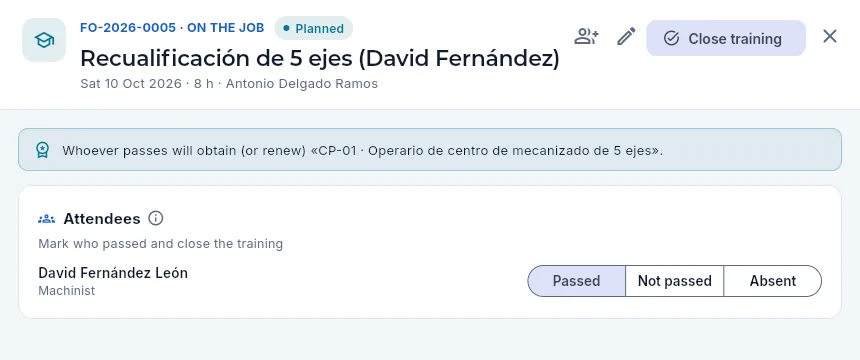 1234
1234
- 1Invite: choose the attendees.
- 2Close training with what has been marked.
- 3The competence it gives: whoever passes gains or renews it.
- 4For each attendee: passed, not passed or absent.
In Training, New training with its date, its hours, the trainer and the competence it gives.
On its record, Invite the people (those whose competence has expired, is about to expire or who need it).
Once the training has taken place (not before its date), mark each attendee Passed, Not passed or Absent and press Close training.
After a while, Assess effectiveness: how it has been checked that it was useful (in the work, in the results) and whether it was effective.
Finance
Invoices
Your invoices to customers: those raised from each shipped delivery note, advances on an order and credit notes; payments received, what is overdue, debt ageing, each invoice's status with the Spanish Tax Agency (SII or VeriFactu) and the PDF.
Invoices gathers everything you invoice your customers and what they owe you. In a shop like Aeromec the invoice comes from the delivery note: when a shipment leaves with its parts, its heats and its certificate of conformity (CoC), that delivery note is invoiced at the order prices, without typing any lines. On long runs or with expensive material, the customer may pay an advance on the order beforehand, which is deducted automatically when its delivery notes are invoiced. And if an invoice goes out with a mistake, it is corrected with a credit note.
You also keep track of payments here: you record each payment you receive (or the bank reconciliation records it, in Banking) and Aeromec works out what is outstanding, what is overdue, how long each debt has been waiting and how many days your customers take to pay on average.
Each issued invoice is also recorded for the Spanish Tax Agency (AEAT), through SII or VeriFactu depending on the company's scheme, and posted automatically, with its journal entry, in Accounting. At this pre-implementation stage sending to the Tax Agency is simulated: the records have the real format, but they do not go out (see Tax).
- 1OrderThe customer orders parts with their scheduled deliveries.
- 2Advance (optional)A % of the order the customer pays before receiving the parts.
- 3Shipped delivery noteThe parts leave with their CoC and certificates.
- 4InvoiceFrom the delivery note, at the order prices and less any advances.
- 5AEATIt is recorded for SII (within 4 working days) or VeriFactu, and posted to the accounts.
- 6PaymentYou record the payment when it reaches the bank, in full or in parts.
- 7Follow-upAnything late shows under Overdue and in the debt ageing.
#The list of invoices
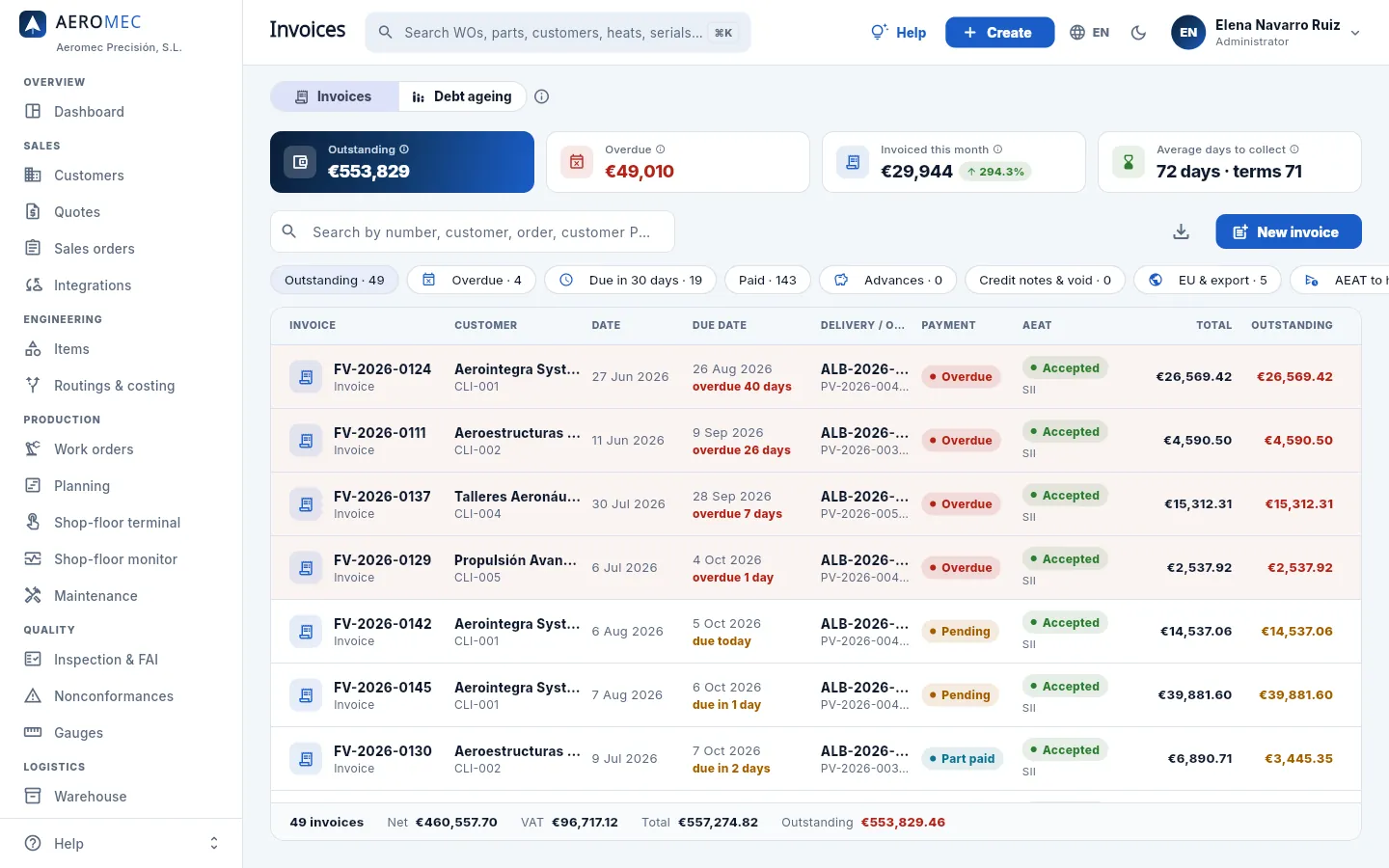 12345678
- 1The two views: Invoices (the list) and Debt ageing (what is outstanding by bucket and by customer). The chosen view is remembered.
- 2Outstanding: everything you are owed today on issued invoices, VAT included.
- 3Overdue: the part of the outstanding amount whose due date has passed, in red. Click the card to see the debt ageing.
- 4Invoiced this month (excl. VAT) and, next to it, the change against the same days of the previous month.
- 5Average days to collect: how long your customers take to pay on average against the agreed terms.
- 6The search box finds an invoice by its number, the customer, the order, the customer PO or the delivery note.
- 7Export CSV downloads the invoices you see (with the filter and search applied) for a spreadsheet.
- 8New invoice: invoices a shipped delivery note or issues an advance on an order. To its left, Programme shows only the invoices of one programme.
The indicators are always calculated with all invoices, not only those you see. The list, on the other hand, follows the filter and the search box: on entry you see the invoices still to be collected, from the one due first to the one due last.
The Programme button shows only the invoices of one programme (those of the orders for its parts; see Programmes), and then the indicators are also those of that programme. The programme code appears on each row, next to the customer code. Go back to All programmes to clear it.
#Filters, columns and statuses
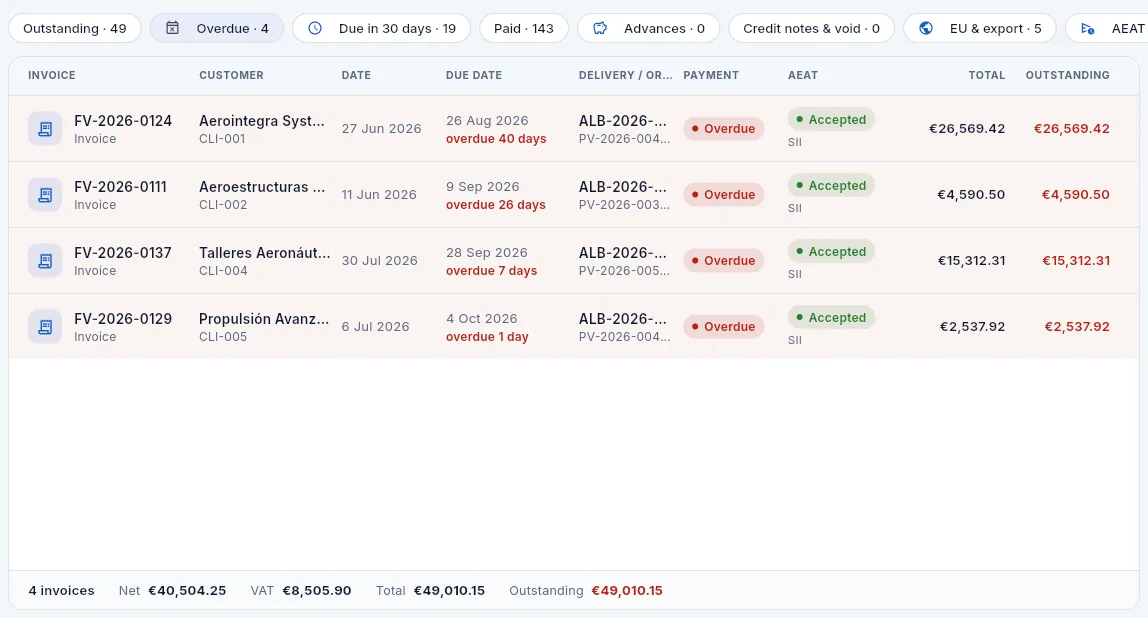 12345678
- 1The filters: Outstanding, Overdue, Due in 30 days, Paid, Advances, Credit notes & void, the two tax ones (below) and All, with their counts. Swipe the row to see the last ones.
- 2Each row: number and type (invoice, advance or credit note), customer with their code and issue date. Click to open the record.
- 3Due date and how long is left («due in 3 days», amber if a week or less is left) or how long ago it fell due («overdue 40 days», red).
- 4Delivery / order: the invoiced delivery note, our order and the customer's PO number.
- 5Payment: the payment status (table below).
- 6AEAT: the invoice's status with the Tax Agency (accepted, to send, with errors…) and through which system, SII or VeriFactu.
- 7Outstanding: what is still to be collected (total incl. VAT minus payments), red if overdue. Click a column title to sort.
- 8The footer counts the invoices you see and adds up their net amount, VAT, total and what is outstanding.
The last two filters before All are about tax: EU & export gathers the invoices to customers outside Spain, and AEAT to handle those that need attention with the Tax Agency: those not yet sent and those the Tax Agency has rejected or accepted with errors, so you can correct them.
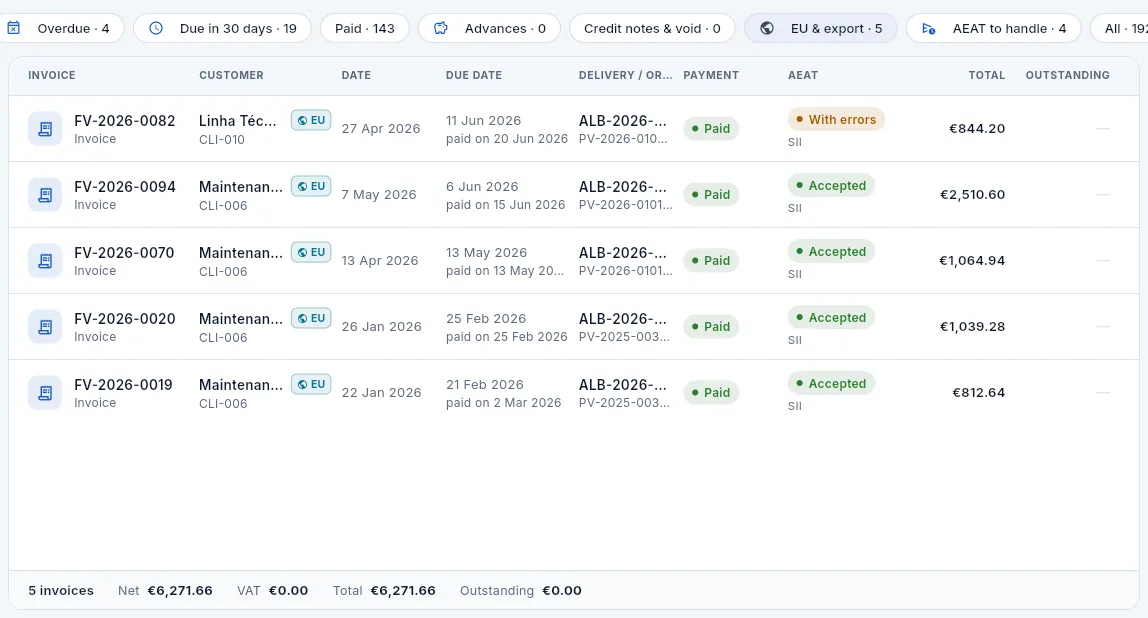 123456
- 1EU & export: intra-Community supplies and exports, which carry no VAT.
- 2AEAT to handle: what is still to be sent to the Tax Agency and what has to be corrected.
- 3The EU (or Export) badge next to the customer; hover over it to see the transaction type and the country.
- 4With errors: the Tax Agency accepted this Linha Técnica MRO invoice with errors (its VAT number lacks the country prefix). Open it to see what to do.
- 5Accepted by SII, the system it was sent through.
- 6At the foot, the VAT on these invoices: zero, because they are exempt.
| Payment status | What it means |
|---|---|
| Pending | Issued, no payments and still within terms. |
| Part paid | Issued, within terms and with some payment that does not settle it. |
| Overdue | The due date has passed and something is still to be collected (even with part payments). |
| Paid | The amount collected reaches the total. |
| Credit note | An issued credit note: it subtracts from the amount invoiced and is not collected. |
| Void | Voided by a credit note: kept with its number, but not counted as outstanding. |
| Draft | Not issued yet: it does not count as invoiced and cannot be collected. |
| Tax Agency status | What it means |
|---|---|
| To send | Recorded, waiting for the next submission from Tax; below, the deadline. |
| Accepted | The Tax Agency has accepted it: it counts as filed and has its receipt (CSV). |
| With errors | Accepted, but with data to correct (usually the customer's VAT number): an amendment must be sent. |
| Rejected | It does not count as filed: correct the data and retry before the deadline. |
| Not sent | It does not go to the Tax Agency (for example, because it predates the company's current scheme). |
#Debt ageing
The Debt ageing view splits what is outstanding by how many days it is overdue (the buckets: not yet due, up to 30 days, 31 to 60, 61 to 90 and over 90) and by customer. It is the view for reviewing receivables with Management or preparing collection calls.
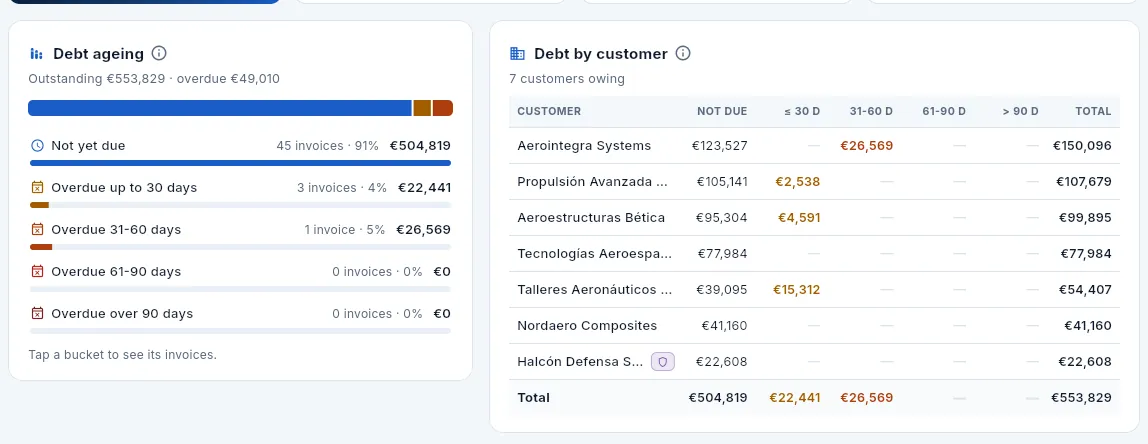 12345
12345
- 1Not yet due: what is still within terms, with the number of invoices and its % of the total.
- 2Each overdue bucket with its amount. Click a bucket to see its invoices below.
- 3Debt by customer: each customer's outstanding amount in each bucket, largest total first; overdue amounts in the colour of their bucket. Click to open the customer.
- 4A defence customer carries its badge: only visible to those with the «Defence data» permission.
- 5The Total row adds up each bucket.
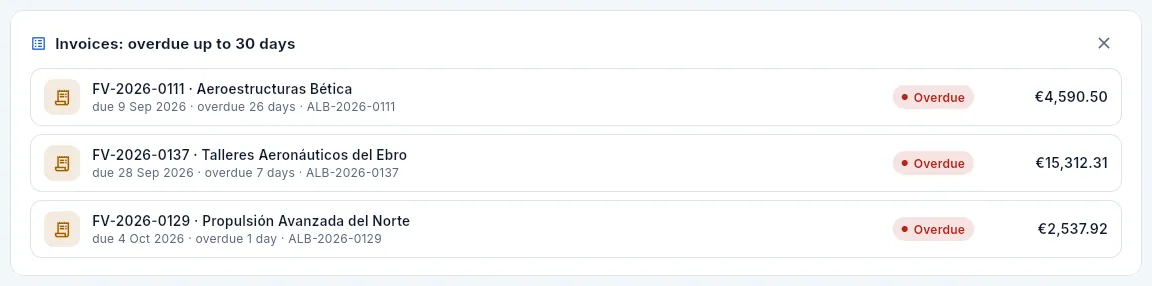 12
12
- 1Each invoice in the bucket: number, customer, due date, how long ago it fell due and the delivery note; on the right, what is outstanding. Click to open it.
- 2The ✕ closes the list (or click the bucket again).
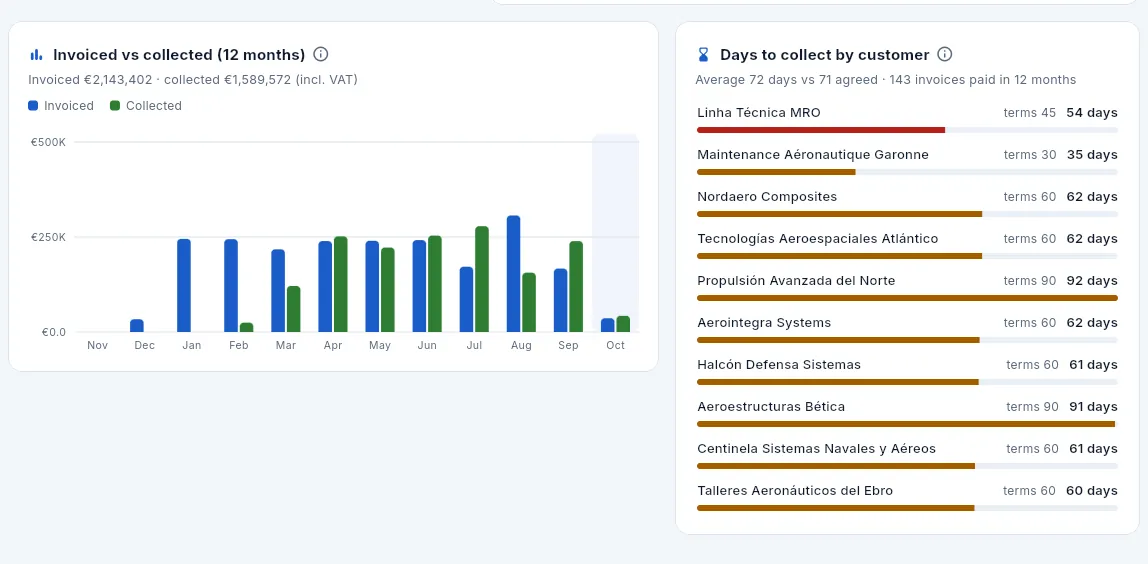 123
123
- 1Invoiced vs collected (12 months), incl. VAT: if month after month less is collected than invoiced, the debt grows. The current month is shaded.
- 2Days to collect by customer: the average days each customer takes to pay against their agreed terms; those furthest over come first.
- 3Red, more than 5 days over the agreed terms; amber, somewhat over; green, within terms.
#Invoicing a delivery note
New invoice asks what you want to do. From a shipped delivery note lists the delivery notes already shipped that have no invoice yet (if there are none left, it says so below: «No shipped delivery notes waiting to be invoiced»). Advance on an order issues an advance (next section).
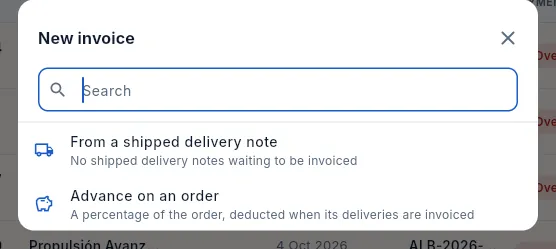 12
12
- 1From a shipped delivery note: below, how many delivery notes are left to invoice.
- 2Advance on an order: a % of the order, deducted when its delivery notes are invoiced.
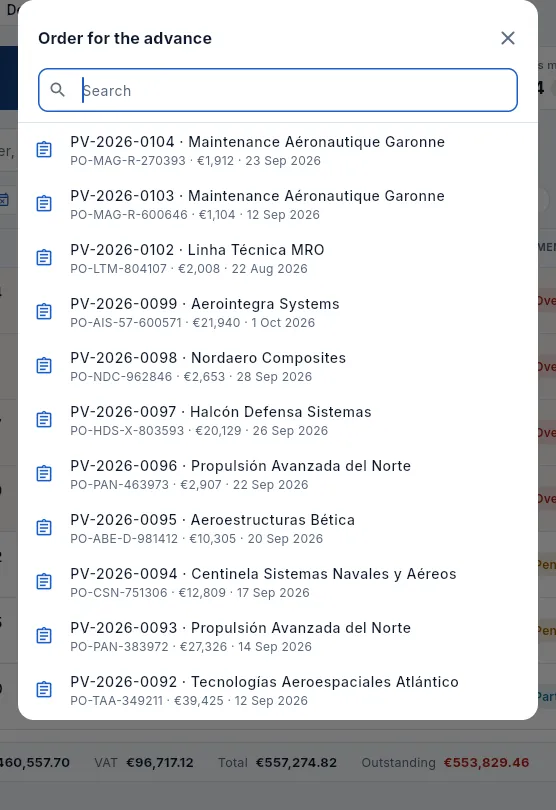 12
12
- 1Type part of the number, the customer or their reference to find the order.
- 2The open orders, newest first, with the customer, their PO number, the amount and the date.
Click New invoice → From a shipped delivery note and choose the delivery note. You can also invoice it from its record, in Shipments.
Read the confirmation: «An invoice to … for the N parts on the delivery note (amount + VAT) will be issued today, due according to their payment terms». If the order has advances not yet deducted, it says so too.
Click Issue invoice. The invoice is created already issued, with its number (FV-year-counter), and its record opens.
#Advances
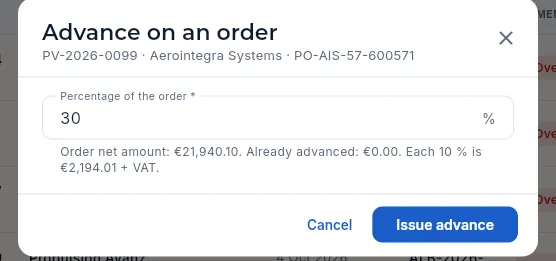 1234
1234
- 1The order, the customer and their PO number.
- 2Percentage of the order: it suggests 30 %; change it if you have agreed another (between 0 and 100).
- 3The order net amount (excl. VAT), what has already been advanced and how much each 10 % is.
- 4Issue advance creates the advance invoice already issued and opens its record.
#The invoice record
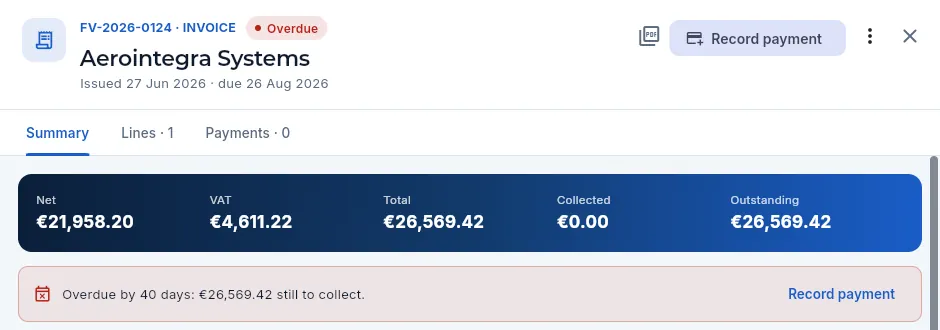 1234567
- 1Number and type, payment status, customer, issue date and due date.
- 2Invoice PDF: generates the invoice and opens the preview to print or save it.
- 3Record payment: records a payment from the customer (only if something is outstanding).
- 4More options (⋮): Issue credit note, as long as it has no payments.
- 5The Lines and Payments tabs, with their counts.
- 6The figures: net, VAT, total, collected and outstanding.
- 7The overdue notice: how many days and how much is left, with a shortcut to Record payment.
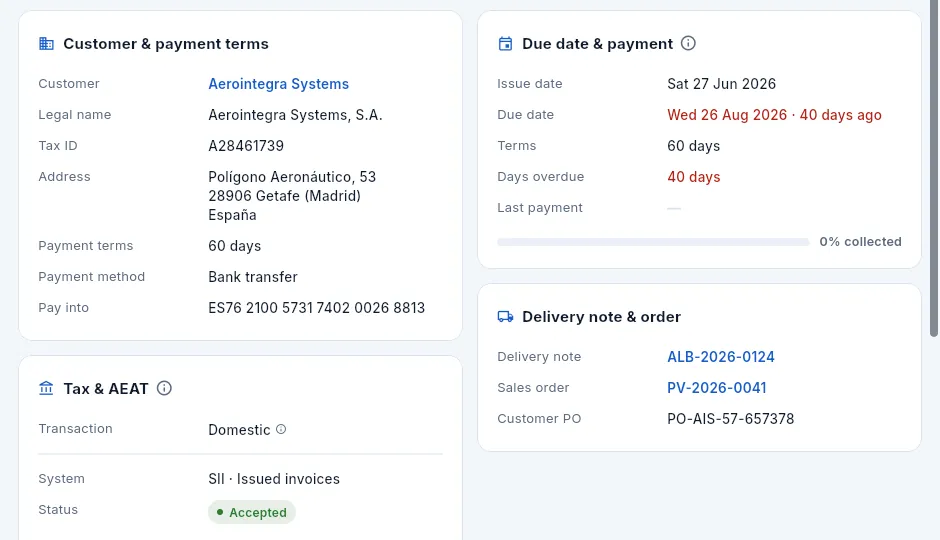 1234
1234
- 1Customer & payment terms: tax details, payment terms and method and the account to pay into (the company's IBAN).
- 2Due date & payment: issue date, due date, terms, days overdue, last payment and the bar of what has been collected. Once paid, it says how many days it took.
- 3Delivery note & order: the invoiced delivery note, our order and the customer PO; click to open them.
- 4Tax & AEAT: the transaction type (here, domestic, with VAT) and the invoice's record in SII or VeriFactu (see below).
Other cards and notices appear depending on the case: Other invoices on the order (the other invoices and advances on the same order, with their status), Advance invoice (on an advance, where it was deducted), Advances deducted (on the invoice that deducts them), Correction (on a credit note or a void invoice, with the reason and the link to the other invoice) and the green notice «Paid in full on …, N days after issue». On invoices for customers who buy through SAP Business Network (Ariba), the header also has the Generate the cXML invoice icon (see Integrations).
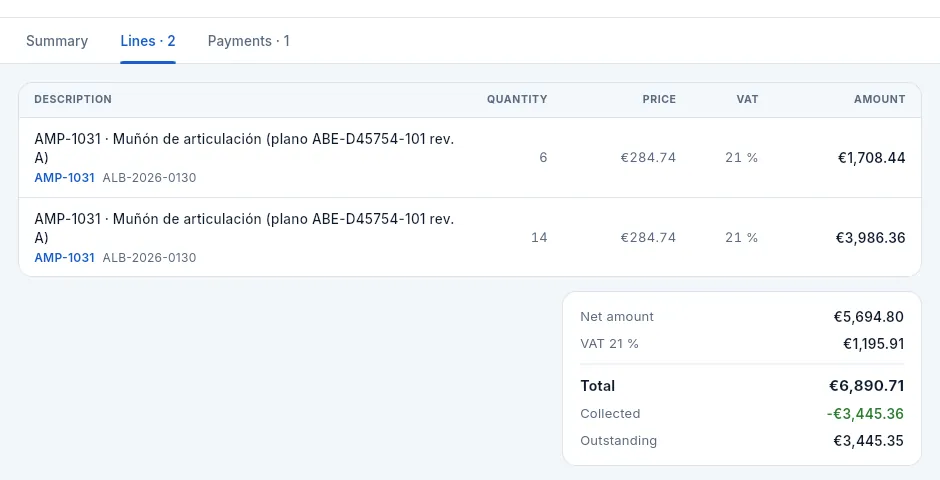 123
123
- 1The columns: description, quantity, price, VAT % and amount.
- 2Each line with the part (click to open it), the drawing and its revision and the delivery note it comes from.
- 3Net amount, VAT by rate, total and, if there are payments, what has been collected and what is outstanding.
#The invoice and the Tax Agency
On issue, each invoice is recorded for the AEAT (the Spanish Tax Agency) through one of these two systems, depending on the company's scheme in Settings:
- SII (Suministro Inmediato de Información, immediate supply of information): the VAT books are kept on the Tax Agency's website and each invoice is sent to it within 4 working days. It is mandatory above €6,010,121.04 of turnover; the demo company has opted in voluntarily.
- VeriFactu (Royal Decree 1007/2023): each invoice generates an unalterable record, chained to the previous one with a hash, and carries a QR code the customer can use to check it on the Tax Agency's website.
A company in SII does not use VeriFactu: never both. Submissions are made in batches from Tax; here you see how each invoice stands and what to do if something has gone wrong.
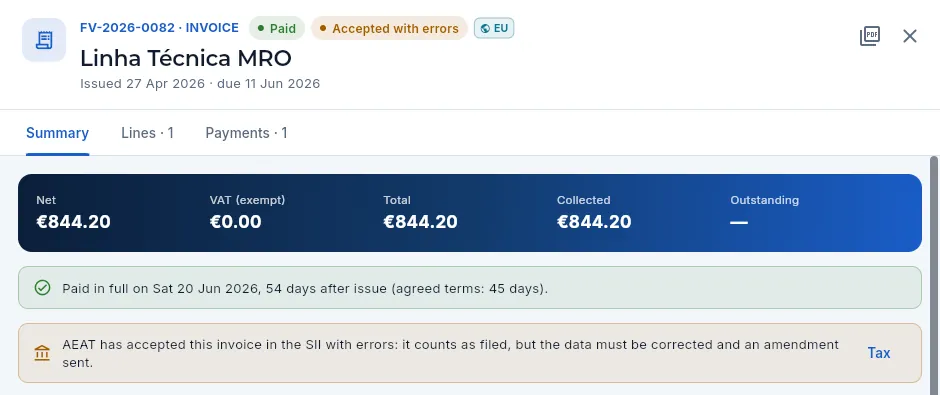 12345
12345
- 1The status with the Tax Agency and the system: here, SII · Accepted with errors.
- 2The EU badge: an intra-Community supply, to a customer in another EU country.
- 3VAT (exempt): the lines are at 0 %, because the supply is exempt.
- 4The notice: what the Tax Agency answered and what it means (with errors, it counts as filed, but the data must be corrected).
- 5Tax opens its record in the Tax section, from where it is resent.
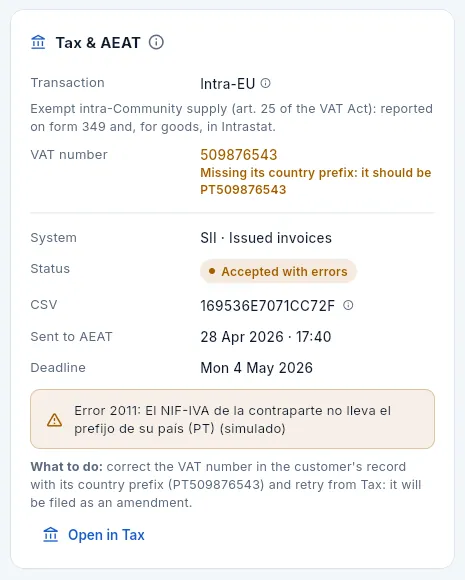 123456
- 1Transaction: domestic, intra-Community or export, with what it means for VAT.
- 2The customer's VAT number; here, in amber, because it lacks its country prefix.
- 3System and register (SII · issued invoices) and status.
- 4The CSV, the Tax Agency's receipt; when it was sent and the deadline it had.
- 5The error the Tax Agency returned and what to do to correct it.
- 6Open in Tax: the full record, with its file and its submissions.
The Tax & AEAT card brings together what the Tax Agency knows about the invoice:
- The transaction type, decided by the customer's country: domestic (with VAT), intra-Community (to another EU country, exempt) or export (outside the EU, exempt).
- The customer's VAT number (their intra-EU VAT number, with their country prefix: PT, FR…), which the exemption requires.
- The system and its status, the CSV (código seguro de verificación, the receipt the Tax Agency returns), when it was sent and the deadline it had. With VeriFactu, the record's hash appears instead of the CSV.
- If something went wrong, the error with its code and what to do.
An invoice not yet sent says «It goes in the next submission from Tax» and the deadline; once it has passed, it warns in red.
Filter AEAT to handle and open the invoice with errors or rejected: the notice and the Tax & AEAT card state the error and what to correct.
Correct the data where it is, usually in the customer's record: in the example, Linha Técnica MRO's VAT number with its prefix (button Fix: PT509876543, see Customers).
Click Open in Tax and, in its record, Retry: it goes back to the queue with the corrected data. Send it with Send now (or in the next submission of pending records). An invoice accepted with errors is filed as an amendment.
#Recording a payment
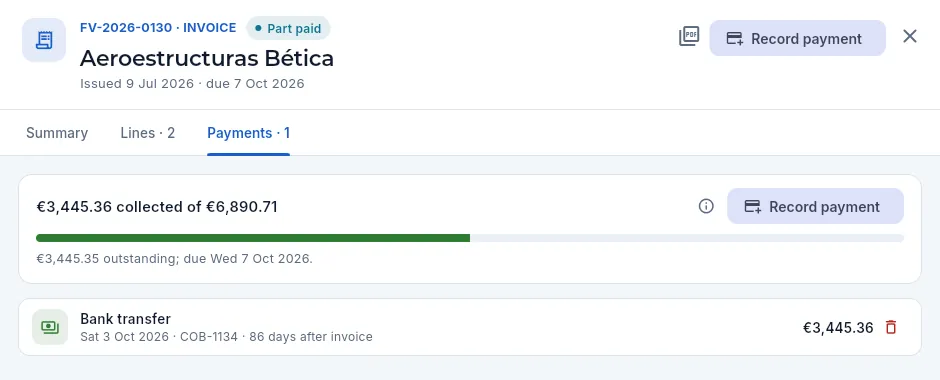 12345
12345
- 1With a payment that does not settle it and still within terms, the invoice is Part paid.
- 2How much has been collected out of what, the bar and what is outstanding with its due date.
- 3Record payment is here too.
- 4Each payment: method, date, reference, how many days after the invoice it arrived and amount. Click it to correct it.
- 5The bin deletes a payment recorded by mistake (it asks for confirmation).
Open the invoice (for example, from the Overdue filter or from a debt ageing bucket) and click Record payment.
Amount received suggests the whole outstanding amount; if the customer has paid part of it, type it or click Half. It cannot exceed what is outstanding.
Check the Payment date (today by default; between the invoice date and today) and choose the Payment method: bank transfer, confirming, promissory note, direct debit or card. The customer's usual one is preselected.
Enter the Reference (the transfer, promissory note or remittance number) and click Record.
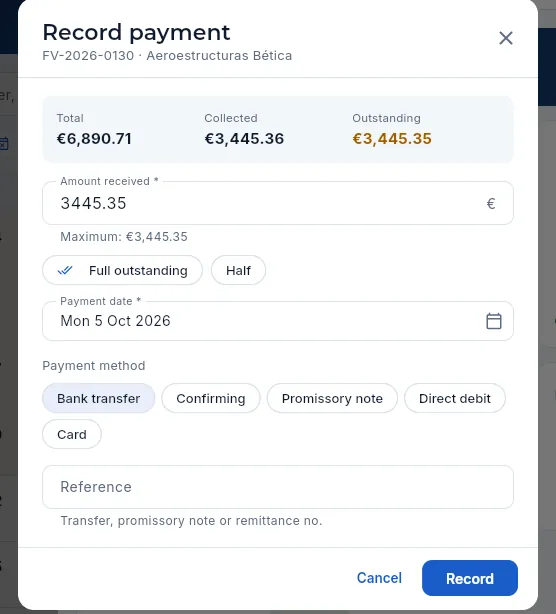 1234567
- 1The invoice total, what has already been collected and what is outstanding.
- 2Amount received: the outstanding amount by default; below, the maximum allowed.
- 3Full outstanding or Half fill it in with one tap.
- 4Payment date: when the money arrived.
- 5Payment method: bank transfer, confirming, promissory note, direct debit or card.
- 6Reference: transfer, promissory note or remittance no., to reconcile it with the bank.
- 7Record saves the payment.
#Issuing a credit note
An issued invoice is neither deleted nor edited: if it went out with a wrong price, quantity, customer or tax details, a credit note is issued that cancels it, followed by the correct invoice.
 1
1
- 1Issue credit note, in red: cancels the invoice completely.
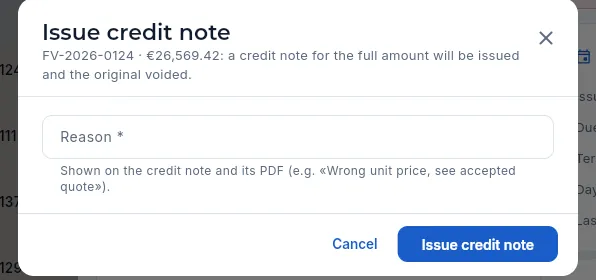 123
123
- 1The invoice and its total: a credit note for the full amount in negative will be issued.
- 2Reason (required): shown on both invoices and on the PDF.
- 3Issue credit note.
If the invoice has payments, delete them first (Payments tab): an invoice with payments cannot be corrected.
Open the invoice and click More options (⋮) → Issue credit note.
Type the Reason (for example, «Wrong unit price, see accepted quote») and click Issue credit note.
The delivery note goes back to not invoiced: invoice it again with New invoice → From a shipped delivery note.
#The invoice PDF
The Invoice PDF icon in the header generates the invoice and opens the browser's print preview, from which you print it or save it as a PDF to send it. It includes:
- The company header (name, registered name, tax ID, address, contact details and certifications, as they are in Settings) and the title Invoice, Advance invoice or Credit note with its number.
- The issue and due dates, and a Paid, Void, Credit note or Draft stamp when applicable.
- Bill to (the customer's tax details and, for a customer in another EU country, their VAT number), the references (delivery note, our order, their PO and, on a credit note, the invoice it corrects) and the payment method with the IBAN.
- The details (description, quantity, price, VAT and amount), the reason or notes, the net amount, VAT by rate, the total and, if there are payments, what has been collected and what is outstanding.
- For a supply to the EU or an export, the lines say Exempt instead of the VAT % and the VAT treatment section carries the wording the law requires: «Intra-Community supply exempt from VAT (art. 25 of Spanish VAT Act 37/1992)» or «Export exempt from VAT (art. 21 of Spanish VAT Act 37/1992)».
- With VeriFactu, at the top, the tax QR code with the captions «VERI*FACTU» and «Factura verificable en la sede electrónica de la AEAT» (in Spanish even on an English invoice, as the ministerial order requires). With SII the invoice has no QR code.
- At the foot, the invoice terms from Settings (for example, late-payment interest).
#What changes with your profile
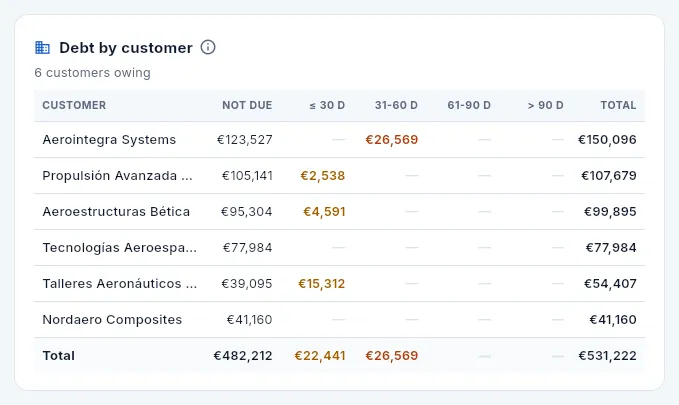 1
1
- 1The same amounts for each civil customer, but without the defence customers (in Elena's figure, Halcón Defensa Sistemas): for Sergio their invoices do not exist and the totals do not count them either. The same goes for the indicators, the list and the reports.
Finance
Payables
The invoices your suppliers send you and the payments you make: what falls due this week, what is overdue, the check of each invoice against its purchase order and what was received, its record in the SII received-invoices register and each transfer, confirming or promissory note.
Payables is the other side of Invoices: here you record the invoices you receive (for raw material, subcontracted work such as heat treatment, anodising or non-destructive testing, tools or other expenses) and the payments you make on each one. Aeromec works out what is outstanding, what is overdue and what falls due in the coming days, and helps you check each invoice against its purchase order: what was ordered, what was received and what has already been invoiced against that order, so you do not pay for material that has not arrived or was rejected at receiving inspection.
Like those in Invoices, received invoices are recorded for the Tax Agency (in the SII received-invoices register; with VeriFactu they are not sent, because it only records issued invoices) and posted automatically in Accounting; payments can also be recorded when reconciling the statement in Banking. At this pre-implementation stage, sending to the Tax Agency is simulated.
#The list of supplier invoices
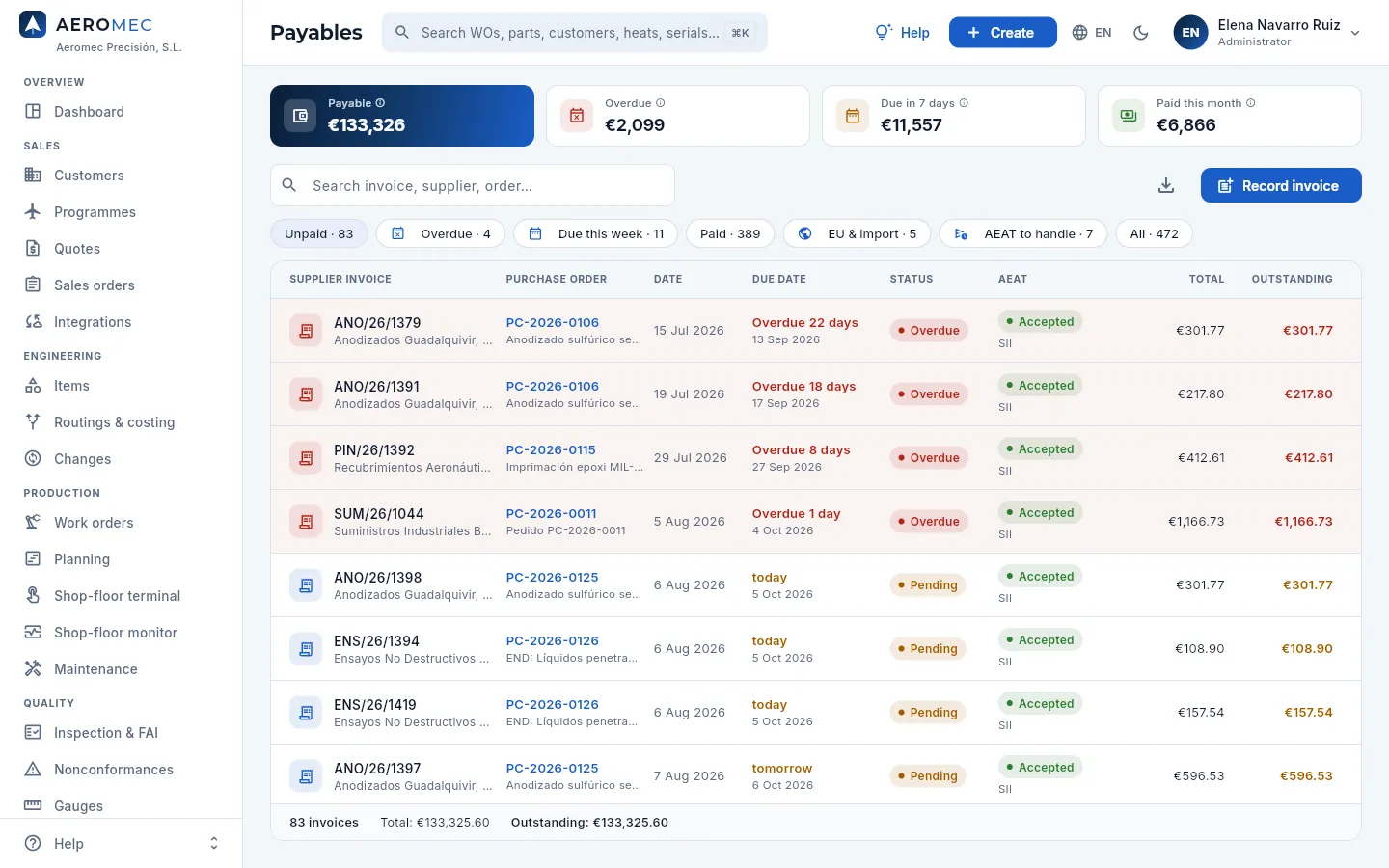 12345678
- 1Payable: what you owe your suppliers today, VAT included.
- 2Overdue: the part whose due date has passed. It should be zero.
- 3Due in 7 days: the week's payment forecast, to prepare the payment run.
- 4Paid this month: the payments recorded since the 1st.
- 5The search box: invoice number, supplier, purchase order, description or notes.
- 6The filters: Unpaid, Overdue, Due this week, Paid, the tax ones (EU & import and AEAT to handle: what is still to be sent and what was rejected or accepted with errors) and All.
- 7Export CSV downloads the invoices you see.
- 8Record invoice: adds an invoice you have received.
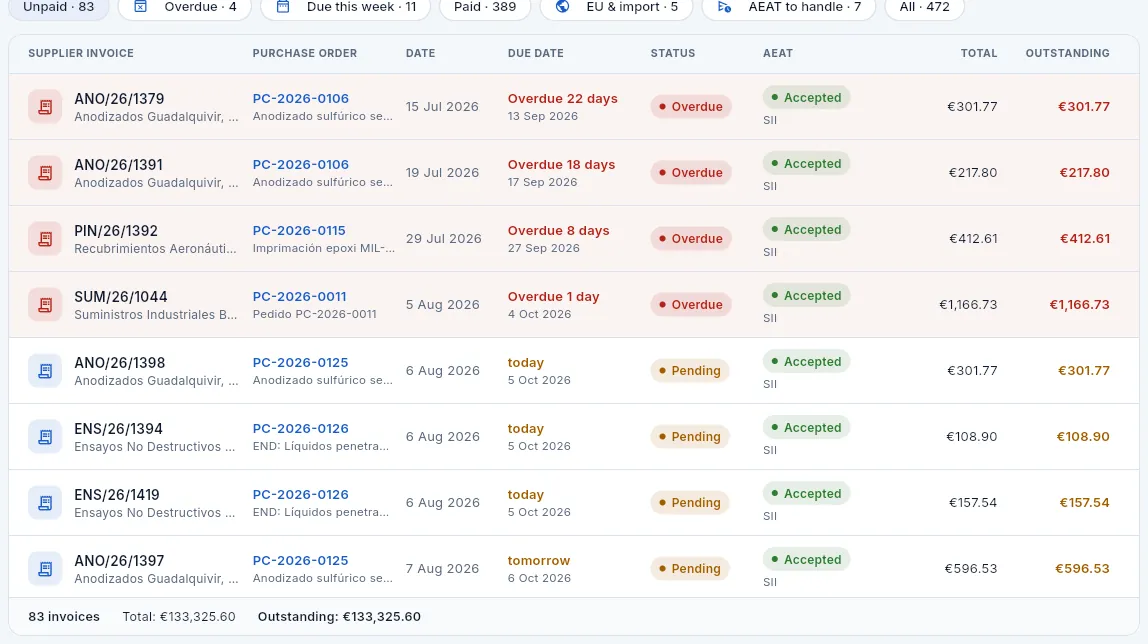 1234567
- 1Supplier invoice: the number the supplier gave it and the supplier's name. Click the row to open the record.
- 2The Purchase order it belongs to (click the link to open it) and the description: for example, the subcontracted operation of a WO.
- 3Due date: «Overdue N days» in red, «tomorrow» or «in N days» (amber if this week) or the day it was paid.
- 4Status: pending, part paid, overdue, paid or void.
- 5AEAT: the invoice's status in the SII received-invoices register (to send, accepted, with errors…), as in Invoices.
- 6Total and outstanding (incl. VAT), only with «See costs».
- 7The footer counts the invoices and adds up their total and what is outstanding.
#A supplier invoice record
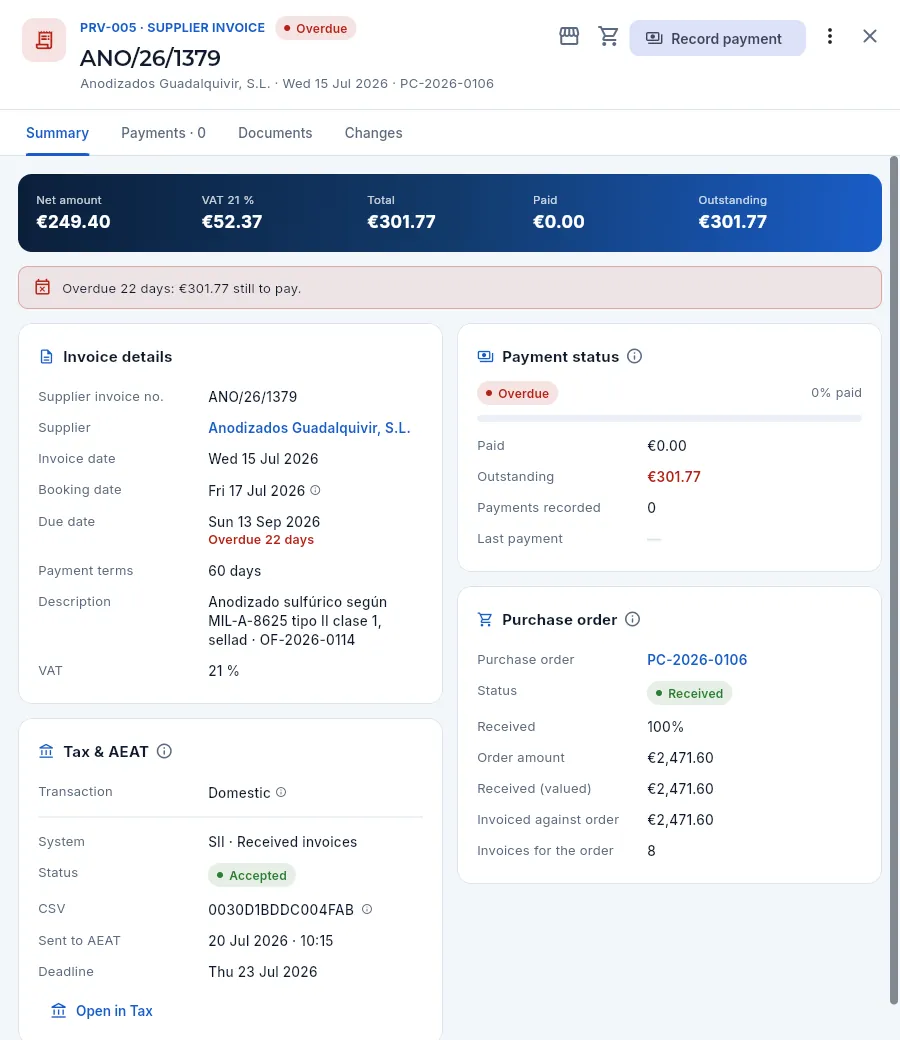 12345678
- 1Supplier code, their invoice number, status, supplier, date and purchase order.
- 2Shortcuts to the supplier and purchase order records.
- 3Record payment: records a transfer, a confirming or a promissory note.
- 4More options (⋮): Edit invoice and Void invoice (as long as it has no payments).
- 5The figures: net amount, VAT with its rate, total, paid and outstanding.
- 6The notices: overdue (and how much is left), due soon («include it in the next payment run») or material rejected on the order.
- 7Payment status: the bar of what has been paid, how many payments and the last one.
- 8Purchase order: status, % received, order amount, received (valued) and invoiced against order. Before paying, check that they match.
#The received invoice and the Tax Agency
The Invoice details card brings together what the supplier's invoice says and the booking date: the day you enter it in the accounts. Below, Tax & AEAT shows its record in the SII received-invoices register, as in Invoices: status, CSV (the Tax Agency's receipt), when it was sent and the deadline. If the Tax Agency rejects it or accepts it with errors, the error and what to do appear, and the invoice goes into the AEAT to handle filter.
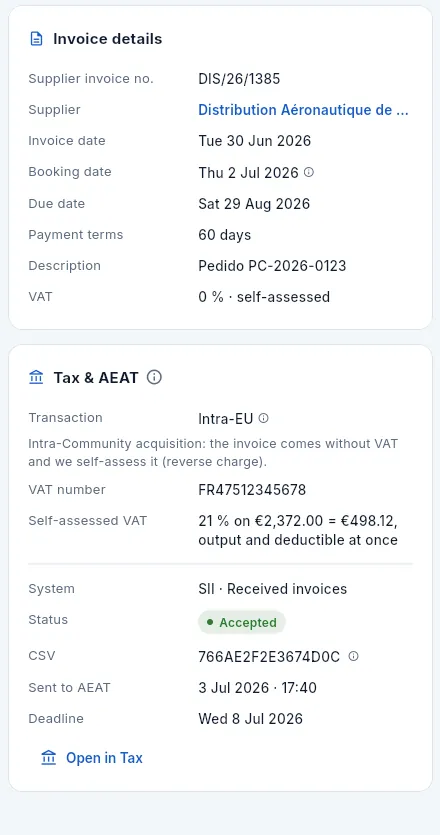 1234567
- 1Booking date: the 4 working days for SII run from it.
- 2VAT: 0 %, self-assessed.
- 3Transaction: intra-Community acquisition, without VAT, which is self-assessed.
- 4The supplier's VAT number, with their country prefix.
- 5Self-assessed VAT: 21 % of the net amount, output and deductible at once.
- 6The SII record: received-invoices register, status, CSV, submission and deadline.
- 7Open in Tax opens its record.
#Recording a supplier invoice
Invoices are recorded from Record invoice (you choose the supplier first) or, better, from the purchase order record in Purchasing: that way the invoice is linked to the order and the suggested net amount is what has been received and not yet invoiced.
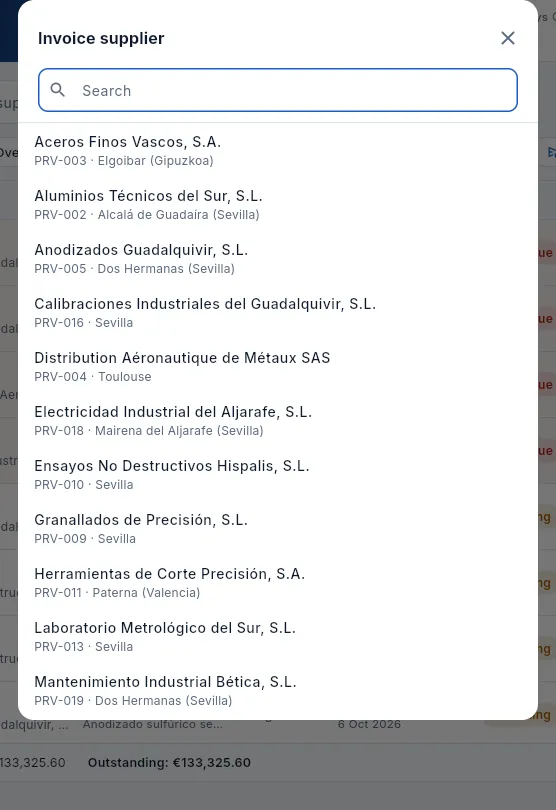 12
12
- 1Type part of the name or the code.
- 2Each supplier with their code and town.
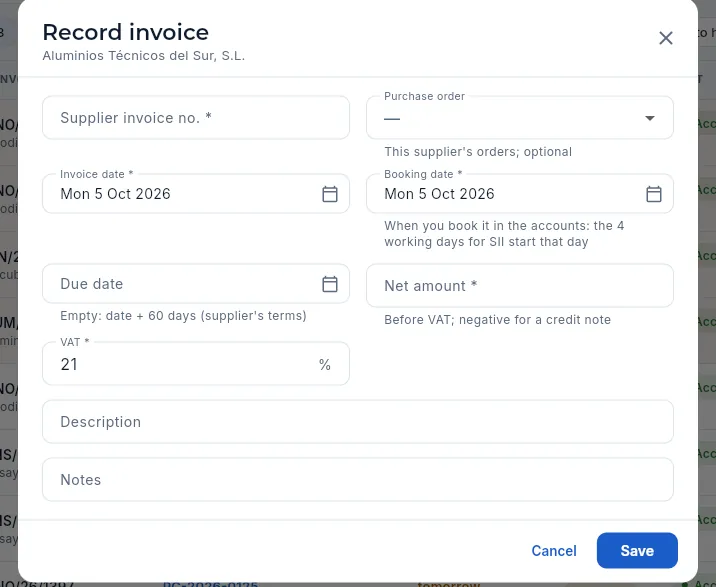 123456
- 1Supplier invoice no.: as it appears on their invoice (e.g. MET/26/1194).
- 2Purchase order: one of this supplier's (optional, but recommended).
- 3Booking date: when you enter it in the accounts (today by default); the 4 working days for SII run from it.
- 4Due date: empty, the invoice date plus the supplier's payment terms.
- 5Net amount (excl. VAT; negative for a credit note) and VAT.
- 6Save records the invoice as unpaid.
Open the purchase order in Purchasing and choose Record invoice. (From Payables: Record invoice and the supplier.)
Type the Supplier invoice no. and the Invoice date. The Purchase order and the Description are already filled in.
Leave the Booking date as today (the day you enter it) or set the real one if you booked it on another day: it cannot be earlier than the invoice date.
Check the Net amount: Aeromec suggests what has been received on the order and not yet invoiced (or what was ordered, if nothing has arrived). Correct it if the invoice says otherwise, and the VAT.
Leave the Due date empty to have it worked out from the supplier's terms, or type the one on the invoice. Click Save.
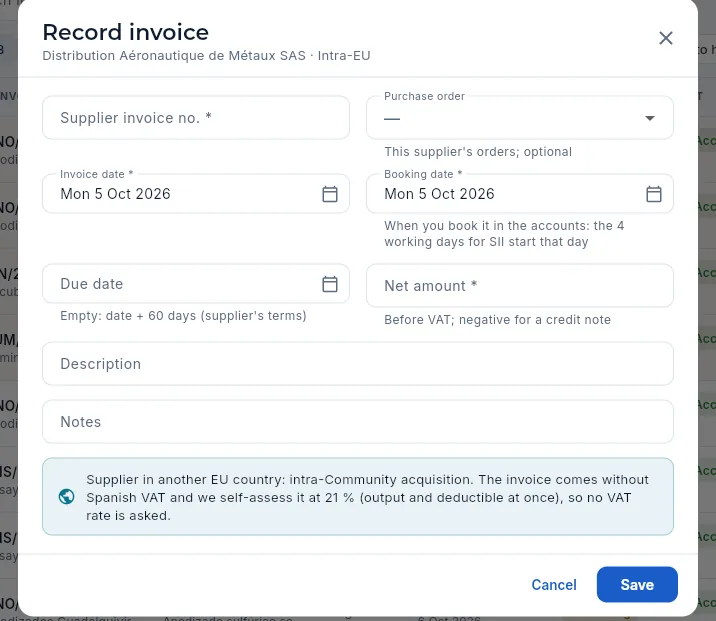 1234
1234
- 1The supplier and the type of transaction: Intra-EU.
- 2Booking date, as on any invoice.
- 3Only the net amount: no VAT rate is asked.
- 4The notice: the invoice comes without Spanish VAT, which is self-assessed at 21 %.
With a supplier in another EU country (an intra-Community acquisition), the invoice arrives without Spanish VAT: Aeromec does not ask for the VAT rate and self-assesses it at 21 %, both as output and as deductible VAT, so it costs nothing but it is declared (form 303) and also goes on form 349 and, for goods, in Intrastat.
With a supplier outside the EU (an import), VAT is paid at customs with the import declaration (SAD, Single Administrative Document), not on their invoice: the form reminds you below the VAT field.
The country in the supplier's record decides it (see Suppliers).
#Recording a payment
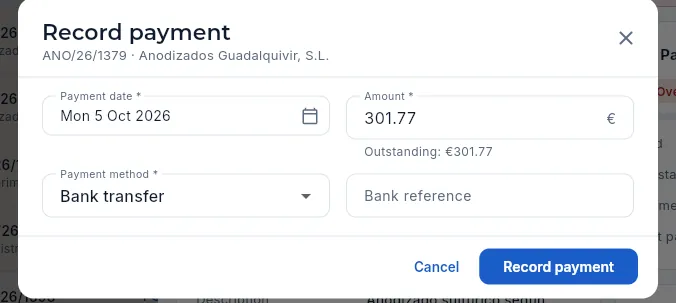 12345
12345
- 1Payment date: today by default.
- 2Amount: the outstanding amount (shown below for reference); change it if you pay part of it.
- 3Payment method: bank transfer, confirming, promissory note, direct debit or card.
- 4Bank reference (e.g. TRF-2026-0412), to reconcile it with the bank.
- 5Record payment saves it.
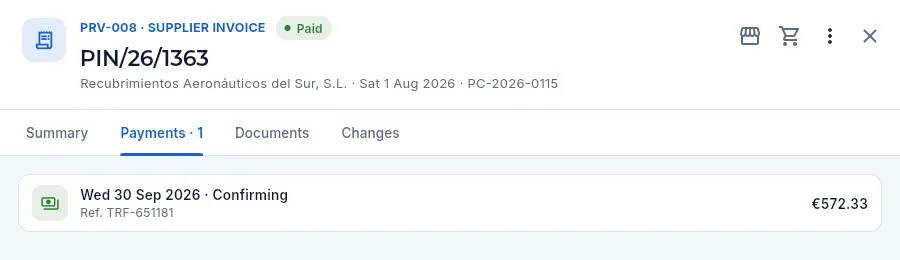 123
123
- 1Paid in full: the status becomes Paid and Record payment disappears.
- 2The Payments tab with its count.
- 3Each payment: date, method, reference and amount. Click it to correct or delete it.
In Payables, click the Due this week filter (and also check Overdue).
Open each invoice and check the Purchase order card: that the amount invoiced does not exceed what was received and that there are no rejected-material notices.
Make the transfers at the bank and, for each one, click Record payment with the date, the amount and the bank reference.
#What changes with your profile
 12
12
- 1With «See costs» she sees the amounts; without that permission, the indicators show a padlock.
- 2Without «Edit payables» there is no Record invoice button (nor Record payment on the records).
Finance
Banking
Your bank account up to date: you import the statement (Norma 43 or CSV), Aeromec suggests which receipt, payment, invoice or account each transaction matches, reconciles only the clear-cut ones and leaves the bank balance and the book balance explained item by item.
What the bank says and what Aeromec says do not always match on the same day: a customer pays an invoice you had not recorded yet, the bank charges the payroll, the social security contributions, the form 303 or a fee, or you record a payment today that the bank will not show until tomorrow. Reconciling means matching each transaction on the statement with what explains it in Aeromec: a credit with the receipt of its invoice, a debit with the payment to a supplier, a transfer with several invoices from the same customer, or a charge with no invoice (a fee, social security) with its ledger account.
In Banking you import the statement you download from online banking, Aeromec suggests what to match each transaction with (with a score from 0 to 100), reconciles only the clear-cut ones and lets you review the rest. What you reconcile is posted at the same time: if you match a credit with an invoice that is still open, its receipt is recorded; if you match it with an account, the entry against the bank is made. At the end of the day, the bank balance and the one in Accounting are explained item by item.
- 1StatementYou import the Norma 43 (or CSV) file from online banking.
- 2Auto-reconciliationThe clear-cut ones are matched automatically: receipts and payments already recorded, invoices by their amount, and rules.
- 3Reconcile the restWith the suggestions, by hand or against an account.
- 4AccountingReceipts, payments and entries reach the bank's 572 account.
- 5Balances explainedBank and books agree, except for what is in transit.
#The account and its balances
At the top is the bank account: its name, the IBAN, the 572 ledger account it is posted to and how the balance has moved over the last 90 days. If the company has several accounts, you switch between them by clicking the name.
 12345
12345
- 1The account: name, IBAN (its ⓘ explains each part) and the chart-of-accounts ledger account (57200001) its receipts, payments and entries are posted to.
- 2Balance · 90 days: how the balance per bank has moved at the end of each day.
- 3Import statement: upload the Norma 43 or CSV file downloaded from the bank.
- 4Auto-reconcile: matches in one go everything that has a clear suggestion.
- 5More options (⋮): the demo Sample statement (on narrow screens, also the other buttons).
 123456
- 1Balance per bank: the one left by the last imported transaction, exactly as the statement gives it.
- 2Book balance: the balance of the 572 account in Aeromec's accounts (what there should be according to what has been recorded).
- 3Difference: book − bank. It is explained by what is unreconciled and what is in transit; green when it is zero.
- 4Unreconciled: how many transactions are still open and their net amount. Click to go and reconcile them.
- 5Last statement: when it was imported; amber if more than 7 days ago. Click to see the history.
- 6The tabs: Reconcile (with the open ones), Transactions, Statements and Rules. The one you choose is remembered.
#Reconciling a transaction
The Reconcile tab shows on the left the bank transactions waiting to be reconciled, oldest first, each with the score of its best suggestion; on the right, the selected transaction with its suggestions and the tools to reconcile it by hand. Credits (money in) are green and debits (money out) red.
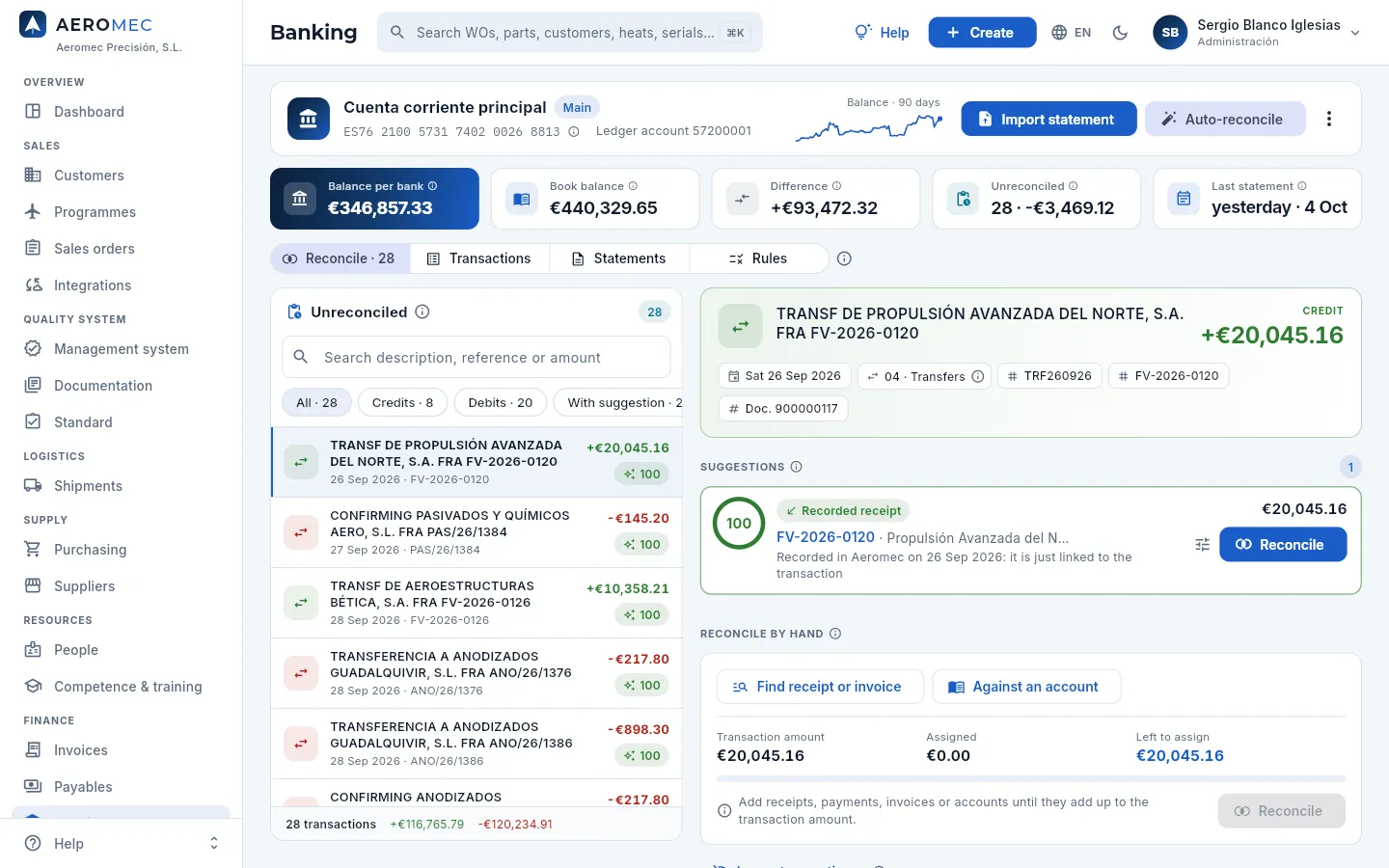 12345678
- 1Unreconciled and how many are left. Its ⓘ explains the list. Once you reconcile some, a bar counts how many you have done in the session.
- 2The search box: by the bank description, a reference (the invoice number usually comes in it) or the amount.
- 3The filters: all, credits, debits, with suggestion and no suggestion, with their counts.
- 4Each transaction: description, date, reference, amount and the score of its best suggestion (or «No suggestion»). Click it to see it on the right.
- 5The selected transaction: description, credit or debit, amount and the bank data (date, common concept, references and document number).
- 6The suggestion: what Aeromec proposes (here, an already recorded receipt of the invoice the bank quotes), with its score.
- 7Reconcile matches the transaction with the suggestion in one click. The settings icon to its left takes it to manual reconciliation to change amounts.
- 8Reconcile by hand: find receipts, payments or invoices, or post it against an account, until the assigned amount matches.
Each suggestion says what it is and what will happen when you reconcile:
| Suggestion | When it appears | When you reconcile |
|---|---|---|
| Recorded receipt / Recorded payment | A receipt or payment recorded in Aeromec for the same amount and on a nearby date | It is just linked to the transaction: nothing new is recorded |
| Open invoice / Open supplier invoice | An invoice with that amount open, not yet collected or paid in Aeromec | Its receipt or payment is recorded with the bank date |
| Several invoices | Two or three open invoices of the customer named in the description that add up to the amount | The receipt of all of them is recorded |
| Automatic rule | A rule whose text appears in the description (fees, payroll, social security, taxes) | The entry of the rule's account against the bank is made |
Besides receipts and payments already recorded (100 points), the demo data include one case of each kind:
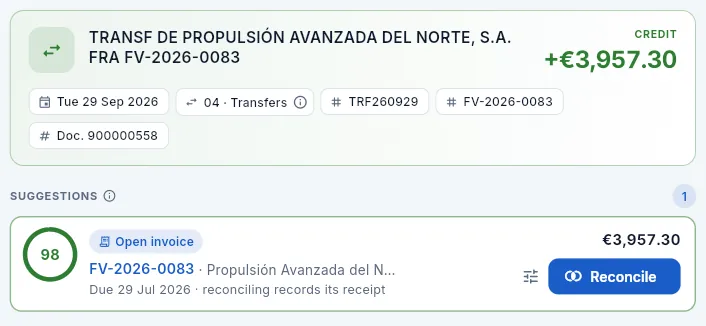 12
12
- 1A customer transfers the amount of an invoice and quotes its number in the description and the reference, but in Aeromec the invoice has not been collected yet.
- 2Open invoice (60 + 30 + 8 = 98): reconciling records its receipt with the bank date.
 12
12
- 1A customer pays several invoices at once without quoting any of them («PAGO FACTURAS»).
- 2Several invoices: two of that customer's open invoices add up to exactly the amount transferred. Reconciling records the receipt of both.
 12
12
- 1The month's social security contributions (common concept 15 · Payroll and social security).
- 2Automatic rule «Seguridad Social»: an entry of 47600000 Social security payable against the bank.
 12
12
- 1A €240 credit with the description «ABONO VARIOS» (common concept 99 · Miscellaneous).
- 2No suggestions: no receipt, payment, invoice or rule fits. It is reconciled by hand against an account, or ignored.
Import the day's statement (see Importing a statement) and click Auto-reconcile: the clear-cut ones are reconciled.
In Reconcile, go through what is left. For each transaction, read the suggestion: what it is and what reconciling will do (link a receipt, record an invoice's receipt, make an entry).
If it is right, click Reconcile. If the amount does not quite match (a partial receipt, a fee deducted), click the settings icon and correct the items under Reconcile by hand.
If there is no suggestion, look up the receipt, payment or invoice with Find receipt or invoice, or post it Against an account. If it should not be posted, Ignore transaction with its reason.
#Reconciling by hand
When there is no suggestion or it is not the right one, Reconcile by hand lets you match the transaction with one or several items that add up to its amount: receipts or payments already recorded (they are just linked), open invoices (their receipt or payment is recorded for the amount you enter, even a partial one) or a ledger account (an entry against the bank is made). The bar turns green when the assigned amount matches the transaction amount; until then, Reconcile stays disabled.
 1234
1234
- 1Search by number, customer or amount. At the top, the transaction amount and what is left to assign.
- 2Open invoices (exact amounts first) or Recorded receipts within 60 days of the transaction.
- 3Tick one or several: each with its due date and what it has open.
- 4Add brings them in as items of the transaction.
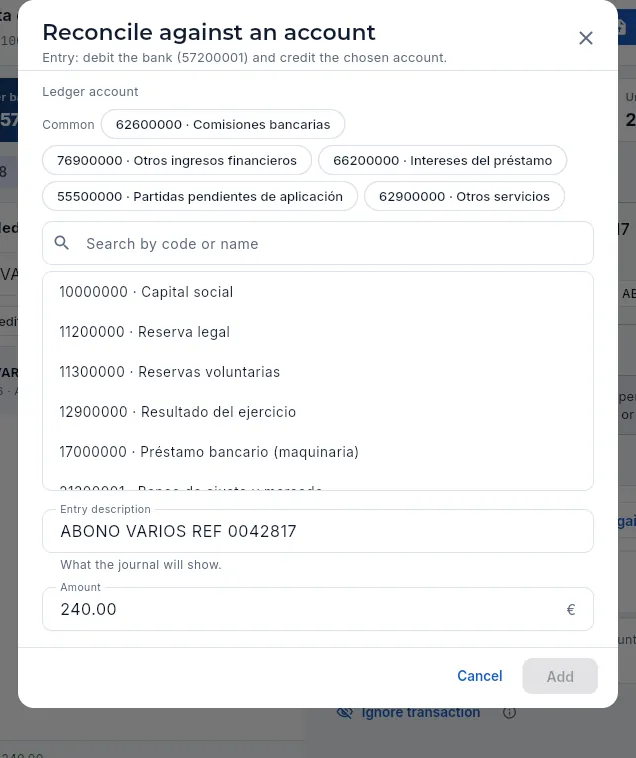 1234
1234
- 1The entry that will be made: for a credit, debit the bank and credit the chosen account.
- 2The common accounts: 769 Other financial income, 555 Suspense items (if you do not know yet what it is), 626 Bank fees…
- 3Or search any ledger account by its code or name.
- 4The description the journal will show, and the item amount.
Choose the transaction (for example, the €240 credit «ABONO VARIOS»). It has no suggestion.
If you know what it is, click Against an account and choose the account: bank interest goes to 769 Other financial income. If you do not know yet, to 555 Suspense items, to reclassify it later with a manual entry.
Check the entry description and click Add; then Reconcile.
Choose the transaction. If Aeromec finds the combination, the Several invoices suggestion proposes it: click Reconcile.
If it does not find it (or the customer deducted something), click Find receipt or invoice, tick the invoices and click Add. Click an item to change its amount: if an invoice is paid in part, enter only what arrived.
When the bar says Balanced, click Reconcile.
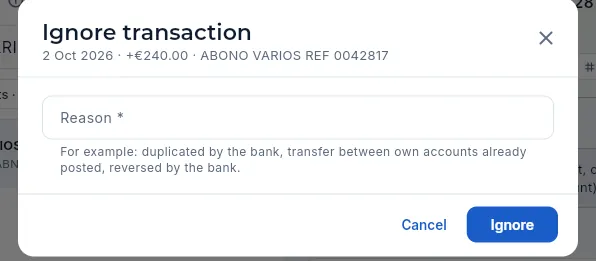 12
12
- 1The reason is mandatory: duplicated by the bank, transfer between own accounts already posted, reversed by the bank…
- 2Ignore takes it out of the unreconciled list without posting anything, with your name and the date.
#Auto-reconciliation
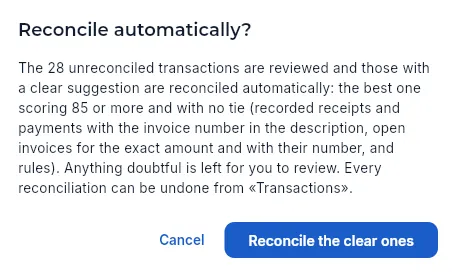 12
12
- 1All the open transactions are reviewed and only those with a clear suggestion are reconciled: the best one scoring 85 or more, with no tie.
- 2Reconcile the clear ones: when it finishes, it says how many it reconciled and how many are left.
Anything doubtful stays open for you to review: a transaction with no suggestion, a suggestion under 85 points (such as several invoices, worth 75) or two suggestions with the same score (two identical payments to the same supplier). In the demo data, auto-reconciliation would match the receipts and payments already recorded, the transfer quoting an open invoice (recording its receipt) and the payroll, social security, form 303 and fee charges (through their rules), and would leave the transfer that pays several invoices and the €240 credit for you to review by hand. Each automatic reconciliation carries its mark in Transactions and can be undone.
#The transaction history
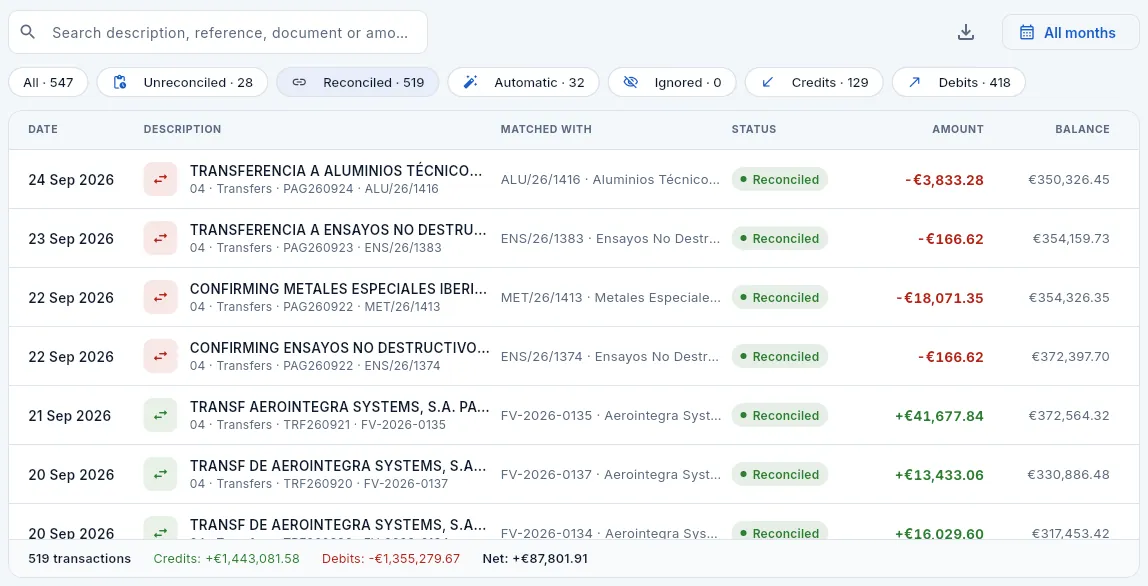 1234567
- 1Search by description, reference, document number or amount.
- 2Choose a month or all of them.
- 3Export CSV downloads what you see.
- 4The filters: unreconciled, reconciled, automatic, ignored, credits and debits.
- 5Matched with: the receipt, payment, invoices or account it was matched with.
- 6Status: unreconciled, reconciled (with a wand if auto-reconciliation did it) or ignored.
- 7Amount and the balance the account was left at according to the bank. The footer adds up credits, debits and net.
Click a transaction to open its record: the data as the bank gives them, what it was reconciled with and the entry that was made.
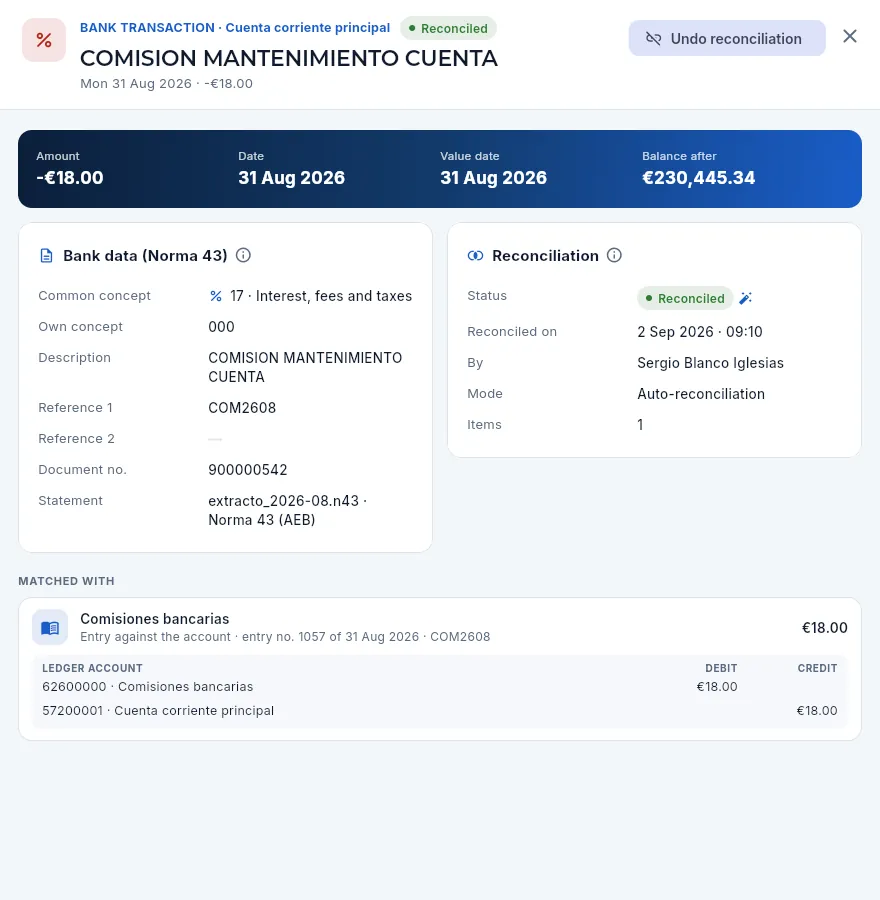 12345
12345
- 1Account, status (reconciled), description, date and amount.
- 2Undo reconciliation: the transaction goes back to unreconciled (see below).
- 3Bank data: common concept (a code that is the same at every bank), own concept, references, document number and the statement it came in with.
- 4Reconciliation: when, who, and whether it was by hand or auto-reconciliation.
- 5Matched with: here, the entry against account 626 Bank fees, with its debit and credit. For a receipt or a payment, the invoice, with Open invoice.
#Importing a statement
The statement is downloaded from online banking in Norma 43 (the standard format of Spanish banks, the AEB's Cuaderno 43, AEB being the Spanish Banking Association; .n43, .q43 or .txt files) or in CSV (one line per transaction: date;description;amount, with the date as DD/MM/YYYY and a decimal comma). Norma 43 is preferable: it carries the references, the document number and the balance after each transaction, so the suggestions are more accurate.
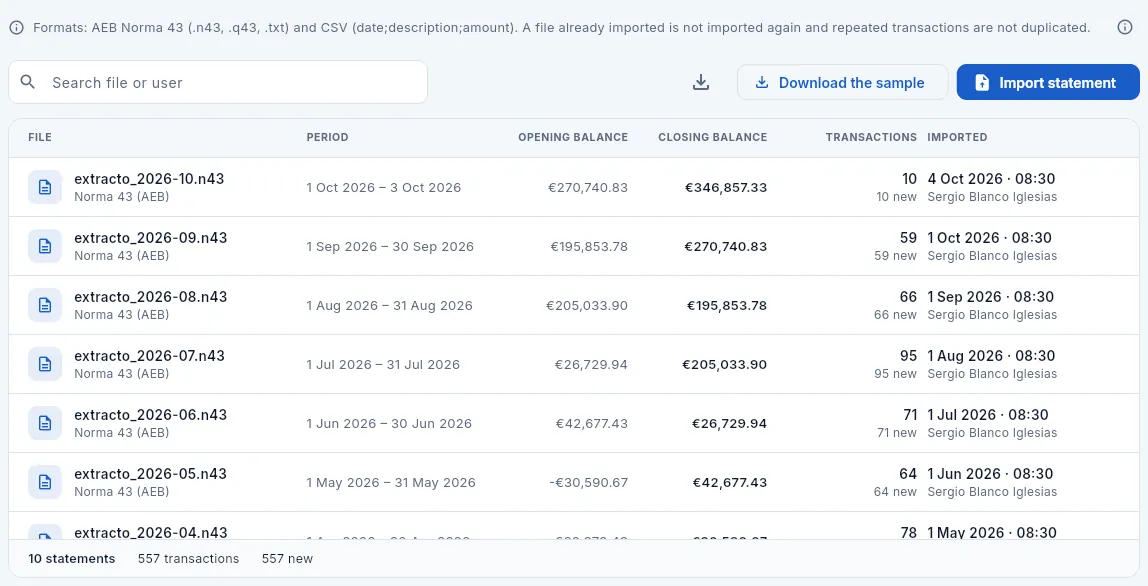 12345
12345
- 1The accepted formats; their ⓘ (on the right) explains each Norma 43 record and the CSV.
- 2Download the sample: the demo statement, to open in a text editor.
- 3Import statement: choose the file downloaded from the bank.
- 4Each statement: file and format, period, opening and closing balance, transactions (and how many were new) and who imported it. Click it to see its transactions.
- 5The footer counts the statements and their transactions.
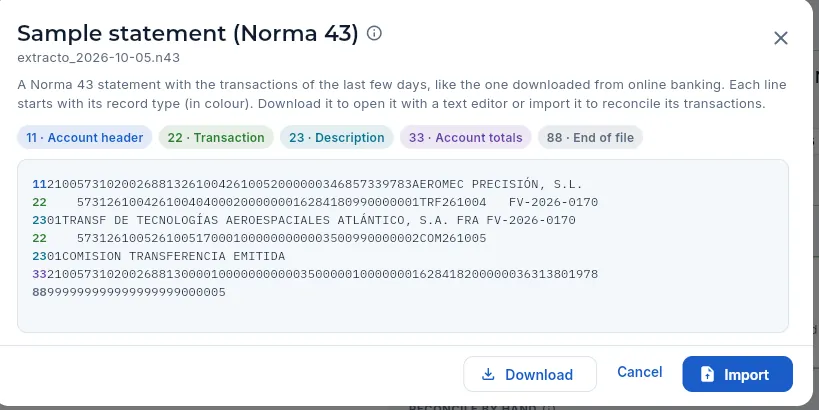 1234
1234
- 1The Norma 43 record types, each in its colour: 11 account header, 22 transaction, 23 description, 33 account totals (with the totals that are checked) and 88 end of file.
- 2The file: 80-character lines, each starting with its record type. It carries the transactions of the last few days.
- 3Download the file.
- 4Import imports it as if it came from the bank, to practise reconciling.
From online banking, download the account statement in Norma 43 format (or CSV) since the last one you imported.
In Banking, click Import statement and choose the file. Aeromec recognises the format from its content.
Read the result: how many transactions it carried, how many are new and how many were already there (from another overlapping statement: they are not duplicated).
Click Go to reconcile (or Auto-reconcile) to reconcile the new ones.
#Automatic rules
Some charges repeat every month with no invoice: fees, payroll, social security, withholdings and VAT. A rule recognises them by a text in their description and reconciles them against their ledger account: it shows up as an 85-point suggestion and auto-reconciliation applies it.
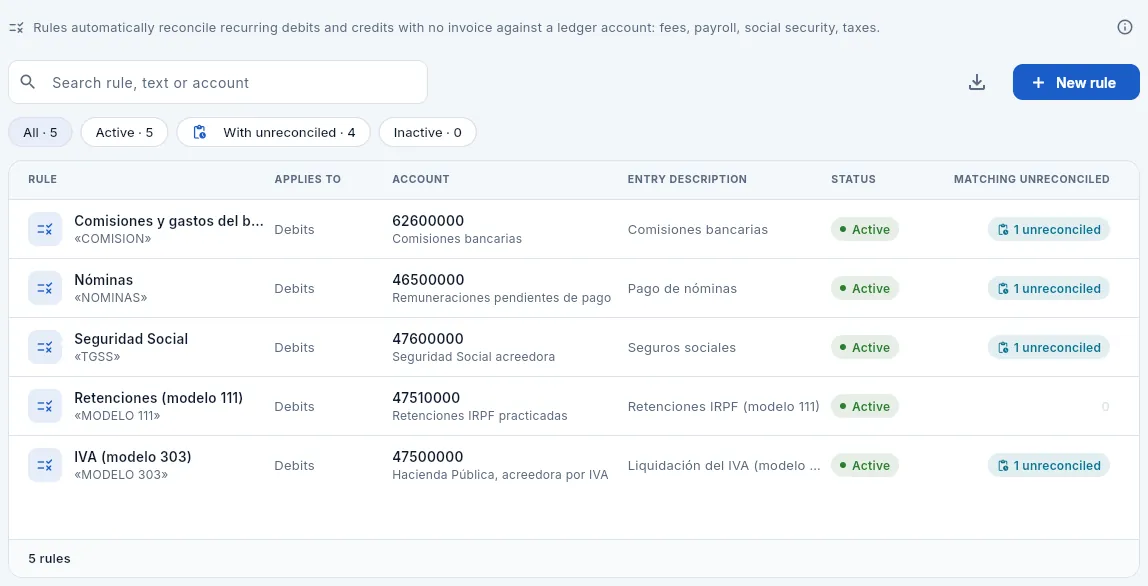 123456
- 1New rule.
- 2The filters: all, active, with matching unreconciled transactions, and inactive.
- 3Rule: its name and, in quotes, the text that must appear in the description (case- and accent-insensitive).
- 4Applies to debits, credits or both.
- 5Account: the bank's counterpart in the entry, and the description it will carry.
- 6Matching unreconciled: how many unreconciled transactions it would apply to today. Click a row to edit it.
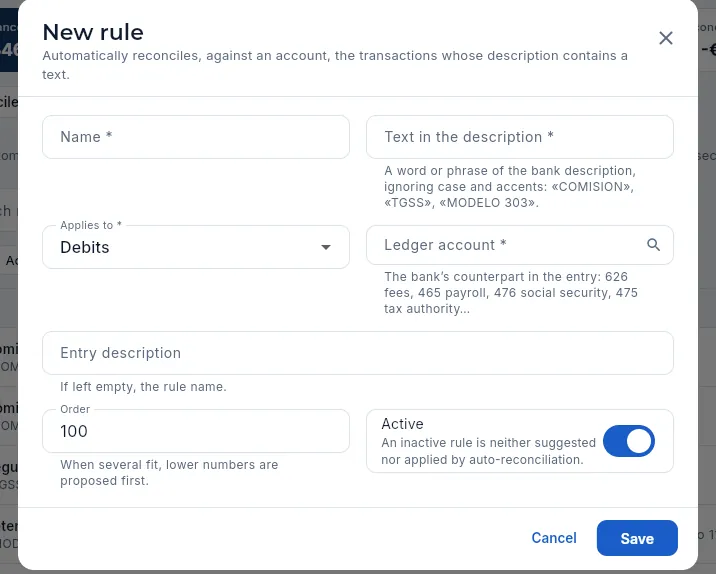 12345
12345
- 1Text in the description: a word or phrase that only appears in that kind of transaction («COMISION», «TGSS», «MODELO 303»).
- 2Applies to debits, credits or both.
- 3Ledger account: 626 fees, 465 payroll, 476 social security, 475 tax authority…
- 4Order: if several match, the one with the lower number is suggested first.
- 5Active: an inactive rule is neither suggested nor applied by auto-reconciliation.
In Rules, click New rule.
Enter a name («Bank fees») and the text in the description that identifies the transaction («COMISION»). Choose whether it applies to debits, credits or both.
Choose the counterpart ledger account and, if you like, the entry description. Click Save.
Check the Matching unreconciled column: if the rule catches transactions it should not, refine the text.
#What changes with your profile
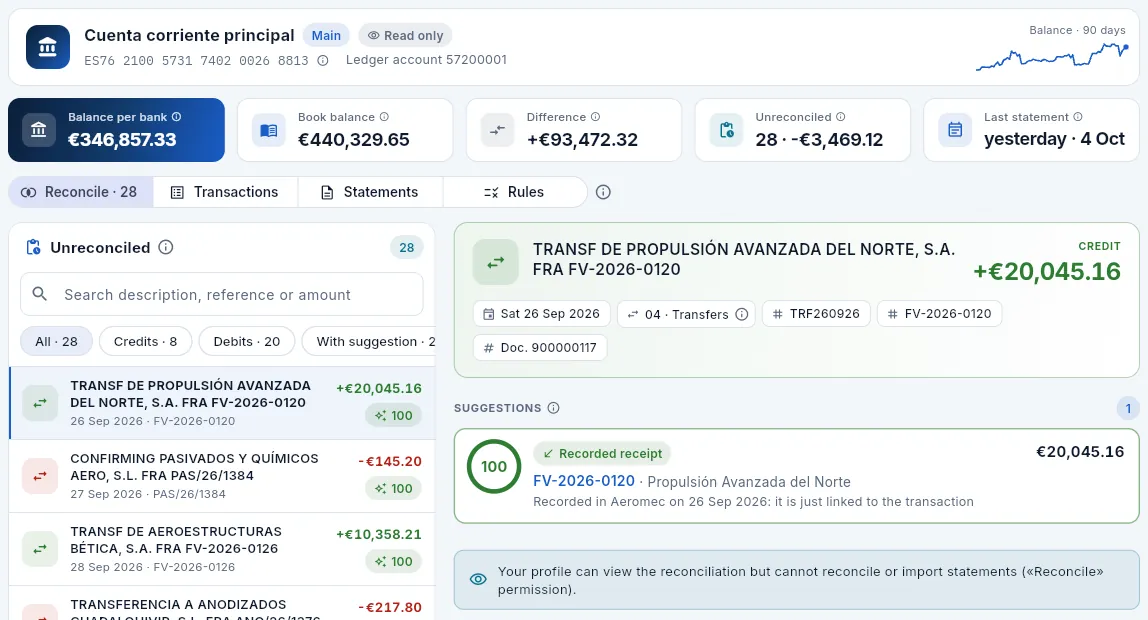 1234
1234
- 1Read only: without the «Reconcile» permission.
- 2No import, auto-reconcile or sample statement buttons.
- 3He sees the suggestions, but without the Reconcile button.
- 4Instead of manual reconciliation, a notice explains which permission is missing.
Finance
Accounting
The bookkeeping Aeromec does by itself with the Spanish chart of accounts (PGC): every invoice, receipt, payment, payroll, depreciation and VAT settlement posts its entry; the journal, the ledger, the trial balance, the balance sheet and the profit and loss account, each month's closing, the fixed assets and the export to the accountants.
Everything that happens in Aeromec is reflected in the accounts: an issued invoice is a sale and a debt owed by the customer, a heat-treatment invoice is an expense and a debt owed to the supplier, a receipt moves money from the customer to the bank. In Accounting, Aeromec makes those journal entries by itself, with the Plan General de Contabilidad (PGC, the Spanish chart of accounts), at the moment each transaction happens: nobody types them and there is no need to wait for the accountants to key in the invoices.
An entry records a transaction by double entry: what is charged to some accounts (the debit) equals what is credited to others (the credit). An invoice for €1,000 plus €210 VAT debits €1,210 to the customer (account 430) and credits €1,000 to sales (70) and €210 to output VAT (477). Each month the closing entries are completed (the depreciation of the machines, the inventory adjustment and the VAT settlement), the month is closed and exported to the accountants or the accounting software.
- 1DocumentsInvoices, receipts, payments and bank reconciliations.
- 2Automatic entriesEach document posts its entry with the PGC, without typing it.
- 3Month-end closingDepreciate, adjust inventory, settle VAT and close.
- 4ExportThe entries CSV for the accountants or the accounting software.
- 5ReportsTrial balance, balance sheet, profit and loss and analysis.
#The indicators and the views
 1234567
- 1Go-live: from that day on everything is posted in Aeromec; what came before is picked up by the opening entry.
- 2Journal entries since go-live, from every source (including those your profile does not see in detail). Click to go to the journal.
- 3Not exported: those the accountants do not have yet; amber if any belong to months already closed.
- 4Last closed month: neither that one nor the earlier ones accept new entries or changes.
- 5Debit − credit check of all the accounts: always €0.00 (an entry that does not balance cannot be saved).
- 6The views: Journal, Ledger, Trial balance, Balance & P&L, Closing, Fixed assets and Export. The one you choose is remembered.
- 7Refresh reloads the figures.
#The journal
The journal gathers all the entries in date order, with their sequential number for the year, the description, the document they come from, the status and the amount.
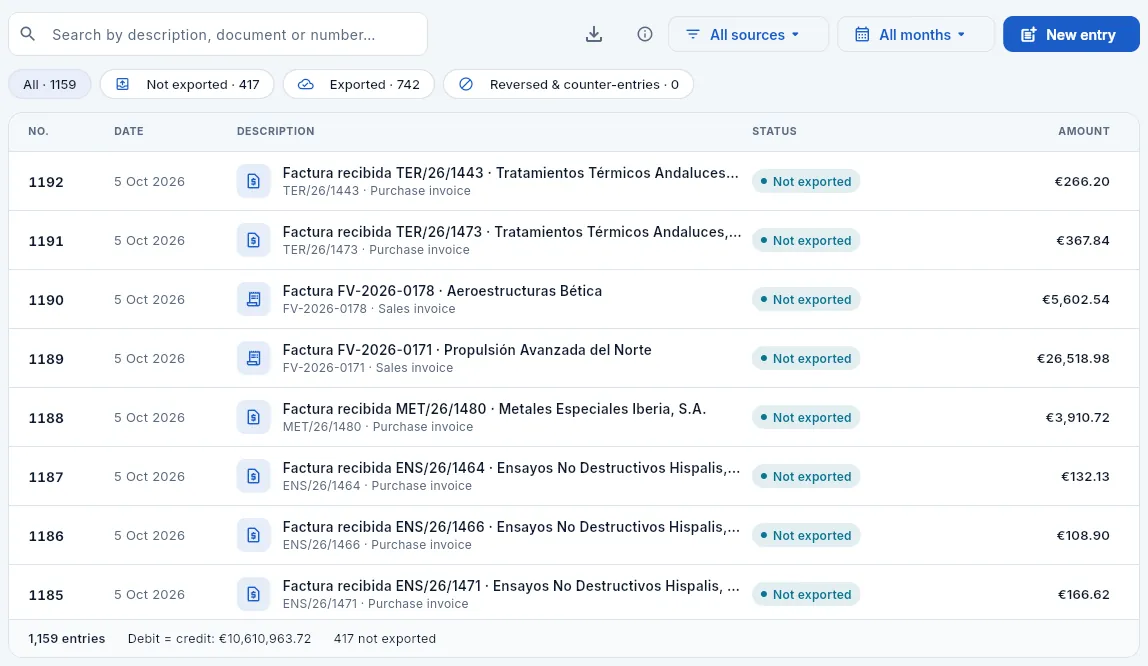 12345678
- 1Search by description, document (FV-2026-0185, ALU/26/1497…) or entry number.
- 2Source: issued or received invoice, receipt, payment, depreciation, inventory, bank, payroll, VAT settlement, opening or manual.
- 3A month or all of them.
- 4New entry: a manual entry.
- 5The filters: all, not exported, exported, and reversed with their counter-entries.
- 6Each entry: number, date, description with the icon of its source, and the document. Click to open it.
- 7Status: not exported, exported, reversed or counter-entry. A padlock means its month is closed.
- 8The footer: how many entries, the total debit (equal to the total credit) and how many are not exported.
Each entry comes from a source:
| Source | When it is made | The entry |
|---|---|---|
| Issued invoice | When it is issued | The customer (430) debited for the total; sales (70) and output VAT (477) credited |
| Received invoice | When it is recorded | The purchase or service (group 6: raw material, subcontracting…) and input VAT (472) debited; the supplier (400 or 410) credited. For a purchase from another EU country, the VAT is self-assessed: 472 and 477 for the same amount |
| Receipt / Payment | When it is recorded (or reconciled in Banking) | The bank (572) against the customer, or the supplier against the bank |
| Bank | When a transaction is reconciled against an account | The bank against the chosen account: fees (626), payroll (465), social security (476), tax authority (4750)… |
| Payroll | Every month | Wages (640) and employer's social security (642) debited; wages payable (465), social security (476) and withholdings (4751) credited |
| Depreciation | At month-end closing | Depreciation of fixed assets (681) debited; each asset's accumulated depreciation (281) credited |
| Inventory | When adjusted | The change in stock value between inventories (31, 33, 35) and their change accounts (61, 71) |
| VAT settlement | At month-end closing | Offsets output VAT (477) against input VAT (472) and leaves the result payable (4750) or to be carried forward (4700) |
| Opening | Once, at go-live | The balances on that date: customers, suppliers, bank, fixed assets, inventories, capital and reserves |
| Manual | By hand | Adjustments, provisions, reclassifications or an expense with no invoice |
Ledger accounts have 8 digits and are created automatically when needed: one per customer (43000001, 43000002…), per supplier (400…), per bank (57200001) and per asset (213…).
#The record of an entry
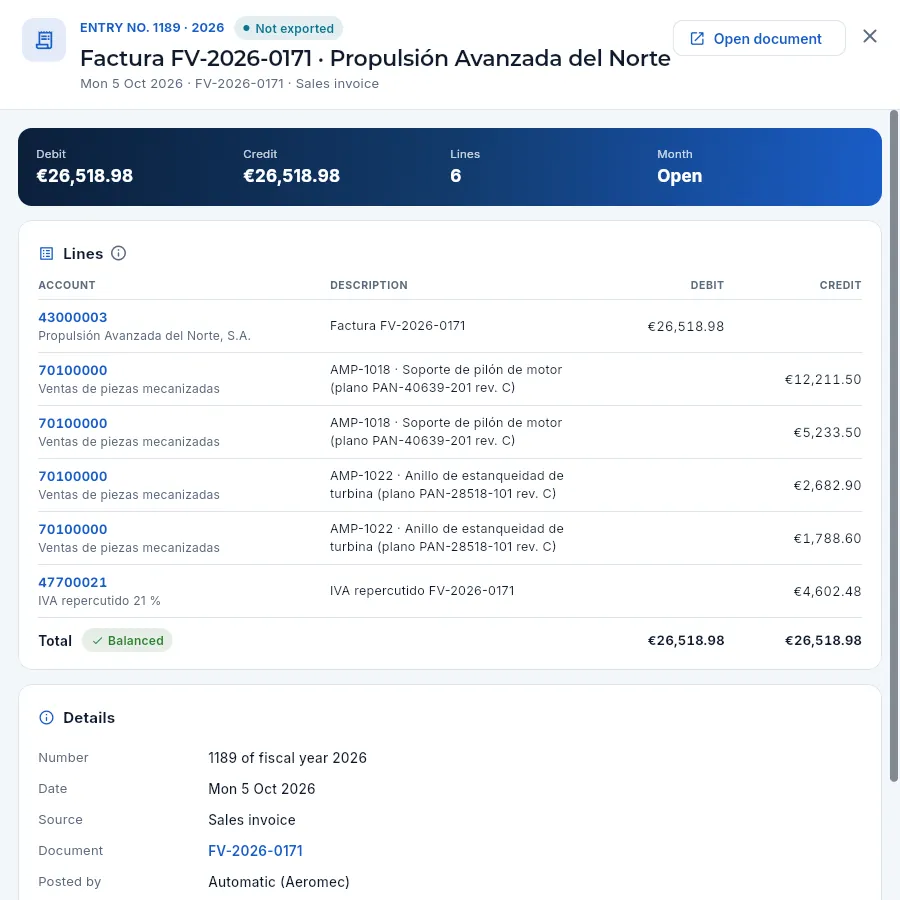 123456
- 1The entry's number in the year, status (not exported), description, date, document and source.
- 2Open document opens the invoice, receipt, payment or bank transaction it comes from.
- 3Debit and credit (always equal), number of postings and whether its month is open or closed.
- 4Each posting: the ledger account (click to see its ledger), the description and the amount in debit or credit. Here, the customer debited and sales and VAT credited.
- 5Total debit and credit: Balanced.
- 6Details: number, date, source, document (link), who recorded it (Aeromec, if automatic), when it was saved and its export. Below, how it is corrected.
In the Journal, search for the document (for example, the invoice number) or filter by source and month.
Click the entry. Check its postings: which accounts it debits and credits, and by how much.
Click a ledger account to see its ledger (all its movements in the year) or Open document to open the invoice, receipt or payment.
#Manual entries
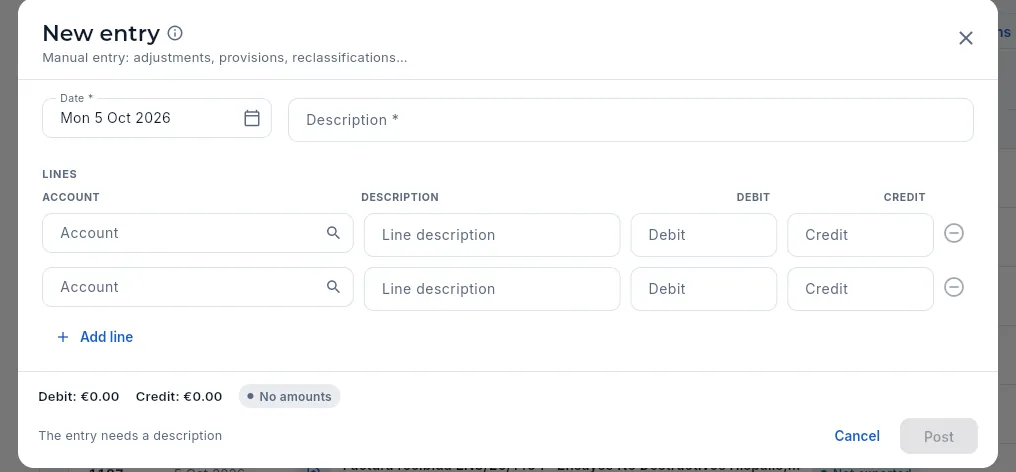 12345
12345
- 1Date: in an open month. The entry description next to it.
- 2Each line: an 8-digit ledger account (search it by code or name), its description and the amount in debit or credit.
- 3Add line (at least two are needed).
- 4The totals of debit and credit and whether it balances; if not, a button adds the difference on a line.
- 5Post is only enabled when the entry is complete and balances.
#The ledger and the chart of accounts
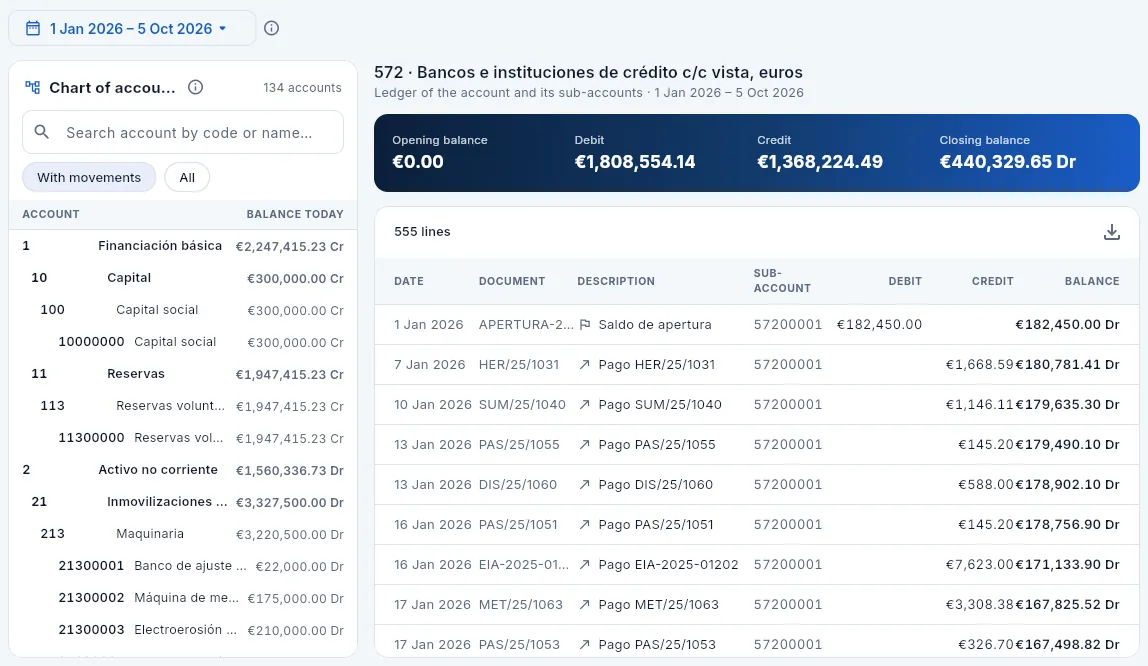 1234567
- 1The period: this or last year, quarter or month, or the dates you choose.
- 2The chart of accounts: search by code or name; With movements hides the unused ones.
- 3From group (1 digit) to ledger account (8 digits), with today's balance: D debit, H credit. Click one to see its ledger.
- 4The selected account: a group code gathers all its ledger accounts (430, all the customers).
- 5Opening balance, debit and credit for the period, and closing balance.
- 6Export CSV of the ledger.
- 7Each posting: date, document, description, ledger account, debit, credit and the running balance. Click to open its entry.
#Trial balance
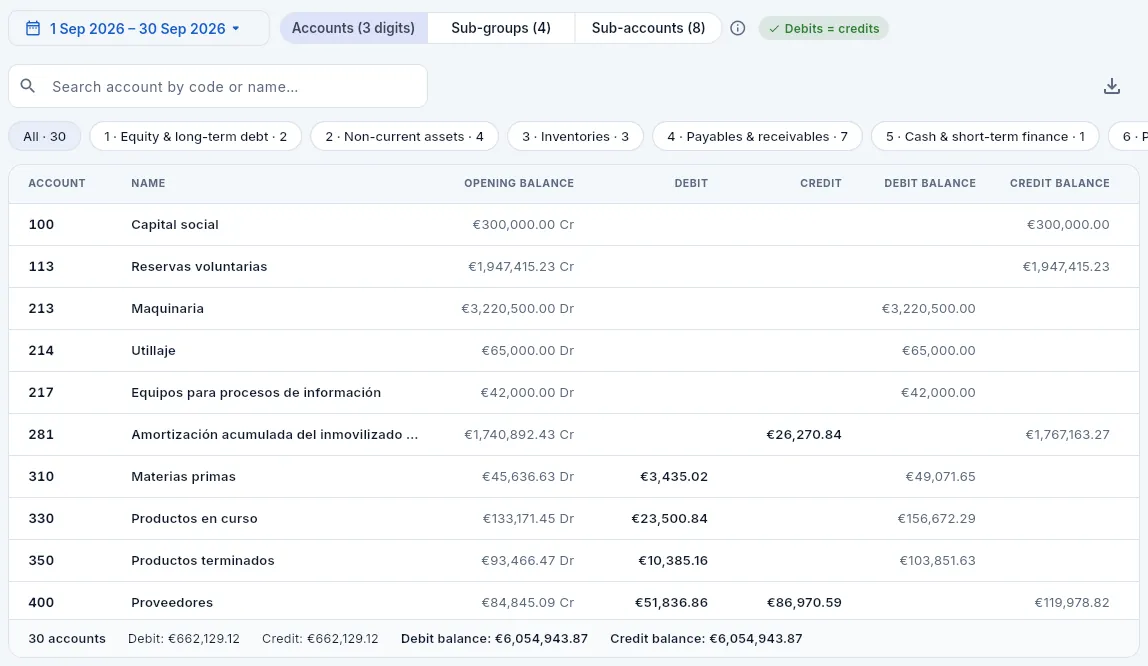 123456
- 1The period: here, last month.
- 2The level: accounts (3 digits), sub-groups (4) or ledger accounts (8).
- 3Debits = credits: the check that everything balances.
- 4Filter by PGC group: 1 basic financing, 2 fixed assets, 3 inventories, 4 creditors and debtors, 5 financial accounts, 6 expenses and 7 income.
- 5For each account: opening balance, debit and credit for the period and closing balance, debit or credit.
- 6The footer: total debit equals total credit, and total debit balances equal total credit balances.
#Balance sheet, profit and loss and analysis
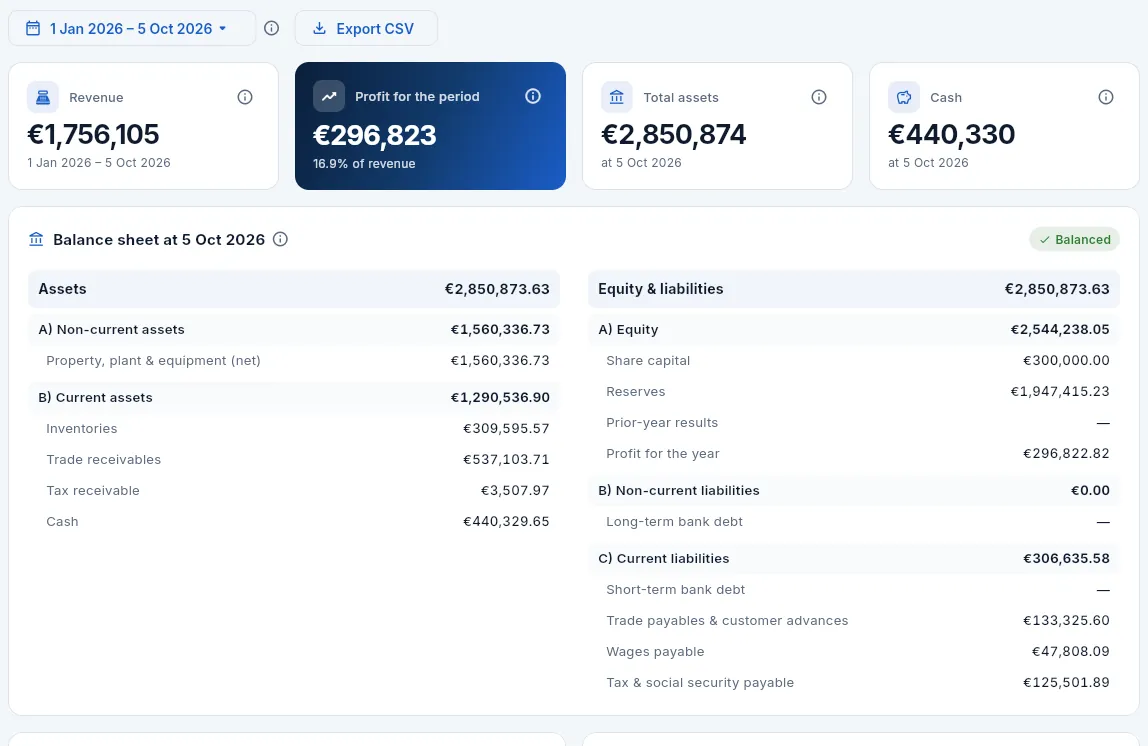 12345678
- 1The period: the balance sheet is at its last day and the profit and loss covers the whole period.
- 2Export CSV of the balance sheet and the profit and loss.
- 3Revenue: the period's sales (account 70), excluding VAT.
- 4Profit before tax and its % of revenue (the net margin).
- 5Total assets at the date.
- 6Cash: the book balance of the banks (group 57).
- 7Assets: fixed assets net of depreciation, inventories, customers, tax receivable and cash.
- 8Equity and liabilities: capital, reserves and profit for the year; debts to suppliers, staff, the tax authority and social security. The Balanced mark checks they add up to the same as the assets.
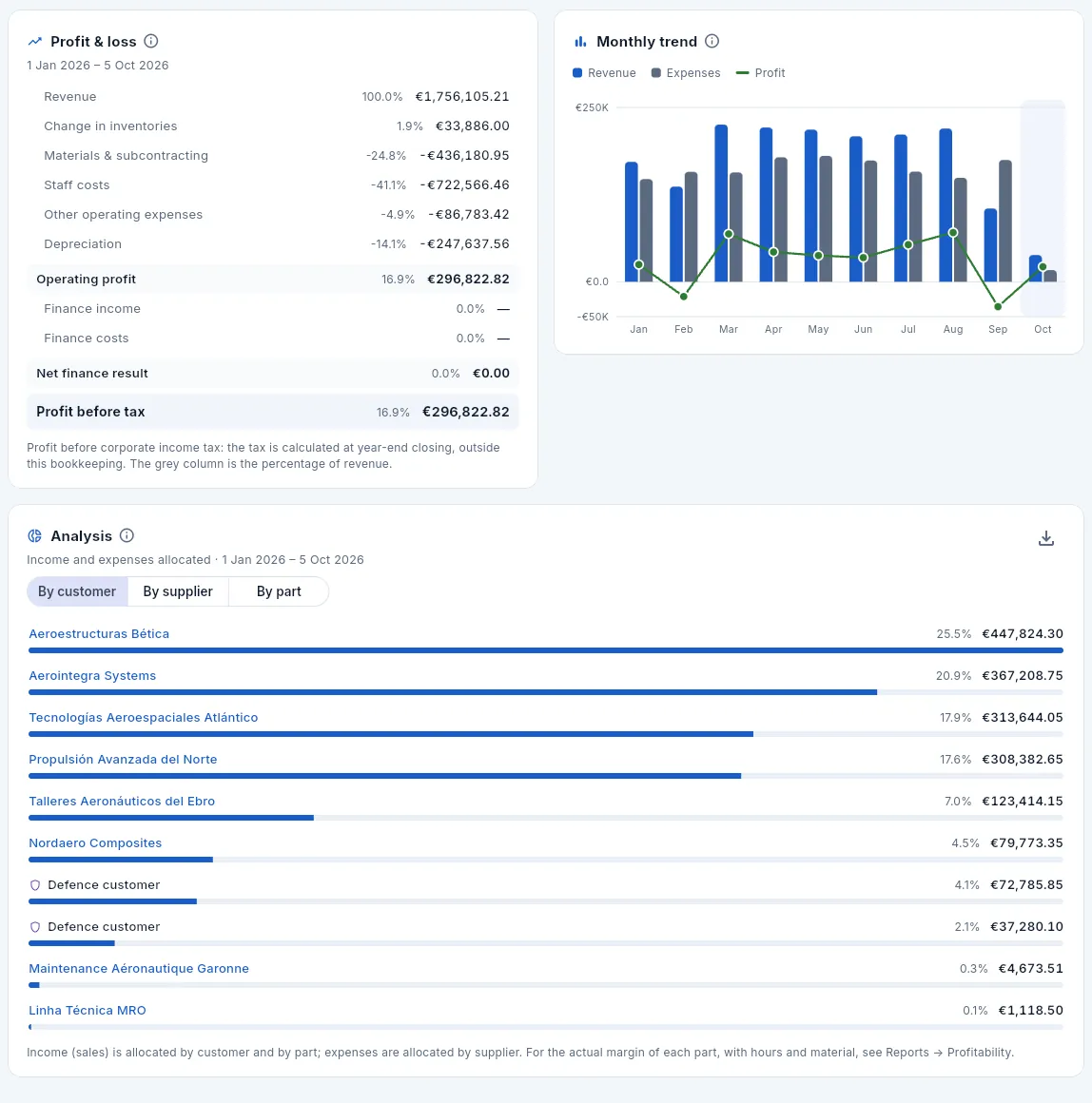 123456
- 1Profit and loss in the abridged format: revenue, change in inventories, materials, staff, other expenses and depreciation, with their % of sales.
- 2Profit before tax: corporate income tax is calculated at the year-end closing, outside this bookkeeping.
- 3Monthly trend: revenue, expenses and profit for each month (the current month, highlighted and incomplete).
- 4Analysis: income allocated to each customer or part, and expenses to each supplier.
- 5Each customer with its share of revenue. Click to open its record.
- 6Without «Defence data», a defence customer counts, but with its name hidden.
#Month-end closing
The Closing view has one row per month since go-live, with what has been posted at each closing step and the actions to complete it. A closed month accepts no new entries or changes: anything that arrives late (an overdue invoice, a corrected document) is posted in the first open month.
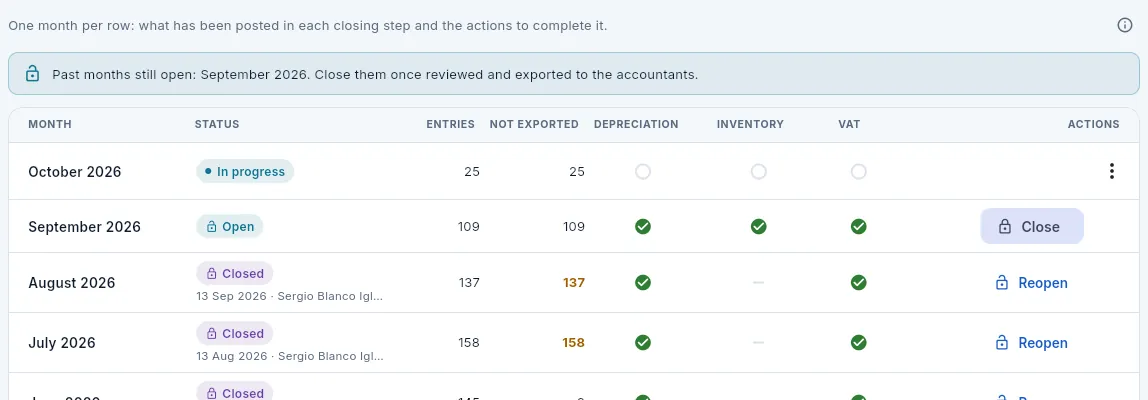 1234567
- 1Notice of past months still open.
- 2The closing steps: depreciation, inventory and VAT. Green, done; empty circle, pending; «—», not adjusted that month.
- 3The current month cannot be closed until it ends. In an open month, the Actions menu (⋮) has the missing steps: depreciate, adjust inventory and settle VAT (the latter only once the month has ended).
- 4September, open, with the three steps done: ready to close.
- 5Closed: when and by whom.
- 6Not exported in amber: a closed month the accountants do not have yet.
- 7Reopen a closed month if it needs correcting.
 12
12
- 1What closing means: nothing new dated in that month; anything late goes to the first open month. It can be reopened.
- 2If a step is missing (depreciation, VAT) or there are entries not exported, it says so here.
Depreciate: on the month's row, open the Actions menu (⋮) and choose Depreciate: it posts the charge for every machine and piece of equipment in service (681 against each asset's 281).
Adjust inventory if there is a stock count or it is quarter- or year-end: in the same menu, Adjust inventory values the stock (raw material and finished goods at average price; work in progress at the actual cost accumulated on open WOs) and takes the difference to the profit and loss.
Review the month's form 303 draft in Tax and choose Settle VAT in the menu: it offsets output VAT against input VAT and leaves the result in 4750 (payable) or 4700 (to carry forward).
Click Close and confirm.
Export the month's entries to the accountants (see Exporting to the accountants).
#Fixed assets
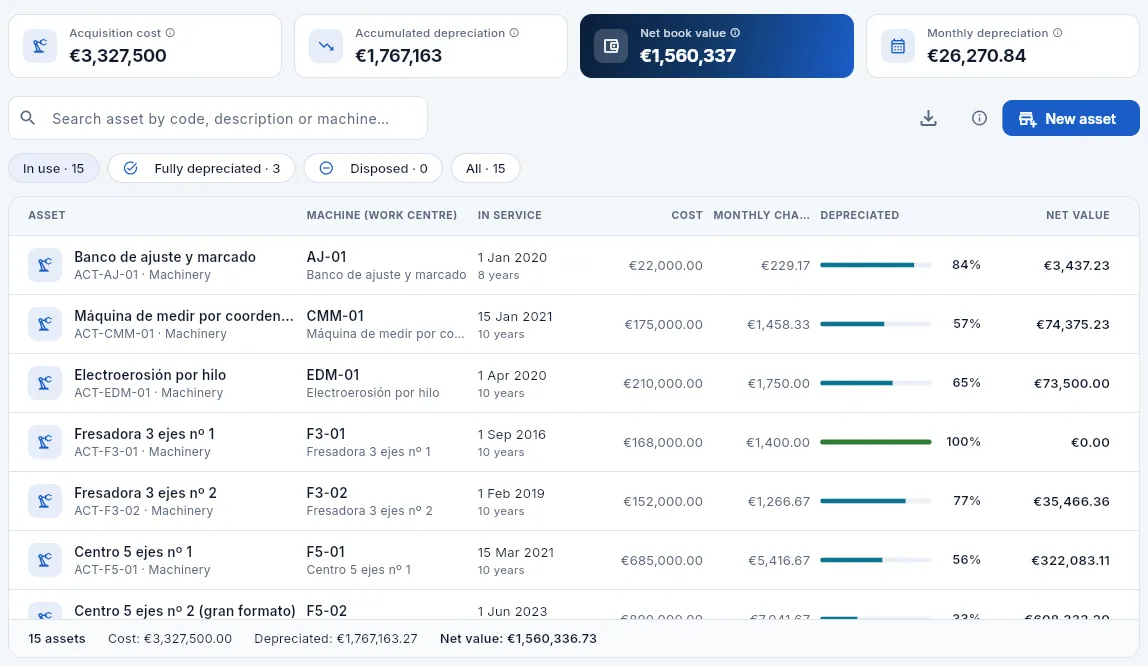 1234567
- 1Acquisition cost: what was invested (before depreciation).
- 2Accumulated depreciation: what has already gone to expenses.
- 3Net book value: cost − depreciation; it is the fixed assets figure on the balance sheet.
- 4Monthly depreciation: the fixed cost of each month (no cash goes out, but it counts when setting the machines' hourly rate).
- 5New asset: a machine, tooling or IT equipment.
- 6The filters: in use, fully depreciated, disposed and all.
- 7Each asset with its machine (work centre), date in service and useful life, cost, monthly charge, % depreciated and net value.
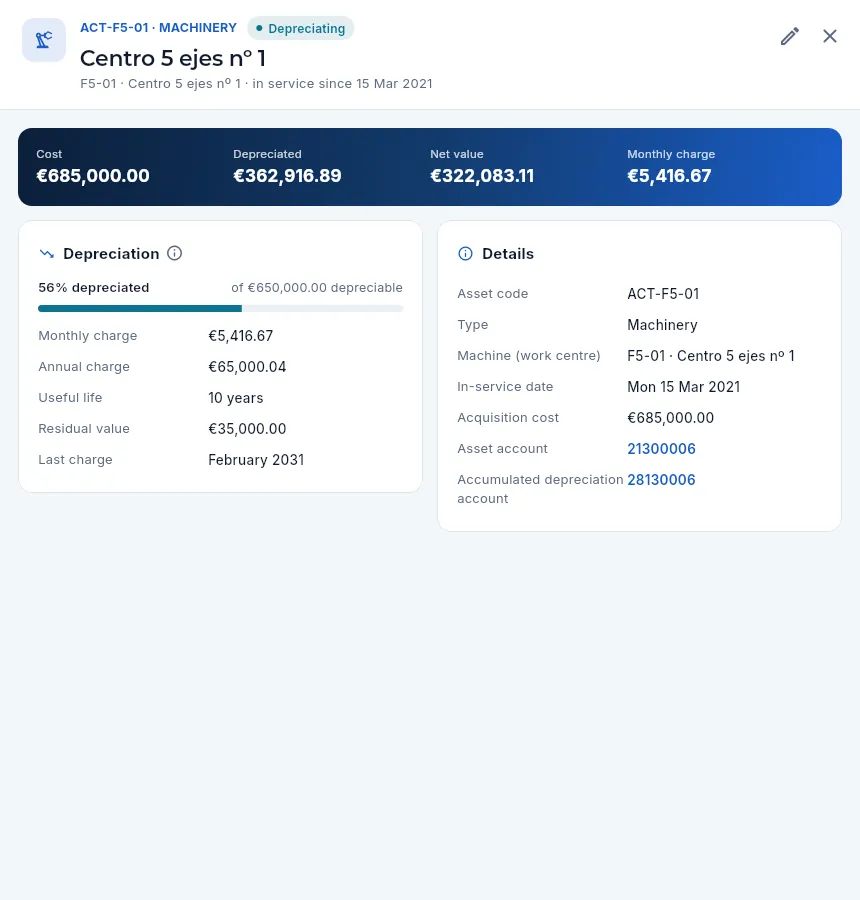 12345
12345
- 1Code and type, status (being depreciated, fully depreciated or disposed), machine and date in service.
- 2Edit the asset (for example, to dispose of it when it is sold or scrapped).
- 3Cost, depreciated, net value and monthly charge.
- 4Depreciation: % depreciated, monthly and annual charge, useful life, residual value and the last charge.
- 5Details: machine, date in service, cost and its two ledger accounts: the asset's (213…) and its accumulated depreciation's (281…).
#Exporting to the accountants
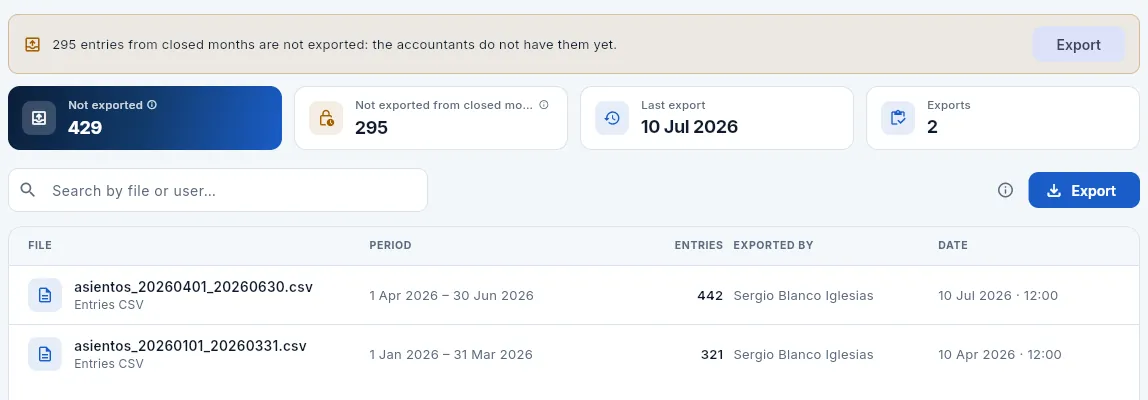 123456
- 1The notice: entries from closed months the accountants do not have yet, with its Export button.
- 2Not exported: all those that are in no export.
- 3Not exported from closed months: it should be zero.
- 4Last export and how many there have been.
- 5Export a period.
- 6Each export: file, period, entries, who and when. Click it to download it again.
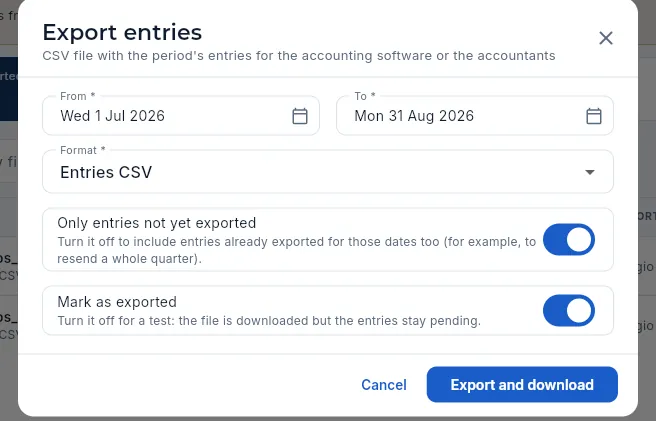 12345
12345
- 1From and To: it proposes the closed months not yet exported.
- 2Format: entries CSV or CSV with the analysis (customer, supplier and part).
- 3Only entries not yet exported: turn it off to resend a whole period.
- 4Mark as exported: turn it off for a test.
- 5Export and download the file.
In Closing, check that September has depreciation, inventory and VAT in green and click Close.
In Export, click Export. Set From 1 July and To 30 September.
Choose the format (with analysis if the accountants use it), leave Only entries not yet exported and Mark as exported on, and click Export and download.
Send the file to the accountants.
#What changes with your profile
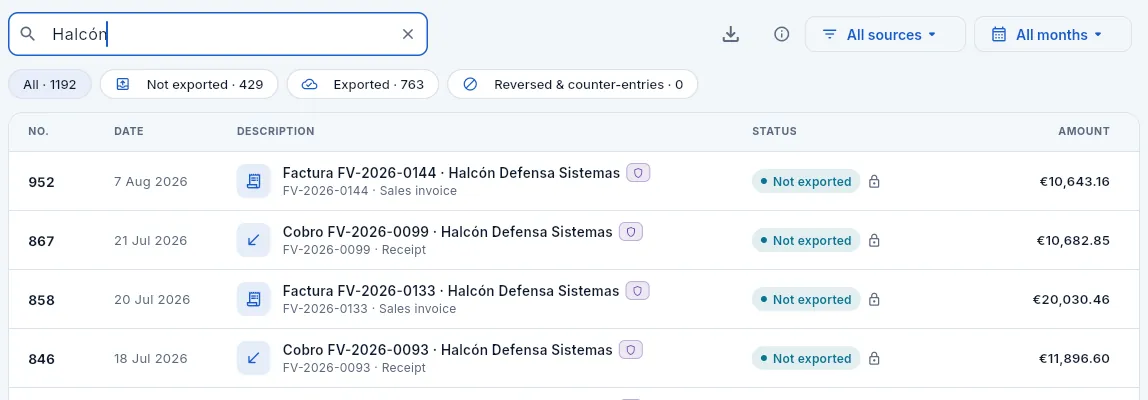 12
12
- 1Without «Post entries», the bar has no New entry, and the other views have no closing, fixed asset or export actions: view only.
- 2With «Defence data» he sees the entries of defence customers, with their badge. Without that permission (like Sergio) they do not appear in the lists, but they do count in the balances and the reports, with the name hidden.
Finance
Tax
Invoices and the tax authority: the SII records (Immediate Supply of Information) with their deadlines, the submission to the AEAT and how to fix what comes back with errors, VeriFactu, the drafts of VAT forms 303 and 349, and the Intrastat returns.
Every invoice you issue and every supplier invoice you record has to reach the tax authority. Aeromec Precisión is in the SII (Suministro Inmediato de Información, the Spanish immediate VAT reporting system): the VAT record books are not kept on paper or in a separate program, but in the e-office of the AEAT (Agencia Estatal de Administración Tributaria, the Spanish Tax Agency), invoice by invoice and almost in real time. Aeromec generates the record of each invoice when it is issued or recorded, warns you of the deadline (4 working days), sends it and keeps the tax authority's response: accepted, accepted with errors or rejected, with the error and where to fix it.
With the same data, Aeromec prepares the VAT drafts (form 303, the VAT return, and form 349, the transactions with companies in other EU countries) and the Intrastat returns, the statistics on goods coming in from and going out to the EU. All of it to review with the tax adviser and file without keying anything in again.
- 1InvoiceIssued to a customer or received from a supplier.
- 2SII recordAeromec generates it with the AEAT keys and its deadline.
- 3SubmissionSend pending: batches per book, with the response and the CSV.
- 4CorrectionWhatever comes back with errors is fixed in its record and retried.
- 5Forms 303 and 349The month's VAT drafts, for the tax adviser.
- 6AccountingThe VAT settlement closes the month.
#The regime and the indicators
 12345678
- 1Regime and environment: «SII · Test» = the company is in the SII and works against the AEAT's test environment.
- 2To send: records that have not yet gone to the AEAT.
- 3Due now: pending records whose deadline ends today or tomorrow. If it is not zero, send them today.
- 4Overdue: pending records whose deadline has passed.
- 5Errors: rejected · accepted with errors. «0 · 1» = no rejections and one with errors.
- 6Sent in the current month and accepted by the AEAT.
- 7The tabs: SII (the records), Submissions, VAT (forms 303 and 349) and Intrastat.
- 8Voluntary SII, VeriFactu: not applicable (its ⓘ explains why) and Simulated submission (no certificate).
Each indicator has its ⓘ with what it counts, how it is calculated and what to do. They count all the records, including those of defence customers or parts even if your profile does not see them in the list.
The regime is chosen by the administrator in Settings, on the Invoice reporting to the tax agency card: SII, VeriFactu or no submission; the environment (test or production); whether the company has joined the SII voluntarily, and the name of the electronic certificate in the secure store (empty = simulated submission).
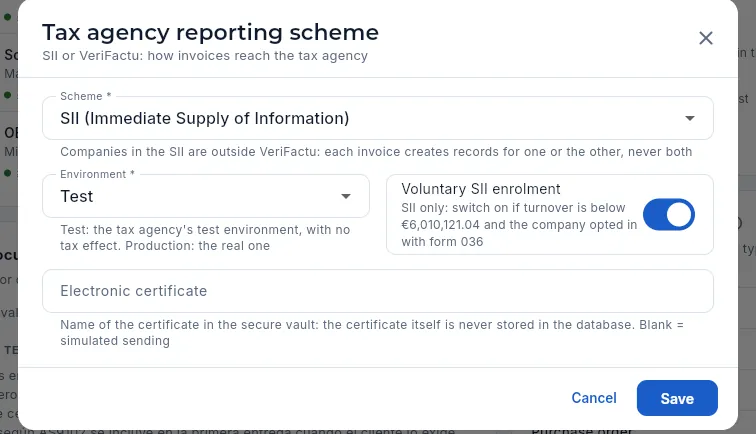 1234
1234
- 1Regime: SII, VeriFactu or no submission. When it changes, whatever was pending under the previous regime stops being sent (it asks for confirmation).
- 2Environment: test (no tax effect) or production.
- 3Voluntary enrolment: if the company is below the threshold and joined with form 036.
- 4Electronic certificate: its name in the secure store (the certificate is never stored in the database). Empty, the submission is simulated.
#The SII records
The SII tab has one record per issued or received invoice (and another for an amendment or a withdrawal if it is later amended or withdrawn). On entry you see those to act on: the ones pending submission and those that came back with errors.
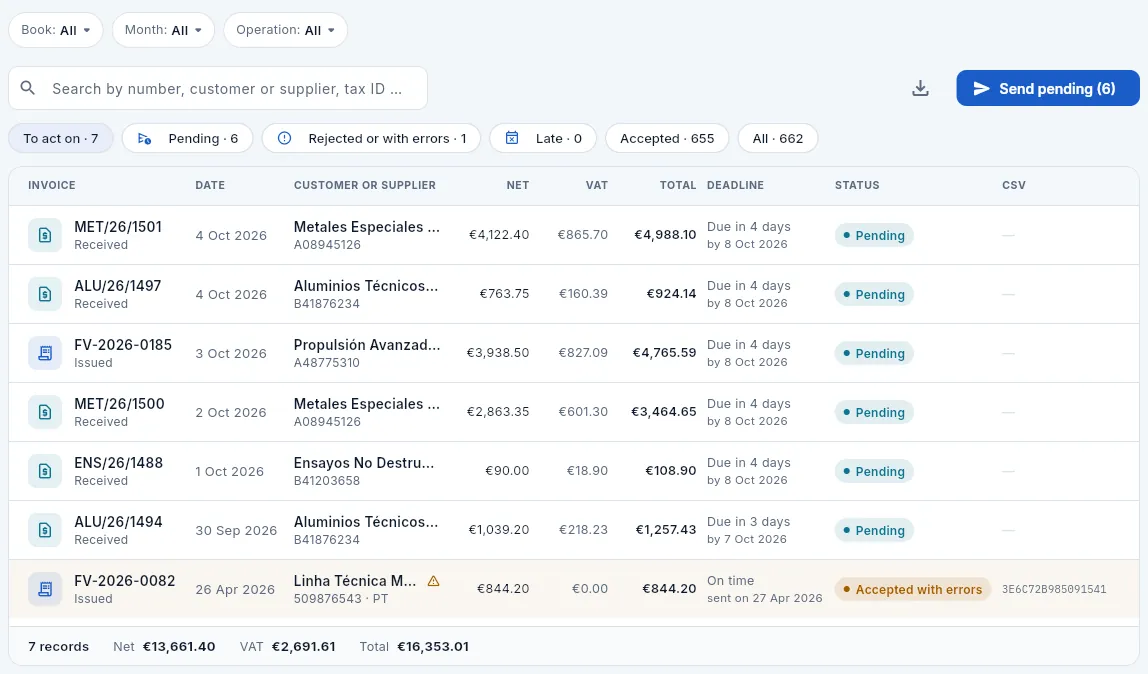 12345678
- 1Filter by book (issued or received), month and operation (new, amendment, withdrawal).
- 2Search by invoice number, customer or supplier, tax ID or CSV.
- 3Send pending to the AEAT, with their number.
- 4The filters: to act on, pending, rejected or with errors, late, accepted and all.
- 5Deadline: until when it can be sent; amber the day before and red if it has passed. Once sent, whether it was on time.
- 6Status and, on the right, the CSV (Código Seguro de Verificación, secure verification code) the AEAT gives each accepted record.
- 7An invoice accepted with errors: the triangle warns that the customer's EU VAT number lacks its country prefix. Click to open the record.
- 8The footer counts the records and adds up their tax base, VAT and total.
| Status | What it means |
|---|---|
| Pending | Generated when the invoice is issued or recorded; goes out with the next submission |
| Accepted | The AEAT considers it reported; it has its CSV |
| Accepted with errors | Reported, but with a piece of data to fix (for example, an EU VAT number without its country prefix) |
| Rejected | The AEAT does not consider it reported (for example, a tax ID not on the register): it must be fixed and resent |
| Not sent | The company's regime changed before it was sent and the record was discarded |
#Sending to the AEAT
 12
12
- 1They are sent grouped by book (issued and received), as the AEAT web service requires. In the demo, submission is simulated.
- 2Send: when it finishes, the Tax Agency response: accepted, rejected and submissions made.
In SII, look at the Due now and Overdue indicators: they should be at zero.
Click Send pending and confirm with Send.
Read the Tax Agency response: how many it accepted and how many it rejected. Click a submission to see the full request and response.
If any comes back rejected or with errors, fix it (see below) before its deadline.
#Fixing a record with errors
In the demo data, the invoice to Linha Técnica MRO (a customer in Portugal) came back accepted with errors with code 2011: its EU VAT number was saved as 509876543, without the PT prefix. The sale is VAT-exempt as an intra-EU supply, and that exemption depends on the customer's EU VAT number being valid: it has to be fixed.
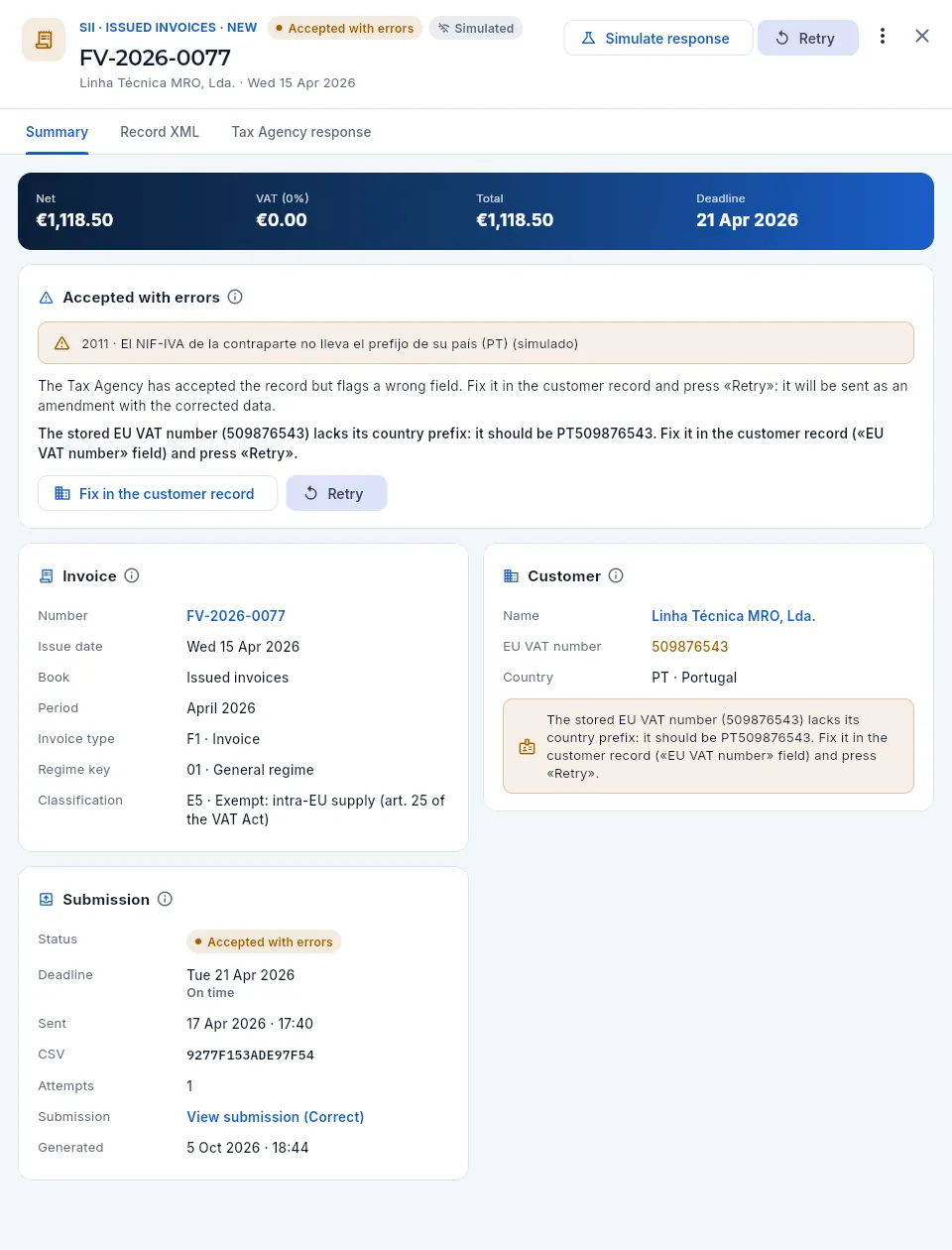 12345678
- 1System, book and operation (SII · Issued invoices · New), status, invoice number, customer and date.
- 2Simulate response (demo): forces an AEAT response to see how it is handled.
- 3Retry: puts the record back in the queue with the current data.
- 4Net, VAT (0 %: exempt), total and deadline. The tabs above show the Record XML and the Tax Agency response.
- 5The error: 2011 · The counterparty's EU VAT number lacks its country prefix. Below, what it means and what to do.
- 6Fix in the customer record opens it directly.
- 7Invoice: number (link), date, book, period and the keys: F1 · 01 · E5 (exempt as an intra-EU supply).
- 8Customer: the EU VAT number saved, in amber, and what it should be (PT509876543).
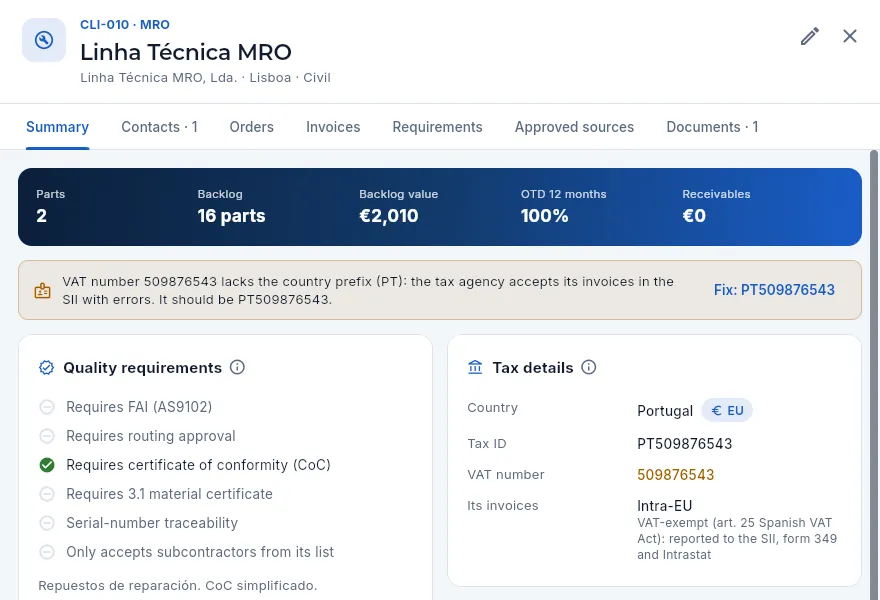 123
123
- 1The warning: the EU VAT number lacks the country prefix and the AEAT accepts its invoices with errors.
- 2Fix: PT509876543 adds the prefix in one click. It can also be fixed with the pencil (Edit), EU VAT number field.
- 3Tax details: country (in the EU), tax ID, EU VAT number in amber and how its invoices are treated (intra-EU: exempt, to the SII, to form 349 and to Intrastat).
In SII, click the Rejected or with errors filter and open the record (the invoice to Linha Técnica MRO).
Read the error and what has to be done. Click Fix in the customer record.
In the customer record, click Fix: PT509876543 (or edit the EU VAT number field) and close the record.
In the tax record, click Retry: it goes back to the queue with the current data. Then Send now (or wait for the next Send pending).
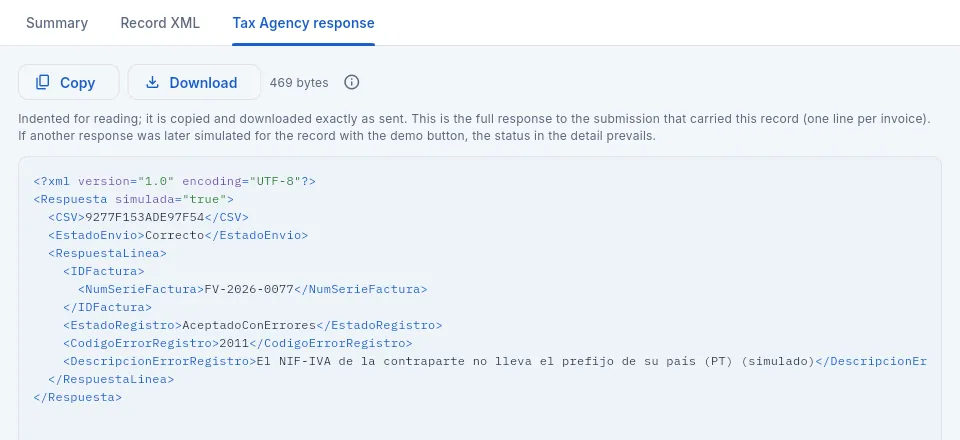 12
12
- 1Copy or Download the XML, for technical support or the tax adviser.
- 2The record status (AceptadoConErrores) and code 2011 with its description. The response carries
simulada="true".
 12
12
- 1It changes nothing at the tax authority: it shows how each response is handled.
- 2Accepted, accepted with errors (register warning) or rejected (tax ID not on the register).
#The submissions
The Submissions tab keeps every call to the AEAT web service: a batch of records from the same book (up to 1,000), with the request that was sent and the response the tax authority returned.
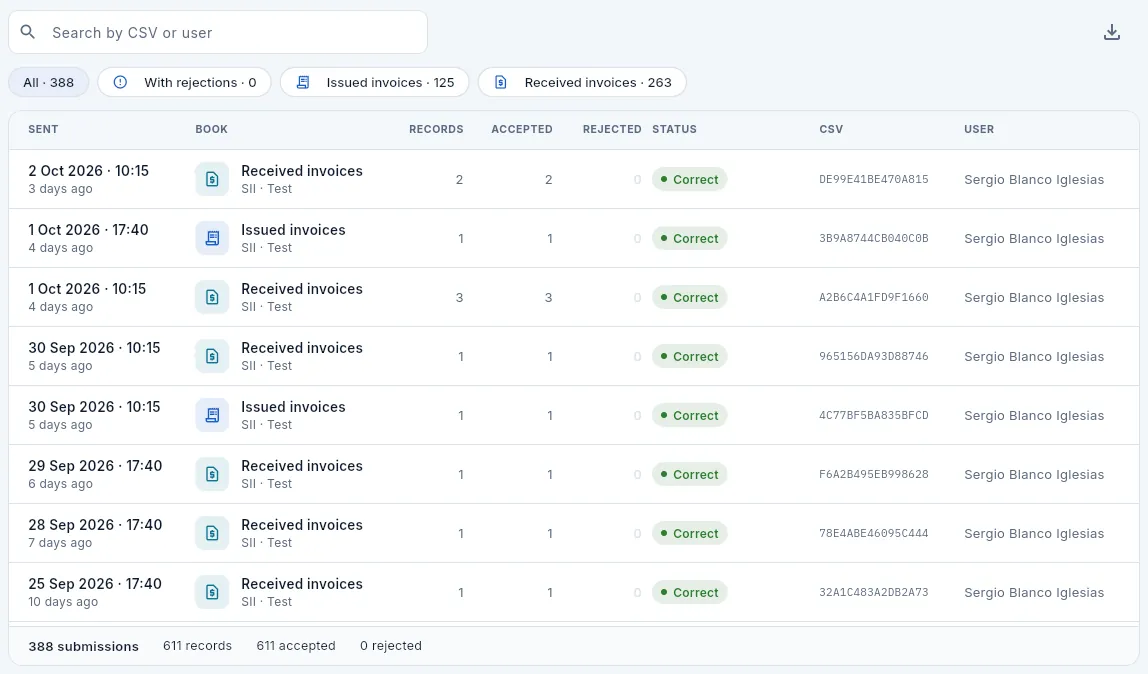 123456
- 1Search by CSV or by user.
- 2The filters: with rejections, issued invoices and received invoices.
- 3Book (issued or received), system and environment.
- 4Records in the submission, accepted and rejected.
- 5Status: correct (all accepted), partially correct or incorrect (all rejected).
- 6CSV: the submission receipt. Click a row to open it.
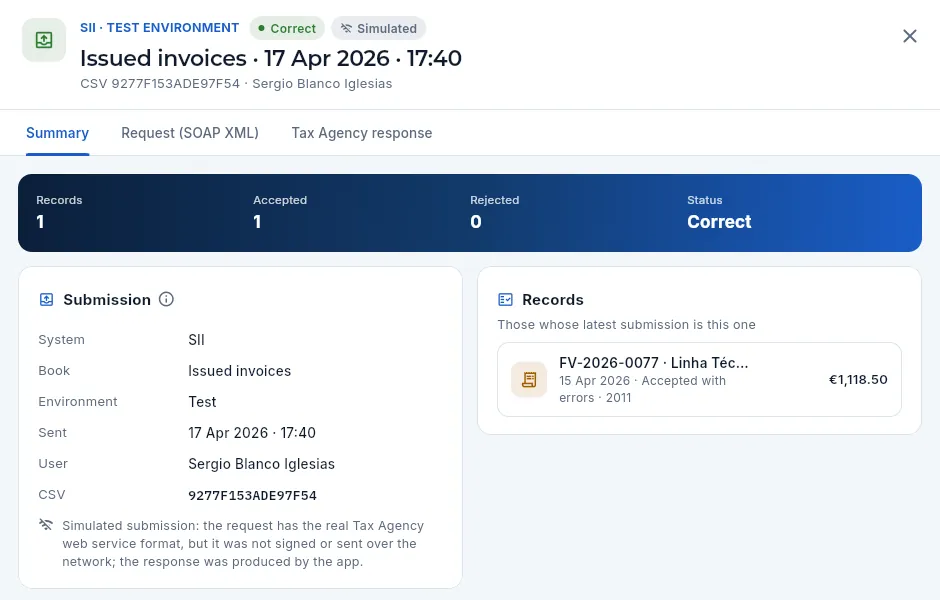 1234
1234
- 1System and environment, status, book, date and time, CSV and user.
- 2Request (SOAP XML): the envelope sent to the web service (in production, signed with the certificate). Tax Agency response: what it returned.
- 3Submission: system, book, environment, date, user, CSV and the simulated submission note.
- 4Records in the submission, with their status; click one to open it.
#VeriFactu
VeriFactu is the other invoice reporting system, the one for invoicing software: each issued invoice generates, when it is issued, a record with a hash chained to the previous record's, which is sent to the AEAT, and the invoice carries a QR code so that the customer can check it on the tax authority's website. VeriFactu records are never deleted or changed: an error is corrected with a corrective invoice, with its own record.
Whoever keeps their books through the SII is outside VeriFactu: their invoices already reach the AEAT through the SII. That is why Aeromec Precisión shows VeriFactu: not applicable and there are no VeriFactu records. If the company left the SII (the administrator changes it in Settings), the following invoices would have their chained VeriFactu record, and each record would show its hash, the previous one's and the QR address.
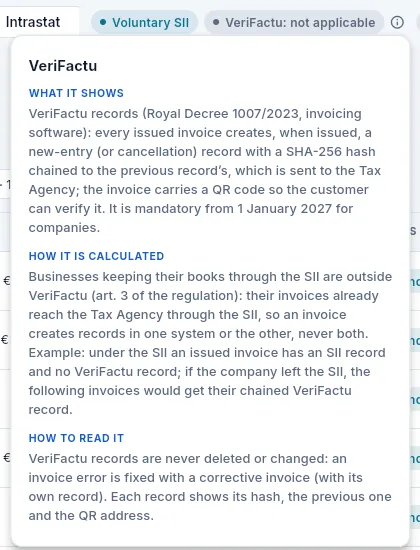 12
12
- 1VeriFactu: not applicable: the company is in the SII.
- 2What it is, why it does not apply (art. 3 of the regulation) and how an invoice is corrected under VeriFactu.
#VAT: forms 303 and 349
The VAT tab computes the drafts of the two VAT returns from the period's invoices: form 303, the VAT return (the VAT charged to customers minus the VAT paid to suppliers), and form 349, the recapitulative statement of transactions with companies in other EU countries. On entry it proposes the last completed period, which is the one due for filing.
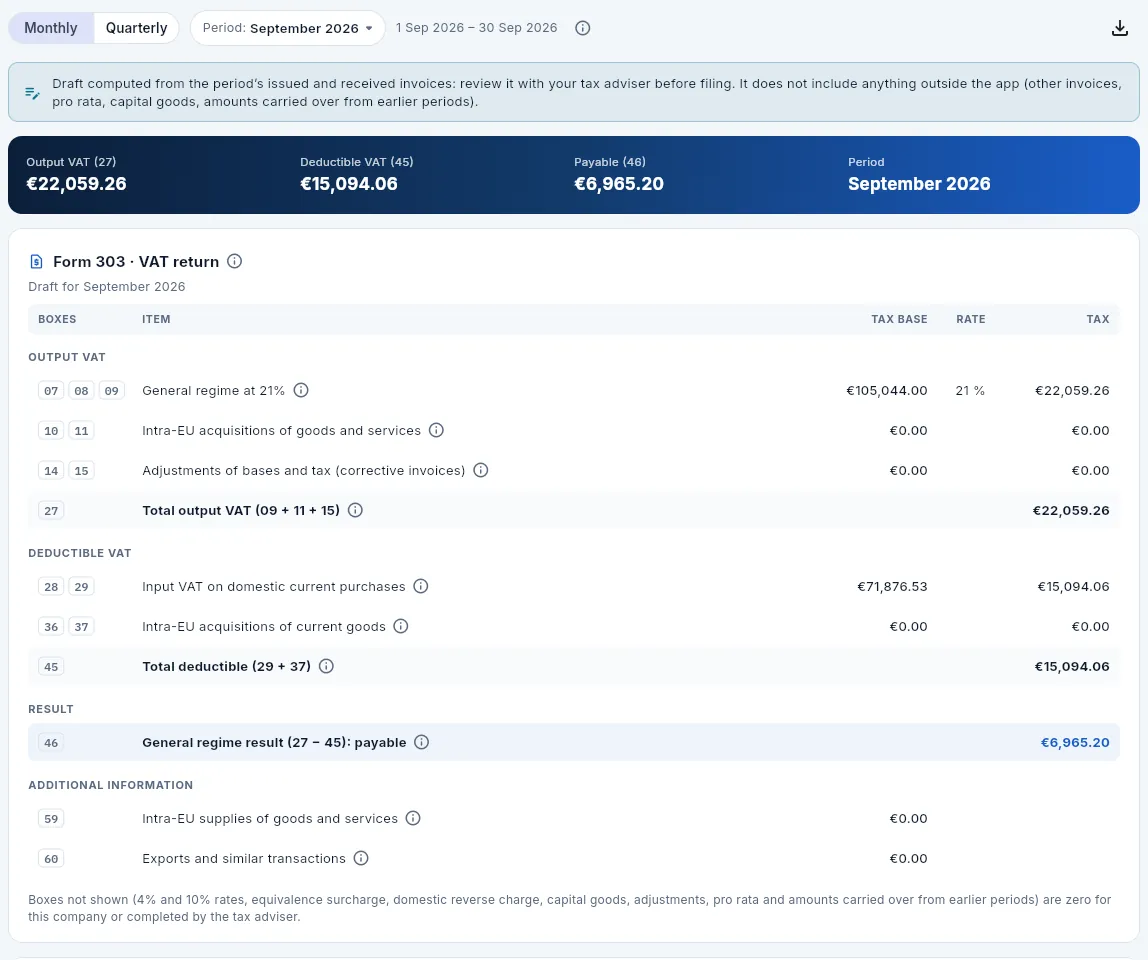 12345678
- 1Monthly or quarterly: monthly in the SII.
- 2The period: the month (or quarter) being declared.
- 3Export the form 303 boxes or the form 349 traders, for the tax adviser.
- 4It is a draft: it does not include what does not go through Aeromec (other invoices, pro rata, capital goods, amounts carried forward from earlier periods).
- 5Output VAT (27), deductible (45) and result (46) payable or to carry forward.
- 6Output VAT: sales at 21 % (07-09), intra-EU acquisitions (10-11) and corrective invoices (14-15). Each row with its ⓘ.
- 7Deductible VAT: domestic purchases (28-29) and intra-EU acquisitions (36-37).
- 8Result (46 = 27 − 45). Below, the additional information: intra-EU supplies (59) and exports (60).
 1234
1234
- 1Key: E supplies (sales to EU customers) or A acquisitions (purchases from EU suppliers).
- 2Country, EU VAT number and trader name.
- 3Invoices and tax base for the period.
- 4Matches form 303: the supplies (E) add up to box 59 and the acquisitions (A) to box 10.
In VAT, check that the period is the month due for filing (on entry, the last completed one).
Review each group of boxes of the 303 with its ⓘ: where it comes from and what to check (for example, that box 09 matches the SII issued invoice book).
If there are EU transactions, check that the 349 matches the 303 and that every EU VAT number carries its country prefix.
Export the boxes and the traders and send them to the tax adviser, who adds what does not go through Aeromec (amounts carried forward, pro rata, capital goods) and files.
In Accounting, settle the month's VAT; when the bank charges the payment, reconcile it in Banking against 4750 (the «MODELO 303» rule does it).
#Intrastat
Intrastat is the monthly statistics on trade in goods with other EU countries: purchases are arrivals and sales are dispatches. Aeromec prepares a draft per flow and month with the shipments to EU customers and the receipts from EU suppliers, grouped by the boxes the AEAT asks for, and flags any missing data.
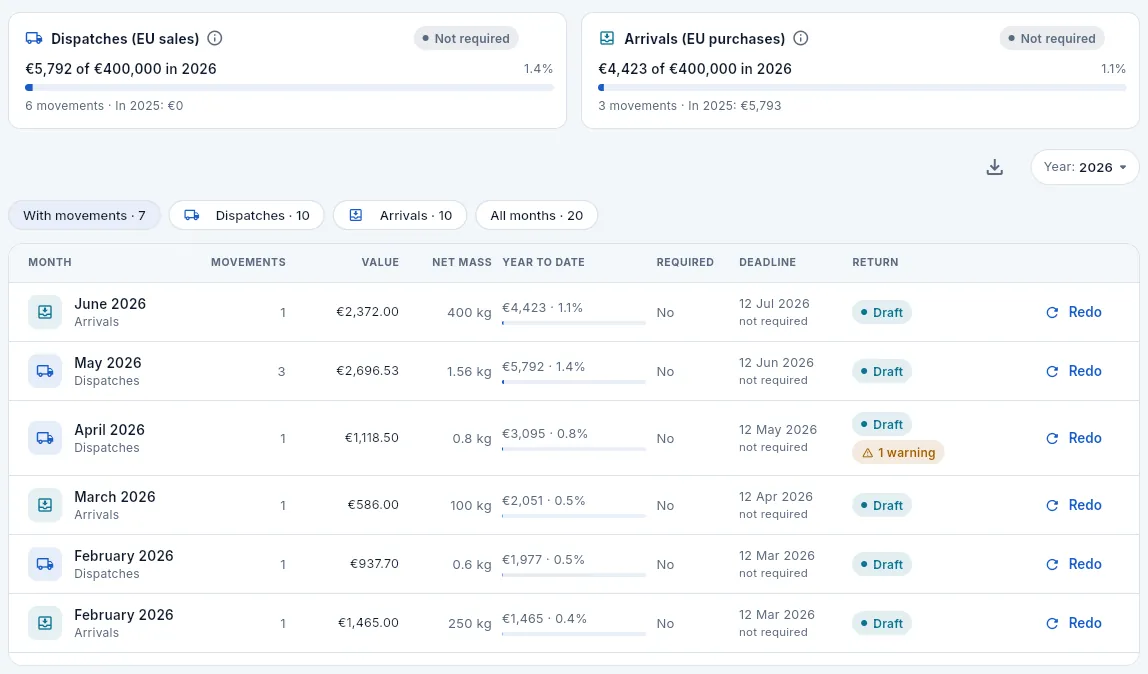 1234567
- 1Dispatches (sales to the EU): the year-to-date total against the €400,000 threshold, the movements and last year's figure. «Not required».
- 2Arrivals (purchases from the EU), likewise.
- 3The year and Export CSV.
- 4The filters: with movements, dispatches, arrivals or all months.
- 5Each month and flow: movements, value, net mass and the year to date with its % of the threshold.
- 6Required and deadline (the 12th of the following month, «not required» below the threshold).
- 7Return: not prepared, draft (with its warnings) or filed; Prepare or Redo. Click the row to open it.
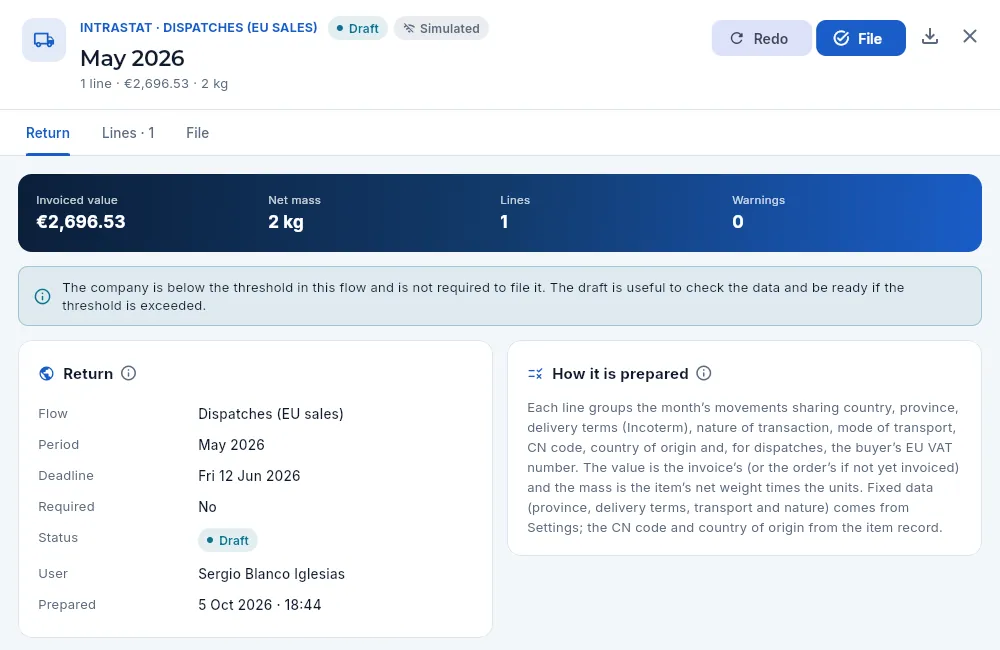 12345678
- 1Flow, status (draft or filed), month, lines, value and mass.
- 2Redo: recalculates it with the current data (after completing a CN code or an EU VAT number).
- 3File (simulated): saves the file and generates a receipt. Not possible while there are warnings.
- 4Download the file for the AEAT e-office.
- 5The tabs: Return, Lines (one per item, with its boxes) and File.
- 6Invoiced value, net mass, lines and warnings (what is missing: CN code, weight, EU VAT number).
- 7Below the threshold, it is not required: the draft is for checking the data.
- 8How it is prepared: what each line groups and where each piece of data comes from.
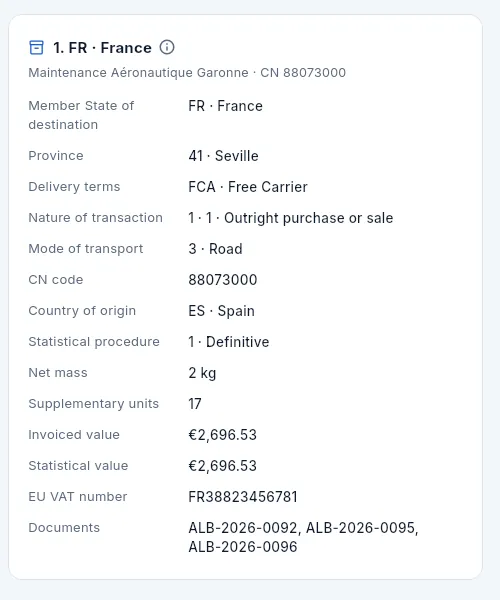 12
12
- 1Member State of destination, customer and CN code (Combined Nomenclature: 88073000, aircraft parts).
- 2Province, delivery terms (Incoterm), nature, transport, country of origin, regime, mass, units, values, EU VAT number and the delivery note.
 12
12
- 1Copy or Download.
- 2The boxes separated by «;» in the order of the AEAT form.
In Intrastat, find the month and the flow. If it is not prepared, click Prepare; if there is already a draft, Redo to recalculate it with today's data.
Fix what is missing and click Redo until there are no warnings left. Check the lines and the file.
If the company is required to file, click File before the 12th of the following month and keep the receipt with the file.
#What changes with your profile
 12
12
- 1Without «File with the Tax Agency» there is no Send pending; in the records, no Retry or Send now either, and in Intrastat nothing can be prepared or filed.
- 2With «Defence data», Javier also sees the records of defence invoices: his list has more records than Sergio's.
Finance
Reports
Seven reports on recent months —on-time delivery, scrap and cost of poor quality, actual profitability, OEE, hours, purchasing and stock turnover—, each one exportable to CSV, and the free analysis: a pivot table to cross your data any way you like.
Reports answers the underlying questions: do we deliver on time?, how much does not getting it right first time cost us?, do parts cost what the cost breakdown says?, how well do the machines perform?, who works where?, how do suppliers behave?, which stock is sitting idle? There is nothing to fill in: choose the report and the period and read its blocks from top to bottom. Every figure and every chart has its ⓘ help with what it shows, how it is calculated (with an example) and how to read it.
For anything not covered by a fixed report you have the free analysis, a pivot table on your data (WOs, operations, hours, NCRs, deliveries, quotes, purchases, invoices…) where you choose the rows, the columns and what is measured.
#Choosing the report and the period
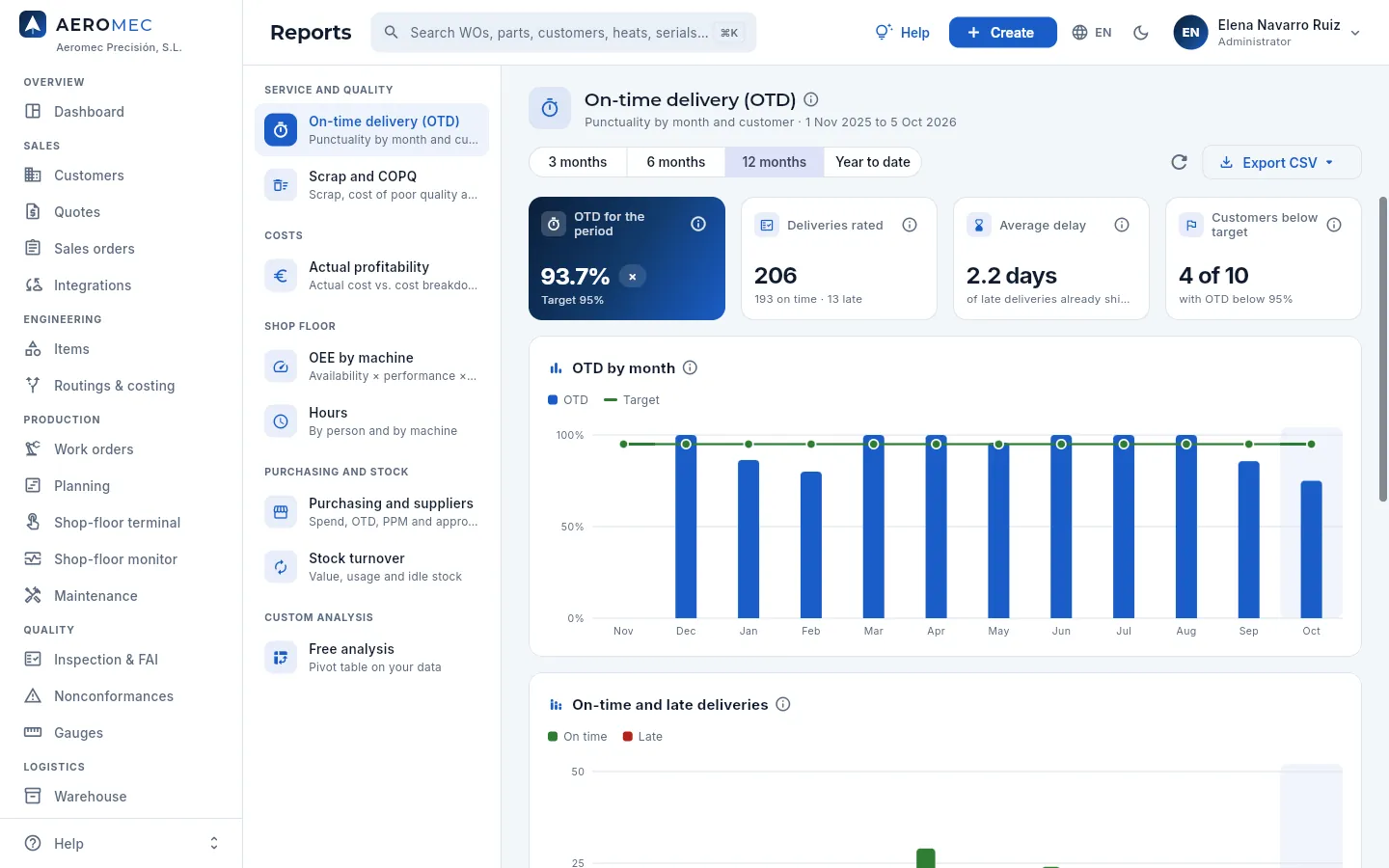 1234567
- 1The reports, grouped: service and quality, costs, shop floor, purchasing and stock and, at the end, the free analysis. One with a padlock needs a permission your profile does not have.
- 2The report title with its ⓘ (what it shows overall) and, below, the exact dates of the period.
- 3The period: 3 months, 6 months, 12 months or Year to date. It starts on the 1st of the month and runs until today; it applies to every report.
- 4Refresh recalculates the report with the data as it is right now.
- 5Export CSV downloads the report's tables for a spreadsheet.
- 6At the top, the period's key figures, compared with their target (✓ or ✗).
- 7Below, the charts and tables. Hover over a chart to see the details; the current month is shaded because it is not closed yet.
| Report | What it answers |
|---|---|
| On-time delivery (OTD) | What share of deliveries went out on their date, by month and by customer. |
| Scrap and COPQ | How many parts are scrapped, what poor quality costs and its causes (Pareto). |
| Actual profitability | What the parts really cost against their cost breakdown, and the actual margin. |
| OEE by machine | Each machine's effectiveness: availability × performance × quality. |
| Hours | Hours worked by person and by machine: production, set-up and rework. |
| Purchasing and suppliers | How much is bought from whom and how each supplier performs (OTD, PPM, approval). |
| Stock turnover | What stock there is, how much is used and what has not moved for months. |
Aeromec remembers the last report and the last period you chose.
 1
1
- 1If the report has several tables, you choose which one: here, the customer table or the monthly series.
The CSV opens straight in Excel (with semicolons and the decimal comma) and its name carries the report and the dates of the period. It exports every row, also those hidden when the table is collapsed under «Show all N rows».
#On-time delivery (OTD)
OTD (on-time delivery) is the indicator aerospace customers use to rate their suppliers: what share of the order lines due in the period shipped complete on their date or earlier.
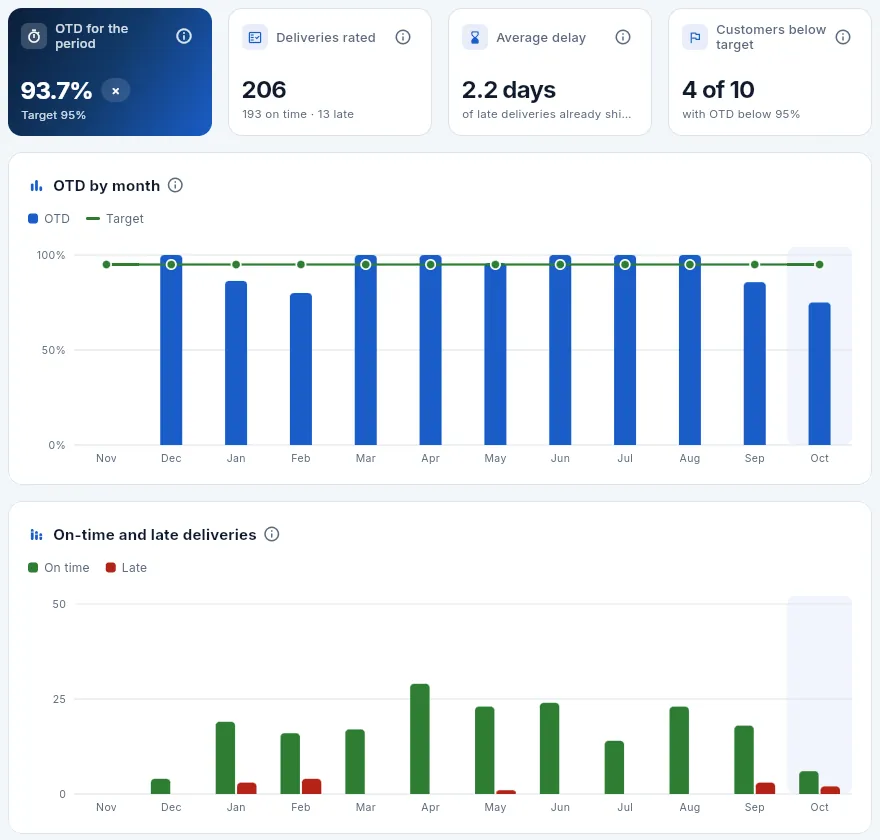 123456
- 1OTD for the period against the company target (Settings).
- 2Deliveries rated: the lines due in the period, on time and late.
- 3Average delay of the late deliveries already shipped.
- 4Customers below target: how many have an OTD below the target.
- 5OTD by month: the bars against the green target line.
- 6On-time and late deliveries each month: with few lines, a single delay moves the OTD a lot.
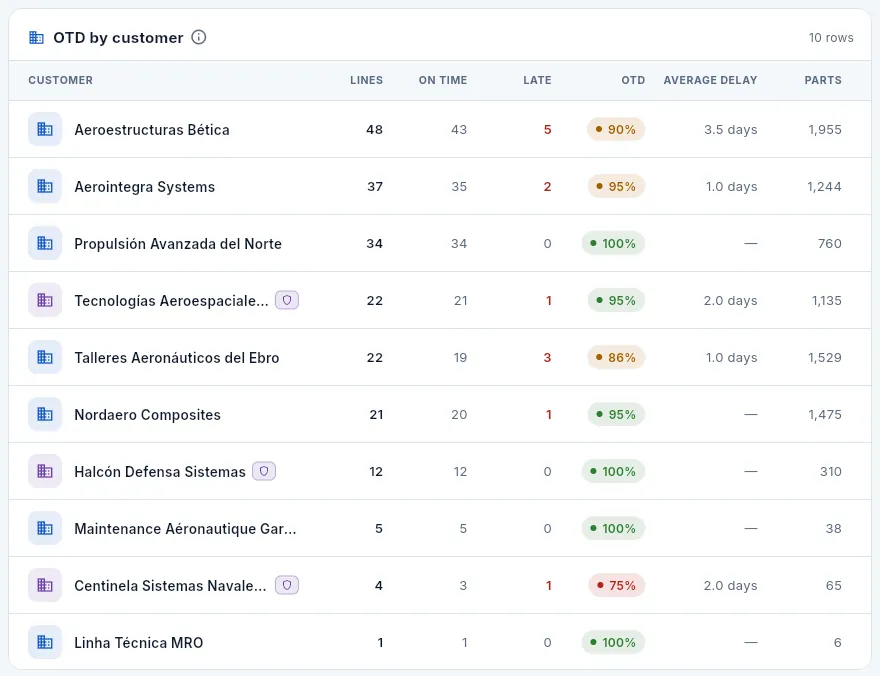 1234
1234
- 1Each customer's lines rated, on time and late.
- 2The customer's OTD: green if it meets the target, amber if it falls short by less than 10 % and red otherwise.
- 3Average delay of their late deliveries and parts delivered.
- 4Defence customers carry their badge and only show with «Defence data». Click a row to open the customer.
#Scrap and COPQ
Scrap is the parts thrown away (they cannot be reworked or delivered under a customer concession) and COPQ (cost of poor quality) is what not getting it right first time has cost: scrap, rework and customer claims.
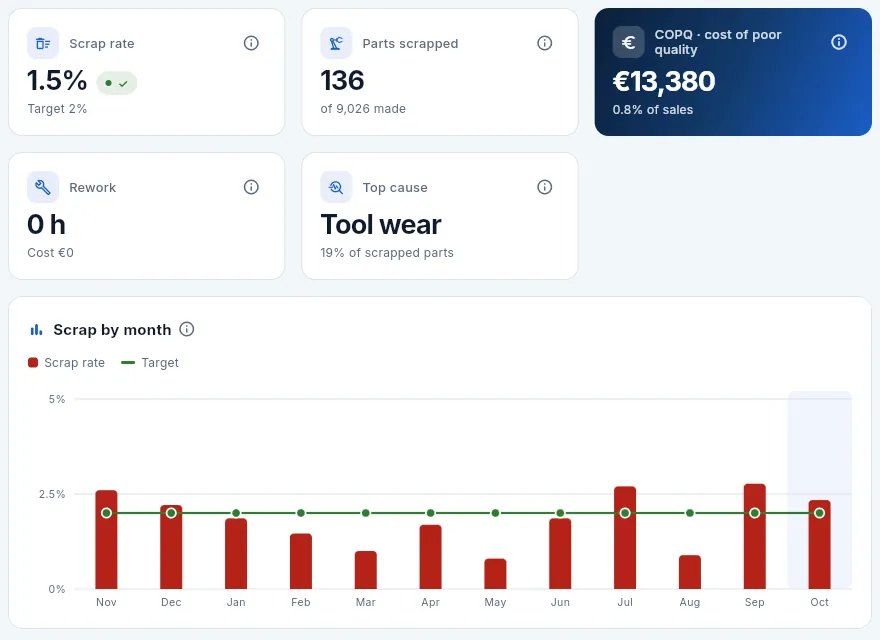 123456
- 1The period's scrap rate against its target.
- 2Parts scrapped out of those made.
- 3COPQ in euros and its % of sales.
- 4Rework: hours of rework time records and their cost.
- 5Top cause of the scrapped parts and its share.
- 6Scrap by month with the target. Below come COPQ by month and type and the Pareto charts.
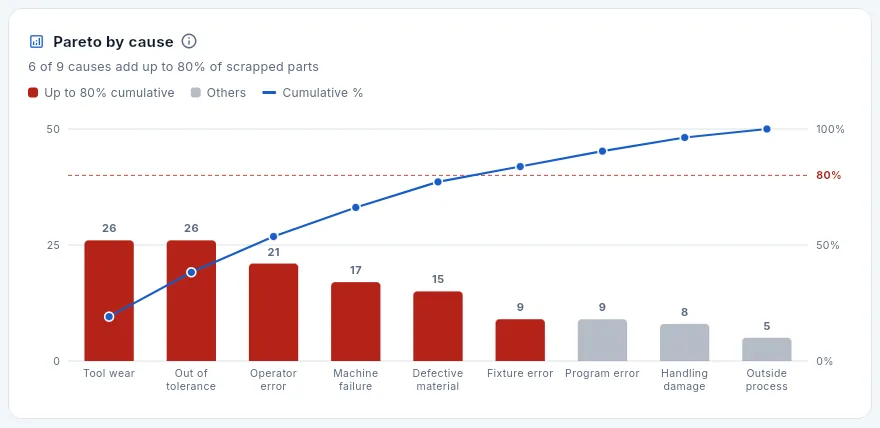 123
123
- 1The summary: how many causes add up to 80 % of scrapped parts.
- 2The red bars reach up to 80 % cumulative: they are the few causes to act on first (80/20 rule); the grey ones are the rest.
- 3The blue line adds up the percentages and the dashed red one marks 80 %. Hover over a bar to see its parts and its share.
Below are the Pareto by part and the Pareto by machine (with what each one's scrap has cost) and the Breakdown by cause table. Always start with the Pareto: two or three causes almost always explain 80 %, and that is where a corrective action (CAPA, see Nonconformances) pays off most.
#Actual profitability
It compares what the WOs closed in the period really cost with what the cost breakdown said (the part cost calculated from its routing), and the margin they left against the company's target margin.
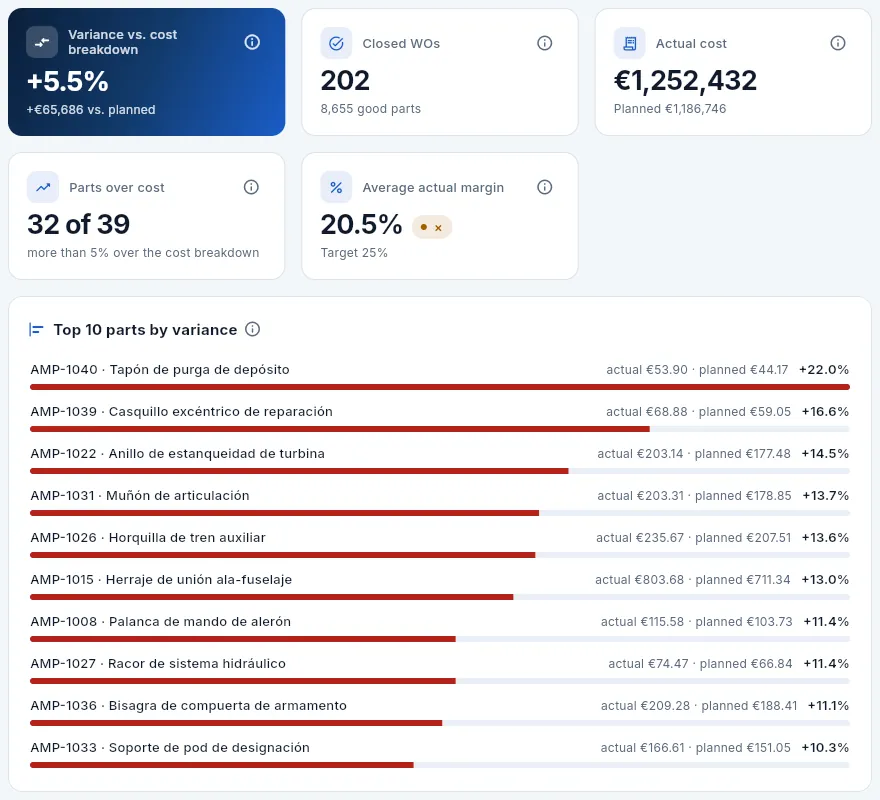 123456
- 1Variance vs. cost breakdown in % and in euros: above zero, more was spent than planned.
- 2Closed WOs in the period and their good parts.
- 3Actual cost against planned.
- 4Parts over cost: those costing more than 5 % above the cost breakdown.
- 5Average actual margin after overheads, against the target.
- 6The top 10 parts by variance: actual against planned per part; red if they cost more, green if less.
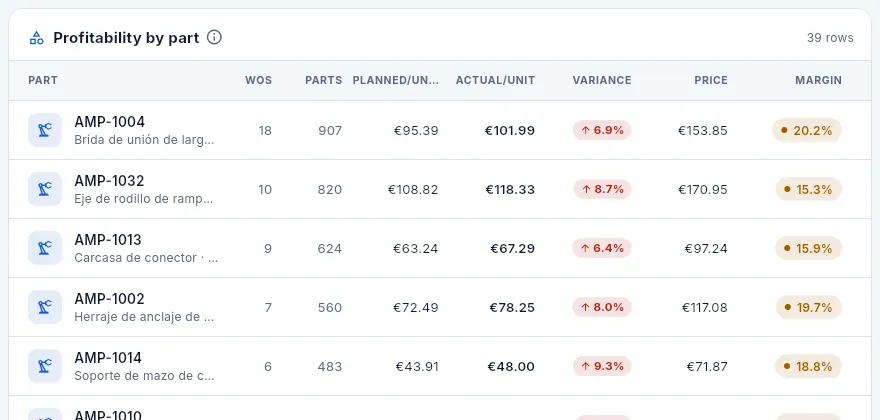 123
123
- 1Planned/unit (the cost breakdown) and Actual/unit (what each good part cost).
- 2Variance: actual ÷ planned − 1; over 10 %, red.
- 3Each part's price and actual margin. Click a row to open the part with its cost breakdown and its WOs.
#OEE by machine
OEE (overall equipment effectiveness) says what share of the time a machine had work is turned into good parts at standard speed. It is the product of three factors: availability (how much of that time it was actually machining), performance (at what speed, against the routing times) and quality (what share of the parts came out good).
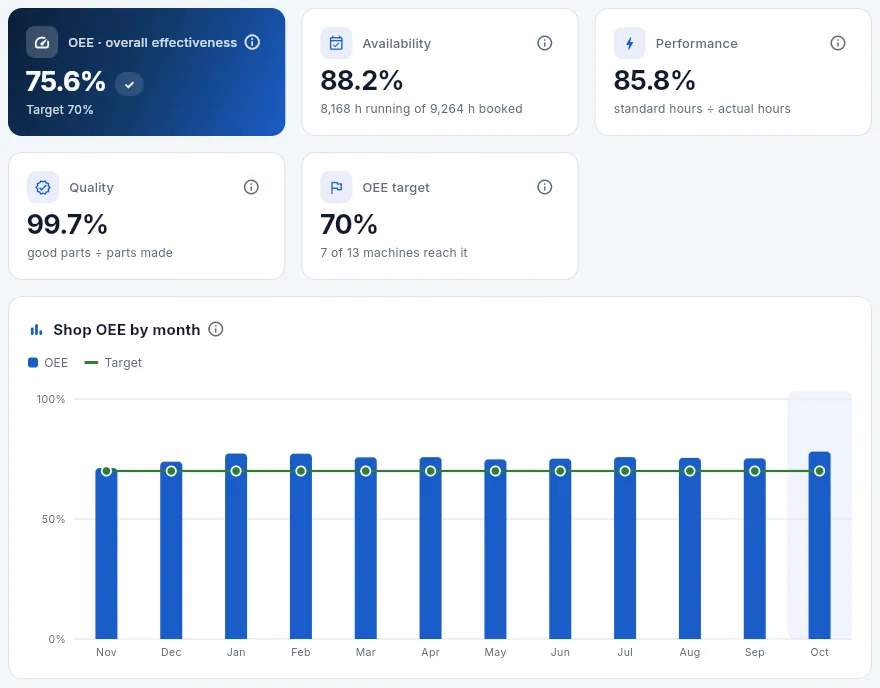 123456
- 1The shop's OEE (each machine weighted by its booked hours) against the target.
- 2Availability: running hours out of booked hours.
- 3Performance: standard hours of what was produced ÷ actual hours.
- 4Quality: good parts ÷ parts made.
- 5OEE target and how many machines reach it.
- 6Shop OEE by month. Below, each machine's OEE with its three factors.
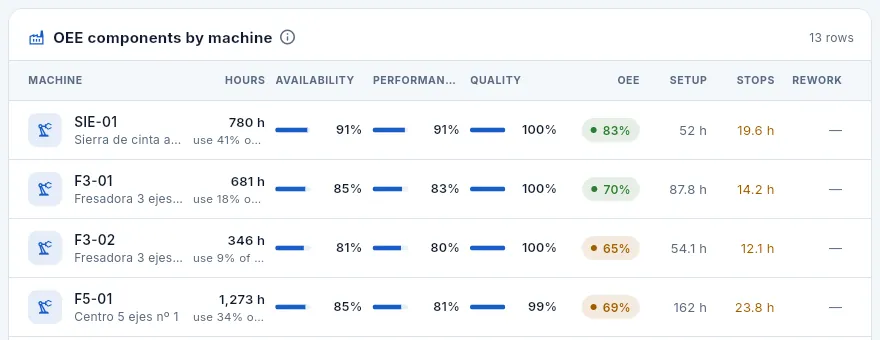 1234
1234
- 1Booked hours and utilisation of nominal capacity («use 41 % of 1,888 h»).
- 2Availability, performance and quality, with their bars.
- 3The machine's OEE: green if it meets the target, amber if close and red otherwise.
- 4Hours of set-up, of incident stops and of rework. Click a row to open the machine.
#Hours
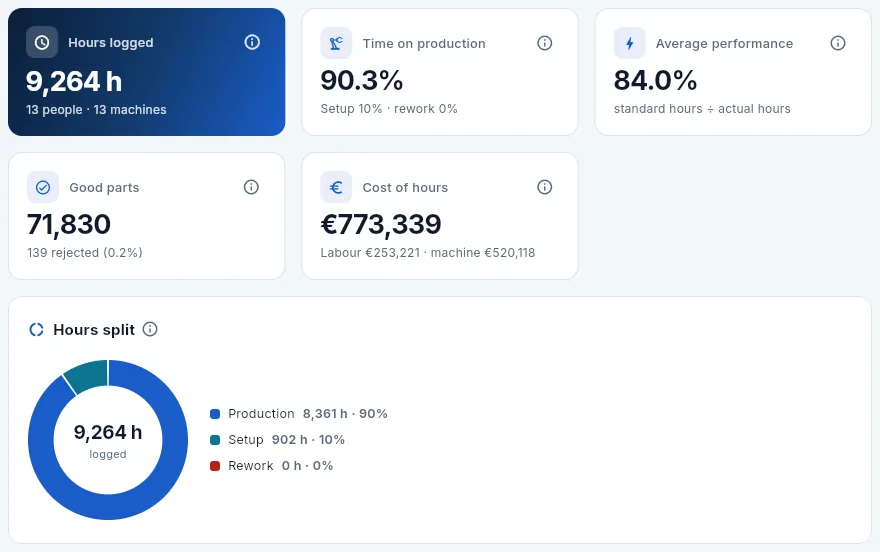 123456
- 1Hours logged on time records, with how many people and machines.
- 2Time on production against set-up and rework.
- 3Average performance: standard hours ÷ actual hours.
- 4Good parts and rejected parts declared on the time records.
- 5Cost of hours: labour (with «See staff rates») and machine.
- 6Hours split: ideally almost everything is production.
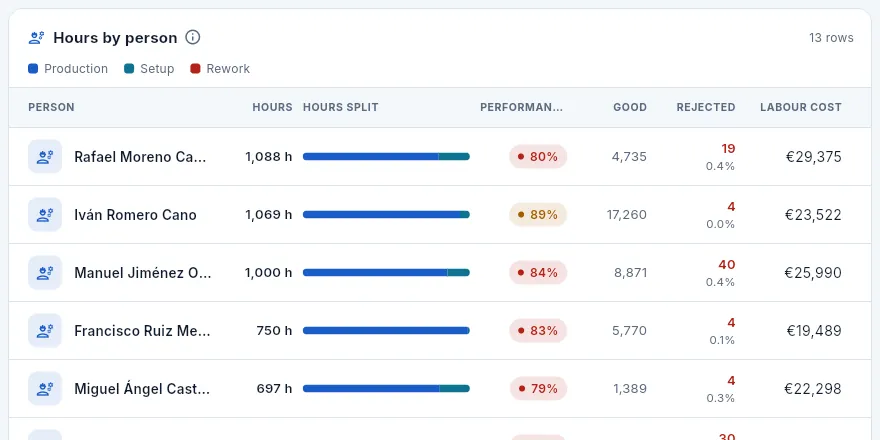 1234
1234
- 1Hours booked to the person; if they had several tasks at once, their machine record hours appear below.
- 2Split between production, set-up and rework (hover to see the hours).
- 3Performance: green from 95 %, amber from 85 % and red below.
- 4Good, rejected and the labour cost. Click a person to open their record.
#Purchasing and suppliers
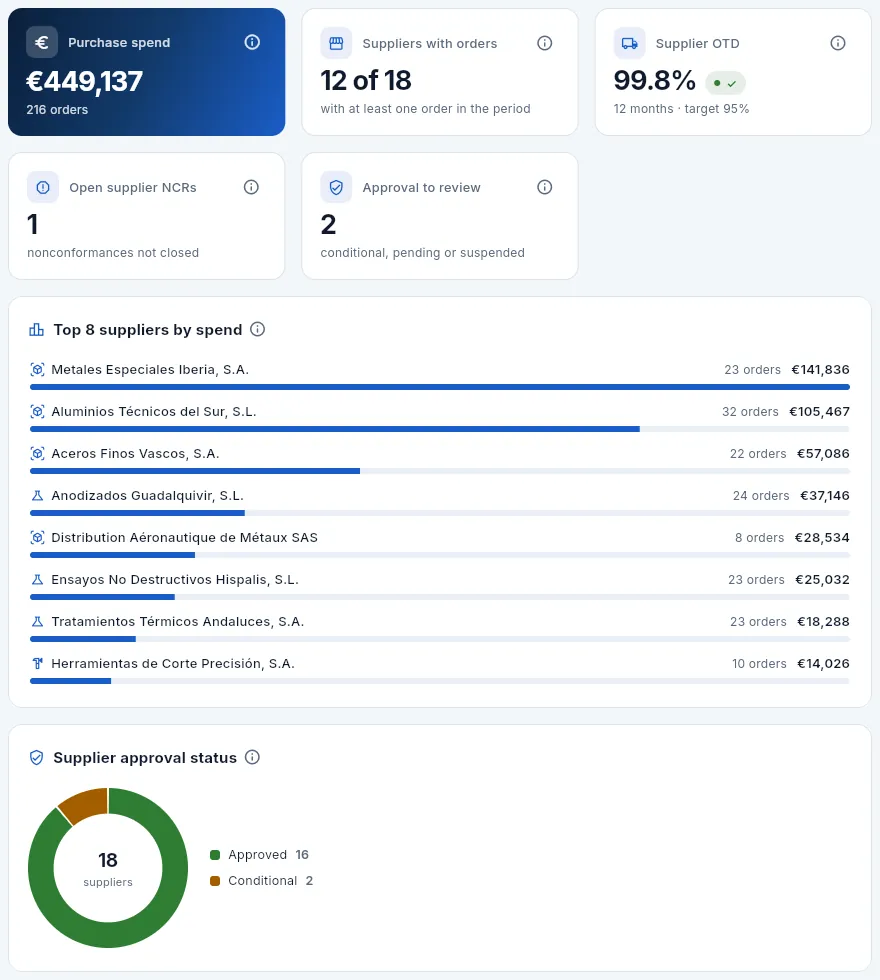 123456
- 1Purchase spend and number of purchase orders in the period.
- 2Suppliers with orders in the period, out of the active ones.
- 3Open supplier NCRs: material or treatments rejected and not yet closed.
- 4Approval to review: conditional, pending or suspended suppliers.
- 5The top 8 suppliers by spend: orders and amount.
- 6The approval status of all active suppliers.
Below, the Purchasing by supplier table gives, for each active supplier, their orders and spend in the period, their OTD and PPM over the last 12 months (parts rejected per million received), their approval and their open NCRs, with filters to see those below target or with their approval to review. OTD and PPM come from the 12-month supplier rating, whatever period you choose. See Suppliers.
#Stock turnover
 1234567
- 1Stock value and items in stock.
- 2No movement > 180 days: idle stock and its value.
- 3No usage in the period: items in stock that did not go out.
- 4Average turnover: how many times the current stock was used up in the period.
- 5Median coverage: how many days the stock lasts at current usage.
- 6Age of last movement, by bucket: over 180 days in red.
- 7Stock value by type: parts, raw material, tools, consumables.
 123
123
- 1Usage in the period (issues to WOs and shipments) and turnover = usage ÷ stock.
- 2Coverage: days the stock lasts at the period's rate of usage.
- 3An item with no usage and more than 180 days without moving shows in red: it is tied-up money. Click the row to open the item.
#Free analysis
The free analysis is a pivot table on your data: you choose what to analyse (the source: WOs, WO operations, hours and time bookings, incidents, NCRs, scrap, inspections, order deliveries, quotes, purchase orders or invoices), how to group it into rows and columns (customer, programme, part, machine, person, month, week…) and what to measure (the number of records, a sum or an average). Click any cell and you see the records behind it, with a link to their record. It comes with ready-made layouts and you can save your own.
WOs, NCRs, order deliveries and invoices can be grouped by Programme (AR-90, TF-38…; see Programmes): for example, the OTD or the invoicing of each programme by quarter. Whatever belongs to no programme shows as «No programme».
It respects your profile like the rest of Aeromec: only the sources of the sections you can see are offered, defence data does not appear without «Defence data» and the costs, prices and margins you cannot see show a padlock.
 12345678
- 1Below the title: the layout loaded, the source and the dates of the period.
- 2Layouts: the built-in ones and yours, and Save current layout….
- 3Data source (each record is a WO, an operation, a time booking…) and reference date, which decides which records fall in the period.
- 4The period: 3, 6 or 12 months, year to date or a date range (which may reach into the future, for example expected deliveries).
- 5Rows, sub-rows (optional, a breakdown of each row) and columns (optional). Time dimensions carry a calendar icon: month, ISO week, quarter, year.
- 6Swap rows and columns in one click.
- 7Measure: the number of records or a numeric field (hours, parts, amount…) with its calculation: sum or average.
- 8Add filter: limits the records to some values (a customer, some statuses…).
 123456
- 1How many records are included, the rows × columns and the total of the measure.
- 2Sort the rows: by value (highest or lowest first) or by label.
- 3The rows header: click it to sort them by label.
- 4Each column: click it to sort the rows by its value (again, the other way round). With many columns, the table scrolls sideways with the labels fixed.
- 5Each cell, shaded according to its value. Click it to see the records behind it.
- 6The Total row adds up each column; to the right of each row, its total.
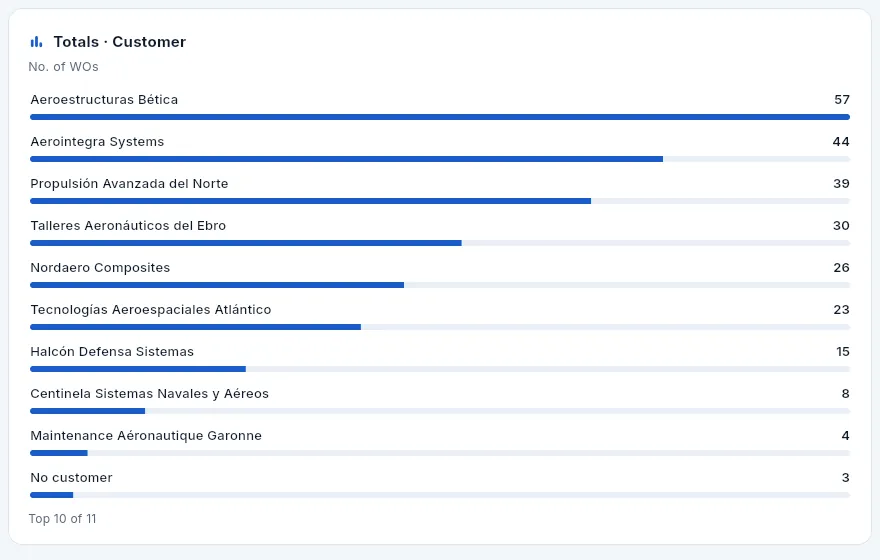 1
1
- 1Totals by the row dimension, largest first (the top 10). Below, those of the columns.
In Reports, open Free analysis.
In Data source, choose Hours and time bookings; the Reference date becomes the booking start.
Choose the period (3 m), Rows = Machine and Columns = ISO week.
In Measure, choose Hours and the calculation Sum.
If you only want production, click Add filter → Booking type and leave Production ticked. Click Apply.
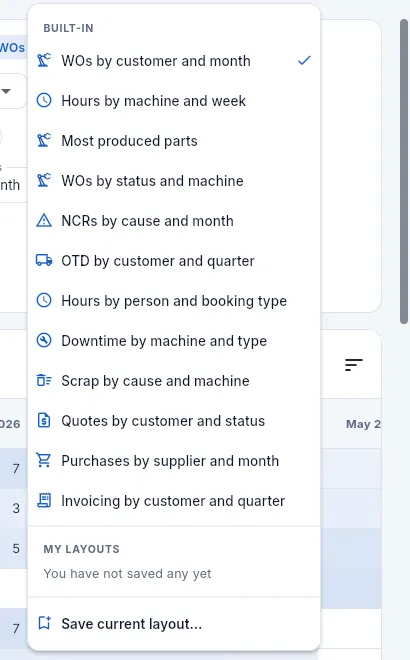 123
123
- 1The 12 built-in layouts: WOs by customer and month, hours by machine and week, NCRs by cause and month, OTD by customer and quarter, invoicing by customer and quarter…
- 2My layouts: the ones you have saved (with a bin to delete them).
- 3Save current layout…
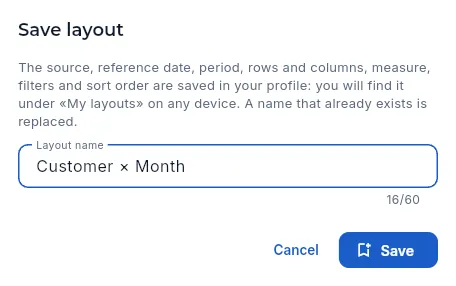 12
12
- 1The layout name. With a name that already exists, it is replaced.
- 2Save: you will have it under «My layouts» on any device.
The source, reference date, period, rows and columns, measure, filters and sort order are saved in your profile. Layouts are personal: each person has their own.
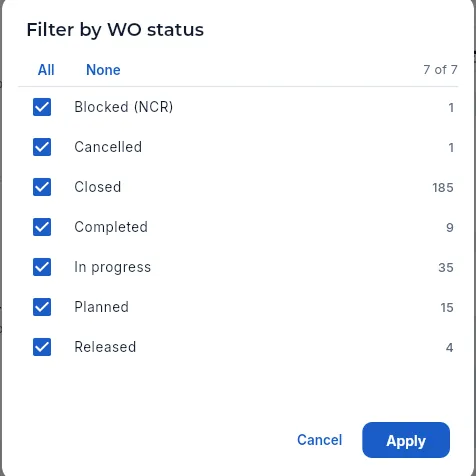 123
123
- 1All or None in one click.
- 2Each value with its number of records: tick the ones you want to see.
- 3Apply the filter; it appears as a chip under «Filters», with its ✕ to remove it.
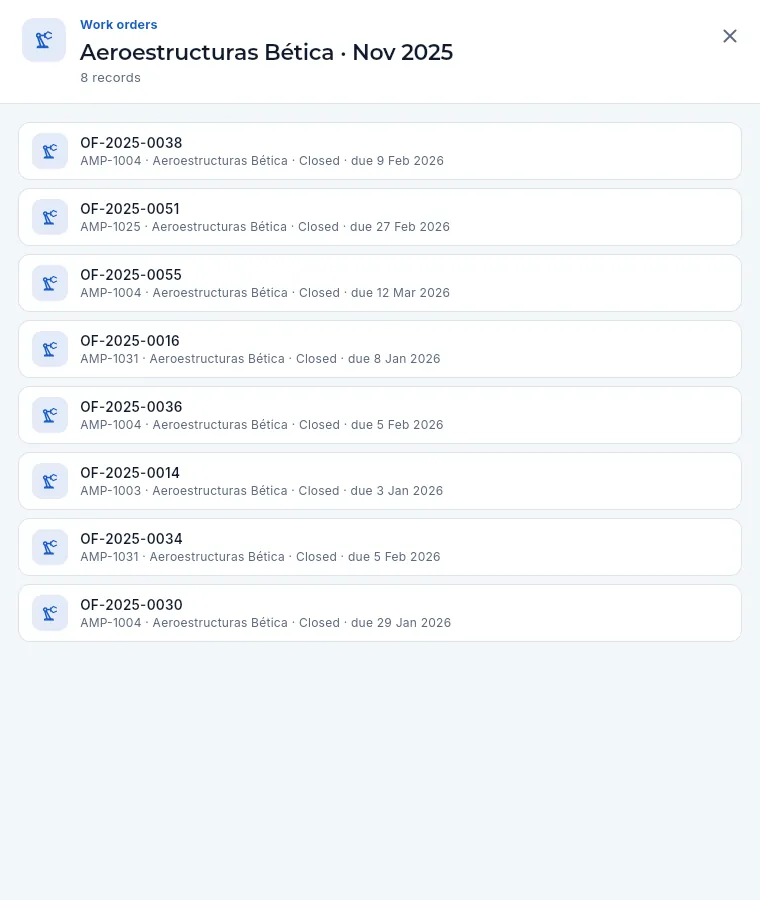 12
12
- 1The source, the cell (row · column) and how many records it contains.
- 2Each record: click to open its record (here, the WO).
#Free analysis with person hours
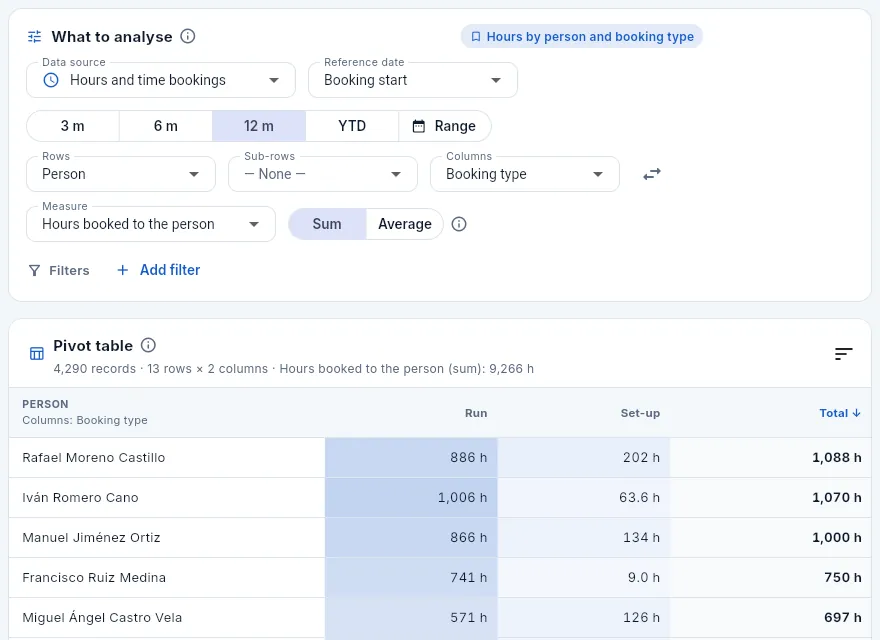 1234
1234
- 1The Hours and time bookings source: one record per time booking (set-up, run or rework).
- 2The measure: this design uses Hours booked to the person (those of the allocation rule); Hours would be those of the time record, that is, machine time. There are also parts, costs and performance.
- 3Sum or average. Amounts per part, percentages and days only allow the average.
- 4One column per booking type and the total per person: it matches the Hours report.
Administration
Users and profiles
Who can sign in to Aeromec and what each person can see and do: user accounts, access profiles with one switch per permission and the keys each person uses to connect Claude.
Users and profiles is where you decide who signs in to Aeromec and what each person sees. It has three views:
- Users: the accounts (name, email, job title, password), the access profiles of each one and, if needed, the end date of their access. There is no self sign-up: only an administrator can create accounts.
- Profiles: each access profile is a set of switches, one per permission: which menu sections it sees, which sensitive data (costs, prices, margins, staff rates, contact details, defence), what it can do, which Dashboard blocks it gets and what it can do from Claude.
- Claude: the access keys each user has connected Claude to Aeromec with, and what Claude has done with them (see Connect to Claude).
This section is for administrators only. Administrators see everything and need no profiles; every other user sees exactly what their profiles allow, and the database enforces it on every query, not just the screen. The full catalogue of permissions, the ready-made profiles and the demo accounts are in the appendix Profiles and permissions.
#Where to find it
On a computer, Users, Settings and Audit log are not in the side bar: they open from your user menu, at the top right (Users and Settings only appear to administrators). On a phone they are at the bottom of the side menu (☰), in the Administration group.
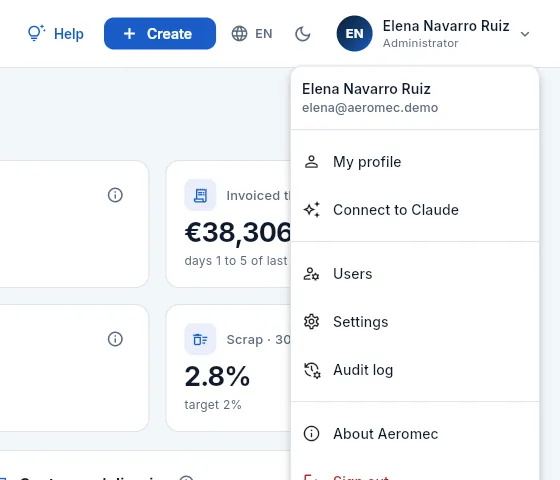 1234
1234
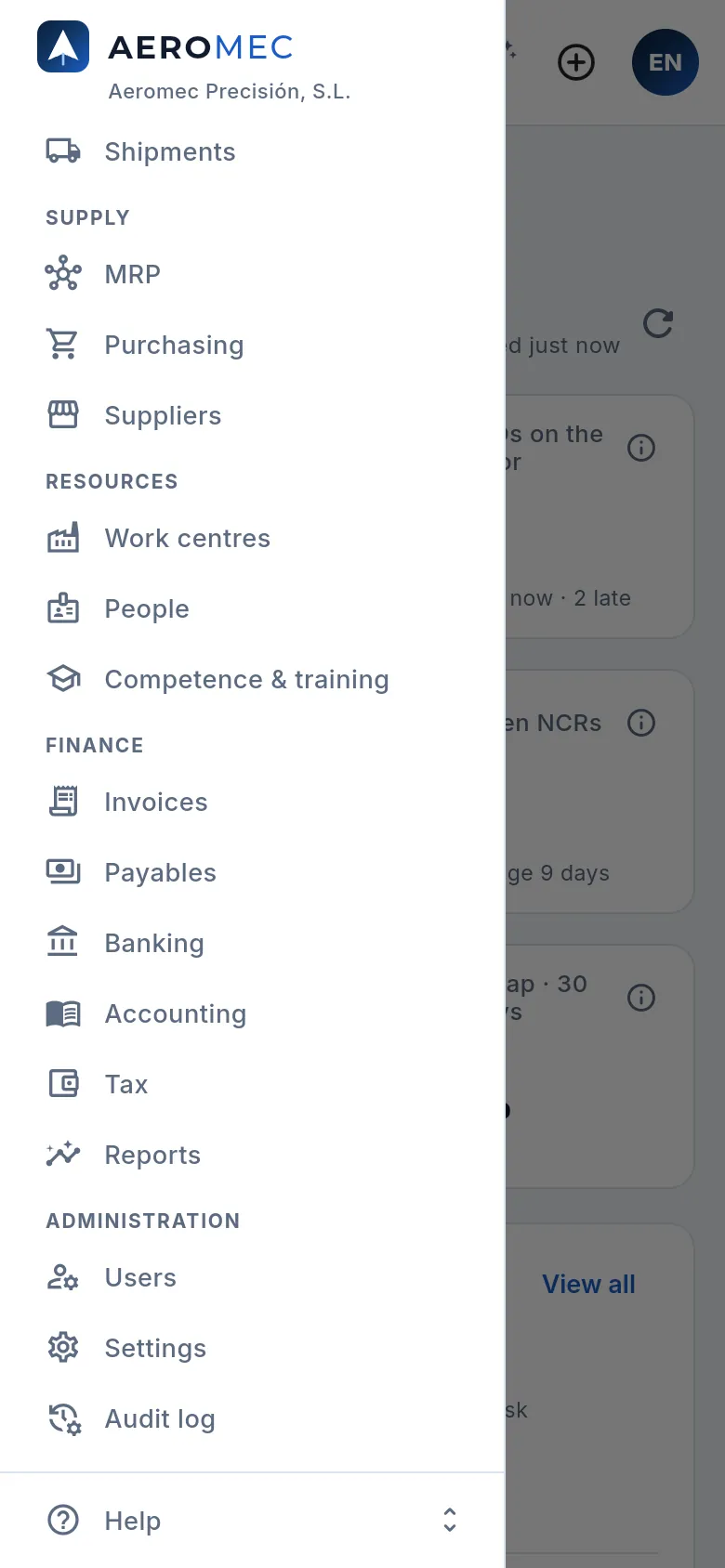 1
1
- 1The Administration group: Users and Settings (administrators only) and Audit log (with its permission).
#The list of users
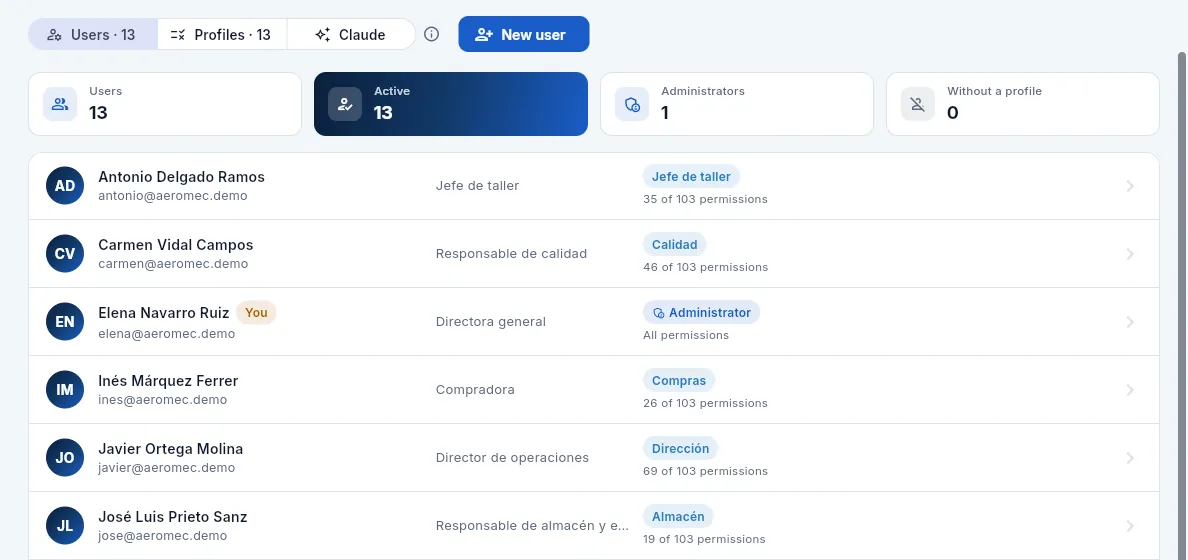 12345678
- 1Users, Profiles and Claude: the three views of the section, with how many users and profiles there are. The ⓘ explains each one.
- 2New user creates an account.
- 3The indicators: users, how many are active and how many are administrators.
- 4Without a profile: active users who are not administrators and have no profile, so they would see nothing. In red if there are any.
- 5Your own account is tagged You. Under the name, the email used to sign in; to its right, the job title.
- 6An administrator: has every permission and needs no profiles.
- 7Everyone else, with their access profiles and how many of the total permissions they get.
- 8Click any user to change their details, profiles, status or password.
A disabled user is tagged Inactive and their name is greyed out: they cannot sign in, but their name is kept on quotes, work orders, inspections and the change log. If someone shows No profile in red, they will not see anything yet when they sign in: assign them at least one profile.
#Creating a user
Open your user menu → Users and click New user.
Type their name, the email they will sign in with and, if you like, their job title.
Type a password of at least 8 characters, or click the wand to have Aeromec generate one (it is shown so you can copy it).
Tick one or more access profiles and check in Effective access what they will be able to see and do.
Click Create user and give them their email and password securely.
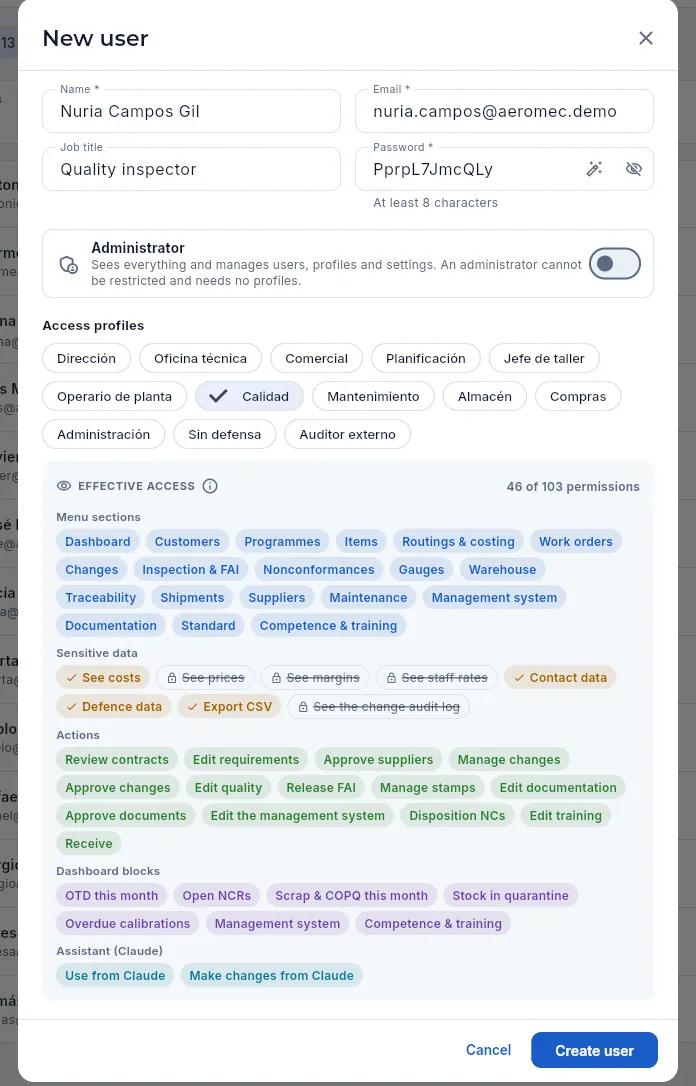 12345678
- 1Name, email (used to sign in; it cannot be changed later) and job title.
- 2Password: the wand generates a strong one and the eye shows or hides it. At least 8 characters.
- 3Administrator: sees everything and manages users, profiles and settings. If you turn it on, the profiles disappear because they do not apply.
- 4The access profiles: click the ones you want to give (they show a ✓). Hover over one to read who it is for.
- 5Effective access: what they will have with the profiles ticked, and how many permissions that is out of the total.
- 6Under Sensitive data, whatever they will not be able to see is struck through with a padlock: those figures will reach them empty.
- 7Assistant (Claude): whether they will be able to use Aeromec from Claude and whether Claude will be able to make changes on their behalf.
- 8Create user creates the account (it was not clicked for the screenshot).
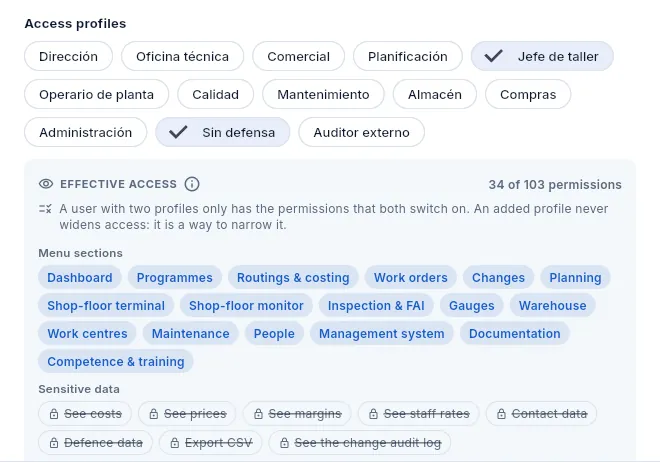 1234
1234
- 1Two profiles ticked: Jefe de taller (shop supervisor) and Sin defensa (no defence).
- 2Aeromec reminds you of the rule: with two profiles they only get what both switch on.
- 3They now have 34 permissions, one fewer than with Jefe de taller alone (35).
- 4Defence data, struck through: defence or export-controlled parts and customers will not exist for them.
#Changing a user: profiles, status and password
Click a user in the list to open their record. You can change their name, job title, whether they are an administrator and their profiles (the email cannot be changed: it is their sign-in identifier). At the end is the Account block, with their status and password; at the very bottom, Save changes applies whatever you have changed.
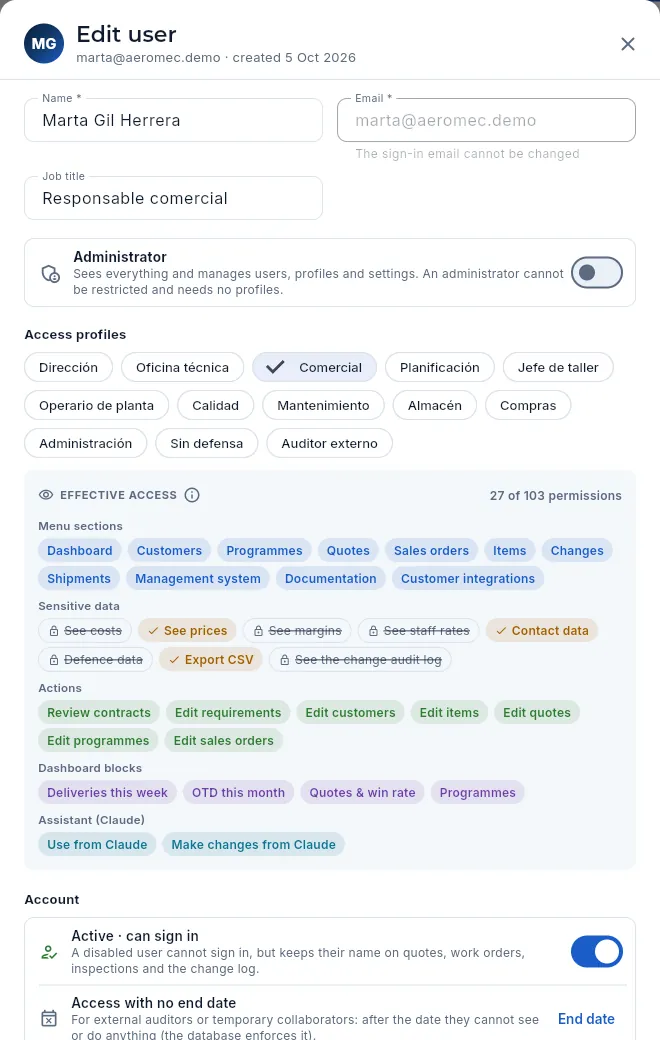 12345
12345
- 1The email she signs in with: it cannot be changed.
- 2Her profiles: tick or untick to change them. The effective access below is recalculated instantly.
- 3What she does not see with her profile, struck through: here, costs, margins, staff rates, defence and the audit log.
- 4Active · can sign in: turn it off to cut off her access at once. Her name is kept on quotes, work orders, inspections and the change log.
- 5Reset sets a new password (if she has forgotten it or someone else knows it).
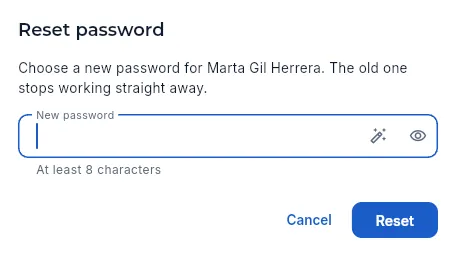 123
123
- 1Type the new password (at least 8 characters)…
- 2…or generate one with the wand; the eye shows it so you can copy it.
- 3Reset changes it straight away: the old one stops working. Give it to the user securely.
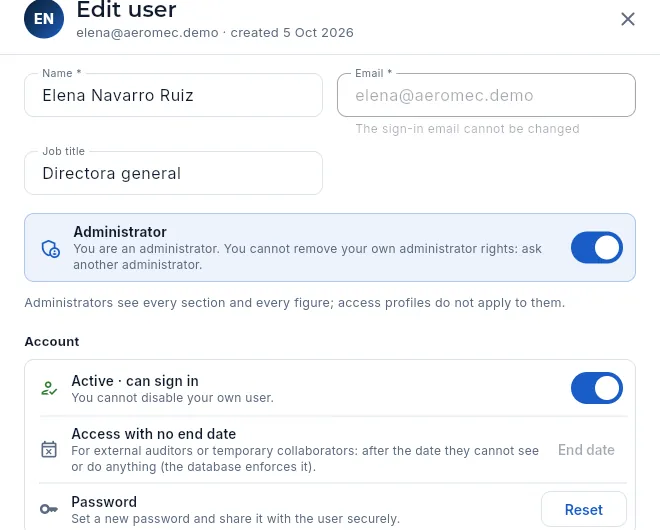 123
123
- 1An administrator cannot remove their own administrator rights: another administrator has to do it. That way you are never left without anyone who can manage Aeromec.
- 2Administrators have no profiles applied: they see every section and every figure.
- 3You cannot disable your own user either.
#The access end date and the external auditor
For a user who only needs access for a while —an external auditor for certification or for a customer, a consultant, someone on a placement— set an access end date in the Account block of their record. Until that day they sign in as normal (and their menu reminds them); from the following day they cannot see or do anything, even though they keep their profile, and when they sign in they are told their access has ended. In the user list they carry the tag «Access until …» (or «Access ended on …»).
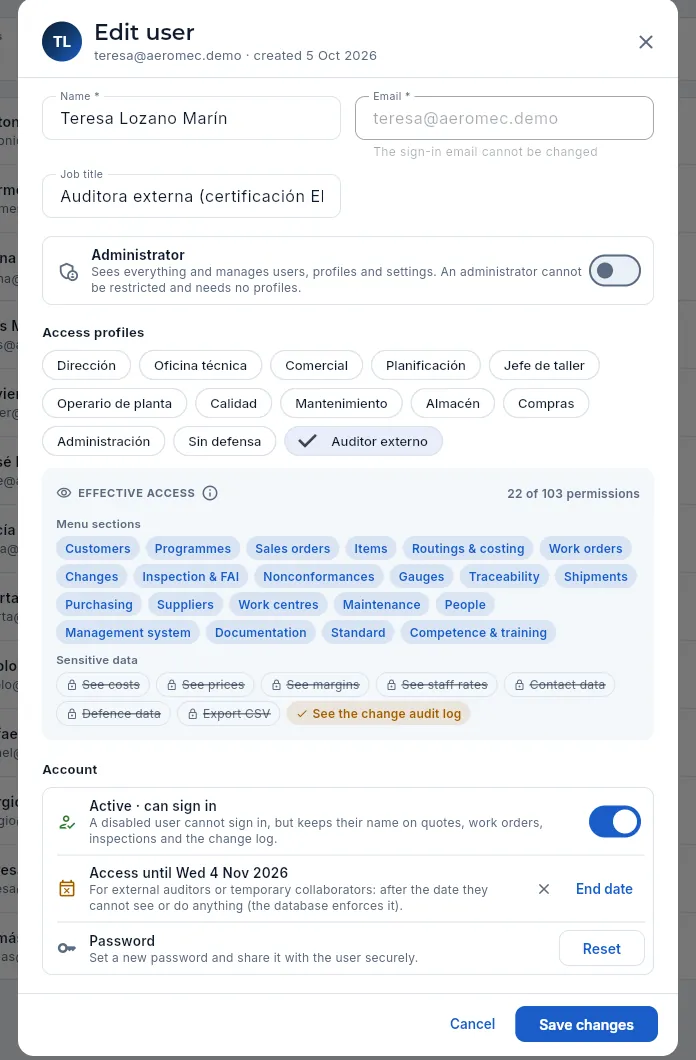 12345
12345
- 1Her job title: external auditor for EN 9100 certification.
- 2Her profile, External auditor: read only (hover over it to read its description).
- 3Access until …: the last day she can sign in. The database enforces it.
- 4End date picks it from a calendar; the ✕ to its left removes it (access with no end date).
- 5Save changes applies it (it was not pressed in the screenshot). It is recorded in the access change log.
The External auditor profile comes ready for an audit: read only access to what an audit reviews —parts, routings, WOs, inspection and FAI, nonconformances, gauges, traceability, shipments, customers and sales orders, suppliers and purchasing, programmes and changes, people, machines and maintenance, the management system, documentation, the standard, competence and training and the change audit log—, without amounts, contact details, defence or any action: they cannot create, change or sign anything, and they have no dashboard. In the demo, Teresa Lozano has it.
#Access profiles
The Profiles view holds the permission matrix: each row is a permission and each column a profile; the switch in each cell turns that permission on or off for that profile. The 103 permissions are grouped into Menu sections, Sensitive data, Actions, Dashboard blocks and Assistant (Claude). The administrator is not listed because they have everything. If not all the profiles fit, the matrix scrolls sideways (with the bar at the bottom or with the mouse); the last one is External auditor.
The quality system brought new permissions in every group: the sections Programmes, Changes, Management system, Documentation, Standard and Competence & training; actions such as «Manage stamps», «Review contracts», «Edit requirements», «Approve suppliers», «Manage changes» and «Approve changes», «Edit documentation» and «Approve documents», «Edit the management system» and «Approve the management review», or «Edit training»; and the dashboard blocks Programmes, Management system and Competence & training. What each one allows and which profiles have it out of the box is in the appendix Profiles and permissions.
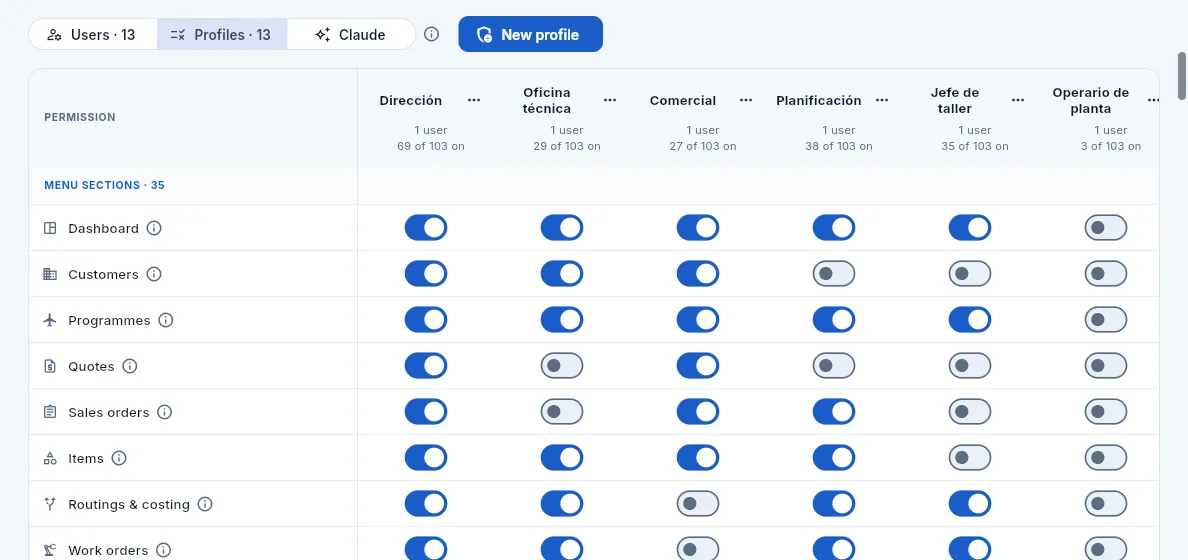 12345678
- 1The Profiles view.
- 2New profile creates an empty one or one that copies the switches of another.
- 3Each column is a profile, with how many users have it and how many permissions it turns on. Hover over the name to read its description.
- 4The ⋯ menu of each profile: edit its name, duplicate it or delete it.
- 5Permissions are grouped: first, the menu sections the profile sees.
- 6Each permission's ⓘ explains what it allows, where it applies and what is left out.
- 7Each switch: on (in colour), the profile has that permission; off (grey), it does not. The change is saved as soon as you click it.
- 8Here, the Oficina técnica (engineering office) profile does not see the Quotes section.
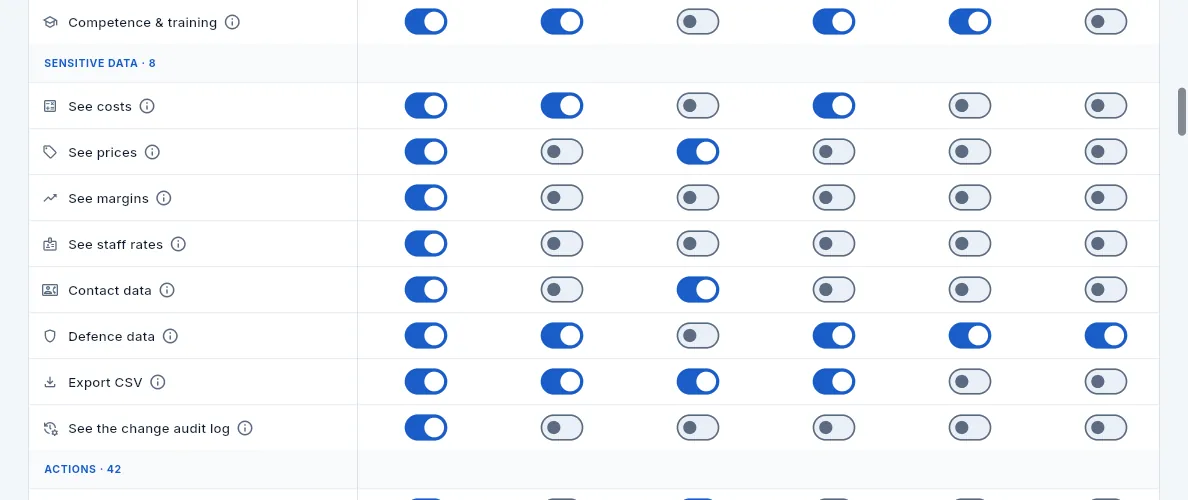 1234567
- 1Sensitive data: which figures and delicate data the profile sees, whether it can export and whether it sees the audit log.
- 2Comercial (sales) does not see costs…
- 3…but it does see selling prices: it quotes with the suggested price without knowing what the part costs.
- 4See margins only works together with "See costs" and "See prices": a margin next to a price would reveal the cost.
- 5Without Defence data, defence or export-controlled parts and customers do not exist for the profile.
- 6See the change audit log: out of the box, only Dirección.
- 7Actions: what it can create or change (quotes, routings, work orders, quality, warehouse, purchasing, invoices…).
At the end of the matrix come the Dashboard blocks (which cards the profile sees on its Dashboard) and the Assistant (Claude) group, with what each profile can do from a chat with Claude (see Connect to Claude):
- Use from Claude: connecting Claude to Aeromec and asking it about anything the profile can see. Without it, none of that user's keys works, not even the ones they already have.
- Make changes from Claude: letting Claude create, change and delete on the user's behalf, only in what their actions already allow in the app. Without it, Claude can only look things up.
Out of the box, every profile has both except Operario de planta (shop-floor operator: it only uses the terminal) and Administración (finance), which can only look things up: invoices, payments received and payables are issued in the app, with the whole document in view.
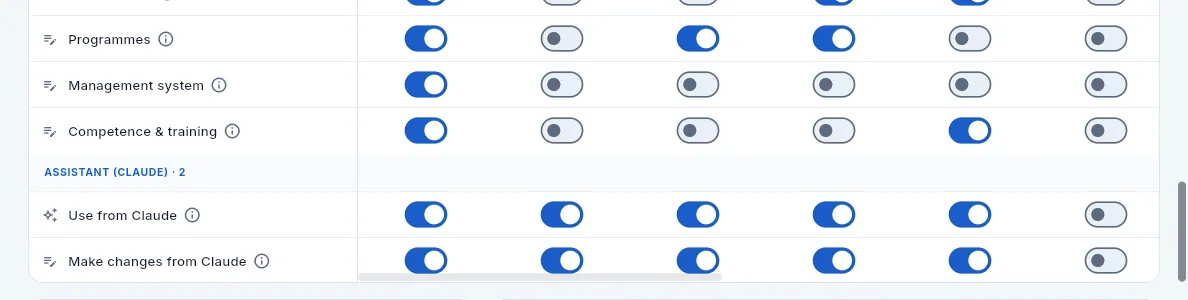 12345
12345
- 1The dashboard blocks: each one is a card on the Dashboard. Their amounts still depend on "See costs" and "See prices".
- 2Assistant (Claude): what each profile can do from a chat with Claude.
- 3Use from Claude: without it, the user cannot use Aeromec from Claude.
- 4Make changes from Claude: without it, Claude can only look things up, even if the user can edit in the app.
- 5Operario de planta does not have it: the shop-floor terminal is never used from a chat.
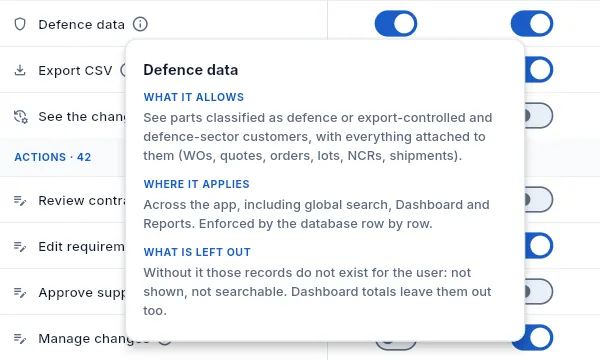 123
123
- 1What it allows: what you can see or do with the permission switched on.
- 2Where it applies: the sections and screens where it takes effect.
- 3What is left out: what depends on another permission or cannot be seen without it, so there are no surprises.
Your user menu → Users → Profiles.
Find the permission's row (click its ⓘ if you are not sure what it does) and the profile's column.
Click the switch. The change saves itself and applies to every user with that profile on their next query.
#Creating, duplicating, renaming and deleting profiles
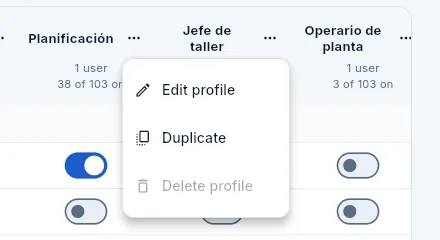 123
123
- 1Edit profile: change its name and description.
- 2Duplicate: create another one with the same switches.
- 3Delete profile is only possible if no user has it assigned; otherwise it is greyed out.
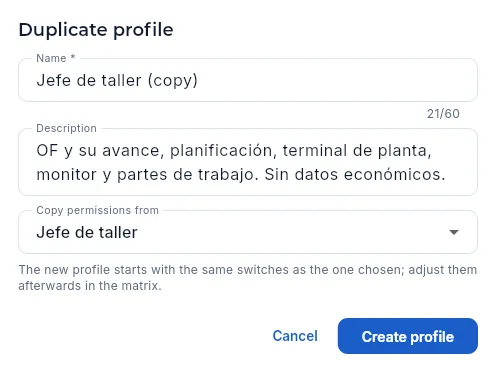 1234
1234
- 1The profile's name (up to 60 characters). When duplicating, Aeromec suggests the original's name with "(copy)": change it to one that says who it is for.
- 2A description: who it is for and what it leaves out.
- 3Copy permissions from: the starting profile, or "Start with no permissions".
- 4Create profile; then you adjust its switches in the matrix.
- New profile opens this form empty: name, description and Copy permissions from (if you choose "Start with no permissions", the profile starts with everything off and you turn things on in the matrix).
- Duplicate opens the same form already filled in: the original's name with "(copy)", its description and itself as the starting profile.
- Edit profile only changes the name and description; permissions are changed in the matrix.
- Delete profile asks for confirmation and deletes the profile with all its switches. First you have to remove it from all its users.
#The change log
 123
123
- 1With several profiles the most restrictive wins, with an example: «Jefe de taller» + «Sin defensa».
- 2Recent changes: the last 20 changes to access, with who made them and how long ago (hover over the time to see the exact date).
- 3Here, the administrator revoking one of Pablo Serrano's Claude keys.
Recent changes records every change to access:
- profiles created (or copied from another), edited or deleted;
- switches turned on or off ("Switched on “See costs” in “Comercial”");
- users created, with the profiles assigned to them, who was made an administrator or had it removed, who was disabled or re-enabled and whose password was reset;
- Claude keys created and revoked, with their name and whose they are.
The system itself writes it whenever there is a change, and nobody can edit it from the application. As long as nothing has been changed, the card says "Nothing has been changed yet". Changes to data (quotes, work orders, routings, calibrations…) are not recorded here but in the Audit log.
#Every user's Claude keys
The Claude view brings together the access keys each person has connected Claude to Aeromec with, and what Claude has done with them. Each user sees and revokes their own in their Connect to Claude panel (in their user menu); here the administrator sees everyone's and can revoke any of them, for example when someone leaves the company or loses their laptop.
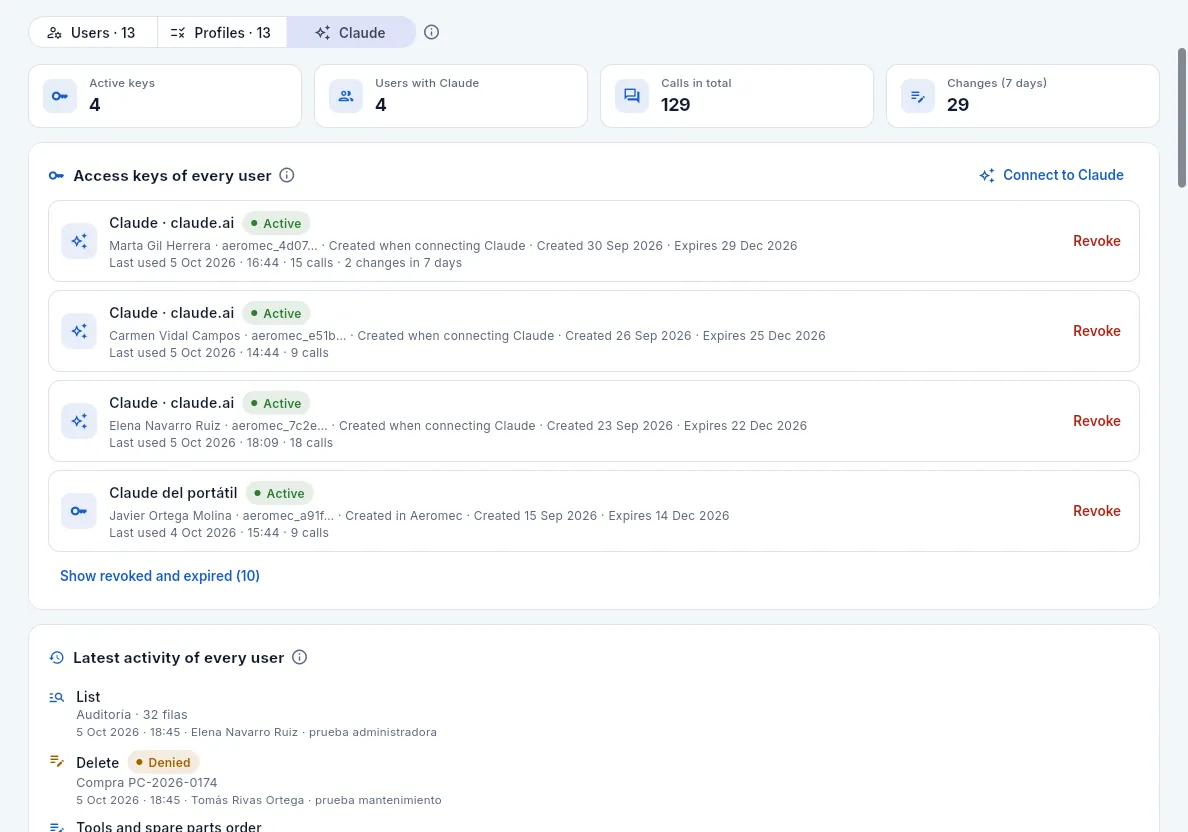 1234567
- 1The Claude view.
- 2The indicators: active keys, how many users use Claude, calls in total and changes made from Claude in the last 7 days.
- 3Your own Connect to Claude panel, to create or revoke your keys.
- 4Each key with its owner, the start of the key, how it was created, when it expires, when it was last used, its calls and its changes in 7 days.
- 5Revoke cuts off that key's access on Claude's next request, whoever it belongs to. It asks for confirmation.
- 6The revoked and expired keys, with who revoked them and when.
- 7Everyone's latest activity: what Claude has looked up or changed, when, for whom and with which key.
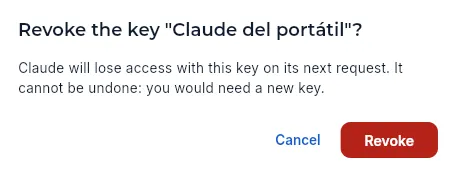 12
12
- 1Revoking cannot be undone: a new key will be needed to connect Claude again.
- 2Revoke cuts off the key (it was not clicked for the screenshot).
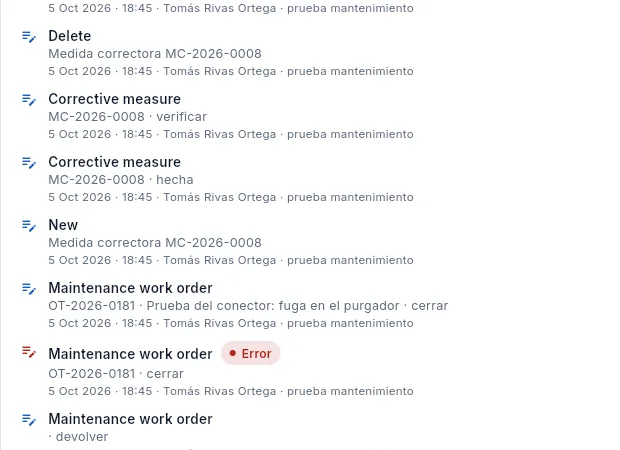 12
12
- 1A change made from Claude: Marta asked it to send a quote.
- 2Denied: Claude asked for a part's cost breakdown and Marta's profile cannot see costs, so the database did not return it.
Your user menu → Users → Claude view.
Find their key in Access keys of every user and click Revoke.
Confirm it. If the person has other active keys, revoke them too.
#Tips
- One profile per job, not per person. Use profiles such as «Calidad» or «Jefe de taller» and assign them; if someone needs something different, duplicate the closest profile.
- To narrow access, add a profile. «Sin defensa» works as an add-on: added to another profile, it removes everything to do with defence and export control (contractors, trainees, audit visits from a civil customer).
- Disable rather than delete. When someone leaves the company, disable their user: they will not be able to sign in, their Claude keys stop working and their name is kept on everything they did.
- Always have two administrators, in case one is away: nobody can remove their own administrator rights.
- Review the Claude view from time to time and revoke keys that have not been used for a long time or that belong to people who no longer need them.
Administration
Settings
The company parameters the whole application uses: tax details and certifications, costs and pricing for cost breakdowns, quality and delivery targets, calendar and capacity, public holidays with their scope, MRP, tasks at once at the terminal and the booking rule, document texts, document numbering, the Tax Agency reporting scheme, Intrastat and the accounting start-up, and the retention of signed records.
Settings holds the company details and the values Aeromec uses everywhere: the header of quotes, delivery notes, certificates of conformity (CoC) and invoices; the overheads and margin used to work out each part's target price; the targets that decide whether an indicator shows green, amber or red; the calendar the plant is planned with; how many tasks at once a person may run at the terminal and how their time is booked; the prefix of each document type; how the company reports to the Spanish Tax Agency (SII or VeriFactu), the Intrastat values and the accounting start-up; and how many years signed quality records are retained.
It is an administrator-only section: it is opened from your user menu, at the top right.
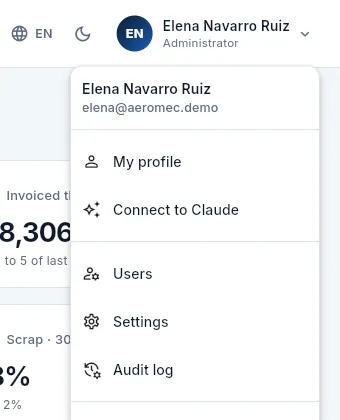 12
12
- 1Click your name, at the top right.
- 2Settings (only if you are an administrator). Next to it are Users and Audit log.
Each card on the screen is changed with its Edit button and saved at once in the company's single record: it applies to everything calculated or issued from then on. Quotes already sent, invoices already issued and documents already numbered do not change.
Each value has its ⓘ help with what it is, how it is used (with an example) and what to bear in mind.
#The screen and the company details
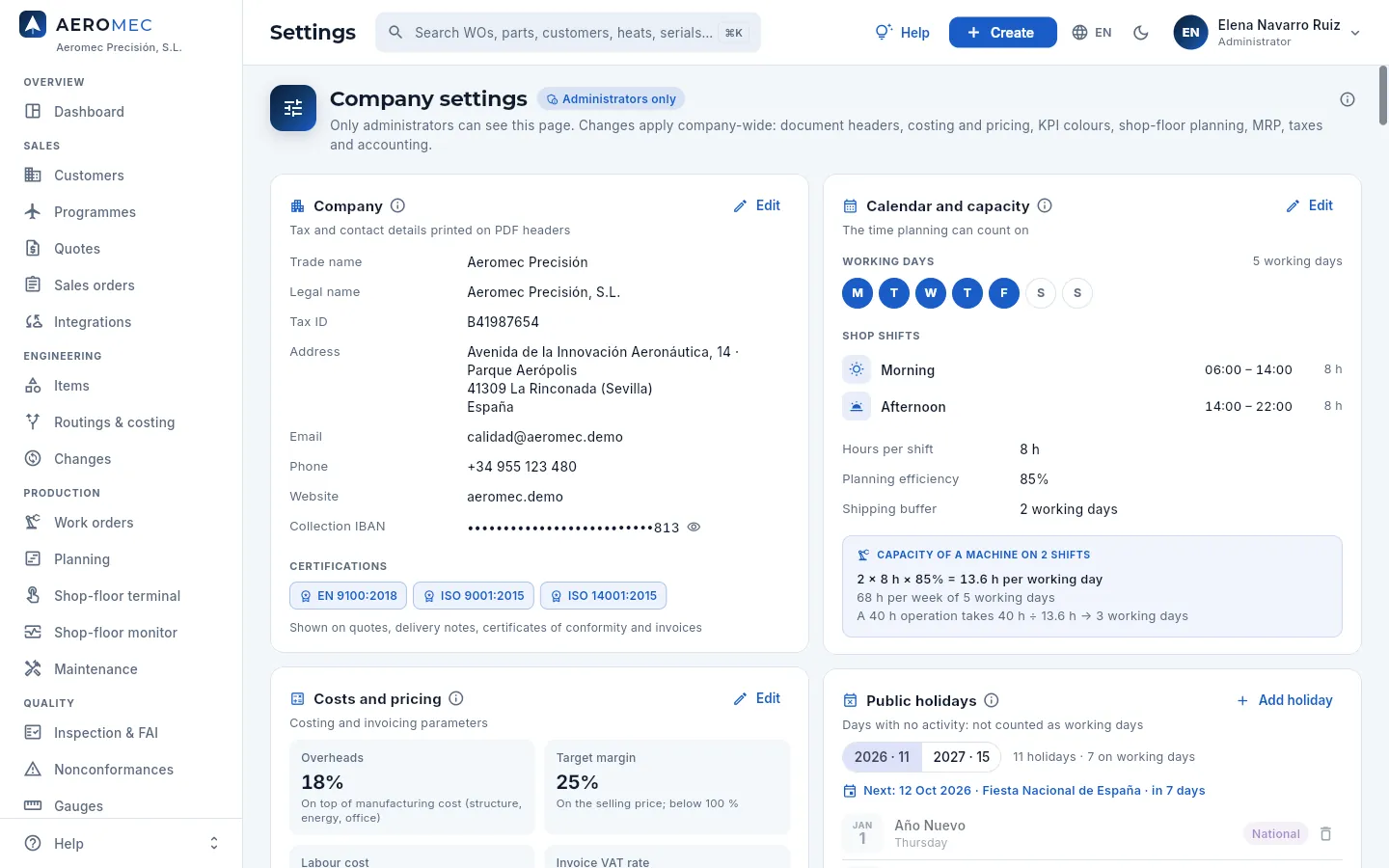 1234567
- 1The screen is for administrators only; changes affect the whole company.
- 2The general ⓘ explains what is on each card and from when a change applies.
- 3Company: trade name, legal name, tax ID, address, contact details, IBAN and certifications. They head quotes, delivery notes, CoCs and invoices.
- 4Each card has its own Edit, which opens its form.
- 5The IBAN is masked; the eye shows it for a moment.
- 6The certifications (EN 9100, ISO 9001…) printed on the documents.
- 7Calendar and capacity: working days, shifts, hours per shift, efficiency and shipping buffer (further down).
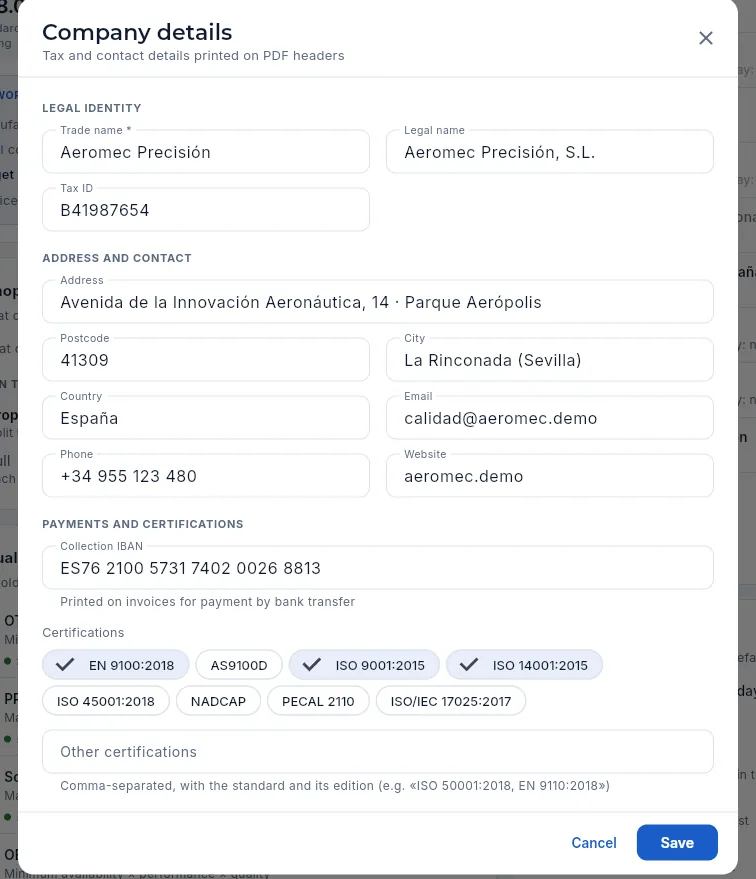 1234567
- 1Trade name: the one shown in the sidebar and on documents.
- 2Legal name and Tax ID: the tax details.
- 3Address and contact: address, postcode, town, country, email, phone and website.
- 4Collection IBAN: printed on invoices for payment by bank transfer (Aeromec checks that it is valid).
- 5Certifications: tick the ones the company holds…
- 6…and type others separated by commas, with their edition (e.g. «ISO 50001:2018»).
- 7Save: documents generated from now on use the new details.
#Costs and pricing
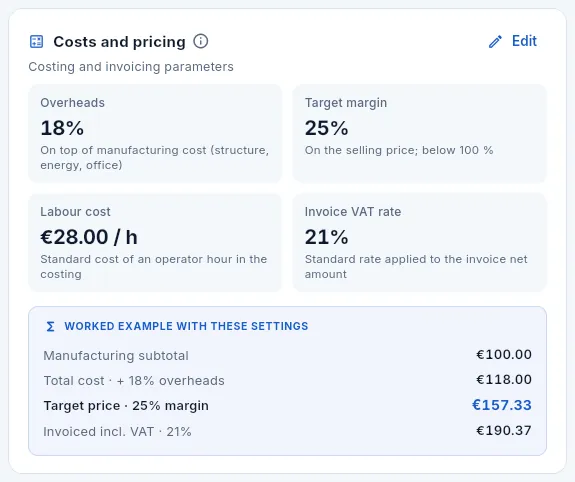 12345
12345
- 1Overheads: the % added to the manufacturing cost (structure, energy, office).
- 2Target margin: the margin wanted on the selling price (less than 100 %).
- 3Labour cost: the standard machinist hour in cost breakdowns.
- 4Invoice VAT rate: the standard rate.
- 5The worked example: from €100 of manufacturing to the target price and to the amount invoiced with VAT, with your values.
#Quality and delivery targets
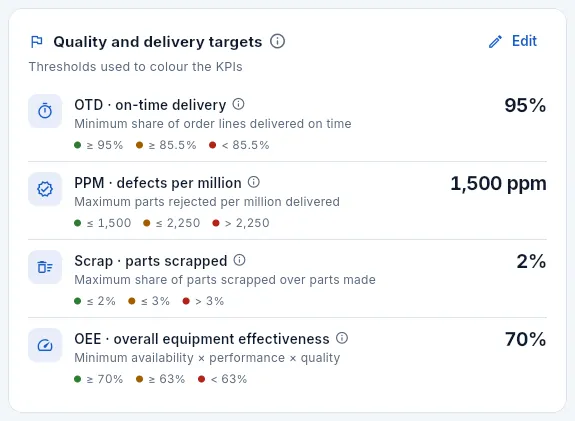 12345
12345
- 1Edit to change them.
- 2OTD · on-time delivery: minimum share of order lines shipped on their date. Below, the traffic light: green, amber and red.
- 3PPM · defects per million: maximum parts rejected by the customer per million delivered.
- 4Scrap: maximum parts scrapped out of those made.
- 5OEE · overall equipment effectiveness: minimum availability × performance × quality.
#Calendar and capacity
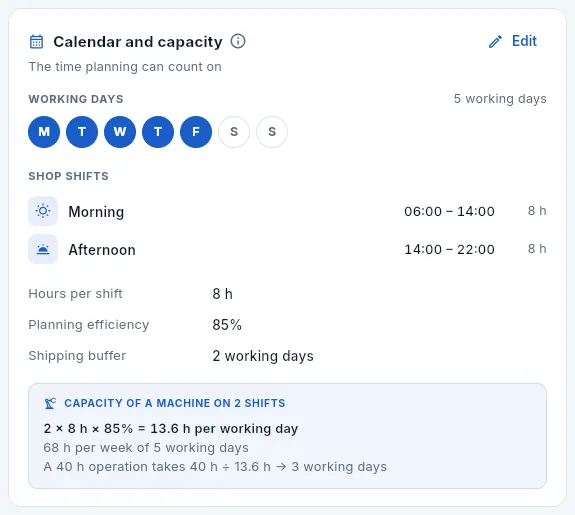 12345
12345
- 1Edit opens the calendar dialog.
- 2The company's working days (machines may have their own, in Work centres).
- 3Shop shifts with their hours and length. How many shifts each machine works is set on each centre.
- 4Hours per shift (productive, without breaks), planning efficiency (the share of capacity that is planned) and shipping buffer (working days between the end of the WO and the delivery).
- 5The worked example for a two-shift machine: capacity per day and per week and how many days a 40 h operation takes.
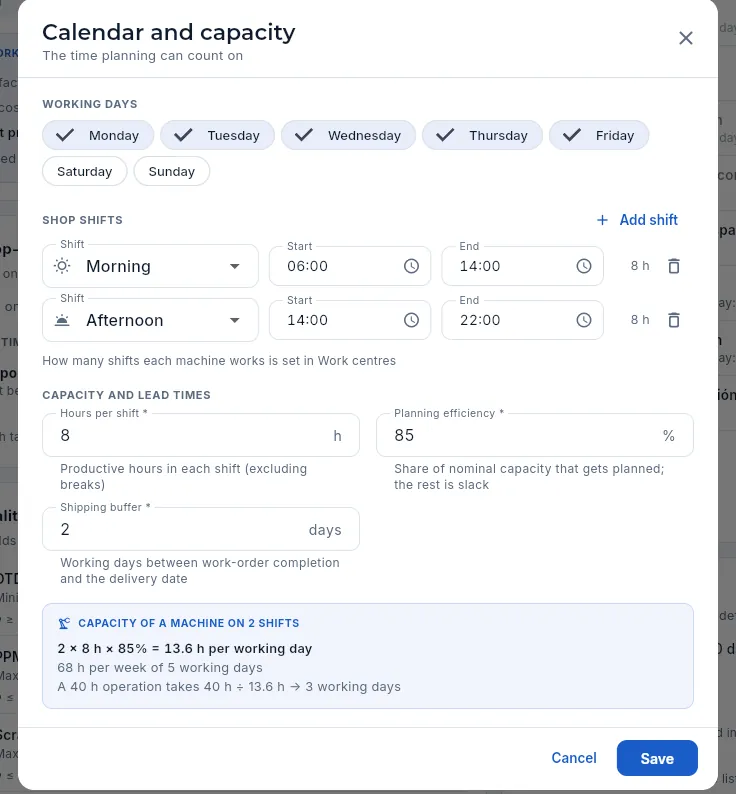 1234567
- 1Working days: tick the days the shop works.
- 2Add shift (morning, afternoon, night or day shift, with suggested hours).
- 3Each shift with its start and end (if it ends the next day, that is understood); the bin removes it.
- 4Hours per shift: the productive ones, without breaks (between 1 and 24).
- 5Planning efficiency: the share of nominal capacity that is planned; the rest is slack.
- 6Shipping buffer: working days between the end of the WO and the delivery date (between 0 and 60).
- 7The worked example is recalculated as you change the values.
#Public holidays
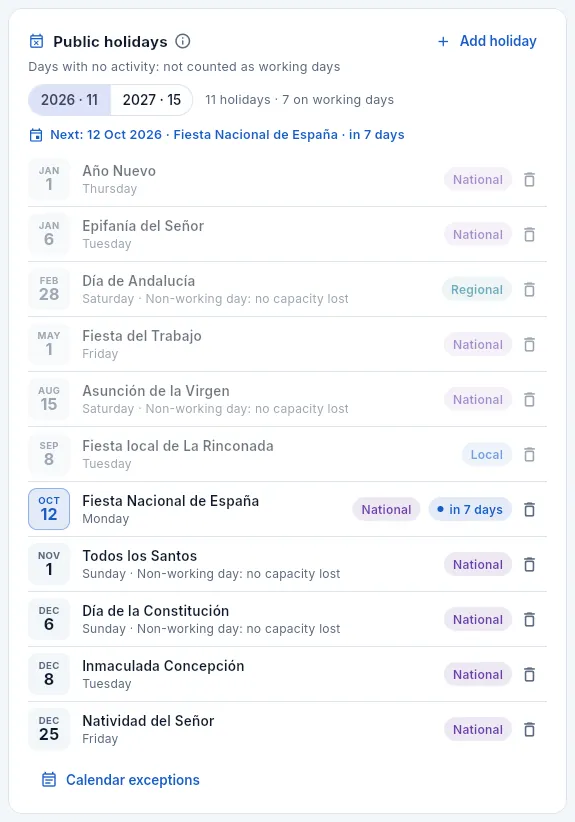 1234567
- 1Add holiday.
- 2The year: the current one and the next, with how many holidays each has; next to it, how many fall on a working day.
- 3The next holiday and how far off it is.
- 4The bin removes the holiday (it asks for confirmation).
- 5If it falls on a non-working day, it says so: «Non-working day: no capacity lost».
- 6Each holiday with its weekday and its scope: national, regional (Andalusia), local (La Rinconada) or company (past ones in grey). Click to change it.
- 7Calendar exceptions: stoppages, maintenance and special shifts for the plant or a machine are in Planning → Work calendar.
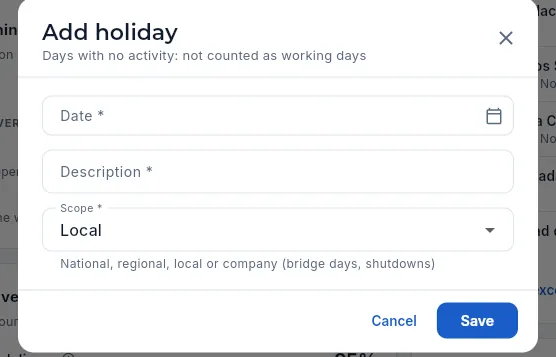 1234
1234
- 1Date: in the current year or the next; there cannot be two holidays on the same day.
- 2Description: local holiday, bridge day, summer closure…
- 3Scope: national, regional, local or company (bridge days, closures).
- 4Save.
#Shop-floor terminal: tasks at once and booking
A machinist tending two or three machines can have several tasks open at once at the shop-floor terminal: one time record per machine. Here you decide the maximum and the booking rule used to split their time between them (booking means charging each WO with the share of the person's hours that belongs to it).
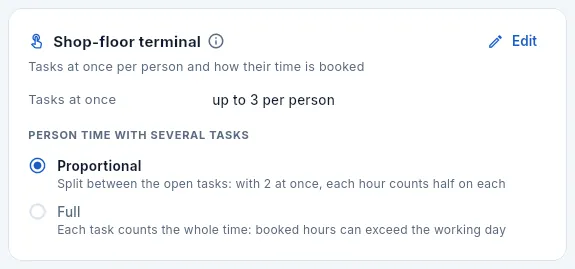 1234
1234
- 1Edit to change it.
- 2Tasks at once: how many time records a person may have open (1 = one at a time, as always).
- 3Proportional: the person's time is split between their open tasks. The selected one is the rule in force.
- 4Full: each task counts the whole time; booked hours may exceed the working day.
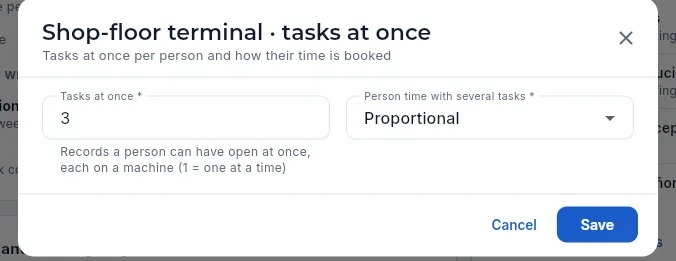 123
123
- 1Tasks at once: between 1 and 6.
- 2Person time with several tasks: proportional or full.
- 3Save: it applies to the time records opened from now on.
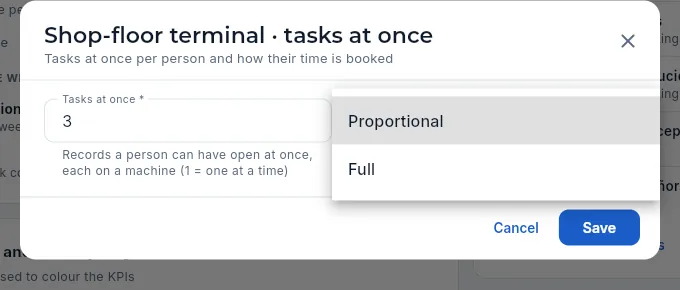 12
12
- 1Proportional: with 2 tasks at once, each hour counts half on each one.
- 2Full: each task counts the whole time.
| From 8:00 to 10:00, with F5-01 and F5-02 open at once (€28/h) | Proportional | Full |
|---|---|---|
| Hours booked to each WO | 1 h | 2 h |
| Hours booked to the person | 2 h (the time they were there) | 4 h (more than their working day) |
| Labour on each WO | €28 | €56 |
| Hours of each machine (capacity, OEE, machine cost) | 2 h | 2 h |
Proportional gives the real cost of labour; full, the time each WO had a person tending it. Machines always count their full time.
#MRP
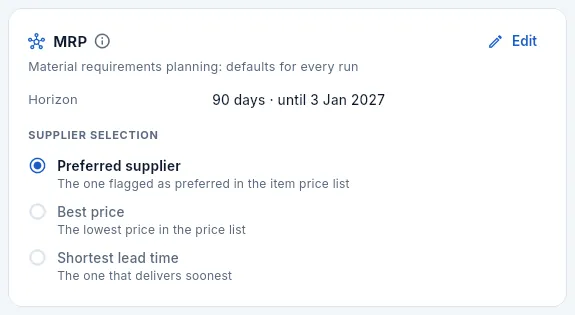 12
12
- 1Horizon: how many days ahead the calculation looks, and up to what date that reaches today.
- 2Supplier selection for each purchase proposal: the preferred one in the item's price list, the cheapest or the fastest.
MRP (material requirements planning) crosses the requirements of WOs and orders within the horizon with the stock, pending purchases and safety stock, and proposes purchases and WOs (see MRP). A short horizon leaves out long lead-time materials (forgings, titanium); a long one brings purchases and stock forward. These are defaults: each MRP run can use other values without changing them here.
#Document texts
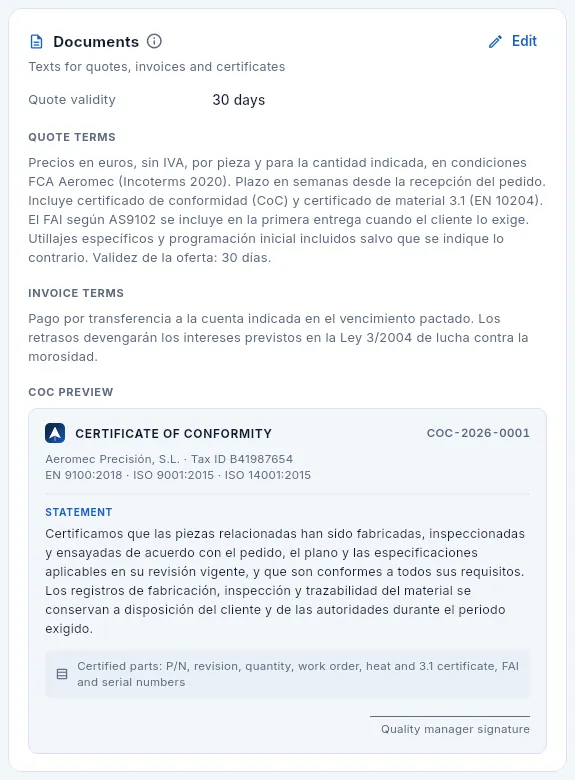 12345
12345
- 1Edit the texts.
- 2Quote validity: the days a new quote keeps its prices.
- 3Quote terms: the text printed on every quote.
- 4Invoice terms: at the foot of every invoice (for example, late-payment interest).
- 5CoC preview: the certificate of conformity statement above the table of certified parts.
#Document numbering
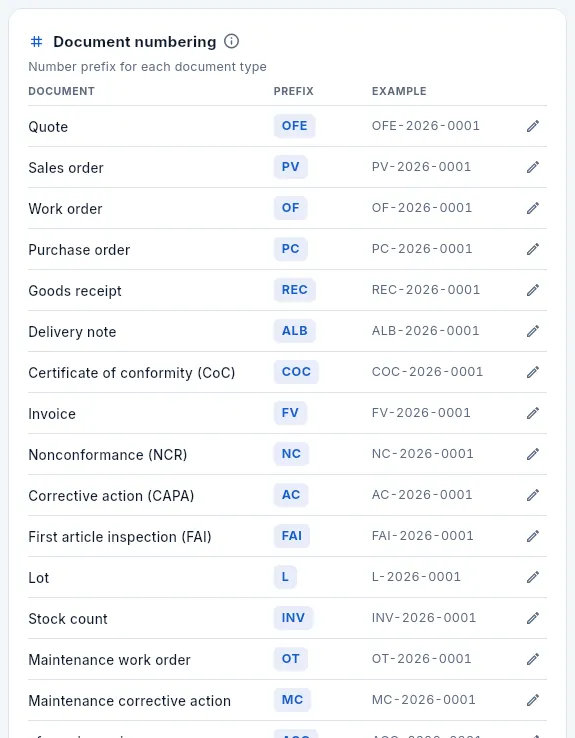 123
123
- 1The document, its prefix and a sample number.
- 2Click a row (or its pencil) to change the prefix.
- 3Changing a prefix only affects new documents.
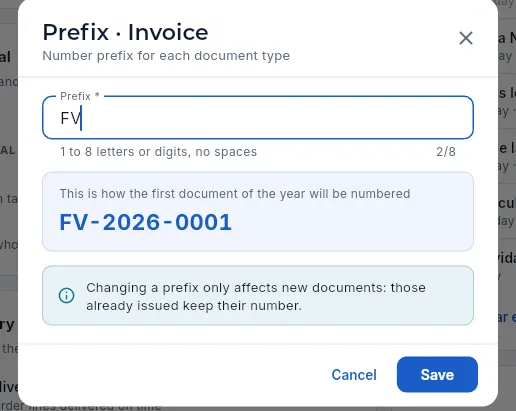 123
123
- 1Prefix: 1 to 8 letters or digits, no spaces, different from the others.
- 2How the first document of the year will be numbered.
- 3Save.
#Taxes and accounting
At the bottom of the page, the Taxes and accounting block brings together how the company reports to the Tax Agency, how Aeromec identifies itself as invoicing software, the Intrastat defaults and the accounting start-up. What you see here is used by the Tax, Accounting and Banking sections.
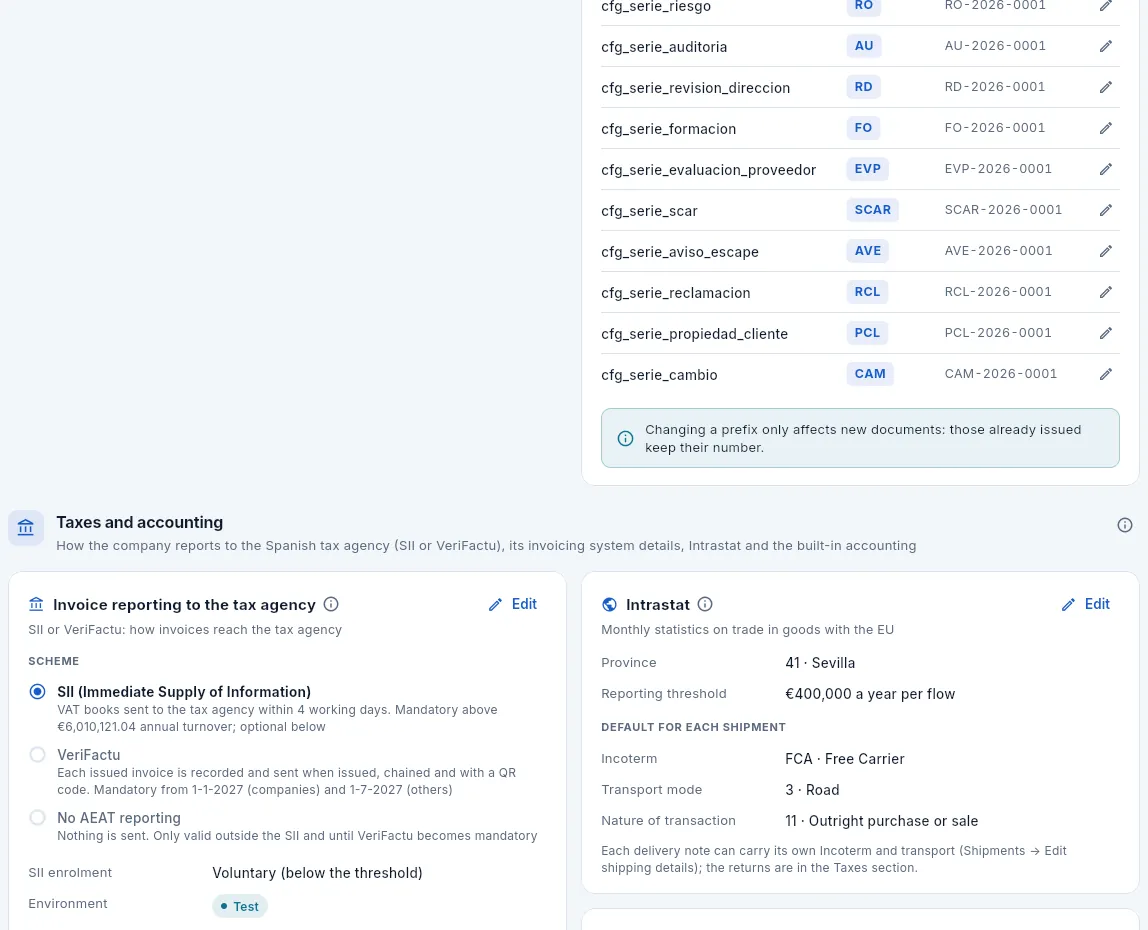 12345678
- 1Reporting scheme with the Tax Agency: SII (the one ticked), VeriFactu or no reporting, with what each one means.
- 2SII enrolment (voluntary or mandatory), the environment (test or production), the electronic certificate and how many records are still to be sent.
- 3Without a certificate, the records have the Tax Agency's real format, but sending and the response are simulated.
- 4Invoicing system (SIF): how the software identifies itself in each VeriFactu record (producer, name, identifier, version and installation).
- 5Intrastat: the company's province and the reporting threshold (€400,000 a year per flow).
- 6What goes by default on each shipment: Incoterm, transport mode and nature of transaction.
- 7Accounting: since when Aeromec posts the accounts (start-up), the share capital and how many entries it has.
- 8The company's bank accounts with their ledger sub-account; they are viewed here and worked on in Banking.
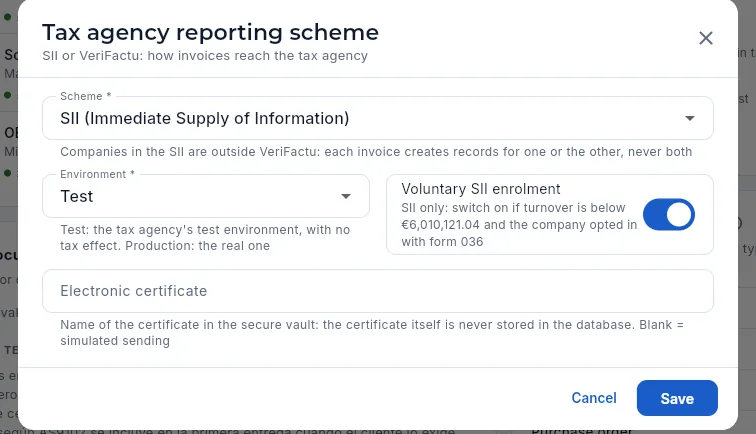 1234
1234
- 1Scheme: SII, VeriFactu or no reporting. Never the first two at once.
- 2Environment: the Tax Agency's test environment, with no tax effect, or the real one.
- 3Voluntary SII enrolment: if the company is below the SII threshold and opted in with form 036.
- 4Electronic certificate: its name in the secure store (it is never kept in the database). Blank, simulated sending.
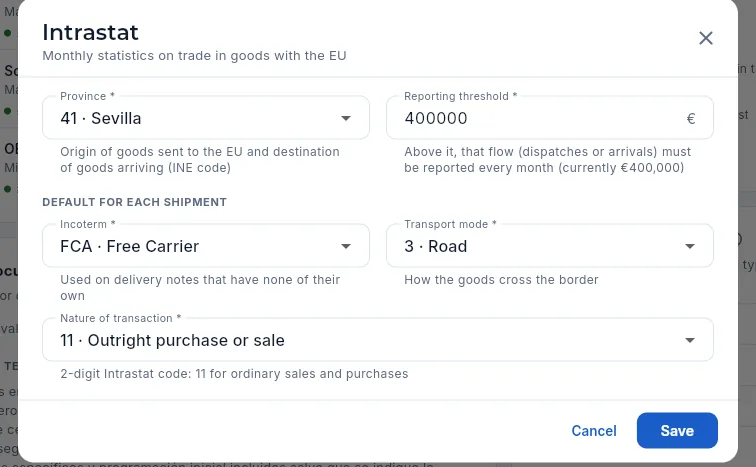 1234
1234
- 1Province of origin of what is shipped and of destination of what arrives.
- 2Threshold: above it, that flow has to be declared every month.
- 3Default Incoterm and transport mode, for delivery notes that have none of their own.
- 4Nature of transaction: 11, outright purchase or sale, for normal sales and purchases.
#Record retention
At the very bottom, the Quality & records block says how long each type of signed record must be retained (inspections, FAIs, NCRs, CAPAs, calibrations, routing revisions, CoCs, document revisions, audits, supplier evaluations, contract reviews, changes…) and from when the years count: from the record date or from the last delivery of the part it refers to. Each signed record shows the result on its Signatures tab, as «Retain until» (see The Signatures tab).
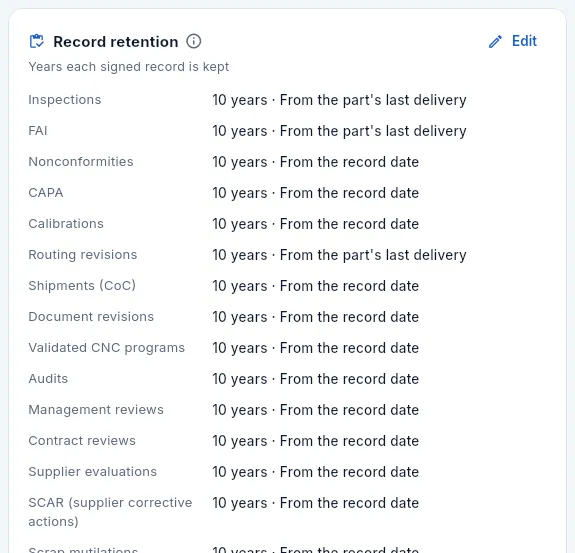 123
123
- 1Edit the years and the starting point of each type.
- 2Each type of record: how many years and from when (here, 10 years from the part's last delivery).
- 3If a customer requires more years, they are set on their record: the longest period applies.
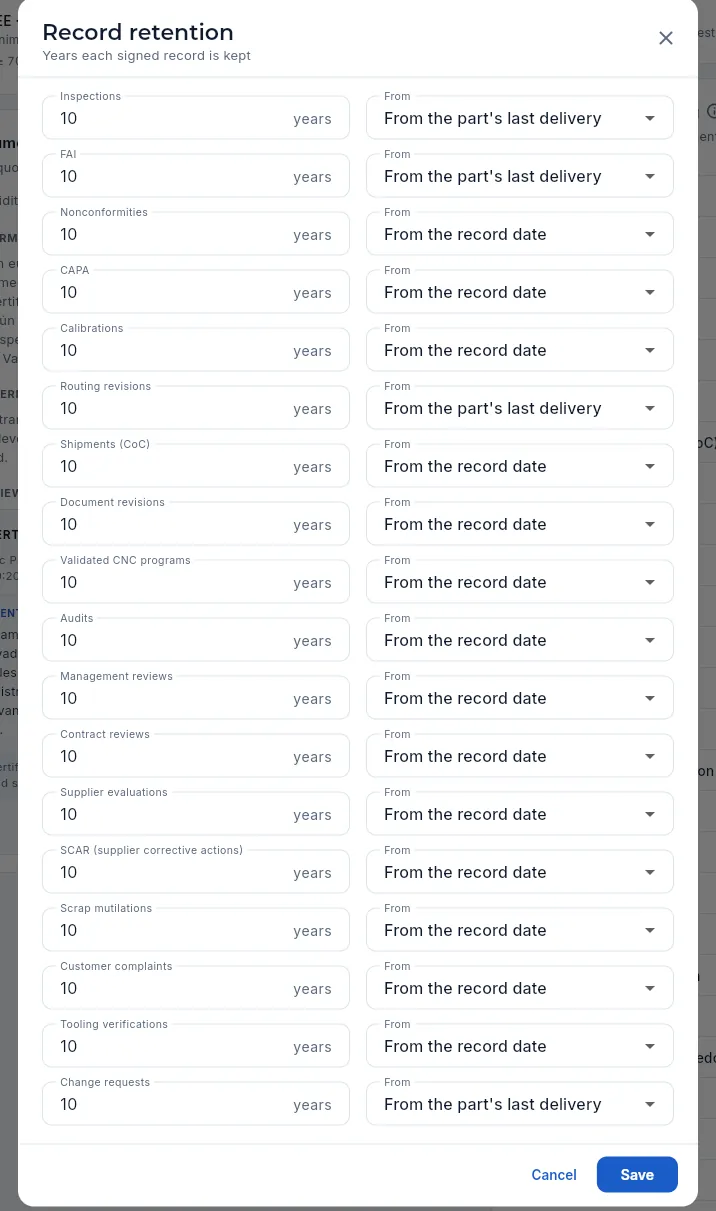 123
123
- 1Years of retention for the type of record (at least 1).
- 2From: the record date or the part's last delivery.
- 3Save: it applies at once; each record's «Retain until» date is calculated with these values.
Administration
Audit log
Who created, changed or deleted each thing and when, with every field's value before and after; sign-ins and sign-outs, the person who worked at the shop-floor terminal and what was done from Claude.
The Audit log answers the question "who changed this, and when?". Whenever someone creates, changes or deletes a record, Aeromec stores who did it, when and, for changes, each field's value before and after. It also records every sign-in and sign-out.
- The database itself writes it at the moment of the change, so it cannot be bypassed or edited from the app or from outside: not even an administrator can delete or correct an entry.
- It covers the master records (customers and their contacts, suppliers, items, supplier prices, work centres, people and their qualifications, gauges and calibrations, Settings, holidays and numbering series), engineering and sales (routings, operations, control plan and materials; programmes; quotes and sales orders with their lines, requirements and contract reviews; change requests and part revisions), production and quality (work orders and their operations, incidents, NCRs with their mutilations and escape notices, complaints, CAPAs, FAIs, inspections, tooling, FOD and customer property; inspection stamps), the management system (objectives, risks, audits, management review, documents and their revisions, competences and training), suppliers (scopes, evaluations, SCARs and customer-approved sources), logistics, purchasing and finance (lots, shipments, purchase orders, receipts, invoices, payments received, supplier invoices and payments) and documents.
- At the shop-floor terminal the account is shared, so the person who identified with their PIN is recorded too.
- What Claude does on someone's behalf is flagged from Claude (see Connect to Claude).
- The correction of a signed record is just another change: the previous and the new value are kept here, and the record's Signatures tab shows who corrected it, why and with their signature (see The Signatures tab).
PINs, document contents and the XML files of the integrations are never stored. Data loads and automatic processes that are not run by a person with their own session leave no trace either. Changes to users, profiles and permissions are not recorded here but in the change log of Users and profiles.
#Where to find it
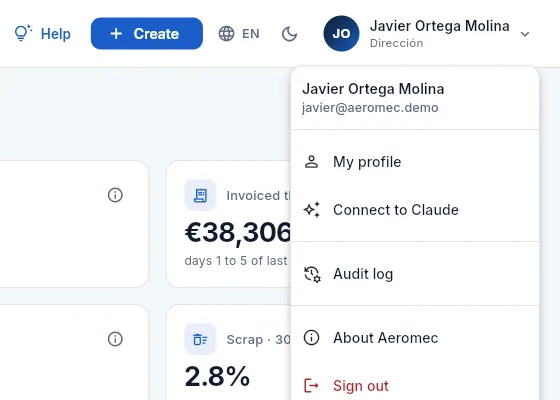 12
12
- 1Click your name, at the top right.
- 2Audit log appears to anyone with the "See the change audit log" permission (out of the box, Dirección and the external auditor) and to administrators.
On a computer it opens from your user menu; on a phone, at the bottom of the side menu (☰), in the Administration group. If you cannot see it, your profile does not have the "See the change audit log" permission. The External auditor profile has it, read only and without amounts: it is usually the first thing anyone auditing the shop asks for.
#The change log
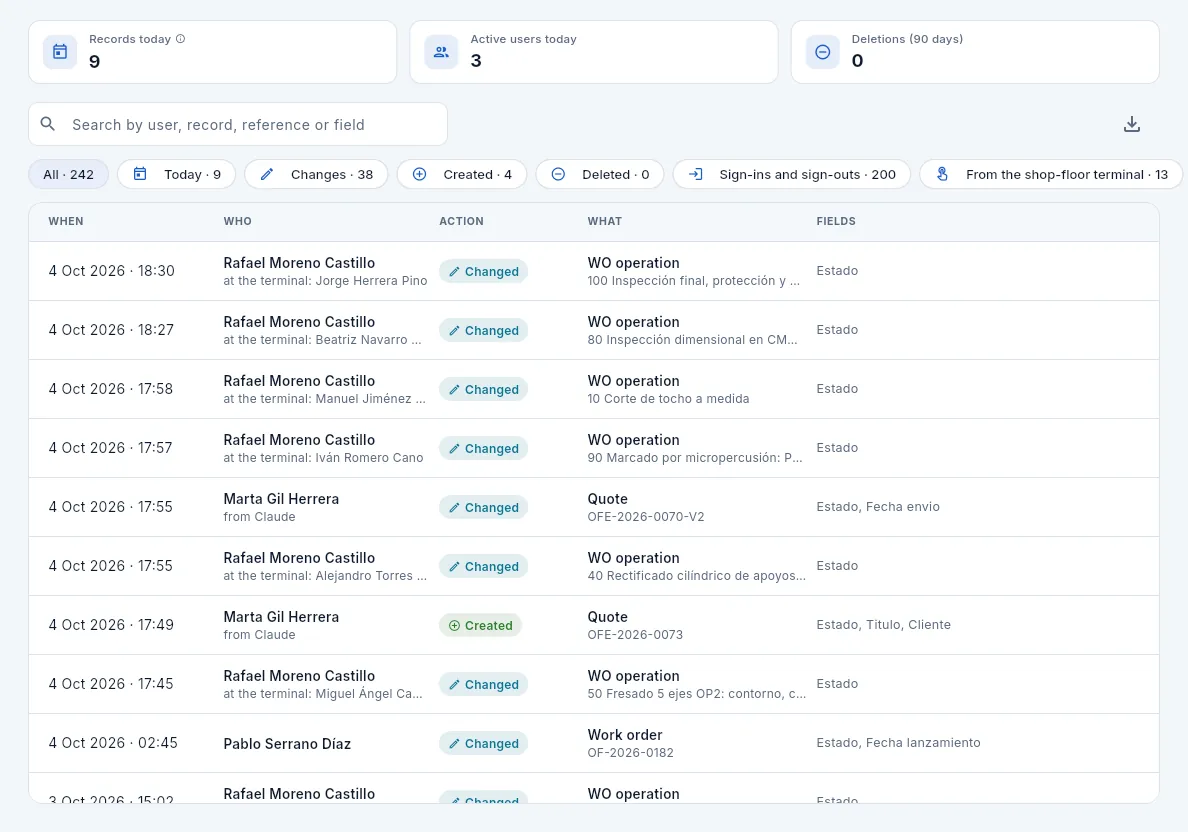 12345678
- 1The indicators: records today (its ⓘ explains what is recorded), users who have done something today and deletions in the last 90 days.
- 2The search box: by person, type of record, reference (OF-2026-0182, NC-2026-0017…) or field name ("fecha entrega").
- 3Export CSV: what you see in the list, with all the changes of each entry (with the "Export CSV" permission).
- 4The filters, with their counts: All, Today, Changes, Created, Deleted, Sign-ins and sign-outs, From the shop-floor terminal and From Claude.
- 5Who: the person; underneath, from Claude if Claude did it on their behalf…
- 6…or, at the shop-floor terminal, the person who entered their PIN (the account, Rafael Moreno, is the tablet's).
- 7Action: Created (green), Changed (blue), Deleted (red), Sign-in or Sign-out (grey).
- 8What: the type of record and its reference; Fields: the ones that changed. Click the row to see the detail.
The list shows the last 90 days, most recent first; click a column header to sort by it. On a phone, each entry is a card with the action, the record, the time and who.
| Filter | What it shows |
|---|---|
| Today | What has been recorded today. |
| Changes, Created, Deleted | Only changes to records that already existed, only new records, or only deleted ones. |
| Sign-ins and sign-outs | Every time someone signs in to Aeromec or signs out. |
| From the shop-floor terminal | What was done at the shop-floor terminal: starting and finishing operations, incidents, gauge loans… with the person who identified with their PIN. |
| From Claude | What Claude has created or changed on someone's behalf. |
#The detail of an entry
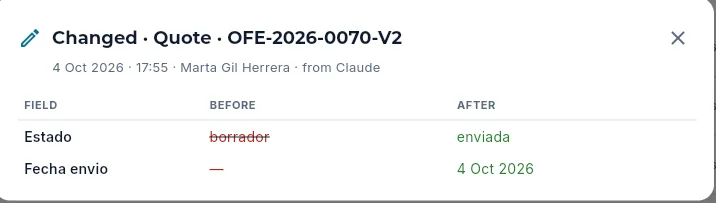 1234
1234
- 1The action, the type of record and its reference.
- 2When (date and time), who and, where applicable, from Claude or the person at the terminal.
- 3Before: each field's previous value, struck through in red (— if it was empty).
- 4After: the new value, in green. Here, the quote went from draft to sent and the sending date was filled in.
A creation shows every field that has a value, with the "Before" column empty; a deletion, the other way round. Sign-ins and sign-outs have no fields. Field names and values appear exactly as the database stores them, in Spanish (for example, a status "en_cola" → "en_curso", queued → in progress), and references to other records are shortened.
#What was done from Claude and at the terminal
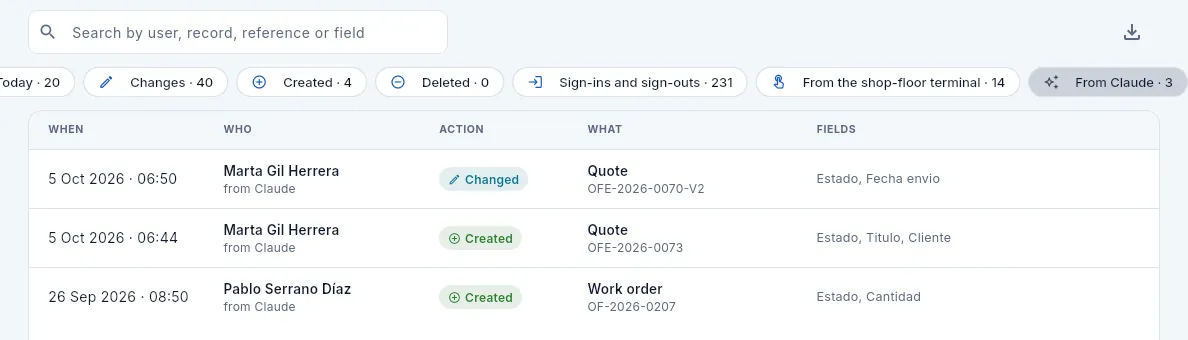 123
123
- 1The From Claude filter, with how many entries there are.
- 2Claude acts on behalf of a person, with their key and their permissions: here, Marta Gil sent a quote by asking Claude.
- 3And Pablo Serrano created a work order from a chat.
Claude can only do what the person's profile allows, and only if the profile has "Make changes from Claude". Every call is also recorded in the key's activity (in Users and profiles → Claude), including look-ups and denied requests.
From the shop-floor terminal shows what was done at the shop-floor terminal. The workshop tablet signs in with a shared account (in the demo, Rafael Moreno's), but every action asks for the PIN of whoever does it, and that is the name shown underneath: "at the terminal: Manuel Jiménez Ortiz".
#The Changes tab of each record
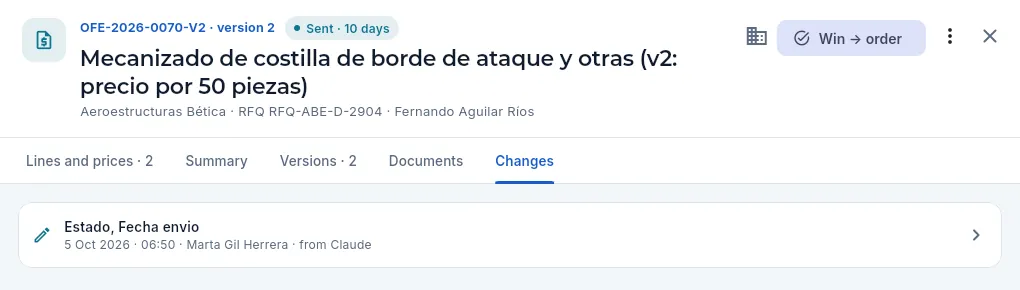 123
123
- 1The Changes tab, after Documents. It only appears with the "See the change audit log" permission.
- 2Each change to this record: the fields that changed, when, who and whether it was from Claude or at the terminal.
- 3Click it to see the detail, with each field before and after.
The Changes tab is found on the records that have a Documents tab: customers, suppliers, items, routings, quotes, sales orders, work orders, lots, receipts, purchase orders, shipments, NCRs, CAPAs, FAIs, inspections, gauges, calibrations, supplier invoices, work centres, people, and maintenance equipment and work orders. Changes to everything else (programmes, change requests, objectives, risks, audits, system documents, training…) are found in the Audit log section by their number or name. It shows the record's own changes (up to the latest 200): on a work order, those of the order itself (its release, dates, priority); what is done on each of its operations at the terminal can be seen in the Audit log section, by searching for the work order number or with From the shop-floor terminal. If a record has no changes made from the app, the tab says so: "No changes recorded".
Open the record (for example, the work order or the quote) and click the Changes tab; or open Audit log from your user menu and type its reference in the search box.
If you are looking for a type of change, use the filters (Changes, Created, Deleted…) or type the field name ("fecha entrega", "prioridad").
Click the entry: you will see each field with its value before and after, who did it and when.
Tips
- Before asking "who has touched this?", look at the record's Changes tab: it is the quickest way.
- Use Sign-ins and sign-outs to check someone's access (for example, after they leave the company).
- Review From Claude and Deleted from time to time: they are the entries worth knowing about.
- The section shows the last 90 days; a record's Changes tab, its latest 200 changes, however old they are.
Appendices
Profiles and permissions
Who sees what in Aeromec: the access profiles that come ready-made, the demo accounts, the full catalogue of permissions explained, how they combine when someone has more than one profile and what changes when Aeromec is used from Claude.
Everyone who signs in to Aeromec sees the application tailored to them: the sections of their job, the figures that concern them and the buttons for what they are allowed to do. It works like this:
- Administrators see everything, manage users, profiles and settings, and cannot be restricted in any way.
- Everyone else has one or more access profiles. Each profile is a list of permissions, each turned on with a switch: which menu sections they see, which sensitive data (costs, prices, margins, staff rates, contact details, defence, export, audit log), which actions they can perform, which dashboard blocks they get and what they can do from Claude.
- A user with no profile at all sees nothing: on signing in, Aeromec tells them to ask an administrator to assign one.
- A user may have an access end date (an external auditor, a temporary collaborator): after that day they can neither see nor do anything, even if they keep their profiles, until an administrator extends or removes it.
Profiles are created and adjusted in Users and profiles → Profiles.
#The ready-made profiles
Aeromec comes with thirteen starting profiles, designed for the jobs in an aerospace machining shop. Their names are part of the data, so they appear in Spanish (with their meaning in brackets). You can change their switches, rename them, duplicate them or create new ones. In the sample data, each one is held by one user:
| Profile | Sample user | Sees | Can do | Does not see |
|---|---|---|---|---|
| Dirección (management) | Javier Ortega Molina, operations director | Every section except the shop-floor terminal (Banking, Accounting and Tax, read-only), and the full dashboard | Approve routings, concessions, changes and documents, review contracts, approve suppliers, run the management system and approve the management review, and edit the work calendar; does not edit day-to-day work | — (costs, prices, margins, staff rates, contact details, defence and the audit log: everything) |
| Oficina técnica (engineering office) | Lucía Romero Vega, head of engineering | Dashboard, Customers, Programmes, Items, Routings & costing, Changes, Work orders, Inspection & FAI, Traceability, Suppliers, Work centres, Management system, Documentation, Standard and Competence & training | Items, routings (and sending them to the customer), work centres, people and gauges, requirements, change requests and documentation; export | Selling prices and margins, staff rates, contact details |
| Comercial (sales) | Marta Gil Herrera, sales manager | Dashboard, Customers, Programmes, Quotes, Sales orders, Items, Changes, Shipments, Management system, Documentation and Integrations | Customers, items, quotes and sales orders, programmes, requirements and reviewing contracts; export | Costs and margins, staff rates, defence |
| Planificación (planning) | Pablo Serrano Díaz, production planner | Dashboard, Programmes, Sales orders, Items, Routings, Changes, Work orders, Planning, Monitor, Maintenance (read-only), Warehouse, MRP, Purchasing, Suppliers, Work centres, Management system, Documentation and Competence & training | Create, plan and release work orders, calendar, programmes, MRP and generating orders, purchasing; export | Selling prices and margins, staff rates, contact details |
| Jefe de taller (shop supervisor) | Antonio Delgado Ramos | Dashboard, Programmes, Routings, Changes, Work orders, Planning, Shop-floor terminal, Monitor, Maintenance, Inspection & FAI, Gauges, Warehouse, Work centres, People, Management system, Documentation and Competence & training | Work orders (create, release and close), calendar, maintenance, work centres and people, training, booking at the terminal | Costs, prices, margins, staff rates and contact details; no export |
| Mantenimiento (maintenance) | Tomás Rivas Ortega, maintenance manager | Dashboard, Items, Planning, Monitor, Maintenance, Warehouse, Purchasing, Suppliers, Work centres, Management system, Documentation and Competence & training | Equipment, plans, work orders, corrective actions and ordering tools and spare parts; export | Selling prices and margins, staff rates, contact details, defence |
| Operario de planta (shop-floor operator) | Rafael Moreno Castillo, CNC operator | Only the shop-floor terminal: the app opens straight into it, with no menu | Booking at the terminal, with each person's PIN | Everything else; does not use Claude either |
| Calidad (quality) | Carmen Vidal Campos, quality manager | Dashboard, Customers, Programmes, Items, Routings, Changes, Work orders, Maintenance (read-only), Inspection & FAI, Nonconformances, Gauges, Warehouse, Traceability, Shipments, Suppliers, Management system, Documentation, Standard and Competence & training | Inspections and calibrations, release FAIs, disposition NCs, manage stamps, receive purchases, review contracts, approve suppliers, requirements, manage and approve changes, prepare and approve documents, the management system and training; export | Selling prices and margins, staff rates |
| Almacén (warehouse) | José Luis Prieto Sanz, warehouse and shipping manager | Dashboard, Items, Work orders, Warehouse, Traceability, Shipments, Purchasing, Suppliers, Management system, Documentation and Competence & training | Move stock and run counts, receive and ship | Costs, prices, margins, staff rates and contact details; no export |
| Compras (purchasing) | Inés Márquez Ferrer, buyer | Dashboard, Programmes, Items, Changes, Maintenance (read-only), Warehouse, MRP, Purchasing, Suppliers, Payables, Management system, Documentation and Competence & training | Purchasing and suppliers, MRP and generating orders, receiving; export | Selling prices and margins, staff rates |
| Administración (finance) | Sergio Blanco Iglesias, administration and finance | Dashboard, Customers, Programmes, Sales orders, Shipments, Purchasing, Suppliers, People, Invoices, Payables, Banking, Accounting, Tax and Reports, Integrations, Management system, Documentation, Standard and Competence & training | Customers and suppliers, invoicing, collecting and payables, reconciling the bank, posting entries and filing with the Tax Agency, training; export | Defence and the audit log; from Claude it can only look things up |
| Sin defensa (no defence) | — (add-on) | Everything | Everything | Defence or export-controlled parts and customers |
| Auditor externo (external auditor) | Teresa Lozano Marín, external auditor (EN 9100 certification) | Read-only, what an audit asks for: Customers, Programmes, Sales orders, Items, Routings, Changes, Work orders, Inspection & FAI, Nonconformances, Gauges, Traceability, Shipments, Purchasing, Suppliers, Maintenance, Work centres, People, Management system, Documentation, Standard and Competence & training, plus the change audit log; no Dashboard | Nothing: no actions, not even from Claude | Amounts (costs, prices, margins, staff rates), contact details and defence; no export |
The administrator in the sample data, Elena Navarro Ruiz (managing director), has no profiles: she is an administrator.
The sensitive data of each profile at a glance:
| Profile | See costs | See prices | See margins | Staff rates | Contact | Defence | Export CSV | Audit log |
|---|---|---|---|---|---|---|---|---|
| Dirección | ✓ | ✓ | ✓ | ✓ | ✓ | ✓ | ✓ | ✓ |
| Oficina técnica | ✓ | — | — | — | — | ✓ | ✓ | — |
| Comercial | — | ✓ | — | — | ✓ | — | ✓ | — |
| Planificación | ✓ | — | — | — | — | ✓ | ✓ | — |
| Jefe de taller | — | — | — | — | — | ✓ | — | — |
| Mantenimiento | ✓ | — | — | — | — | — | ✓ | — |
| Operario de planta | — | — | — | — | — | ✓ | — | — |
| Calidad | ✓ | — | — | — | ✓ | ✓ | ✓ | — |
| Almacén | — | — | — | — | — | ✓ | — | — |
| Compras | ✓ | — | — | — | ✓ | ✓ | ✓ | — |
| Administración | ✓ | ✓ | ✓ | ✓ | ✓ | — | ✓ | — |
| Sin defensa | ✓ | ✓ | ✓ | ✓ | ✓ | — | ✓ | ✓ |
| Auditor externo | — | — | — | — | — | — | — | ✓ |
And the dashboard blocks each one sees on their Dashboard:
| Profile | Dashboard blocks |
|---|---|
| Dirección and Sin defensa | All sixteen |
| Oficina técnica | WOs in progress & late, Machine load, Open NCRs |
| Comercial | Deliveries this week, OTD this month, Quotes & win rate, Programmes |
| Planificación | WOs in progress & late, Deliveries this week, OTD this month, Machine load, Urgent MRP proposals, Stock in quarantine, Maintenance, Programmes |
| Jefe de taller | WOs in progress & late, Machine load, Open NCRs, Scrap & COPQ this month, Overdue calibrations, Maintenance, Competence & training |
| Mantenimiento | Machine load, Maintenance |
| Operario de planta | None (no Dashboard) |
| Calidad | OTD this month, Open NCRs, Scrap & COPQ this month, Stock in quarantine, Overdue calibrations, Management system, Competence & training |
| Almacén | Deliveries this week, Stock in quarantine |
| Compras | Urgent MRP proposals, Stock in quarantine |
| Administración | OTD this month, Overdue invoices, Invoiced this month, Competence & training |
| Auditor externo | None (no Dashboard) |
#The demo accounts
The demo comes with thirteen accounts: the administrator and one per profile (except the Sin defensa add-on). They all sign in with their email
(account@aeromec.demo) and the password demo1234; on the sign-in screen you just click the person (see
Signing in to Aeromec). At the shop-floor terminal, everyone's PIN is 1234.
| Account | Person | Job title | Profile | What they see, in short |
|---|---|---|---|---|
| elena | Elena Navarro Ruiz | Managing director | Administrator | Everything, plus Users and profiles, Settings and Audit log |
| javier | Javier Ortega Molina | Operations director | Dirección | The whole business with costs, prices and margins; the full dashboard and the audit log |
| lucia | Lucía Romero Vega | Head of engineering | Oficina técnica | Items, routings and cost breakdowns (costs yes, target price no), work orders and quality |
| marta | Marta Gil Herrera | Sales manager | Comercial | Customers, quotes, sales orders, shipments and integrations, with prices but no costs or margins, and no defence |
| pablo | Pablo Serrano Díaz | Production planner | Planificación | Work orders, planning, MRP, purchasing and warehouse |
| antonio | Antonio Delgado Ramos | Shop supervisor | Jefe de taller | Work orders, planning, terminal, monitor, routings, work centres and quality, with no money figures |
| rafael | Rafael Moreno Castillo | CNC operator · shop-floor terminal | Operario de planta | Only the shop-floor terminal (kiosk mode) |
| carmen | Carmen Vidal Campos | Quality manager | Calidad | Inspections, FAIs (she can release them), NCRs, CAPAs, gauges, traceability, stamps, the management system, documentation and the standard |
| jose | José Luis Prieto Sanz | Warehouse and shipping manager | Almacén | Warehouse, receipts, shipments and traceability, with no costs |
| ines | Inés Márquez Ferrer | Buyer | Compras | Purchasing, suppliers, MRP and payables |
| tomas | Tomás Rivas Ortega | Maintenance manager | Mantenimiento | Machine maintenance (equipment, plans, work orders, actions, tools and spare parts), monitor, work centres, planning, warehouse and purchasing, with costs and no defence |
| sergio | Sergio Blanco Iglesias | Administration and finance | Administración | Invoices, payments received, payables, banking, accounting, tax and integrations, with no defence |
| teresa | Teresa Lozano Marín | External auditor (EN 9100 certification) | Auditor externo | Read-only, what an audit asks for: parts, routings, work orders, quality, NCRs, suppliers, purchasing, people, management system, documentation and the standard, with no amounts or defence; her access ends after 30 days |
#The catalogue of permissions
There are 103 permissions in five groups. In the profile matrix, each one has its ⓘ button explaining what it allows, where it applies and what is left out.
Menu sections (35). Each section of the side bar is a permission: Dashboard, Customers, Programmes, Quotes, Sales orders, Customer integrations, Items, Routings & costing, Changes, Work orders, Planning, Shop-floor terminal, Shop-floor monitor, Maintenance, Inspection & FAI, Nonconformances, Gauges, Management system, Documentation, Standard, Warehouse, Traceability, Shipments, MRP, Purchasing, Suppliers, Work centres, People, Competence & training, Invoices, Payables, Banking, Accounting, Tax and Reports. A section also lets you read what it needs from others (a work order shows its customer and its routing; a quote, its items), but not change it or open those sections. If a profile's only section is the Shop-floor terminal, the app opens straight into it, with no menu. Users and profiles and Settings have no switch: they are for administrators only.
Sensitive data (8). The most delicate:
| Permission | What it shows | Without it |
|---|---|---|
| See costs | Cost breakdowns, machine rates, purchase prices, stock valuation, actual work order cost, scrap and NC cost, purchases and supplier payments. | Those figures arrive empty (padlock). It does not include selling prices or each person's rate. |
| See prices | Selling prices and customer amounts: quotes, sales orders, delivery notes, invoices, payments received, backlog and customer balances. | No selling amounts. It does not include costs or margins. |
| See margins | The margin (in euros and %) of quotes, sales orders, work orders and profitability reports. | Only works together with "See costs" and "See prices": a margin next to a price would reveal the cost, so it needs all three. |
| See staff rates | Each person's hourly cost and the cost of their hours. | Kept apart from costs: a supervisor can see a work order's labour cost (with "See costs") without knowing each person's rate. |
| Contact data | Phones, emails and addresses of customers, contacts, suppliers and staff. | You see the contact's name, but not how to reach them. |
| Defence data | Parts classified as defence or export-controlled and defence-sector customers, with everything attached to them (work orders, quotes, sales orders, lots, NCRs, shipments, documents, audit log). | Those records do not exist for the user: not shown, not searchable and not counted in the Dashboard totals. |
| Export CSV | The export button of every list and report. | No button. The file contains exactly what the user sees, with hidden figures left empty. |
| See the change audit log | The Audit log section and the Changes tab of records. | They cannot see who changed what. Amounts in the audit log still need "See costs" or "See prices", and defence records, "Defence data". |
Actions (42). What they can create or change: Edit customers, Edit suppliers, Edit items, Edit centres & people (gauges too), Edit routings (and send them for review or to the customer), Approve routings (record the customer's approval or rejection), Edit quotes (and accept them, which creates the sales order), Edit sales orders, Edit work orders (create, plan, reschedule), Edit calendar (closures, stoppages and special shifts), Edit maintenance (equipment, plans, work orders, corrective actions and orders for tools and spare parts), Release work orders, Close work orders, Book on the shop floor (at the terminal, with a PIN), Edit quality (inspections, NCRs, CAPAs, calibrations), Release FAI, Disposition NCs, Approve concession, Edit warehouse, Receive, Ship, Run MRP, Generate orders, Edit purchasing, Invoice, Collect, Edit payables, File with the Tax Agency, Post entries and Reconcile, plus the twelve quality-system ones explained below. An action without the matching section is of no use, and none of them gives access to data the profile cannot see.
The six permissions of Banking, Accounting and Tax (the three finance sections added to Invoices and Payables):
| Permission | What it allows | Who has it |
|---|---|---|
| Banking (section) | Seeing the bank accounts, their statements and transactions and whether they are reconciled. | Dirección, Administración and Sin defensa |
| Accounting (section) | Seeing the integrated accounts: journal entries, ledger, trial balance, balance sheet, profit and loss, cost analysis, fixed assets and months. | Dirección, Administración and Sin defensa |
| Tax (section) | Seeing the Tax Agency (AEAT) records (SII or VeriFactu), the drafts of forms 303 and 349 and the Intrastat returns. Each invoice's tax status is also shown with Invoices or Payables. | Dirección, Administración and Sin defensa |
| Reconcile | Importing statements (Norma 43 or CSV), reconciling transactions, undoing reconciliations, ignoring transactions and maintaining the rules. Matching with an invoice records its receipt or payment, so it also needs "Collect" or "Edit payables". | Administración and Sin defensa |
| Post entries | Manual entries and their cancellation, depreciation, inventory and the VAT settlement, closing and reopening months, adding fixed assets and exporting the accounts. Entries for invoices, receipts and payments are posted by Aeromec automatically. | Administración and Sin defensa |
| File with the Tax Agency | Sending SII or VeriFactu records, retrying rejected ones and filing Intrastat (at this stage, sending is simulated). | Administración and Sin defensa |
Dirección sees the three sections read-only: their figures, without being able to reconcile, post entries or send anything. Without "Defence data", the records, entries and transactions of defence customers and parts are not shown, but the totals (balance sheet, profit and loss, trial balance, Tax Agency summary) do include them, with the account name hidden: the accounts have to add up for everyone.
The quality system permissions (the Programmes, Changes, Management system, Documentation, Standard and Competence & training sections, with their actions):
| Permission | What it allows | Who has it |
|---|---|---|
| Programmes (section) | Seeing programmes (the aircraft, engine or system the parts are made for) with their parts, rate, demand, orders, production, quality, milestones, reviews and long-term agreement, and the rate simulator; also the Programme column of sales orders, work orders, NCRs, FAIs, shipments and invoices. | Everyone except Mantenimiento, Almacén and the operator |
| Edit programmes | Creating and changing programmes, their customers, parts, rates, milestones, reviews, actions and long-term agreements, and generating MRP forecasts. | Comercial, Planificación |
| Changes (section) | Seeing change requests with their impact and approval, and the parts' Configuration tab. | Dirección, Oficina técnica, Comercial, Planificación, Jefe de taller, Calidad, Compras and the auditor |
| Manage changes | Recording change requests, evaluating their impact, recording the customer's approval, implementing, closing and cancelling them. | Oficina técnica, Calidad |
| Approve changes | Approving or rejecting an evaluated change request with a signature (the signed record includes its impact). | Dirección, Calidad |
| Management system (section) | Seeing objectives, risks and opportunities, audits, management review, satisfaction, processes, context, requirements and actions. | Everyone except the operator |
| Edit the management system | Processes, context, objectives, risks, the audit programme and its findings (closing an audit with a signature), opening CAPAs from findings, preparing the management review and actions. | Dirección, Calidad |
| Approve the management review | Approving the management review minutes with a signature; from then on they do not change. | Dirección |
| Documentation (section) | Seeing the master list, external documents and revisions, and confirming you have read what you have to read. | Everyone except the operator |
| Edit documentation | Creating documents, preparing revisions and sending them for review, signing the review of a document you did not write and deciding its distribution. | Oficina técnica, Calidad |
| Approve documents | Approving or rejecting document revisions with a signature and withdrawing a document. | Dirección, Calidad |
| Standard (section) | Seeing the ISO 9001 and EN 9100 compliance matrix and validation (version, tests, backups). Read-only for everyone. | Dirección, Oficina técnica, Calidad, Administración and the auditor |
| Competence & training (section) | Seeing the competence matrix, expiries, the catalogue and training courses, and each person's Competences tab. | Everyone except Comercial and the operator |
| Edit training | Recording, renewing and revoking competences, maintaining the catalogue, planning and closing training courses and assessing their effectiveness. | Jefe de taller, Calidad, Administración |
| Review contracts | Performing and signing the contract review of a quote or an order. Without it signed, the quote cannot be sent and the order's work orders cannot be released. | Dirección, Comercial, Calidad |
| Edit requirements | The requirements of the company, customers, programmes and parts, with their clause and whether they are flowed down to suppliers. | Oficina técnica, Comercial, Calidad |
| Approve suppliers | Evaluating suppliers and signing the decision (approve, conditional or suspend), their approved scope and each customer's approved sources. | Dirección, Calidad |
| Manage stamps | Issuing, changing the scope of and withdrawing people's inspection stamps. | Calidad |
(Sin defensa has them all, as always.)
Dashboard blocks (16). WOs in progress & late, Deliveries this week, OTD this month, Machine load, Open NCRs, Scrap & COPQ this month, Quotes & win rate, Urgent MRP proposals, Stock in quarantine, Overdue calibrations, Overdue invoices, Invoiced this month, Maintenance, Programmes, Management system and Competence & training. Each block also needs the Dashboard section, and its amounts still depend on the data permissions (without them, only counts are shown).
Assistant (Claude) (2). What the user can do from a chat with Claude (see Connect to Claude):
| Permission | What it allows |
|---|---|
| Use from Claude | Connecting Claude (claude.ai, the desktop and mobile apps, Claude Code) to Aeromec and asking it about anything the profile can see: work orders, machine queues, quotes and sales orders, routings, quality, stock, traceability, purchasing, invoices… Claude enters with the user's personal key and the database applies their profiles to every request, exactly as in the app. Without this permission, none of the user's keys works, not even the ones they already have. |
| Make changes from Claude | Letting Claude create, change and delete, and run operations such as sending or accepting a quote, creating or releasing a work order, receiving a purchase order, dispositioning an NCR, shipping or invoicing, on the user's behalf. Only what the profile's actions already allow in the app; Claude asks before deleting, releasing, shipping or invoicing. Without this permission, Claude can only look things up, even if the user can edit in the app. |
This is how the ready-made profiles come:
| Profile | Use from Claude | Make changes from Claude |
|---|---|---|
| Dirección, Oficina técnica, Comercial, Planificación, Jefe de taller, Mantenimiento, Calidad, Almacén and Compras | ✓ | ✓ |
| Administración | ✓ | — |
| Operario de planta and Auditor externo | — | — |
| Sin defensa (add-on) | ✓ | ✓ |
Administración can only look things up because invoices, payments received and payables are tax documents and money: they are issued in the app, with the whole document in view (an administrator can switch it on if preferred). Operario de planta does not have it because the shop-floor terminal is never used from a chat; Auditor externo, because their access is read-only in the app and for a limited time. Sin defensa has both because it only serves to remove defence data (and it removes it from Claude too).
#With several profiles the most restrictive wins
If a user has more than one profile, they only get the permissions that all of them switch on (the intersection). That is why adding a profile never gives more access: it can only narrow it. If someone needs to see more, edit their profile or assign them one that has what they need (instead of the one they have).
| User's profiles | Result |
|---|---|
| Jefe de taller | 35 permissions: the shop sections, with defence data and no money figures. |
| Jefe de taller + Sin defensa | 34: the same, without defence parts and customers. |
| Calidad + Almacén | 15: only what both have (Dashboard, Items, Work orders, Warehouse, Traceability, Shipments, Suppliers, Management system, Documentation and Competence & training, with defence data, receiving purchases and the quarantine block). No costs, no inspections, no shipping. |
| Comercial + Oficina técnica | 12: Dashboard, Customers, Programmes, Items, Changes, Management system and Documentation, editing items and requirements, export and both Claude permissions. Neither prices nor costs: each profile removes what the other lacks. |
When you create or edit a user, the Effective access box works out on the spot what they will get with the profiles ticked (see Users and profiles).
#The database enforces it, not just the screen
Permissions do more than hide buttons: Aeromec's database enforces them on every query. What a user cannot see never reaches their device, not even in an exported file, and what they cannot do is rejected even if someone tried to bypass the app. On screen it shows like this:
- The sections they do not have do not appear in the side bar or in the search.
- Figures they cannot see disappear or show a padlock (hover over it: "Hidden by your access profile"); in the audit log, as "(hidden by your profile)".
- Defence parts and customers do not exist for anyone without "Defence data": not in lists, search or totals.
- The buttons to create, edit, release, approve or ship only appear with their action permission, and the database checks every rule again (the PIN and qualification at the terminal, the approved routing when releasing, the FAI when shipping…).
- What is signed is also checked by the database: the password, the current stamp with its scope and the signer's current qualification; and what is signed can no longer be changed or deleted, whatever permission the person trying has.
- After their access end date, a user has no permissions at all, even if they keep their profiles.
- A change of permissions takes effect on the user's next query, without signing out; their menu and buttons adjust when they switch section.
#The same screen seen by different profiles
This is how Aeromec changes depending on who signs in. First, the side bar: each profile only sees its own sections.
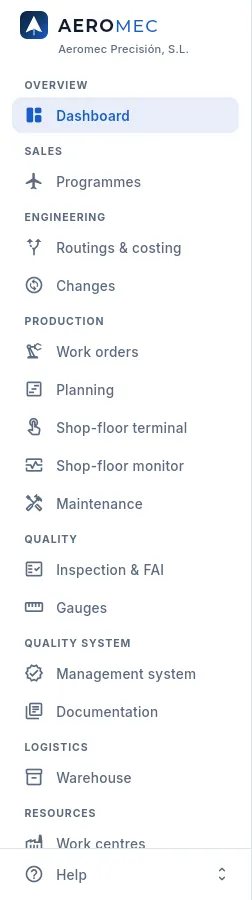 1
1
- 1Jefe de taller sees the shop sections: work orders, planning, terminal, monitor, maintenance, quality, gauges, warehouse, work centres, people and competences, plus programmes, changes, the management system and documentation; nothing from quotes, purchasing or finance.
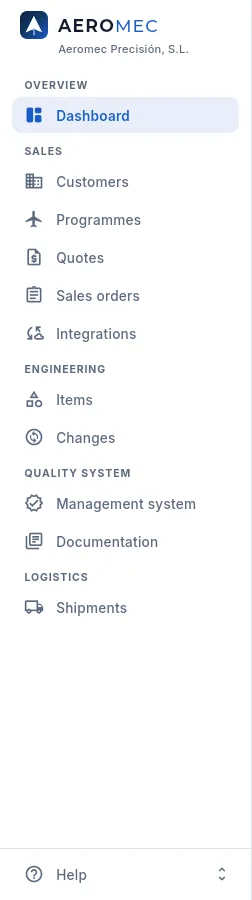 1
1
- 1Comercial sees customers, programmes, quotes, sales orders, integrations, items, changes and shipments, plus the management system and documentation; nothing from production or purchasing.
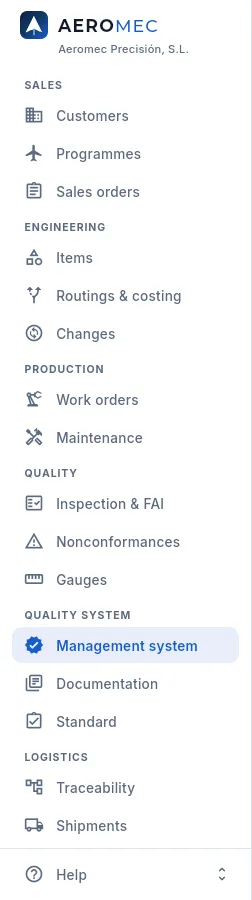 1
1
- 1Auditor externo sees, read-only, what gets audited, from customers to purchasing, with the Quality system group (management system, documentation and standard); no Dashboard, no finance and no terminal.
The external auditor goes straight into the first section of their menu (they have no Dashboard) and sees everything read-only: no button to create, edit, sign or export, not a single amount, nothing from defence. They also see the change Audit log, because it is the first thing an auditor asks for: who changed what and when.
Their access has an end date: the administrator sets it on their user and, after that day, Aeromec tells them on signing in that their access has ended. That way it does not stay open after the audit.
A quote seen by Dirección and by Comercial. Sales staff need the prices to negotiate with the customer, but they do not see what each part costs to make or the margin.
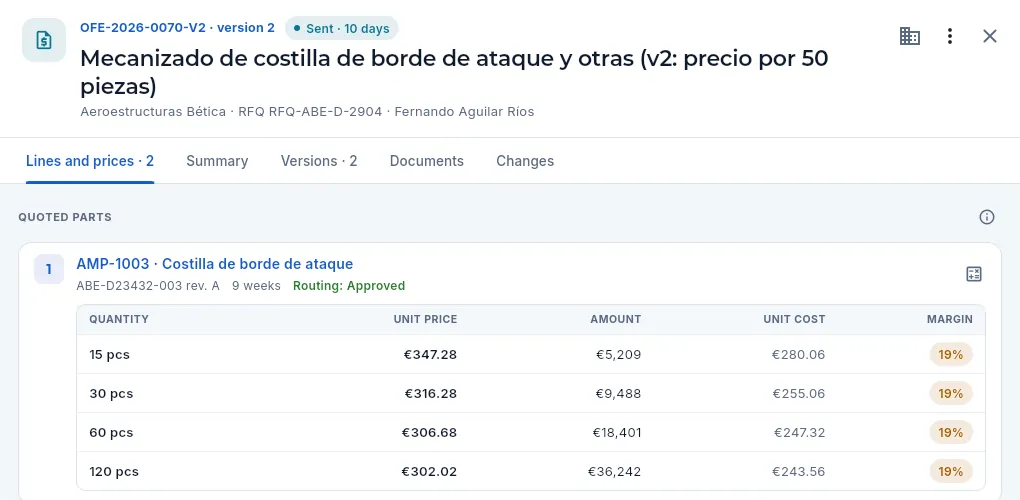 12
12
- 1The unit cost of each quantity break (from the cost breakdown) and the margin.
- 2And the Changes tab, because Dirección can see the audit log.
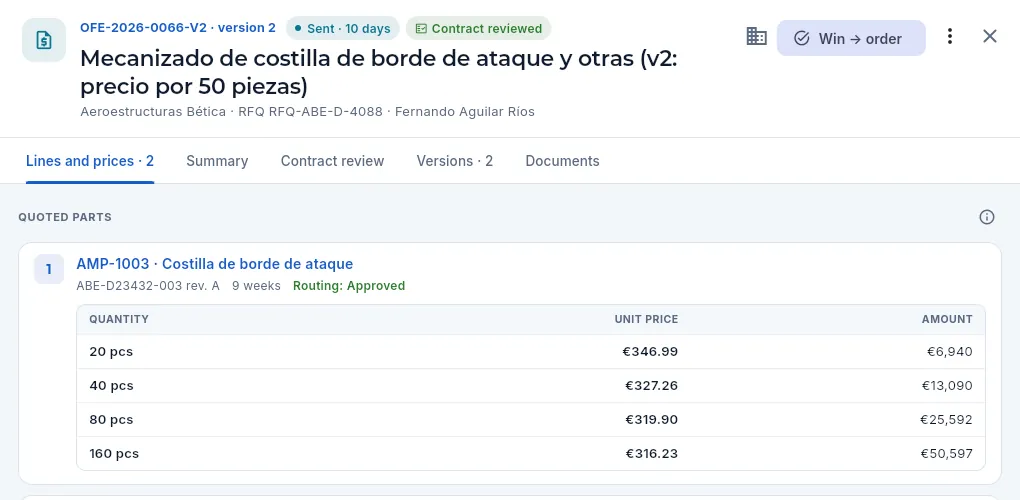 12
12
- 1Quantity, unit price and amount: what the customer sees, without cost or margin.
- 2No Changes tab: this profile cannot see the audit log.
And the customers list seen by Dirección and by Comercial. Comercial does not have "Defence data": the two defence-sector customers do not exist for her, in the list, the indicators or the search.
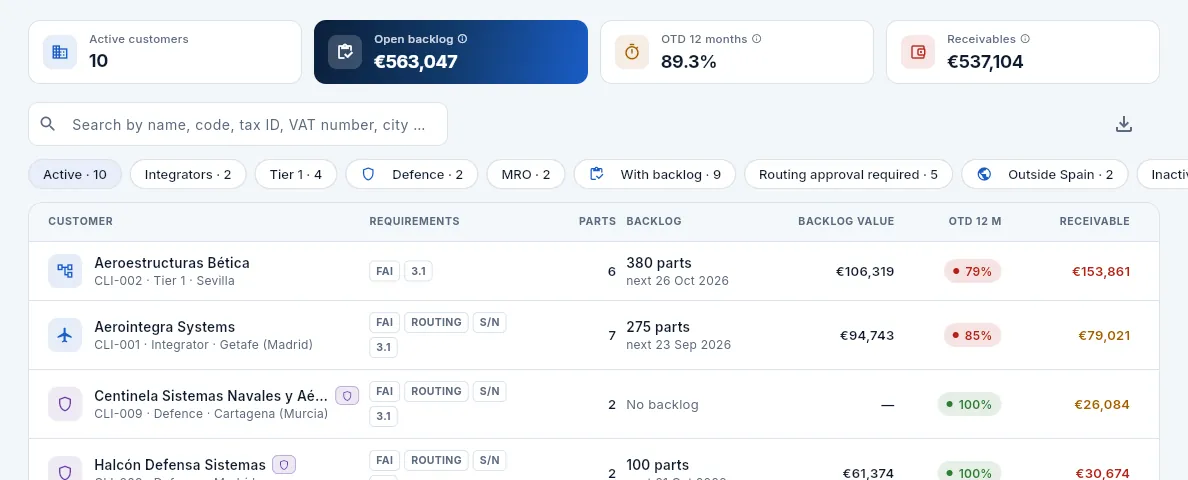 123
123
- 1All the active customers, defence ones included…
- 2…with their Defence filter…
- 3…and the shield next to the name: Centinela Sistemas Navales y Aéreos and Halcón Defensa Sistemas.
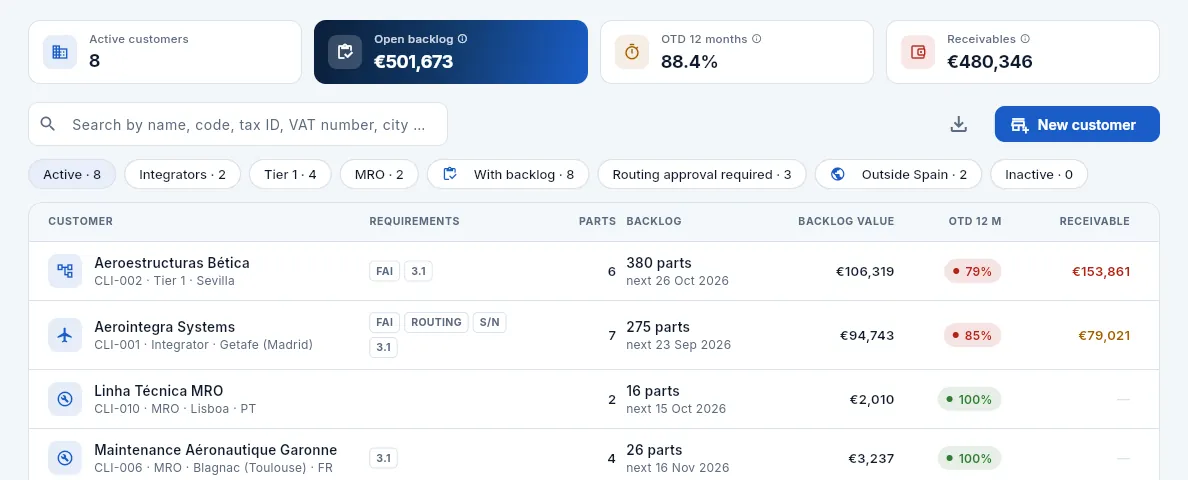 123
123
- 1Two fewer active customers, and the backlog to ship and the amount outstanding without the defence ones.
- 2No trace of the Defence filter or of those customers.
- 3On the other hand, Comercial can create customers ("Edit customers"); Dirección cannot.
#What changes when Aeromec is used from Claude
With the connector, Claude works as the person who connected it: it enters with their access key and the database applies exactly their profiles to every request, defence data and costs included. In addition:
- Without Use from Claude it sees nothing, even with a valid key; without Make changes from Claude, all actions are removed and it can only look things up.
- The shop-floor terminal is never used through Claude (shop-floor bookings are made on the tablet, with each person's PIN), and neither is administration: users, profiles, permissions, keys and Settings, not even with an administrator's key.
- The key is checked on every request: if it is revoked, expires or the user is disabled, access is cut off at that moment.
- Every call is recorded in the key's activity (denied ones too) and every change in the Audit log, flagged from Claude.
- Claude never signs: whatever inspects, releases, dispositions or approves (and shipping with its CoC, the contract review, a supplier evaluation…) is signed by the person in the app (see Connect to Claude).
For example, if Marta (Comercial) asks Claude for a part's cost breakdown, the request is denied: her profile cannot see costs, and neither can Claude.
Appendices
Glossary
The machining, maintenance, aerospace quality (EN 9100 and its associated standards), logistics, management, tax and accounting terms Aeromec uses, explained in one line and with the chapter where you will find them.
| Term | What it means in Aeromec | Where |
|---|---|---|
| 3.1 certificate | Material inspection certificate under EN 10204, type 3.1: issued by the mill or the distributor with the composition and properties of that heat. | Warehouse, Traceability |
| Access key | Personal code (starting with «aeromec_») with which Claude gets into Aeromec as you. Aeromec only stores its fingerprint, so it is shown only once; it expires, or is revoked with one click. | Connect to Claude |
| Access profile | Set of permissions (sections, data, actions, Dashboard blocks, use from Claude) that decides what each user sees and can do. | Profiles and permissions |
| AEAT | The Spanish Tax Agency (Agencia Estatal de Administración Tributaria). It receives the record of each invoice (through SII or VeriFactu) and the VAT and Intrastat returns. At this pre-implementation stage, sending from Aeromec is simulated. | Tax, Invoices |
| Alternative material | A material other than the primary one that the customer accepts for a part (another standard or another form). It can be used when releasing a WO, sometimes with a partial FAI. | Routings & costing |
| Approved scope | What a supplier is approved to do: special processes (with their Nadcap), materials, calibrations (with ENAC) or services, each with its expiry date. A purchase outside its current scope cannot be sent. | Suppliers, Purchasing |
| Approved sources | The suppliers a customer accepts for each special process. If the customer requires it, the outsourced operation can only be bought from one of them. | Customers, Suppliers |
| ASL | Approved Supplier List: the approved suppliers, with what each one may do and until when. | Suppliers |
| Availability | The time the machines were able to work over the total: running hours ÷ (running + breakdown downtime). | Maintenance |
| Bank reconciliation | Matching each transaction on the bank statement with the receipt, payment or journal entry it belongs to, so that the bank balance and the book balance agree. | Banking |
| Booking date | The day a supplier invoice is entered in the accounts. The SII deadline for received invoices runs from it, and it decides in which month its VAT is deducted. | Payables |
| Calibration | Periodic check of a measuring instrument against a reference standard, in an accredited laboratory (ENAC, ISO/IEC 17025). With an overdue calibration the gauge can be neither lent nor used to measure. | Gauges |
| CAPA / 8D | Corrective And Preventive Action: analyses the root cause of a problem (5 whys, Ishikawa and the rest of the EN 9136 analysis), sets actions and verifies that they have been effective; it is closed with a signature. | Nonconformances |
| Change request | The record of a change (drawing, process, material, supplier, CNC program, tooling…) with its impact, the customer's approval if it requires one, its signed approval and its implementation (CAM-…). | Changes |
| Claude | Anthropic's artificial intelligence assistant. With the Aeromec connector it works with your data from a chat (claude.ai, the desktop and mobile apps, Claude Code), with your own permissions. | Connect to Claude |
| CN code (Combined Nomenclature) | The 8-digit code that classifies goods in the EU (88073000, aircraft parts), the basis of the TARIC tariff. Intrastat requires it. | Items |
| CoC | Certificate of Conformity: the document that goes with each shipment, in which the company declares that the parts meet the order, the drawing and the specifications. It is signed on shipping by a person holding a CoC inspection stamp. | Shipments |
| Competence | What a person is accredited to do —a qualification, a training course, an awareness session— with its validity. An expired qualification prevents signing with its scope and working on the machine that requires it. | Competence & training, People |
| Compliance matrix | Each clause of ISO 9001 and EN 9100 with what it requires, how Aeromec covers it, where it is, its evidence and its tests, and what remains in the company's hands. | Standard |
| Concession | The customer's permission to deliver a part that does not meet the drawing as it stands («use as is»). It is one of the dispositions of an NCR and must be approved by the customer. | Nonconformances |
| Configuration | Knowing which drawing revision each part was made to (configuration management). Aeromec freezes the revision on the work order when it is released and carries it to its lots, to traceability and to the CoC. | Items, Changes |
| Connector (MCP) | The connection between Claude and Aeromec. MCP (Model Context Protocol) is the open standard that artificial intelligence assistants use to connect to other applications; the address of the Aeromec connector ends in /mcp. | Connect to Claude |
| Containment | What is done immediately when a problem appears so that it does not reach (or stops reaching) the customer: hold, segregate, check the stock and what has been shipped. A complaint has a deadline for it. | Nonconformances |
| Contract review | Checking, before committing, that all the requirements of a quote or an order can be met (EN 9100 8.2.3). It is signed; without it the quote cannot be sent and the order's work orders cannot be released. | Quotes, Sales orders |
| Control chart | The individuals and moving range (I-MR) chart of a characteristic, with its control limits: it warns (Western Electric rules) when the process drifts, before parts are made out of tolerance. | Inspection & FAI |
| Control plan | What is measured at each operation: every characteristic on the drawing (dimension, tolerance, roughness…), with which type of gauge and how often. | Routings & costing, Inspection & FAI |
| Controlled document | A quality-system document (manual, procedure, instruction, form) on the master list, with its current revision: each revision is approved with a signature, the previous one becomes obsolete and whoever must read it confirms it. | Documentation |
| Corrective action | What is done to correct something found wrong on a machine (in an inspection, a verification, a recurring breakdown or the operator's check), with an owner, a due date and a check of its effectiveness (MC-…). If it affects the product, it is escalated to a CAPA. | Maintenance |
| Corrective maintenance | Maintenance that repairs a breakdown. A machine stop reported on the terminal opens its urgent corrective work order; when it is closed, the cause is recorded. The opposite is preventive maintenance. | Maintenance |
| Cost breakdown (should-cost) | The theoretical cost of a part based on its routing: material, set-up and machine hours, outside processing, fixtures and overheads, for any quantity. The suggested prices in quotes come from it. | Routings & costing |
| Counterfeit | Material or a part that is not what its documentation says (untraceable origin, dubious certificate). A suspicion opens an NCR that cannot be accepted by concession, reworked or returned to the supplier. | Purchasing, Nonconformances |
| Cpk | Process capability index: compares the spread of the measurements of a dimension with its tolerance. Above 1.33 the process is capable with margin to spare. | Inspection & FAI |
| Critical part | A part whose failure affects safety. It gets reinforced release: it is only shipped from a work order with a conforming final inspection, and the CoC says so. | Items, Shipments |
| Criticality (A, B, C) | How much a piece of equipment matters to production: A, without it production or a customer comes to a stop; B, important; C, normal. | Maintenance |
| CSV (secure verification code) | The receipt the Tax Agency returns when it accepts a submission of invoices: it proves they are in its register. (Not to be confused with the CSV file that «Export CSV» downloads.) | Invoices, Tax |
| Customer approval | In aerospace, the customer approves the manufacturing routing of each part before it goes into series production. Only an approved routing revision can be released to the shop floor. | Routings & costing |
| Customer complaint | A customer's formal complaint (quality, delivery, documentation), with deadlines for containment and response, its NCR, its CAPA and a signed closure. | Nonconformances, Customers |
| Customer property | What the customer leaves at the shop (material, tooling, gauges, drawings): it is recorded with its condition and location, and the customer is told if it is damaged or lost. | Warehouse |
| cXML | The format of the electronic orders, advance ship notices and invoices of purchasing networks such as SAP Business Network (Ariba). | Integrations |
| Defence | Parts and customers from defence programmes: only those with permission can see them. The «Sin defensa» (no defence) add-on removes them from a profile. | Profiles and permissions |
| Depreciation | Spreading the cost of a machine or equipment (the fixed assets) over the years of its useful life. Aeromec posts it every month, in equal parts. | Accounting |
| Disposition | The MRB's decision on the parts of a nonconformance: rework, repair, concession («use as is»), scrap or return to supplier. It is signed; until the disposition is made, the WO may stay blocked. | Nonconformances |
| ECN | The customer's Engineering Change Notice: a part's drawing moves to a new revision. In Aeromec it comes in as a drawing change request. | Changes |
| Electronic signature | A person's signature on a quality record: they type their password again, state what it means (performed, released, approved…) and, if it releases product, it carries their inspection stamp. What is signed cannot be changed or deleted: it is corrected with a reason and another signature. | The screen |
| EN 9100 / AS9100 | The quality management system standard for the aerospace and defence sector: ISO 9001 plus the sector's own requirements (product safety, configuration, counterfeit parts, FAI, key characteristics…). Aeromec is designed to conform to it, helps you comply and keeps a record of every step; certification belongs to the company, after an audit by an accredited body. | Standard, Management system |
| EN 9102 | The first article inspection (FAI) standard, which replaces AS9102: three forms (the part; its materials, special processes and tests; every drawing characteristic measured) and the reasons why it must be repeated. | Inspection & FAI |
| EN 9103 | The standard for managing the variation of key characteristics: identifying them, measuring them and keeping their process under control. | Inspection & FAI |
| EN 9131 | The standard for nonconformance data: which characteristic, what was required, what was found, where it was detected, to which drawing revision and what was decided. | Nonconformances |
| EN 9136 | The root cause analysis standard: 5W2H, Ishikawa, 5 whys, why it was not detected, systemic cause, human factors, extent to other products and lessons learnt. | Nonconformances |
| Equipment | A machine or a piece of auxiliary equipment (compressor, overhead crane, air conditioning, coolant system, fire protection, electrical switchboard) seen from the maintenance side: its record, its plans, its history and its KPIs. | Maintenance |
| Escape | Nonconforming product that has already left for the customer. Aeromec lists the affected shipped parts and prepares the notification to each customer, with its acknowledgement. | Nonconformances |
| Export control | Parts subject to export licences (dual-use, for example). Like defence parts, only authorised profiles can see them. | Items, Profiles and permissions |
| External auditor | Read-only profile for whoever audits the company (the certification body or a customer): they see the records without amounts or defence data, and their access ends on a set date. | Profiles and permissions, Users and profiles |
| FAI | First Article Inspection, per EN 9102 / AS9102: done on the first piece of a new part or after a change of drawing, process, location, tooling, CNC program or supplier, after a corrective action or after two years without making it. A full FAI cannot be approved without all its characteristics measured. | Inspection & FAI |
| Finding | What an audit finds: major or minor nonconformity, observation, opportunity for improvement or strength. | Management system |
| Fingerprint (SHA-256) | A mathematical digest of a record's content: change a single comma and the fingerprint changes. Aeromec stores it when signing, chained to the previous one, and uses it to check that the record is still intact. | The screen |
| Finite capacity | Planning that takes into account the real hours of each machine (shifts, holidays, maintenance) and what it already has in its queue, instead of assuming that everything fits. | Planning |
| Fixtures | The part-specific workholding and tools (UT-…). Their cost is spread over the parts in the cost breakdown; they are validated before use and verified periodically, with a signature, and one not validated or with an expired verification prevents the WO from being released. | Items, Routings & costing |
| FOD | Foreign Object Debris/Damage: screws, swarf or forgotten tools that can end up damaging a part or an aircraft. It is prevented with controlled areas, checks and periodic inspections. | Inspection & FAI |
| Form 303 | The VAT return for each period: the VAT charged on sales minus the VAT paid on purchases. Aeromec prepares a draft to review with your tax adviser. | Tax |
| Form 349 | The return of transactions with customers and suppliers in other EU countries, by EU VAT number. Aeromec prepares a draft. | Tax |
| Gauge | Each measuring instrument (caliper, micrometer, plug gauge, CMM…), with its code (INS-003…), its calibration and who it is on loan to. | Gauges |
| Gauge loan | When an operator takes a gauge from the metrology lab using the terminal; it stays in their name until they return it. | Gauges, Shop-floor terminal |
| Geometric verification | Measuring the accuracy of a machine tool according to ISO 230 (positioning, straightness, squareness, circularity with a ballbar). If it fails, whatever was machined since the last passed verification must be reviewed. | Maintenance |
| Heat | Each melt of a material at the mill, identified by a number (A26M3807…). All the material from a heat shares the same 3.1 certificate; if it causes problems, Aeromec tells you which WOs, parts and customers carry it. | Traceability |
| Incoterm | The delivery terms agreed with the customer (ICC Incoterms 2020): who pays for transport and insurance and where the risk passes. EXW, FCA, DAP, DDP… | Shipments, Tax |
| Inspection stamp | The personal number (AM-Q05…) with which a person signs what they release, with its scope (receiving, in-process, final, FAI, MRB, CoC, calibration). A number is never reused. | Inspection & FAI |
| Internal audit | An audit the company carries out on its own processes under its audit programme; its findings are closed with actions or CAPA and the closure is signed. Not to be confused with Aeromec's change audit log (who changed what). | Management system, Audit log |
| Intrastat | The monthly statistics on trade in goods with other EU countries: dispatches (sales) and arrivals (purchases). It is filed when a flow exceeds €400,000 a year. | Tax, Items |
| Inventory adjustment | The month-end entry that takes the change in stock value (raw material, work in progress and finished goods) to the income statement. | Accounting |
| ISO 9001 | The international standard for quality management systems. EN 9100 includes all of it and adds the aerospace requirements. | Standard |
| Journal entry | The accounting record of a transaction: accounts on the debit and credit side for the same amount. Aeromec posts by itself those of invoices, receipts, payments, payroll, depreciation, inventory and VAT. | Accounting |
| Key characteristic (KC) | A drawing characteristic whose variation affects the fit, function or safety of the part. It is monitored with the control chart and Cpk (EN 9103). | Inspection & FAI, Items |
| Ledger | The book with all the postings of an account and its running balance: for example, everything debited and credited to a customer's account. | Accounting |
| Long-term agreement (LTA) | A long-term contract with the customer: the agreed price and the committed quantity of each part per year. Aeromec tracks what has been used and warns when a quote or an order carries a different price. | Programmes |
| Lot | Each receipt of a material into the warehouse, with its heat, its certificate, its location and how much is left. | Warehouse |
| Machine queue | The WO operations waiting at a work centre, in the order in which they will be done. The planner reorders it and the operator sees it on the terminal. | Planning, Shop-floor terminal |
| Maintenance work order (OT) | A maintenance job on a piece of equipment (preventive, corrective, statutory, verification or improvement), with its tasks, its spare parts, its hours and its cost (OT-…). Not to be confused with the WO, the production work order. | Maintenance |
| Management review | Top management's periodic review of the quality system, with its inputs (objectives, audits, customers, suppliers, risks…) and its decisions. The minutes are approved with a signature. | Management system |
| MRB | Material Review Board: the people authorised to decide what is done with nonconforming product. Its disposition is signed with the MRB stamp. | Nonconformances |
| MRP | Material Requirements Planning: works out what has to be bought or made, how much and when, from orders, forecasts and stock. | MRP |
| MTBF | Mean Time Between Failures: machine running hours ÷ number of breakdowns. The higher, the better. | Maintenance |
| MTTR | Mean Time To Repair: breakdown downtime hours ÷ number of breakdowns. The lower, the better. | Maintenance |
| Mutilation | Making a scrapped part unusable (cutting it, marking it) so that it cannot get back into the supply chain by mistake. It is signed, and without it the scrap NCR cannot be closed. | Nonconformances |
| Nadcap | The accreditation programme for aerospace special processes (heat and surface treatments, non-destructive testing, shot peening…). Many customers require the subcontractor to hold it current. | Suppliers, Purchasing |
| NCR | Non-Conformance Report: the record of something that does not conform (a dimension out of tolerance, defective material, a complaint), with its cause, its disposition and its closure. | Nonconformances |
| Norma 43 | The Spanish banking standard (AEB) format for account statements: the file downloaded from online banking that Aeromec imports to reconcile. | Banking |
| Operation | Each step of a routing (cutting, milling, bench work, treatment, inspection…), with its work centre, its times, its CNC program and what is measured at it. | Routings & costing, Work orders |
| OTD | On-Time Delivery: percentage of customer deliveries shipped complete on their date. | Dashboard, Reports |
| Outside processing | An operation done by a supplier (heat treatment, anodising, non-destructive testing…): the material is sent out and comes back with its certificate. | Purchasing, Routings & costing |
| Pegging | The «thread» that links each MRP requirement to what covers it: which sales order calls for which WO and which purchase. | MRP |
| PGC | The Spanish chart of accounts (Plan General de Contabilidad): the account structure and accounting rules. Aeromec uses its accounts, with 8-digit sub-accounts (43000001 a customer, 57200001 a bank…). | Accounting |
| PIN | Four-digit code with which each person identifies themselves on the shop-floor terminal, without closing the tablet's session. | Shop-floor terminal |
| Pp / Ppk | Capability indices calculated with the full spread of the measurements over time (Cp and Cpk use the short-term spread). If Ppk is well below Cpk, the process is drifting. | Inspection & FAI |
| Preventive maintenance | Maintenance planned so that the machine does not fail: every so many days or every so many machine hours (whichever comes first), with its tasks and its spare parts. | Maintenance |
| Programme | The aircraft, engine or system the parts are made for (AR-90, TF-38…), with its rate, its parts, its milestones and its long-term agreement. | Programmes |
| Quantity price breaks | The breaks of a quote: a price per part for each quantity (10, 25, 50…), because the set-up is spread over more parts. | Quotes |
| Rate | The aircraft (or engines) per month a programme builds. Multiplied by the shipset, it gives the parts it calls for each month. | Programmes |
| Record retention | How many years each type of quality record is kept (or what each customer requires, if longer), counted from its date or from the part's last delivery. | Settings |
| Releasing a WO | Sending it to the shop floor: Aeromec freezes the routing revision, chooses the material (primary or approved alternative), reserves the heat and decides whether an FAI is needed. | Work orders |
| Reorder point | The stock level below which you must order so that it arrives in time: daily usage × supplier lead time + safety stock. | Maintenance, MRP |
| Repair | A disposition that makes the part usable with an approved procedure, even though it does not end up as the drawing says. Like a concession, it awaits the customer's approval. | Nonconformances |
| Requirement | A demand from the company, a customer (its quality clauses), a programme or a part, with its reference and whether it must be flowed down to suppliers in purchase orders. | Customers, Management system |
| Reversing entry | An entry that cancels another one with the same amounts on the opposite side. Aeromec uses it to correct what is already in a closed or exported month, instead of changing it. | Accounting |
| Revision | The version of a drawing or of a routing (A, B, C…). Changing revision requires a new approval and, often, an FAI; the drawing revision changes through a change request and is frozen on each WO when it is released. | Routings & costing, Changes |
| Rework | Putting parts through an operation again to correct them. It is an NCR disposition and generates its own time records. | Nonconformances |
| RFQ | The customer's Request For Quotation: the starting point of a quote. | Quotes |
| Risk and opportunity | What may go wrong (or better) in the system or in a programme, rated by probability × impact, with its treatment, its residual risk and its actions. | Management system |
| Routing | A part's process sheet: the sequence of operations it is made with, its material and its control plan. | Routings & costing |
| SCAR | Supplier Corrective Action Request: raised from a supplier NCR; the supplier replies with its cause and actions, and it is closed with a signature once they are verified as effective. | Suppliers |
| Scrap | Discarded parts that cannot be recovered. Aeromec measures their percentage and their cost. | Nonconformances, Dashboard |
| Self-assessed VAT | On a purchase from a supplier in another EU country the invoice arrives without VAT and the company declares it both as output and as deductible VAT (reverse charge): it costs nothing, but it is declared. | Payables |
| Serial number | Unique identifier of each part made. From it, Aeromec rebuilds its complete history: heat, operations, machines, operators, gauges, delivery note and CoC. | Traceability |
| Shelf life | How long a material (sealants, adhesives, paints…) can be used from its manufacture. An expired lot can be neither consumed nor shipped. | Warehouse, Items |
| Shipment | Parts leaving for a customer: delivery note, serial numbers, CoC and material certificates. It deducts the stock and leaves the invoice ready. | Shipments |
| Shipset | How many units of a part each aircraft (or engine) of a programme carries. | Programmes |
| Shop-floor terminal | The screen on the shop's tablets: each machine's queue, drawing, CNC program, control plan, time records, incidents and gauges. | Shop-floor terminal |
| SII | Immediate Supply of Information (Suministro Inmediato de Información): the VAT books kept on the Tax Agency's website. Each issued or received invoice is sent within 4 working days. | Invoices, Payables, Tax |
| Spare part | A replacement part for a machine or piece of equipment (filters, bearings, guideways, seals…), with its stock in the tool store. | Maintenance, Items |
| Start-of-shift check | Autonomous maintenance: at the start of the shift, the operator checks their machine on the terminal (levels, pressure, alarms, guards, emergency stop button). If anything is wrong, a notice to maintenance is opened. | Shop-floor terminal, Maintenance |
| Supplier approval | Authorising a supplier to work for the company: approved until a date, conditional or suspended. Without a current approval no purchases are sent to it. | Suppliers |
| Supplier evaluation | A supplier's periodic score (OTD, PPM, NCRs and SCARs over the period) with its A, B or C rating. It is signed, and it is the only thing that changes the supplier's approval. | Suppliers |
| Time allocation | How the hours of a person working on several machines at once are split: proportional (each time record gets its share of the time) or full (each time record counts the whole time). | Shop-floor terminal, Settings |
| Time record | What the operator books on the terminal: which operation, on which machine, since when, how many good and rejected parts. It gives the machine hours and the person's hours. | Shop-floor terminal |
| Tool life | The machine minutes a cutting tool lasts until it is changed. The reference life is set by maintenance; the actual life comes from the changes recorded on the terminal. | Maintenance, Shop-floor terminal |
| TPM | Total productive maintenance: the operator looks after their machine (shift check), maintenance is planned so as not to stop production, and it is measured (availability, MTBF, MTTR). | Maintenance |
| Traceability | Knowing where each part comes from and where it has gone: backwards (part → heat, machines, people, gauges) and forwards (heat → WOs, parts and customers). | Traceability |
| Trial balance | The report with what has been debited, credited and the balance of each account in a period. If the accounts add up, total debits equal total credits. | Accounting |
| Validated CNC program | A new or changed CNC program is on trial until someone validates it with their signature after a conforming first part; meanwhile the terminal warns, and once validated it no longer changes. | Documentation, Shop-floor terminal |
| VAT number (NIF-IVA) | The intra-EU VAT identification number, with its country prefix (FR38823456781, PT509876543). Without it, an EU customer cannot be invoiced without VAT. | Customers, Suppliers |
| VeriFactu | The verifiable invoicing system of Royal Decree 1007/2023: each invoice generates an unalterable record, chained to the previous one with a hash, and carries a QR code to check it with the Tax Agency. Companies in SII do not use it. | Invoices, Tax |
| VIES | The EU register of VAT numbers (VAT Information Exchange System): where you check that an EU customer's or supplier's VAT number is valid. | Customers |
| WO | Work order: how many pieces of which item are made, with which routing revision and for which order or delivery. | Work orders |
| Work centre | A machine or workstation in the shop (F5-01, T-01, AJ-01…), with its capacity, its schedule, its hourly rate and the qualified people. | Work centres |
Appendices
Frequently asked questions
Quick answers to the most common questions, with a link to the chapter where each thing is explained in detail.
#Access and permissions
I cannot see a section, a button or a figure that a colleague can see
It is decided by your access profile: each profile turns on certain sections, data (prices, costs, defence…), actions (releasing WOs, approving routings, deciding NCR dispositions…) and Dashboard blocks. If you need something more, ask an administrator. See Profiles and permissions.
I see a padlock instead of an amount
It is data your profile is not allowed to see (for example, costs and margins for sales staff, or selling prices for the shop floor). If you hover over it, it tells you so. It is not an error: the database itself does not send it to you.
Some parts or customers do not appear in any list
They are probably defence items or subject to export control: only authorised profiles can see them, and for everyone else they do not appear in any list, search or report. See Profiles and permissions.
An administrator has given me a new permission and I cannot see it
Permissions are reloaded when you change section: click any section in the sidebar (or sign in again) and the sidebar, the buttons and the figures adjust.
I have forgotten my password
Ask an administrator to set a new one for you from Users; then you can sign in with it. The shop-floor terminal does not need a password: each person uses their PIN.
When I sign in it says I have no access profile
Your user exists but has no profile assigned yet, so it cannot see anything. An administrator has to assign you one in Users.
When I sign in it says my access has ended
Your user has an access end date (it is set for external auditors and temporary collaborators) and it has passed: you can neither see nor do anything, even though you keep your profiles. If you need to carry on, ask an administrator to extend or remove it in Users.
An auditor is coming: how do I give them access?
Create their user in Users with the Auditor externo (external auditor) profile and give it an access end date (the last day of the audit, or a few days later). They will see, read-only, what gets audited —parts, routings, work orders, inspections, FAIs, NCRs, suppliers, purchasing, people and competences, the management system, documentation, the standard and the change audit log—, with no amounts, no contact or defence data, and without being able to change, sign or export anything. See Profiles and permissions.
#Engineering and quotes
Where do the suggested prices of a quote come from?
From the cost breakdown of the part's routing: the total cost per part for that quantity (material, machine, labour, outside processing, fixtures, expected scrap and overheads) divided by (1 − target margin). That is why it goes down with the quantity: the set-up is spread over more parts. Suggest prices puts them in each break and you can then adjust them. See Routings & costing and Quotes.
Why has the cost breakdown changed if I have not touched the routing?
Because it is calculated live with the latest price of each material and the current rate of each work centre. If you want to keep a snapshot of the cost, save a version of the cost breakdown.
Can sales staff quote without seeing the costs?
Yes: they see the suggested price and the quantity price breaks, which come from the cost breakdown, but not the costs or the margins behind them. That way they quote with sound judgement without revealing the cost structure.
Why can I not release a WO?
The most common reason: the current revision of the routing is not approved and the customer requires approval («Request approval in Routings»), or the part has no routing. Nor can the WO of a sales order be released without its contract review signed (the order's or its quote's), or one that uses a fixture not validated or with an expired verification: the warning says which and what to do. You also need the «Release work orders» permission. See Work orders.
It will not let me send a quote to the customer
It is missing its contract review: before committing, someone with the «Review contracts» permission checks, on the quote's Contract review tab, the requirements that apply (the customer's, the programme's, the part's and the company's) and the checklist (drawing, key characteristics, special processes, capacity and lead time, material, documentation, export, risks), decides the outcome and signs it. Once it is signed and accepted, the quote can be sent and accepted. See Quotes.
#Production and shop floor
A WO shows as «Blocked (NCR)»
It has an open nonconformance without a disposition. Once Quality decides what to do with the parts (rework, concession, scrap or return), the WO carries on. See Nonconformances.
Why does planning say a WO is going to be late?
Because it calculates at real capacity: each machine's schedule and holidays, its maintenance and everything ahead of it in its queue. If the forecast for the last operation goes past the delivery date, it warns you. You can reorder the queue, move the WO to another machine or talk to the customer. See Planning.
How are hours counted if I work on two machines at once?
Machine hours are always the duration of each time record. The person's hours are split according to the company's rule: proportional (each time record gets its share of the time, so nothing is counted twice) or full. An administrator chooses it in Settings. See Shop-floor terminal.
The operator cannot measure with a gauge
The gauge's calibration is overdue, it is out of service or it is not on loan to them. Aeromec does not accept a measurement taken with a gauge that is out of calibration: they should take another one from the terminal, or Quality should send it for calibration. See Gauges.
Can a person have several tasks open at once?
Yes, one per machine and up to the maximum the company sets in Settings. The terminal shows all their machines at the top, in Your machines.
An operator cannot start work on a machine
If the machine requires a qualification (the 5-axis one, for example) and that person's has expired or is missing, Aeromec does not let them start on it: the terminal warns them as soon as they enter with their PIN. It has to be renewed —a training course closed as passed— in Competence & training, or another qualified person does the work. It also warns beforehand, when it is about to expire.
A CNC program does not show at the terminal, or it shows «on trial»
The terminal only shows current drawings and programs: one marked obsolete no longer reaches it. A new or changed program shows on trial until someone with the qualification validates it with their signature after a conforming first part; meanwhile the operator sees it with the warning. See Documentation.
#Maintenance
A machine has broken down: what do I do?
The operator reports it from the terminal (Incident → Machine down): Aeromec automatically opens an urgent work order for that machine and shows the machine as down on the monitor and in the queues. Maintenance sees it at the top of its list, starts it and, when it is closed with the solution and the cause, the machine goes back to producing. See Maintenance.
How do I stop a machine for its preventive maintenance without delaying orders?
With Schedule on its work order: for each day of the next three weeks it tells you how much work would be pushed out and suggests the day with the least. When you accept it, the stop goes into the machine's calendar and the queues are recalculated. See Maintenance.
How do I know if I am going to run out of cutters?
In Maintenance → Tools & spares: each tool with its actual usage, the forecast from the load in its machines' queues and how many days' stock is left. Order what is missing creates draft purchase orders. For this to work, the operator records every tool change on the terminal. See Maintenance.
A machine verification has «failed»: which parts should I check?
The ones machined on it since the last passed verification: the impact lists them (WOs, operations, parts and serials already shipped) and from there, together with Quality, you open whatever NCRs are needed. See Maintenance.
#Quality and traceability
When is an FAI needed?
If the customer requires it: with a new part, with a change of drawing or process revision, of location, of fixture, of CNC program or of supplier, after a corrective action, after more than two years without making it and, as a partial FAI, the first time an alternative material flagged that way is used (the EN 9102 reasons). Aeromec opens it when the WO is released and does not let the parts be shipped until Quality releases it with their signature; a full FAI cannot be approved with characteristics left unmeasured. See Inspection & FAI.
A mill warns us of a problem with a heat: what do we do?
In Traceability, search for the heat: Aeromec tells you at once which lots, WOs, serial numbers and customers carry it, and what is still in the warehouse. From there you put the open WOs on hold and block the remaining material; if appropriate, open the nonconformance in Nonconformances.
I cannot ship a part
Read the warning: the FAI of its WO not yet released, a critical part whose WO does not have a conforming final inspection, an expired lot or not enough stock. And shipping is signed: a current inspection stamp with CoC scope is needed. See Shipments.
I cannot close a scrap NCR
First the parts have to be mutilated (cut or marked so that they cannot get back into the supply chain) and that has to be recorded, with a signature, on the NCR itself. See Nonconformances.
Who changed this data?
Every record has its history, and whoever has the permission sees the full Audit log: who, when, which field and what value it had before, including what Claude has done.
#Electronic signature and records
Why does it ask for my password again?
Because what you are about to do is signed: inspecting, releasing, dispositioning, approving or shipping. Typing your password again shows that you are the one signing (not someone using your open session), and the signature stays bound to the record with its meaning, the date and time and, if you release product, your inspection stamp. See The electronic signature.
It says I have no inspection stamp
To release product (a final inspection, an FAI, an MRB disposition, a shipment's CoC…) you need a current inspection stamp with that scope, on top of the permission. Quality issues them in Inspection & FAI → Stamps & signatures. And if the scope requires a qualification, it has to be current. See Inspection & FAI.
I got my password wrong several times and it will not let me sign
After 5 failed attempts signing is locked for 15 minutes: wait and try again with the password you use to sign in to Aeromec. If you have forgotten it, an administrator can set a new one for you in Users.
I made a mistake in an inspection that is already signed: do I delete it?
You cannot: what is signed cannot be changed or deleted. Open its Signatures tab and press Correct: you change the value, give the reason and sign the correction. The previous value stays on the Changes tab and the correction among the signatures. See The Signatures tab.
What does «Altered» mean on the Signatures tab?
That the record's content is no longer what was signed: something changed it without going through Correct, which is only possible by editing the database by hand, bypassing its rules. Tell Quality: this is exactly what the integrity check is there to catch. «Intact» is normal; «Being edited» is a record that has gone back to draft (a rejected routing, for example).
Can Claude sign for me?
No. A signature belongs to a person and states what it means; Claude can prepare the work and explain what is missing, but whatever is signed, you sign it in the app. See Connect to Claude.
#The quality system and the standard
Does Aeromec certify us to EN 9100?
No: certification belongs to the company, and it is granted by an accredited body after auditing it. Aeromec is designed to conform to ISO 9001 and EN 9100: it helps you comply (approved routings, contract review, approved suppliers, FAI per EN 9102, gauges in calibration, competences, traceability, configuration, NCR and CAPA, electronic signatures…) and keeps a record of every step, which is what the auditor asks for. What it cannot do for you —the policy, leadership, things being done the way they are recorded— remains the organisation's responsibility.
How do we know which clauses of the standard Aeromec covers?
In Standard, the compliance matrix: each clause of ISO 9001 and EN 9100 with what it requires, how Aeromec covers it («covered by Aeromec», «shared» or «the organisation's»), where it is —one click takes you to the section—, the evidence counted in your data and the tests that check it.
What do I show the auditor?
Give them a user with the Auditor externo profile and an access end date: they will see for themselves, read-only, the records they ask for. To start with, the Standard (compliance matrix and validation), the Management system (objectives, risks, audits, management review), Documentation and, from there, any record with its Signatures tab.
How do we know the backups work?
In Standard → Validation, each daily backup carries its fingerprint and its verified restore: it is restored into a separate database and checked to have the same rows in every table and all signatures still intact. You also see the version in service with the tests it passed when deployed (and, in your menu, About Aeromec).
#Purchasing, warehouse and invoicing
MRP proposes buying something we already have in stock
It only counts available stock: what is in quarantine comes in as an expected receipt and blocked stock does not count. Besides, it proposes when the balance drops below the safety stock, adding up the demand for the following three weeks and rounding up to the supplier's minimum lot. Open the line to see its detail (pegging). See MRP.
Material has arrived but cannot be used
It goes into quarantine until the receiving inspection is done (with its 3.1 certificate). Meanwhile it can be neither reserved nor consumed. See Warehouse.
It will not let me send a purchase order to a supplier
Before sending it, Aeromec checks that the supplier is approved (or conditional) and not expired, that each outsourced operation is within its current approved scope (its Nadcap for the process, for example) and, if the WO's customer requires it, that the supplier is among its approved sources. The warning says what fails: renewing the scope or evaluating the supplier is up to Quality. See Suppliers and Purchasing.
I cannot release the material at receiving
To release raw material, the 3.1 certificate must be validated point by point and none of them can be «no». If the material's origin cannot be traced, it is rejected and the NCR is opened as suspected counterfeit: it is not accepted by concession, reworked or returned to the supplier. See Purchasing.
Can I invoice parts that have not been shipped yet?
A normal invoice comes from the shipped delivery note. If the customer pays part in advance, an advance invoice is issued against the order, and the final invoice deducts it. See Invoices.
#Tax, accounting and banking
Does Aeromec really send invoices to the Tax Agency?
Not yet. Every invoice is recorded for the Spanish Tax Agency (AEAT) in the real SII format (or VeriFactu) and you can see its status, its deadline and its response, but at this pre-implementation stage sending is simulated: nothing goes out to the Tax Agency. To send for real, the company's electronic certificate has to be installed and the test environment switched to production, something done during roll-out. See Tax.
What happens if the Tax Agency rejects an invoice or accepts it with errors?
The invoice appears under the AEAT to handle filter in Invoices (or in Payables), and its Tax & AEAT card states the error and what to correct; it is nearly always the customer's or supplier's tax ID or EU VAT number, fixed in their record. The submission is then retried from Tax. With errors counts as filed and is corrected with an amendment; rejected does not count, so it must be resent before the deadline.
Why does an invoice to a French or Portuguese customer carry no VAT?
Because it is an intra-Community supply: if the customer has a valid VAT number from another EU country, the sale is exempt from Spanish VAT (art. 25 of the VAT Act) and the customer declares it in their own country. The invoice says so explicitly, and the transaction also goes on form 349 and in Intrastat. A customer outside the EU is invoiced as an export, also exempt. The country in the customer's record decides it. See Customers.
Does Aeromec replace my accounting software or my accountants?
No. Aeromec's accounting is integrated: it posts by itself the entries for what happens in the shop (invoices, receipts, payments, payroll, depreciation, inventory and VAT) so you have an up-to-date balance sheet, income statement and cost analysis by customer or part. But it does not replace the official accounts: the books that are filed and the annual accounts are still kept by your accounting software or your accountants, from what you export from Aeromec. Forms 303 and 349 are drafts to review with your tax adviser. See Accounting.
How do I pass the accounts to my accountants?
In Accounting, Export view: choose the period and download the file (CSV with the journal or with the cost analysis), which opens in a spreadsheet or can be imported into their software. Exported entries are marked: if something has to be corrected later, Aeromec does not touch them but posts a reversing entry. The exact format of your accountants' software (A3, Sage, SAP…) is set up during roll-out.
How do I reconcile the bank?
In Banking, import the statement you download from your online banking (Norma 43 or CSV). For each transaction Aeromec suggests the receipt, payment or invoice it belongs to, with a score; Auto-reconciliation matches everything unambiguous in one go and you confirm the rest one by one. Matching an incoming payment with an outstanding invoice records its receipt (or its payment, if it is a supplier's), so you do not need to enter it by hand first.
#Claude
Is it safe to connect Claude to Aeromec?
Yes. Claude gets in as you, with a personal key: Aeromec applies your access profiles to every request, just as in the app, so it can never see or do more than you (the defence data, costs or prices your profile cannot see, Claude cannot see either). Aeromec does not store the key, only a fingerprint of it; you can revoke it whenever you like, and every call from Claude is recorded in the activity log and in the audit log. From a chat you cannot manage users, profiles or keys, nor use the shop-floor terminal. See Connect to Claude.
What does Claude see of my data?
The same as you see in the app, no more and no less, and only what it looks up to answer you. What it looks up goes into your conversation, which stays in your Claude account. Without the «Export CSV» permission, it receives at most 50 rows per query.
I have lost a key or I think someone has seen it
Revoke it in your user menu → Connect to Claude → My access keys: Claude can no longer get in with it from its next request. Aeromec cannot show it to you again (it only stores its fingerprint), so create another one or connect Claude to your user again. If you cannot sign in to Aeromec, ask an administrator to revoke it from Users → Claude.
Can Claude change or delete things?
Only if your profile has «Make changes from Claude» and you can do that same thing in the app; Claude follows the same rules as the app (it does not release a WO with an unapproved routing, it does not adjust stock by hand). Even so, it asks you to confirm before deleting something or taking an important step, and everything is recorded. If you want a profile to only look things up, remove «Make changes from Claude» from it.
Do I need a paid Claude account?
No. Custom connectors are available on every Claude plan: Free (with a single custom connector), Pro, Max, Team and Enterprise. On Team and Enterprise, an owner of the organisation adds the connector once and then each person connects it with their Aeromec user.
Claude says it can no longer get into Aeromec
The key has been revoked or has expired, or your profile no longer has «Use from Claude». Check the status of your keys in Connect to Claude and connect Claude again with your user or with a new key. In the public demo the data goes back to its initial state every day at 8:00, but the keys are kept.
#General use
Can I get the data into Excel?
Yes: lists have the Export CSV button, which downloads what you see (with the filters applied) as a file that Excel opens. It appears if your profile has the export permission.
Does it work on a phone or a tablet?
Yes. The shop-floor terminal is designed for tablets. On small screens the sidebar becomes a drop-down menu (☰ button), lists turn into cards and records take up the whole screen. See The screen and common features.
How do I change the language or switch to dark mode?
With the globe and the moon in the top bar, or in «My profile» from your user menu. Aeromec is available in Spanish and English, and it remembers your choice in each browser.
I am lost on a screen: is there help inside the application?
Yes: the Help menu at the foot of the sidebar opens this manual at the chapter for the screen you are on, and the F1 key opens the interactive guides for that screen. The ⓘ icons next to each indicator explain what it shows and how it is calculated.